
What You’ll Learn
- Setting up the Pro Reports Extension and Child Reports plugin
- Creating recurring and one-time reports
- Customizing report templates with tokens
- Managing client information and branding
Extension Add-on - This add-on provides standalone functionality within MainWP Dashboard. No third-party plugins required.
The MainWP Pro Reports Extension combines the free MainWP Child Reports plugin with a customizable reporting engine. The Child Reports plugin tracks changes on your child sites, while the Pro Reports Extension on your Dashboard gathers that information and converts it to PDF reports.
Key features:
- Generate professional reports in seconds
- Pre-made templates to get you started
- Automatic PDF attachment to emails
- Include or exclude specific content
- Customizable template system
- Custom branding options
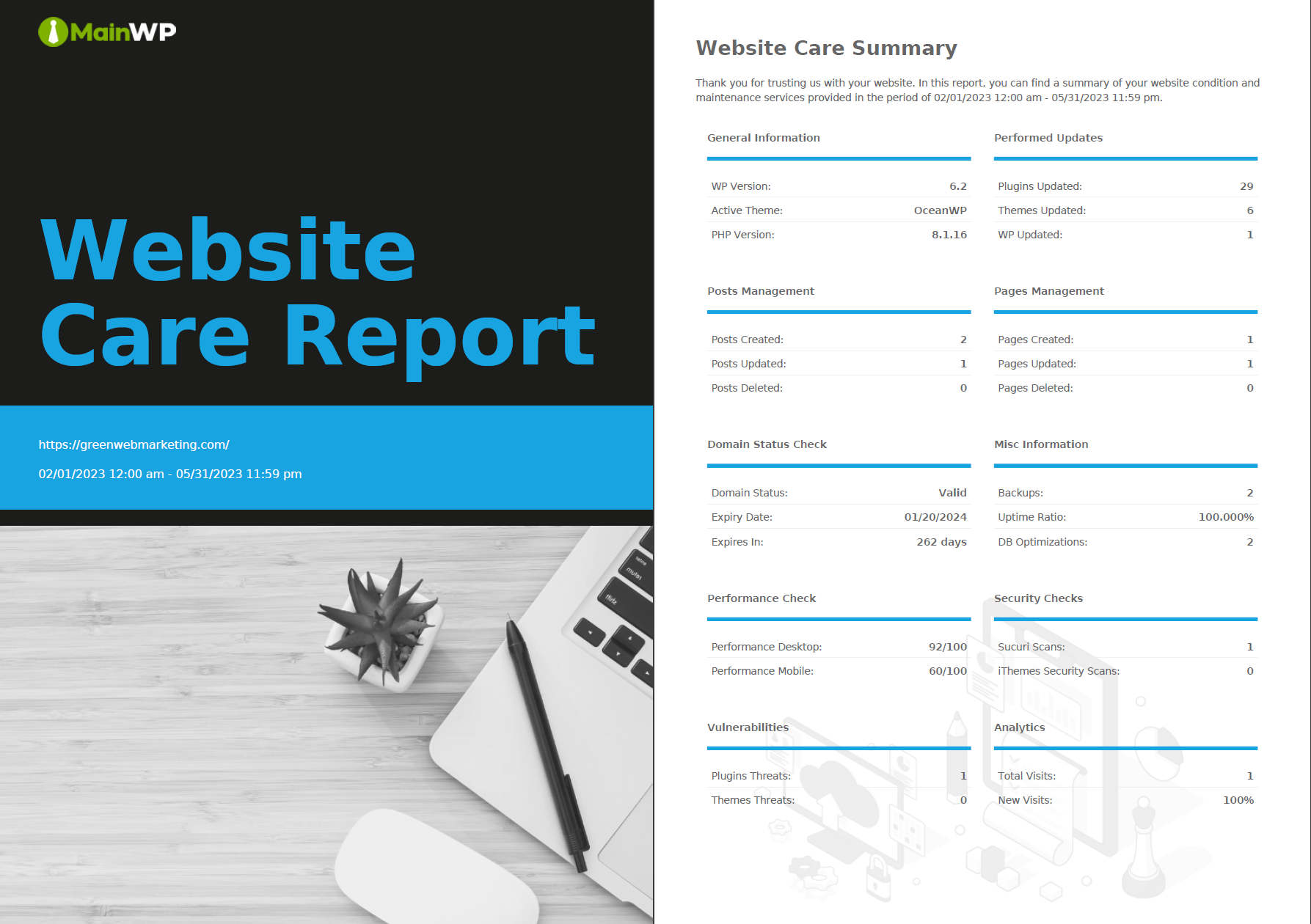
Setting up the Pro Reports Extension
Installation
1
Install MainWP Child Reports
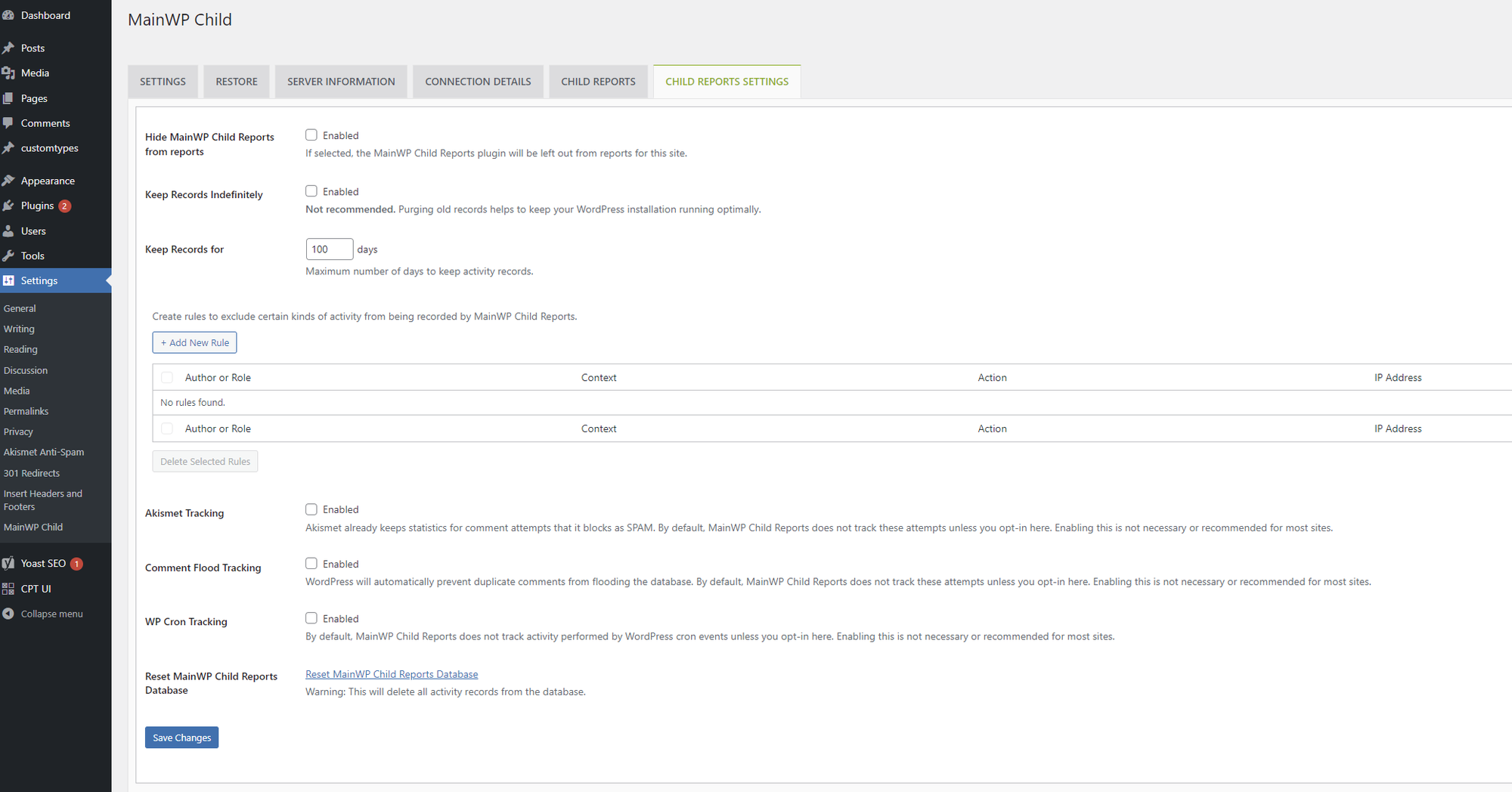
Install the MainWP Child Reports plugin on all child sites. This free plugin records logging events that appear in your reports. Records are kept for 100 days.
2
Install Pro Reports Extension
Install the MainWP Pro Reports Extension on your Dashboard.
3
Sync your sites
Sync your sites so the Dashboard can detect which sites have the Child Reports plugin installed.
MainWP Child Reports Plugin
The MainWP Child Reports plugin records changes on your child sites and communicates them to the Pro Reports Extension. Built on the Stream Plugin, it currently requires PHP 7.4 or higher.Viewing Recorded Data
By default, go to WP Admin > Settings > MainWP Child > Child Reports on your child site to see recorded activity. If you have customized MainWP Child branding, these labels can differ.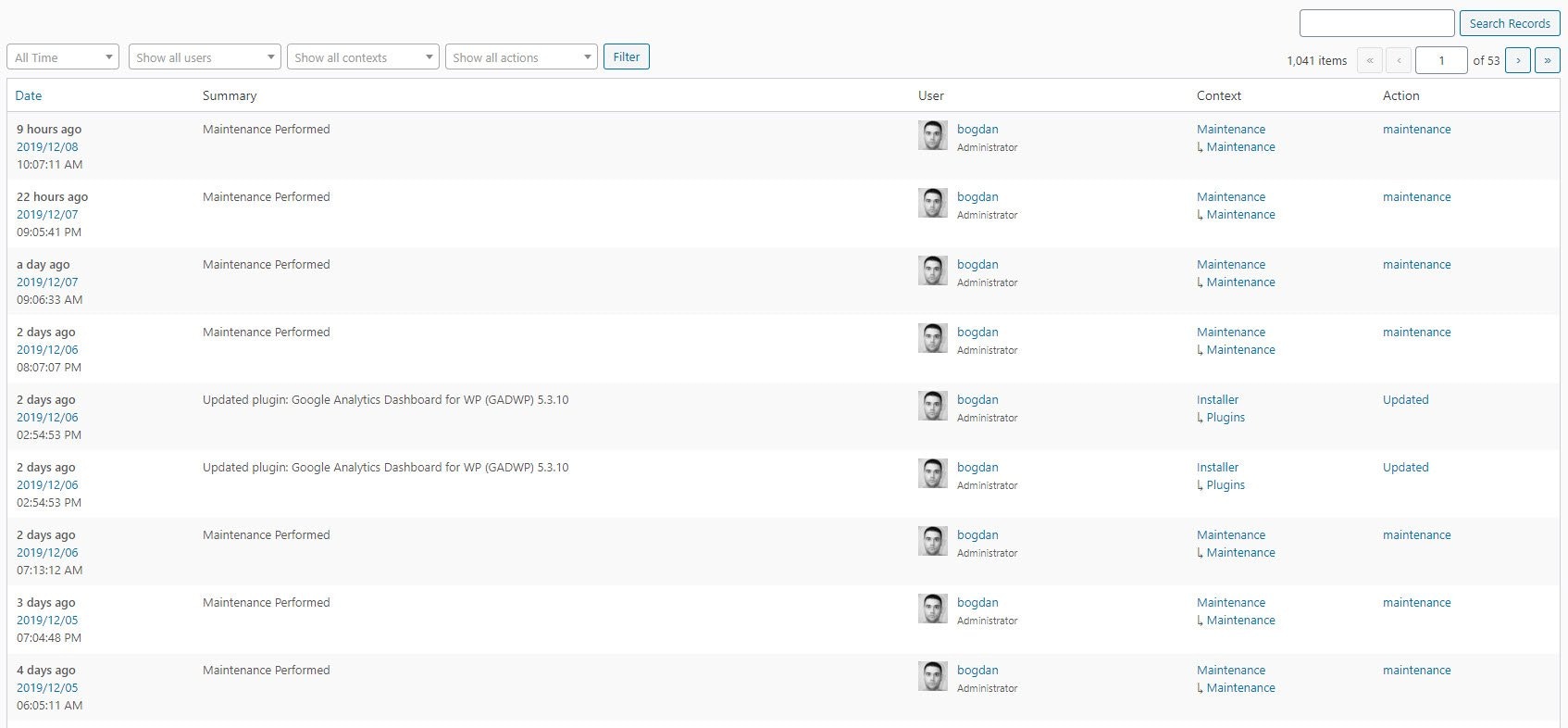
Child Reports Settings
Client Information
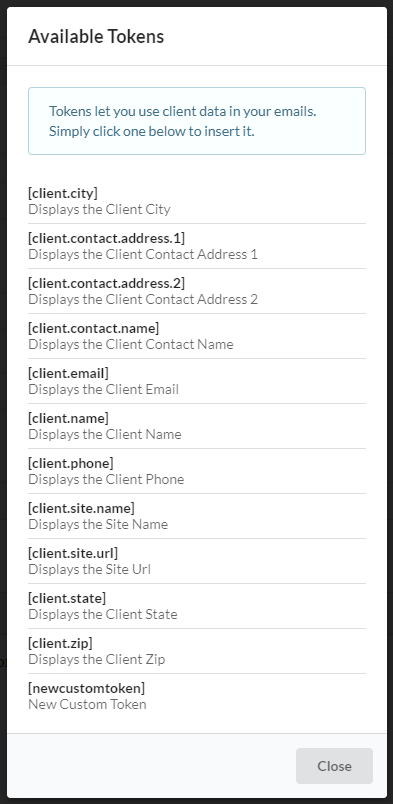
Pro Reports uses tokens to personalize reports without creating separate versions for each client. Tokens are placeholders like[client.email] and [client.name] that get replaced with actual values when reports generate. You can define client information in two ways:
When the same token is defined in both locations, the per-site value takes priority.
Setting Per-Site Client Information
1
Navigate to site settings
Go to MainWP Dashboard > Sites > Manage Sites and click Edit on the desired site.
2
Configure tokens
Locate the Pro Reports Tokens section and enter values for tokens you plan to use.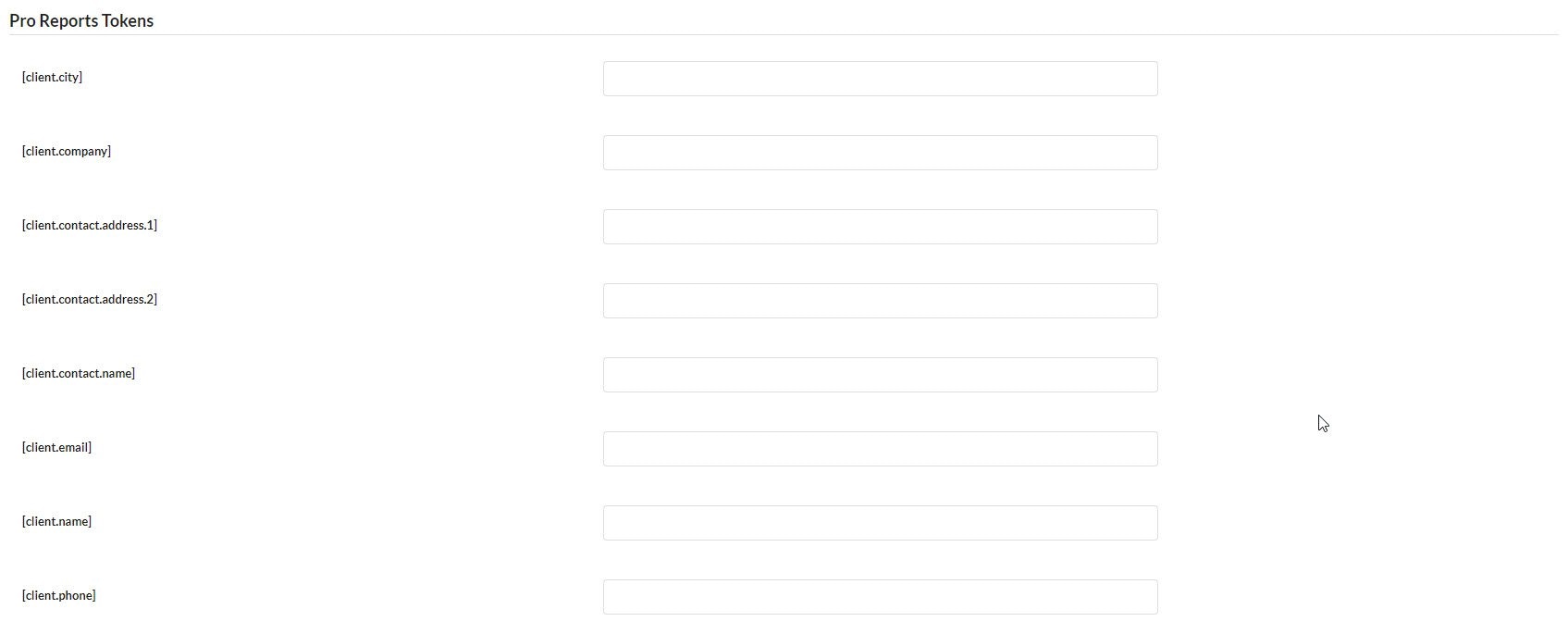
3
Save settings
Click Save Settings.
Token Configuration
Token Configuration
Client vs Site Tokens
Understand token priority and when to use each level.
Report Types
Pro Reports offers two report formats. Recurring reports run on a schedule you define. One-time reports cover a specific date range you select manually.Create a Recurring Report
1
Open Create Report
Go to MainWP Dashboard > Add-ons > Pro Reports > Create Report.
2
Configure report settings
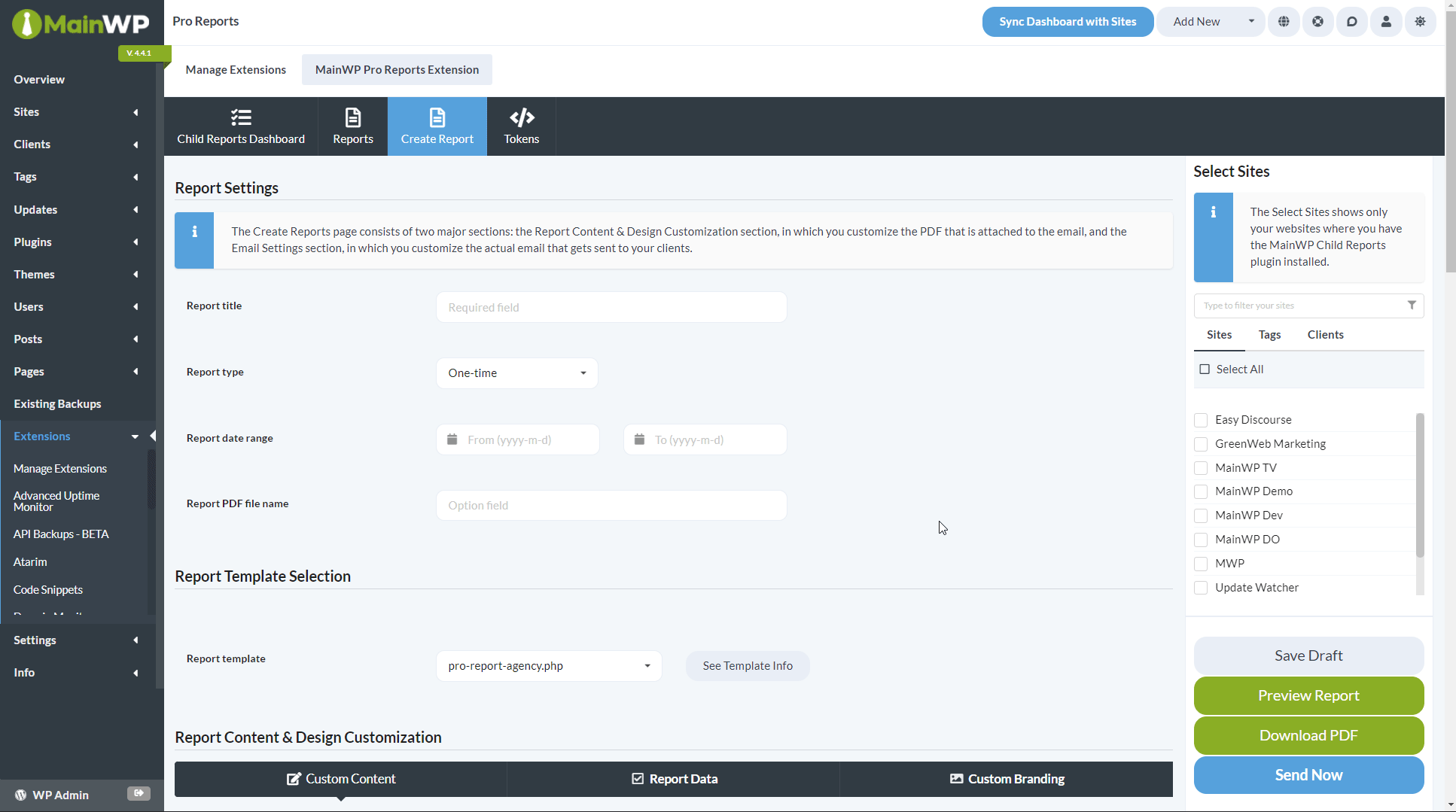
3
Customize content and design
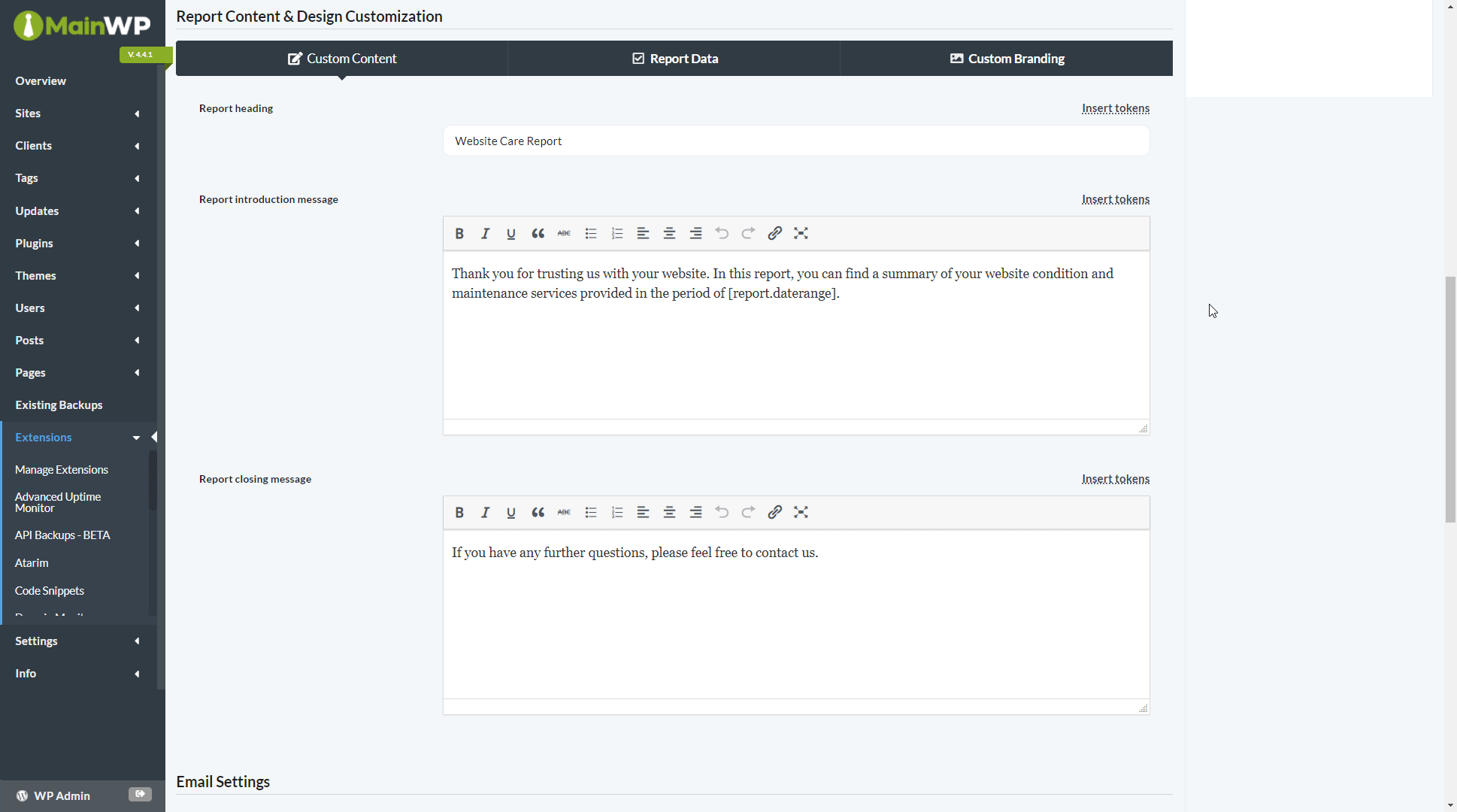
4
Configure email settings
5
Select sites and schedule
Select sites in the right-hand metabox. Preview as HTML or download the PDF for review. Click Save Draft to save without scheduling, or Schedule Report when ready.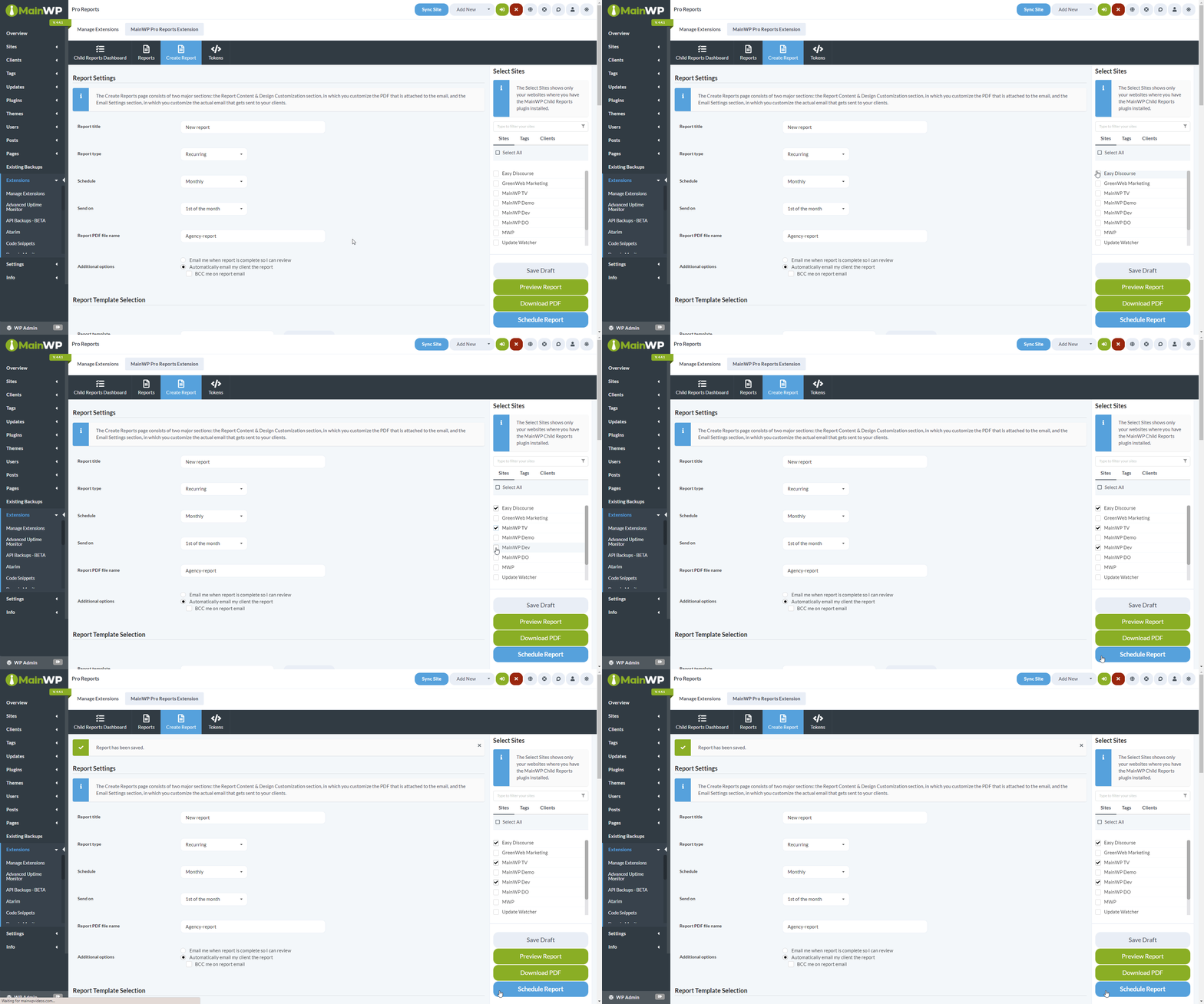
Create a One-Time Report
1
Open Create Report
Go to MainWP Dashboard > Add-ons > Pro Reports > Create Report.
2
Configure report settings
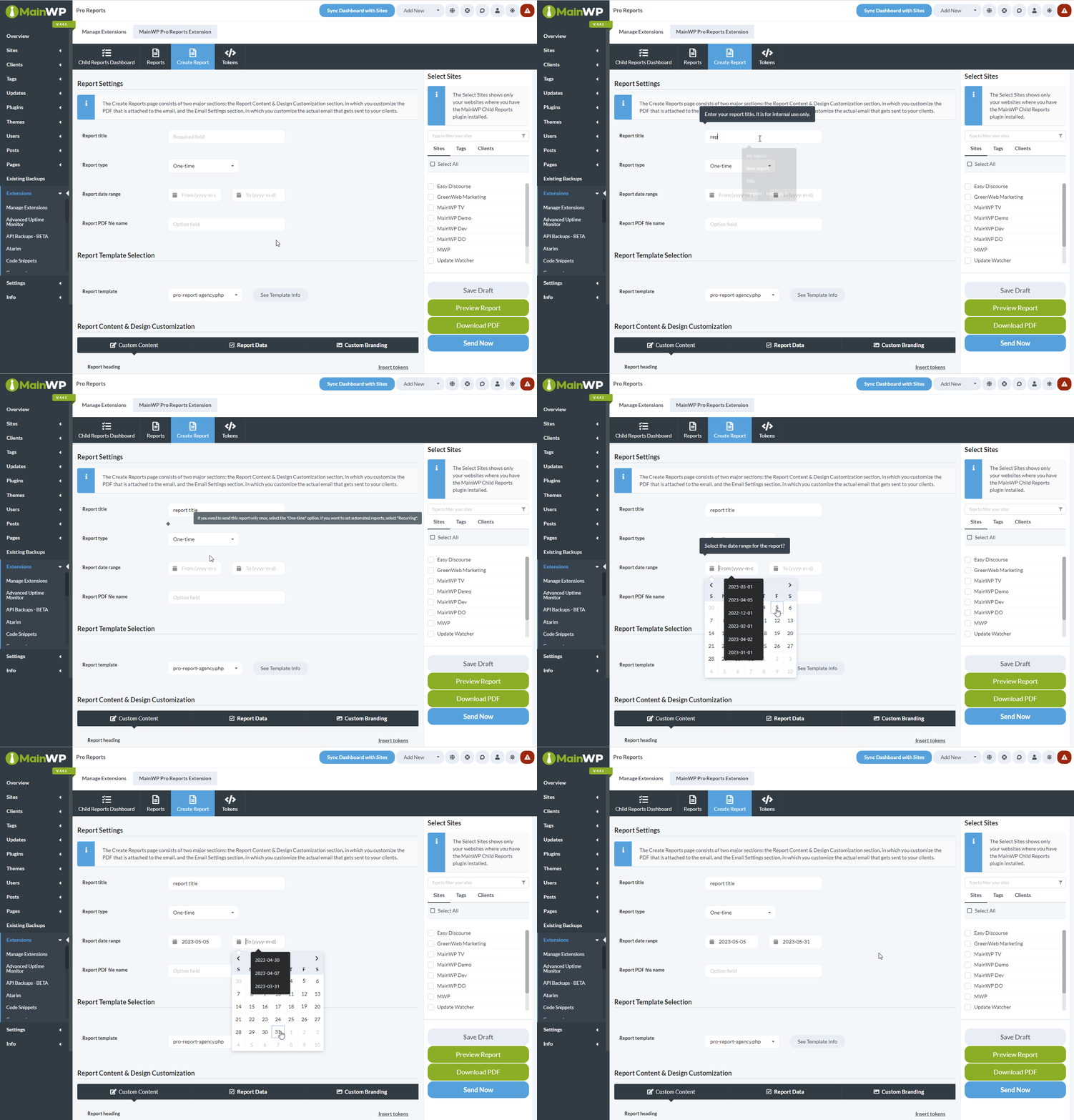
3
Customize content and design
4
Configure email settings
5
Select sites and send
Select sites in the right-hand metabox. Preview as HTML or download the PDF for review. Click Save Draft to save without sending, or Send Now when ready.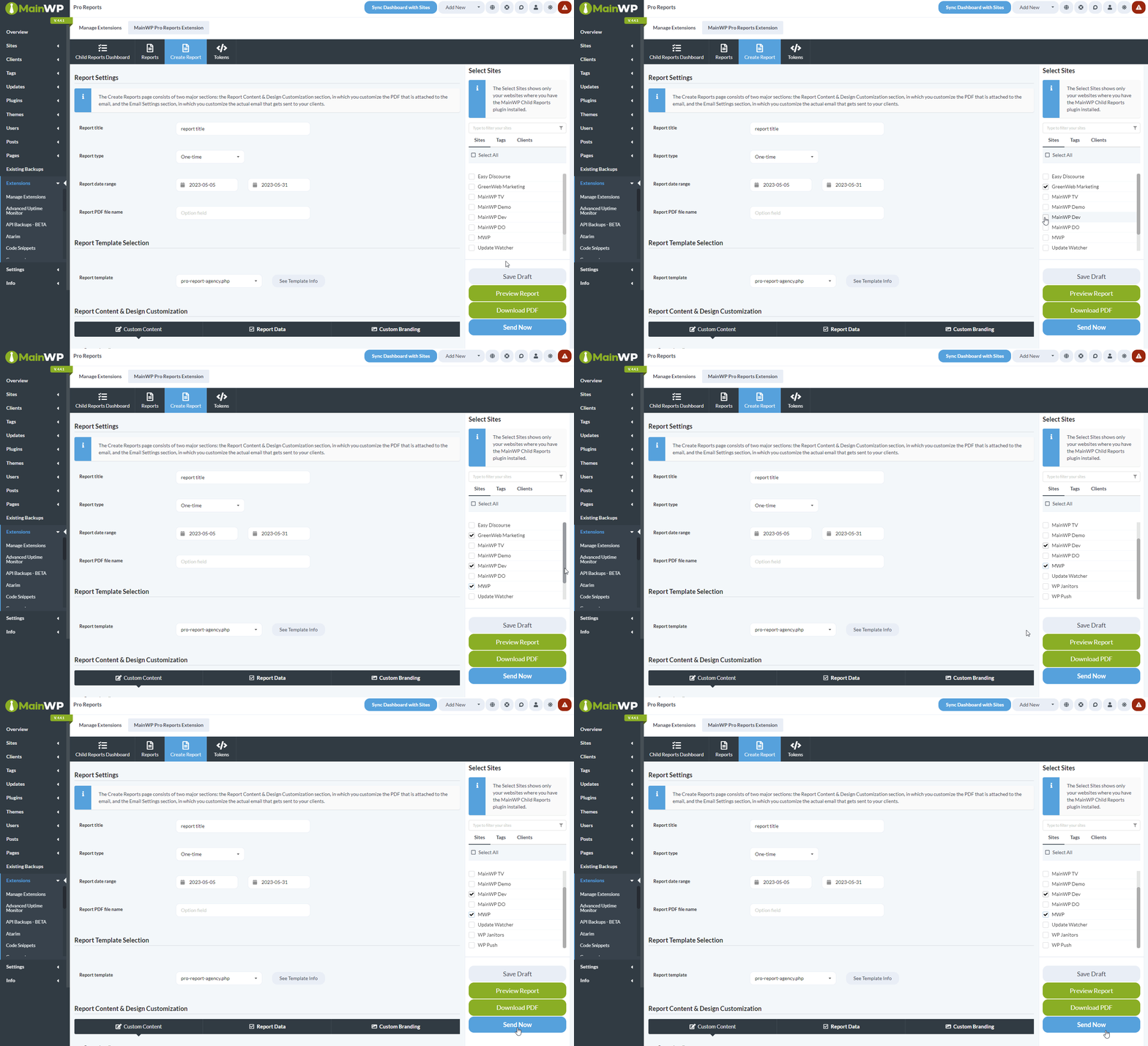
Email Customization
Email Customization
Custom Email Logo
Use a different logo in email body versus PDF attachment.
Custom Email Template
Copy a built-in email template, edit it, upload it, and use it in your report.
HTML-Only Reports
Send reports as HTML email without PDF attachments.
Pro Reports Dashboard
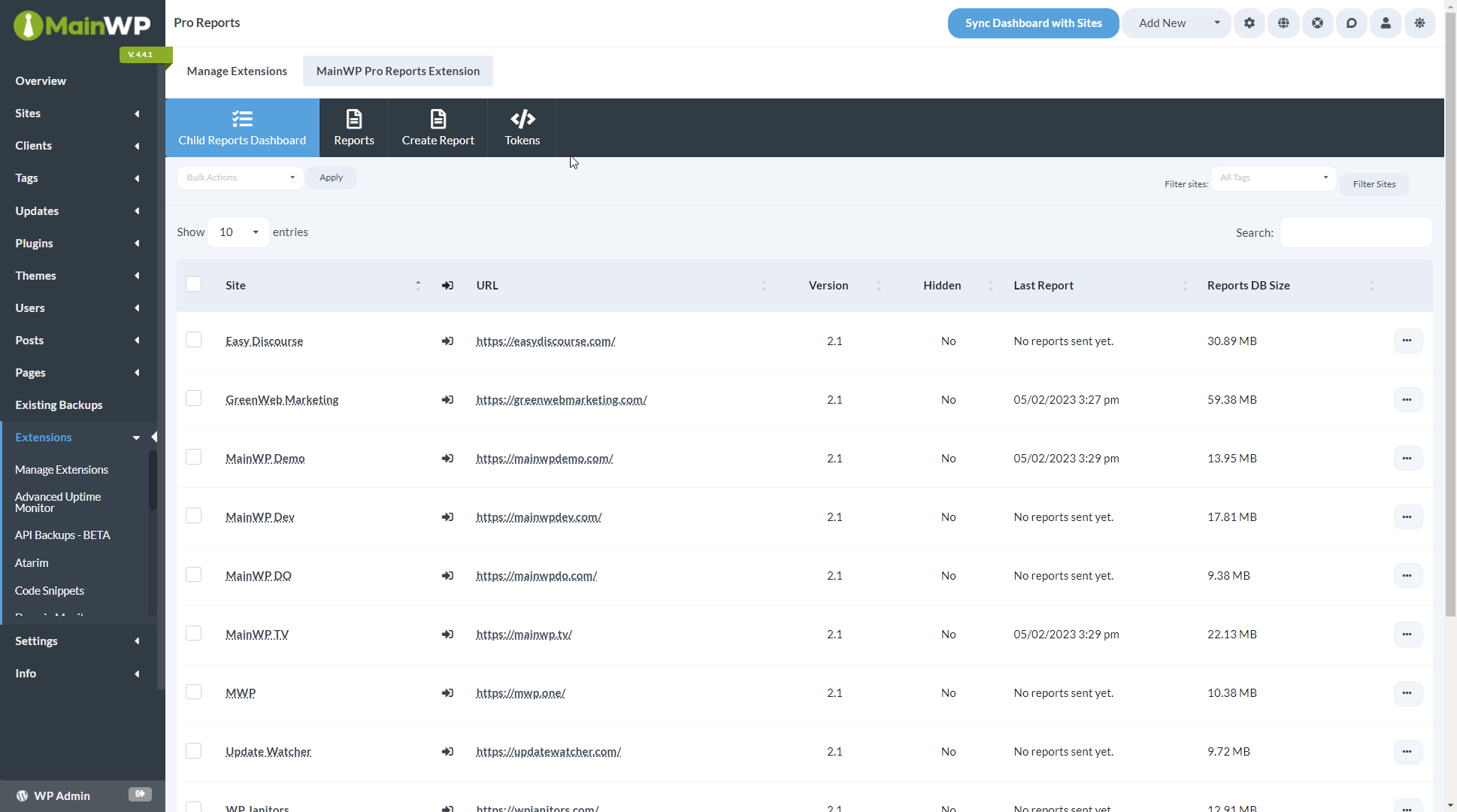
Status Indicators
Dashboard Columns
Bulk actions for Activate, Update, Hide, and Unhide are available at the top of the page. If a site with the plugin installed does not appear, re-sync your sites.
Create Custom Report Templates
Pro Reports uses PHP templates that you can customize with HTML. The process involves copying a built-in template and modifying it to suit your needs.
Creating a Custom Template
1
Download the add-on
Download the MainWP Pro Reports Extension from your MainWP Account.
2
Extract and locate templates
Extract the plugin files and find the default templates in
/mainwp-pro-reports-extension/templates/reports/.3
Copy and customize
Copy a PHP file, rename it, and edit with your preferred code editor.
4
Upload the template
Upload your customized PHP file to
/wp-content/uploads/mainwp/report-templates/ on your Dashboard site.5
Select the template
Your template appears in the Report template dropdown.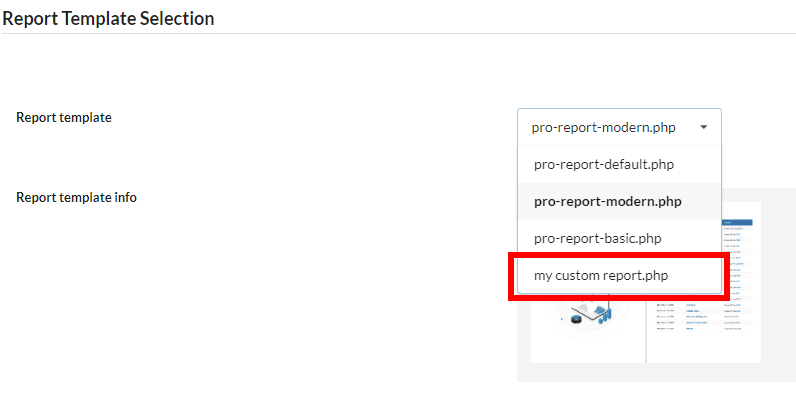
Template Resources
Template Resources
Custom Templates Guide
Build custom PHP templates from scratch with detailed token placement.
Add Images to Templates
Insert custom images and graphics into your report templates.
Limit Table Entries
Control how many rows appear in report sections using CSS.
Token Types
Pro Reports uses four token types that you can add directly to PHP templates or through the visual editor.
See all available tokens: Available Pro Reports Tokens
Client Tokens
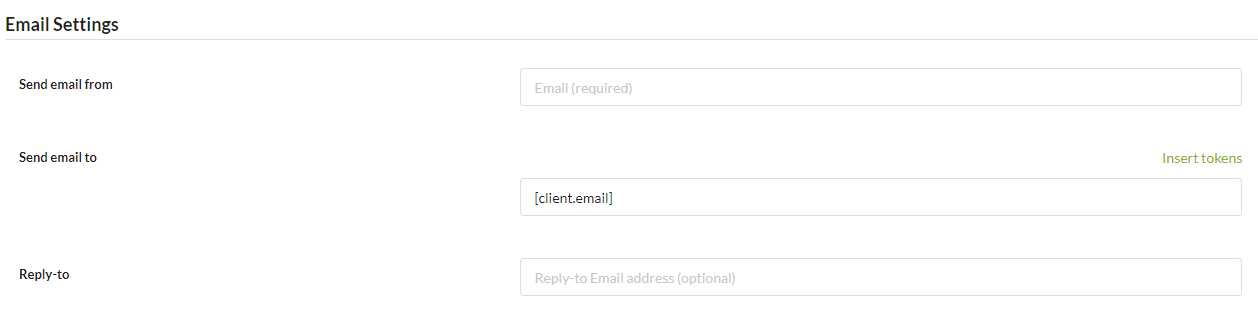
Client tokens display data set in the Individual Child site Edit tab. Set values for tokens you plan to use in reports.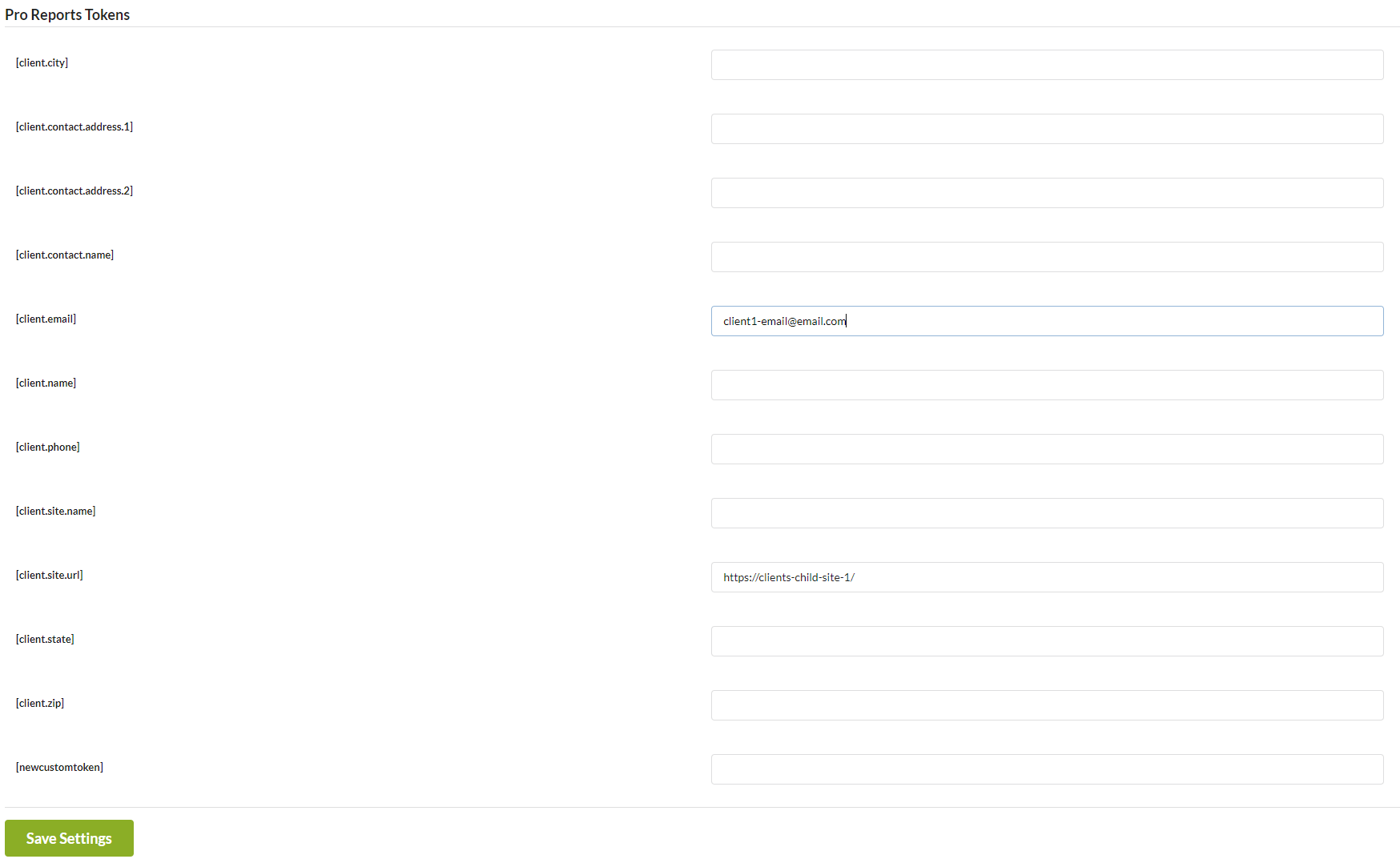
[client.email] in the Send email to field to send reports to multiple clients automatically.
How Tokens Work Together
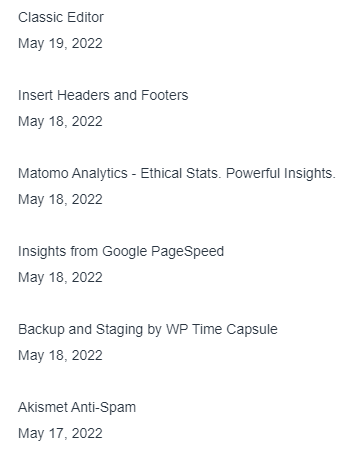
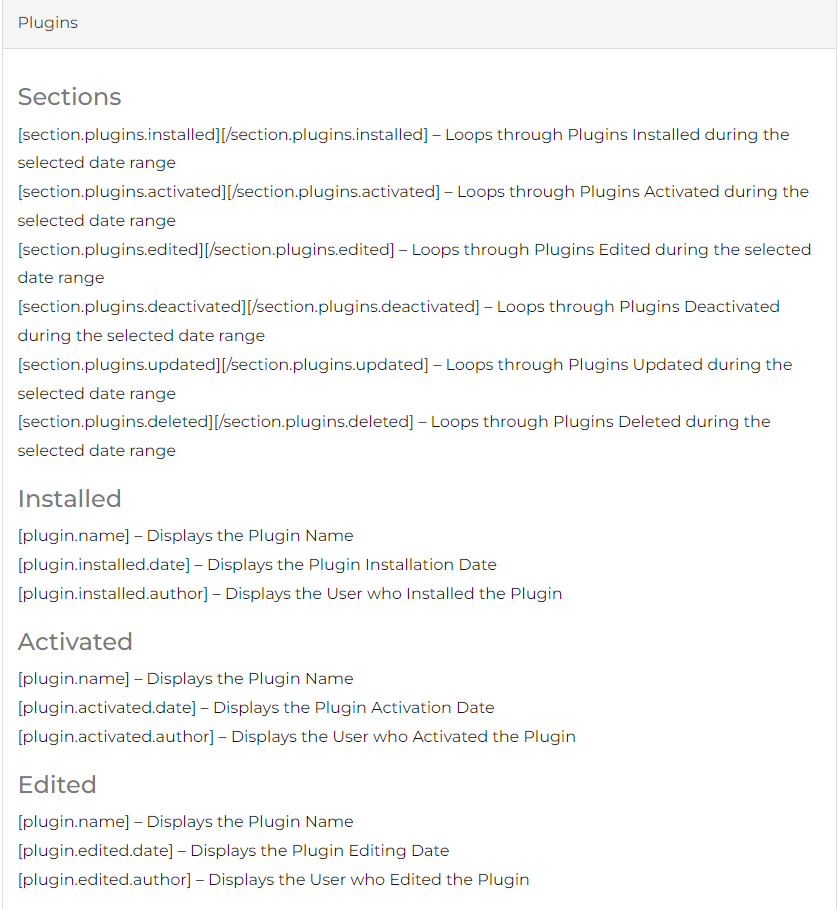
The following example demonstrates all three token types working together in a template:.count.
Section tokens loop through database records within the report date range. They require opening and closing tags.
Data tokens display specific values and must appear between section token tags.
Token Reference
Token Reference
Available Tokens
Complete reference of 100+ tokens for plugins, themes, posts, users, and more.
Conditional Messages
Use PHP filters to display dynamic messages based on data values.
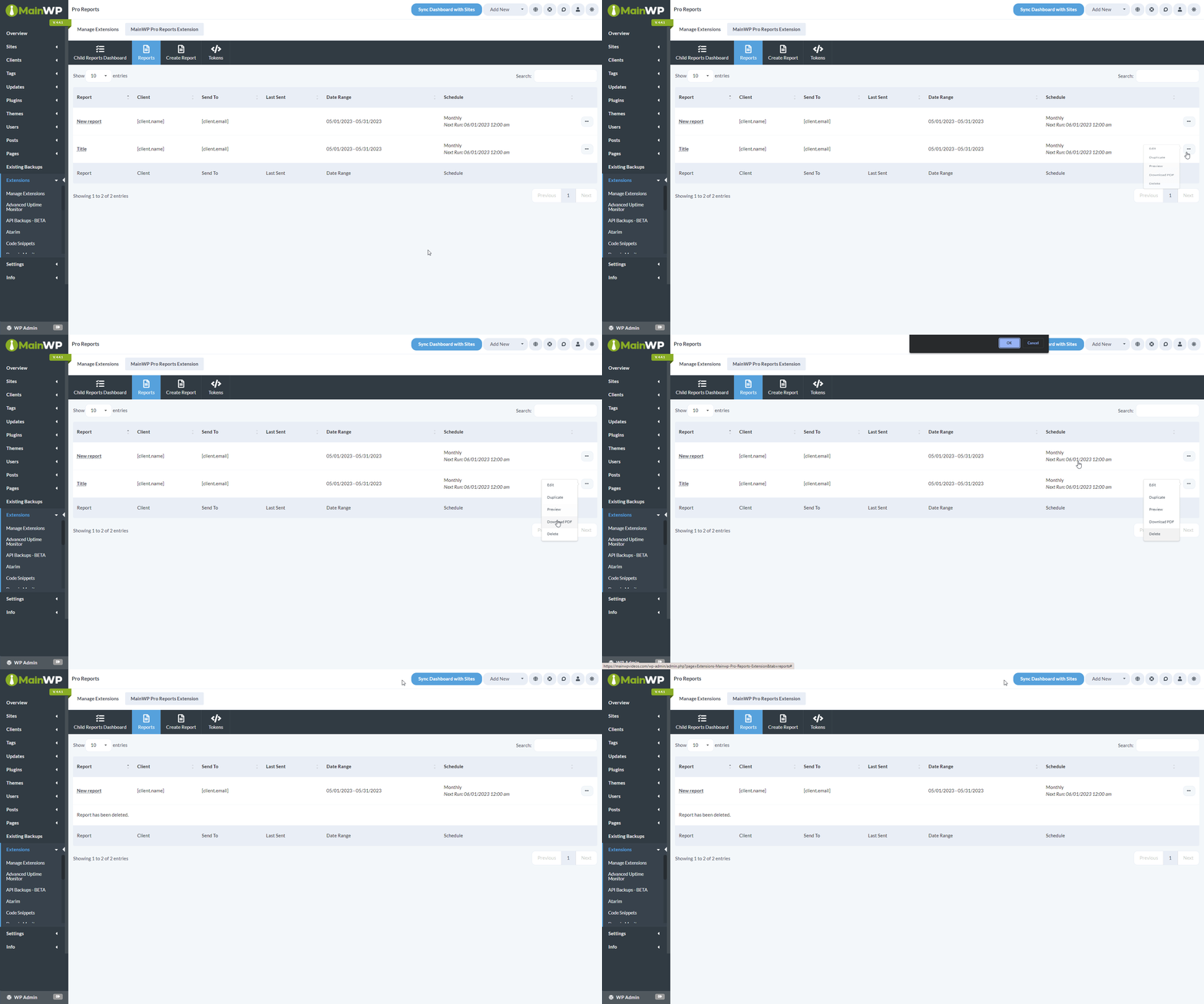
Delete Reports
1
Navigate to reports
Go to MainWP > Add-ons > Pro Reports > Reports.
2
Delete the report
Click the Actions Menu on the report you want to delete, select Delete, and confirm.
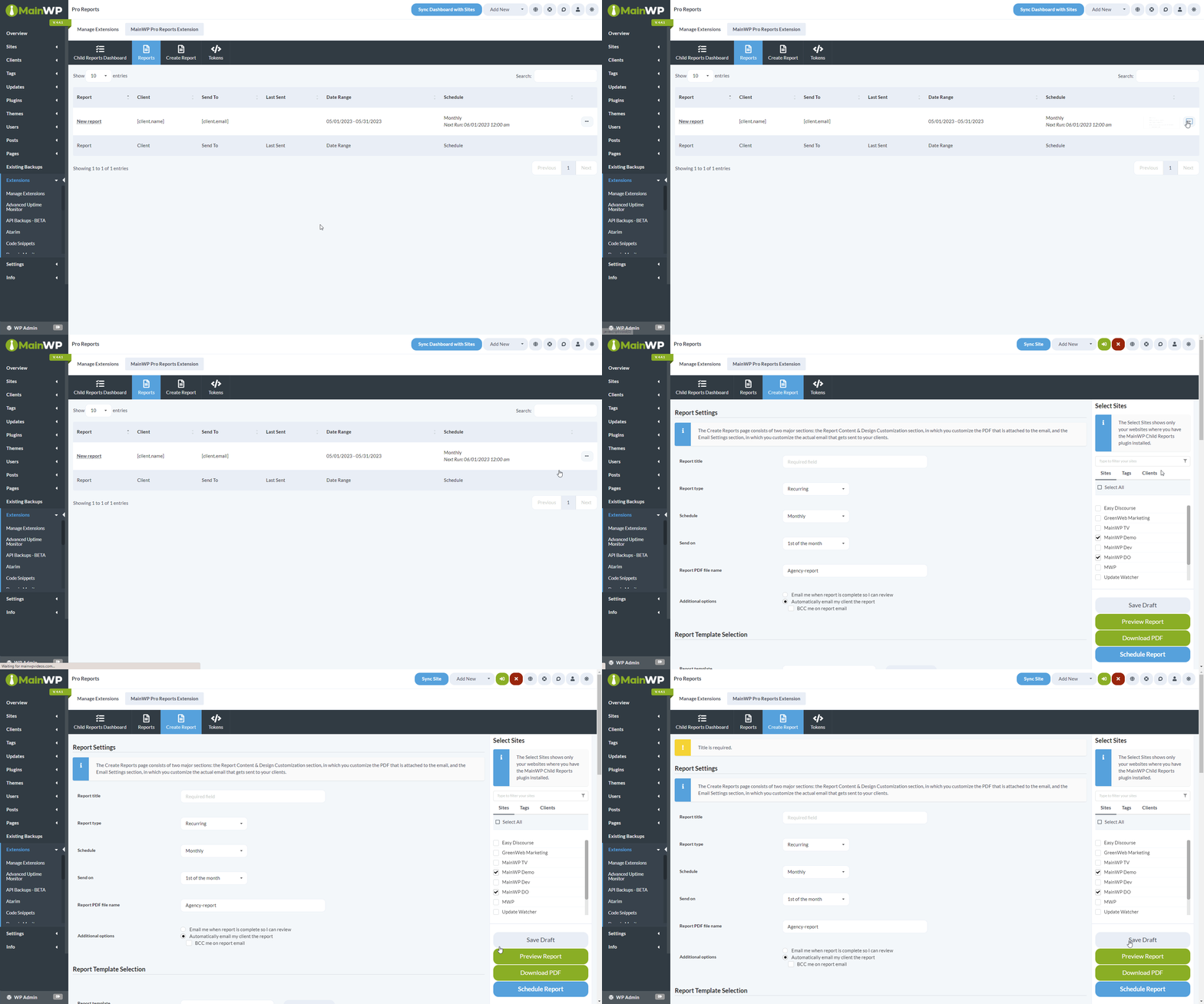
Duplicate Reports
1
Navigate to reports
Go to MainWP > Add-ons > Pro Reports > Reports.
2
Duplicate the report
Click the Actions Menu, select Duplicate, enter a new title, configure Send To and Send From fields, and click Save Draft.
PDF Storage
PDFs generated by Pro Reports are saved on the Dashboard site in/wp-content/uploads/mainwp_pro_reports/.
Pro Reports REST API
All MainWP REST API calls, including documentation and examples, are available on Postman. See MainWP REST API for details on enabling the API and managing keys.Related Resources
- Create Custom Report Templates - Build custom templates
- Create a custom Pro Reports email template - Copy and customize a built-in email template
- Available Pro Reports Tokens - Token reference
- Agency Add-ons - Browse agency add-ons