
What You’ll Learn
- Understanding the three code snippet types
- Using the updated code editor
- Selecting Sites, Tags, or Clients for snippets
- Running and saving code snippets
- Reviewing saved snippets and target counts
- Removing snippets from child sites
- Recovering from bad snippets
- Useful wp-config.php snippets
wp-config.php, depending on the snippet type. Sometimes snippets contain full functions; other times, they modify an existing function.
Code Snippet Types
The MainWP Code Snippets Extension allows you to process code in three ways:Execute on Site
Execute on Site
Return Info
Return Info
Add to wp-config.php
Add to wp-config.php
wp-config.php file. Use it only for configuration constants and code that belongs in wp-config.php, such as increasing the WordPress memory limit, blocking external requests, or disabling WP-Cron.Code Editor and Validation
The snippet editor uses CodeMirror 6 and includes:- Code folding controls and fold keyboard shortcuts
- Autocompletion
- Automatic bracket closing
- Bracket matching
- Tab indentation with a four-space tab size
- Line wrapping and active line highlighting
namespace, declare, and use statements because snippets are executed as raw PHP code, not as standalone PHP files.
Select Sites, Tags, or Clients
Use the Select Sites panel to choose where a snippet applies. The selector includes tabs for Sites, Tags, and Clients. Each saved snippet stores one targeting mode at a time:- Sites - Save the selected child site IDs.
- Tags - Save the selected tag IDs.
- Clients - Save the selected client IDs.
Snippets Table
The Snippets tab lists saved snippets in a table with these columns:- Snippet - Shows the snippet title and description together.
- Type - Shows a colored label for Execute, Return, or wp-config.php.
- Target - Shows a count with an icon for Sites, Tags, or Clients.
- Last Edited - Shows the relative edit time, with the exact date available on hover.
- Actions - Open or delete the snippet.
Remove a Code Snippet From a Broken Site
Code snippets can be removed directly from the database. To do this:Log in to your cPanel, locate phpMyAdmin, and open your site database
Locate and open the site's options table
wp_options, but the prefix may be different on your site.Remove the Code Snippets option rows
option_name = mainwp_ext_snippets_enabled row, or the option_name = mainwp_ext_code_snippets row.wp-config.php, the file will need to be edited manually.
Run a Code Snippet
Run a New Code Snippet
Log in to your MainWP Dashboard
Go to MainWP > Add-ons > Administrative > Code Snippets
Enter a Snippet Title
Enter a Snippet Description (optional)
Select the snippet type
Select Sites, Tags, or Clients
Add your Code Snippet in the code editor
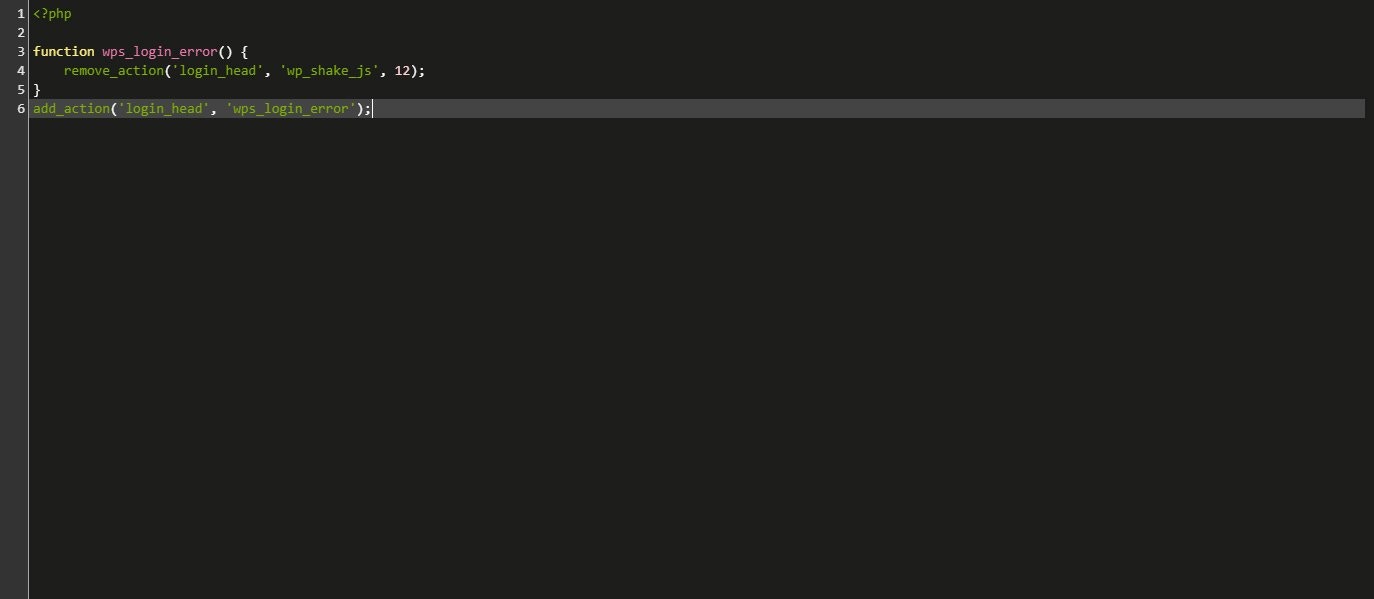
Click the Run Snippet button

Run a Saved Code Snippet
Log in to your MainWP Dashboard
Go to MainWP > Add-ons > Administrative > Code Snippets
Open the snippet that you want to run

Review the snippet type and selected targets
Click the Run Snippet button
Save a Code Snippet
Save a New Code Snippet
Log in to your MainWP Dashboard
Go to MainWP > Add-ons > Administrative > Code Snippets
Enter a Snippet Title
Enter a Snippet Description (optional)
Select the snippet type
Select Sites, Tags, or Clients
Add your Code Snippet in the code editor
Click the Save button
Edit a Saved Code Snippet
Log in to your MainWP Dashboard
Go to MainWP > Add-ons > Administrative > Code Snippets
Locate the Code Snippet that you want to edit
Open the saved snippet
Edit the snippet details
Click the Save button
Remove a Code Snippet From Child Sites
Log in to your MainWP Dashboard
Go to MainWP > Add-ons > Administrative > Code Snippets
Locate the Code Snippet that you want to remove from your child sites
Open the saved snippet
Update the selected targets
Click the Run Snippet button
Console Process Status
When you click Run Snippet, the Console opens and shows the current process status. Depending on the snippet type and whether the snippet already exists on child sites, you may see steps such as checking existing snippets, saving snippets on child sites, and executing snippets on child sites. The Console also shows progress counts, site-level status icons, returned output for Return Info snippets, and a Stop Process button for stopping queued or in-progress processing.Useful Code Snippets
MainWP is not responsible for the code that you run on your sites. Use this tool with extreme care and at your own risk. It is recommended that you run any code on a test site before releasing it on live sites. In case you damage your site by using a bad code snippet, read Remove a Code Snippet From a Broken Site to see how to fix it.Delete rows in the wp_mainwp_stream_meta and wp_mainwp_stream tables
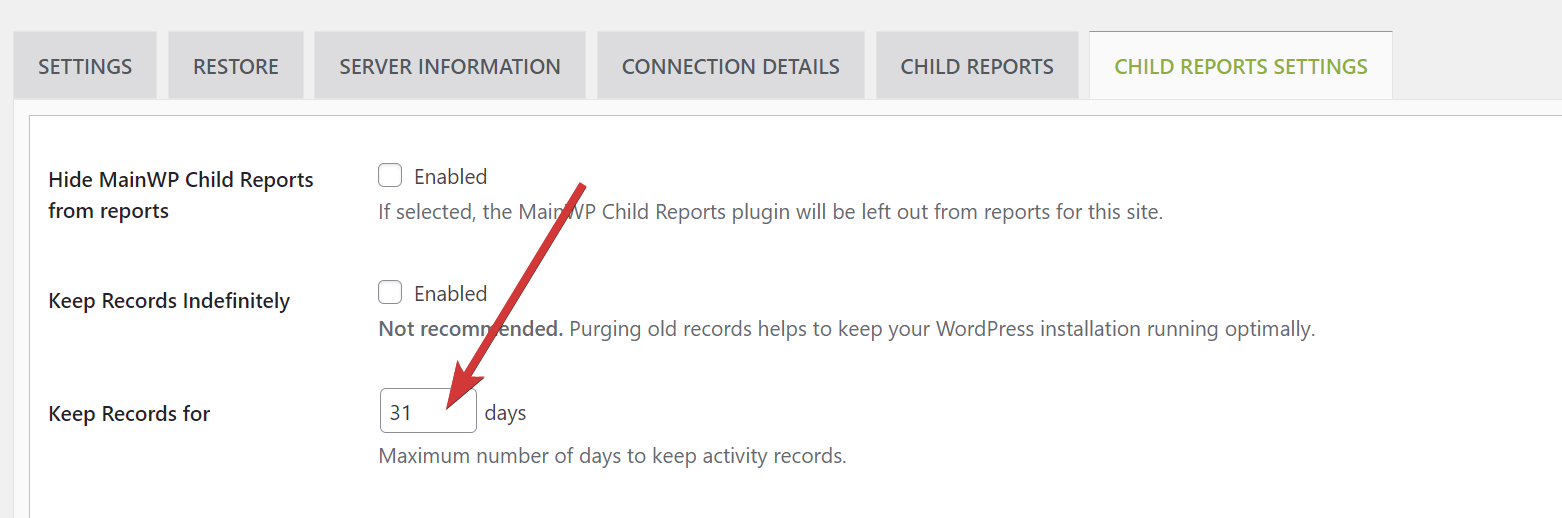
This can be useful if the wp_mainwp_stream_meta and wp_mainwp_stream tables have grown large in size. To prevent them from growing this large in the future, consider lowering the number of days for which the records are kept. NOTE: This will delete all records in these two tables, which means that the Pro Reports reports will not have any information about events prior to this deletion. When running the script, make sure to select Return Info.Change the value of “Keep Records for” in MainWP Child Reports plugin
Disable theme, plugin editor and plugin, core updates
This snippet goes to the wp-config.php file of your child sites. Be sure to select Add to wp-config.php when using the code snippet.Disable CRON job feature
This snippet goes to the wp-config.php file of your site. Be sure to select Add to wp-config.php when using the code snippet.Set auto-save interval
This snippet goes to the wp-config.php file of your site. Be sure to select Add to wp-config.php when using the code snippet.Block external requests
This snippet goes to the wp-config.php file of your site. Be sure to select Add to wp-config.php when using the code snippet.Increase WordPress memory limit
This snippet goes to the wp-config.php file of your site. Be sure to select Add to wp-config.php when using the code snippet.Enable Debug Mode
This snippet goes to the wp-config.php file of your site. Be sure to select Add to wp-config.php when using the code snippet.Disable All Core Updates
This snippet goes to the wp-config.php file of your site. Be sure to select Add to wp-config.php when using the code snippet.Protect WordPress against malicious URL requests
Use the Execute on Site option when running this snippet. The extension saves this snippet in the child site’s database and runs it when the child site loads.Related Resources
- Administrative Add-ons - Browse administrative tools
- Detect the Essential Plugin wp-config.php compromise - Use a read-only snippet to check child sites for known compromise indicators
- White Label Extension - Deploy filters to child sites
- Bulk Settings Manager - Manage plugin settings