
What You’ll Learn
- Connecting Atarim to your MainWP Dashboard
- Connecting MainWP to your Atarim Dashboard
- Viewing Atarim tasks in the Manage Sites and Monitoring tables
- Including Atarim data in Pro Reports
Connect Atarim to MainWP Dashboard
Install Atarim Integration
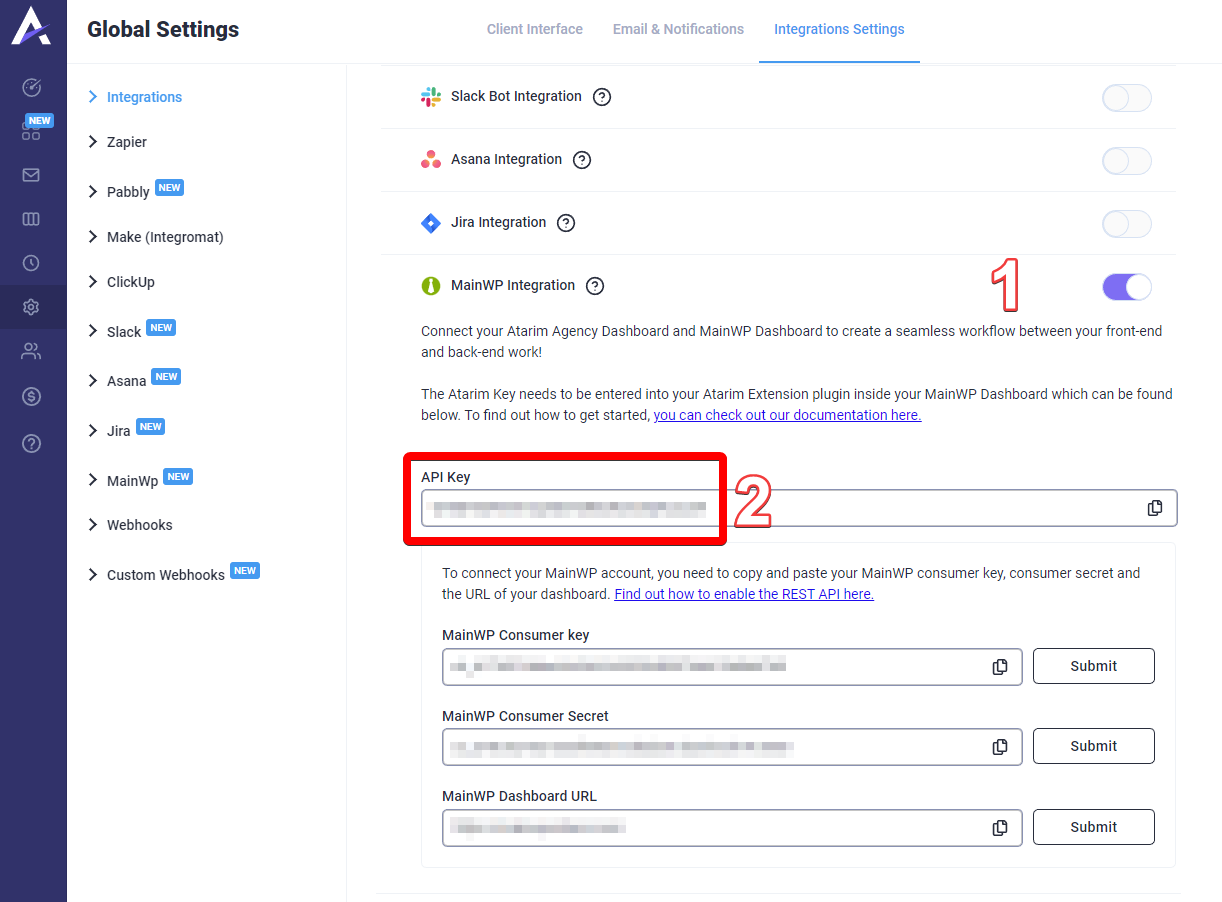
Go to Atarim Dashboard > Settings > Integrations Settings page
Enable MainWP Integration and copy the API Key
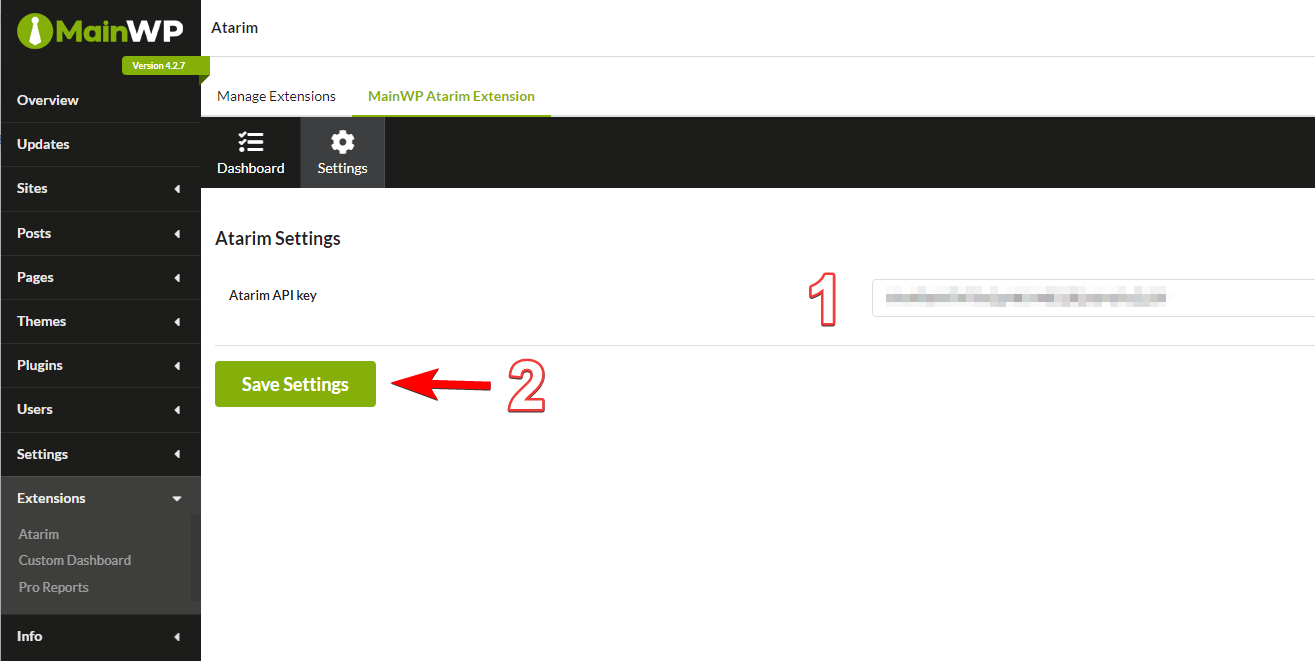
Go to MainWP Dashboard > Add-ons > Administrative > Atarim > Settings page
Paste the API Key
Click the Save Settings button
- Manage Sites and Monitoring tables
- A new column will be visible showing the number of Atarim tasks for child sites. Clicking the icon will reveal additional information about those tasks.
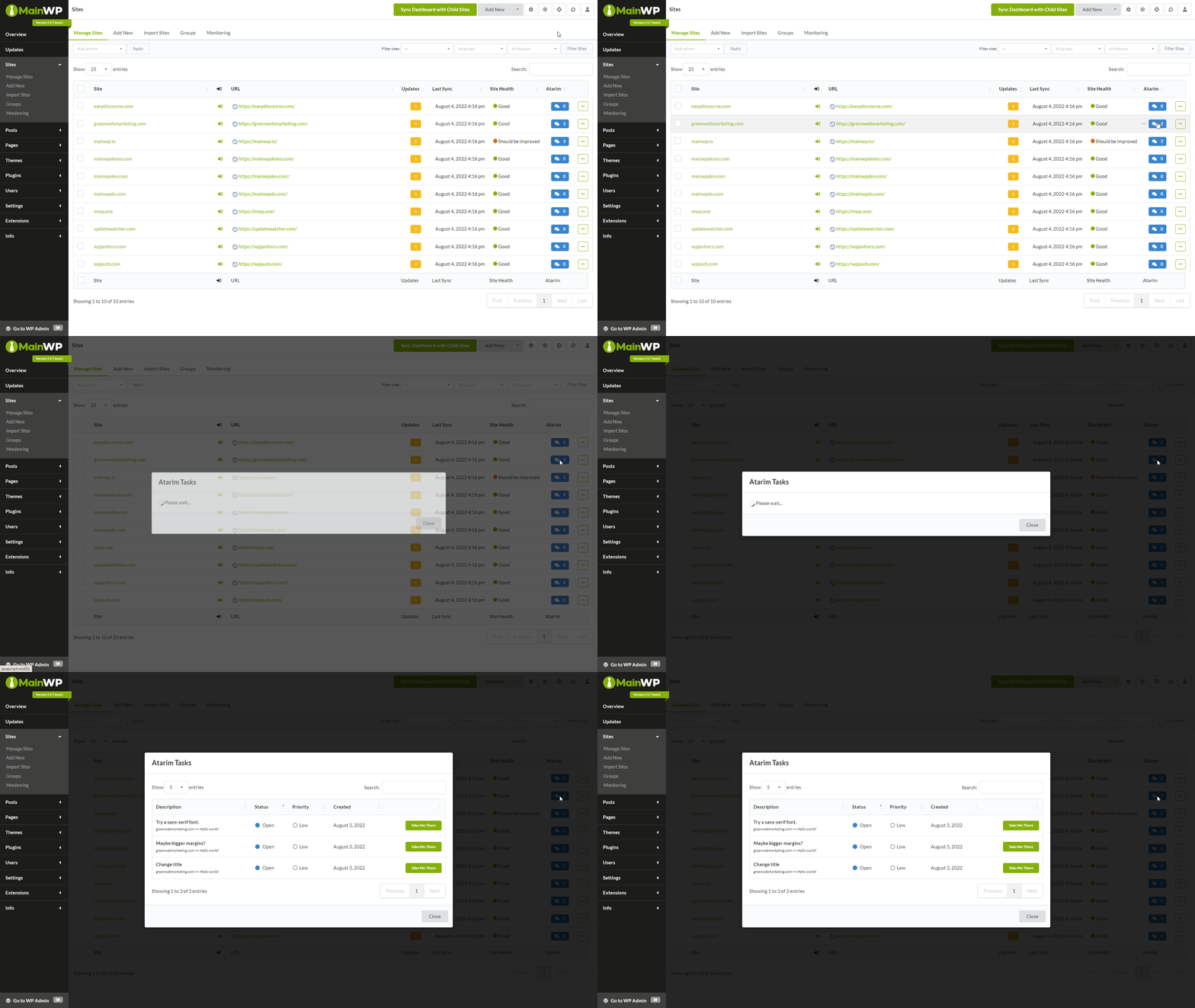
- A new column will be visible showing the number of Atarim tasks for child sites. Clicking the icon will reveal additional information about those tasks.
- Overview widgets
- On the Overview and Individual Child site overview, a new widget will display information about Atarim tasks
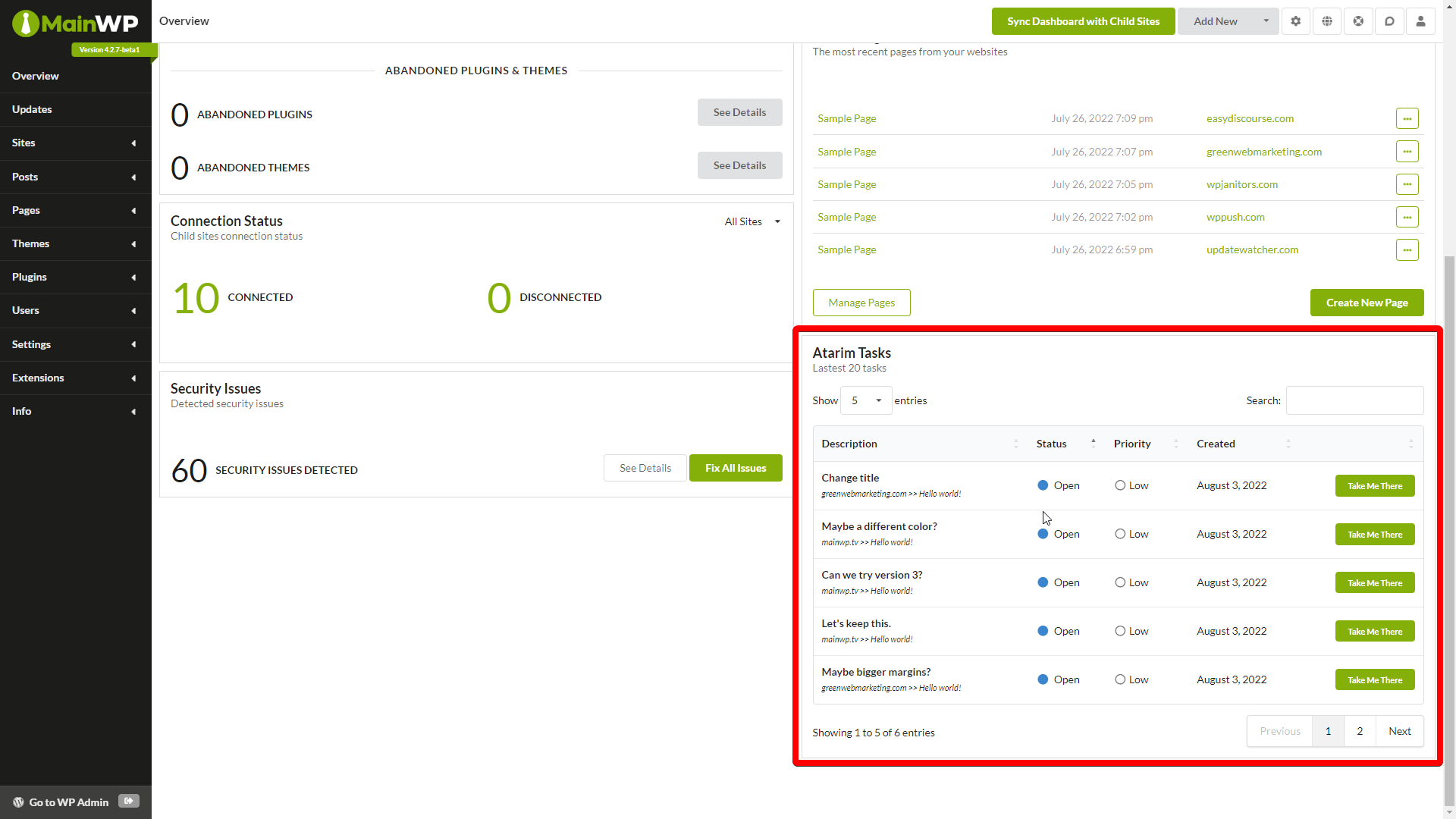
- On the Overview and Individual Child site overview, a new widget will display information about Atarim tasks
- Pro Reports data note: Pro Reports Extension version 4.0.11 or newer is required for Atarim data.
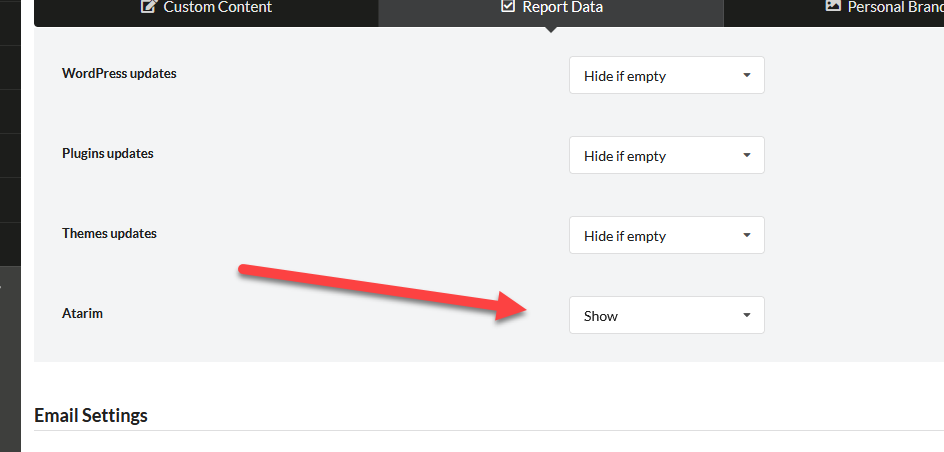
- Atarim Data can be included in the Report from the Report Data section
- Atarim data can also be included by using two tokens:
[atarim.all.tasks]displays all tasks for a site within the selected date range, and[atarim.billable.tasks]displays all billable tasks for a site within the selected date range.
- Atarim Data can be included in the Report from the Report Data section
Connect MainWP to Atarim Dashboard
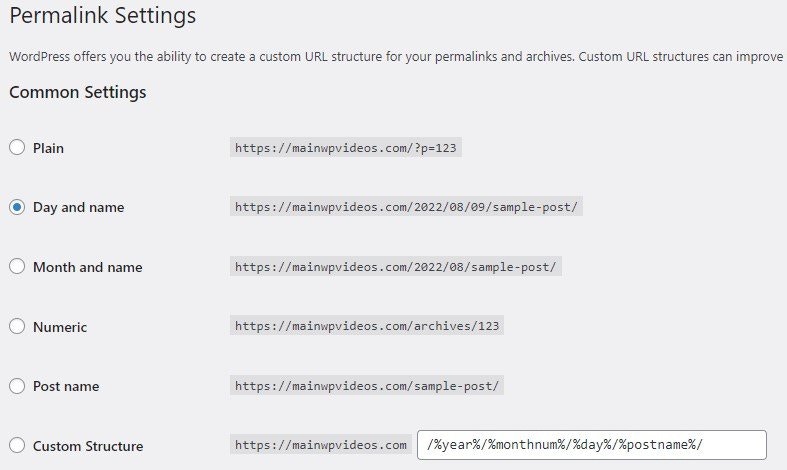
Go to WP Admin > Settings > Permalinks page
Choose any settings except for Plain (this is a WordPress REST API limitation)
Go to MainWP Dashboard > API Access > API Keys > Add API Keys page
Create an API key and enable MainWP REST API v1 Compatibility
Copy Consumer Key and Consumer Secret
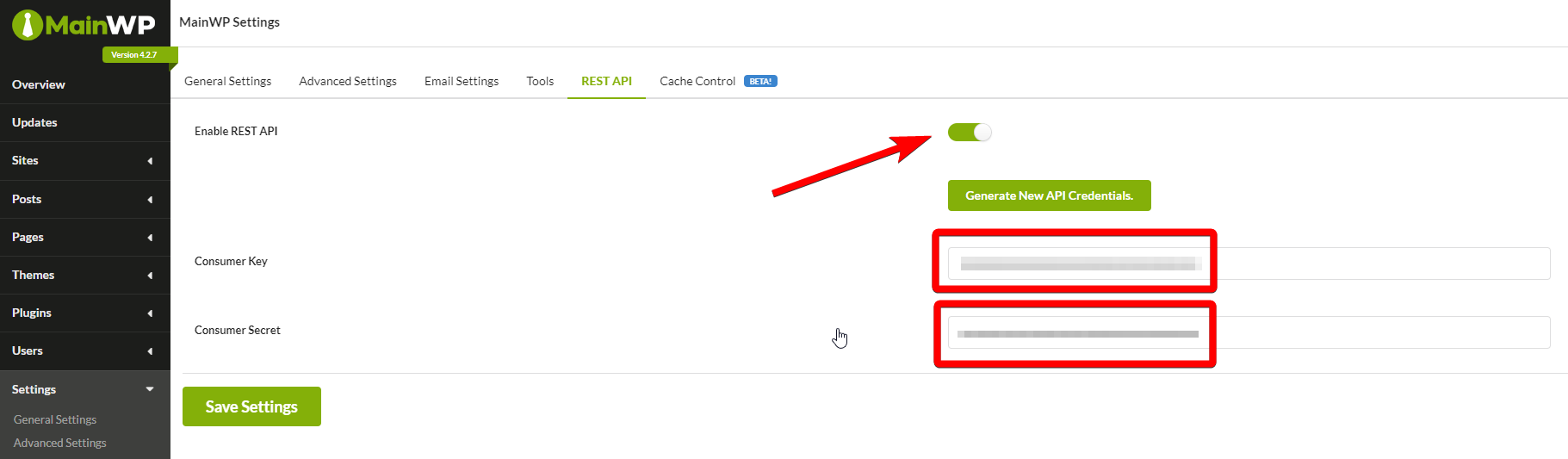
Click Save Key
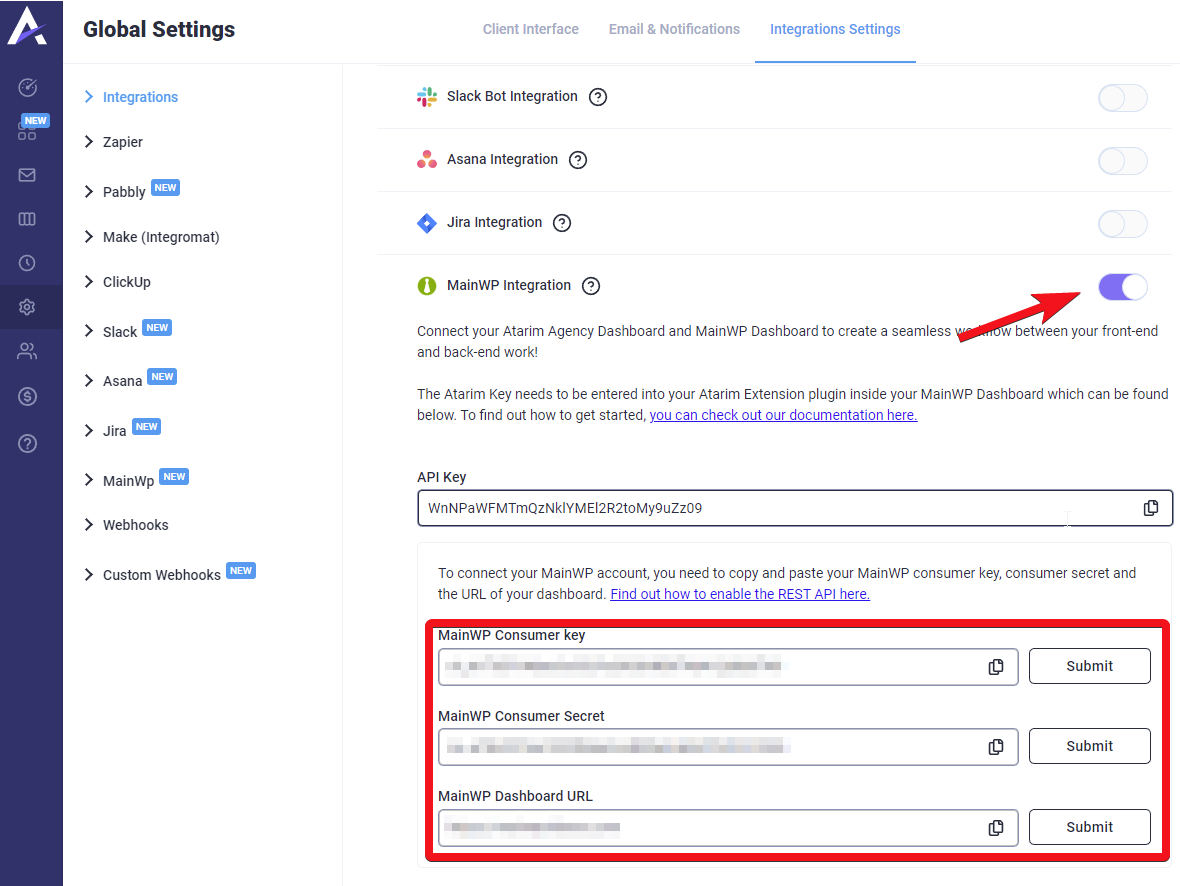
Go to Atarim Dashboard > Settings > Integrations Settings page
Find the MainWP Integration section
Paste the Consumer Key and Consumer Secret, and the URL of your MainWP Dashboard
 Learn more about the Atarim Integration!
How to disable Atarim on the Manage Sites table
How to hide the Atarim column
Go to MainWP Dashboard > Sites > Manage Sites page
Click the Cog icon (Page Settings) in the top right
De-select Atarim in the Show Columns section
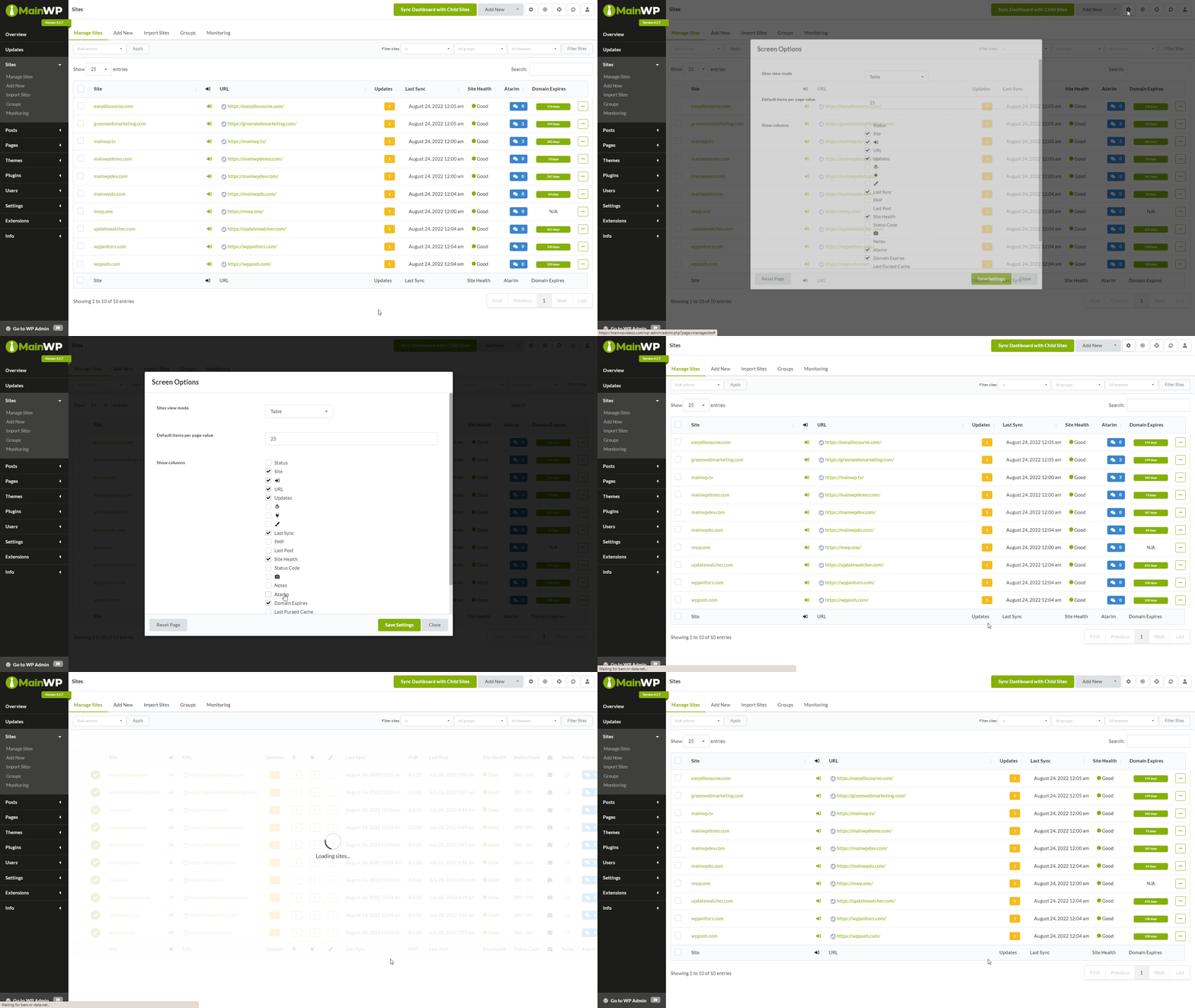
Click the Save Settings button
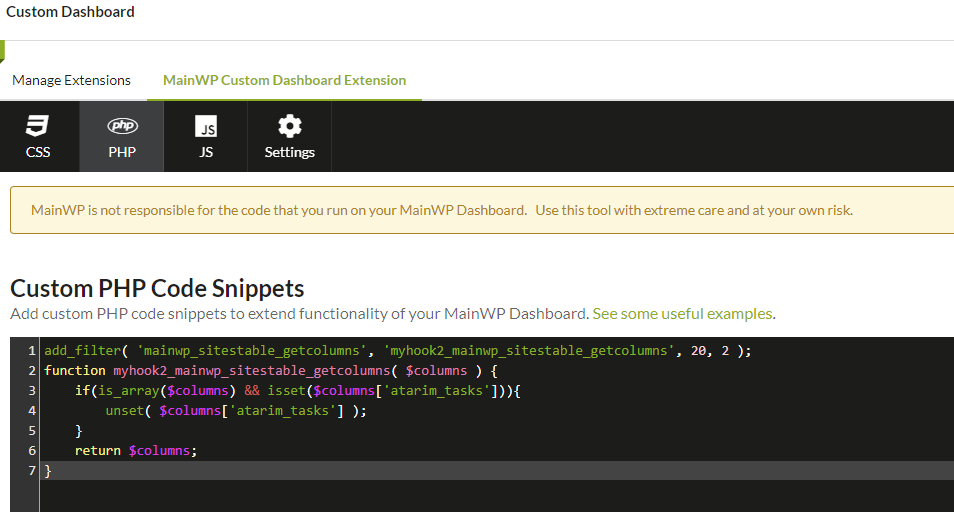
How to unset the Atarim column
Insert the following snippet using our Custom Dashboard Extension, or by inserting it in thefunctions.php file of the active theme of your MainWP Dashboard:
Related Resources
- Administrative Add-ons - Browse all administrative tools
- Pro Reports Extension - Include Atarim data in reports
- Custom Dashboard Extension - Add custom code snippets