
What You’ll Learn
- Creating a Virusdie account and connecting the API
- Adding child sites to Virusdie for malware scanning
- Running manual and automated security scans
- Troubleshooting sync file upload errors
Virusdie
The Virusdie Integration uses Virusdie to scan your sites. Virusdie features an incredibly extensive database and a stack of technologies to detect viruses and threats. Virusdie detects both viruses and website vulnerabilities, which distinguishes it from other antivirus or defender products.- Unlimited sites
- Automated weekly scans
- Email Notifications
Remove Child Sites from the Virusdie
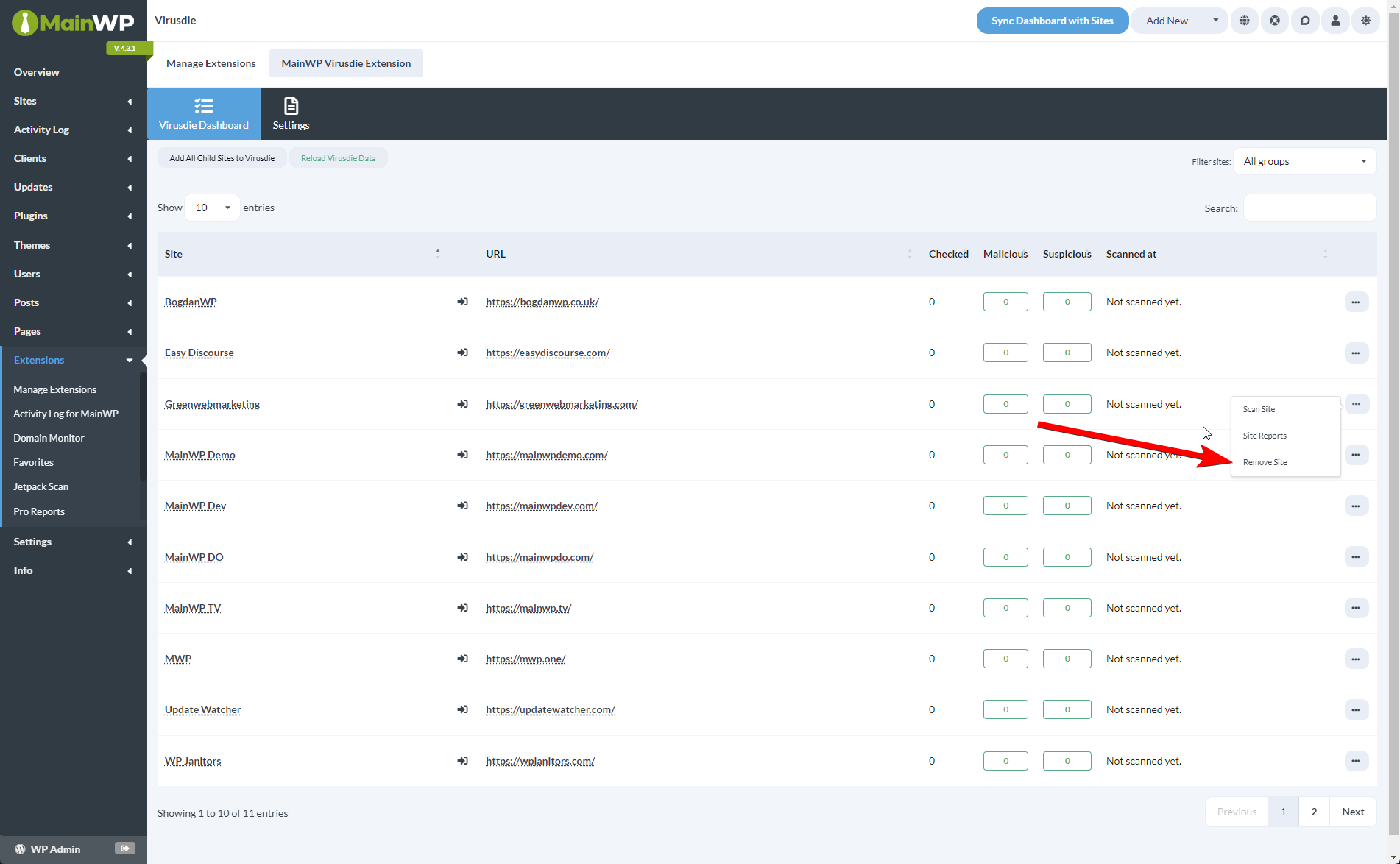
To remove a child site from your Virusdie dashboard,Login to your MainWP Dashboard
Go to the MainWP > Add-ons > Security > Virusdie page
Locate the site that you want to remove
Click the Remove Site button
Manage Firewall and AutoCleanup
For connected sites on a paid Virusdie account, the dashboard shows Firewall and AutoCleanup columns with Enabled or Disabled statuses.- Firewall controls Virusdie’s website firewall, which helps block malicious requests.
- AutoCleanup controls whether Virusdie attempts to clean infected files automatically when it detects them. See Virusdie’s automatic cleanup explanation for details.
Scan Child Sites With Virusdie
On-demand scanning requires a paid Virusdie plan.if the account is on the free tier.Unable to verify Virusdie scan availability. Please try again later.if Virusdie did not return a valid account response (for example, a temporary API error or invalid credentials).
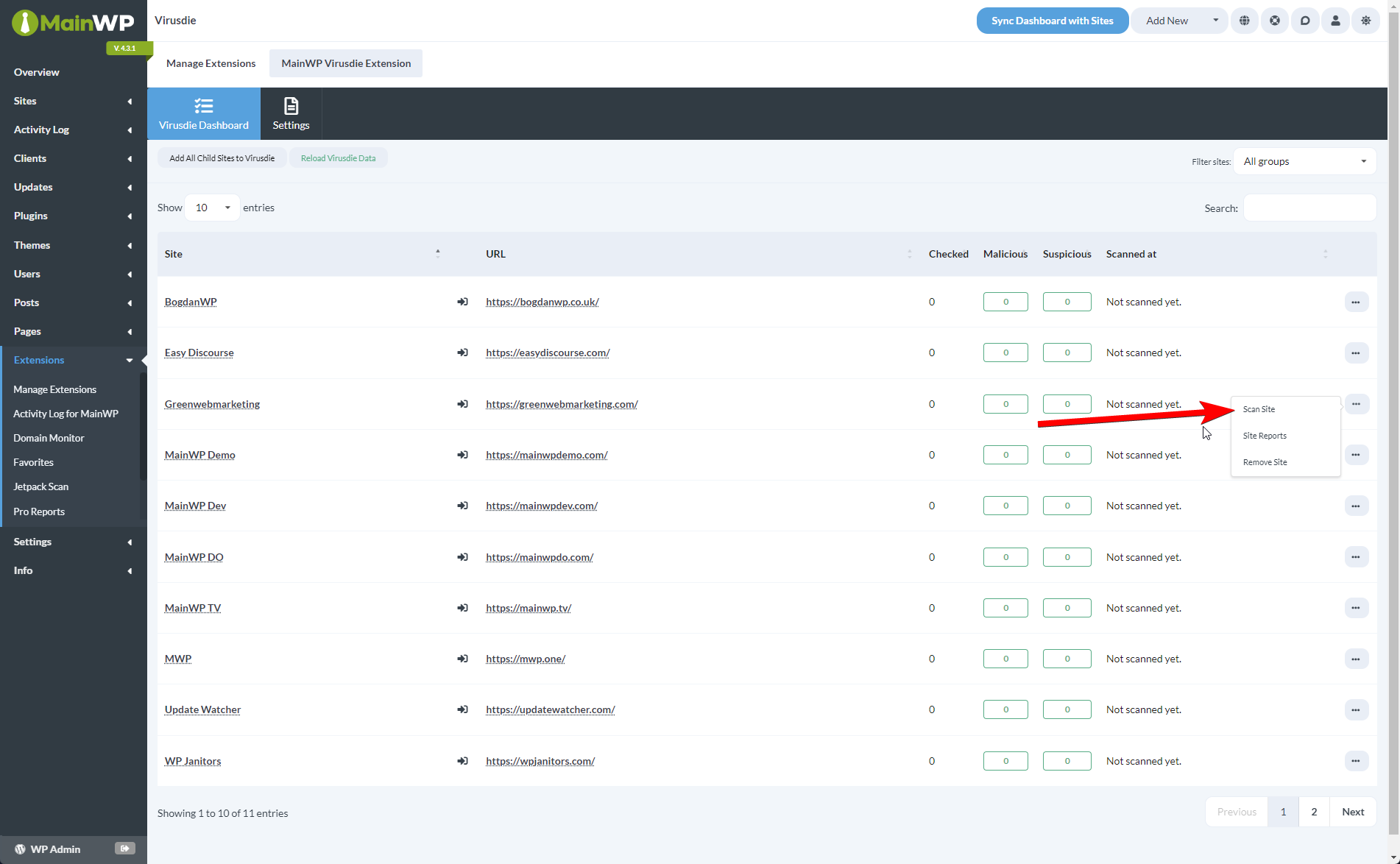
Not available for this site, on-demand scanning is unavailable for that site; this does not mean synchronization failed.Login to your MainWP Dashboard
Go to the MainWP > Add-ons > Security > Virusdie page
Locate the site that you want to scan
Click the Scan Site action
Scan via WP CLI Command
<siteid> with the actual child site ID.
If the connected Virusdie account is on the free tier, or Virusdie did not return a valid account response, the command exits with one of the errors described above (On-demand scanning requires a paid Virusdie plan. or Unable to verify Virusdie scan availability. Please try again later.).
Scan via REST API
URI/wp-json/mainwp/v1/virusdie/scan
Method
GET
Required Parameters
site_id- (INT) ID of the child site
error field in the body when the site cannot be scanned. Check for the error key before treating the response as a successful scan request.
Set Up the Virusdie Integration
To properly set up the Virusdie Integration:Login to your MainWP Dashboard
Go to the MainWP > Add-ons > Security > Virusdie > Settings page
Locate the Create a free Virusdie account section, enter your email address and click the Sign-Up button

This will automatically create an account for you, and you will get an email with a one-time password in a few minutes.
After getting the email, go to the Log in to your Virusdie account section, enter your email address and the password you got, and click the Sign In button.

Let the Virusdie Integration retrieve your API credentials
Sign Out
If you need to disconnect the integration from your Virusdie account or reset stored credentials (for example, before connecting a different account or recovering from a failed sign-in), use the Sign Out button. When to use it:- You want to switch to a different Virusdie account
- The integration is stuck with stale or invalid API credentials
- You’re following the recovery steps in the synchronization file upload error guide and need to remove existing credentials before signing in again
Login to your MainWP Dashboard
Go to the MainWP > Add-ons > Security > Virusdie > Settings page
Click the Sign Out button
Sign up or sign in again
Add Sites To Virusdie Dashboard
After creating a Virusdie account and connecting the API, you can start adding your sites to your Virusdie dashboard.Adding Sites Automatically
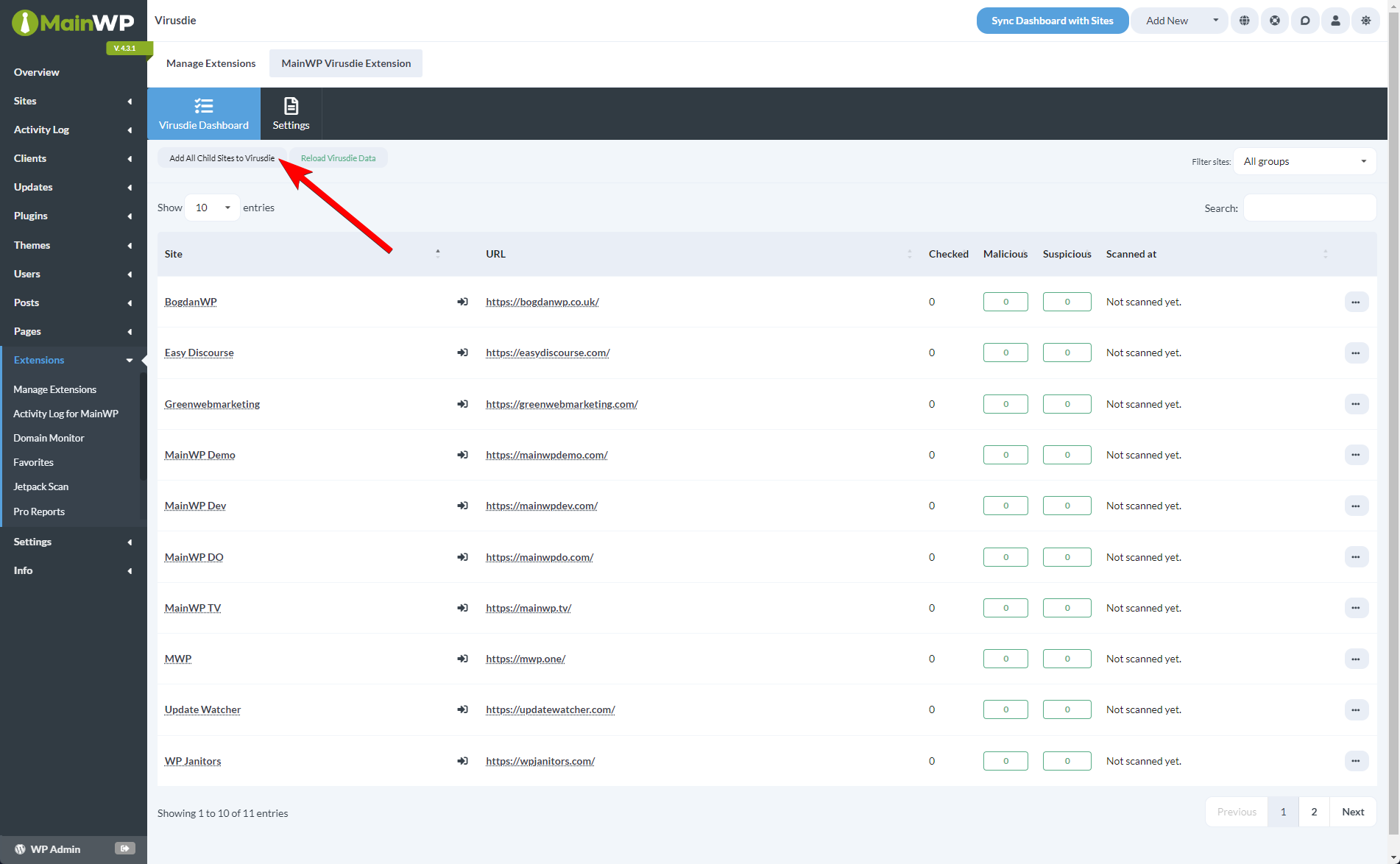
Login to your MainWP Dashboard
Go to MainWP > Add-ons > Security > Virusdie
Locate the Add All Child Sites to Virusdie button and click it
Adding Sites Manually
Adding sites to the Virusdie account manually, required 3 easy steps:Add the site to the list in your Virusdie account
Upload your unique sync file to the root directory of your child site
Set your preferences
Virusdie Integration API Compatibility
New Virusdie Users
To use the Virusdie Integration, it is required to have API access. For new users that don’t have a Virusdie account, the process of getting the keys is fairly simple. You can use the Signup field, and after getting the email with the one-time password and signing in, the integration will automatically load the keys. With the free account created through the Virusdie Integration, you can add your sites to the Virusdie dashboard to run weekly automated scans and get email notifications. If needed, you can upgrade your account to use premium features at Virusdie.com.Existing Virusdie Premium Users
If you already have a Premium Account with Virusdie created without the Virusdie Integration, the connection won’t be possible due to restrictions in Virusdie’s API. Existing accounts created without the Virusdie Integration do not have the required permissions to manage connected sites. After confirming with Virusdie, not all accounts have access to their API. If you have an older account, you will want to verify with Virusdie support. Unfortunately, this is out of MainWP control.Troubleshooting synchronization file upload errors
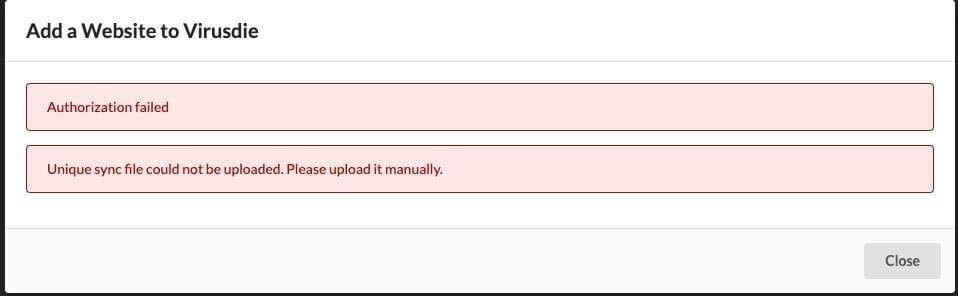
Synchronization file upload errors can occur at two different stages. Use the error shown by the Add-on to determine which connection to check.MainWP Dashboard cannot download the file from Virusdie
This case applies when the Add-on shows:Unique sync file could not be uploaded. Please upload it manually.
- Invalid or stale Virusdie credentials
- An incompatible Virusdie account type because Virusdie limits API access for some accounts
- In the Virusdie Add-on settings, use the Sign Out button to remove current credentials
- Use the Sign Up function, but use the same email address that is already registered with Virusdie
- This will trigger the One-Time Password email so that the user will get a new Password
- Use the Sign In form to sign in with the email address signed up in step 2 and the new password from the email (Note: Do not change the password in Virusdie account)
- After the successful sign-in process, try to add sites again
- If it fails again, contact the Virusdie team to check the account compatibility or if something else is causing issues with the authentication process
MainWP Child cannot download the file from the Dashboard
This case applies when the site upload list appears, but individual child sites reportUnauthorized, Forbidden, or another HTTP or download error. At this stage, MainWP Dashboard has already obtained the synchronization file from Virusdie. MainWP Child is trying to download that temporary file from the Dashboard, so resetting Virusdie credentials will not resolve a per-site Unauthorized response.
Likely blocking layers include:
- HTTP Basic Authentication or password protection on the MainWP Dashboard
- SSO or login-enforcement plugins
- Security plugins on the MainWP Dashboard
- Hosting firewalls, WAF rules, or ModSecurity
- DNS, TLS, or network restrictions that prevent the child-site server from reaching the MainWP Dashboard
/wp-admin/?sig=…&mwpdl=…
MainWP Child currently prefixes every non-200 response from this download with Error 404, even when the underlying response is not HTTP 404. Check the accompanying response reason, such as Unauthorized, and review the MainWP Dashboard access and security logs at the exact time of the attempt.
For more details about this child-to-Dashboard reverse-download requirement, see Plugin Installation Fails With Error Message: Upload failed.
Related Resources
- Security Add-ons - Browse all security tools
- Sucuri Extension - Alternative malware scanning
- Vulnerability Checker Extension - Scan for known vulnerabilities