
What You’ll Learn
- Available cleanup tasks in MainWP Maintenance
- Running maintenance for selected sites, tags, or clients
- Creating and managing recurring maintenance schedules
- Pausing, resuming, and bulk-managing schedules
- Understanding schedule status and target counts
- What remains from the legacy 404 email alerts feature
Prerequisites
- MainWP Maintenance Extension is installed and activated.
- You have connected MainWP Child sites.
- You have a recent database backup for the sites you plan to maintain.
Extension Add-on - This add-on provides standalone functionality within MainWP Dashboard. No third-party plugins are required.
MainWP Maintenance Extension lets you clean and optimize child site databases without logging in to each site separately. You can remove revisions, drafts, trash content, comments, empty taxonomies, and transients, then run database optimization from one place in MainWP Dashboard.
Maintenance Options
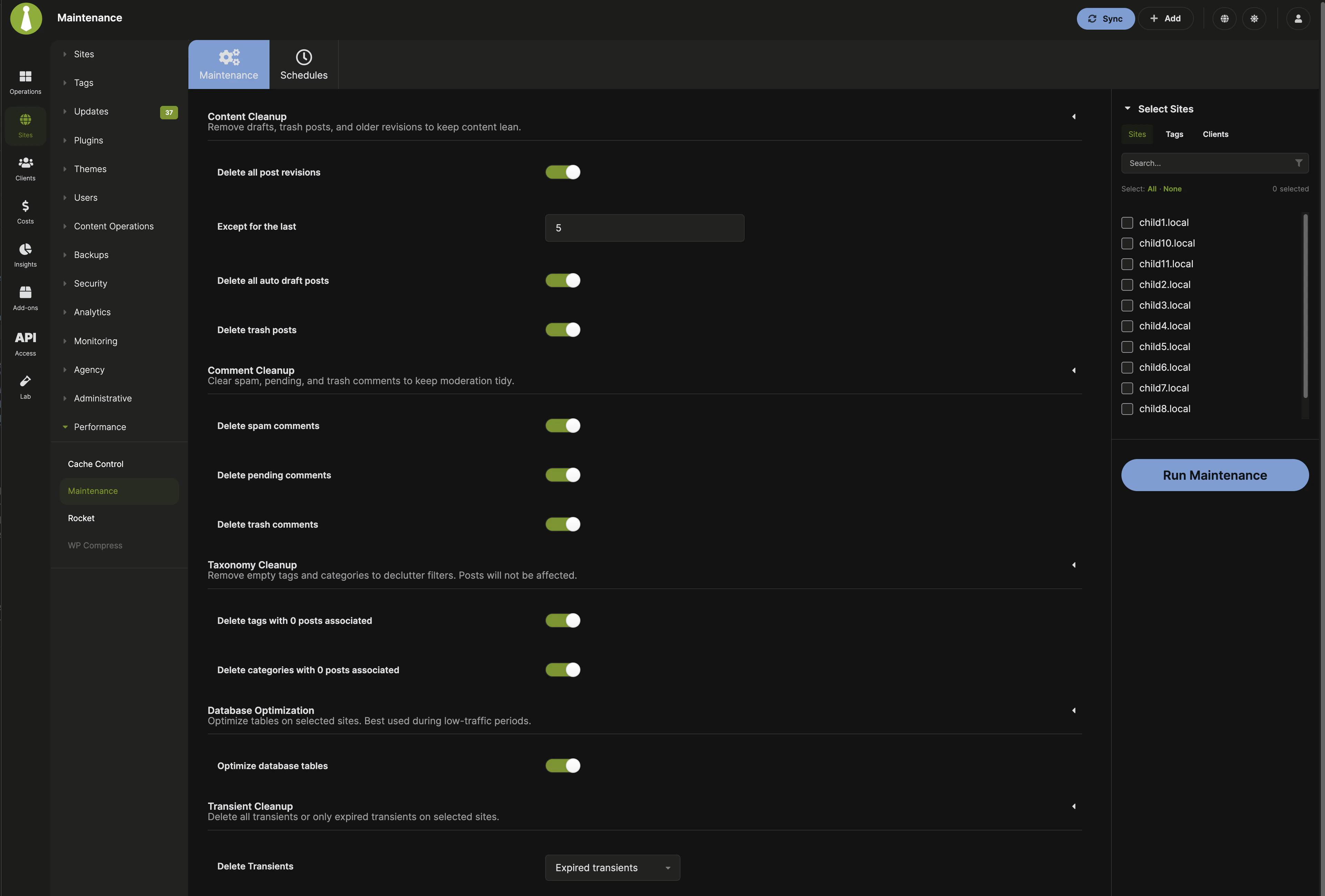
MainWP Maintenance groups cleanup actions into the following sections:Content Cleanup
- Delete all post revisions
- Delete all auto draft posts
- Delete trash posts
- Use Except for the last to keep the newest revisions. Enter
0to delete all revisions.
Comment Cleanup
- Delete spam comments
- Delete pending comments
- Delete trash comments
Taxonomy Cleanup
- Delete tags with 0 posts associated
- Delete categories with 0 posts associated
Database Optimization
- Optimize database tables
Transient Cleanup
- Don’t Delete Transients
- Expired transients
- All Transients
Run Maintenance
1
Open the Maintenance page
Go to MainWP > Add-ons > Performance > Maintenance and stay on the Maintenance tab.
2
Choose the cleanup tasks
Select the maintenance options you want to run. If you enable Delete all post revisions, set Except for the last to the number of revisions you want to keep.
3
Choose a transient cleanup mode
In Transient Cleanup, choose whether you want to skip transients, delete only expired transients, or delete all transients.
4
Select the child sites
Use the Select Sites accordion to choose targets by Sites, Tags, or Clients.
5
Run the task
Click Run Maintenance, then confirm any warnings for database optimization or deleting all transients.
Schedule Maintenance
1
Open the schedule screen
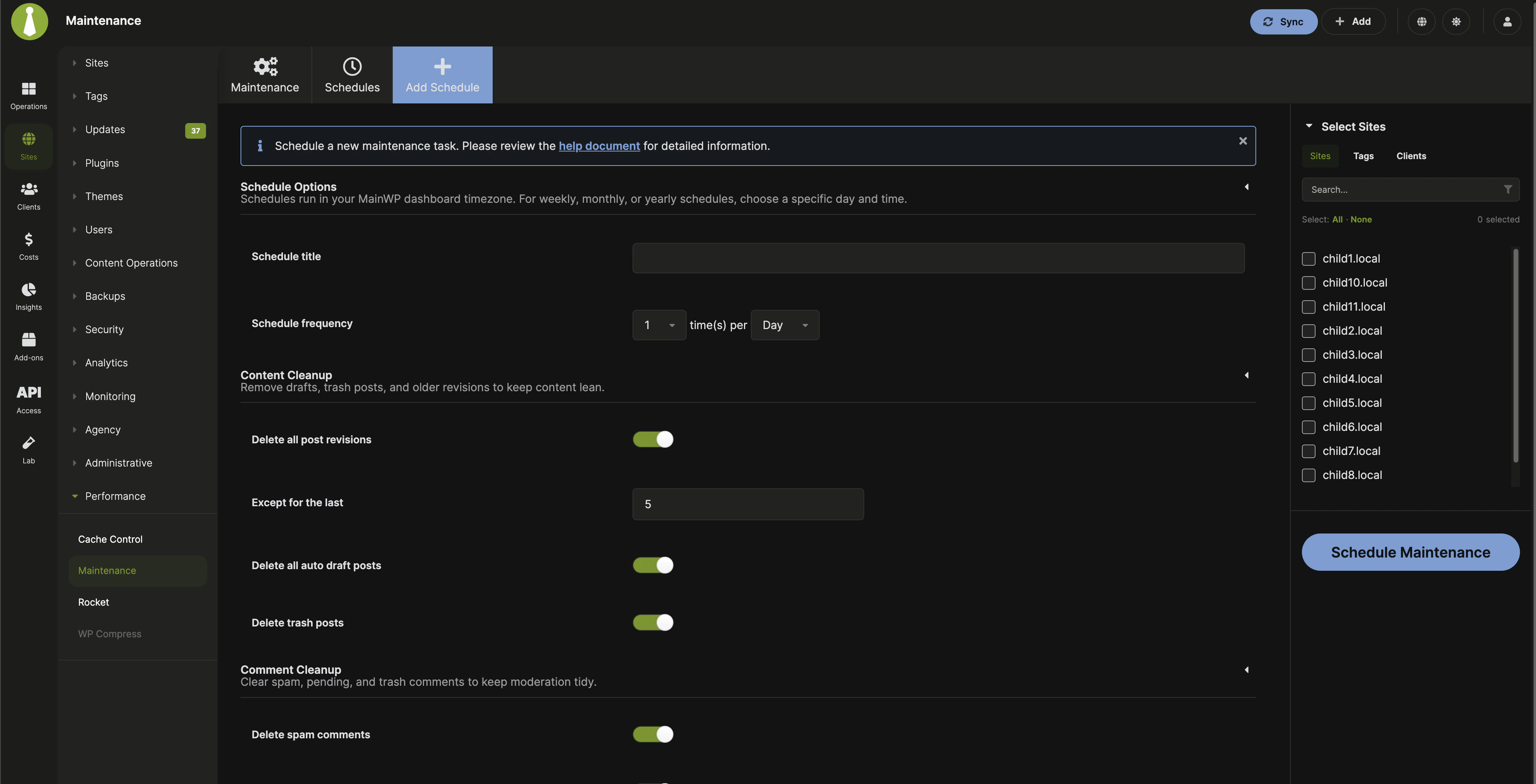
Go to MainWP > Add-ons > Performance > Maintenance > Schedules, then click Create New Schedule.
2
Configure the schedule options
Enter a Schedule title, then choose the Schedule frequency. The saved schedules table displays these frequencies in natural wording, such as Once per day, Twice per day, or 5 times per month.
3
Choose the run day and hour when needed
Schedules use your MainWP Dashboard timezone. For weekly, monthly, and yearly schedules that run once per period, choose the run day and hour in Schedule Options.
4
Choose the schedule status
Leave Paused disabled if the schedule should run automatically. Enable Paused if you want to save the schedule without allowing it to run until you resume it.
5
Choose the maintenance tasks
Select the cleanup options, revision retention value, and transient cleanup mode you want the schedule to use.
6
Select the targets
In the Select Sites accordion, choose child sites by Sites, Tags, or Clients.
7
Save the schedule
Click Schedule Maintenance.
Manage Scheduled Tasks
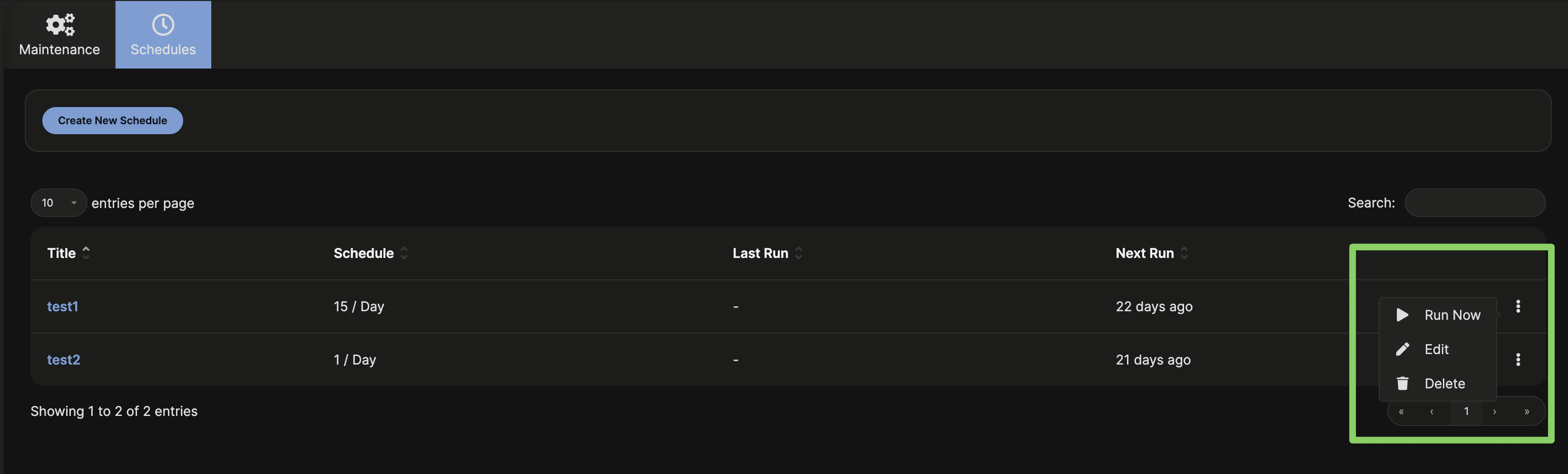
The Schedules table lists each saved task and gives you a quick view of schedule health, target scope, and run timing.- Title - Shows the schedule title and frequency.
- Status - Shows the current schedule state.
- Target - Shows a count with an icon for selected Sites, Tags, or Clients.
- Last Run - Shows the last scheduled run time.
- Next Run - Shows the next planned run time, or
-for paused or unscheduled tasks. - Actions - Opens the row action menu.
Schedule Statuses
When a scheduled run fails on one or more child sites, MainWP stores the failed site details. Click the Failed status label to open the failure details modal and review the site name, URL, and recorded error when available.
Use Row Actions
1
Open the action menu
In the Schedules table, use the ellipsis menu on the right side of the schedule row.
2
Run a schedule immediately
Choose Run Now to execute the saved maintenance task on demand.
3
Pause or resume a schedule
Choose Pause to temporarily stop the schedule without deleting it. Choose Resume to calculate a new next run time and allow the schedule to run automatically again.
4
Edit a schedule
Choose Edit, update the schedule or maintenance options, and click Save Changes.
5
Delete a schedule
Choose Delete to remove the saved maintenance task.
Use Bulk Actions
Use bulk actions when you need to update multiple schedules at once.1
Select schedules
Check each schedule you want to update, or use the header checkbox to select all visible schedules.
2
Choose a bulk action
In Bulk actions, choose Pause, Resume, or Delete.
3
Apply the action
Click Apply. MainWP processes the selected schedules and shows a success or failure message when the action completes.
404 Email Alerts (Legacy)
Feature retired for new users since version 4.1
The legacy 404 Email Alerts feature is no longer part of the standard Maintenance workflow for new installations. Current Maintenance documentation focuses on database cleanup and scheduled maintenance tasks. If you already use an older setup that still exposes 404 alerts, you can continue managing the notification email address and selected sites from that legacy screen.Related Resources
- Performance Add-ons - Browse all performance tools
- Database Updater - Database update management
- Advanced Uptime Monitor - Monitor site uptime