
What You’ll Learn
- Installing and connecting the Jetpack Scan Integration
- Requesting malware scans for single or multiple sites
- Managing and fixing detected threats
- Claiming discounted Jetpack Scan subscriptions
Integration Add-on - This add-on extends MainWP to work with Jetpack Scan. Requires Jetpack Scan to be installed on your child sites.
The Jetpack Scan Integration allows you to effortlessly scan all your Child Sites for potential vulnerabilities, get detailed information about each vulnerability, and take advantage of the one-click solution for most issues.
The integration requires a Jetpack Protect plugin on your Child Sites and a Jetpack Scan subscription that you can get at a discounted price from within the MainWP Dashboard. Jetpack plugin will also work; however, unless you need other Jetpack modules, the Jetpack Protect plugin is preferred.
Install the Integration
The first step is to install Jetpack Protect plugin and activate the Jetpack Scan feature. Please follow Jetpack’s help article for details on how to do so. After that, follow these steps to install the Jetpack Scan Integration.1
Go to your MainWP Dashboard
2
Go to the MainWP > Add-ons page
3
Click the Install Add-ons button
Click the Install Add-ons button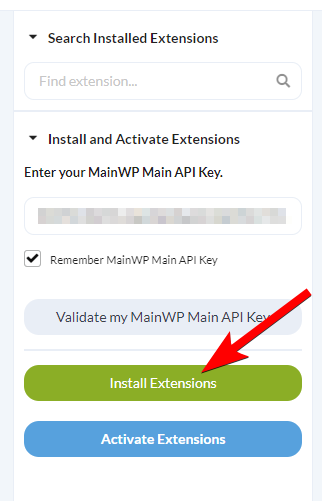
4
Locate the Jetpack Scan Integration and select it
5
Click the Install button
6
Once the installation process is complete, click the Activate Add-ons button.
Once the installation process is complete, click the Activate Add-ons button.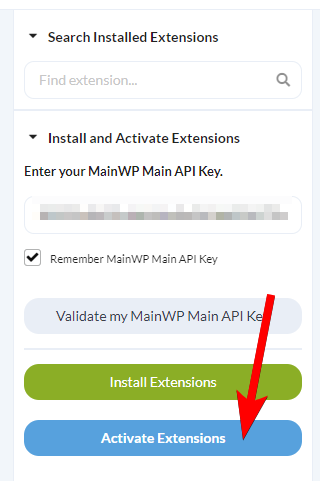
Connect the Integration to the Jetpack App
Access your WordPress.com Developer account and fill in the form in order to create an application.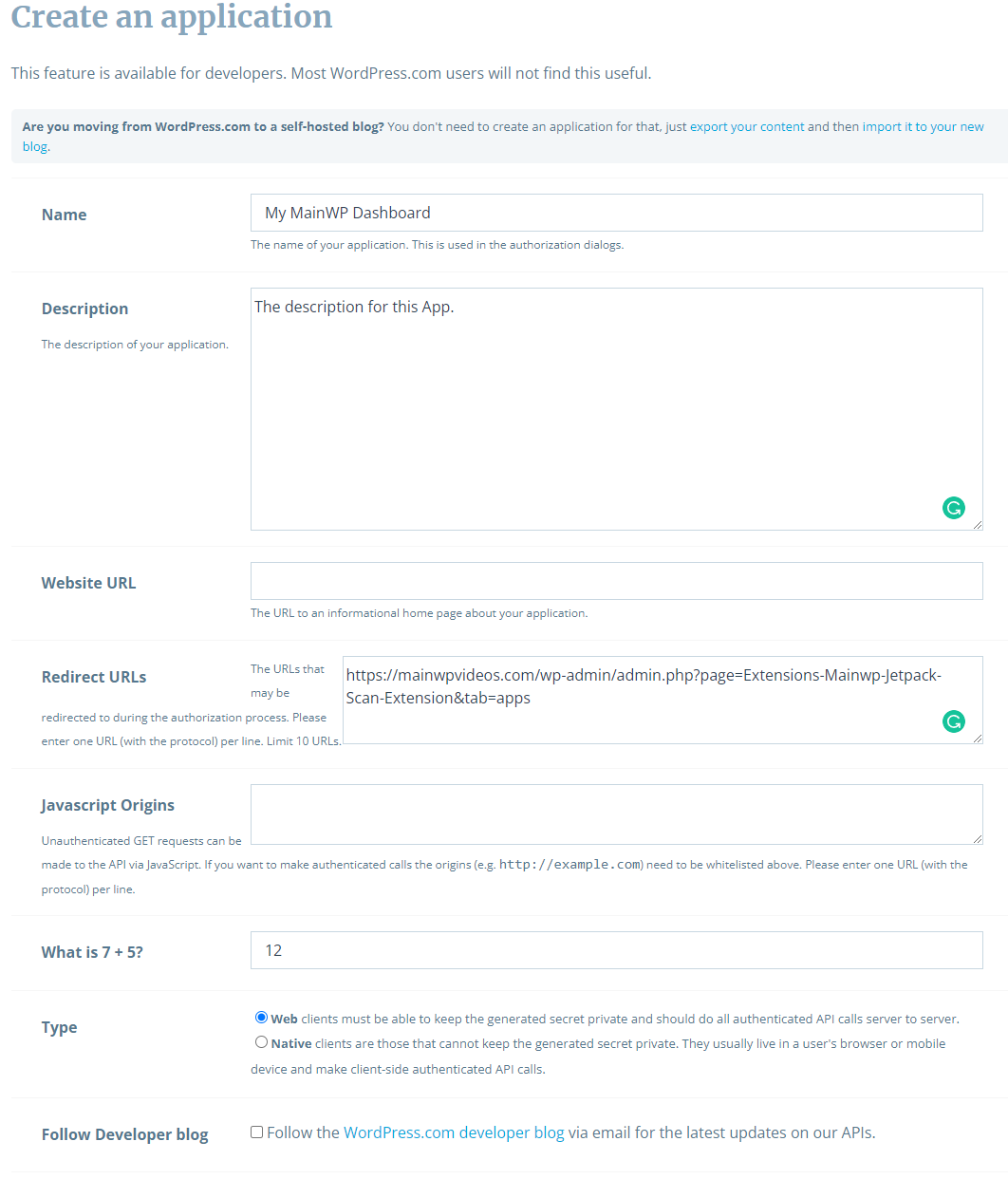
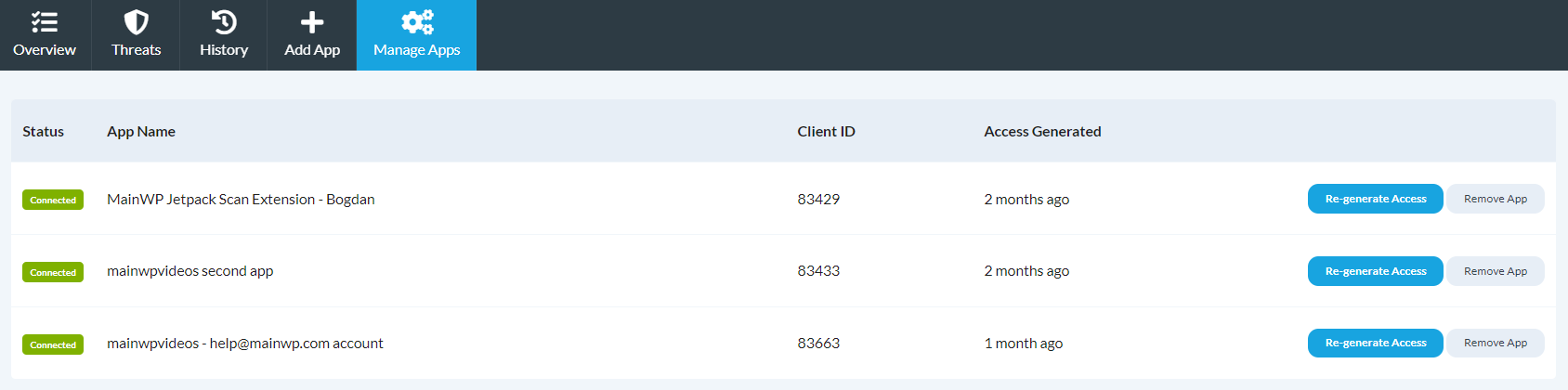
Manage multiple apps
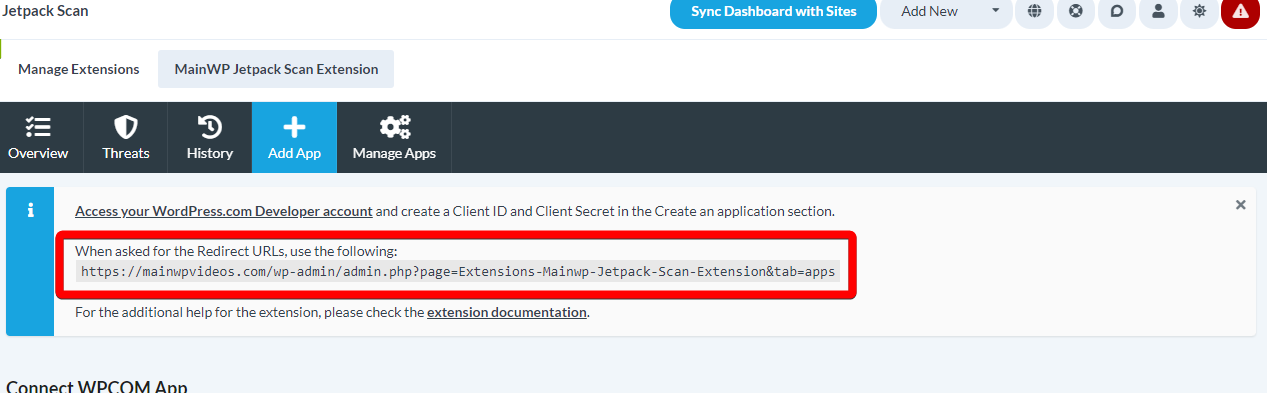
Overview page
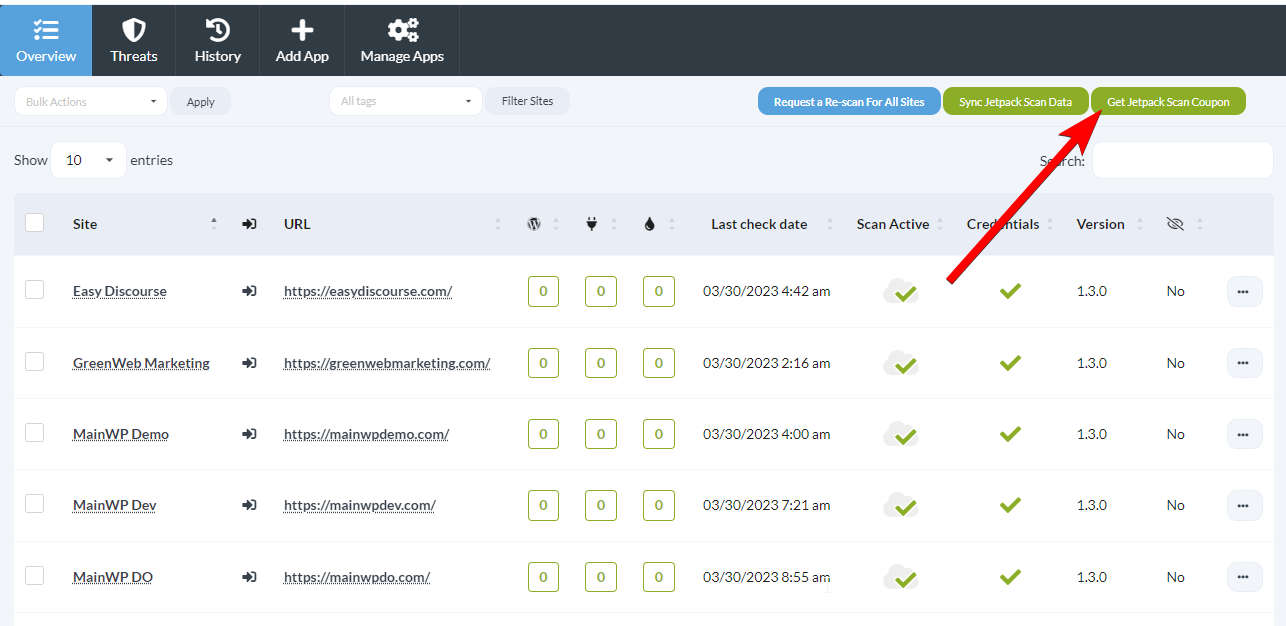
The table on the overview page displays all the sites on which the Jetpack Scan is active. The WP, Plugins and Themes columns show the number of vulnerabilities found in the respective categories. The ellipsis menu reveals additional actions, such as the ability to hide the Jetpack plugin on the child site and the ability to update the Jetpack plugin. The Bulk Actions menu provides the same actions for multiple child sites at once.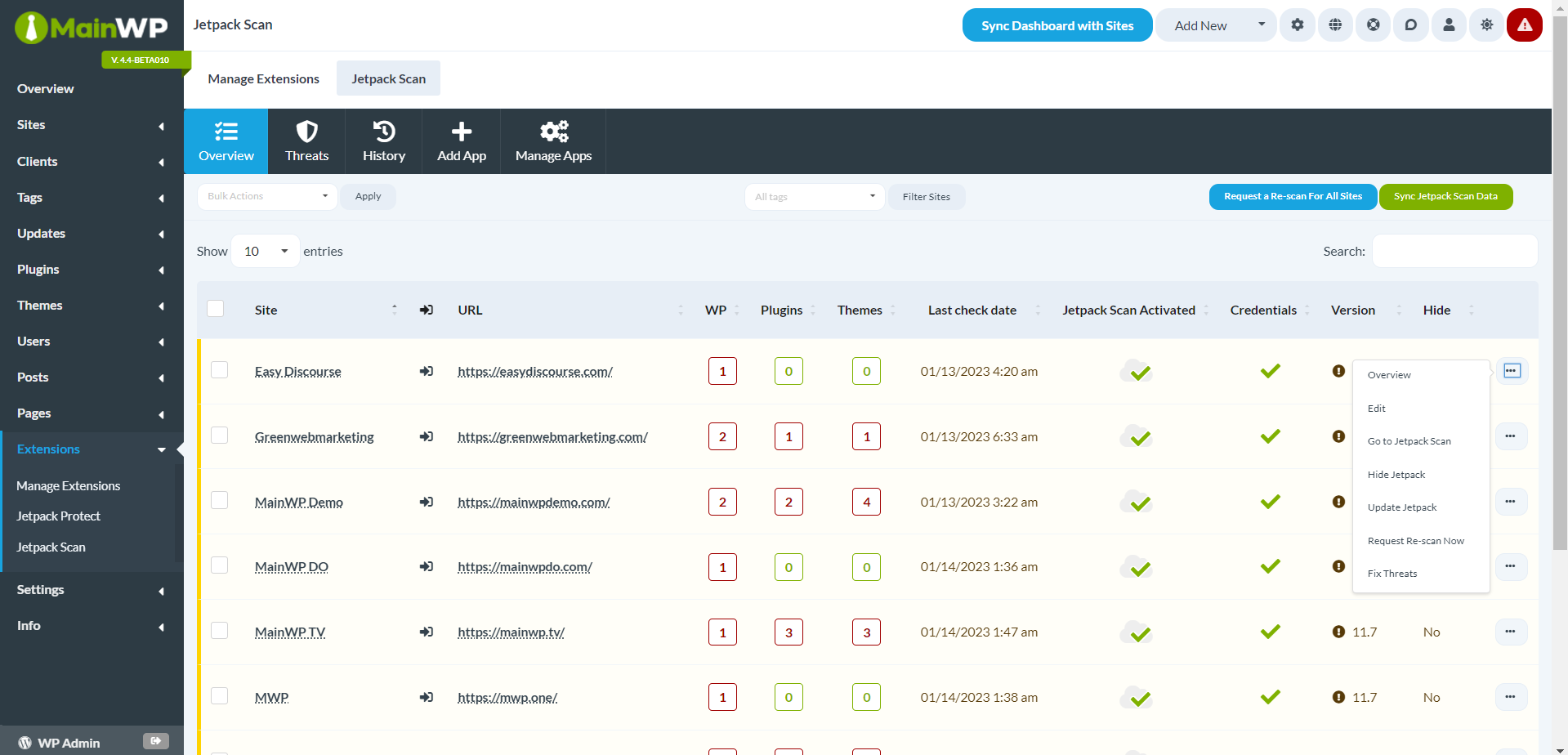
Request a scan
For a single-site
Locate the desired child site in the table, and select the Request Re-scan Now action from the ellipsis menu.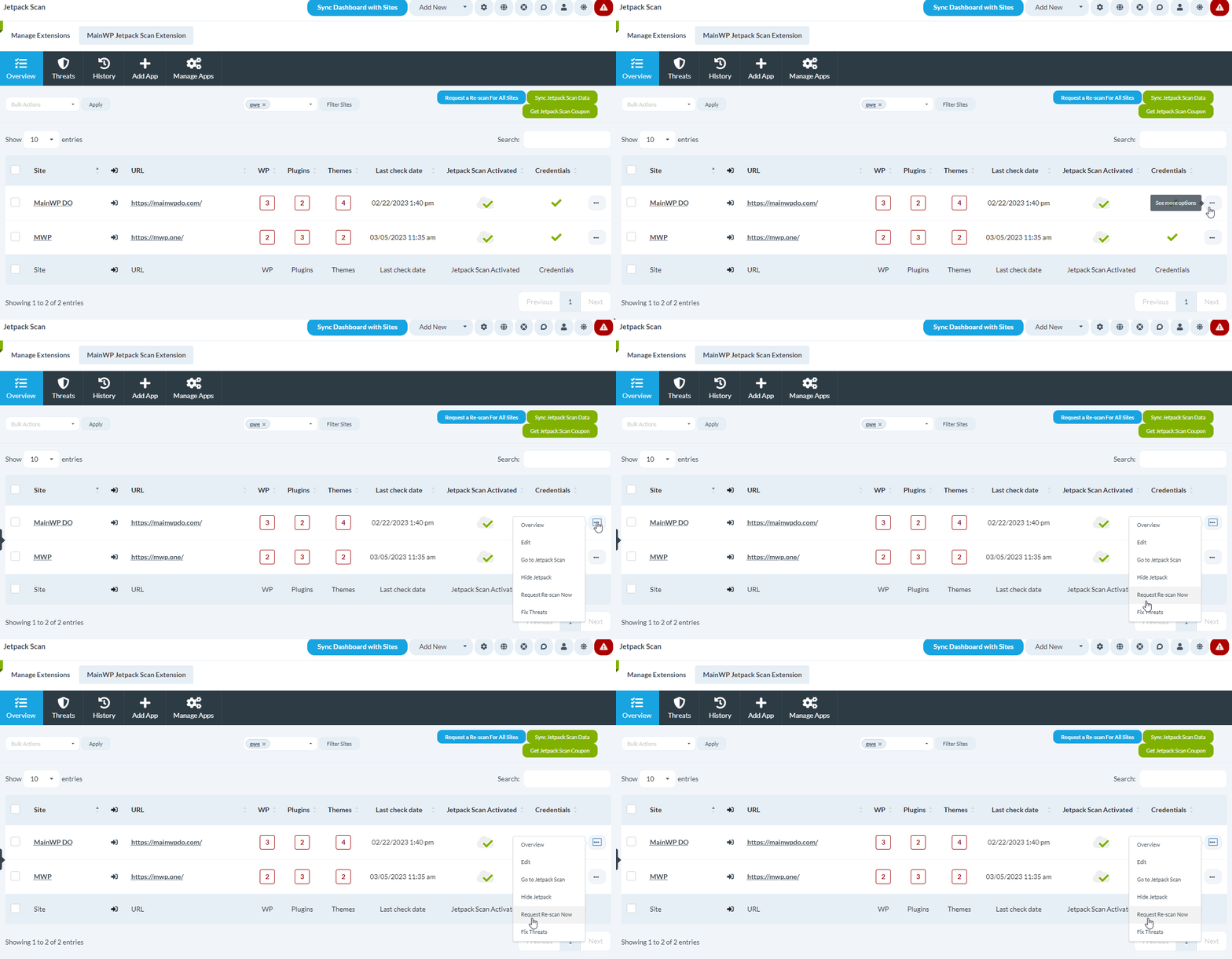
For multiple sites
Locate the desired child sites in the table and mark their checkboxes, then select Request Re-scan Now from the Bulk Actions menu, and click Apply.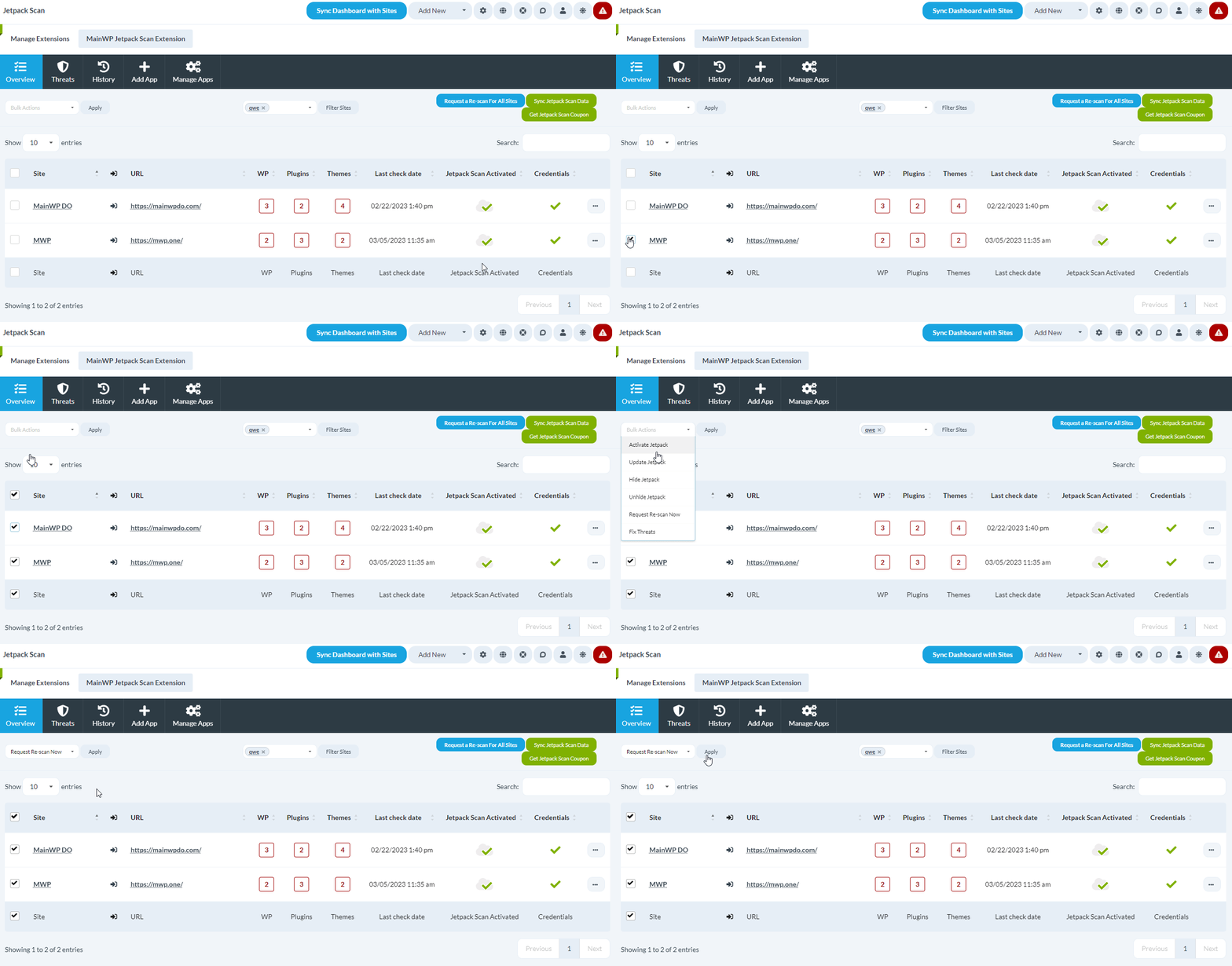
For all sites
Click the Request Re-scan For All Sites button.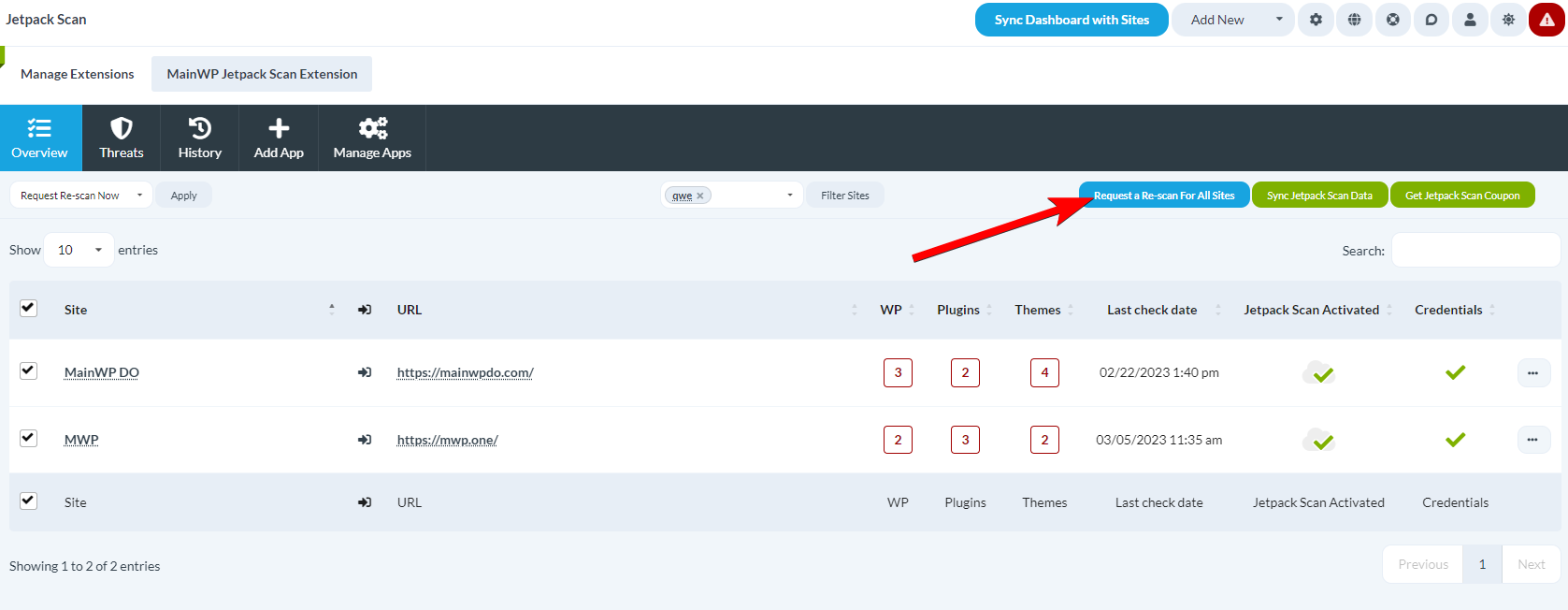
Remote server credentials
Before Jetpack Scan can attempt to fix threats on a child site, it needs to have SSH, SFTP, or FTP server credentials for that child site. This will be indicated by the red X or green checkmark icon in the Credentials column in the table on the Overview page.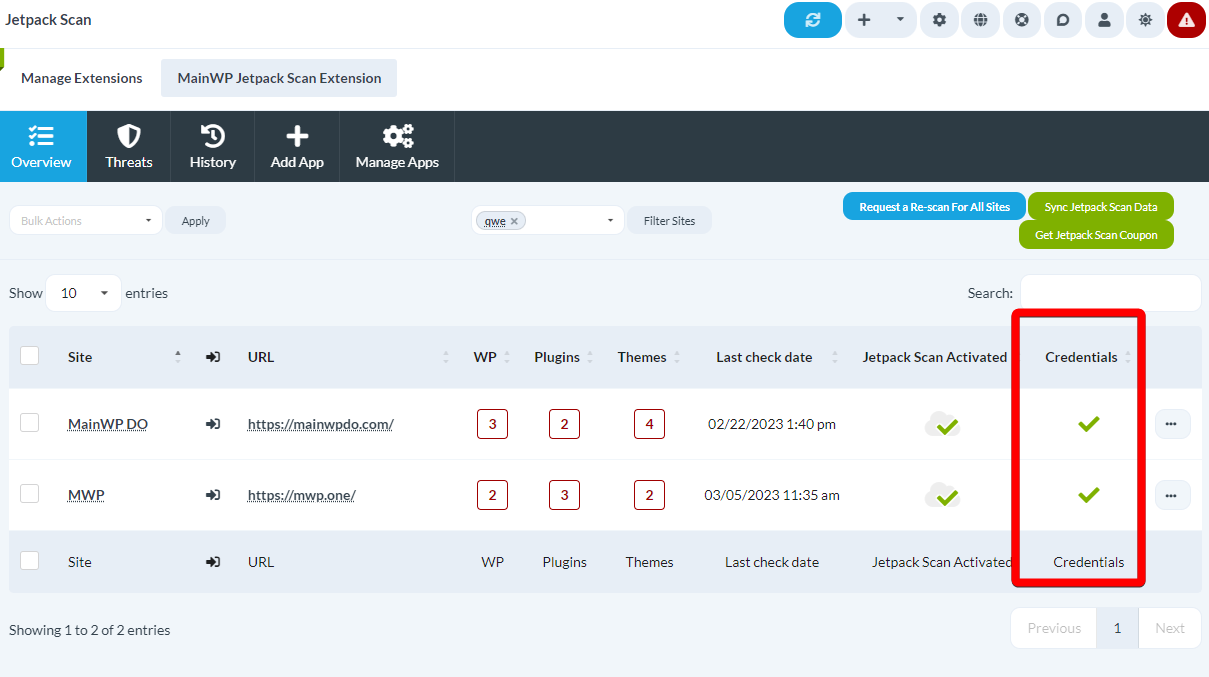
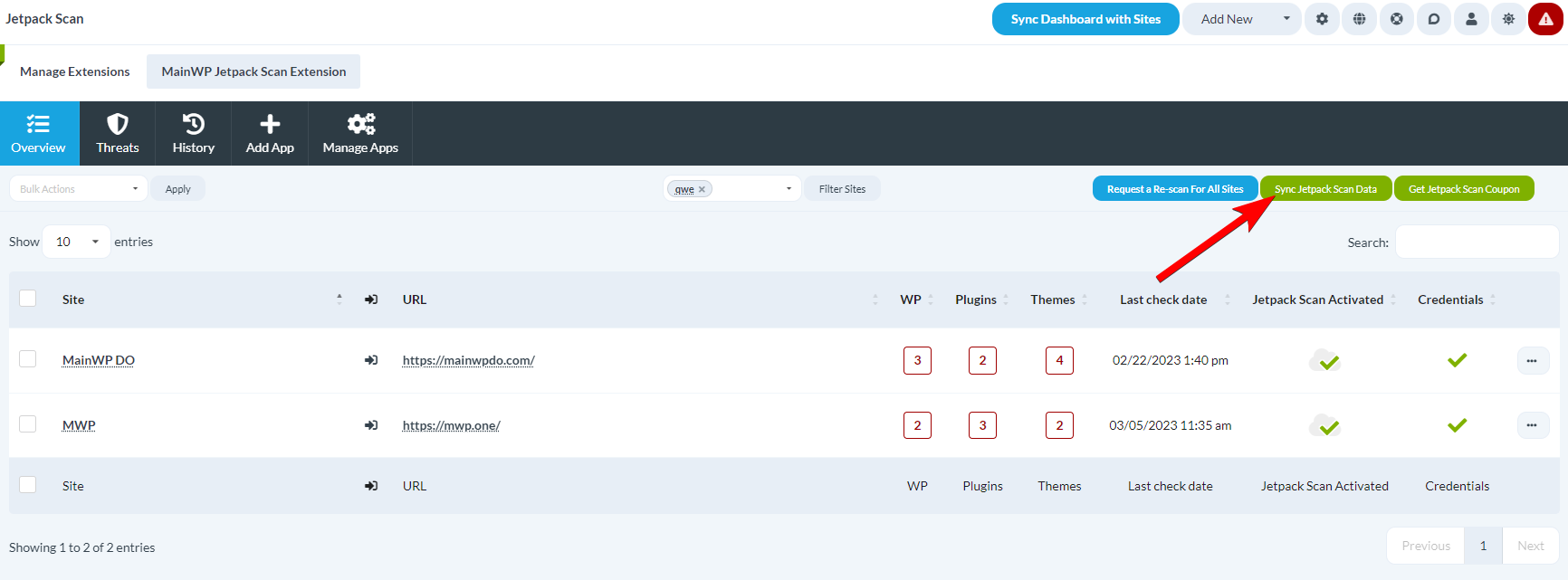
Manage Threats
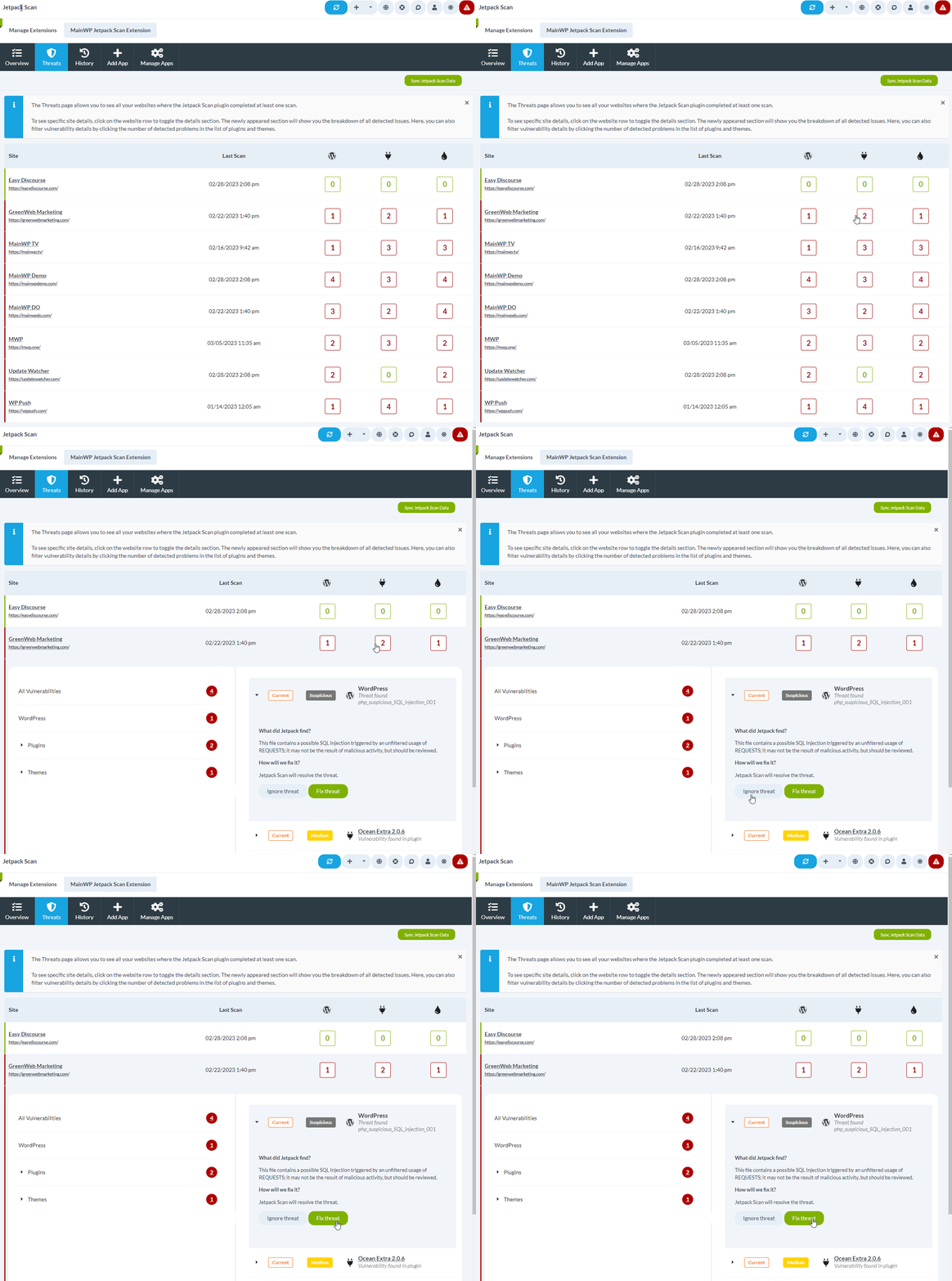
Threats are managed on the Threats page. The page will list all of your sites that have Jetpack Scan active, and the vulnerabilities for WP Core, Plugins and Themes will be shown in the last three columns.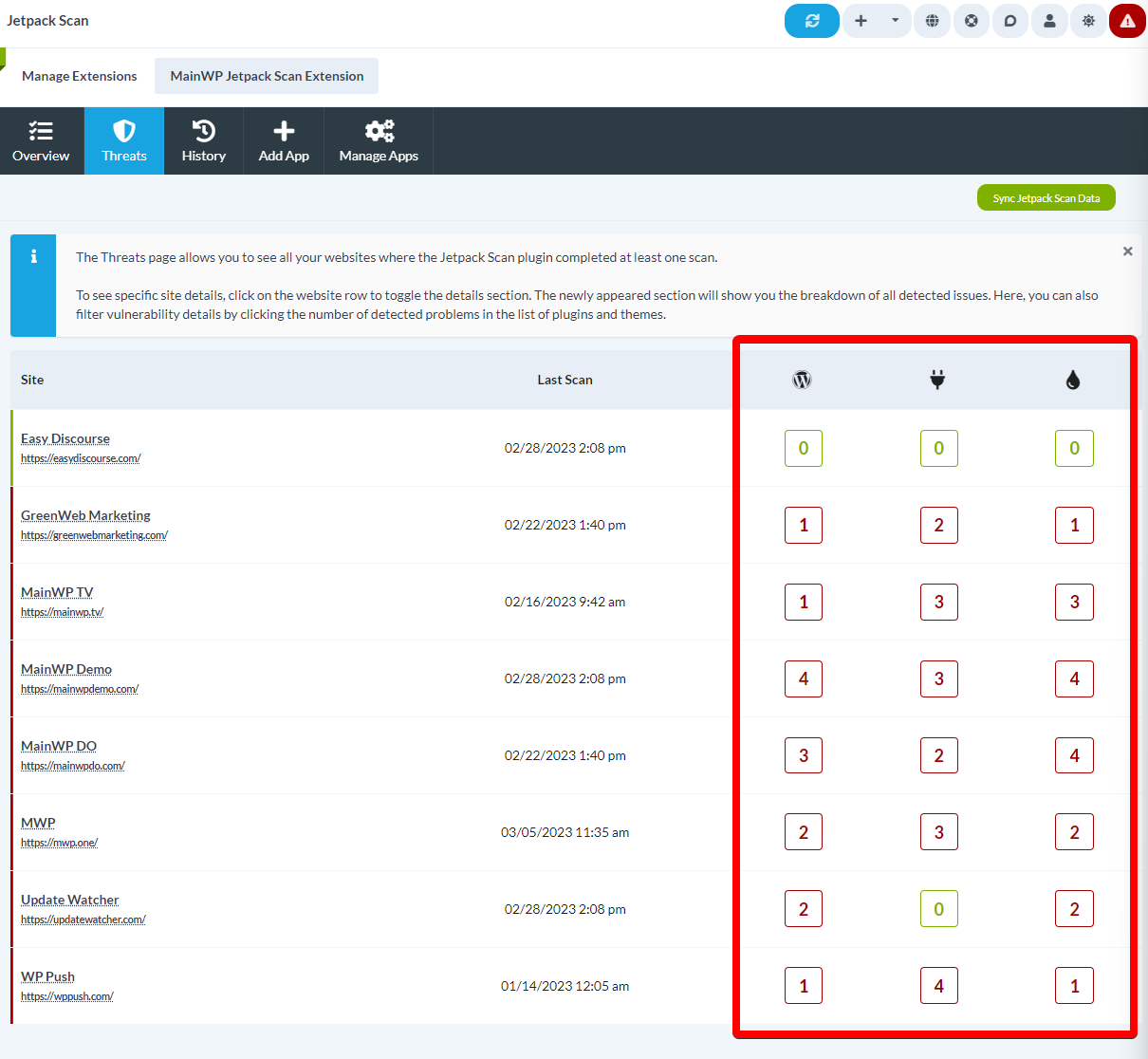
Fixing a threat relies on the Jetpack API and may take multiple minutes to complete. You can leave this page and come back at a later time. Depending on the Jetpack products active on a child site, a Backup may also be performed before an attempted fix, and the process can take several minutes to complete.
History page
After you’ve either ignored or fixed a threat, the threat will be visible on the History page. The layout of the page is identical to the Threats page, so simply click on a vulnerability count of a desired child site to see the history of threat management.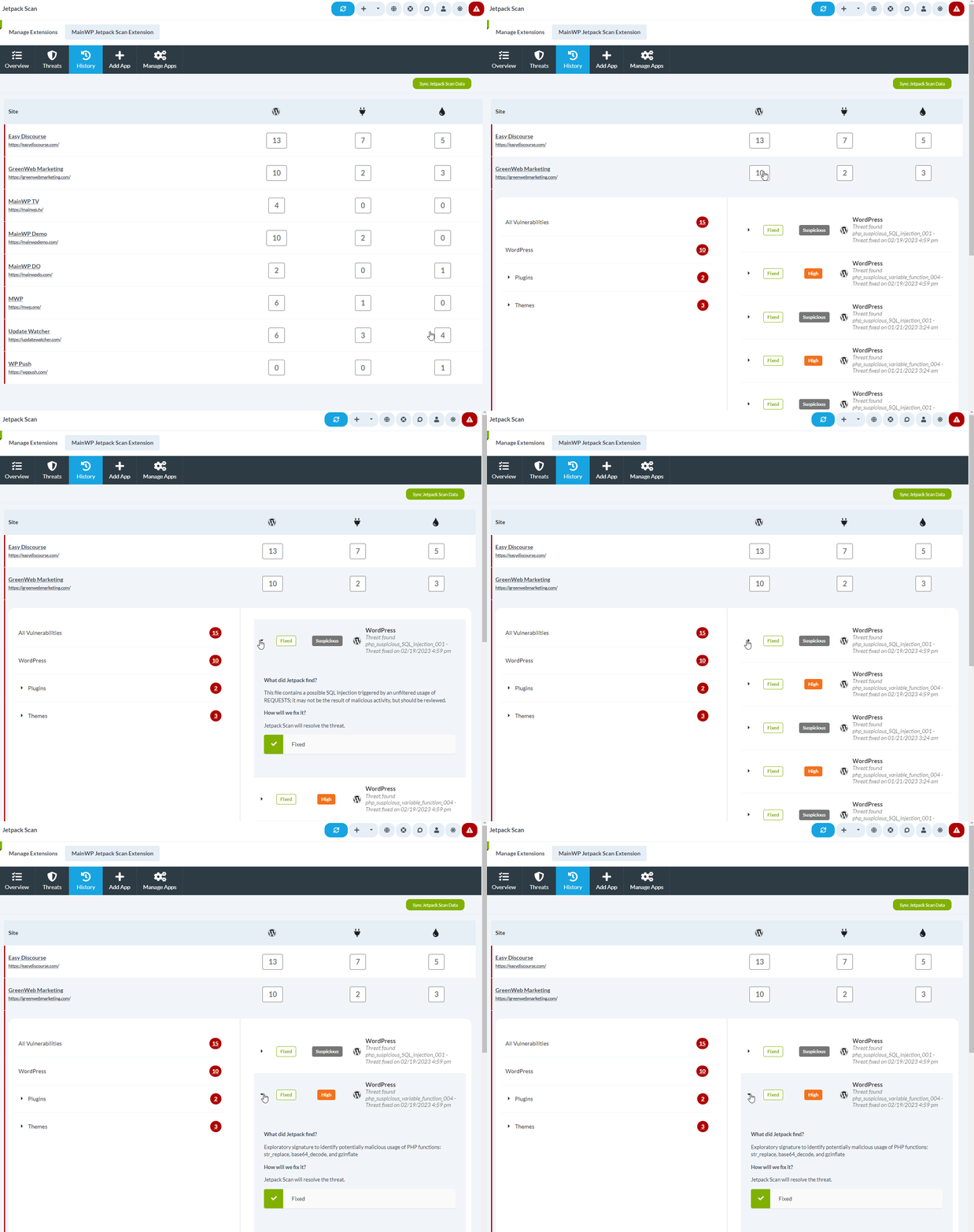
Get a Jetpack Scan Coupon
Through the integration, you can request a Jetpack Scan Coupon, which will give you 40% off for your first year of a Jetpack Scan subscription. The maximum number of coupons you can request is equal to the number of child sites on your MainWP Dashboard.Version 4.0.3 of the Jetpack Scan Integration is required to request the coupons.
1
Navigate to Dashboard > Add-ons > Jetpack Scan page
2
Click the Get Jetpack Scan Coupon button
3
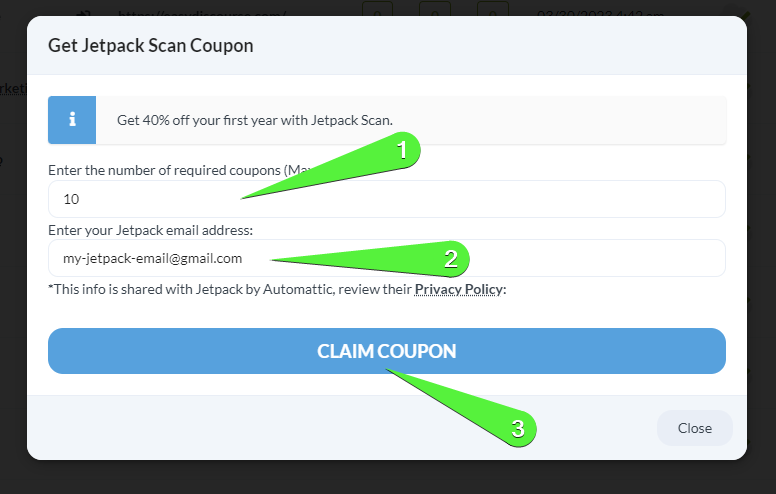
Type in the number of required coupons
Type in the number of required coupons.
The maximum number is going to be the current number of child sites on your Dashboard.
4
Enter the email address of your Jetpack account
5
Click the CLAIM COUPON button
6
You will be presented with the coupons
You will be presented with the coupons. This list of coupons can be displayed again by pressing the Get Jetpack Scan Coupon button.
Jetpack Scan REST API
All MainWP REST API calls, including full documentation, and examples, are now publicly available on Postman. Please refer to our REST API documentation for more details on enabling REST API and managing Keys.Related Resources
- Security Add-ons - Browse all security tools
- Jetpack Protect Integration - Free vulnerability scanning
- Vulnerability Checker Extension - Alternative vulnerability scanning