
What You’ll Learn
- Installing and linking Termageddon with your API key
- Creating new policy pages or linking existing published pages
- Editing, relinking, and unlinking policy pages
- Linking sites to Policy Sets and filtering by policy status
Integration Add-on - This add-on extends MainWP to work with the Termageddon API. It requires a Termageddon account and API key.
Termageddon for MainWP is a free Integration Add-on developed by Termageddon. Using this add-on, you can create new policy pages or link existing published pages on your Child Sites and manage them from your MainWP Dashboard. The add-on also checks Termageddon Policy Set statuses so you can see when a linked Policy Set requires action.
Set Up the Add-on
1
Go to your MainWP Dashboard
2
Go to Add-ons > Manage Add-ons
3
Click the Install Add-ons button
Click the Install Add-ons button.
4
Locate Termageddon for MainWP and select it
5
Click the Install button
6
Activate the add-on
Once the installation process is complete, click the Activate Add-ons button.
7
Navigate to Add-ons > Termageddon for MainWP
8
Add your Termageddon API key
Click Add Termageddon API Key, enter the API key generated in your Termageddon Dashboard, and click Save API Key. After the key is saved, use Manage Termageddon API Key to replace or remove it.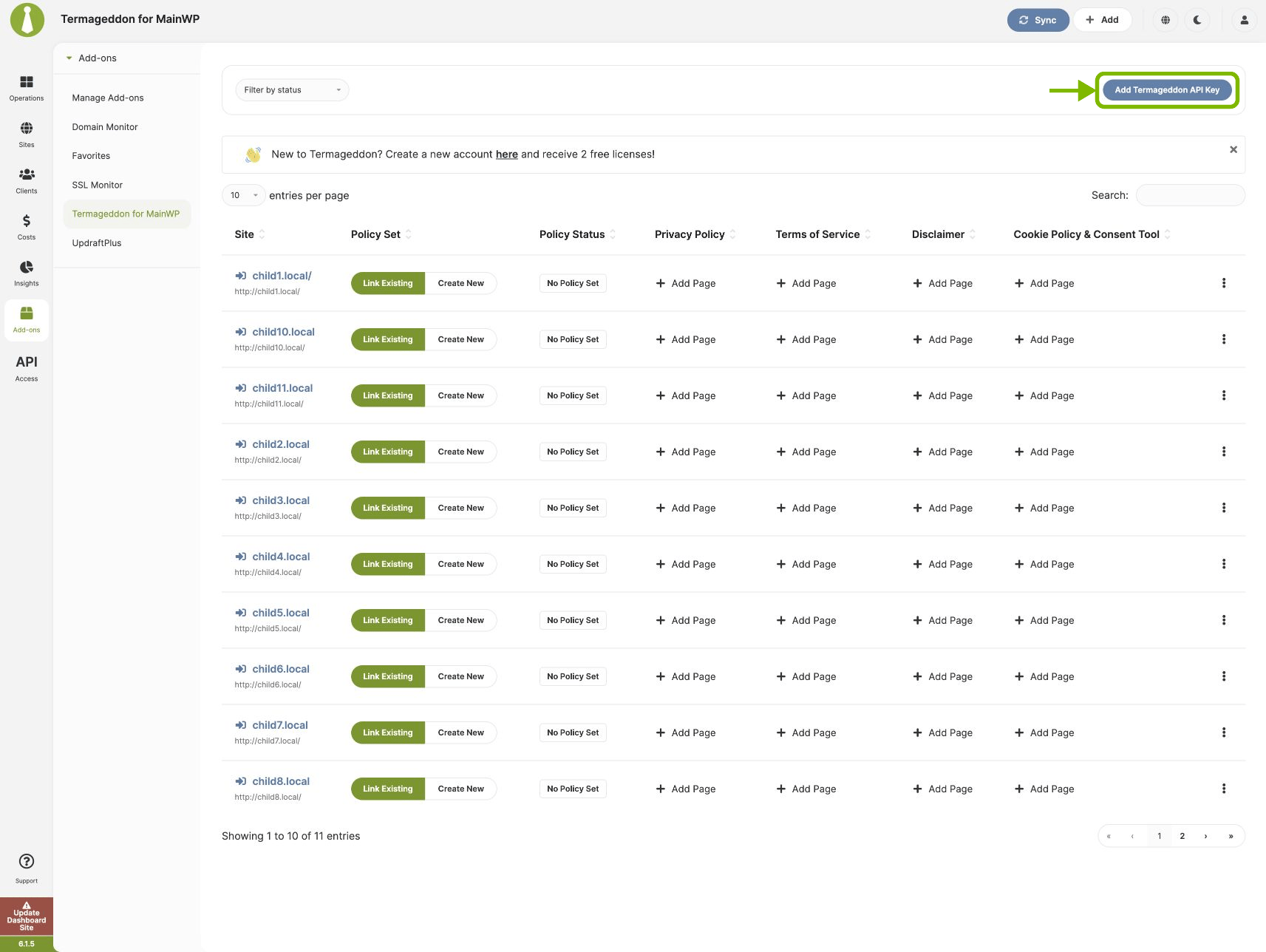
Create or link Termageddon policy pages
1
Login to your MainWP Dashboard
2
Navigate to Add-ons > Termageddon for MainWP
3
Locate the site for which you wish to create a policy page
4
Click the Add Page button in the appropriate column
Click Add Page under Privacy Policy, Terms of Service, Disclaimer, or Cookie Policy & Consent Tool.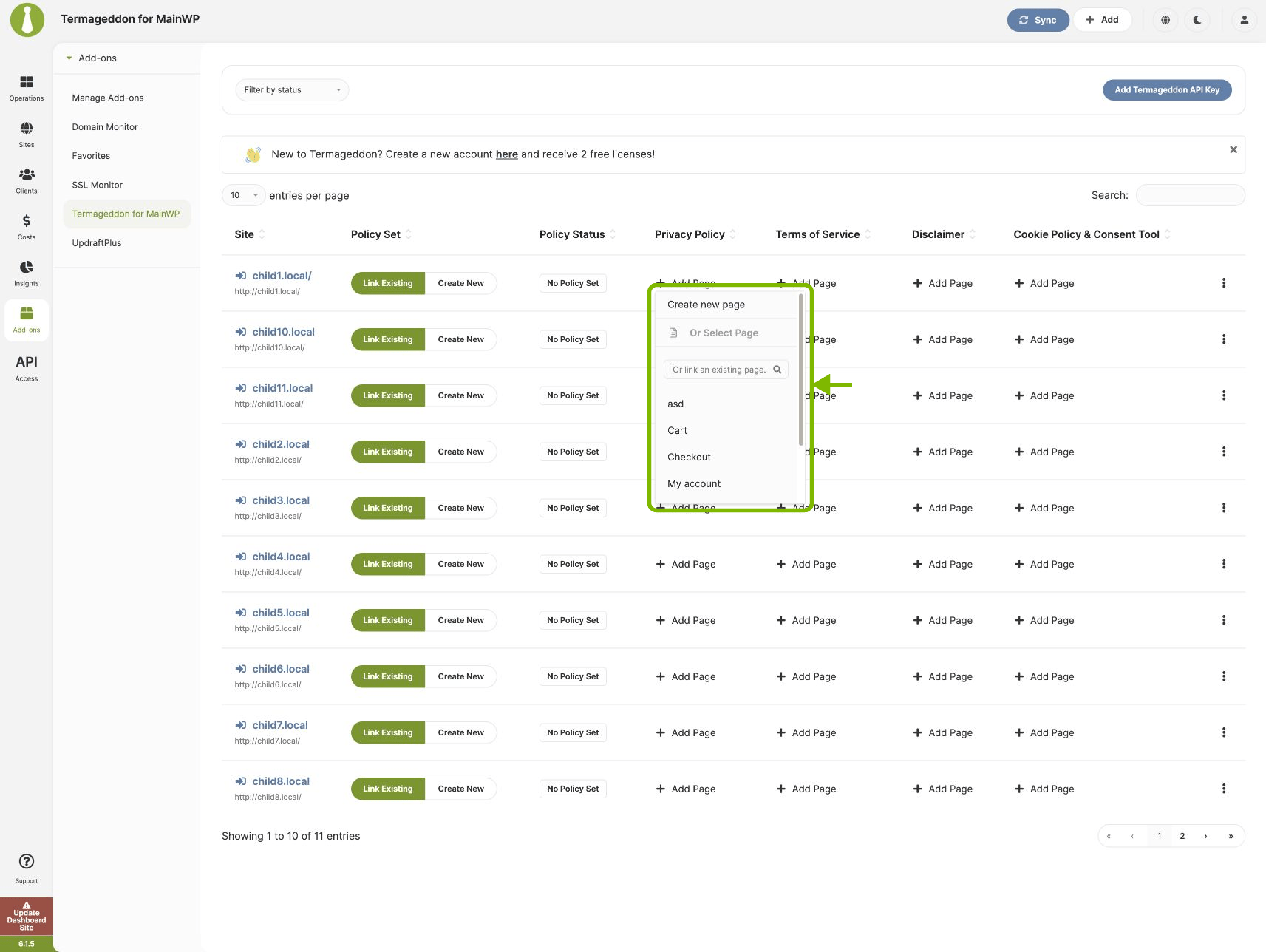
5
Create a new page or select an existing page
Choose one of these options:
- Create new page: Open the policy page editor, enter the page title, paste the Termageddon Embed Code, review the page options, and click Publish.
- Link an existing page: Select a published page from the menu. Use the search field to find a page by title. Only published pages can be linked.
When a new policy page is published to multiple sites, the results list reports whether the page was created, updated, or failed for each processed site.
Edit, relink, or unlink a policy page
After you create or link a policy page, Add Page becomes Edit Page. Open the menu to:- Select Edit page to open the policy page editor.
- Search under Or Relink To a Page and select another published page to replace the current mapping.
- Select Unlink page to remove the mapping from Termageddon for MainWP. Unlinking does not delete the page from the Child Site.
Link a child site to a Policy Set
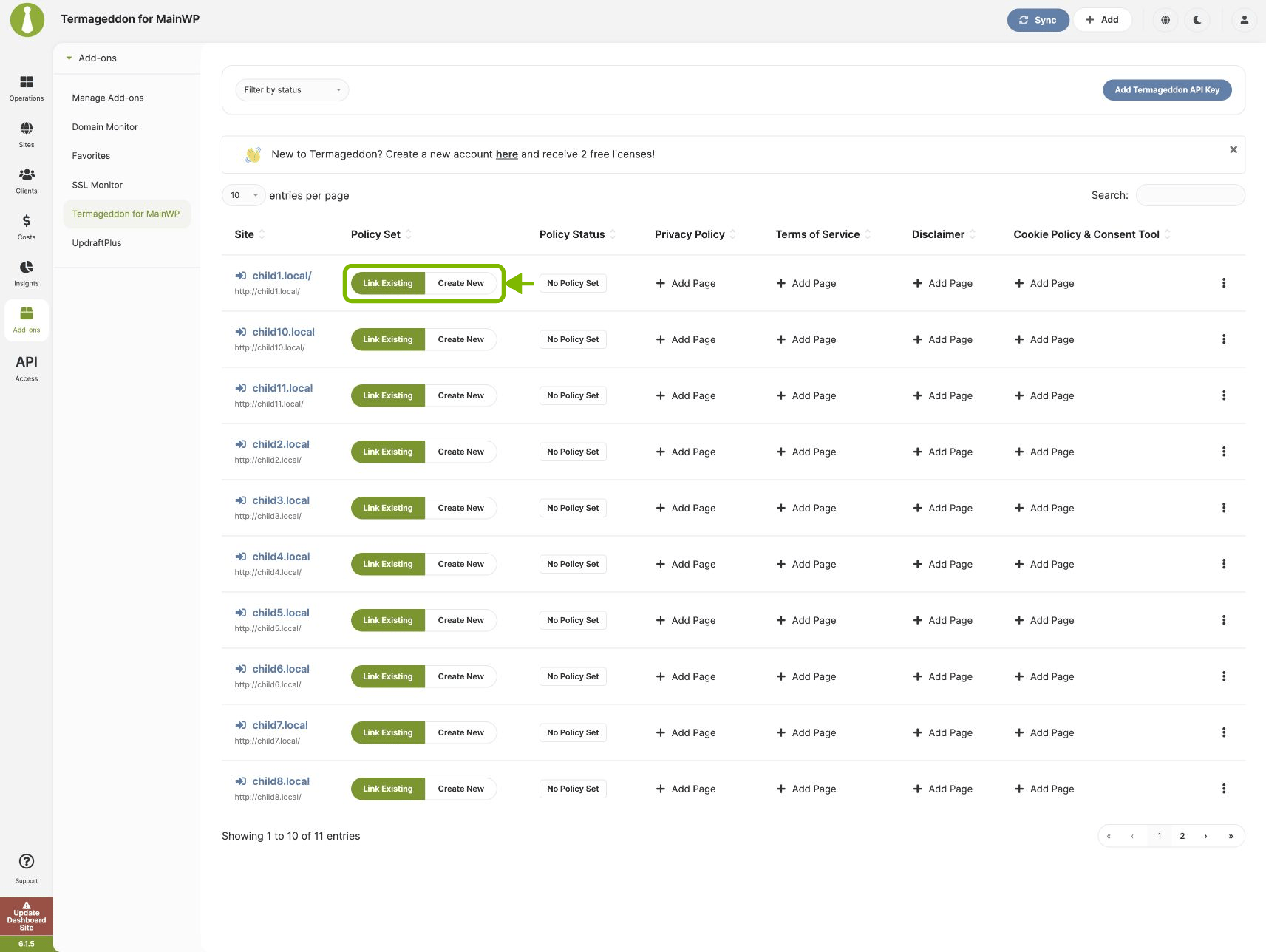
After you create a Policy Set in the Termageddon Dashboard, you can link a Child Site to it. In the Policy Set column:- Click Link Existing to open the Child Site edit screen at Termageddon Website Policies. Select a Policy Set from Link with policy set (optional), and click Save Settings.
- Click Create New to open the Termageddon Dashboard and create a Policy Set.
Filter sites
Use Filter by status to show Child Sites with one of these Policy Set statuses:- Active
- Update Required
- Incomplete
- Pending Invite
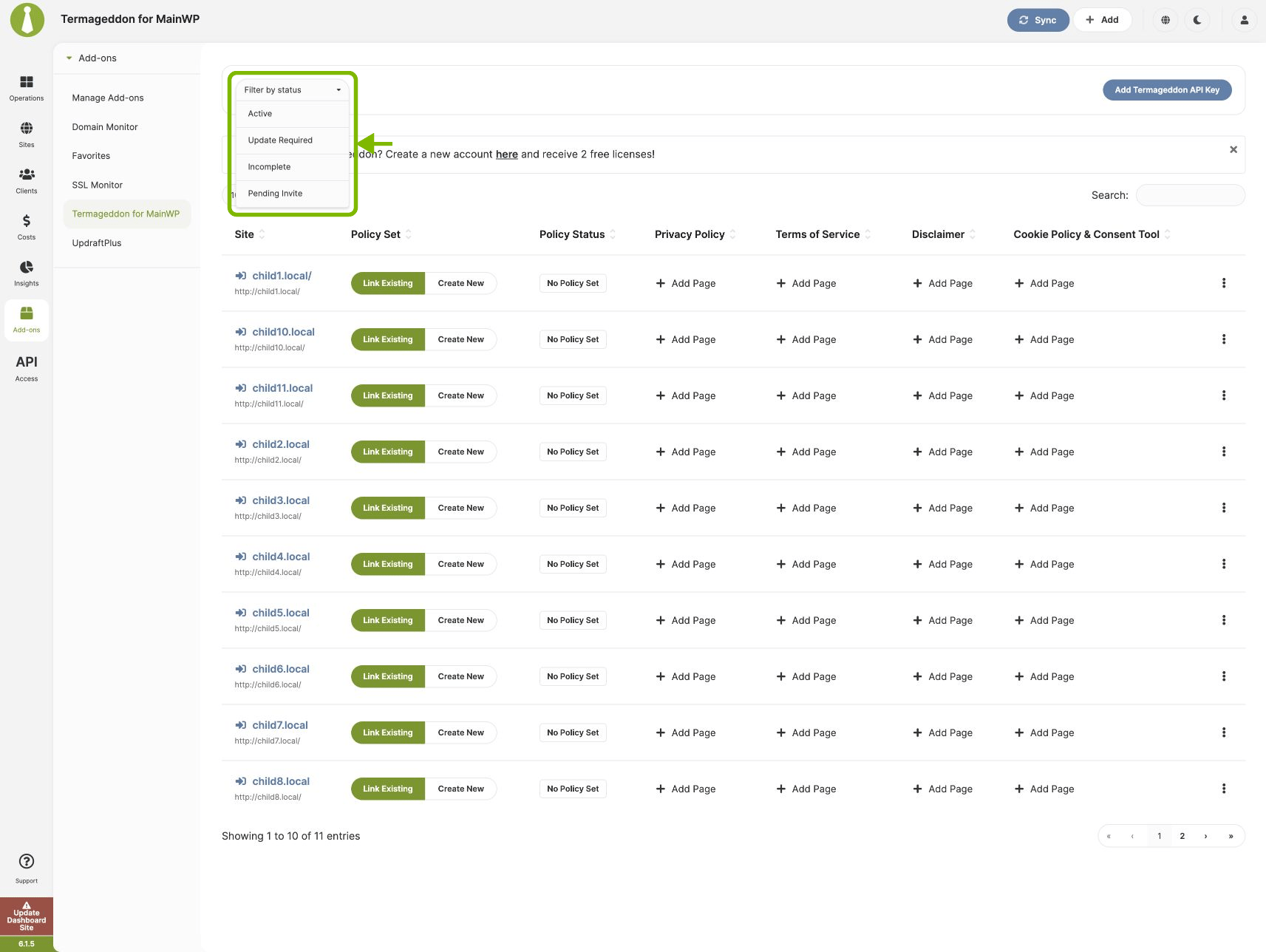
A Child Site must be linked to a Policy Set before Termageddon can report a Policy Status for it.
Related Resources
- Posts/Pages Add-ons - Browse all content tools
- Manage Pages - Page management guide
- White Label Extension - Customize branding for clients