
What You’ll Learn
- Creating a Fathom API token
- Connecting Fathom to MainWP Dashboard
- Assigning Fathom sites to child sites
- Viewing visitor data and widgets
- Including Fathom data in Pro Reports
Use This Integration to Track:
- Views
- Users
- Unique pages view
- Average Engagement time
- Visitors by Country
- Visitors by Page
- Visitors by Device
- Views by Referrers
- Visitors by Browsers
Establishing a connection with a Fathom Account
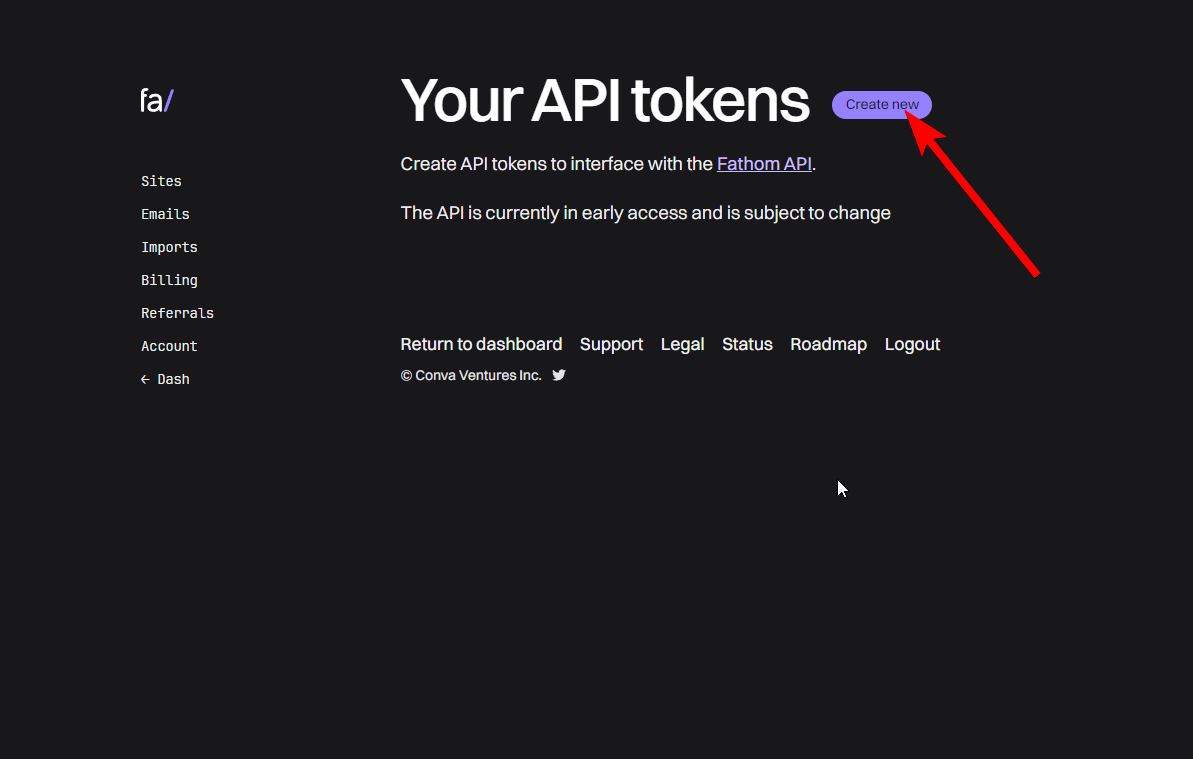
Navigate to https://app.usefathom.com/api
Click the Create New button to create an API token
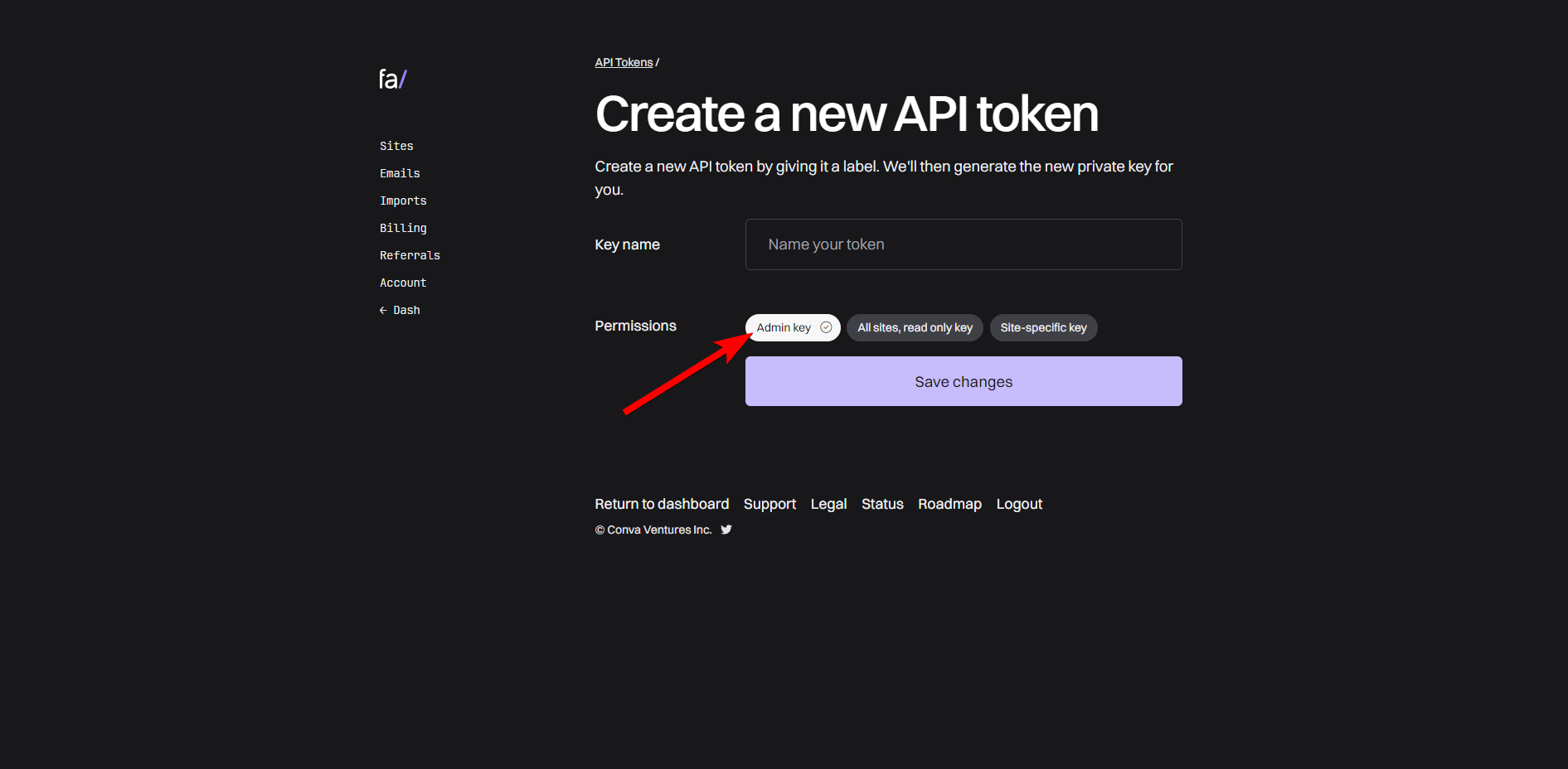
Give the key a name, set Permissions to Admin key, and click the Save change button
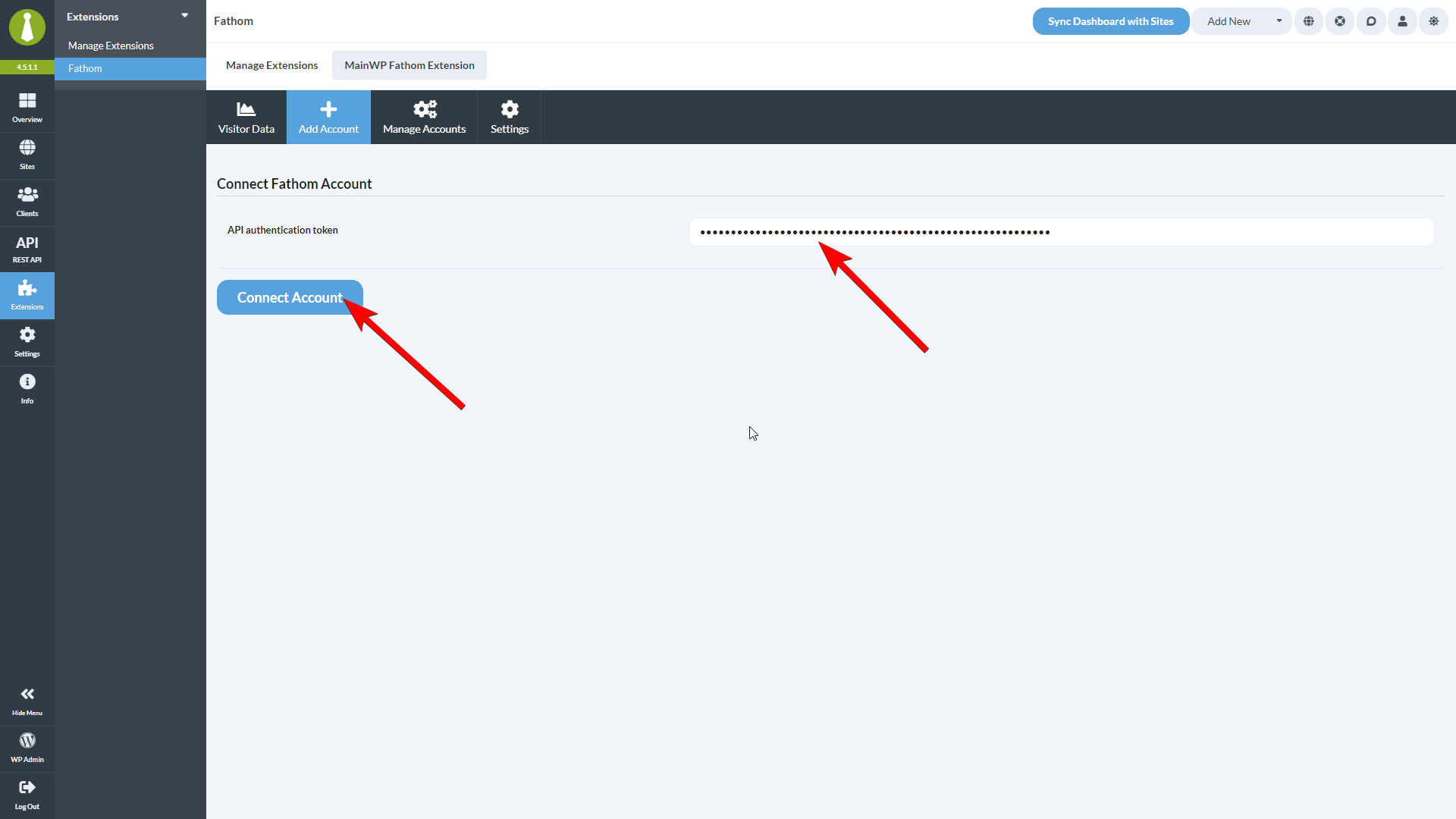
Navigate to MainWP Dashboard > Add-ons > Analytics > Fathom > Add Account
Paste in the API token and click the Connect Account button
Assigning sites from your Fathom Account to Child Sites in your MainWP Dashboard
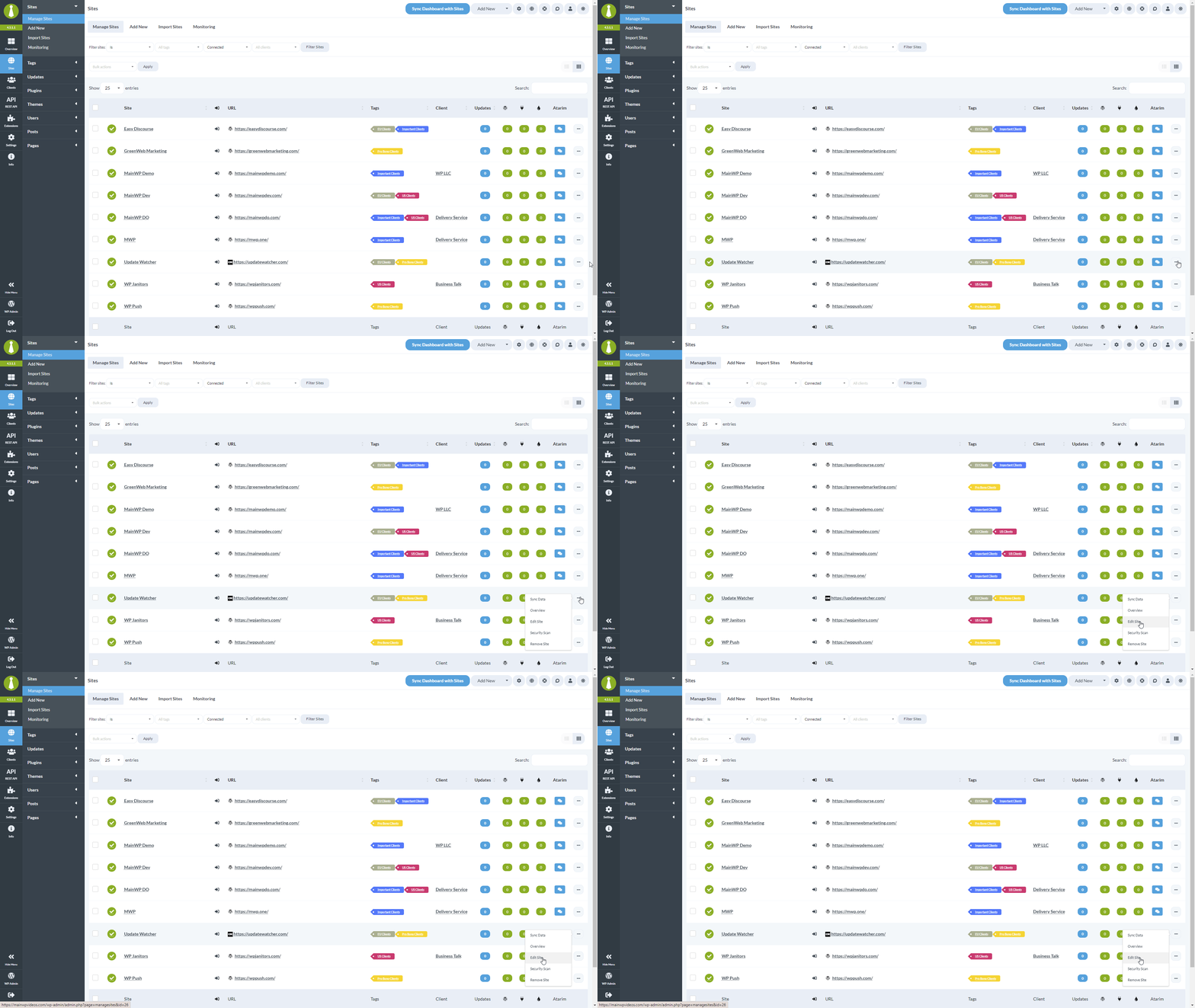
Go to MainWP Dashboard > Sites > Manage Sites
Locate the desired child site and click the Edit action
Locate the Fathom section
Select the correct Fathom site from the dropdown menu
Click the Save Settings button
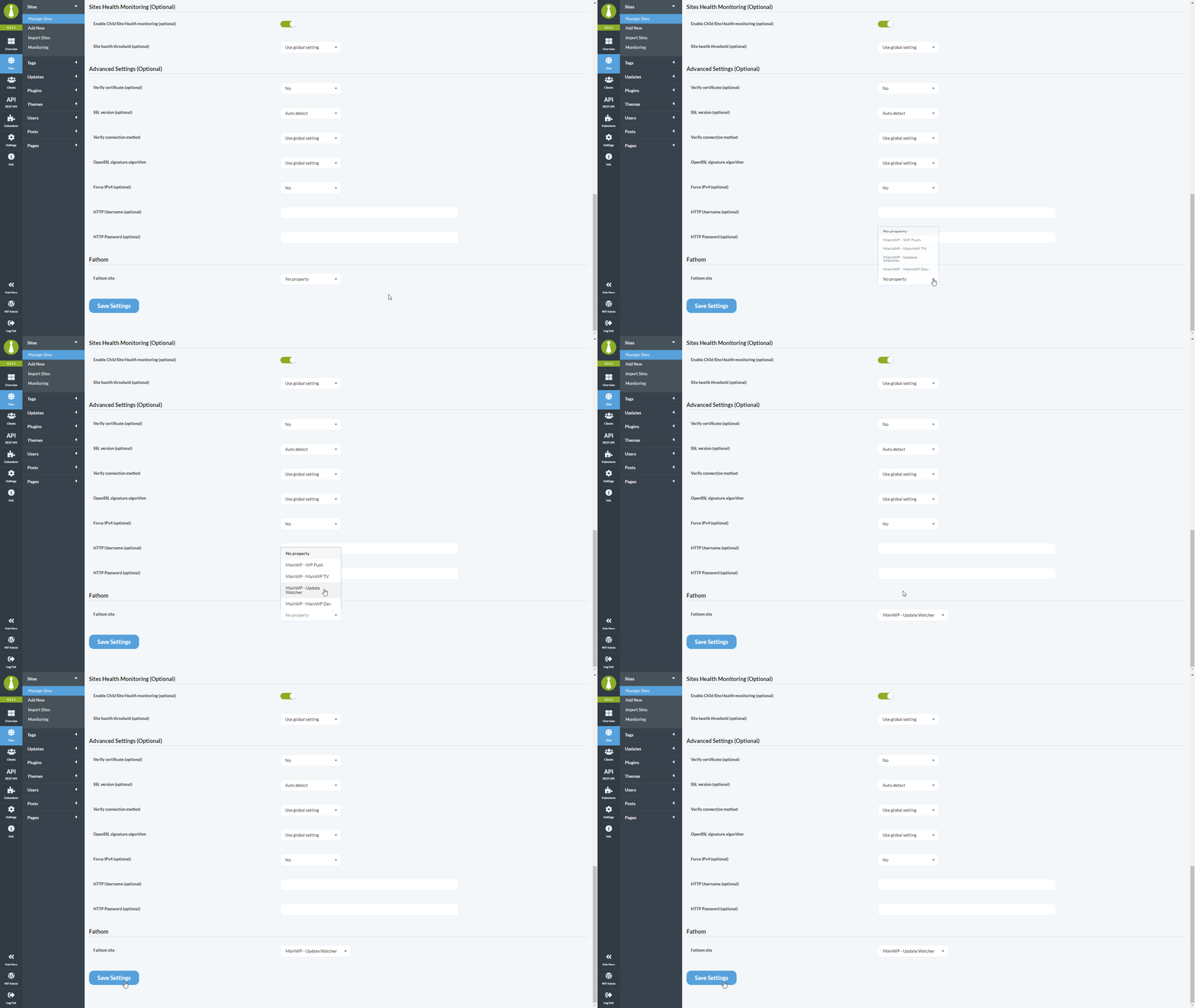
Repeat the process for all your child sites
When you are done, you will see those sites in the dropdown on the Add-ons > Analytics > Fathom > Visitor Data page
Fathom Visitor Data
After you connect your Fathom Analytics account and assign Fathom sites to your child sites, you will be able to see all Fathom Analytics data on the Add-ons > Analytics > Fathom > Visitor Data page.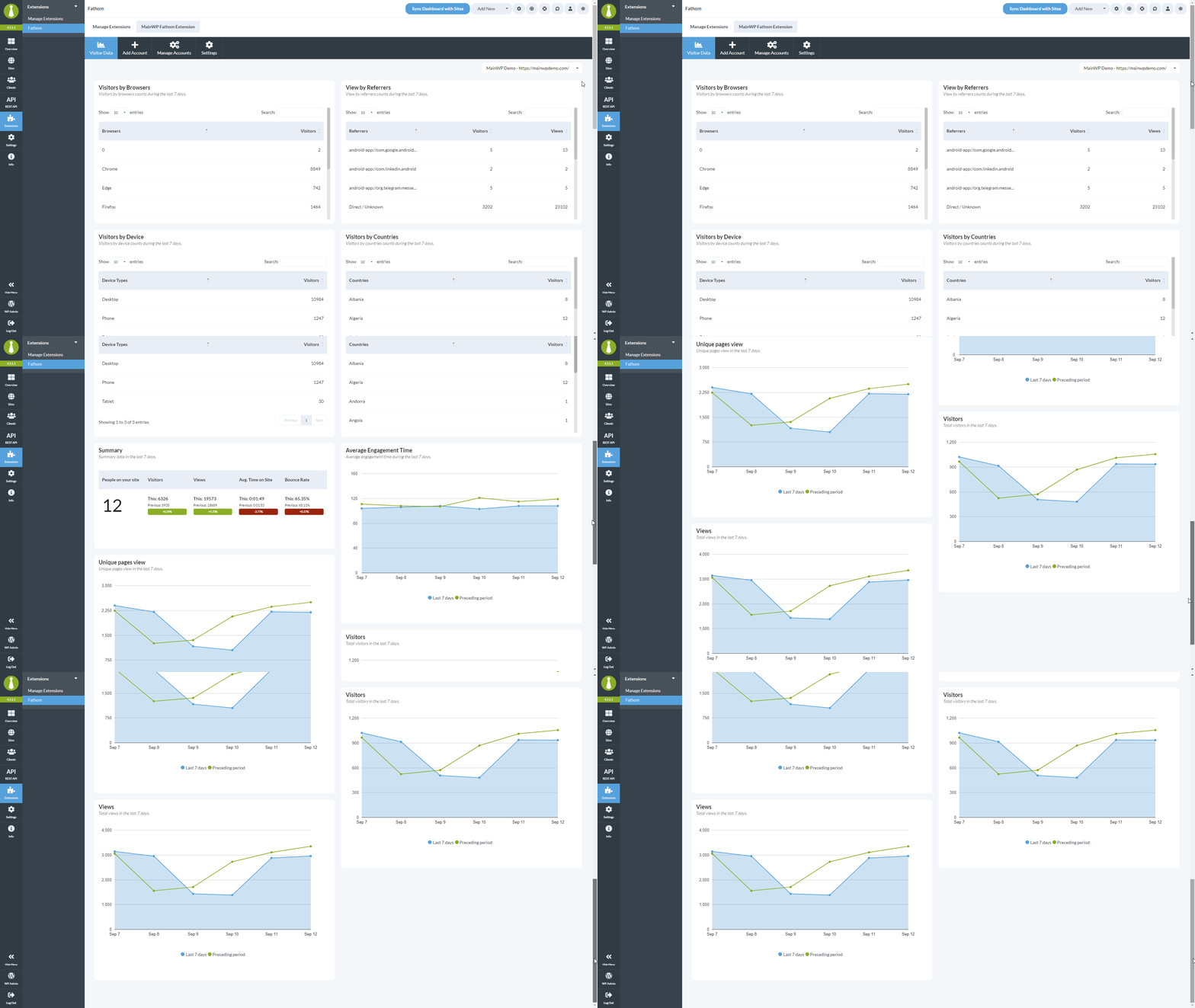
Refreshing Fathom data
Fathom data is cached in your MainWP Dashboard so that pages load quickly and so the Fathom Aggregation API isn’t called on every page view. The cache is refreshed automatically based on the Data refresh frequency setting, and you can also refresh it on demand.Data refresh frequency
Set how often MainWP fetches fresh stats from your Fathom account:Go to Add-ons > Analytics > Fathom > Settings
Choose a value for Data refresh frequency
Click Save Settings
Refresh Data button
Use the Refresh Data button to force an immediate update outside of the configured refresh frequency. It clears the Fathom stats cache and re-fetches data from Fathom for all assigned sites.- On the Settings tab, click the Refresh Data button next to Save Settings.
- On the Visitor Data tab, click the Refresh Data button to reload the page with fresh stats.
Display interval
The Display interval setting on the Settings tab controls the time range shown in Fathom widgets and on the Visitor Data page. Choose Week or Month depending on the reporting window you want to see by default.Removing a connected Fathom account
When you remove a connected Fathom account from MainWP, the add-on automatically clears the Fathom site assignments from your child sites and removes the related cached stats. You don’t need to manually clean up child site settings after disconnecting an account.Widgets
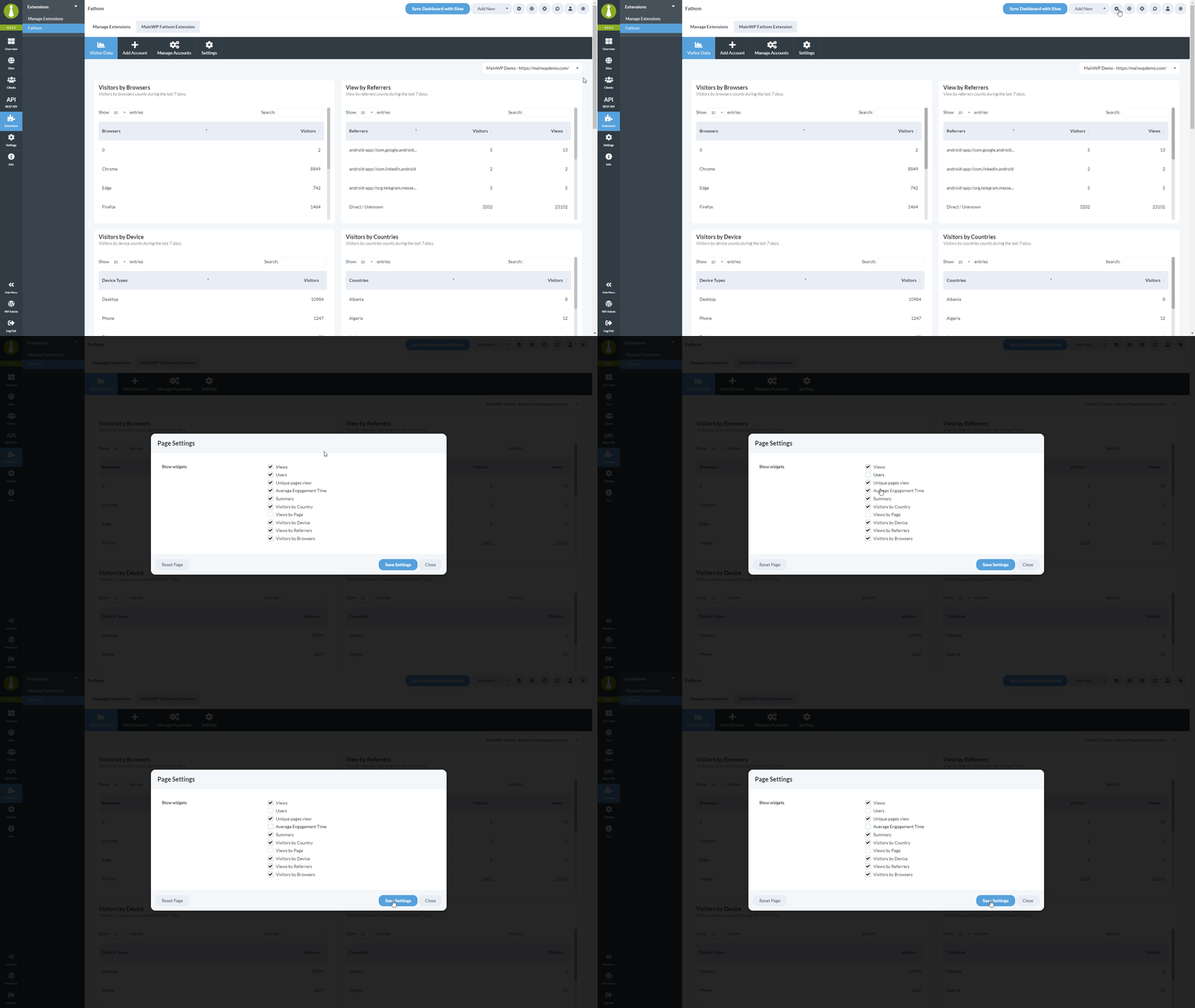
The Fathom widget will be added to the Overview page and on the Individual Child site Overview page. As always, the widgets can be enabled or disabled in Page Settings, and they can be re-arranged however you wish.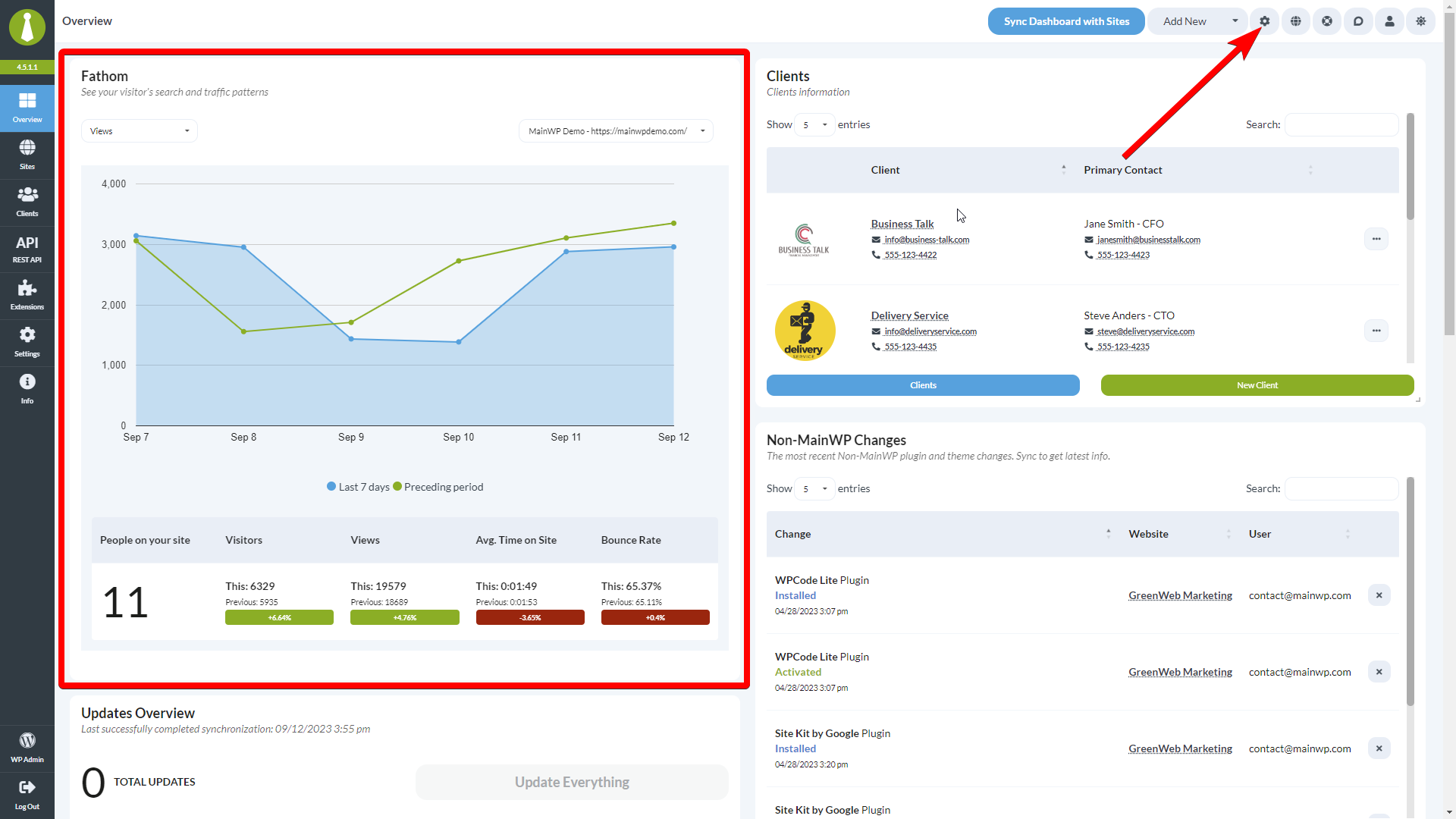
Fathom data in Pro Reports
Fathom data can be easily included in Pro Reports by selecting it from the Report Data section of the Pro Reports.\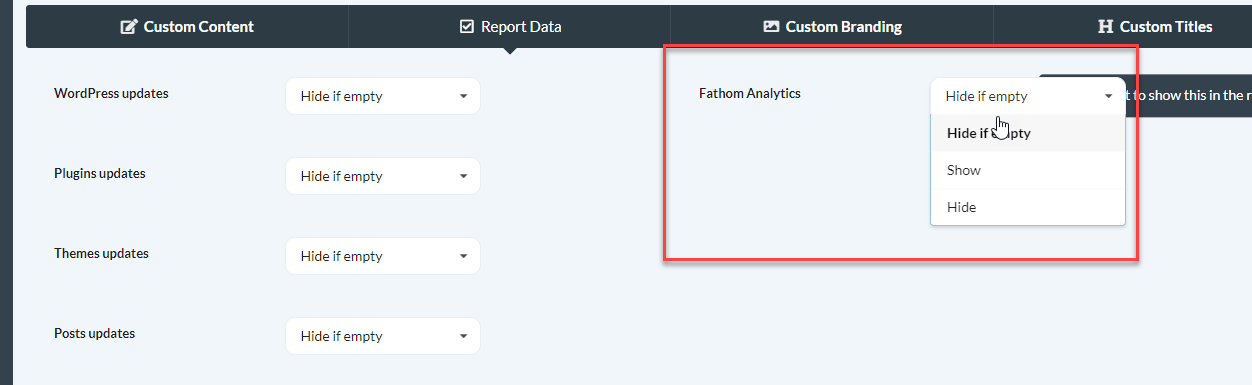
Related Resources
- Analytics Add-ons - Browse all analytics integrations
- Pro Reports Extension - Include analytics data in reports
- Available Pro Reports Tokens - Fathom tokens