
What You’ll Learn
- White labeling the MainWP Child plugin
- Hiding the plugin from clients
- Managing available white label controls
- Adding branded support forms
- Resetting white label settings
Extension Add-on - This add-on provides standalone functionality within MainWP Dashboard. No third-party plugins required.
The MainWP White Label Extension lets you rebrand the MainWP Child plugin on client sites. You can replace the plugin name and author information with your own branding, hide the plugin entirely from the plugins list, restrict client access to certain WordPress features, and add a branded support contact form.
White Label no longer includes child-site plugin and update hiding controls (for example, hiding Plugins/update pages or disabling update checks) due to WordPress.org compliance requirements. See Removed hiding options.
Features Overview
White Label the MainWP Child Plugin
Rebrand how the MainWP Child plugin appears in the WordPress plugins list. The same White Label tab and MainWP Child White Label Settings section also includes the option to visually hide the plugin, so you can configure the branding fields, the hide option, or both at the same time.- All Sites (Global)
- Single Site
1
Navigate to White Label settings
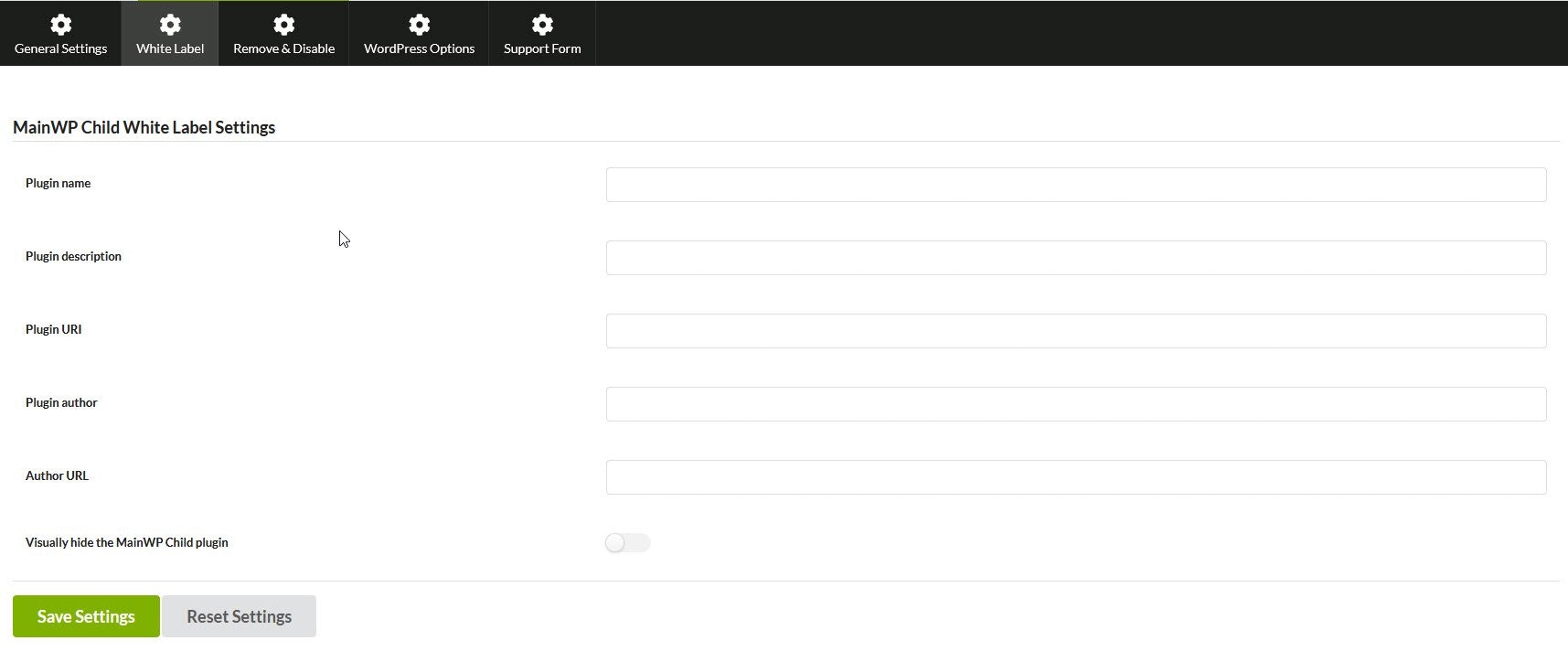
Go to MainWP > Add-ons > White Label and select the White Label tab.
2
Configure the MainWP Child white label settings
3
Save Settings
Click Save Settings to apply changes to all child sites.

Leave fields empty (except Plugin name) to hide that information rather than display the original. Hiding the plugin does not disable the other branding fields, so if you use reporting or other areas that still surface the child plugin details, set the branding fields as well so those views use your custom plugin information instead of the default MainWP Child details. To remove white labeling entirely, delete the Plugin name and save.
Remove & Disable Functions
Restrict client access to WordPress features and MainWP Child settings.- All Sites (Global)
- Single Site
Go to MainWP > Add-ons > White Label and select the Remove & Disable Options tab.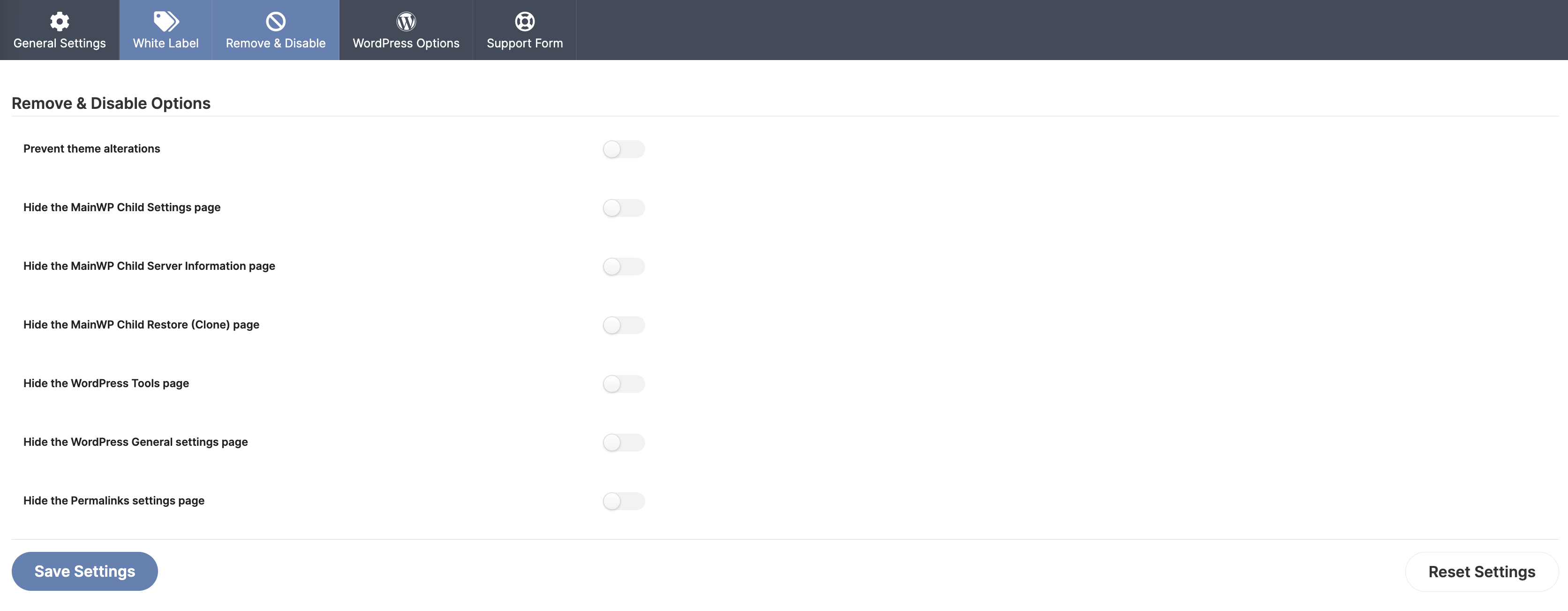
Available Options
WordPress Options
Customize WordPress admin areas, login pages, and site-wide elements on child sites.- All Sites (Global)
- Single Site
Go to MainWP > Add-ons > White Label and select the WordPress Options tab.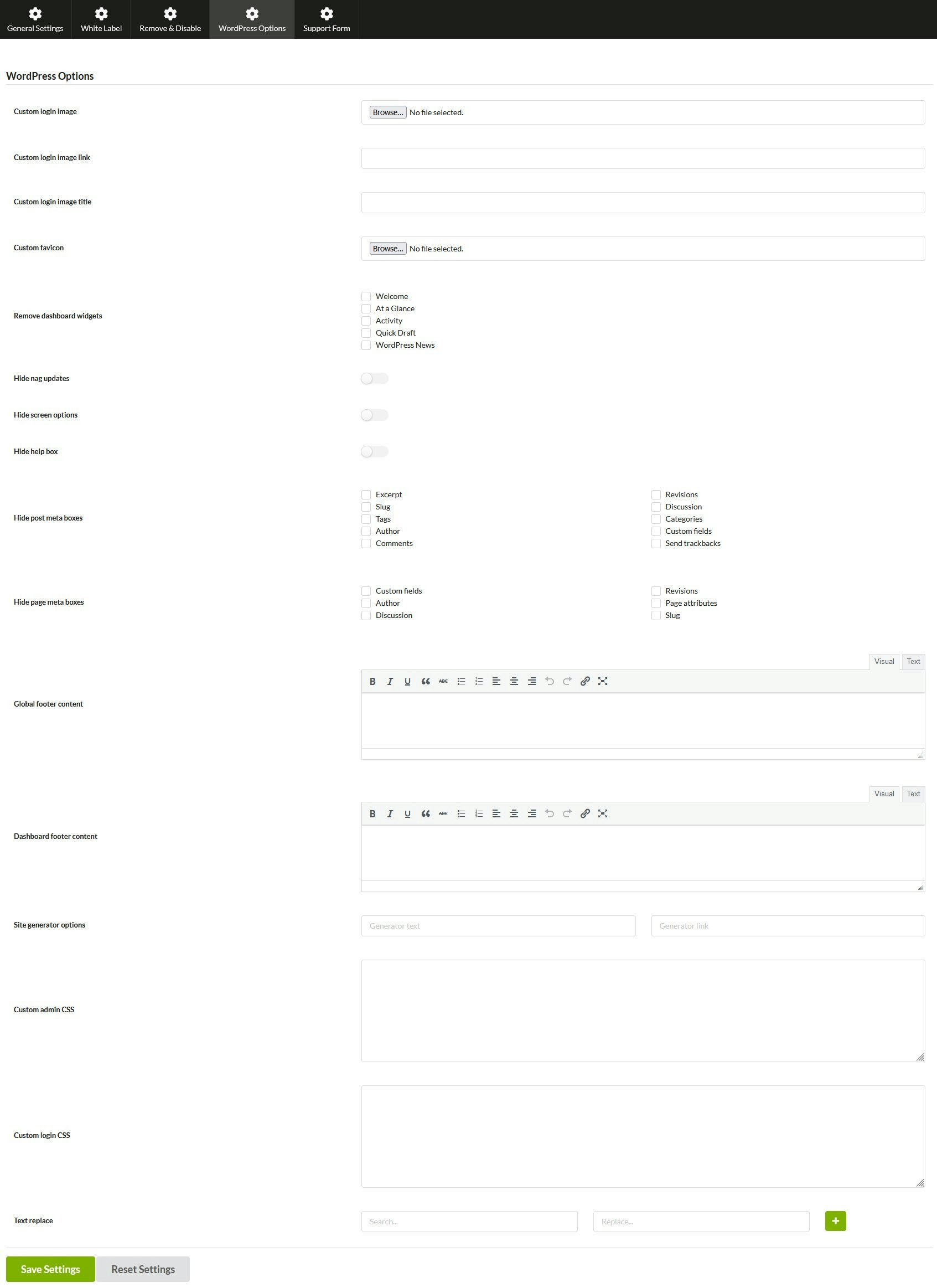
Available Options
Support Form
Add a branded contact form to child site admin areas so clients can reach you directly.- All Sites (Global)
- Single Site
Go to MainWP > Add-ons > White Label and select the Support Form tab.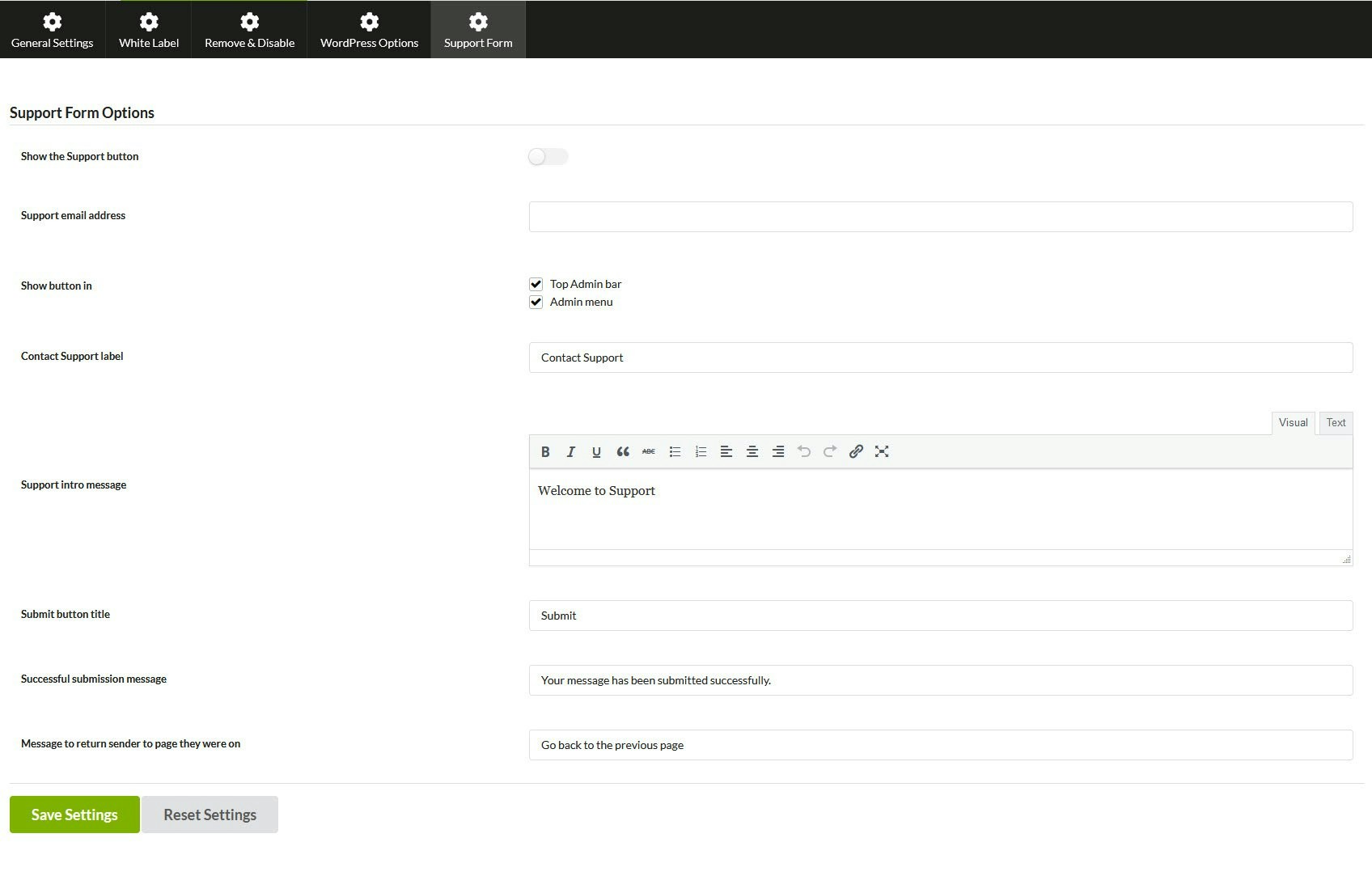
Configuration Options
The support form remains disabled if the Designated support contact email field is empty.
Reset White Label Options
To reset all white label settings to defaults:1
Navigate to White Label
Go to MainWP > Add-ons > White Label.
2
Reset settings
Scroll to the bottom and click Reset Settings.
3
Confirm and save
Click Yes in the confirmation popup, then click Save Settings to apply the reset to child sites.
White Label Master Reset
If a child site becomes disconnected and you cannot see the MainWP Child plugin (because it was hidden) or other white label options are stuck, use one of these methods to reset.Option 1: Reset Tool (Recommended)
Download and install the Reset MainWP Child Plugin Settings plugin on the child site. It resets all MainWP Child settings and deactivates itself automatically.Option 2: Manual Code Edit
1
Access the child site via FTP
Connect to your child site server.
2
Locate the MainWP Child class file
Find
site_root/wp-content/plugins/mainwp-child/class/class-mainwp-child.php3
Edit the file
Find the
public function __construct( $plugin_file ) function (around line 210). After the line containing this->update();, add:4
Upload and overwrite
Save and upload the file back to the server, overwriting the original.
Option 3: Functions.php Filter
Add this code to the active theme’s functions.php on the child site:Exclude Specific Users from White Labeling
Themainwp_child_branding_init_options filter lets you disable white label settings for specific users on child sites.
Exclude by User ID
This example excludes user ID 1 from white label settings:Exclude by Username
This example excludes the user “bogdan” from white label settings:Related Resources
- Removed hiding options - Change details and manual code option
- Team Control Extension - Role-based access control
- Pro Reports Extension - Branded client reports
- Agency Add-ons - Browse agency add-ons