
What You’ll Learn
- Installing the add-on and BackupBuddy plugin
- Managing backup settings globally and per-site
- Creating backups and backup schedules
- Managing remote storage destinations
- Downloading and restoring backup files
Install and Set the MainWP Buddy Extension
Installation of the MainWP Buddy Extension requires two important steps:- Installing the Extension itself on your MainWP Dashboard site
- Installing the BackupBuddy plugin on Child Sites
Installing the Extension
The MainWP Buddy Extension needs to be installed only on your MainWP Dashboard site. You can install it as any other MainWP add-on.Installing the Plugin
For the proper use of the MainWP Buddy Extension, you need to install the BackupBuddy Plugin on your child sites.Install from MainWP Dashboard
Login in to your MainWP Dashboard
Go to the MainWP > Plugins > Install > Upload page
Click the Upload Now button
Upload the BackupBuddy plugin
Select your child sites
In the Installation Options box, make sure that the Activate after installation option is selected
Click the button to complete the installation
Once the installation is complete, Sync your MainWP Dashboard
Install directly on the Child Site
Login into your child site
Go to the WP > Plugins > Add New page
Click the Upload Plugin button
Upload the BackupBuddy plugin
Click the Install button
Click the Activate button
BackupBuddy Dashboard
From the MainWP > Add-ons > MainWP Buddy > Overview page**,** you can monitor all of your child sites where you have the BackupBuddy plugin installed. In the sites list, you will be notified if the plugin has an update available or if the plugin is deactivated.- In case the plugin is not activated, the Activate action will appear in the corresponding site row
- In case there is a new version of the plugin, the Update action will appear in the corresponding site row
Available Actions
From the MainWP > Add-ons > BackupBuddy > Overview page**,** you can hide/unhide the BackupBuddy plugin on your child sites, and quickly access the plugin settings on a child site or the WP Admin section. Actions are provided in the actions menu. If you know that you have the plugin installed on a child site, but the child site doesn’t appear in the list, try to re-sync your sites.Manage BackupBuddy Settings
The MainWP Buddy Extension allows you to manage BackupBuddy plugin settings. It provides you the ability to manage the following settings:- General
- ImportBuddy
- Email Notifications
- Local Archive Storage Limits
- Database Defaults
- File and Directory Defaults
- Advanced & Troubleshooting
- Basic Operation
- Logging
- Technical & Server Compatibility
- Database
- Zip
- Housekeeping Tools
- Licensing
Update BackupBuddy Settings on All Your Sites
Login into your MainWP Dashboard
Go to the MainWP > Add-ons > MainWP Buddy > Settings page
Set your preferences
Click the Save Settings button
Update BackupBuddy Settings on a Single Site
Login into your MainWP Dashboard
Go to the MainWP > Sites > Manage page
Locate the site where you want to update the settings
Under the Actions menu, click the Edit action
Go to the MainWP Buddy Page
Click the Settings tab
Set the Overwrite General Settings option to YES and click the Save Changes button
Set your preferences
Click the Save Changes button at the bottom of the page
Manage BackupBuddy Backups
The MainWP Buddy Extension allows you to manage the BackupBuddy plugin backups directly from your MainWP Dashboard. It will allow you to:- Backup Schedules
- Create Backups
- Manage Backup Files
Remote Storage
The add-on allows you to manage Remote Storage options, including:- BackupBuddy Stash
- BackupBuddy Deployment
- Amazon S3
- Dropbox
- FTP
- Google Drive
- Local Directory
- Rackspace
- sFTP
Backup Your Child Sites With BackupBuddy
Backup Multiple Child Sites with BackupBuddy
Login into your MainWP Dashboard
Go to the MainWP > Add-ons > Buddy page
Click the Backup button
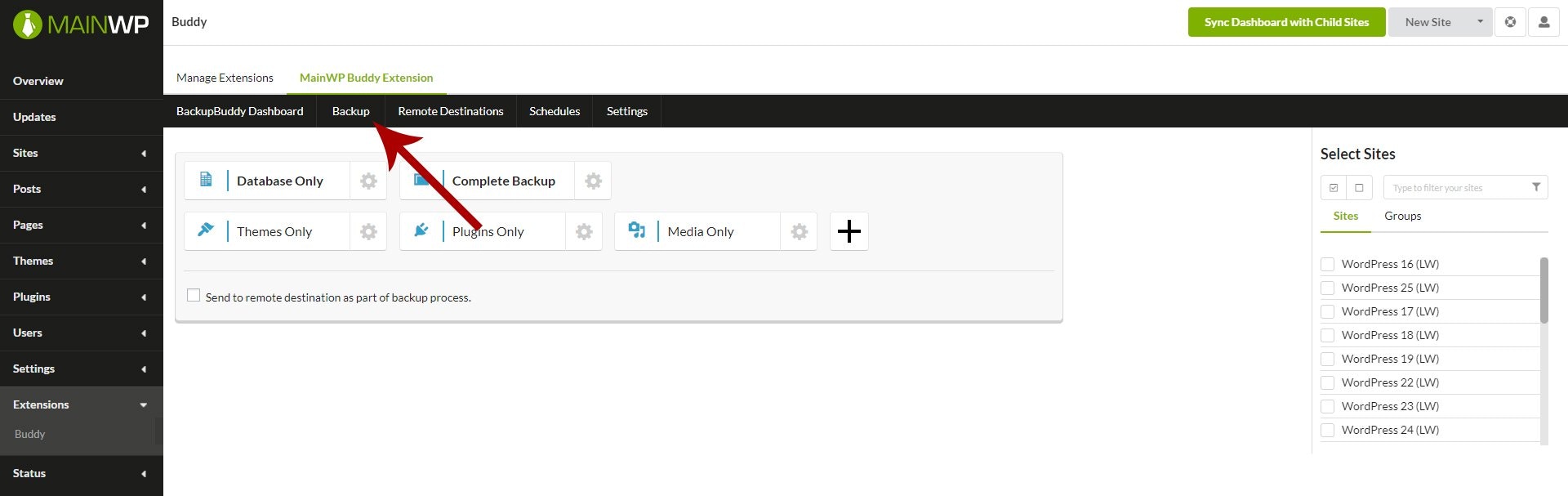
Select the Child Sites that you want to backup
Choose a backup type (or any custom-made backup profile) and click the appropriate button
Backup a Single Site with BackupBuddy
Login into your MainWP Dashboard
Go to the MainWP > Sites > Manage page
Locate the site that you want to backup
In the actions menu, click the Edit action
Go to the Buddy Page
Click the Backup button
Set the Overwrite General Settings option to YES and click the Save Changes button
Choose if you want a Database or a Complete Backup (or any custom-made backup profile) and click the appropriate button
Create Backup Schedule
Create a Backup Schedule on Multiple Sites
Login into your MainWP Dashboard
Go to the MainWP > Add-ons > Buddy page
Click the Schedules button
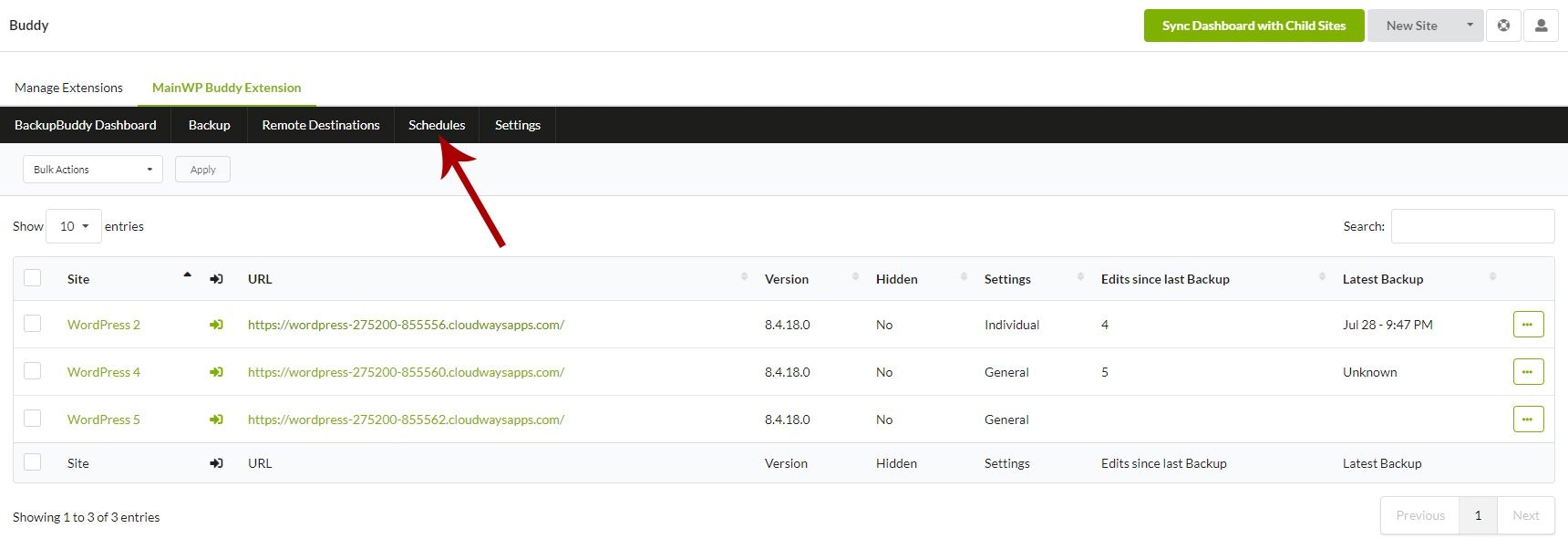
Locate the Add New Schedule section
- Add a Schedule name (for your use only)
- Select a Backup profile (database, complete backup, or any custom-made profile)
- Select Backup interval (time period between backups)
- Set the Date and Time of the next (first) run
- Optionally, set a Remote destination Note: Due to security reasons imposed by the providers of remote storage options, some of them may need to be authenticated or configured initially on the child site itself.
- Select if you want to delete a local backup after successful upload to a remote destination
- Enable the Schedule
Select the Child Sites that you want to backup
Click the Add New Schedule button
Create a Backup Schedule on a single Site
Login into your MainWP Dashboard
Go to the MainWP > Sites > Manage page
Locate the site that you want to backup
In the actions menu, click the Edit action
Go to the MainWP Buddy Page
Click the Schedules button
Set the Overwrite General Settings option to YES and click the Save Changes button
Locate the Add New Schedule options box
- Add a Schedule name (for your use only)
- Select a Backup profile (database, complete backup, or any custom-made profile)
- Select Backup interval (time period between backups)
- Set the Date and Time of the next (first) run
- Optionally, set a Remote destination Note: Due to security reasons imposed by the providers of remote storage options, some of them may need to be authenticated or configured initially on the child site itself.
- Select if you want to delete a local backup after successful upload to a remote destination
- Enable the Schedule
- Click the Add New Schedule button
Edit BackupBuddy Schedules
Login into your MainWP Dashboard
Go to the MainWP > Add-ons > Buddy page
Click the Schedules button
Locate the schedule that you want to edit
Click the Edit Schedule action
Edit Schedule Options box will be loaded with your settings
Update your settings
Update your Child Sites selection
Click the Save Schedule button
- If you unselect a child site, the schedule will be deleted from it
- If you select a new site, the schedule will be added to the site
Run BackupBuddy Schedules
Login into your MainWP Dashboard
Go to the MainWP > Add-ons > Buddy page
Click the Schedules button
Locate the schedule that you want to edit
Click the Edit Schedule action
Manage BackupBuddy Backup Files
The MainWP Buddy Extension allows you to manage your backup files directly from your MainWP Dashboard. It gives you the ability to:- Download your backup files
- Send Backup files to remote locations
- Browse & Restore files
Download Backup Files
Login into your MainWP Dashboard
Go to the MainWP > Sites > Manage page
Locate the site that you want to backup
In the actions menu, click the Edit action
Go to the MainWP Buddy Page
Click the Backup button
Locate the backup that you want to download
Click the Download action

Send files
Login into your MainWP Dashboard
Go to the MainWP > Sites > Manage page
Locate the site that you want to backup
In the actions menu, click the Edit action
Go to the Buddy Page
Click the Backup button
Locate the backup that you want to send
Click the Send action
Remote locations options will appear, set the wanted location and upload will start
Browse & Restore Files
Login into your MainWP Dashboard
Go to the MainWP > Sites > Manage page
Locate the site that you want to backup
In the actions menu, click the Edit action
Go to the Buddy Page
Click the Backup button
Locate the backup that you want to browse or restore
Click the Browse & Restore files action
A list of files will appear
Select files that you want to restore and push the Restore button.
Related Resources
- Backup Add-ons - Browse all backup integrations
- Manage Backups - Understanding backup management in MainWP
- Managing Plugins with MainWP - Installing plugins on child sites