
What You’ll Learn
- Connecting Google Search Console via OAuth or Service Account
- Assigning GSC properties to child sites
- Viewing search performance and sitemap data
- Managing automatic refreshes and using AI Assistant actions
- Troubleshooting common connection issues
Use this Add‑on to Monitor
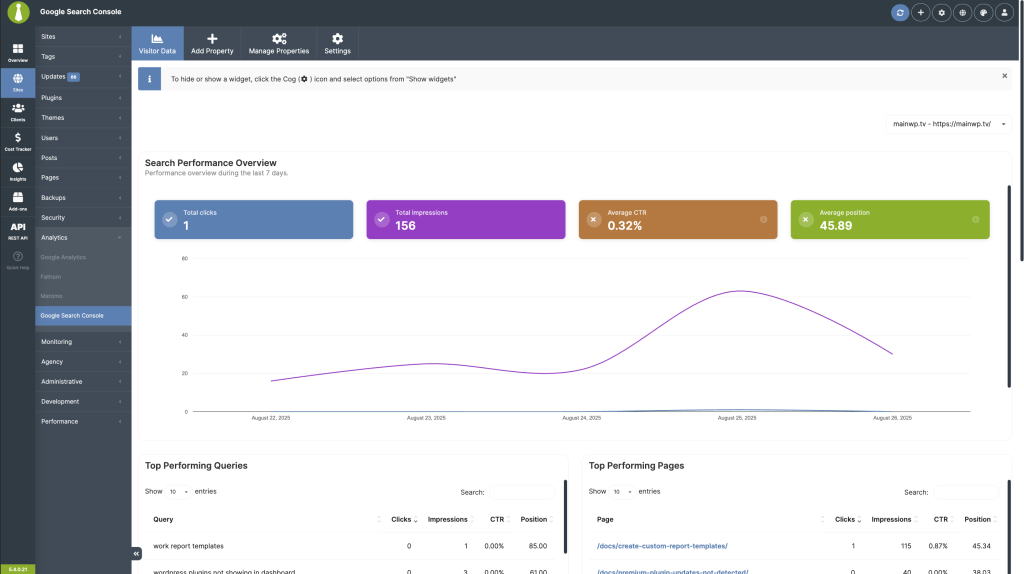
Search Performance- Clicks, Impressions, CTR, Avg. Position
- Top Queries & Pages; breakdowns by Country, Device, and Search Appearance
- Daily trend chart
- Submitted vs. Indexed per sitemap
- Status & last processed dates
- Errors (when reported)
- Centralized properties with per‑site drill‑down
- Integrates with MainWP widgets and Pro Reports
- PHP 8.1 or higher on the MainWP Dashboard (required by Google libraries)
- PHP BCMath extension enabled on the MainWP Dashboard (used by the report generator)
- The default WordPress REST API endpoint (
/wp-json/) on the MainWP Dashboard must be reachable. The Sign in with Google OAuth flow uses it to pair with the add-on. - Your sites must be verified in Google Search Console
- For JSON Import: Google Search Console API
Connect your Google Search Console Account
You can connect GSC in two ways. Use whichever fits your setup (you can use both):Option A: Sign in with Google (OAuth)
- In your MainWP Dashboard, go to MainWP > Add-ons > Analytics > Google Search Console, then open the Add Property tab.
- Click Sign in with Google and follow the on-screen prompts to complete authorization.
- Next, select the GSC properties you want to connect, then click Continue and then Confirm.
- Selected properties will appear under Manage Properties and will be available to assign to child sites.
Option B: Connect a Service Account (JSON file)
Step 1 — Enable the required API (Google Cloud Console)Go to https://console.cloud.google.com and (optionally) create a new Project.
Open APIs & Services > Enabled APIs & services.
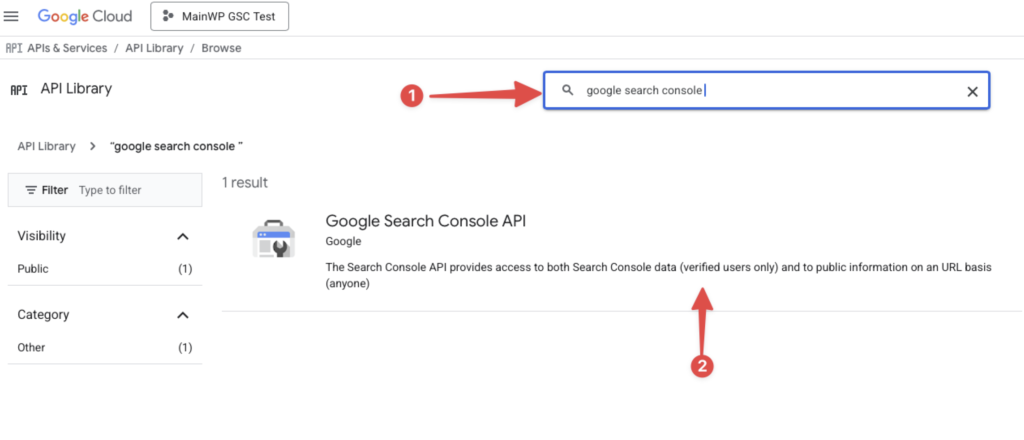
Click + Enable APIs and Services, search for and enable the only required API:
- Google Search Console API\
- In APIs & Services, click + Create credentials and select Service Account.
- Give it a name then click Done.
- Open the new Service Account, go to the KEYS tab.
- Click Add Key > Create new key > JSON > Create.
- A JSON file will download automatically; you’ll upload it to the add-on later on.
Go to your Google Search Console dashboard for the relevant account/property.
Open Settings > Users and permissions.
Click Add user.
Copy the Service Account email from your Google Cloud Console (Service Accounts list / Credentials page).
Paste it in the Email address field, set Permission to Full, and click Add.
- In your MainWP Dashboard, go to MainWP > Add-ons > Analytics > Google Search Console > Add Property > Import JSON File.
- Upload the JSON key and click Connect Account.
- Discovered properties will appear under Manage Properties and will be available to assign to child sites.
- The account (Google or Service Account) must have access to each property you want to see in MainWP.
- If you rotate keys or disable the Service Account, you’ll need to upload a new JSON key to re‑establish the connection.
- This add‑on does not verify sites in GSC or submit sitemaps; it reads your existing data.
Assigning a GSC Property to Each Child Site
The add-on can automatically match a property to a child site when the connected property URL or domain matches the child site’s URL.You can also manually assign a property to a child site by doing the following:
Go to MainWP > Sites > Manage Sites.
Locate the desired site, click its name, and then open its Settings page.
Find the Google Search Console section and select the matching property.
Click Save Settings.
Where to View Data
Dashboard Widget
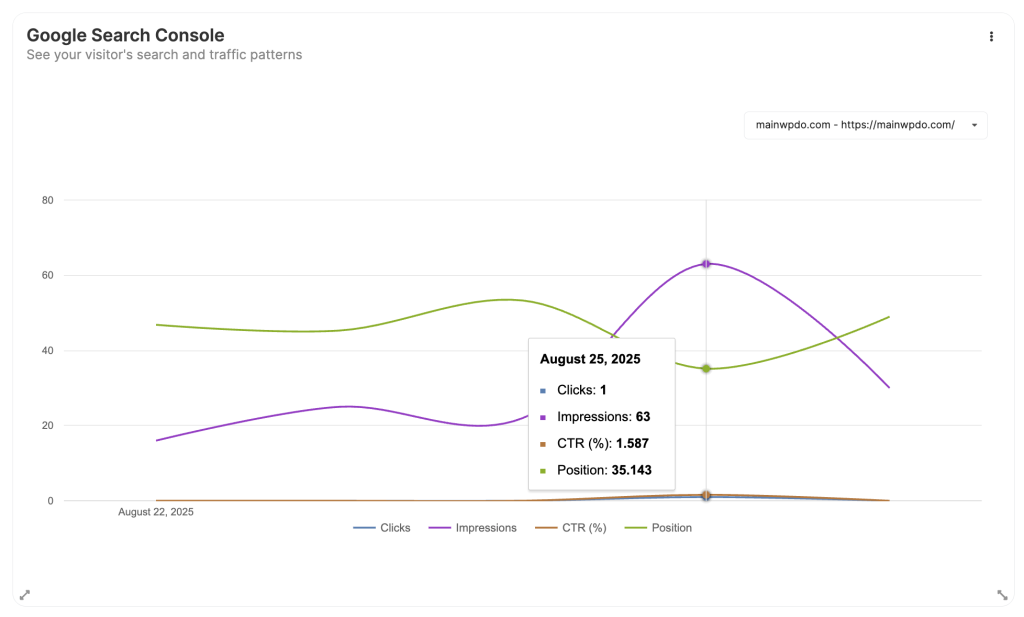
- KPIs: Total Clicks, Total Impressions, Average CTR, Average Position
- Interactive performance chart (Clicks, Impressions, CTR, Position)
- Quick shortcuts to Search Performance and Sitemaps sections
Add-on Pages
Go to MainWP > Add-ons > Analytics > Google Search Console and use these tabs:- Visitor Data (per‑site):
- KPI tiles: Total Clicks, Total Impressions, Avg. CTR, Avg. Position
- Chart with series for Clicks, Impressions, CTR, Position
- Widgets: Top Queries, Top Pages, Top Performing Countries, Devices, Search Appearance, Dates
- Sitemaps: Submitted vs. indexed counts by sitemap, indexing rate, last processed dates, error totals
- Add Property: Connect properties by Sign In with Google or Import JSON File.
- Manage Properties: Review properties added by Sign In with Google or JSON; actions include Refresh Data, Reconnect Property for disconnected OAuth properties, and Remove Property.
- Settings: Configure Graphs display interval, Fetch Google Search Console data automatically, Auto fetch GSC data frequency, and on-demand Refresh Data.
Settings & Data Refresh
- Graphs display interval: Select Week or Month for the reporting period.
- Fetch Google Search Console data automatically: Enable automatic data refreshes.
- Auto fetch GSC data frequency: Choose every 1, 3, 9, 15, 18, or 24 hours. The default is 9 hours.
- Save Settings: Apply the reporting period and refresh settings. Changes can invalidate cached reports so they can be regenerated with the new settings.
- Refresh Data: Request an on-demand refresh. Check the reported outcome; a failed request does not mean fresh data was stored.
AI Assistant and Abilities API
Version 6.3 adds ten abilities for MainWP AI Assistant and API clients to inspect connections and properties, manage site assignments and refresh settings, read cached performance summaries, and request refreshes. For example, ask the AI Assistant to show a site’s Google Search Console mapping or cached search performance, review automatic refresh settings, or request a site refresh. Mapping changes, refresh-setting changes, and connection catalog refreshes support a preview before confirmation. Refresh requests run in the background and return a job ID for checking completion. See Google Search Console Abilities for requirements, permissions, request examples, and job-status handling. The ability that reads performance data returns aggregate metrics; it does not include search queries or individual page URLs.GSC data in Pro Reports
If you use MainWP Pro Reports, you can include Google Search Console data in your client reports. For the full list of available tokens, see the Available Pro Reports Tokens article.Troubleshooting
JSON connection fails after updating to 6.3
If Refresh Data shows “Data refresh connection fail.” or previously assigned properties disappear from the selector after updating to 6.3, check the stored Service Account JSON file’s permissions. Version 6.3 rejects JSON credential files with permissions for group or other users, including644 and 755. Earlier versions did not enforce this check. New uploads are saved with 600 permissions, but upgrading to 6.3 does not change the permissions on existing JSON files.
- Locate the JSON credential file in your MainWP Dashboard installation, normally under
wp-content/uploads/mainwp/google-search-console/. - Set that file’s permissions to
600(owner read and write). Apply this to the JSON file, not its containing directory. PHP must still be able to read the file; if it cannot, check that the file ownership matches the PHP process user. - Open MainWP > Add-ons > Analytics > Google Search Console > Manage Properties (
/wp-admin/admin.php?page=Extensions-Mainwp-Google-Search-Console-Extension&tab=accounts) and click Refresh Data for the JSON connection. Confirm that the refresh succeeds and the properties are available again.
Cannot update wp-config.php automatically
If you see either of these messages:
MainWP Google Search Console could not update wp-config.php automatically.
MainWP Google Search Console could not add its encryption key to wp-config.php.The add-on could not safely write its encryption key to the MainWP Dashboard site’s
wp-config.php file. This is separate from the Google Service Account JSON key. File mode 0644 does not always allow the update: only the file owner has write access, so the update fails when PHP runs as a different user. File or directory ownership and other server security controls can also prevent a safe update.
Add the key manually:
Back up wp-config.php.
Generate a secure key.
Add the encryption-key definition.
wp-config.php file and add the following line before the line that loads wp-settings.php:PASTE_THE_64_CHARACTER_KEY_HERE with the key generated in the previous step.Save the file and reload MainWP Dashboard.
.mainwp-lock may be created while the add-on coordinates an automatic update. It is a lock file, not the cause of the warning and not a replacement for wp-config.php. Add the definition to the active wp-config.php file.
If Google Analytics shows a similar warning, follow the instructions in the Google Analytics troubleshooting section and generate a separate key for its constant.
“Google OAuth requires the WordPress REST API to be enabled and reachable”
- The add-on checks whether
/wp-json/on your MainWP Dashboard returns the expected REST API metadata. When the check fails, the add-on shows a red notice on the Add Property, Manage Properties, and Overview screens, and disables the OAuth buttons (Sign in with Google, Continue, Confirm, Verify Now, Reset Now, and Reconnect Property). The Import JSON File flow is unaffected and can still be used. - Make sure the default WordPress REST API endpoint at
/wp-json/is not blocked, disabled, filtered, or behind HTTP basic auth on your MainWP Dashboard. - See the WordPress REST API troubleshooting guide for steps to restore REST API access.
- If you need to keep HTTP basic auth or REST API restrictions enabled, use Import JSON File instead.
site secret not found
- This error has the same root cause as above: the default WordPress REST API endpoint at
/wp-json/is blocked, disabled, filtered, or behind authentication. - Make sure your MainWP Dashboard allows access to
/wp-json/. - If HTTP basic auth protects your MainWP Dashboard, Sign in with Google can fail because MainWP Bridge cannot complete the initial pairing or re-registration check.
- If you need to keep HTTP basic auth enabled, use Import JSON File instead.
- The MainWP Google Search Console add-on requires the PHP BCMath extension on the MainWP Dashboard server to run the background processes used for Pro Reports.
- Ask your host to enable the
bcmathPHP extension. After it is enabled, refresh the add-on page and the notice will clear.
- Confirm the site has a GSC property assigned in its Settings page
- Ensure the Google account or Service Account has access to the property in GSC.
- Try Refresh Data from the add‑on Settings or Manage Properties tab.
- If you see a red notice about authentication, click Verify Now and sign in again.
- Create a new JSON key for the Service Account, then upload it on Add Property to reconnect.
Related Resources
- Google Search Console Abilities - Automate mappings, settings, and refreshes
- Analytics Add-ons - Browse all analytics integrations
- Pro Reports Extension - Include GSC data in reports
- Available Pro Reports Tokens - Google Search Console tokens