
What You’ll Learn
- Creating and using boilerplate tokens
- Setting token values for child sites
- Publishing boilerplate posts and pages
- Editing and removing boilerplate content
- Privacy Policy
- About Us
- Terms of Use
- Support Policy
How does the Boilerplate Extension Work?
After installing the extension, you can create custom placeholders (Tokens) that you will need in your commonly used pages and posts. For each of your child sites, add values for the tokens. When you are done with the setup, you can create one page with these placeholders and post it to all wanted sites. On each child site, the placeholders will be replaced with the custom values for the site. All your Boilerplate Pages and Posts will be saved and fully editable. With just a few clicks, you will be able to tweak a page on all your sites at once.Boilerplate Tokens
Boilerplate pages use tokens to be customized for each site without needing to be rewritten. Basically, in the source post, instead of using actual data, you can place tokens. After publishing, tokens will be replaced by actual values on each child site. The MainWP Boilerplate extension comes with a set of default tokens and the ability to create custom tokens. For both default and custom tokens, it is required to set values for each child site individually, which will replace the token on child sites after publishing a boilerplate post or page.Boilerplate Extension Interface
The Boilerplate Extension page is organized into three tabs: Boilerplate Posts, Boilerplate Pages, and Custom Tokens. Each tab includes a contextual create button:- On Boilerplate Posts, the bar shows a Create Boilerplate Post button.
- On Boilerplate Pages, the bar shows a Create Boilerplate Page button.
- On Custom Tokens, the bar shows a Create New Token button.
Default Boilerplate Tokens
After installing the MainWP Boilerplate Extension, on the MainWP Dashboard > Sites > Content Operations > Manage Boilerplates > Custom Tokens page, you will be able to see the section with available tokens. Along with a token, on the right-hand side, you can see the token description so you can get an idea of what to use it for.
Set Values for Default Tokens
Log in to your MainWP Dashboard
Go to the MainWP Dashboard > Sites > Manage Sites page
Locate one site and click the Edit action
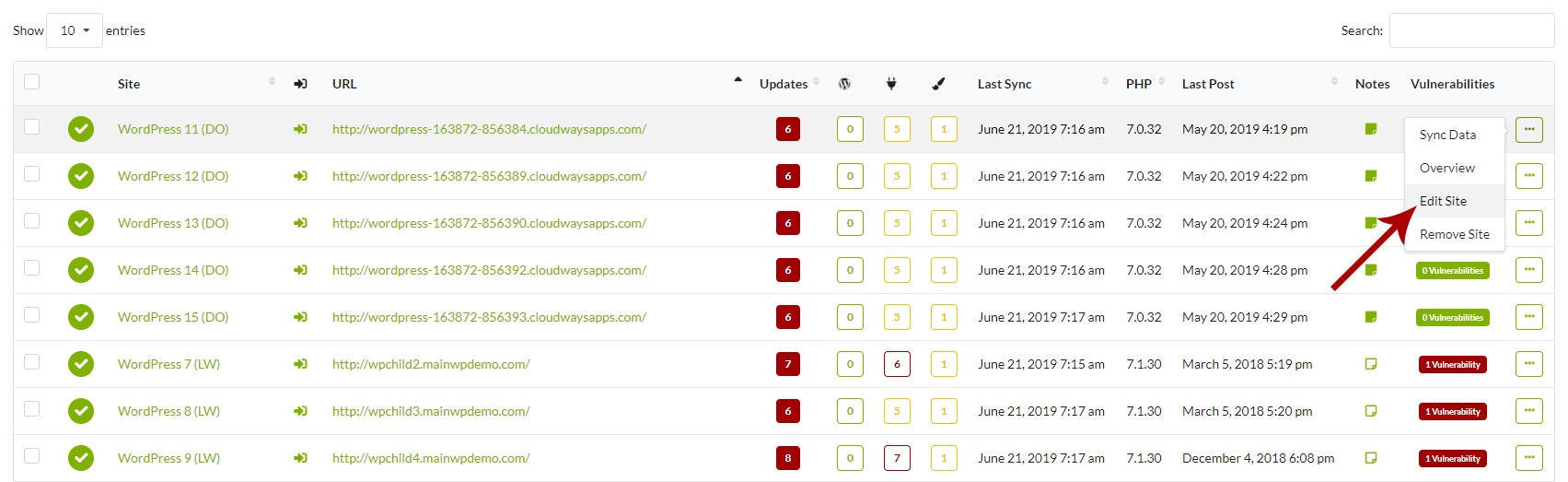
Locate the Boilerplate Tokens section
Enter values for tokens that you intend to use
Click the Update Site button
Repeat steps 3
Custom Boilerplate Tokens
Along with the set of default tokens, the MainWP Boilerplate Extension allows you to create your custom tokens.Create Custom Tokens
Log in to your MainWP Dashboard
Go to the MainWP Dashboard > Sites > Content Operations > Manage Boilerplates > Custom Tokens page
Click the Create New Token button
Modal will show
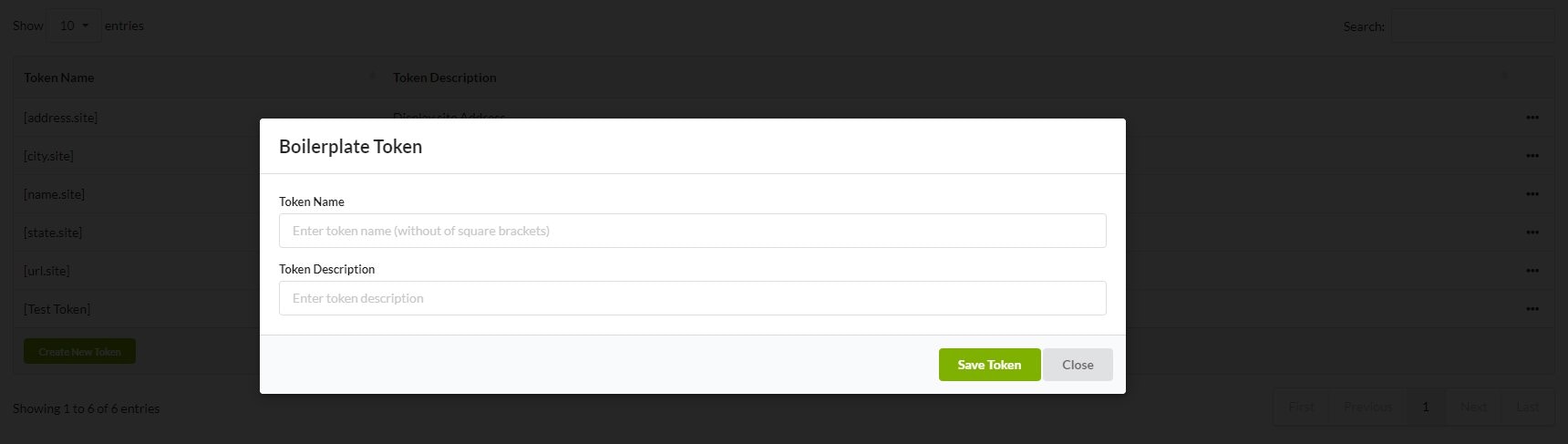
- Add Token Name
- Add Token Description
- Click the Save Token button
Set Values for Custom Tokens
Log in to your MainWP Dashboard
Go to the MainWP Dashboard > Sites > Manage Sites page
Locate one site and click the Edit action
Locate the Boilerplate Tokens section
Enter values for tokens that you intend to use
Click the Update Site button
Repeat steps 3
Boilerplate Posts
After publishing a boilerplate post on your child sites, the post looks normal, just like any other WordPress post. After it’s created, the post will be visible normally in the WordPress admin > Posts > All Posts page on child sites. However, on the MainWP Dashboard side, the list of created Boilerplate posts is available in the MainWP Dashboard > Sites > Content Operations > Manage Boilerplates page, in the Boilerplate Posts tab. From here, you can Edit and Delete Boilerplate posts.Create Boilerplate Post
Log in to your MainWP Dashboard
Go to the MainWP Dashboard > Sites > Content Operations > Manage Posts page
Click the Create New Boilerplate button
Compose the post using tokens as needed
 Tokens are allowed in Post Title and in the Post Body.
Select your Child Sites where you want to publish this post
Click the Publish button
How to insert Tokens
 Tokens can be inserted manually by typing the token where it’s needed or by clicking on a token in the Tokens meta box. After clicking on a token, the token will be inserted in the post automatically.
Edit Existing Boilerplate Post
Log in to your MainWP Dashboard
Go to the MainWP Dashboard > Sites > Content Operations > Manage Boilerplates > Boilerplate Posts page
Click the Edit action in the actions menu
Edit the post content or meta values
Click the Update button
Add Existing Boilerplate Post to a New Site
If you have a Boilerplate post that you want to add to a newly connected child site, you can do that by following these steps:Log in to your MainWP Dashboard
Go to the MainWP Dashboard > Sites > Content Operations > Manage Boilerplates > Boilerplate Posts page
Click the Edit action in the actions menu
Locate the Select Sites section
Select the new Child Site
Click the Update button
Remove a Boilerplate Post from a Child Site
If you have a Boilerplate post that you want to remove from one or multiple child sites, you can do that by following these steps:Log in to your MainWP Dashboard
Go to the MainWP Dashboard > Sites > Content Operations > Manage Boilerplates > Boilerplate Posts page
Click the Edit action in the actions menu
Locate the Select Sites section
Unselect wanted sites
Click the Update button
Delete a Boilerplate Post
Log in to your MainWP Dashboard
Go to the MainWP Dashboard > Sites > Content Operations > Manage Boilerplates > Boilerplate Posts page
Click the Delete action in the actions menu
Boilerplate Pages
After publishing a boilerplate page on your child sites, the page looks normal, just like any other WordPress page. After it’s created, the page will be visible normally in the WordPress admin > Pages > All Pages page on child sites. However, on the MainWP Dashboard side, the list of created Boilerplate pages is available in the MainWP Dashboard > Sites > Content Operations > Manage Boilerplates page, in the Boilerplate Pages tab. From here, you can Edit and Delete Boilerplate pages.Create a Boilerplate Page
Log in to your MainWP Dashboard
Go to the MainWP Dashboard > Sites > Content Operations > Manage Pages page
Click the Create New Boilerplate button
Compose the page using tokens as needed
Tokens are allowed in Page Title and in the Page Body.Select your Child Sites where you want to publish this page
Click the Publish button
How to Insert Tokens
Tokens can be inserted manually by typing the token where it’s needed or by clicking on a token in the Tokens meta box. After clicking on a token, the token will be inserted on the page automatically.
Edit Existing Boilerplate Page
Log in to your MainWP Dashboard
Go to the MainWP Dashboard > Sites > Content Operations > Manage Boilerplates > Boilerplate Pages page
Click the Edit action in the actions menu
Edit the page content or meta values
Click the Update button
Add Existing Boilerplate Page to a New Site
If you have a Boilerplate page that you want to add to a newly connected child site, you can do that by following these steps:Log in to your MainWP Dashboard
Go to the MainWP Dashboard > Sites > Content Operations > Manage Boilerplates > Boilerplate Pages page
Click the Edit action in the actions menu
Locate the Select Sites section
Select the new Child Site
Click the Update button
Remove a Boilerplate Page from a Child Site
If you have a Boilerplate page that you want to remove from one or multiple child sites, you can do that by following these steps:Log in to your MainWP Dashboard
Go to the MainWP Dashboard > Sites > Content Operations > Manage Boilerplates > Boilerplate Pages page
Click the Edit action in the actions menu
Locate the Select Sites section
Unselect wanted sites
Click the Update button
Delete a Boilerplate Page
Log in to your MainWP Dashboard
Go to the MainWP Dashboard > Sites > Content Operations > Manage Boilerplates > Boilerplate Pages page
Click the Delete action in the actions menu
Related Resources
- Posts/Pages Add-ons - Browse all content tools
- Pro Reports Tokens - Token reference guide
- Manage Pages - Page management guide