
What You’ll Learn
- Installing WP Rocket plugin on child sites
- Managing WP Rocket settings from the Dashboard
- Clearing and preloading cache across sites
- Overriding settings for individual sites
- Cache Pages
- Preload Cache
- Optimize CSS delivery
- Self-host Google Fonts
- Use LazyLoad
- Minify JS and CSS files
- Add missing image dimensions
- Defer JavaScript Loading
- Delay JavaScript Execution
- Use CDN
- Use DNS Prefetching
What makes WP Rocket better than the other caching plugins?
WP Rocket integrates performance features such as deferred JavaScript loading, delayed JavaScript execution, LazyLoad, CSS delivery optimization, minification, CDN configuration, and cache preloading. While being complete, WP Rocket is also very simple to configure, even for beginners. WP Rocket also has its own self-hosted crawler bot that will visit your site and generate cached files so that when human visitors come to your website, they immediately get the fast, cached version of the page. If you have issues with the WP Rocket plugin, help documentation can be found in the WP Rocket documentation.Install and Set the WP Rocket Integration
Installation of the WP Rocket Integration requires two important steps:- Installing the integration itself on your MainWP Dashboard site
- Installing the WP Rocket plugin on Child Sites
Install the Integration
The WP Rocket Integration needs to be installed only on your MainWP Dashboard site. You can install it as any other MainWP add-on.Installing the Plugin
For the proper use of the WP Rocket Integration, you need to install the WP Rocket Plugin on your child sites.Install from MainWP Dashboard
Login in to your MainWP Dashboard
Go to MainWP > Sites > Plugins > Install Plugins
Click the Upload Now button
Upload the WP Rocket plugin
Select your child sites
In the Installation Options section, make sure Activate after installation is enabled
Click the Complete Installation button
Once the installation is complete, Sync your MainWP Dashboard
Install directly on Child Site
Login into your child site
Go to the child site's WordPress Plugins > Add New page
Click the Upload Plugin button
Upload the WP Rocket plugin
Click the Install button
Click the Activate button
WP Rocket Dashboard
From the MainWP > Add-ons > Performance > Rocket > Dashboard page, you can monitor all of your child sites where you have the WP Rocket plugin installed. In the sites list, you will be notified if the plugin has an update available or if the plugin is deactivated.- If the plugin is not activated, the Activate Plugin action will appear in the corresponding site row.
- If there is a new version of the plugin, the Update Plugin action will appear in the corresponding site row.
Available Actions
From the MainWP > Add-ons > Performance > Rocket > Dashboard page, you can clear cache, open WP Rocket on a child site, open the site’s MainWP overview or edit screen, hide or unhide the WP Rocket plugin on child sites, and update or activate WP Rocket when an action is available. Actions are provided in the actions menu. If you know that you have the plugin installed on a child site, but the child site doesn’t appear in the list, try to re-sync your sites.Manage WP Rocket Settings
The WP Rocket Integration allows you to manage the WP Rocket plugin settings. It provides you the ability to manage the following settings:- Quick Actions
- File Optimization
- Media
- Preload
- Advanced Rules
- Database
- CDN
- Heartbeat
- Add-ons
- Tools
Update WP Rocket Settings on All Your Sites
Login in to your MainWP Dashboard
Go to MainWP > Add-ons > Performance > Rocket
Locate options that you want to update
Set your preferences
Click the Save Changes button
Update WP Rocket Settings on a Single Site
Login in to your MainWP Dashboard
Go to MainWP > Sites > Manage Sites
Locate the site where you want to update settings
Under the Site column, click the Edit action
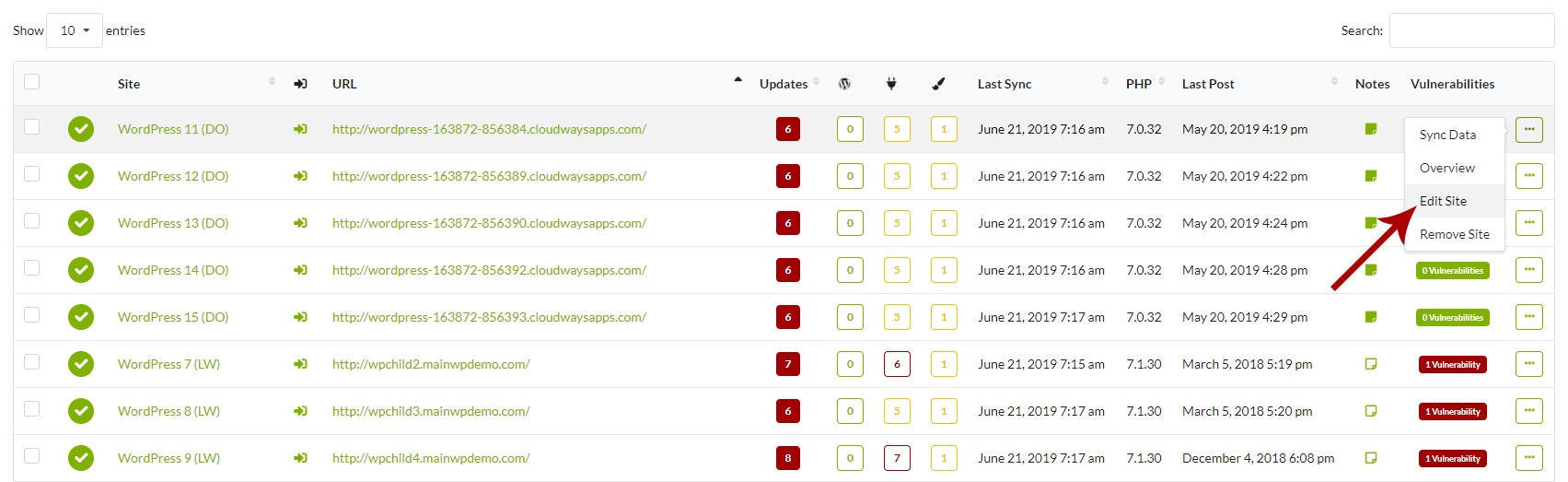
Go to the WP Rocket tab
Locate options that you want to update
Enable Override general settings and click Save
Set your preferences
Click the Save Changes button at the bottom of the page.
Clear/Preload WP Rocket Cache
The WP Rocket Integration allows you to quickly clear and preload cache on your child sites. On the MainWP > Add-ons > Performance > Rocket page, under the Quick Actions tab, you will find the Clear and Preload Cache, Regenerate Critical CSS, and Clear Priority Elements buttons.- By clicking the Clear and Preload Cache button, you will clear and preload cache on all child sites where WP Rocket is installed.
- By clicking the Regenerate Critical CSS button, you will trigger WP Rocket critical CSS generation on those child sites.
- By clicking the Clear Priority Elements button, you will clear WP Rocket priority elements on those child sites.
Related Resources
- Performance Add-ons - Browse all performance tools
- Cache Control - Multi-plugin cache management
- Managing Plugins - Plugin management guide