The Manage Plugins feature gives you centralized control over WordPress plugins across all your child sites. Install plugins on multiple sites simultaneously, activate or deactivate plugins in bulk, run updates, and configure automatic updates for plugins you trust.

What You’ll Accomplish

  • Install plugins from WordPress.org or ZIP files on multiple sites
  • Activate and deactivate plugins across selected sites
  • Delete unused plugins from child sites
  • Update plugins individually or in bulk
  • Configure automatic updates for trusted plugins

Prerequisites

  • MainWP Dashboard installed and activated
  • At least one child site connected to your Dashboard
  • A Dashboard user account with the required plugin management permissions


Install Plugins

MainWP Dashboard provides two built-in methods for installing plugins. If the MainWP Favorites Extension is installed, a third option is available:

Install from WordPress.org

1

Navigate to Install Plugins

Go to MainWP > Plugins > Install Plugins.
2

Search for plugin

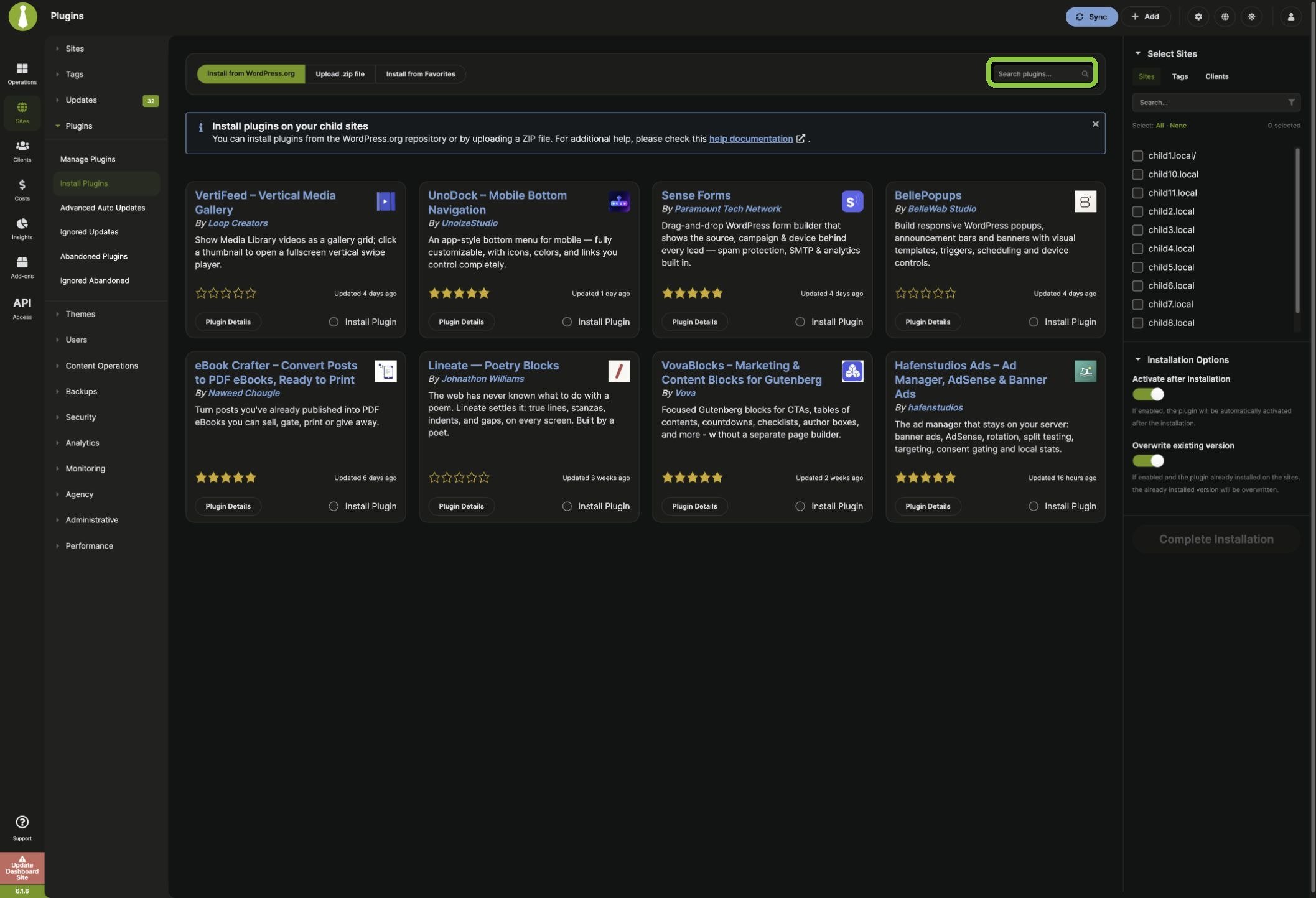
Under the Install from WordPress.org tab, use the Search plugins field to find the plugin.Search WordPress.org plugins from MainWP Dashboard
3

Select plugin

Locate the plugin in the search results and select Install Plugin.
4

Select sites

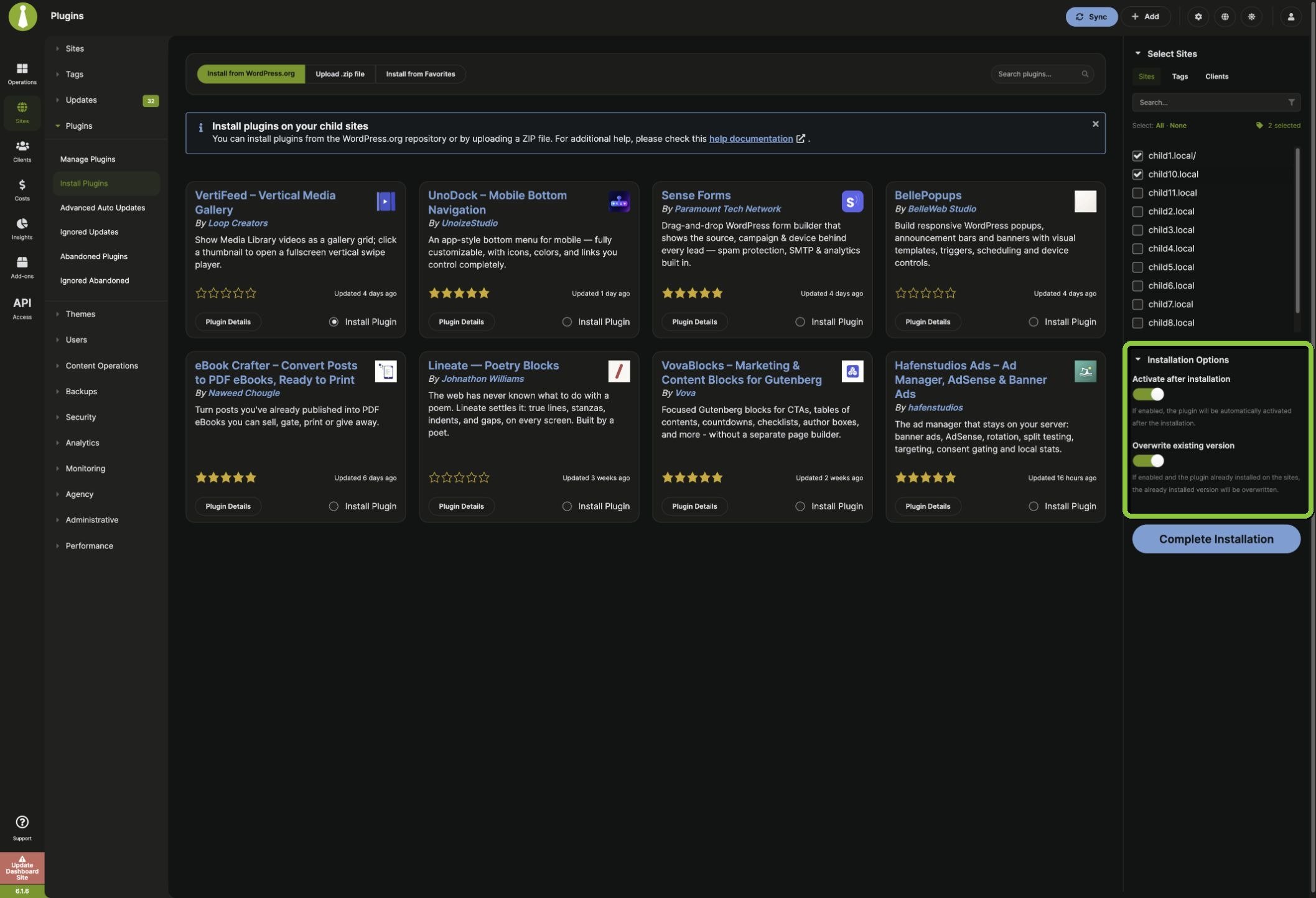
In the Select Sites box, choose the sites where you want to install the plugin.
5

Set installation options

Configure the installation options:Select sites and configure plugin installation options
6

Install

Click Complete Installation.

Install by Upload

1

Navigate to Install Plugins

Go to MainWP > Plugins > Install Plugins.
2

Open upload tab

Click the Upload .zip file tab.
3

Upload file

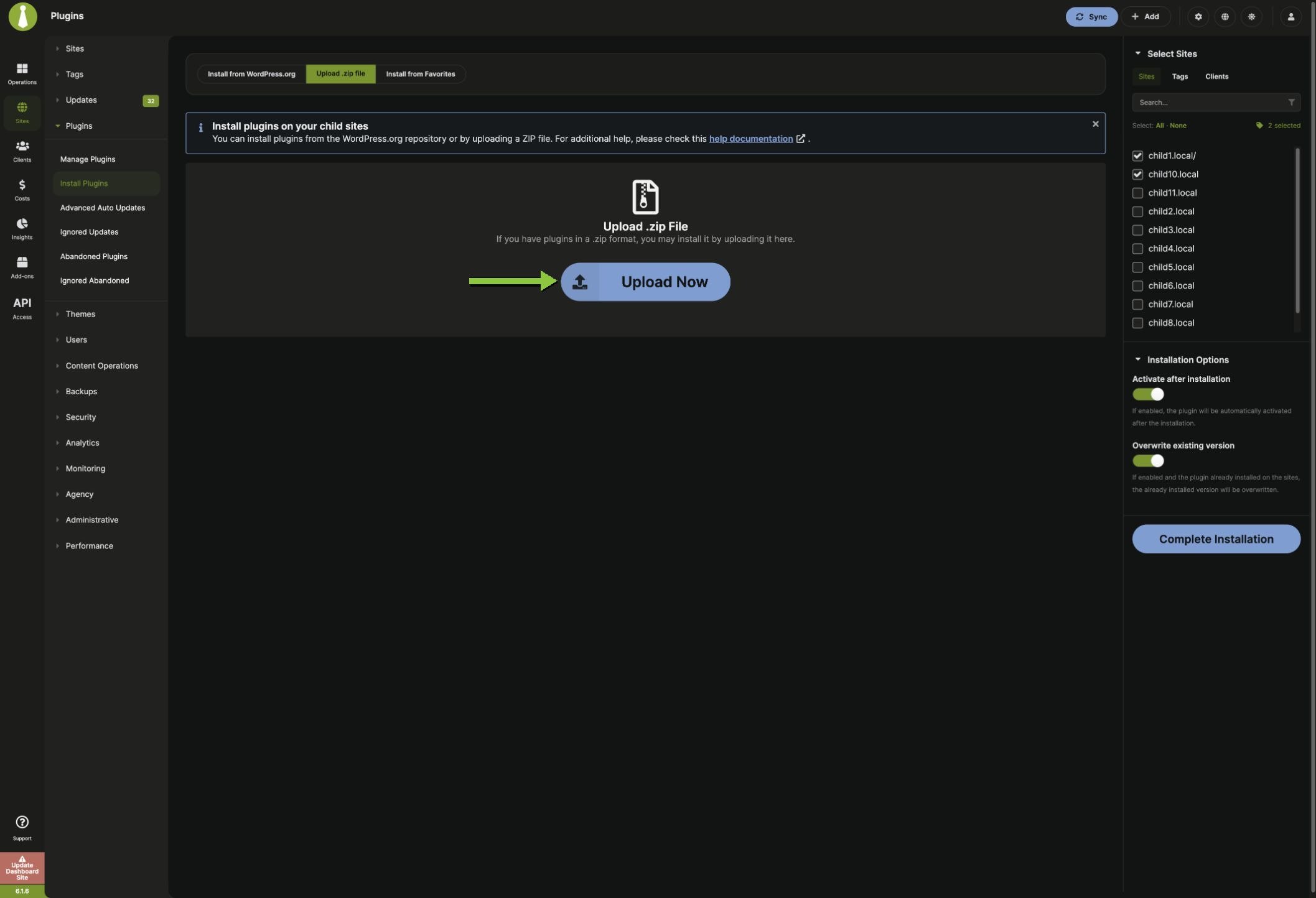
Click Upload Now and select the plugin ZIP file from your computer.
4

Select sites

In the Select Sites box, choose the sites where you want to install the plugin.
5

Set installation options

Configure the installation options:Upload a plugin ZIP file and configure installation options
6

Install

Click Complete Installation.
Your server must allow uploads of the plugin’s file size. Check PHP Upload Max Filesize and PHP Post Max Size on your Server Information page.

Install from Favorites

Select and install plugins from your saved favorites using the MainWP Favorites Extension. Once you have a list of favorite plugins, this provides the quickest way to set up new sites.

Activate Plugins

1

Navigate to Manage Plugins

Go to MainWP > Plugins > Manage Plugins.
2

Select view

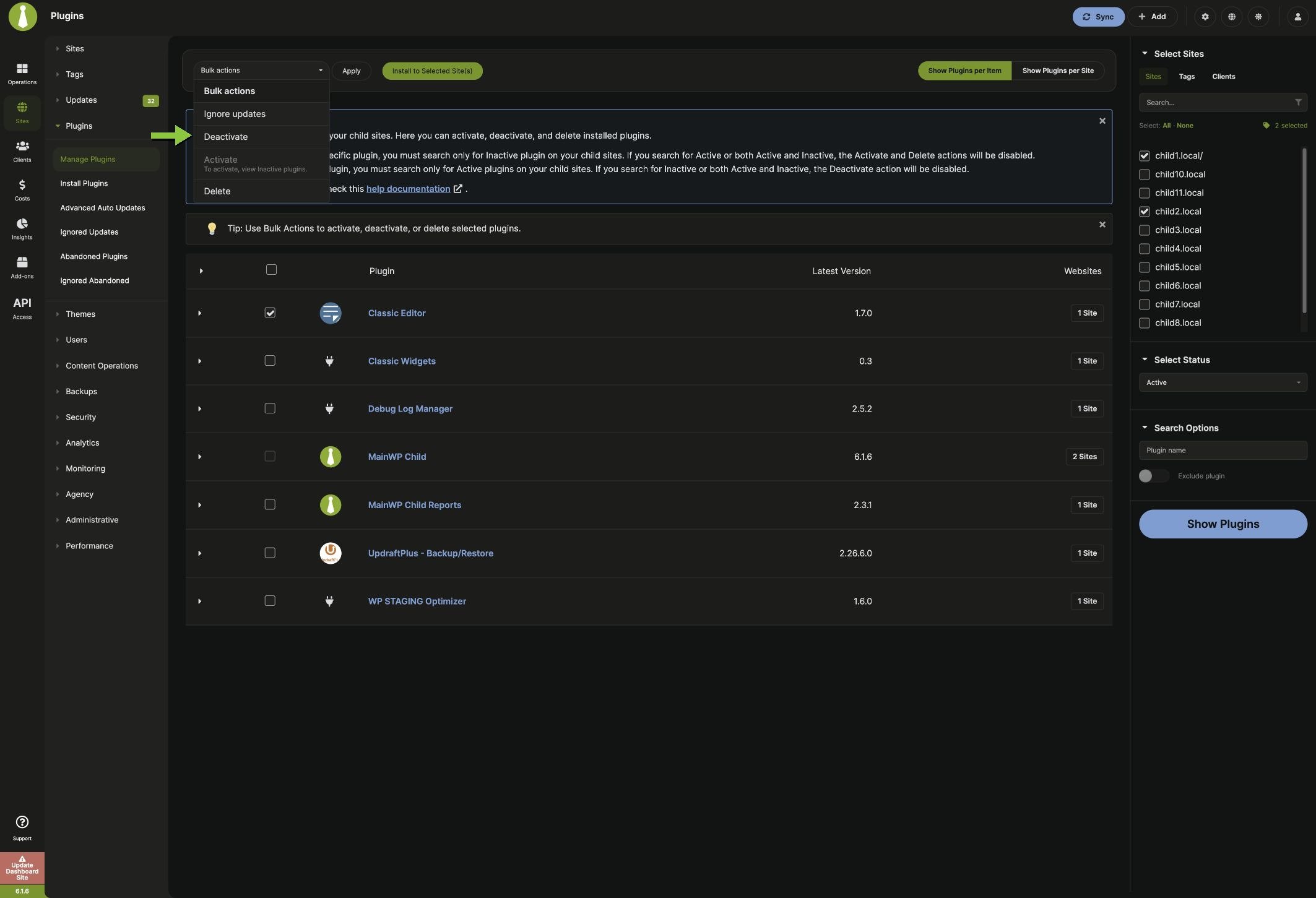
From the dropdown menu, select Show Plugins per Site or Show Plugins per Item.
3

Filter inactive plugins

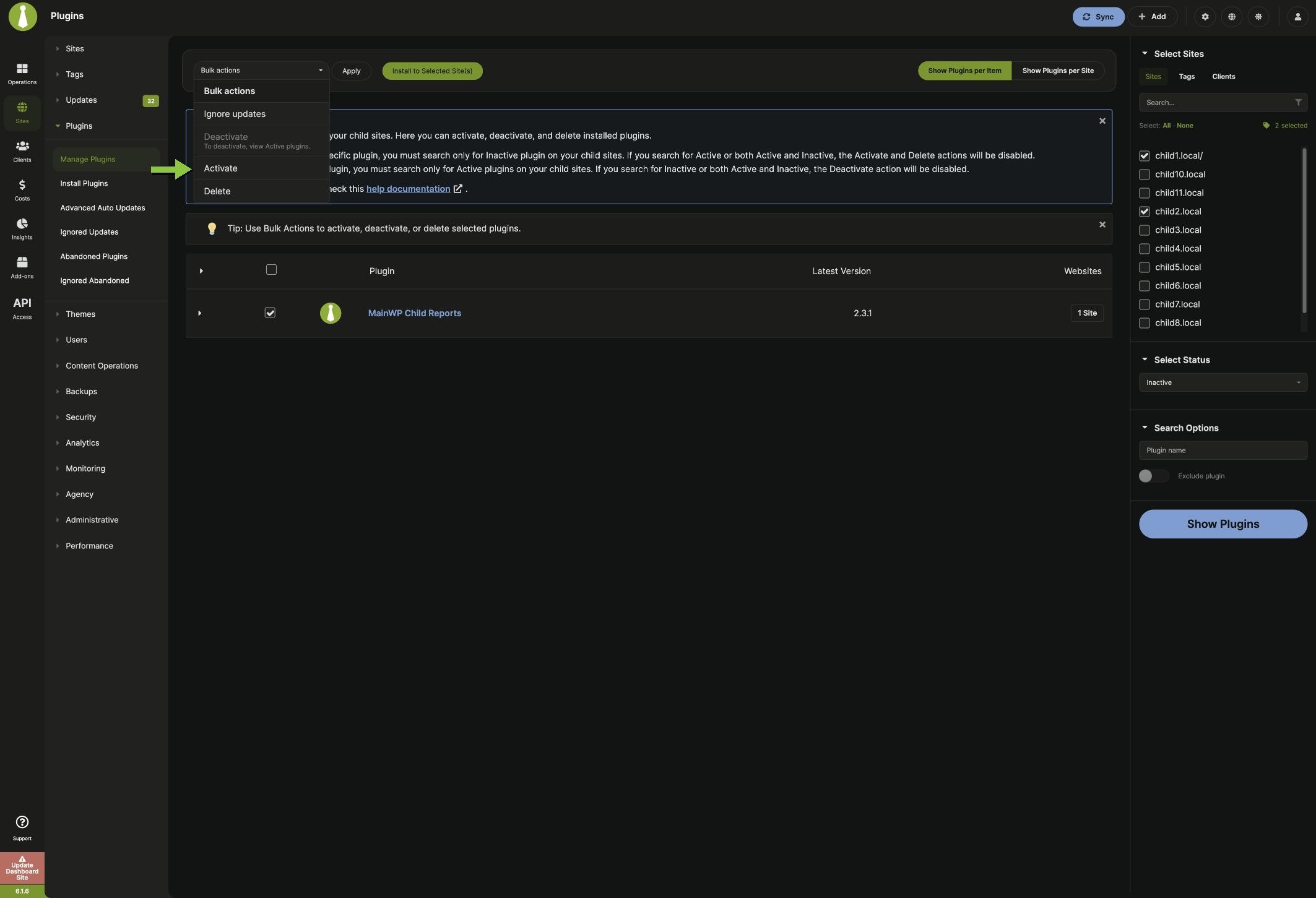
In the Select Status section, select Inactive. Optionally enter a plugin name under Search Options.
4

Select sites

In the Select Sites box, choose the sites to search.
5

Search

Click Show Plugins.
6

Select plugins to activate

Check the boxes next to the plugins you want to activate.
7

Apply action

In the Bulk Actions menu, select Activate and click Apply.Select inactive plugins and choose Activate from Bulk Actions

Deactivate Plugins

1

Navigate to Manage Plugins

Go to MainWP > Plugins > Manage Plugins.
2

Select view

From the dropdown menu, select Show Plugins per Site or Show Plugins per Item.
3

Filter active plugins

In the Select Status section, select Active. Optionally enter a plugin name under Search Options.
4

Select sites

In the Select Sites box, choose the sites to search.
5

Search

Click Show Plugins.
6

Select plugins to deactivate

Check the boxes next to the plugins you want to deactivate.
7

Apply action

In the Bulk Actions menu, select Deactivate and click Apply.Select active plugins and choose Deactivate from Bulk Actions

Delete Plugins

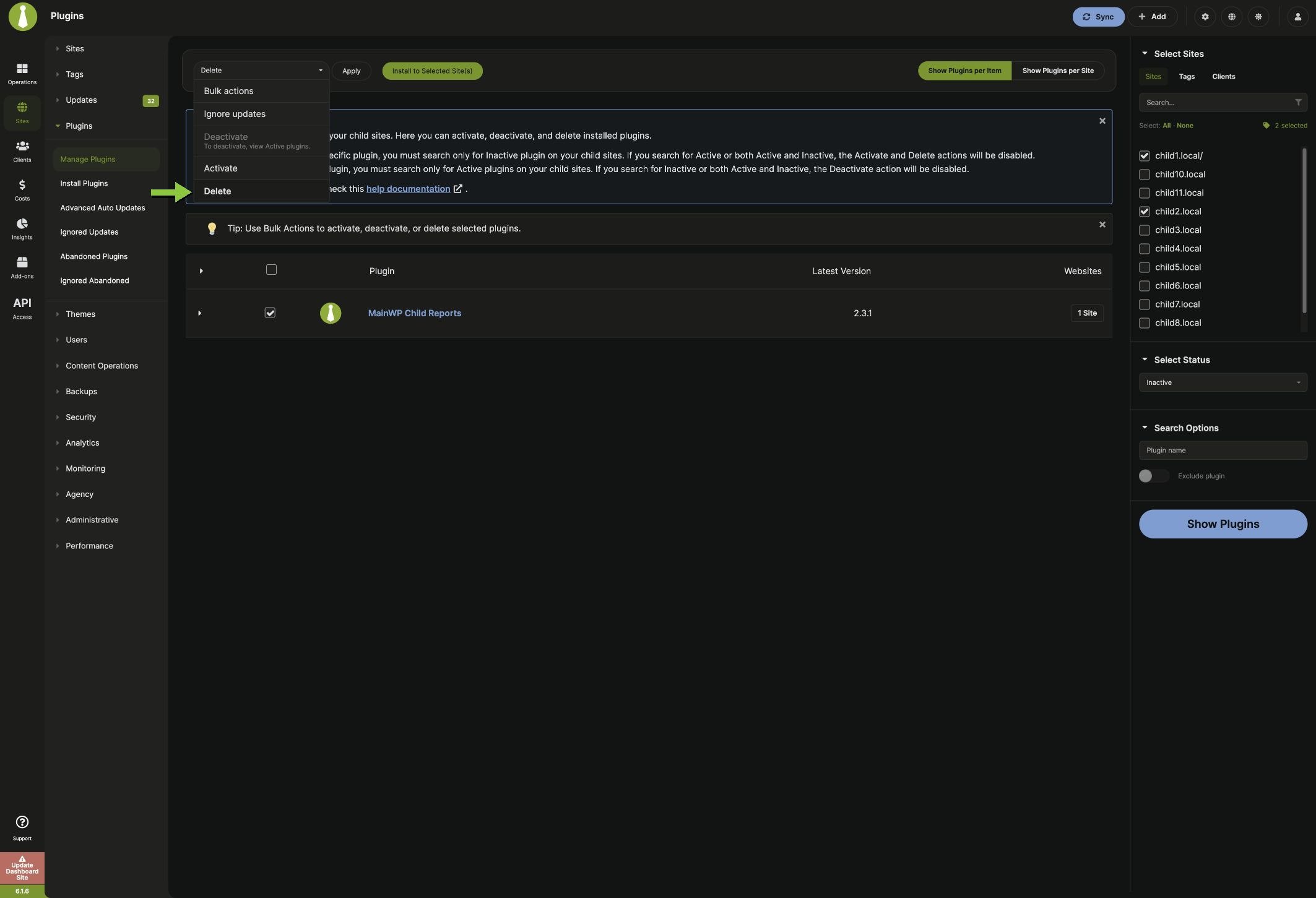
You can delete active and inactive plugins. If a selected plugin is active, MainWP deactivates it during deletion.
1

Navigate to Manage Plugins

Go to MainWP > Plugins > Manage Plugins.
2

Select view

From the dropdown menu, select Show Plugins per Site or Show Plugins per Item.
3

Filter plugins by status

In the Select Status section, select Active, Inactive, or Active & Inactive. Optionally enter a plugin name under Search Options.
4

Select sites

In the Select Sites box, choose the sites to search.
5

Search

Click Show Plugins.
6

Select plugins to delete

Check the boxes next to the plugins you want to delete.
7

Apply action

In the Bulk Actions menu, select Delete and click Apply.Select plugins and choose Delete from Bulk Actions

Update Plugins

Synchronize your child sites before running updates to ensure all available updates are displayed.

Update All Plugins on All Sites

1

Navigate to Plugin Updates

Go to MainWP > Updates > Plugins.
2

Update all

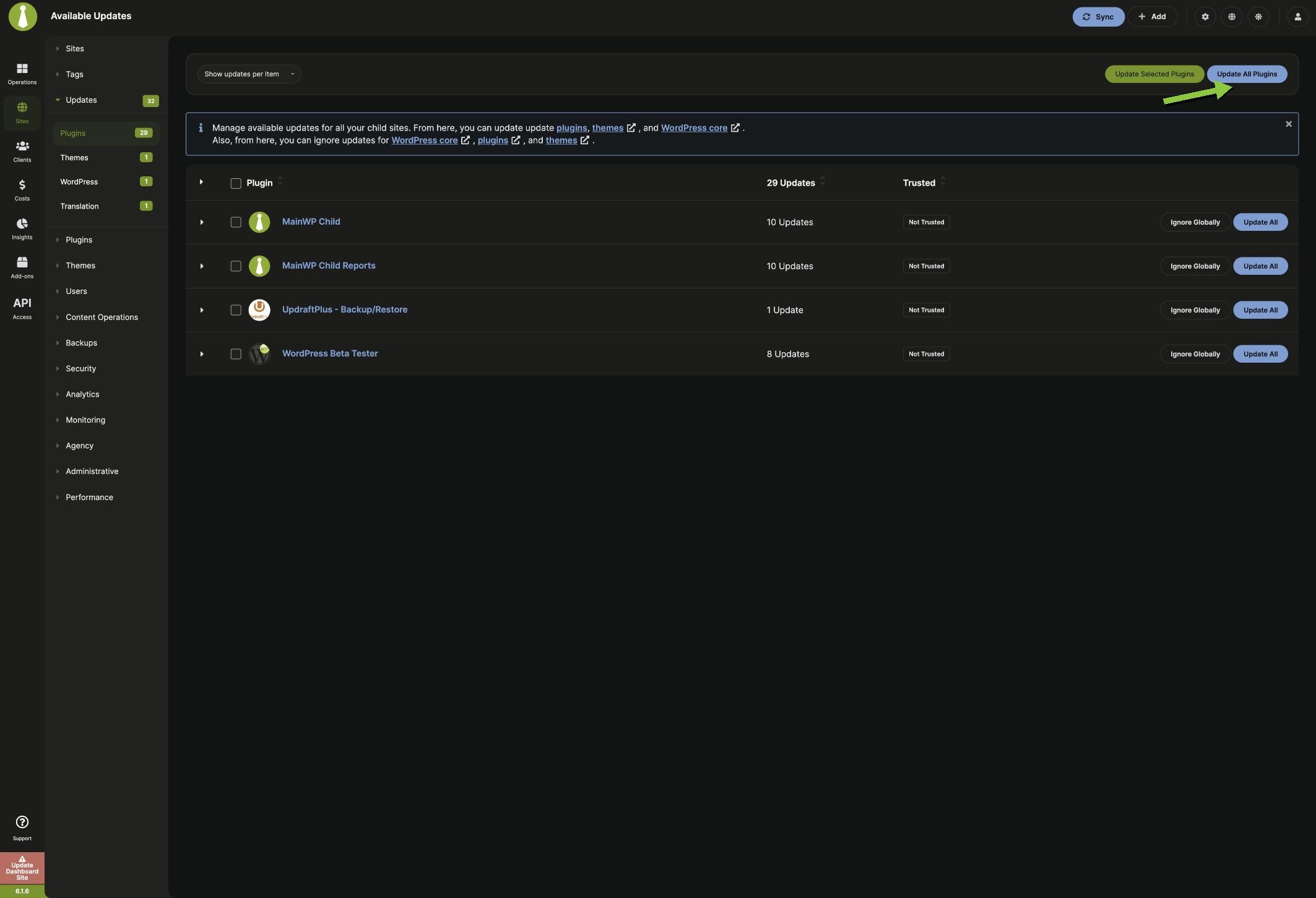
Click Update All Plugins.Update all available plugins across all child sites
3

Confirm

Confirm the update when prompted.

Update a Single Plugin on All Sites

1

Navigate to Plugin Updates

Go to MainWP > Updates > Plugins.
2

Select view

Select Show updates per Item.
3

Locate plugin

Find the plugin you want to update.
4

Update

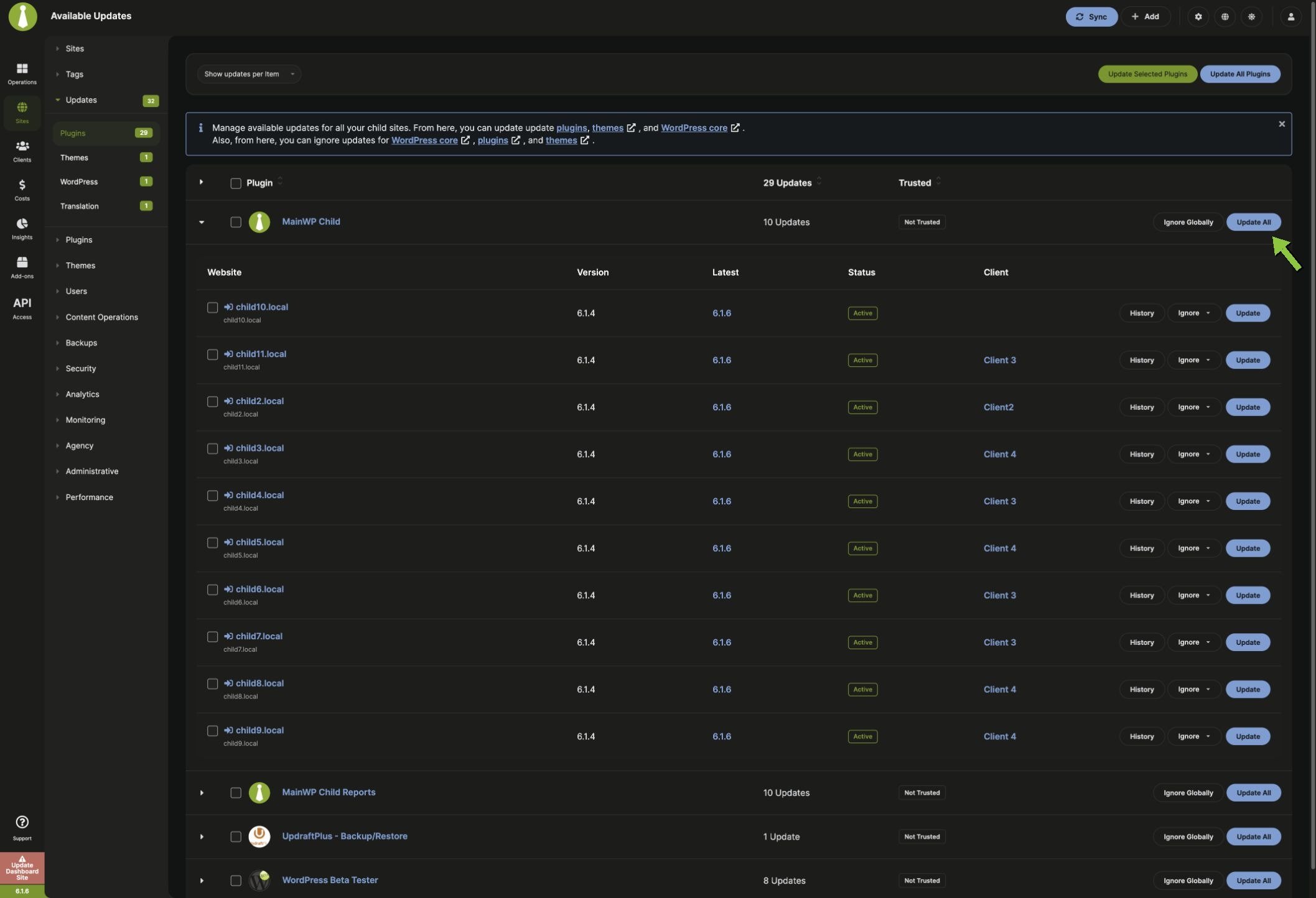
Click Update All in the plugin row.Expand a plugin to review sites and update it across all sites

Update All Plugins on a Single Site

1

Navigate to Plugin Updates

Go to MainWP > Updates > Plugins.
2

Select view

Select Show updates per Site.
3

Locate site

Find the child site you want to update.
4

Update

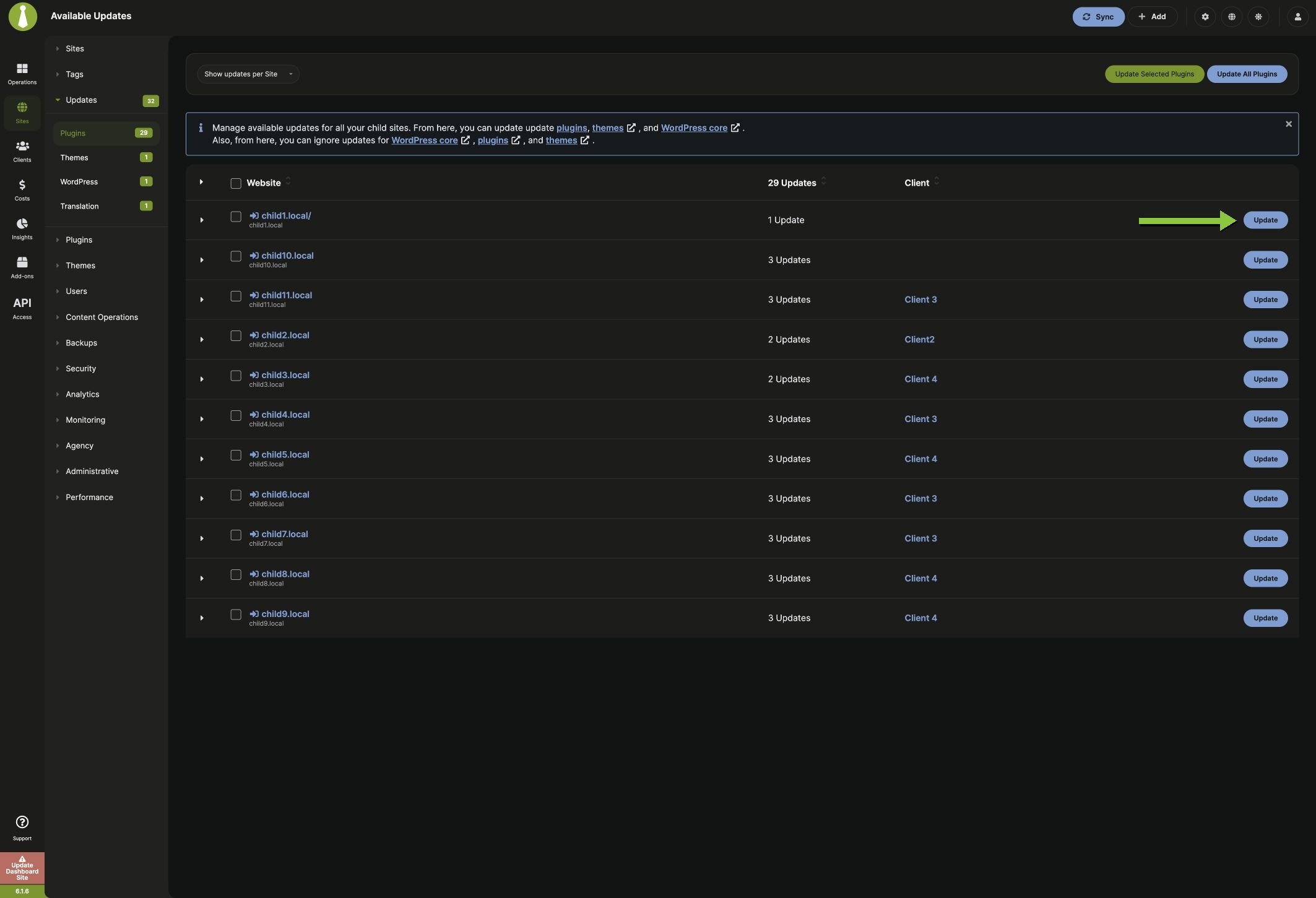
Click Update in the site row.View plugin updates by site and update all plugins on one site

Update a Single Plugin on a Single Site

1

Navigate to Plugin Updates

Go to MainWP > Updates > Plugins.
2

Select view

Select Show updates per Site.
3

Locate site

Find the child site and expand its row.
4

Update plugin

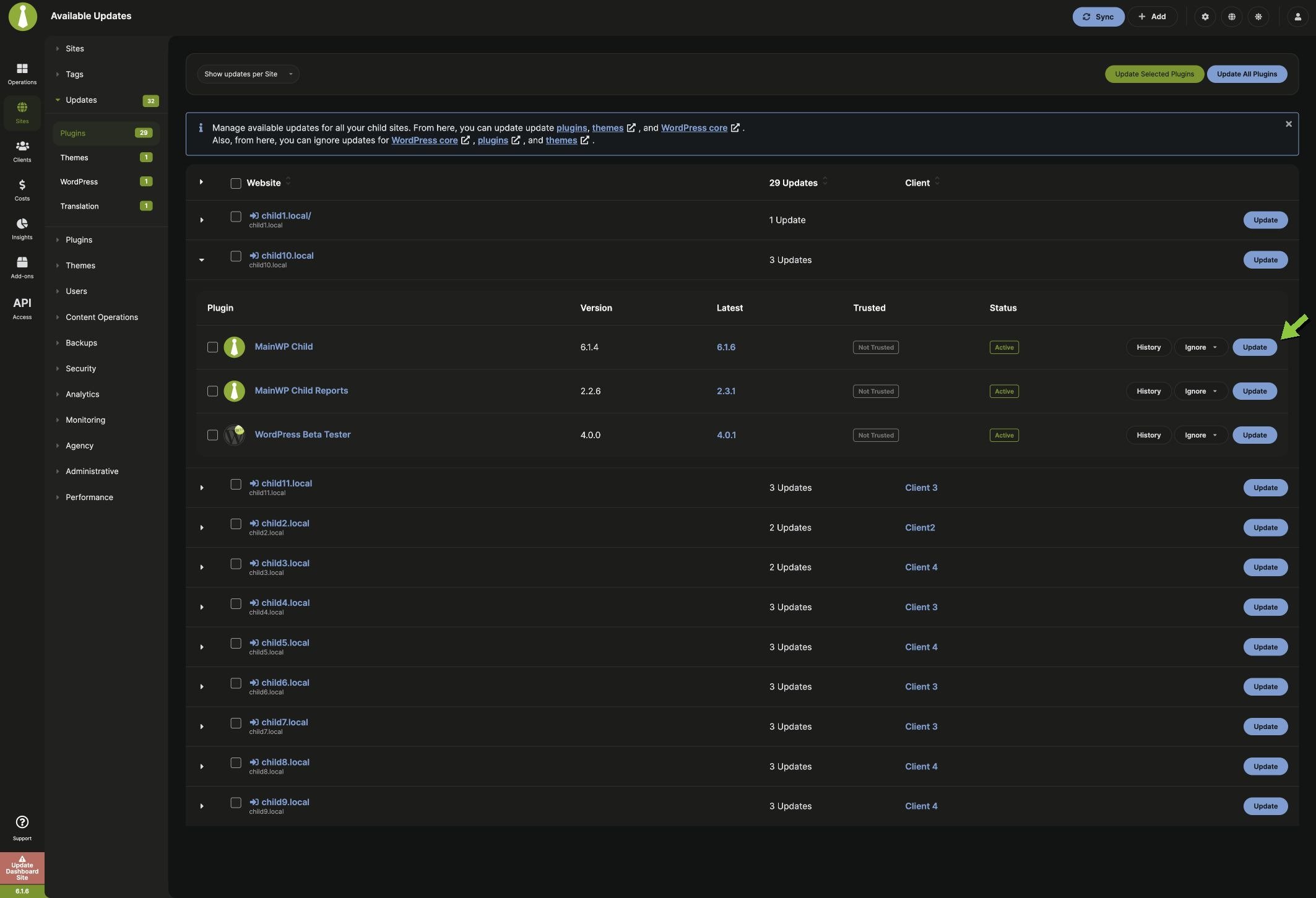
Find the plugin and click Update.Expand a site and update an individual plugin

View Plugin History

Use the History action to review plugin change activity by site and by day.
1

Open a plugin row with History

Open plugin rows in MainWP > Plugins > Manage Plugins, MainWP > Updates > Plugins, or plugin rows on an individual site Operations page.
2

Open the history modal

Click History in the plugin row.
3

Review activity details

Review actions in chronological order. Each record shows the action, user, source (Dashboard or WP Admin), timestamp, and version change when available.
4

Switch history views

Use Day History to group actions by date, then use Plugin History to switch to plugin-grouped actions for that day.
5

Load older records

Click Load More in the modal to display earlier activity.
If no logs are available, you may see “This plugin has no recorded activity in Dashboard Insights.” Check Network Activity and Dashboard Insights settings to confirm logging and retention are configured.

Configure Automatic Updates

Automatic updates require two configuration steps: enabling the feature and marking plugins as trusted.

Enable Auto Updates

1

Navigate to Settings

Go to MainWP > Settings > General Settings.
2

Find Updates Settings

Locate the Updates Settings section.
3

Enable

Set Plugin advanced automatic updates to Install Trusted Updates.
4

Save

Click Save Settings.

Mark Plugins as Trusted

1

Navigate to Advanced Auto Updates

Go to MainWP > Plugins > Advanced Auto Updates.
2

Filter plugins

Use Plugin Status to Search, the trust-status dropdown under Search Options, and the Plugin name field to find plugins.
3

Search

Click Show Plugins.
4

Select plugins

Check the boxes next to the plugins you want to trust.
5

Apply trust

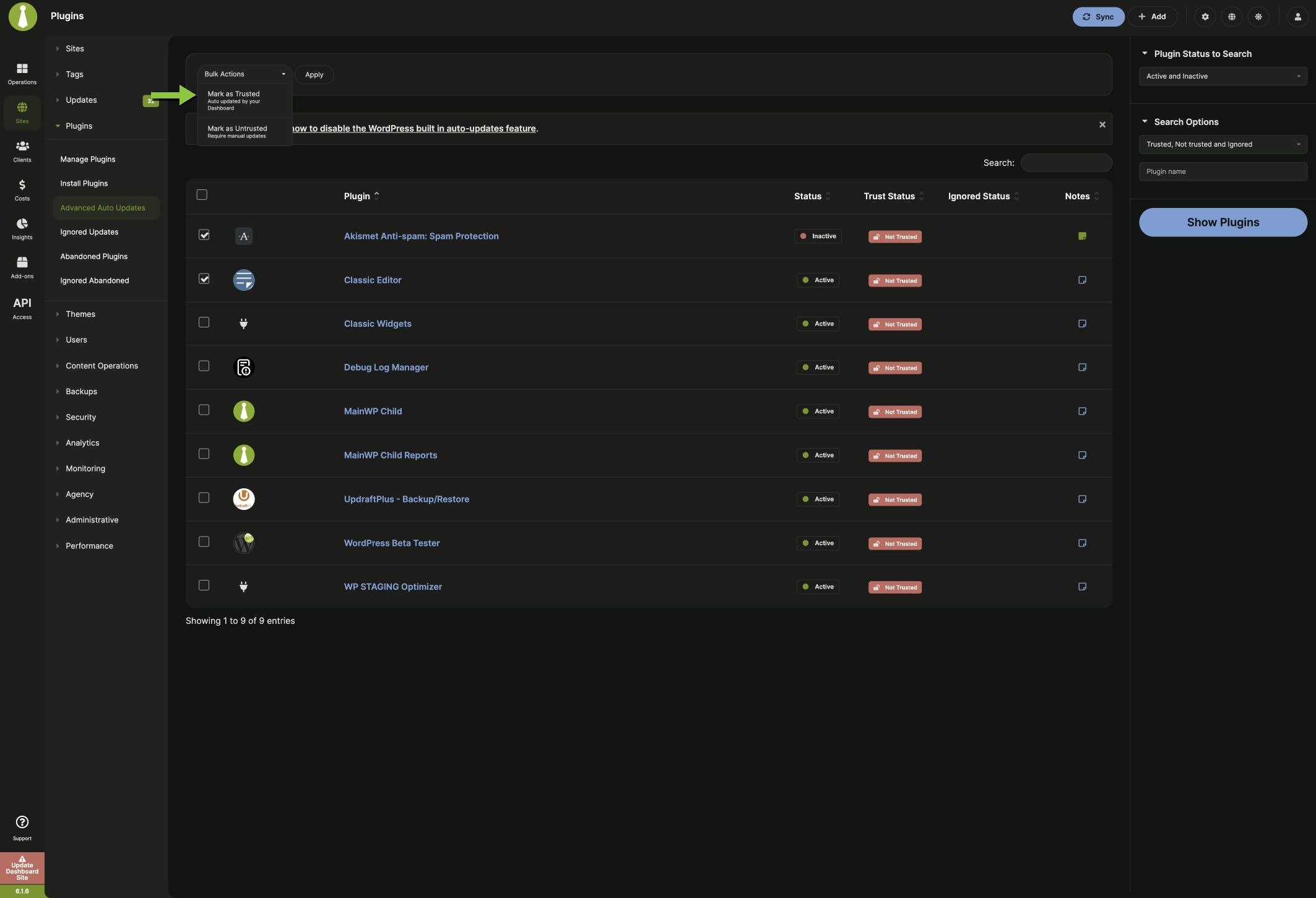
Select Mark as Trusted from the Bulk Actions menu and click Apply.Select plugins and choose Mark as Trusted from Bulk Actions
Marking a plugin as Trusted allows MainWP Dashboard to update it automatically when plugin advanced automatic updates are enabled.

Auto Updates Timing

  • Advanced automatic updates delay controls how many days MainWP Dashboard waits before applying detected updates. The default is 1 day, and the available values range from Delay off to 30 days.
  • Frequency of automatic updates controls whether the process runs daily, weekly, or monthly, along with its scheduled day and time.
  • WP Cron must run for the scheduled automatic update process to start and continue.

Self-Check Checklist

  • Plugins install successfully on selected sites
  • Plugin activation and deactivation work across sites
  • Plugin updates complete without errors
  • Auto updates are configured for trusted plugins
  • Deleted plugins are removed from child sites