
What You’ll Learn
- Monitoring WooCommerce store status from MainWP Dashboard
- Understanding the WooCommerce Status widgets
- Installing the add-on and WooCommerce plugin
Integration Add-on - This add-on extends MainWP to work with WooCommerce. Requires WooCommerce to be installed and activated on your child sites.
WooCommerce Status Dashboard
On the MainWP > Sites > Monitoring > WooCommerce Status page, you can see all your child sites with the WooCommerce plugin installed and active. Here you can see for each child site:- Sales Last 7 Days - Sales from today and the previous six calendar days
- Sales This Month - Sales from the beginning of the current month
- Top Seller This Month - The highest-selling product in the current month
- Number of orders awaiting processing
- Number of orders on hold
- Number of products low on stock
- Number of products out of stock
WooCommerce Status Widgets
The add-on adds a WooCommerce Status widget to the MainWP Overview page and to each individual child site overview. The individual child site widget shows Sales This Month, Top Seller This Month, Awaiting Processing, On Hold, Low in Stock, and Out of Stock, with links that open the related WooCommerce screen on that child site.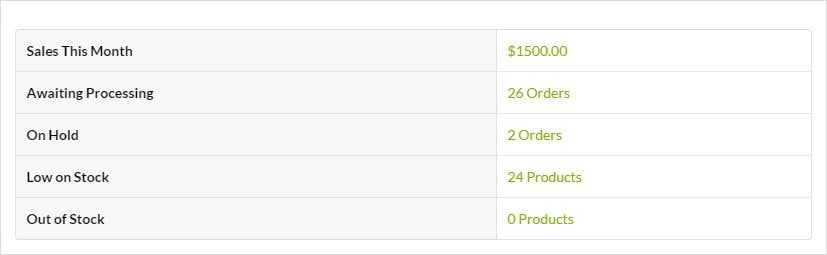 The global Overview widget does not mirror the full per-site widget. It shows combined totals for Awaiting Processing, On Hold, Low in Stock, and Out of Stock, plus separate Top Sellers and Sales sections that break the data down by child site.
Install and Set the WooCommerce Status Extension
Installation of the MainWP WooCommerce Status Extension requires two important steps:- Installing the Extension itself on your MainWP Dashboard site
- Installing the WooCommerce Plugin on Child Sites
Installing the Extension
The MainWP WooCommerce Status Extension needs to be installed only on your MainWP Dashboard site. You can install it as any other MainWP add-on.Installing the Plugin
For the proper use of the MainWP WooCommerce Status Extension, you need to install the WooCommerce Plugin on your child sites.Install from MainWP Dashboard
1
Login in to your MainWP Dashboard
2
Go to the MainWP > Plugins > Install page
3
In the Search field, enter the plugin name (WooCommerce)
4
Press enter on your keyboard
5
After the search results appear, locate the plugin
6
Select the Install this Plugin option
7
Select your child sites
Select your child sites
8
In the Installation Options box, make sure that the Activate after installation option is selected
In the Installation Options box, make sure that the Activate after installation option is selected
9
Click the button to complete the installation
10
Once the installation is complete, Sync your MainWP Dashboard
Install directly on Child Site
1
Login into your child site
2
Go to the WP > Plugins > Add New page
3
In the Search field, enter the plugin name (WooCommerce)
4
After the search results appear, locate the plugin
5
Click the Install button
6
Click the Activate button
Important Note
After installing and activating the WooCommerce plugin, synchronize your sites so your MainWP Dashboard detects it and refreshes the stored WooCommerce status data.Related Resources
- WooCommerce Shortcuts Extension - Quick links to WooCommerce pages
- Administrative Add-ons - Browse administrative add-ons