
What You’ll Learn
- How to manage comments across multiple sites
- Using bulk actions for comment moderation
- Approving, unapproving, spam marking, and deleting comments
- Customizing comment display settings
The Recent Comments Widget
A great addition to this add-on is the Recent Comments widget. It shows the latest Approved and Pending comments from your sites and provides quick links to moderate them or open the full comments page.Manage Comments
The MainWP Comments Extension allows you to manage comments on your websites. It lets you remotely- Approve
- Unapprove
- Mark as Spam
- Not Spam
- Move to Trash
- Restore
- Edit
- Delete Permanently
Log in to your MainWP Dashboard
Go to the MainWP > Sites > Content Operations > Comments page
Select the Child Sites you want
Use Select Status and Search Options to set your filters
- Select Status lets you filter comments by Approved, Pending, Spam, or Trash
- Containing keyword lets you find comments containing a specific word
- Date range narrows comments by the selected dates
Click the Show Comments button
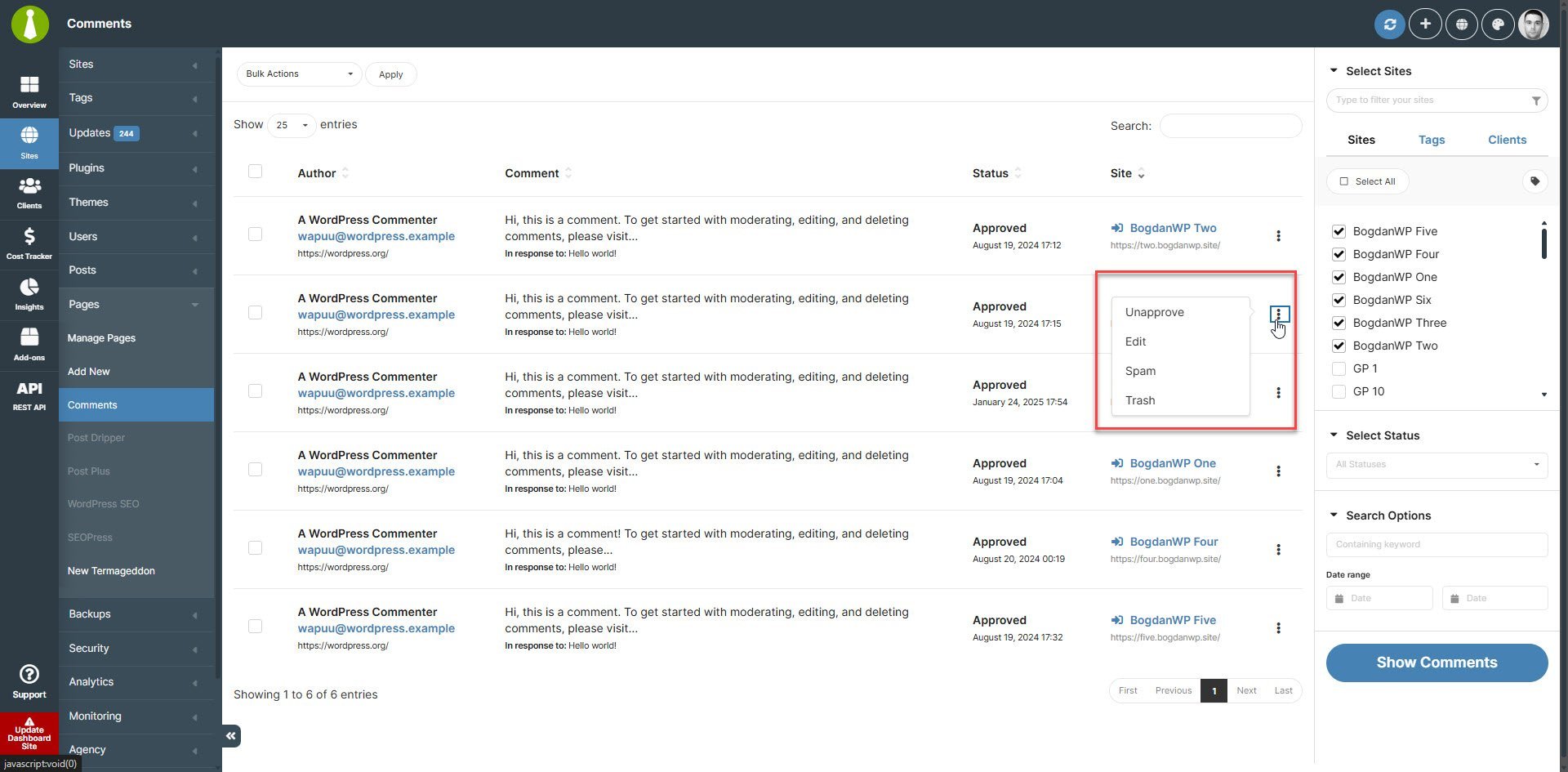 By default, the MainWP Dashboard plugin is set to return (show) a maximum of 50 comments from one Child Site.
Unapprove Comment
Log in to your MainWP Dashboard
Go to the MainWP > Sites > Content Operations > Comments page
Select the Child Sites you want
Use Select Status and Search Options to find the comments you need
Click the Show Comments button
Once the list of found comments appears
- Locate the Comment you want to update
- Click the Unapprove action in the Actions menu
Approve Comment
Log in to your MainWP Dashboard
Go to the MainWP > Sites > Content Operations > Comments page
Select the Child Sites you want
Use Select Status and Search Options to find the comments you need
Click the Show Comments button
Once the list of found comments appears
- Locate the Comment you want to update
- Click the Approve action in the actions menu
Mark Comment as Spam
Log in to your MainWP Dashboard
Go to the MainWP > Sites > Content Operations > Comments page
Select the Child Sites you want
Use Select Status and Search Options to find the comments you need
Click the Show Comments button
Once the list of found comments appears
- Locate the Comment you want to update
- Click the Spam action in the actions menu
Edit Comment
Log in to your MainWP Dashboard
Go to the MainWP > Sites > Content Operations > Comments page
Select the Child Sites you want
Use Select Status and Search Options to find the comments you need
Click the Show Comments button
Once the list of found comments appears
- Locate the Comment you want to edit
- Click the Edit action in the actions menu
Move Comment to Trash
Log in to your MainWP Dashboard
Go to the MainWP > Sites > Content Operations > Comments page
Select the Child Sites you want
Use Select Status and Search Options to find the comments you need
Click the Show Comments button
Once the list of found comments appears
- Locate the Comment you want to trash
- Click the Trash action in the actions menu
Delete Comment Permanently
In the comments list, the Delete Permanently action is available for comments that are already in Trash or marked as Spam. The comments table also includes Restore and Not Spam bulk actions. When a comment is in Trash, its row actions include Restore and Not Spam.Set Custom Comment Display Length
To set the custom comment length, please see this gist.Network Activity Logging
Comment moderation actions performed through the add-on (approve, unapprove, spam, unspam, trash, restore, delete) are recorded in Network Activity under the Comments connector. Use this to audit who moderated which comment and when, alongside the rest of your Dashboard activity. Network Activity logging must be enabled in MainWP > Settings > Network Activity Settings for these events to be stored.Manage Comments via the REST API
The Comments Extension exposes REST API v2 routes so you can list and moderate comments programmatically across your child sites.approve, unapprove, spam, unspam, trash, restore, delete.
Example — approve a comment on site 12:
Related Resources
- Administrative Add-ons - Browse administrative add-ons
- Add-ons Overview - All add-on categories
- Add-on Endpoints - Comments REST API reference
- Network Activity - Review and configure activity logging