
What You’ll Learn
- Connecting your Pressable account to MainWP
- Creating new Pressable sites from the Dashboard
- Managing CDN, backups, and site state
- Understanding the Dashboard page features
Install the Integration
Follow these steps to install the Pressable Integration.Go to your MainWP Dashboard
Go to the MainWP Dashboard > Add-ons > Manage Add-ons page
Click the Install Add-ons button
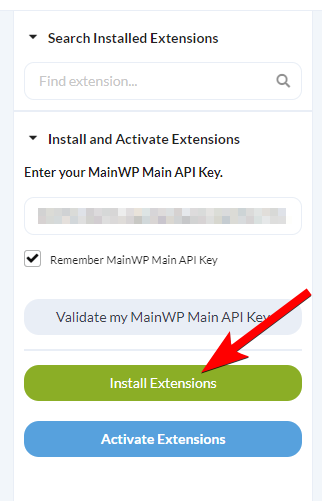
Locate the Pressable Integration and select it
Click the Install button
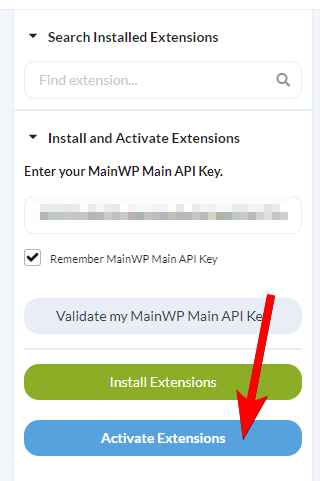
Once the installation process is complete, click the Activate Add-ons button.
Connect the Integration to Your Pressable Account
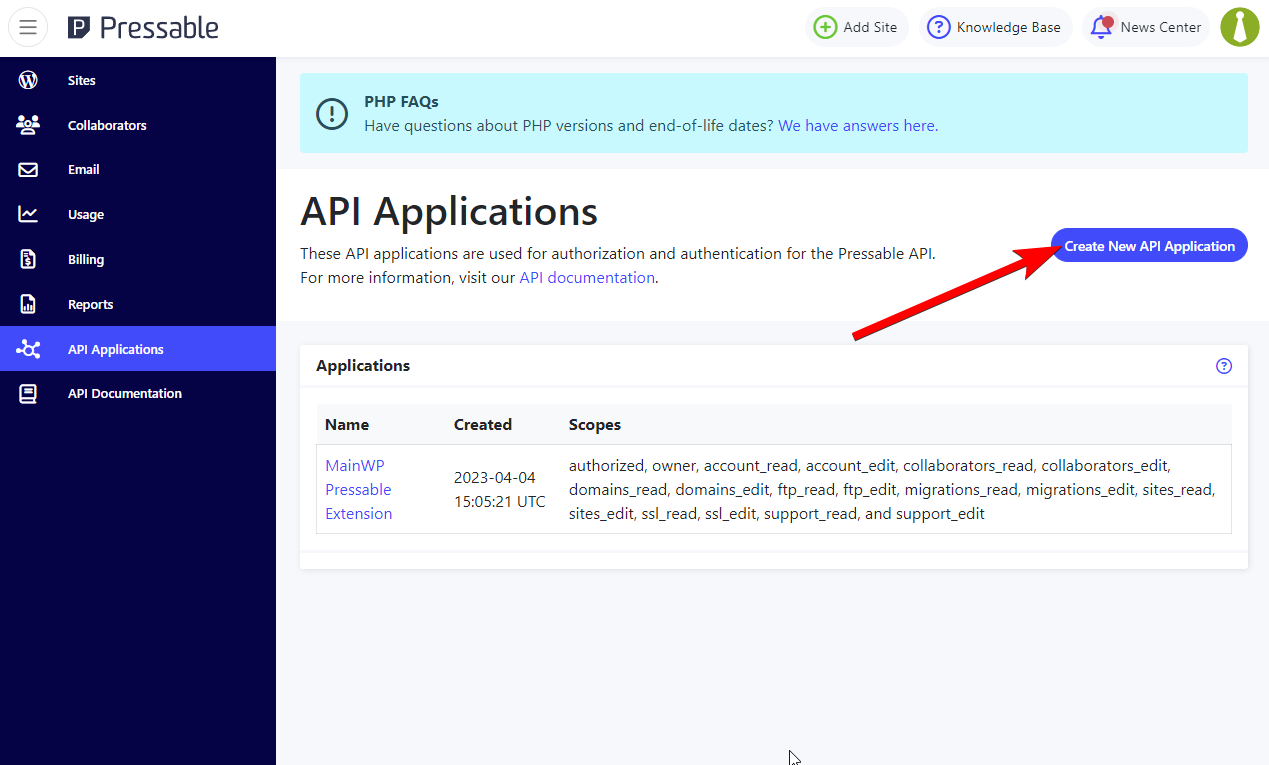
Navigate to your Pressable account and open the API Application page
Click the Create New API Application button
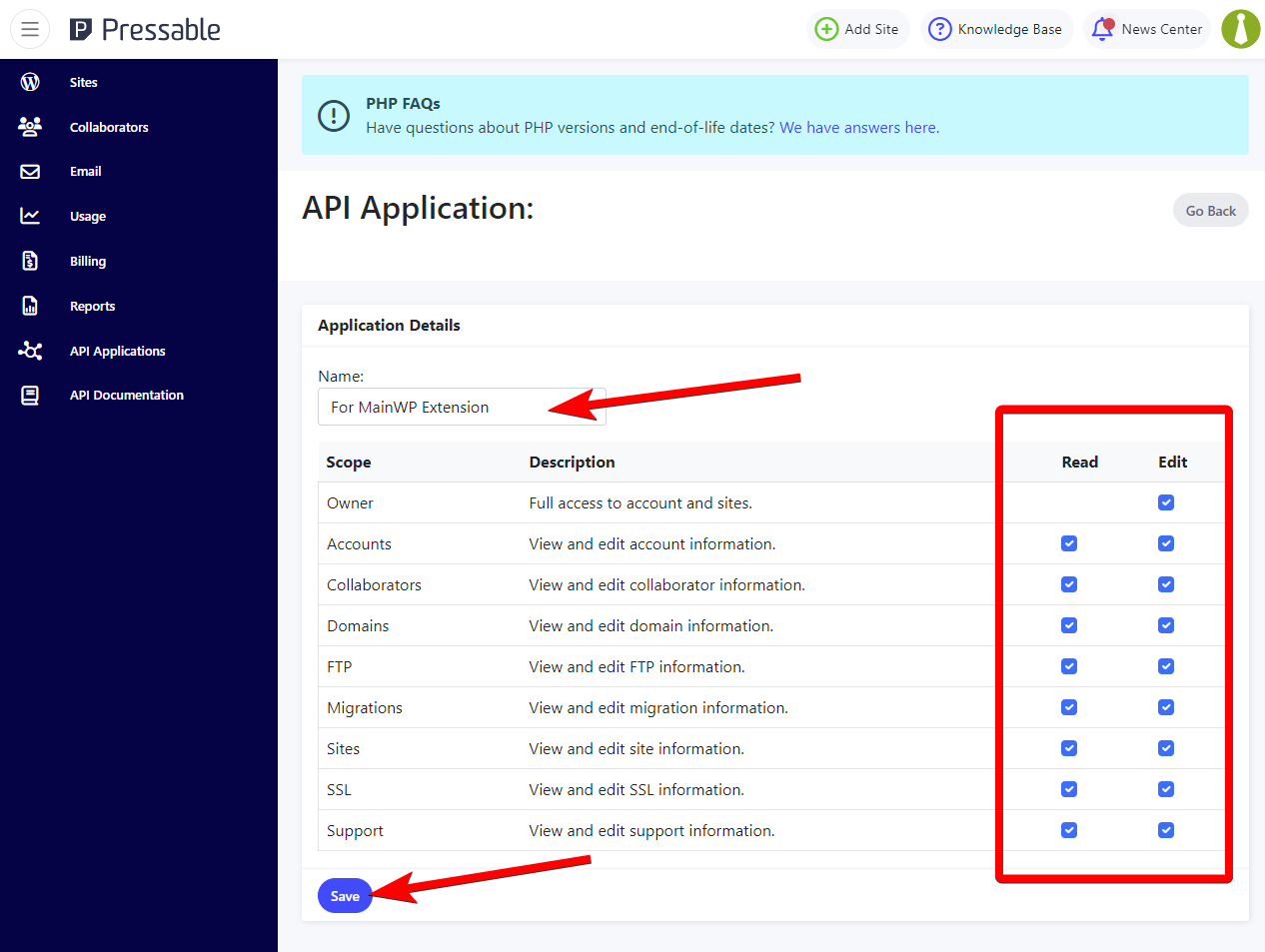
Enter a desired name for the API Application, give the application all permissions, and click the Save button
You will be presented with a Client ID and Client Secret
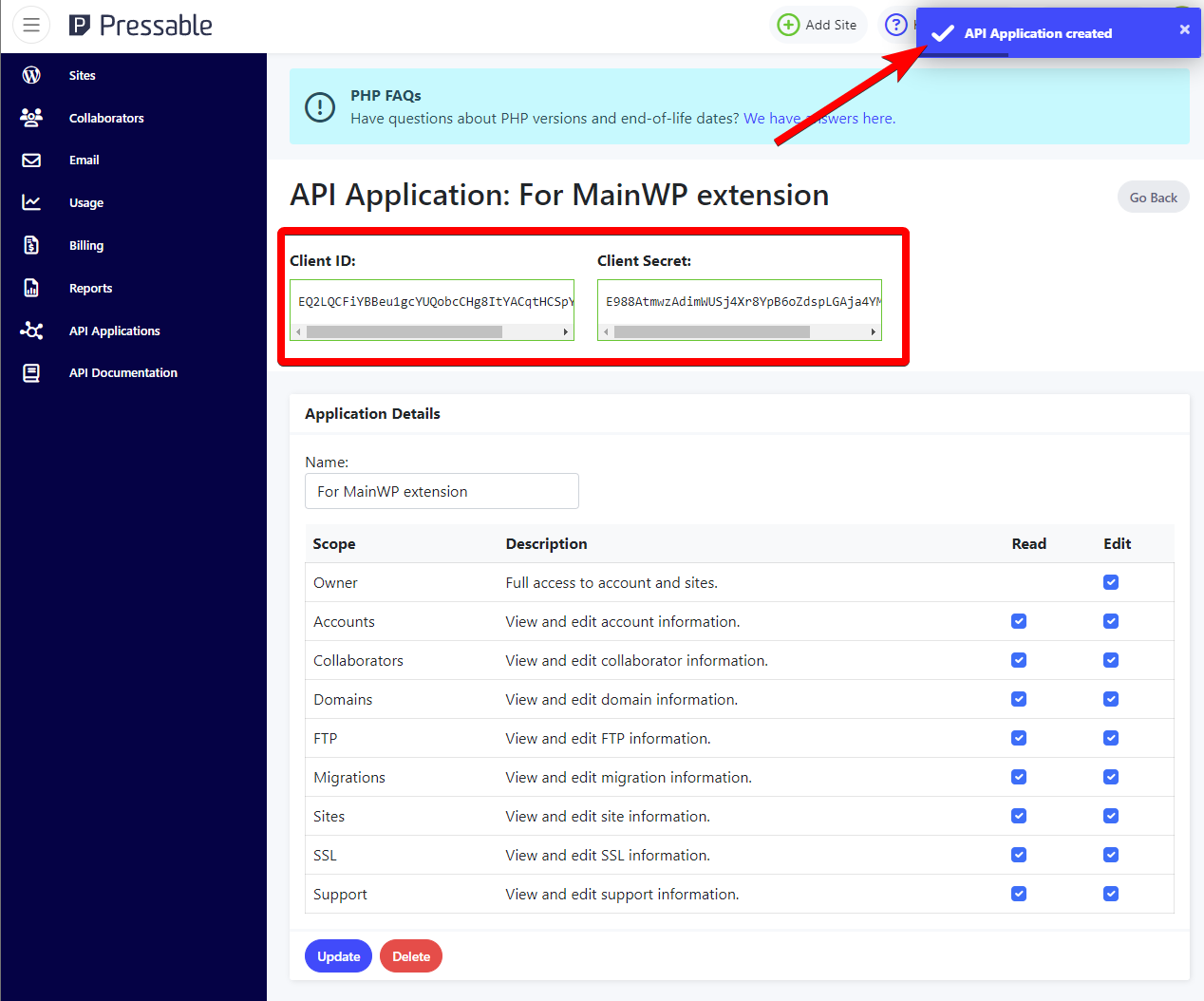
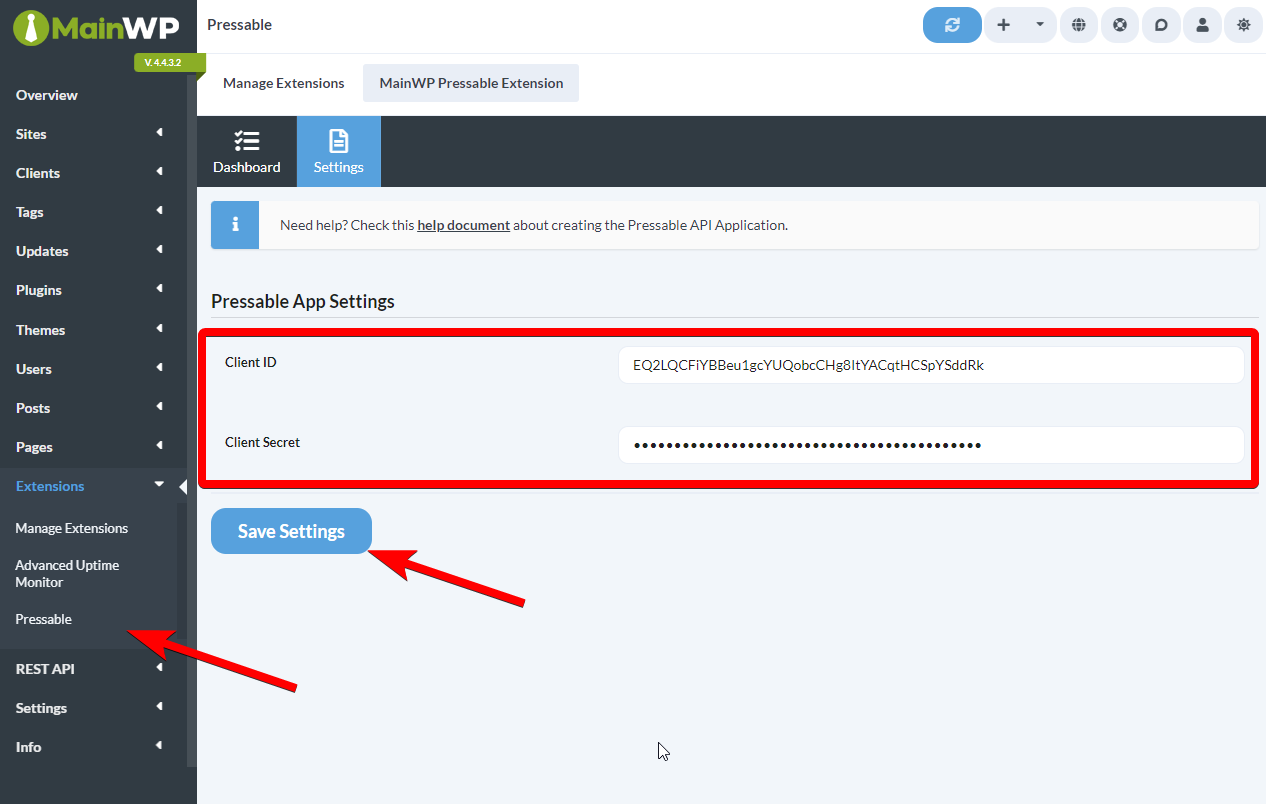
Now navigate to your MainWP Dashboard > Add-ons > Administrative > Pressable page, and open the Settings tab
Enter the Client ID and Client Secret and click the Save Settings button
Team Control compatibility
The Pressable Integration respects access restrictions configured by the Team Control Extension. Only team members whose role grants access to the Pressable Integration will see the Pressable menu and be able to perform Pressable actions. If a user does not have permission, the integration UI and bulk actions are hidden for them.Clearing Pressable credentials
To disconnect the integration from your Pressable account, open the Settings tab, clear both the Client ID and Client Secret fields, and click Save Settings. Saving empty values removes the stored credentials and the cached access token. The Dashboard tab then shows an empty-state placeholder prompting you to add credentials again.Empty-state placeholders
The Dashboard tab shows contextual placeholders when there is nothing to display:- No credentials saved — a Pressable API Credentials Required placeholder links you to the Settings tab to add a Client ID and Client Secret.
- Credentials saved but no sites found — a No Pressable Sites Found placeholder prompts you to create a site in Pressable or reload Pressable API data to sync sites.
Site matching by primary URL and custom domains
The integration matches Pressable sites to MainWP child sites using both the Pressable primary URL and any custom domains configured on the Pressable site. If a child site’s URL matches any domain assigned to a Pressable site, it is linked automatically — no manual mapping is required when you point a child site at a custom domain instead of the default*.mystagingwebsite.com URL.
Reload Pressable API data from the Dashboard tab to refresh the mapping after adding or changing custom domains in Pressable.
Integration Dashboard Page
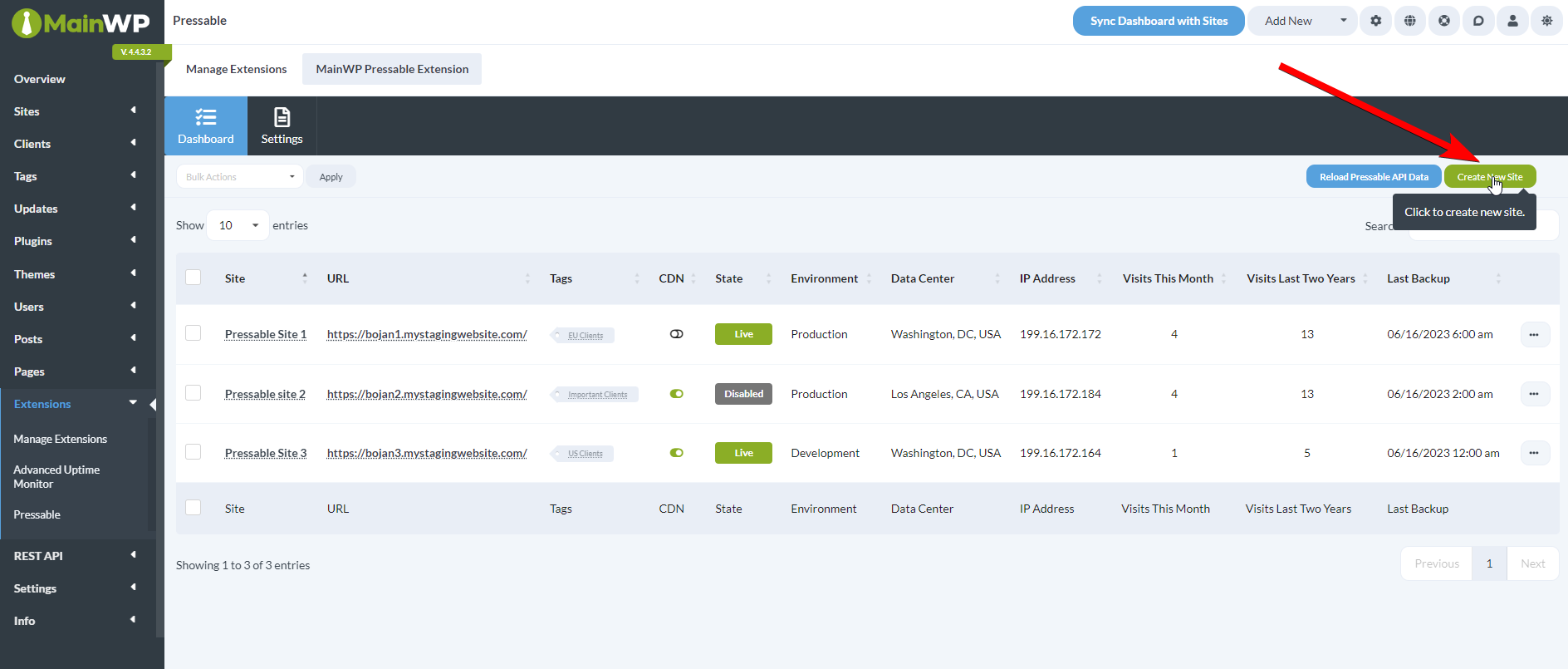
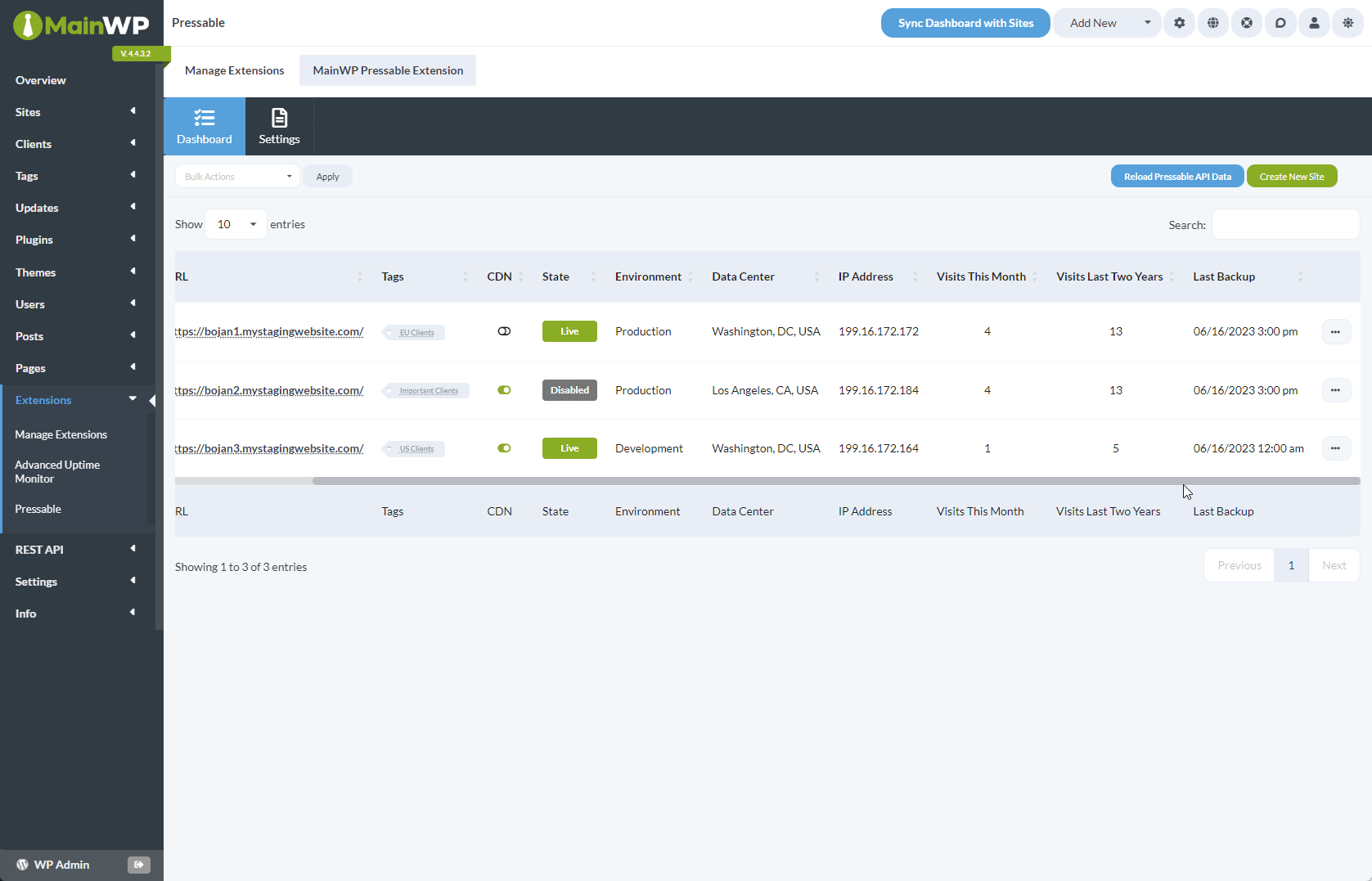
This page contains all of the features or shortcuts to the features of the Pressable Integration. This table will contain all sites from the Pressable account you connected in the integration settings that are also added to this MainWP Dashboard. Sites from the Pressable account that are not added to the MainWP Dashboard as child sites will NOT be shown here.
Backup and creation timestamps in the table show a human-readable elapsed time (for example, 2 days ago) on hover, and sort by their underlying date.
The columns of the table that are specific to the Pressable Integration are as follows:
This table will contain all sites from the Pressable account you connected in the integration settings that are also added to this MainWP Dashboard. Sites from the Pressable account that are not added to the MainWP Dashboard as child sites will NOT be shown here.
Backup and creation timestamps in the table show a human-readable elapsed time (for example, 2 days ago) on hover, and sort by their underlying date.
The columns of the table that are specific to the Pressable Integration are as follows:
- CDN: Shows a graphical indicator of whether the Pressable CDN is enabled on the child site
- State: Displays the status of the child site, either Live or Disabled
- Environment: Displays the environment type, either Staging, Development or Production
- Data Center: Displays the location of the Pressable data center where the child site is hosted at
- IP Address: Displays the IP Address of the Pressable data center where the child site is hosted at
- Visits This Month: Displays the number of visits for this child site for this month, as logged by Pressable
- Visits Last Two Years: Displays the number of visits for this child site for the last two years, as logged by Pressable
- Last Backup: Displays the date and time of the last performed Pressable backup
Create a new Pressable site
Navigate to MainWP Dashboard > Add-ons > Administrative > Pressable page
Click the Create New Site button
Enter the information for the new site
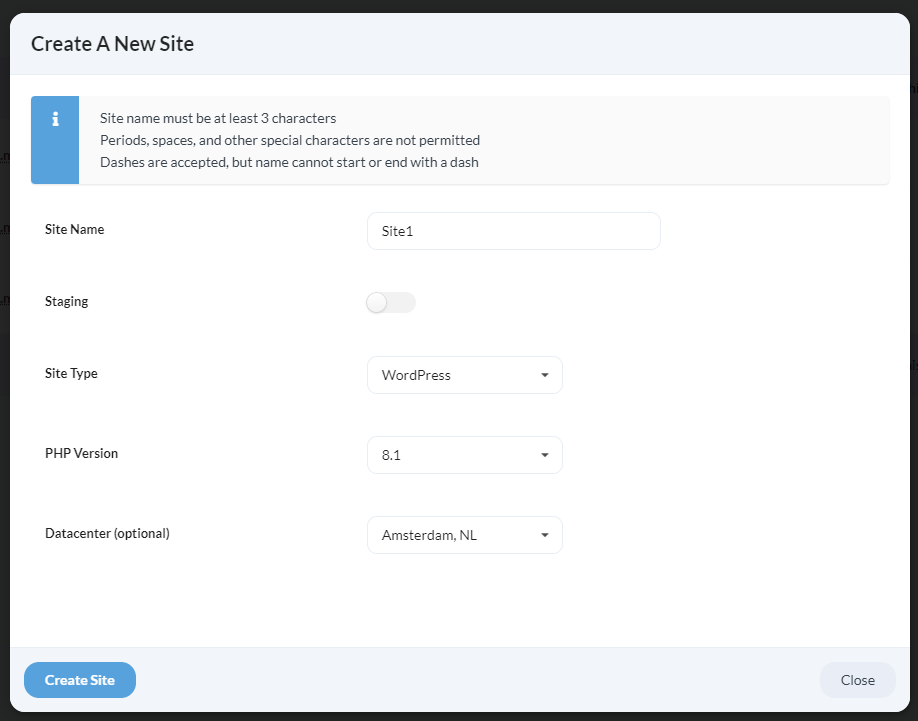
- Enter the desired Site Name NOTE: Periods, spaces, and other special characters are not permitted in site names. Dashes are fine, but the name cannot start or end with a dash. The name must be at least 3 characters in length. 2. Choose whether the site should be Staging or not 3. From the Site Type dropdown, select either WordPress or WooCommerce 4. From the PHP Version dropdown, select the available PHP version 5. From the Datacenter dropdown, optionally select the location of the data center
Click the Create Site button
Available Actions for Child Sites
Available actions you can perform on the child sites are located in the ellipsis menu. Hosting actions are also available in the Bulk Actions menu: Enable Sites, Disable Sites, Delete Sites, Convert Live to Staging, Convert Staging to Live, Enable CDN, Disable CDN, and Go to phpMyAdmin.
- Sync Data: Synchronizes the child site through the MainWP Dashboard site sync
- Overview: Opens the Child Site Overview on the MainWP Dashboard
- Edit: Opens the Child Site Edit page on the MainWP Dashboard
- Enable/Disable Site: Changes the State of the site in the Pressable hosting account to either Live or Disabled
- Delete Site: Deletes the site from the Pressable hosting account
- Convert to Staging / Staging to Live: Converts the site either from Staging to Live, or from Live to Staging
- Enable/Disable CDN: Either enables or disables the CDN feature on the Pressable hosting account
- Go to phpMyAdmin: Opens the phpMyAdmin page for that child site on the Pressable hosting account
- Manage Backups: Opens the Pressable Backups page for that Child Site. You can either initialize a Site Restore or download one of the existing backup files.
Related Resources
- Development Add-ons - Browse all development tools
- Hosting Compatibility - Hosting provider information
- Manage Child Sites - Site management guide