
What You’ll Learn
- Connecting Google Analytics via Sign In with Google or Service Account JSON
- Assigning GA4 properties to child sites
- Viewing visitor data across all child sites
- Managing account refresh and reconnection
Integration Add-on - This add-on extends MainWP to work with Google Analytics. Requires Google Analytics to be installed on your child sites.
The MainWP Google Analytics Extension gives you valuable insights into your visitors’ traffic patterns and campaign performance so you can optimize your strategy and user experience.
Use this Extension To Track:
- Views
- Views by Page
- Users
- Users by Device
- Users by Country
- New Users
- Average Engagement Time
- Sessions by Source
- PHP 8.2 or higher on the MainWP Dashboard
- Google Analytics (GA4) installed on your child sites
- For JSON import: Google Analytics Admin API, Google Analytics API, and Google Analytics Data API
Connect your Google Analytics Account
You can connect Google Analytics in two ways. Use whichever fits your setup (you can use both):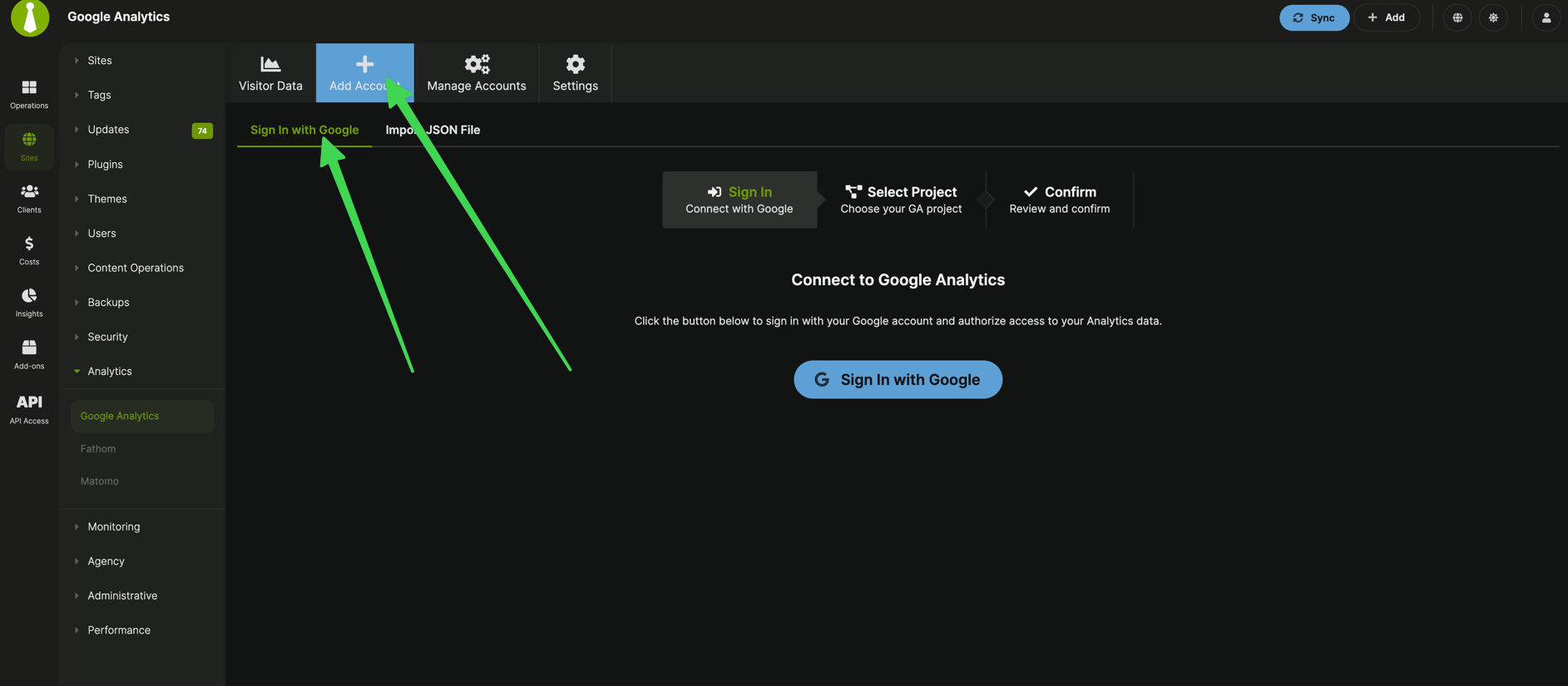
Option A: Sign In with Google
- In your MainWP Dashboard, go to MainWP > Add-ons > Google Analytics > Add Account.
- Keep the Sign In with Google tab selected, then click Sign In with Google.
- Complete Google authorization in the popup window.
- In Select Google Analytics Project, choose the account(s) you want to connect, then click Continue.
- In Confirm Google Analytics Connection, review the summary and click Confirm.
- Your account will appear under Manage Accounts in Accounts by Sign In.
- If your MainWP Dashboard server does not meet the required PHP version, the Sign In with Google tab is disabled and you can use Import JSON File.
- This flow uses MainWP Bridge (
bridge.mainwp.com) for secure authentication. See MainWP Bridge and the MainWP Bridge Privacy Policy. - Before any OAuth action, the extension checks that your Dashboard’s WordPress REST API root (
/wp-json/) is reachable. If it isn’t, the Sign In with Google, Continue, Confirm, Reconnect Account, and refresh buttons are disabled and an in-page notice links to WordPress REST API does not respond. Use Import JSON File to connect in the meantime.
Option B: Connect a Service Account (JSON file)
Step 1 - Enable required APIs in Google Cloud Console1
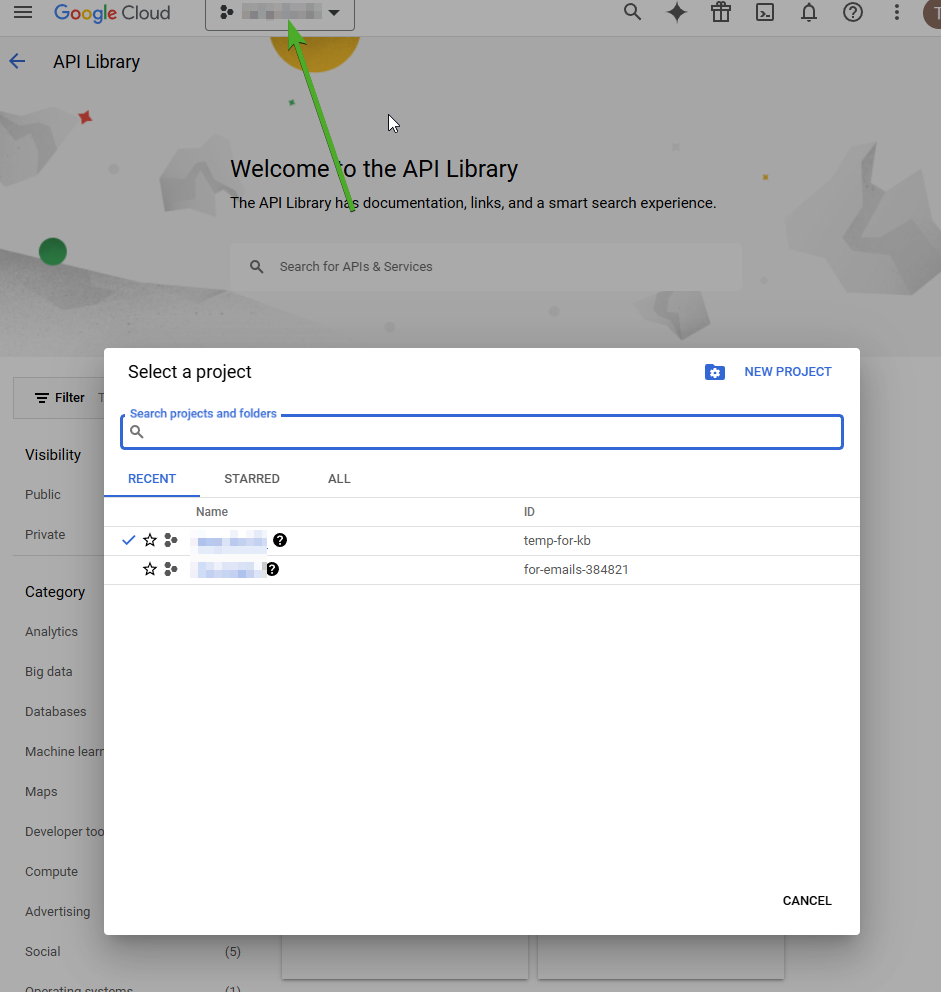
Go to https://console.cloud.google.com and create a new project (optional).
2
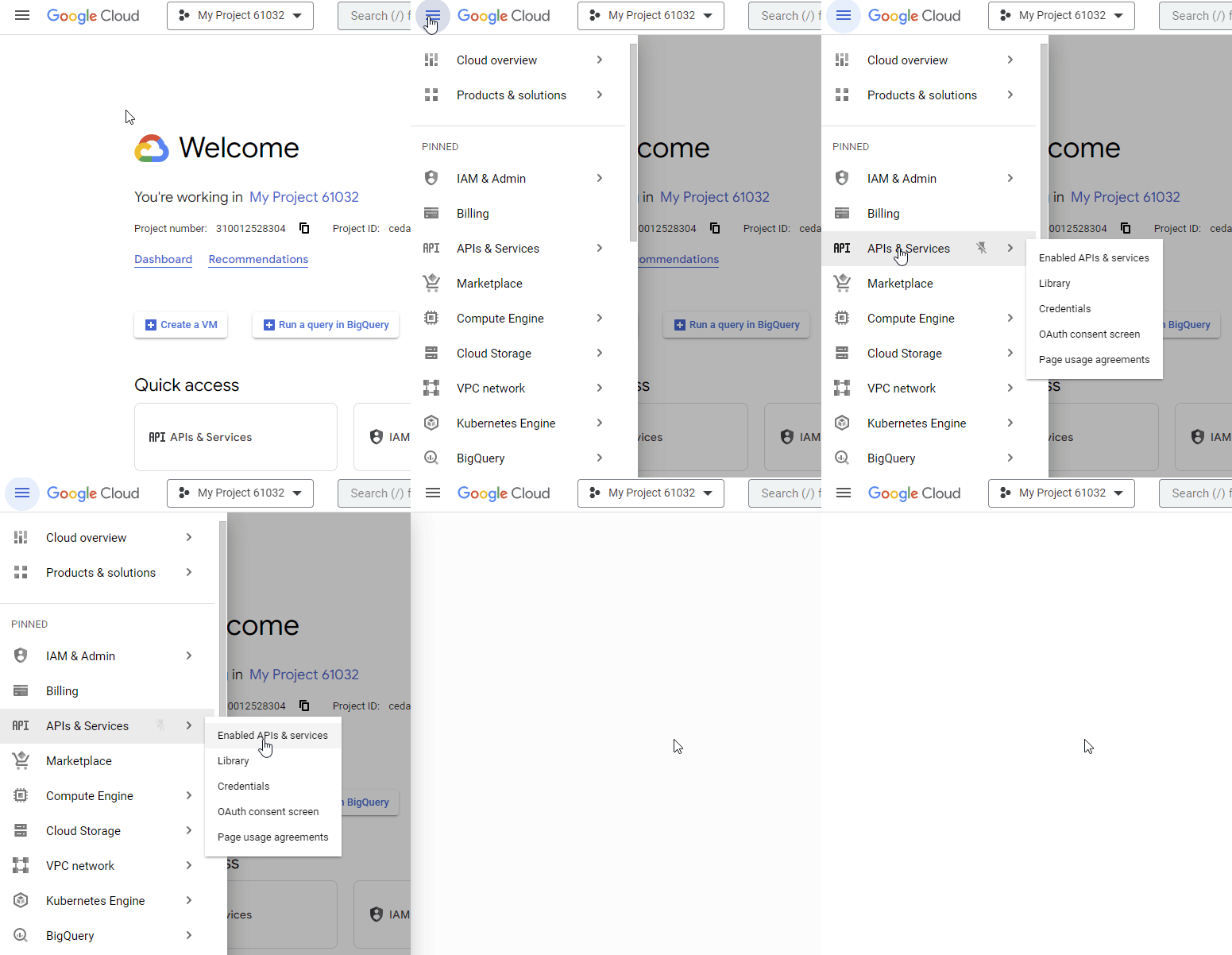
Open APIs & Services > Enabled APIs & services.
3
Enable the required APIs.
Enable: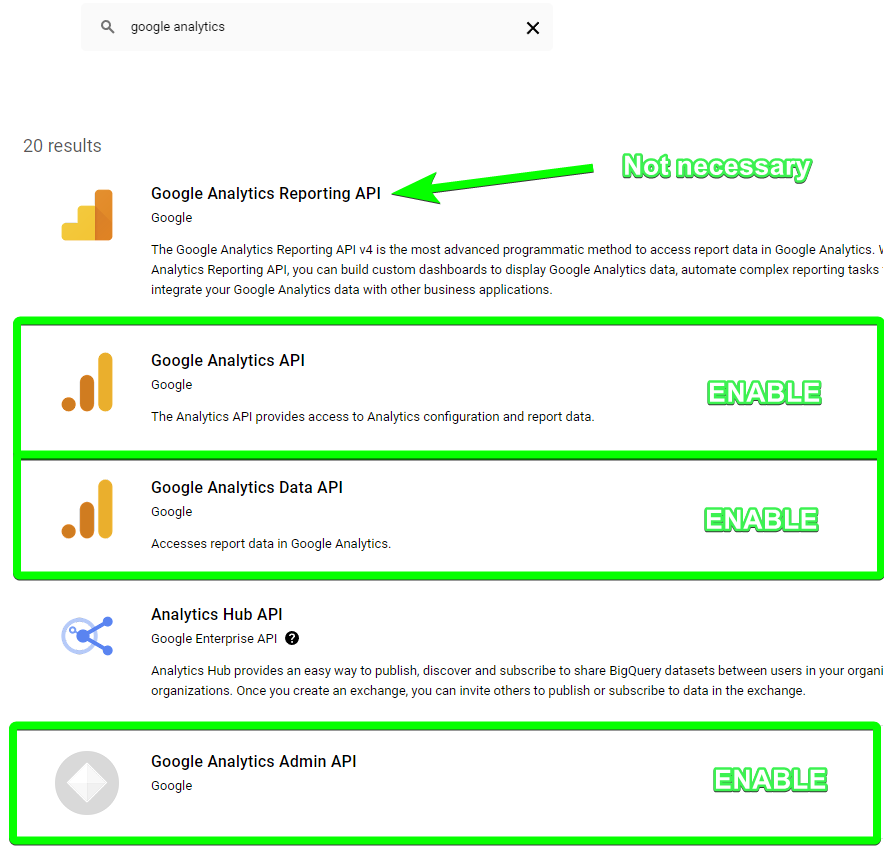
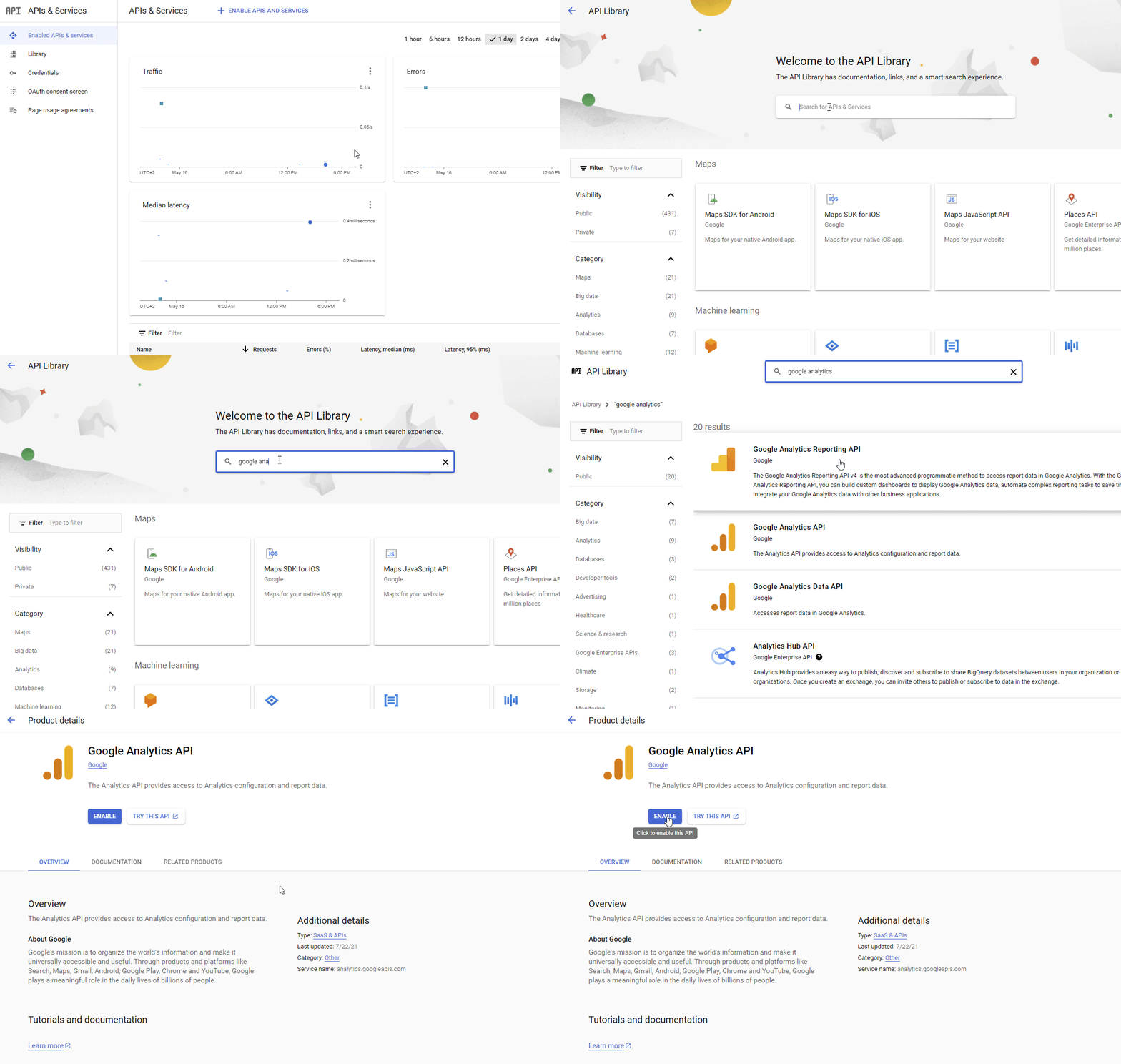
- Google Analytics Admin API
- Google Analytics API
- Google Analytics Data API
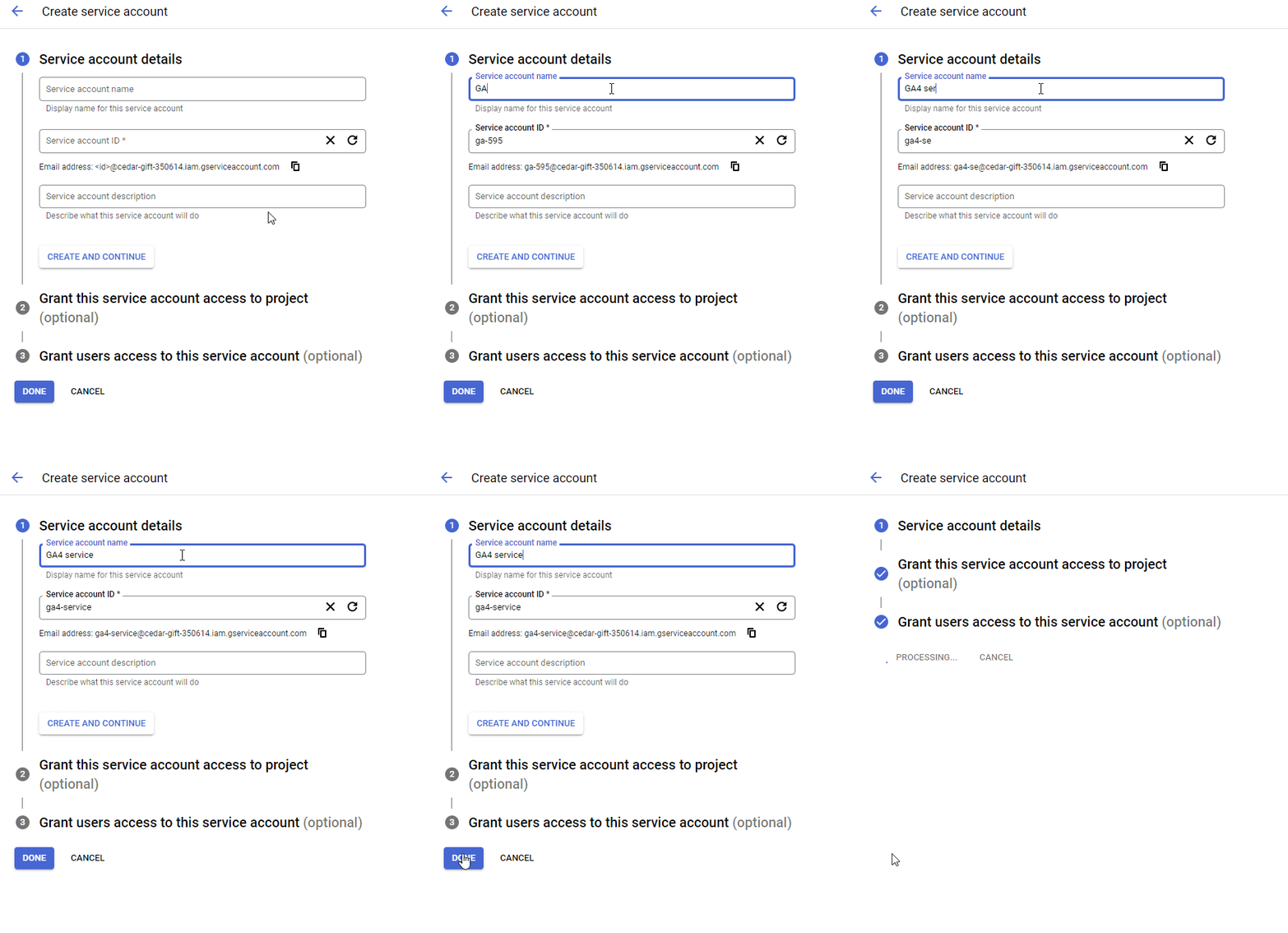
- In APIs & Services, click + Create credentials and select Service Account.
- Give it a name and click Done.
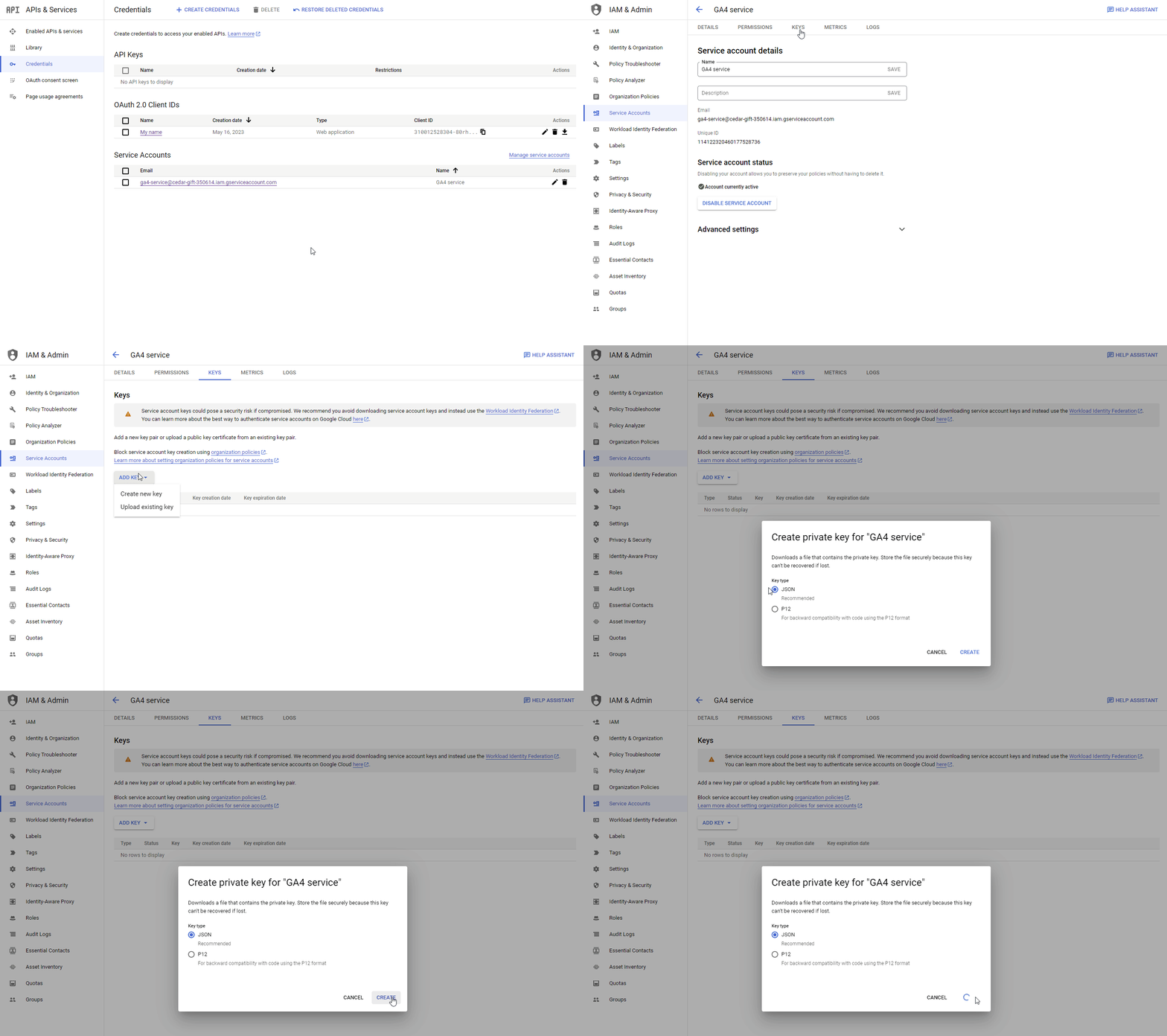
- Open the new Service Account, then go to the KEYS tab.
- Click Add Key > Create new key > JSON > Create.
- A JSON file will download automatically.
1
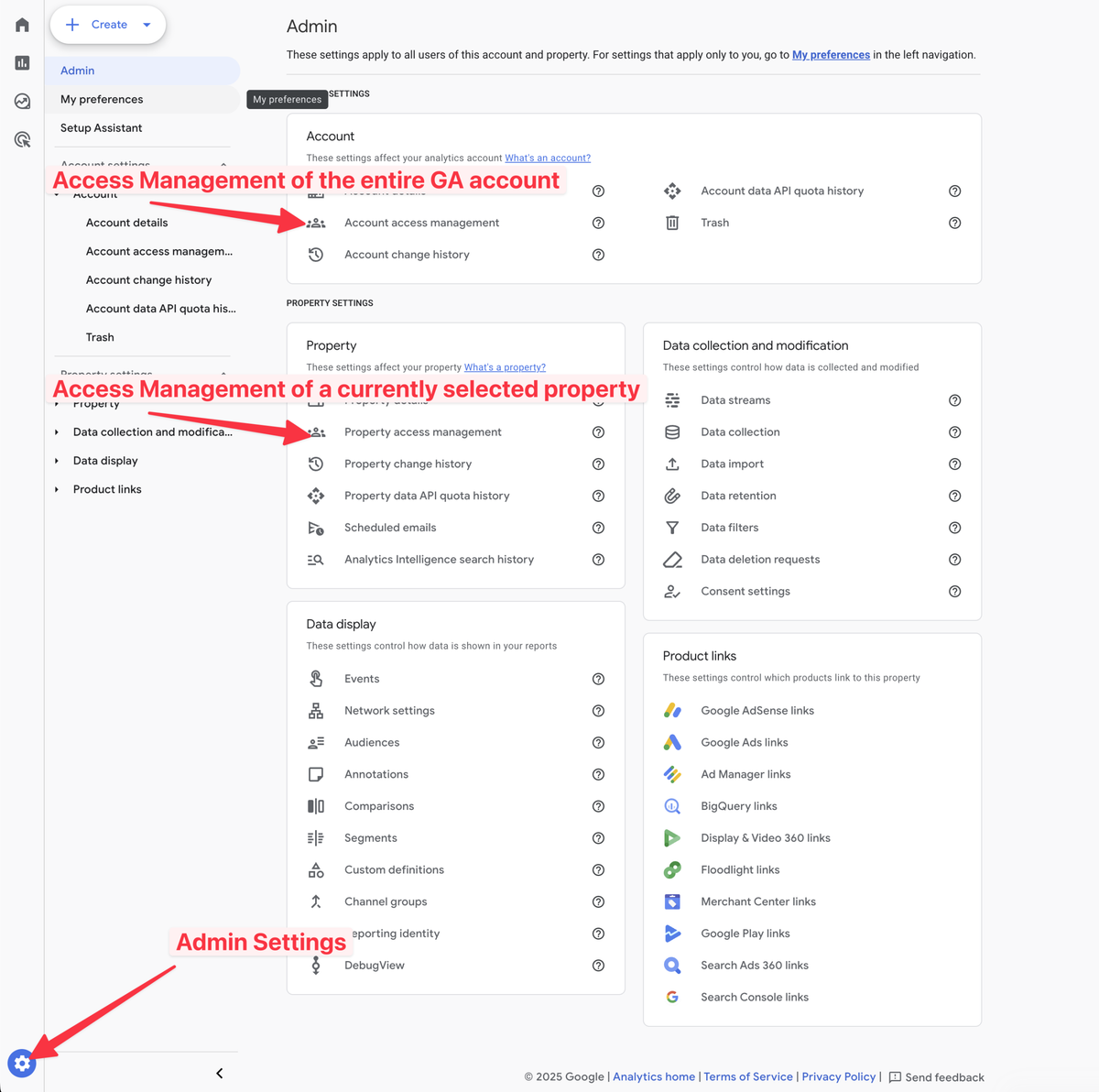
Go to your Google Analytics Dashboard and open Admin.
Go to Google Analytics Dashboard and open Admin settings.
2
Choose account-level or property-level access.
3
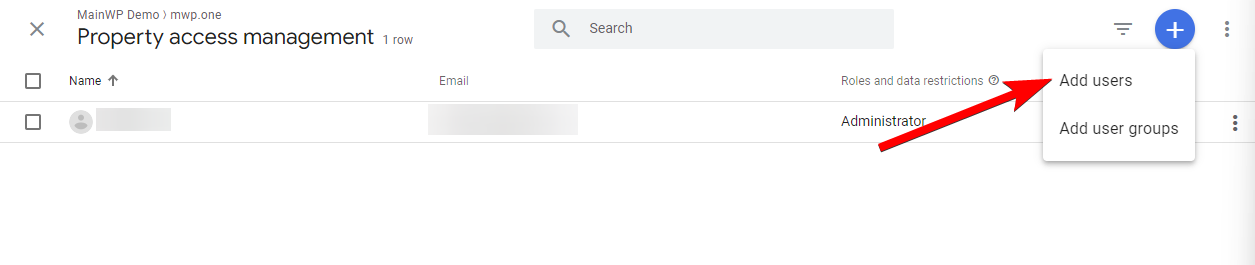
Click Add users.
4
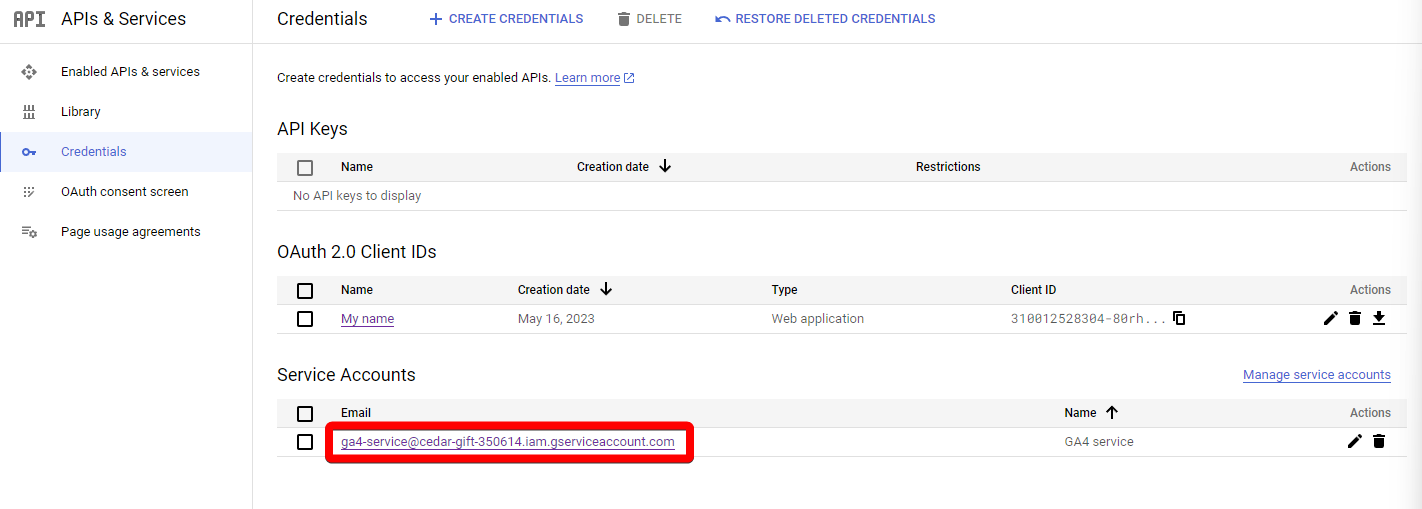
Copy the Service Account email from Google Cloud Console.
5
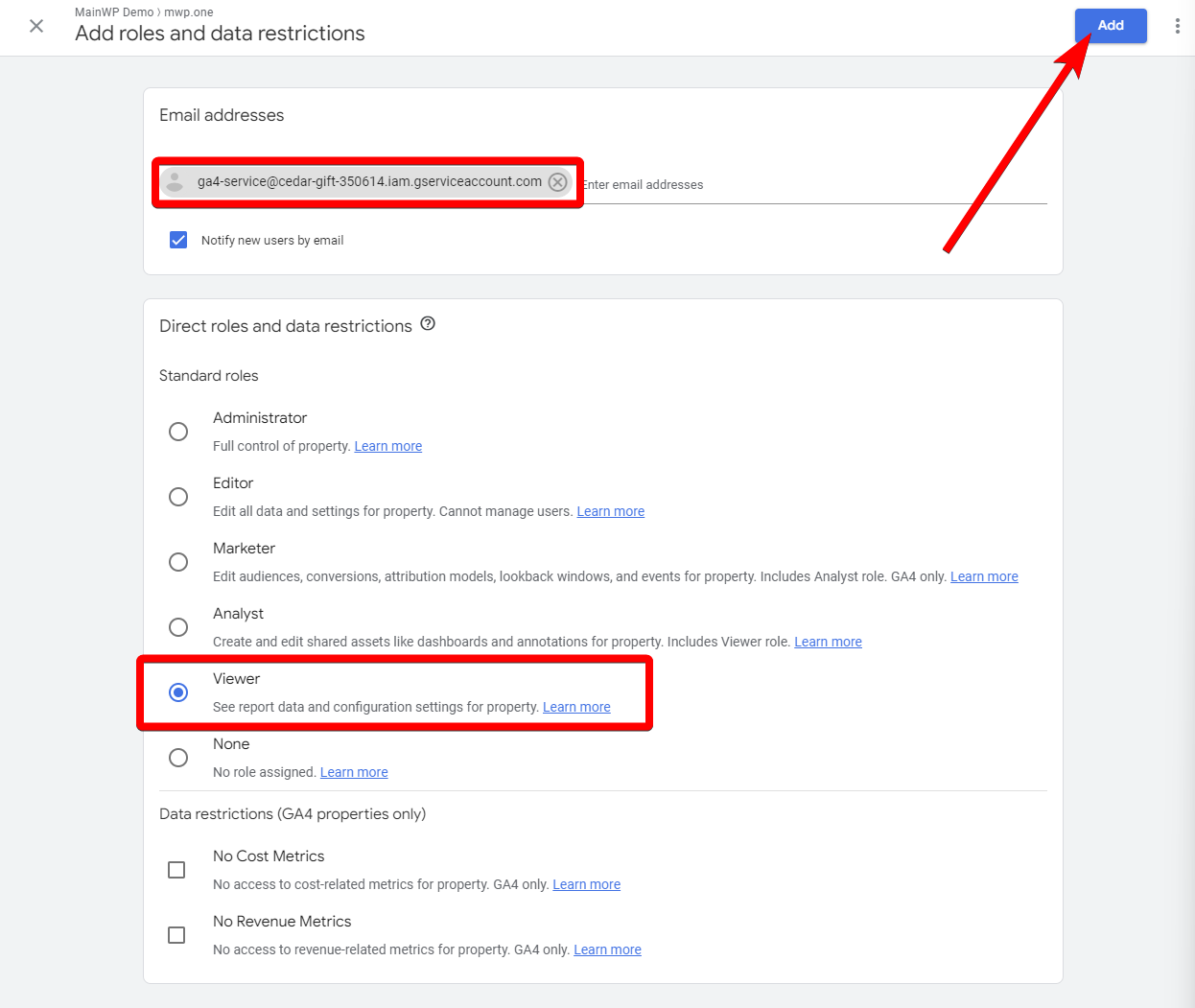
Paste the email, set role to Viewer, and click Add.
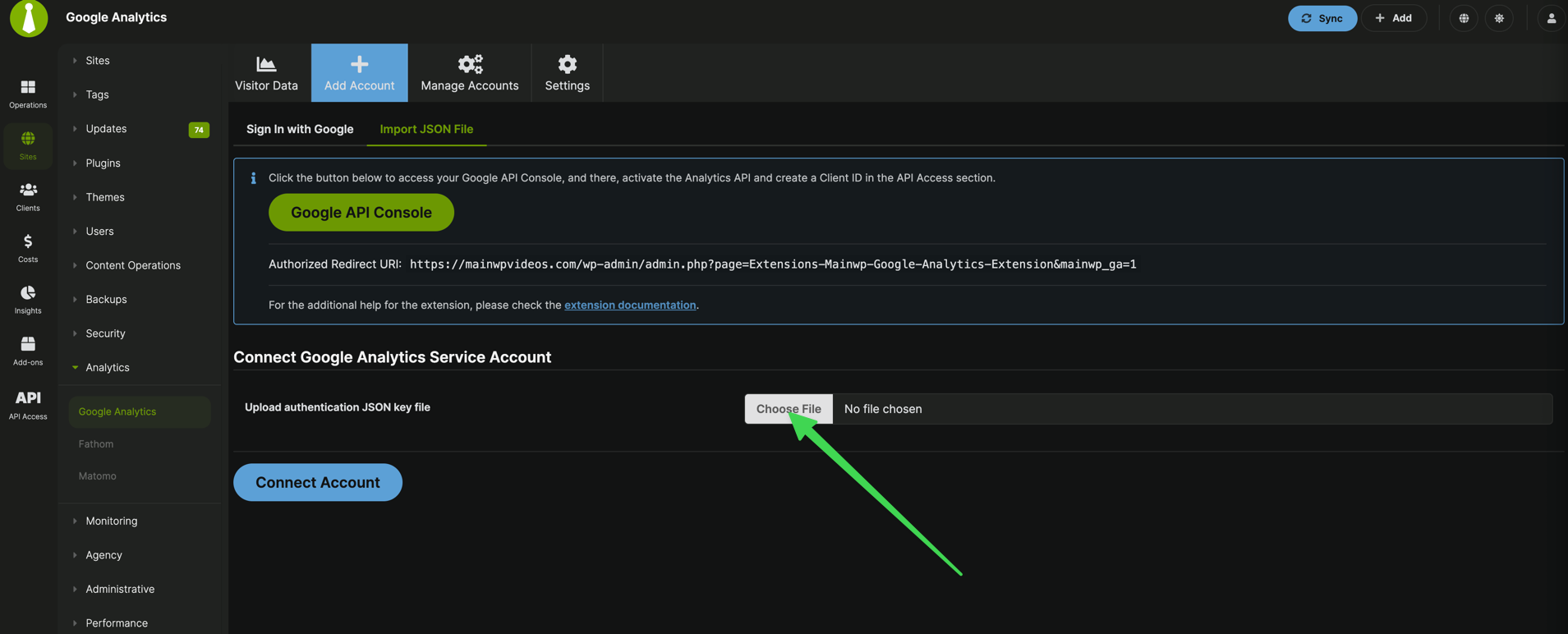
- In your MainWP Dashboard, go to MainWP > Add-ons > Google Analytics > Add Account > Import JSON File.
- Upload the JSON key file and click Connect Account.
- The account will appear under Manage Accounts in Accounts by JSON.
- The Google Analytics Extension does not insert Google Analytics tracking code on child sites.
- Add the tracking code manually or by using a third-party plugin.
Assigning sites from your Google Account to Child Sites in your MainWP Dashboard
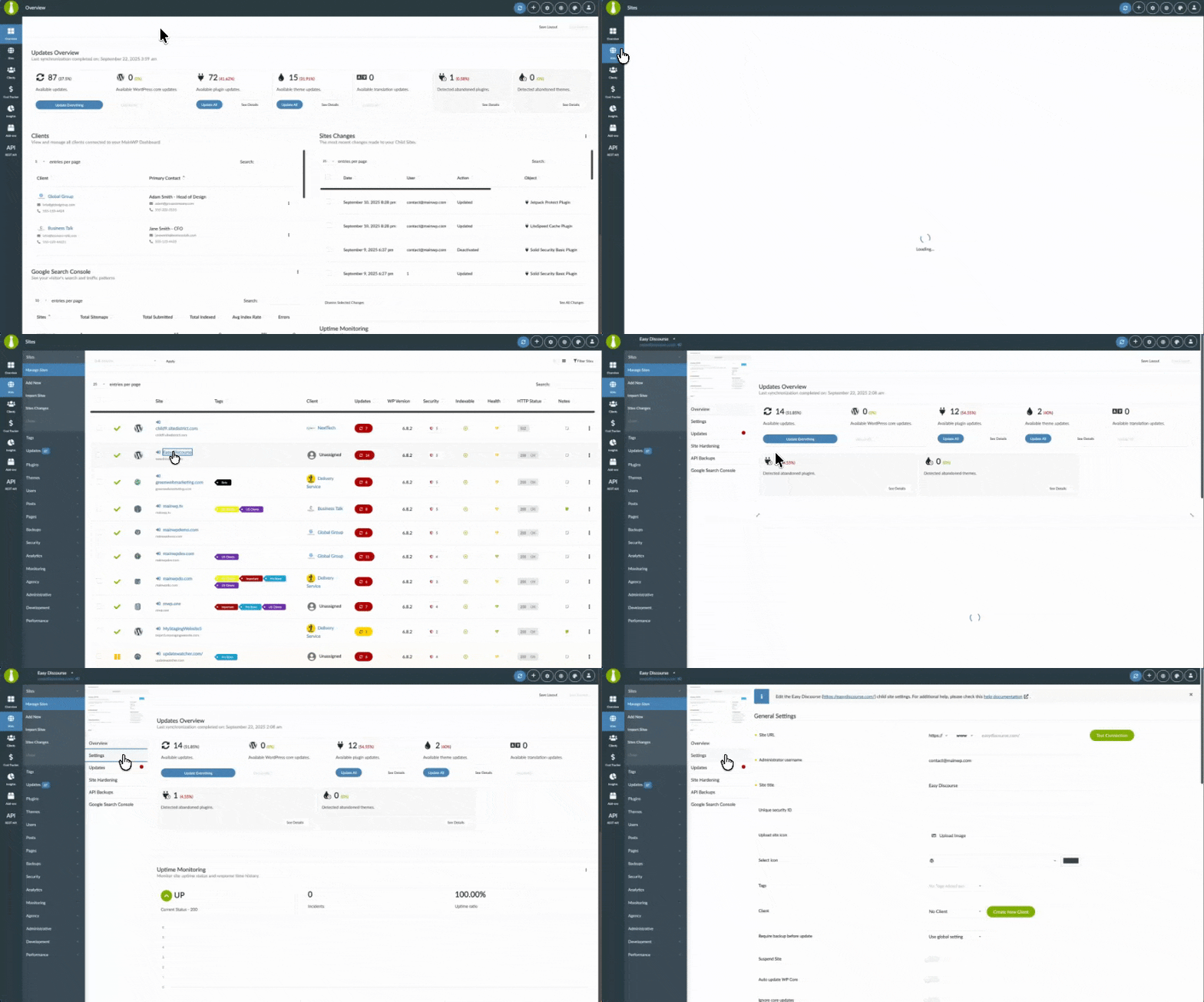
The add-on automatically assigns properties to child sites based on URL matching. You can also assign properties manually:1
Go to MainWP > Sites > Manage Sites.
2
Open the child site Settings page.
Locate the site and click its name to open Settings.
3
Select the matching Google Analytics property.
Find the Google Analytics section and choose the Google Analytics property.
4
Click Save Settings.
Google Analytics Visitor Data
After you connect your Google Analytics account and assign GA4 properties to child sites, you can view data on MainWP > Add-ons > Google Analytics > Visitor Data.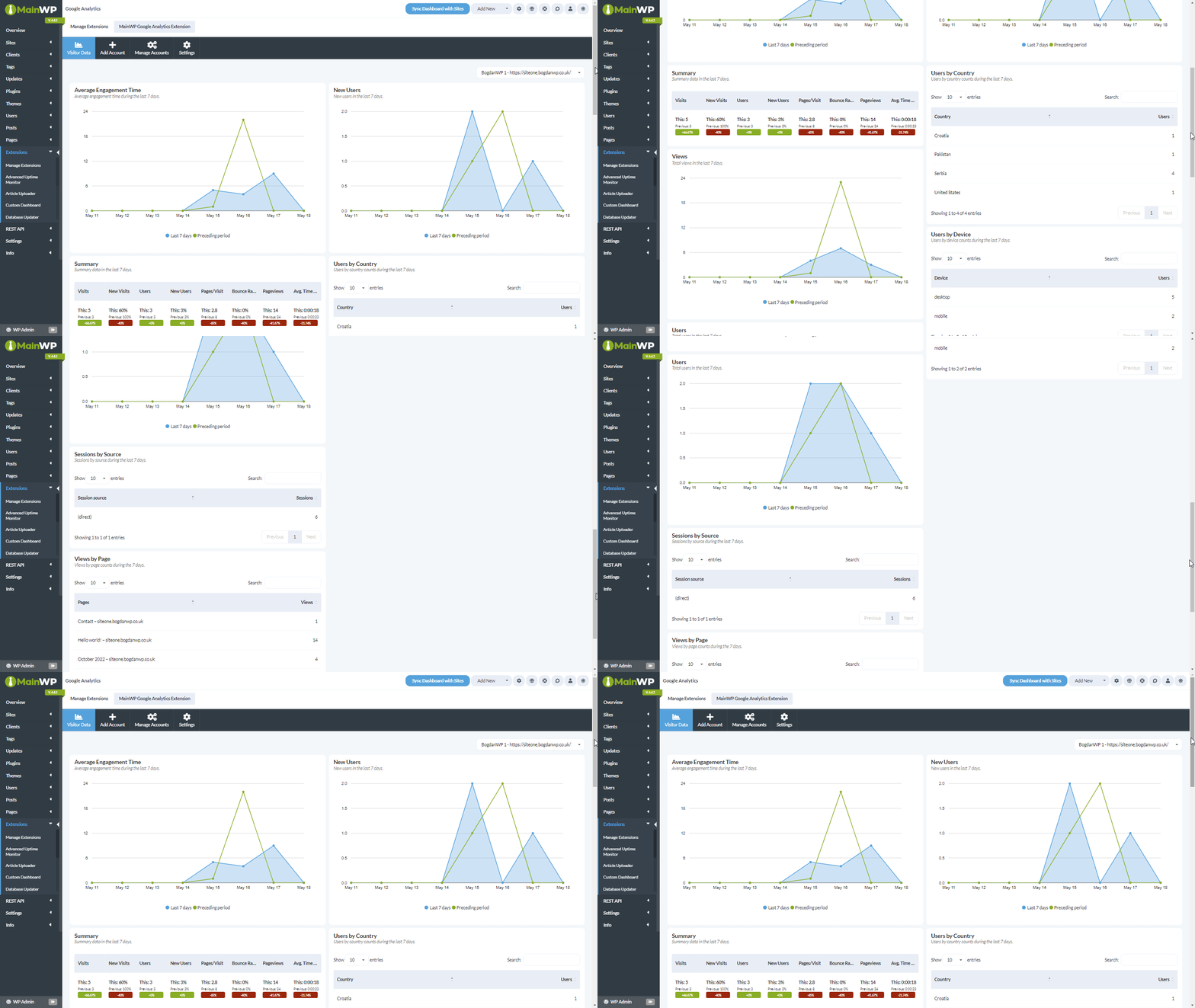
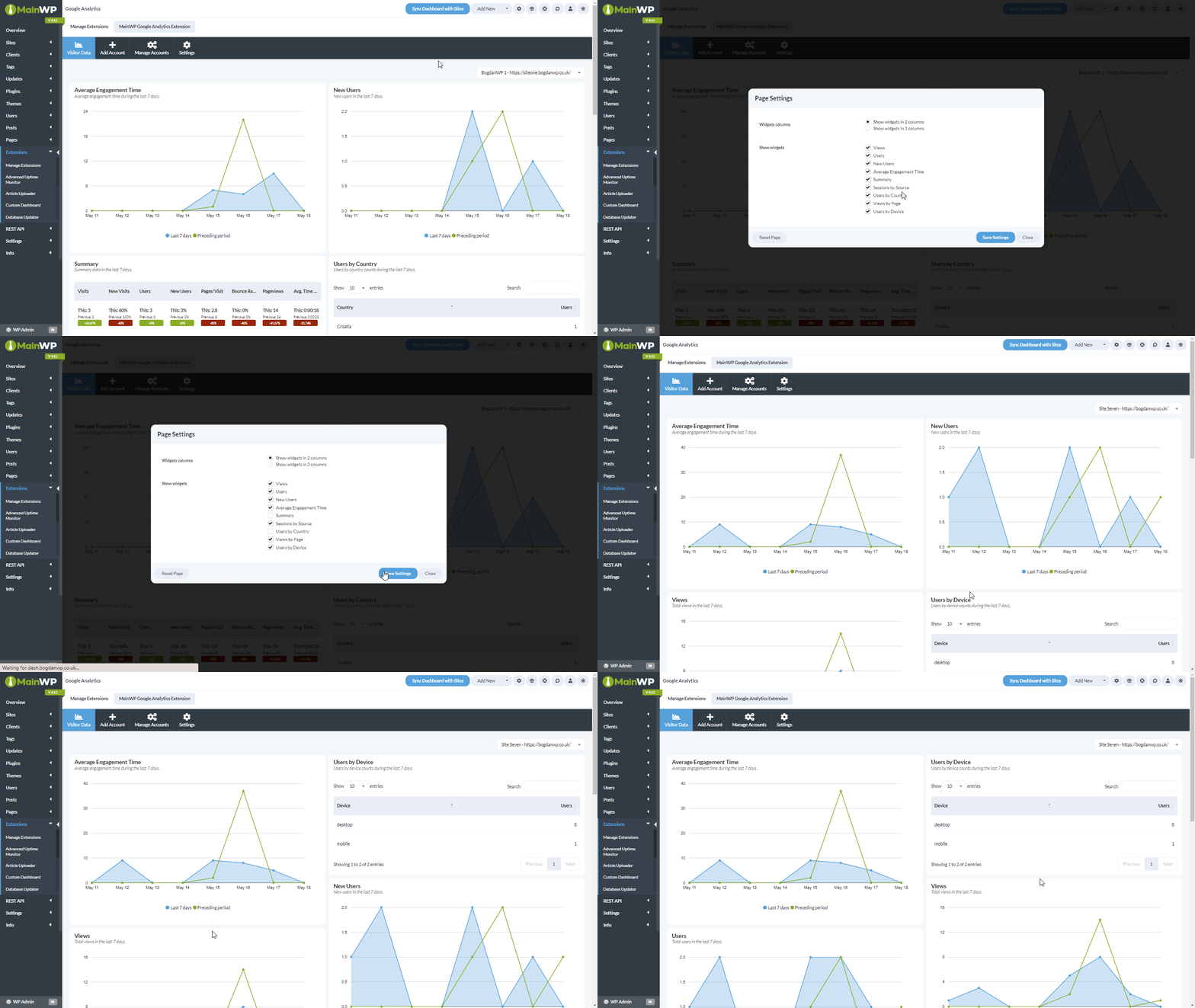
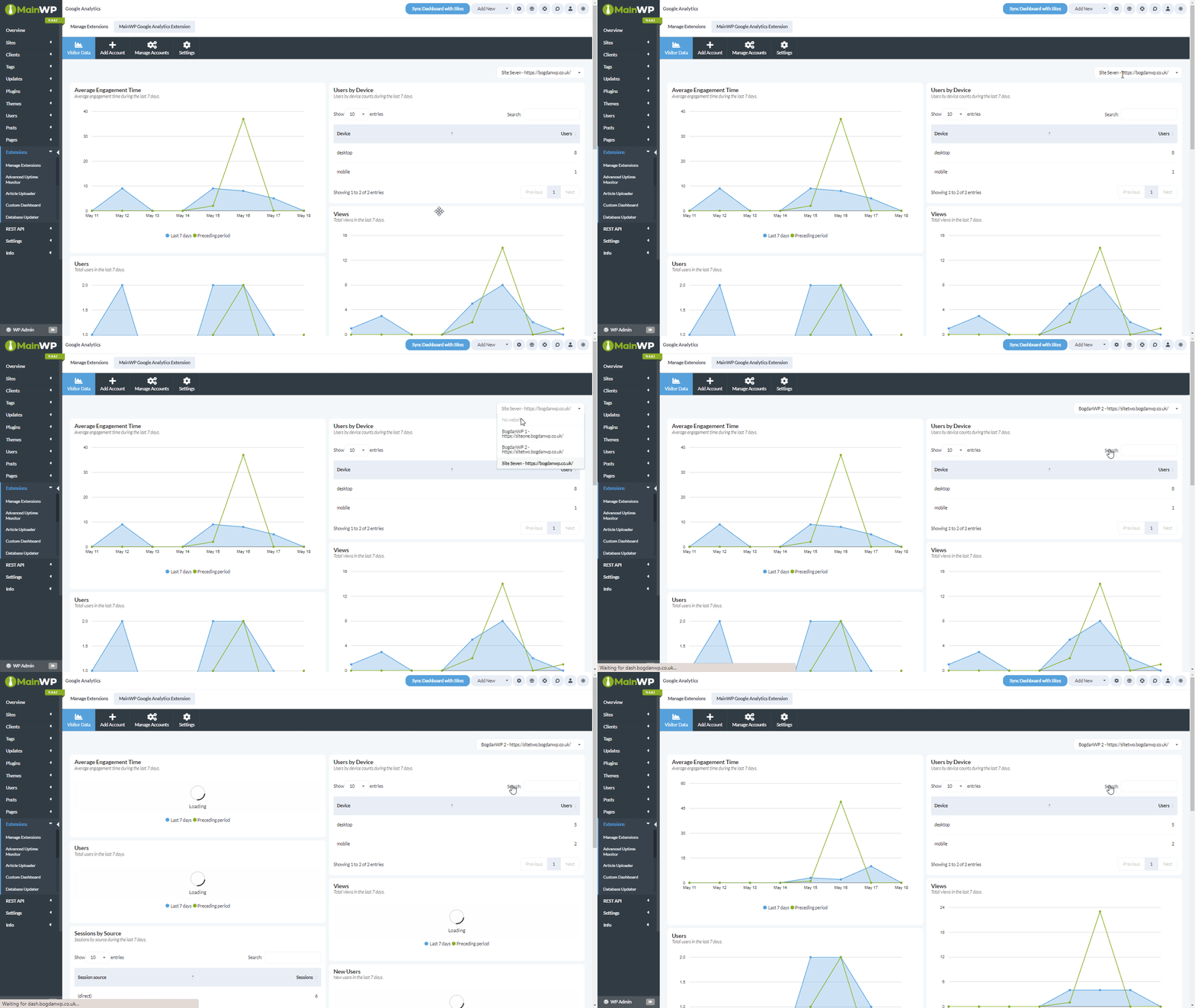
Widgets
A Google Analytics widget is available on the MainWP Overview page and on each individual child site Overview page. As always, widgets can be enabled or disabled in Page Settings, and they can be rearranged as needed.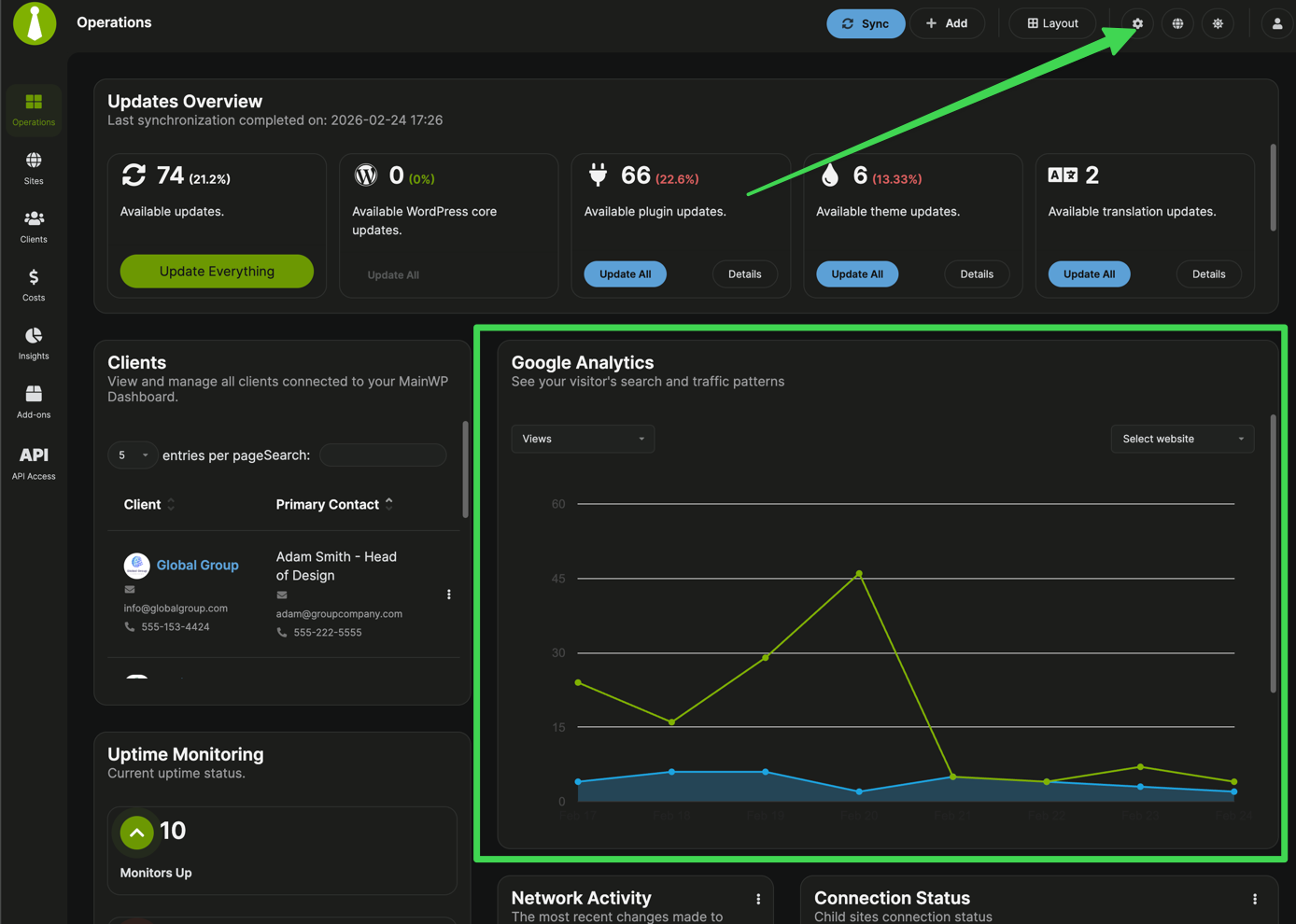
Settings & Data Refresh
- Graphs display interval: Choose Week or Month
- Fetch Google Analytics data automatically: Enable scheduled data refresh
- Auto fetch GA data frequency: Set how often automatic refresh runs
- Save Settings: Save your interval and schedule preferences
- Refresh Data: Trigger an immediate data refresh
Troubleshooting
Cannot add the encryption key to wp-config.php
If you see this message:
MainWP Google Analytics could not add its encryption key to wp-config.php.The add-on could not safely write its encryption key to the MainWP Dashboard site’s
wp-config.php file. This is separate from the Google Service Account JSON key. File mode 0644 does not always allow the update: only the file owner has write access, so the update fails when PHP runs as a different user. File or directory ownership and other server security controls can also prevent a safe update.
Add the key manually:
1
Back up wp-config.php.
Create a current backup before editing the file.
2
Generate a secure key.
Run this command in your server terminal:The command returns a 64-character hexadecimal key. Do not use an online key generator.
3
Add the encryption-key definition.
Edit the active Replace
wp-config.php file and add the following line before the line that loads wp-settings.php:PASTE_THE_64_CHARACTER_KEY_HERE with the key generated in the previous step.4
Save the file and reload MainWP Dashboard.
The warning should clear after the add-on detects the valid key. Do not change or remove the key after it is in use, because existing encrypted credentials may become unavailable.
.mainwp-lock may be created while the add-on coordinates an automatic update. It is a lock file, not the cause of the warning and not a replacement for wp-config.php. Add the definition to the active wp-config.php file.
If Google Search Console shows a similar warning, follow the instructions in the Google Search Console troubleshooting section and generate a separate key for its constant.
Sign In with Google buttons are disabled / “Google OAuth requires the WordPress REST API” notice
The extension performs a pre-flight check on your Dashboard’s WordPress REST API root (/wp-json/) before any Google OAuth action. When the REST API is unreachable, the Sign In with Google, Continue, Confirm, Reconnect Account, and refresh buttons are disabled, and a red notice appears on the Add Account and Manage Accounts pages.
- See WordPress REST API does not respond for steps to restore access (permalinks, security plugins, server rules).
- If HTTP basic auth protects your MainWP Dashboard, Sign In with Google can fail because MainWP Bridge cannot complete the initial pairing or re-registration check.
- If you need to keep the REST API restricted, use Import JSON File instead — the Service Account flow does not require
/wp-json/to be public.
Sign In with Google shows site secret not found
- This error usually means the default WordPress REST API endpoint at
/wp-json/is blocked, disabled, filtered, or behind authentication. - Make sure your MainWP Dashboard allows access to
/wp-json/.
Corrupted or missing site secret (Reset Now)
If the site secret used to authenticate with MainWP Bridge becomes corrupted or goes missing, the extension shows the following notice on its pages:The lost secret for the MainWP Google Analytics Extension is corrupted. You need to recover it to be able to use the extension.Click Reset Now in the notice to regenerate the site secret. After the reset completes, reconnect any affected Sign In accounts from MainWP > Add-ons > Google Analytics > Manage Accounts using Reconnect Account.
Sign-in account needs verification/reconnection
- Go to MainWP > Add-ons > Google Analytics > Manage Accounts
- For disconnected Sign In accounts, click Reconnect Account
- Use Refresh Data after reconnecting
OAuth accounts repeatedly require re-verification or Pro Reports miss Google Analytics data
Sign In with Google accounts use OAuth tokens that must be refreshed regularly. The MainWP Google Analytics Extension includes a token refresh cron job that runs hourly and a data refresh cron job that runs every 5 minutes. If WP-Cron does not run for an extended period, the token refresh can be missed. When token refresh fails, the account can be marked as needing re-verification, and Pro Reports may generate scheduled reports without Google Analytics data. This can happen on low-traffic MainWP Dashboard sites, cached sites, or hosting environments where loopback requests are blocked. An uptime monitor that only pings the homepage may not trigger WP-Cron if the homepage is served from cache. To keep OAuth accounts connected:- Update the MainWP Google Analytics Extension to the latest version.
- Make sure scheduled tasks are running on the MainWP Dashboard site.
- Make sure WP-Cron is triggered reliably every 5 to 15 minutes.
Service Account key disabled or rotated
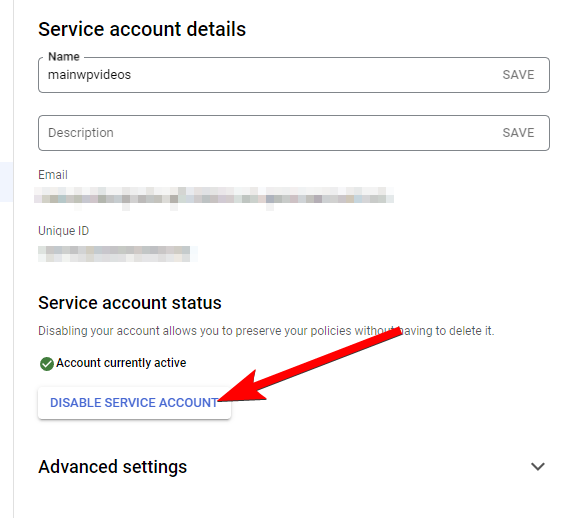
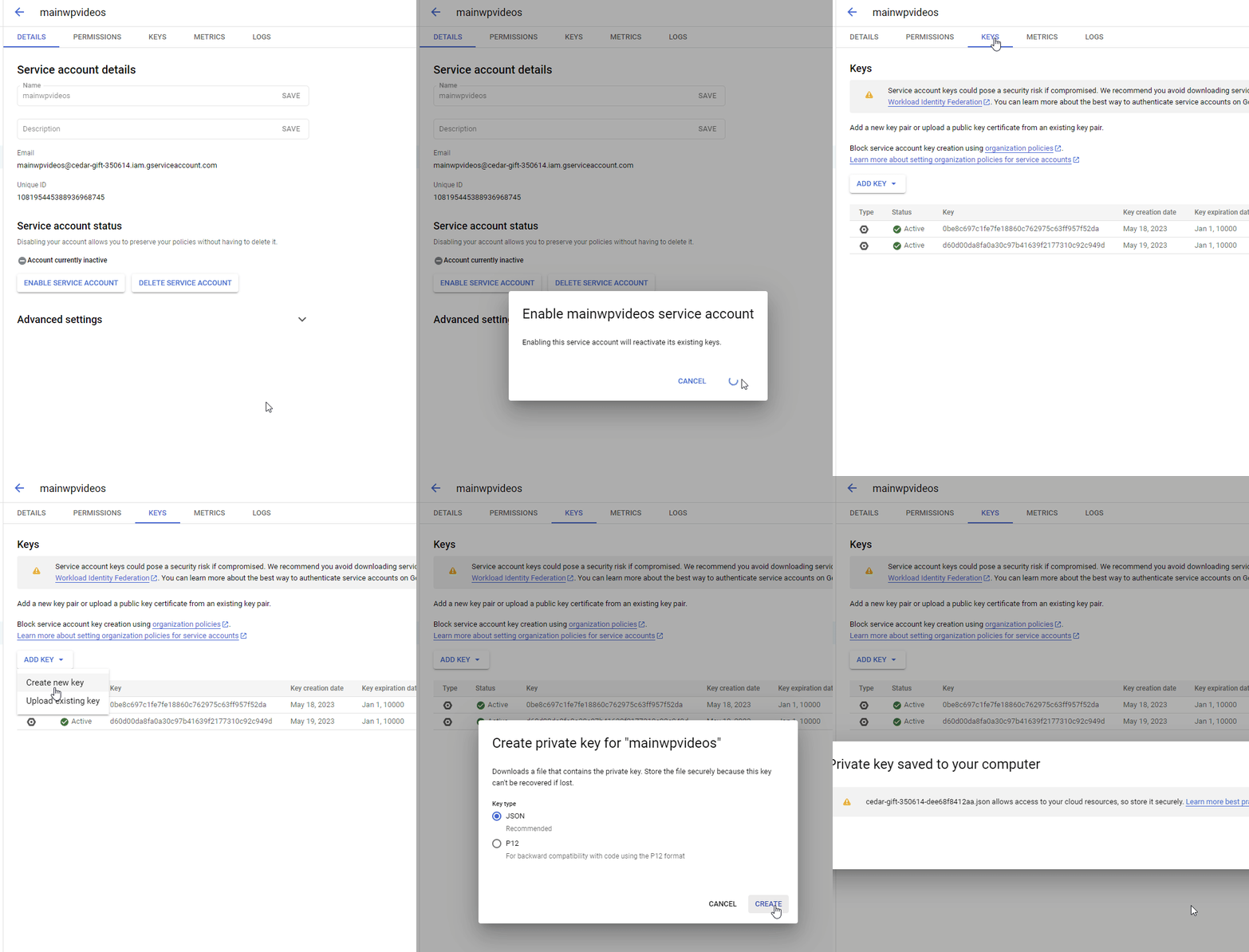
- Re-enable the Service Account in Google Cloud Console
- Create and download a new JSON key from Keys > Add Key > Create new key
- Upload the new key in MainWP > Add-ons > Google Analytics > Add Account > Import JSON File
Required PHP functions missing
- Google Analytics requires
bccomp,putenv, andgetmypid. - If Google Analytics data is unavailable, review Required PHP Functions for MainWP to check whether these functions are disabled on your server.
Related Resources
- Analytics Add-ons - Browse all analytics integrations
- Pro Reports Extension - Include analytics data in reports
- Available Pro Reports Tokens - Google Analytics tokens
- MainWP Bridge Privacy Policy - Privacy details for Bridge-based sign in