
What You’ll Learn
- Setting up subscription expiration notifications
- Automating cost tracking during plugin/theme uploads
- Configuring notification thresholds and recipients
Extension Add-on - This add-on extends the built-in Cost Tracker feature in MainWP Dashboard. No third-party plugins required.
This extension works alongside the built-in Cost Tracker feature in MainWP Dashboard.
Notifications
The notification system sends email reminders before active recurring subscriptions expire, giving you time to renew or find alternatives.Setting Up Notifications
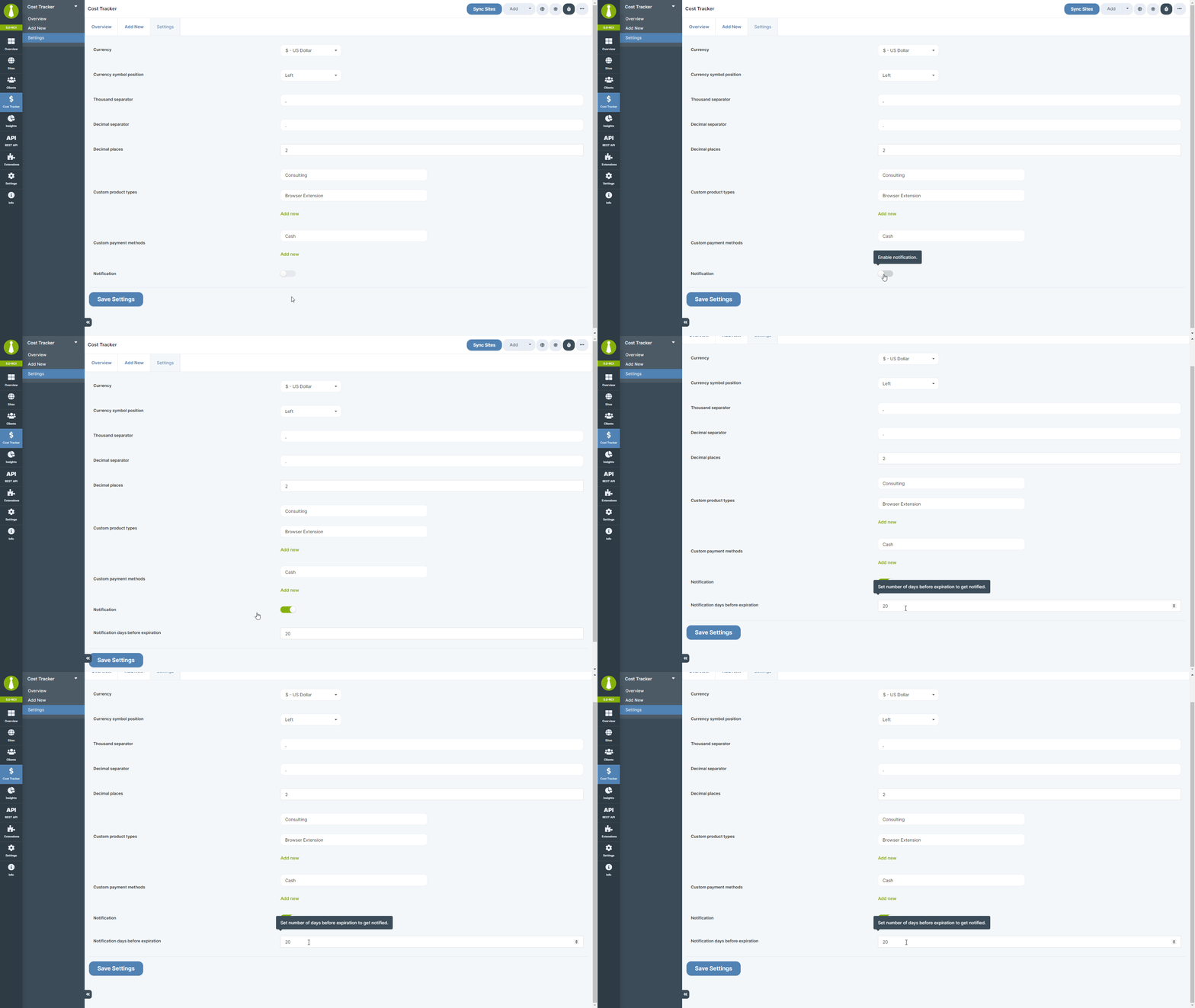
- Navigate to Settings > Cost Tracker Settings
- Enable Email notifications
- Set the Expiration notification threshold
- Optional: open Settings > Email Settings and review Cost Tracker Assistant Notification to adjust recipients, subject, or the email template
What Gets Tracked
Notifications can send for cost entries that are:- Active recurring subscriptions
- Within the configured expiration notification threshold
- Not already expired
Automation
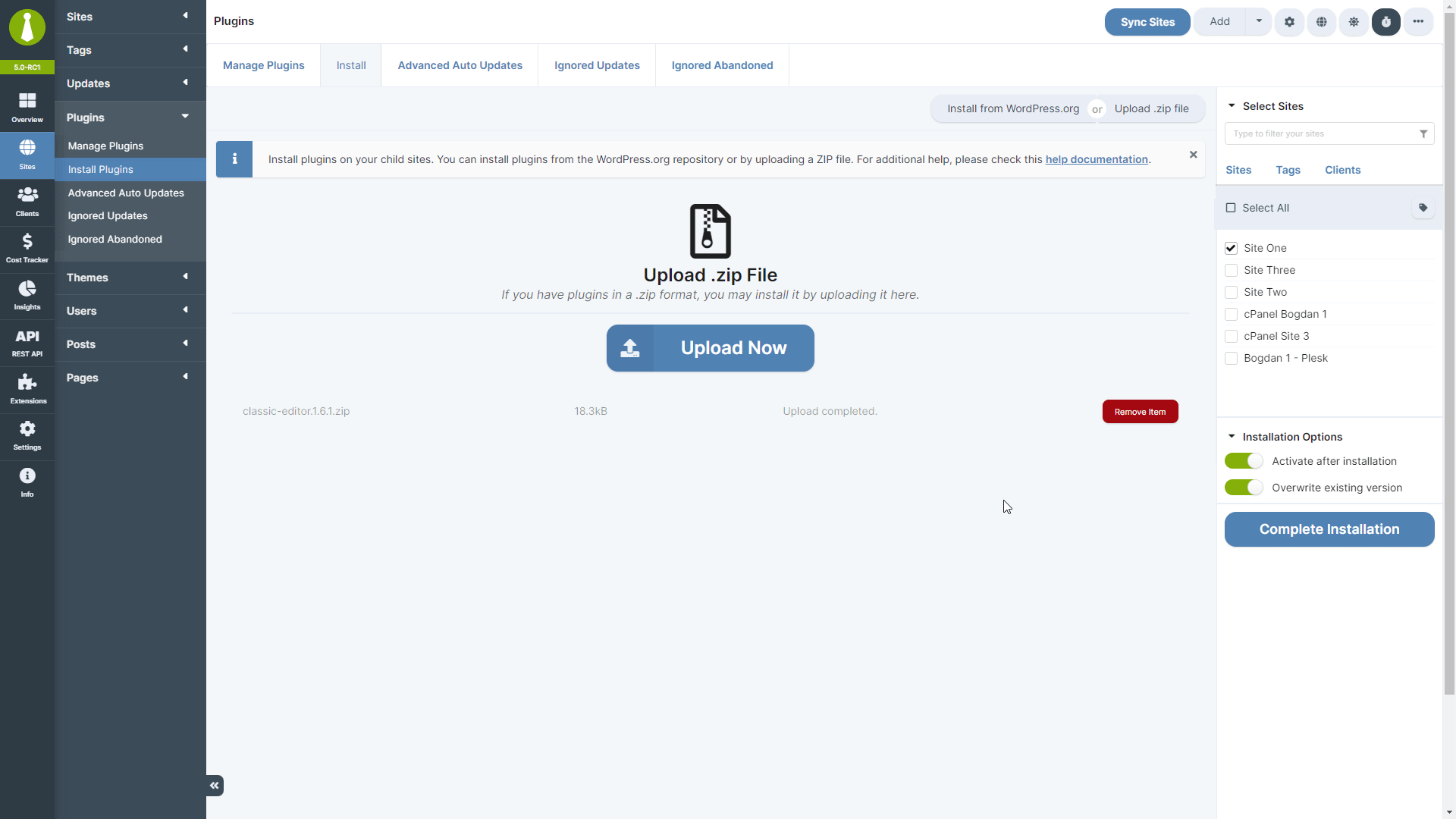
When installing plugins or themes via ZIP upload, Cost Tracker Assistant streamlines the process of recording the purchase.How It Works
- Upload a plugin or theme ZIP file through Sites > Manage Plugins > Install Plugins or Sites > Manage Themes > Install Themes
- Complete the installation
- In the install modal actions, click Add to Cost Tracker
- Complete the cost-tracking fields, including the item name, product URL, type, product type, license type, price, purchase date, and site, tag, or client selection
- For recurring items, set the renewal frequency and subscription status, then click Save Cost Tracking Item
Requirements
- MainWP Dashboard with the Cost Tracker feature enabled
- Cost Tracker Assistant extension activated and enabled
Related Resources
- Cost Tracker - Core cost tracking features including summary and bulk management
- Time Tracker - Track time spent on client sites
- Client Add-ons - Browse client management add-ons