
What You’ll Learn
- Installing the Staging Extension and WP Staging plugin
- Creating staging sites from child sites
- Updating and deleting staging sites
- Running updates on staging sites first
- Publishing staging changes through WP Staging Pro
How it works
Once you trigger the process of creating a staging site, the WP Staging plugin will duplicate all site files and copy them to a subdirectory. All database tables will be duplicated, but the prefix will be changed. Once this process is done, the necessary data will be updated in the wp-config.php file in the staging site. Within a couple of seconds, you will have a replica of your child site where you can test updates. After creating a staging site, MainWP adds the new staging URL to your MainWP Dashboard as a staging site and places it in the Staging Sites tag when that tag exists. MainWP Staging Extension is extensively tested by the MainWP team. If you find any issues, please contact MainWP Support.Install and Set the MainWP Staging Extension
Installation of the MainWP Staging Extension requires two important steps:- Installing the Extension itself on your MainWP Dashboard site
- Installing WP Staging Free or Pro on Child Sites
Installing the Extension
The MainWP Staging Extension needs to be installed only on your MainWP Dashboard site. You can install it as any other MainWP add-on.Installing the Plugin
Install and activate WP Staging Free or Pro on your production Child Sites. Both editions are recognized by the MainWP Staging Add-on. The plugin-search instructions below install WP Staging Free from WordPress.org. For Pro, use the separate ZIP package from your WP STAGING account and follow the WP Staging Pro installation guide.Install from MainWP Dashboard
Login to your MainWP Dashboard
Go to the MainWP > Sites > Plugins > Install Plugins page
In the Search field, enter the plugin name (WP Staging)
Press enter on your keyboard
After the search results appear, locate the plugin
Select the Install this Plugin option
Select your child sites
In the Installation Options box, make sure that the Activate after installation option is selected.
Click the Button to complete the installation.
Once the Installation is complete, Sync your MainWP Dashboard
Install directly on Child Site
Login to your child site
Go to the WP > Plugins > Add New page
In the Search field, enter the plugin name (WP Staging)
After the search results appear, locate the plugin
Click the Install button
Click the Activate button
Create Staging Site
To create a staging site for a child site,Login to your MainWP Dashboard
Go to the MainWP > Add-ons > Administrative > Staging page
In the list of child sites, locate the wanted child site and click the Create Staging Site action
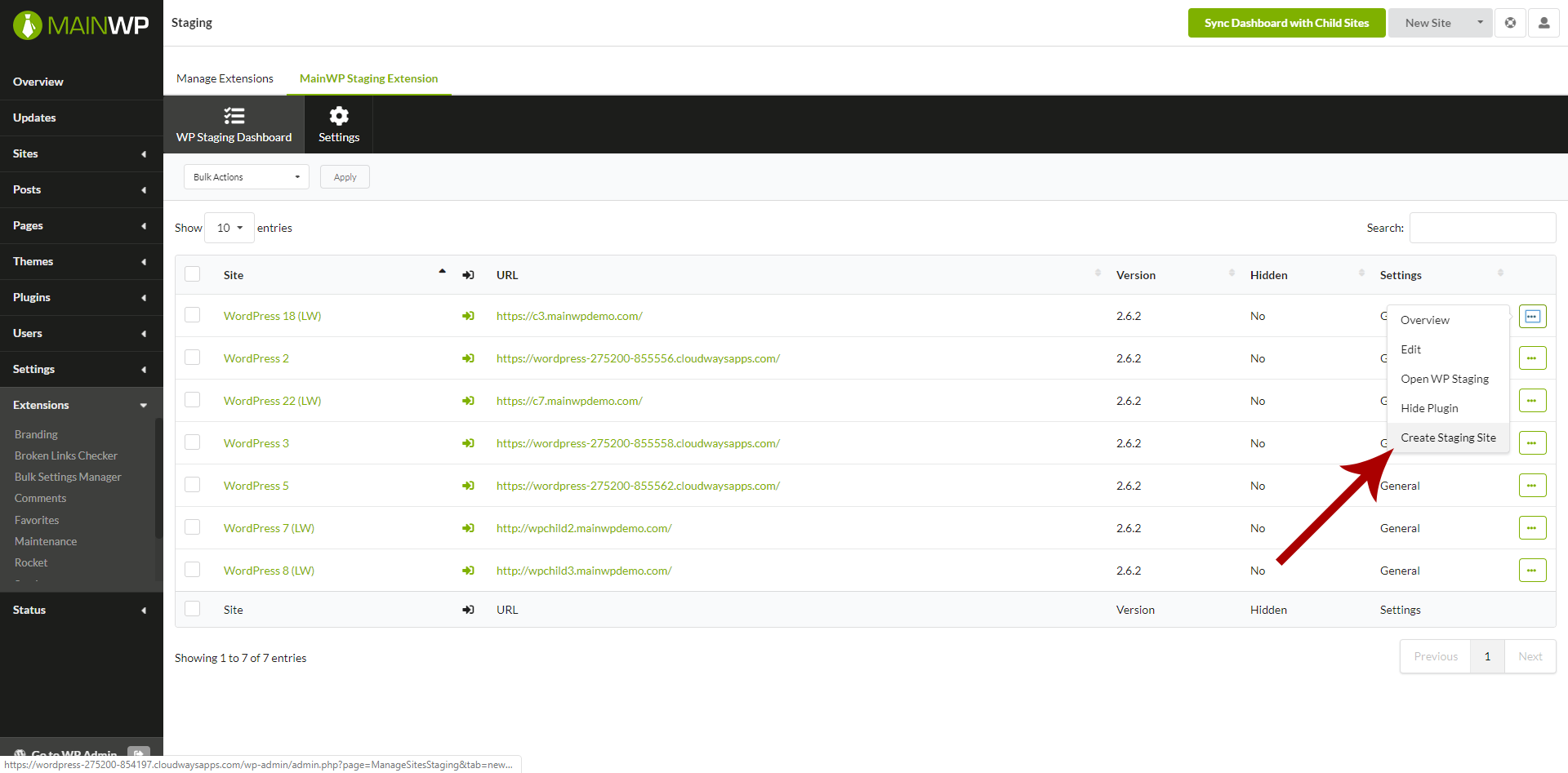
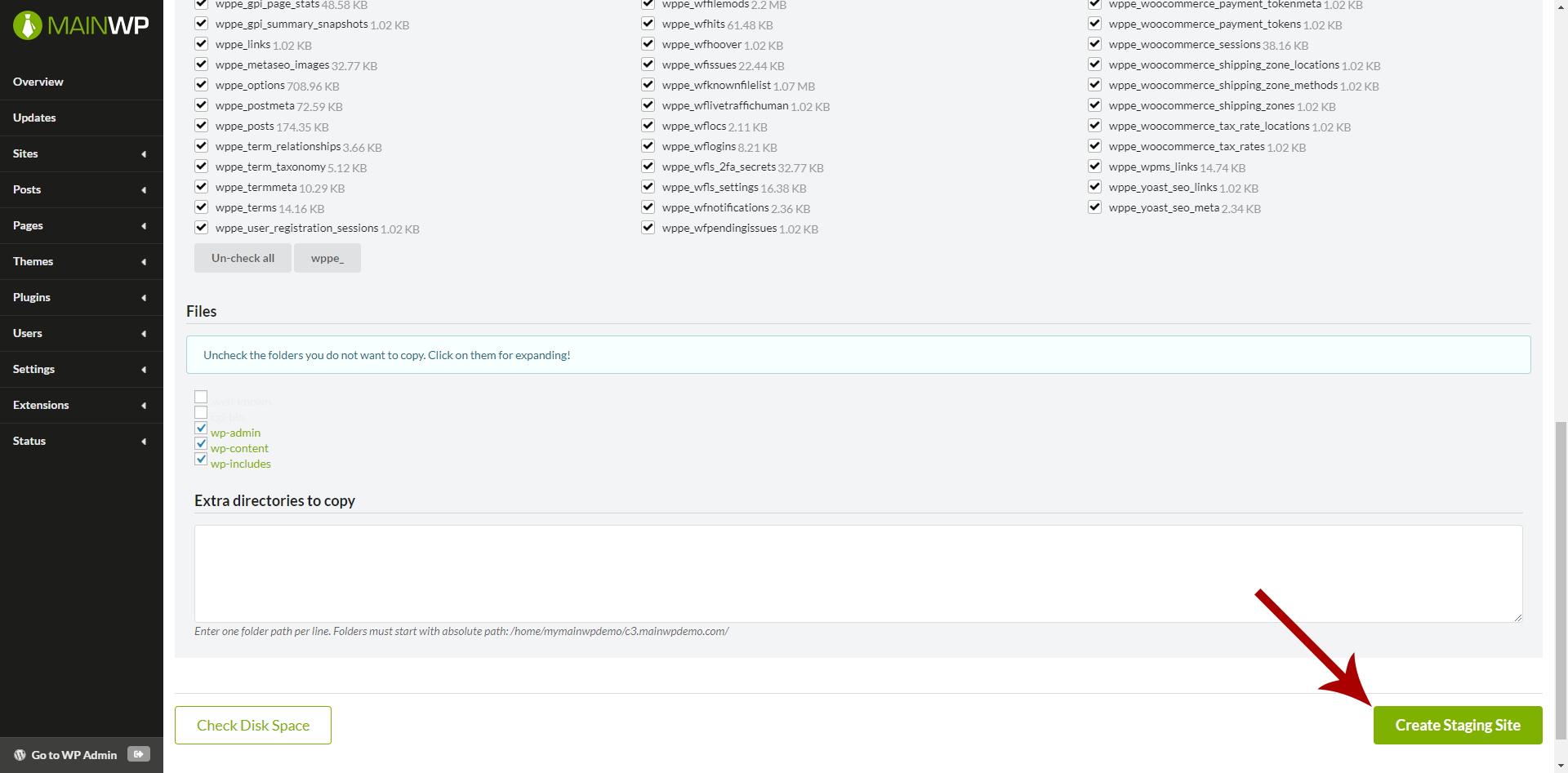
On the Create Staging Site page, set your preferences
Enter the Staging Site Name
- Exclude/Include database tables
- Exclude/Include files
- Click the Create Staging Site button
Update a Staging Site
Updating a staging site copies the selected database tables and files from the live site to staging again. This can overwrite changes on staging; it does not publish staging changes to production. To refresh the staging copy,Login to your MainWP Dashboard
Go to the MainWP > Add-ons > Administrative > Staging page
Locate the wanted child site
Click the Manage Staging Sites action (you will be redirected to the page where you can see your staging sites for the child site)
Locate the staging site that you want to update
Click the Update action link
Push Staging Changes to Production
The MainWP Staging Add-on does not provide a push-to-production action, including when WP Staging Pro is installed. Publishing takes place in WP Staging on the production Child Site. WP Staging Free does not include the built-in push feature. To use it, install WP Staging Pro with a plan that includes Push to Live. Check WP STAGING’s current plan comparison for availability. These steps apply to a staging copy listed in WP Staging on the production site. Create and verify a fresh production backup before starting.Open the production site's WordPress admin
/wp-admin/admin.php?page=Extensions-Mainwp-Staging-Extension) and choose Go to WP Staging from the production site’s action menu.Select the staging copy in WP Staging
Review what will be published
Start the push and verify production
Delete a Staging Site
To delete a staging site,Login to your MainWP Dashboard
Go to the MainWP > Add-ons > Administrative > Staging page
Locate the wanted child site
Click the Manage Staging Sites action (you will be redirected to the page where you can see your staging sites for the child site)
Locate the staging site that you want to delete
Click the Delete action link
Run Updates on Staging Sites
To run updates on your child sites,Login to your MainWP Dashboard
Go to the MainWP > Sites > Updates page
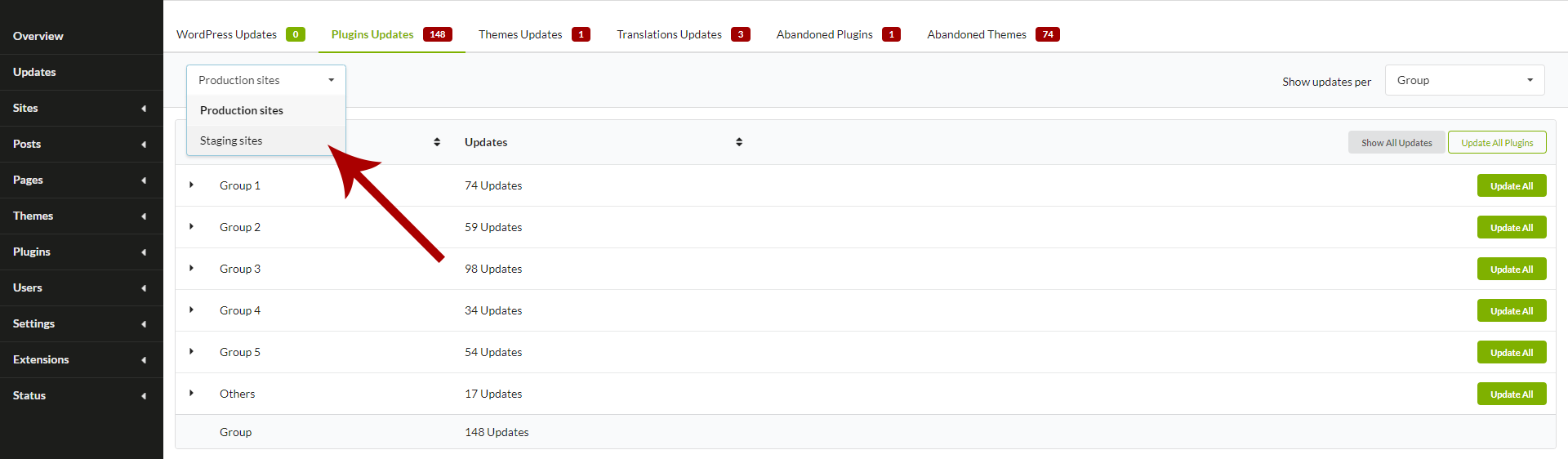
Select Staging sites
Related Resources
- Development Add-ons - Browse all development tools
- Clone Extension - Clone sites between servers
- Manage Updates - Understanding update management