
What You’ll Learn
- Installing Solid Security (iThemes Security) on child sites
- Managing security settings globally and per-site
- Monitoring active lockouts and security status
- Enabling WP Cron tracking for Pro Reports
- Update, Activate and Deactivate the iThemes Security plugin from your MainWP Dashboard
- Mass configure your Ithemes Security settings across your network or customize them on individual child sites
- Manage iThemes Security plugin features from your MainWP Dashboard, such as
- Global Settings
- 404 Detection
- Away Mode
- Banned Users
- Brute Force Protection
- Database Backups
- File Change Detection
- Hide Login Area
- Secure Socket Layers
- Strong Passwords
- System Tweaks
- WordPress Tweaks
- Monitor iThemes Security Status
- Monitor iThemes Active Lockouts
Solid Security Integration Widgets
The integration also adds two widgets to each site’s overview page, allowing you to check security status.- Active Lockouts - This widget will show you all active lockouts. Also, it enables you to release lockouts directly from the widget.
- iThemes Security Status - This widget shows all security issues grouped by priority level. Next to each detects security issue, you can find the Fix Now button, which will take you to the correct option in the individual child site edit screen. If you want to fix the issue for only that child site, don’t forget to set Overwrite Generals Settings to YES and click the Save button.
Install and Set the Solid Security Integration
Installation of the Solid Security Integration requires two important steps:- Installing the integration itself on your MainWP Dashboard site
- Installing the iThemes Security Plugin on Child Sites
Install the Integration
The Solid Security Integration needs to be installed only on your MainWP Dashboard site. You can install it as any other MainWP add-on.Installing the Plugin
For the proper use of the Solid Security Integration, you need to install the Solid Security plugin on your child sites.Install from MainWP Dashboard
Login in to your MainWP Dashboard
Go to the MainWP > Plugins > Install page
In the Search field, enter the plugin name (iThemes Security)
Press enter on your keyboard
After the search results appear, locate the plugin
Select the Install this Plugin option
Select your child sites
In the Installation Options box, make sure that the Activate after installation option is selected
Click the button to complete the installation.
Once the installation is complete, Sync your MainWP Dashboard
Install directly on Child Site
Login into your child site
Go to the WP > Plugins > Add New page
In the Search field, enter the plugin name (iThemes Security)
After the search results appear, locate the plugin
Click the Install button
Click the Activate button
Manage iThemes Security Settings
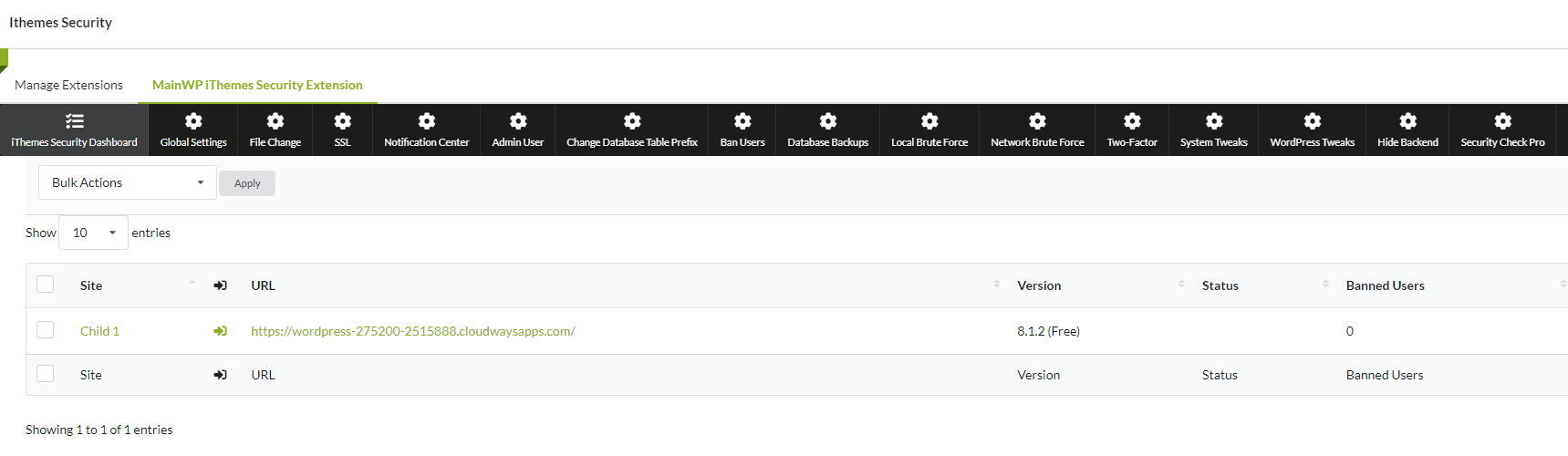 The Solid Security Integration allows you to manage Solid Security plugin settings. It provides you the ability to manage the following settings:
- Global Settings
- File Changes
- SSL
- Notification Center
- Admin User
- Change Database Table Prefix
- Ban Users
- Database Backups
- Local Brute Force
- Network Brute Force
- Two-Factor
- System Tweaks
- WordPress Tweaks
- Hide Backend
- Security Check PRo
Update iThemes Security Settings on All Your Sites
Login into your MainWP Dashboard
Go to the MainWP > Add-ons > iThemes Security page
Open the desired settings tab at the top of the page
Set your preferences
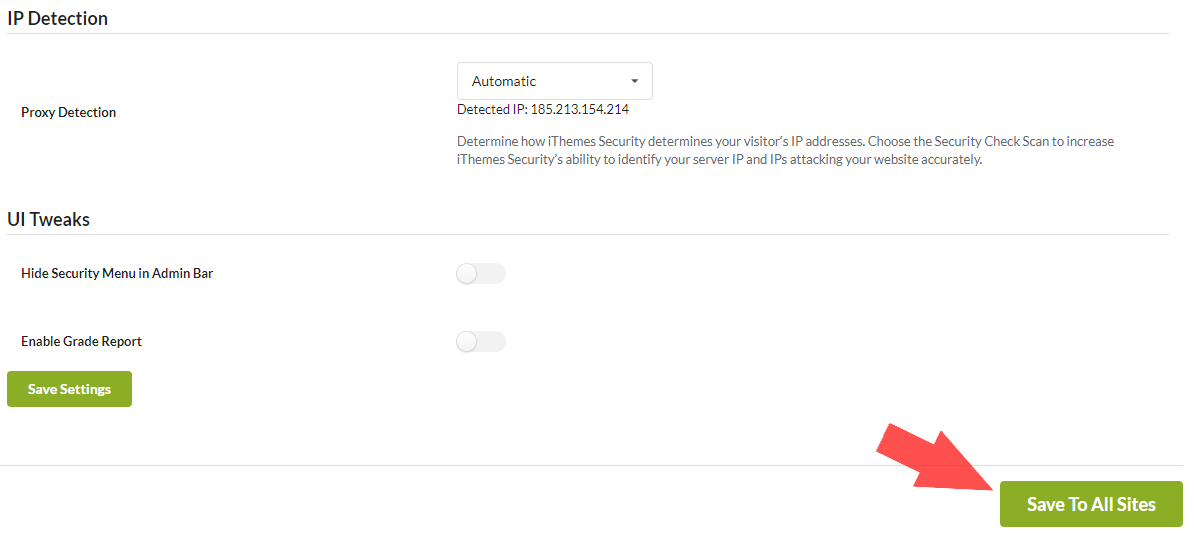
At the bottom of the page, click the Save To All Sites button
Update iThemes Security Settings on a Single Site
Login into your MainWP Dashboard
Go to the MainWP > Sites > Manage Sites page
Locate the site where you want to update settings and open the Individual Child site overview
Go to the iThemes Security Page
Open the desired settings tab at the top of the page
Set the Overwrite General Settings option to YES and click the Save Settings button at the bottom of the page
Set your preferences
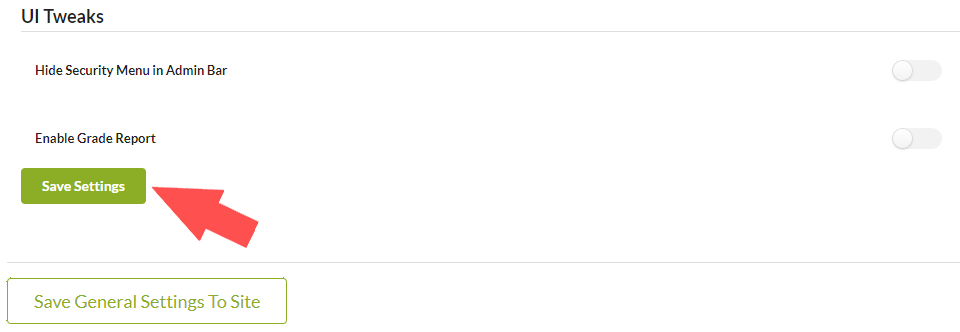
Click the Save Settings button at the bottom of the page
iThemes Security Dashboard
From the MainWP > Add-ons > iThemes Security > Overview page, you can monitor all of your child sites where you have the iThemes Security plugin installed. In the sites list, you will be notified if the plugin has an update available or if the plugin is deactivated.- In case the plugin is not activated, the Activate action will appear in the corresponding site row
- In case there is a new version of the plugin, the Update action will appear in the corresponding site row
Available Actions
From the MainWP > Add-ons > iThemes Security > Overview page**,** you can hide/unhide the iThemes Security plugin on your child sites, and quickly access the plugin settings on a child site or the WP Admin section. Actions are provided in the actions menu. If you know that you have the plugin installed on a child site, but the child site doesn’t appear in the list, try to re-sync your sites.Scheduled scans are not showing up in Pro Reports
For the scheduled scans to show in Pro Reports, WP Cron Tracking must be enabled in the MainWP Child plugin settings.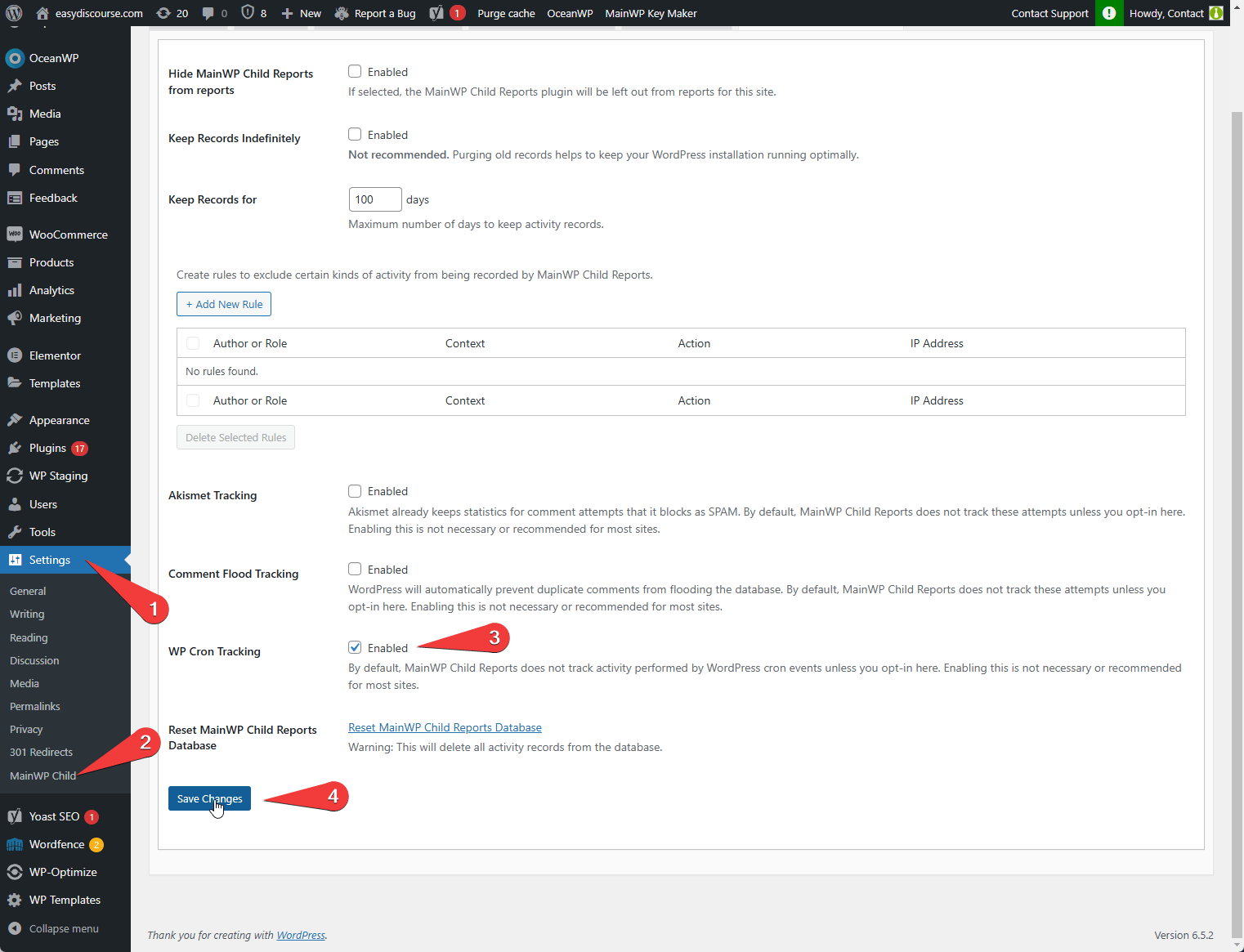
Navigate to the WP Admin of a Child Site
Go to Settings > MainWP Child > CHILD REPORTS SETTINGS
Enable WP Cron Tracking
Click Save Changes
Related Resources
- Security Add-ons - Browse all security tools
- Wordfence Integration - Alternative security integration
- Pro Reports Extension - Create client reports