
What You’ll Learn
- Adding plugins and themes to your favorites list by URL or direct ZIP upload
- Organizing favorites into groups
- Assigning and filtering favorites by group
- Managing and editing saved favorites
- Installing favorites on child sites from the install pages
Extension Add-on - This add-on provides standalone functionality within MainWP Dashboard. No third-party plugins required.
The MainWP Favorites Extension allows you to save frequently used plugins and themes for quick and easy installation on your child sites. Instead of manually searching for plugins or themes each time, you can store your preferred items in your Favorites list by URL or direct ZIP upload and install them whenever needed. Use groups to keep your favorites organized and easier to find.
Accessing the Favorites Extension
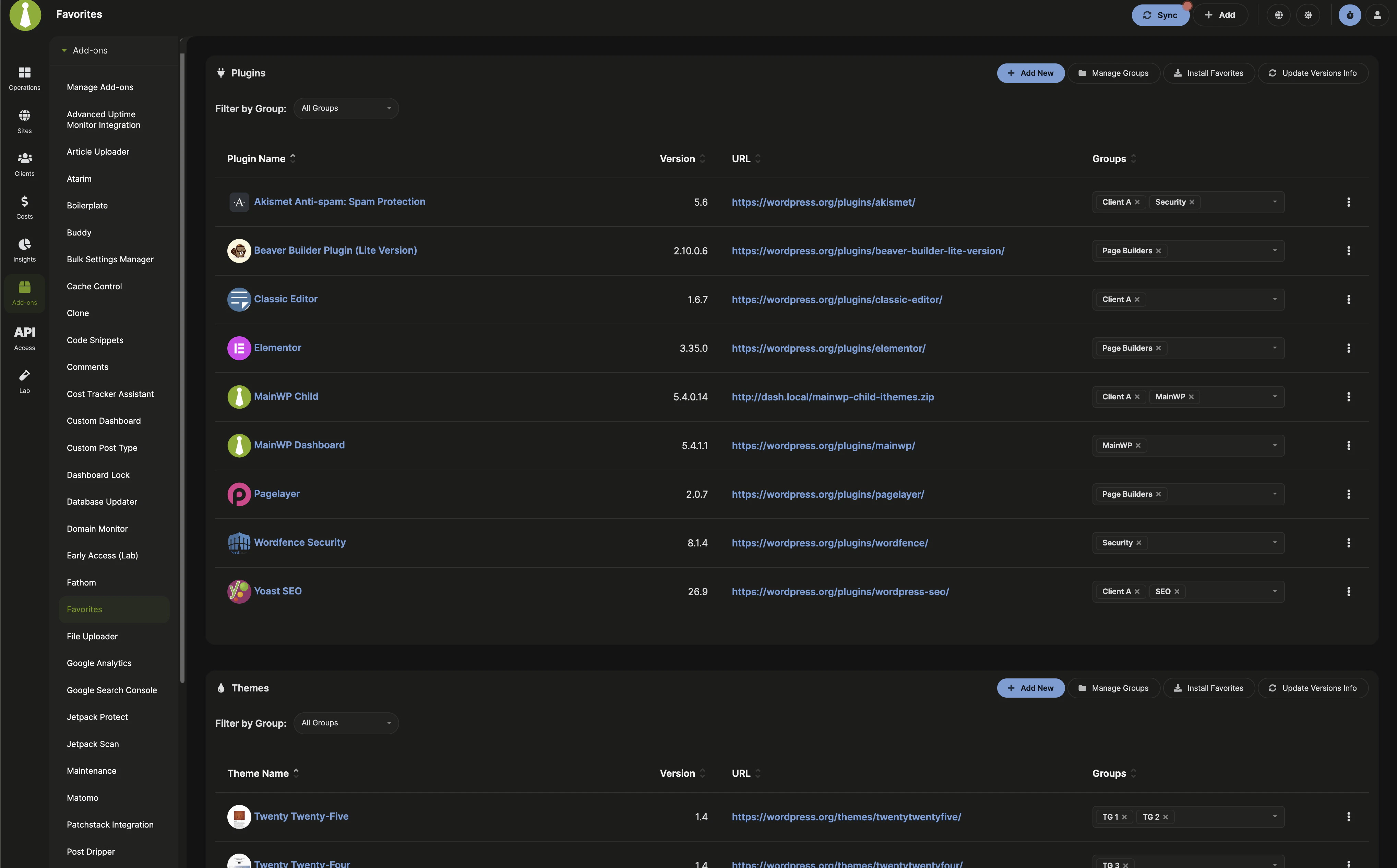
- Plugins - A list of your favorite plugins
- Themes - A list of your favorite themes
Adding Plugins and Themes to Favorites
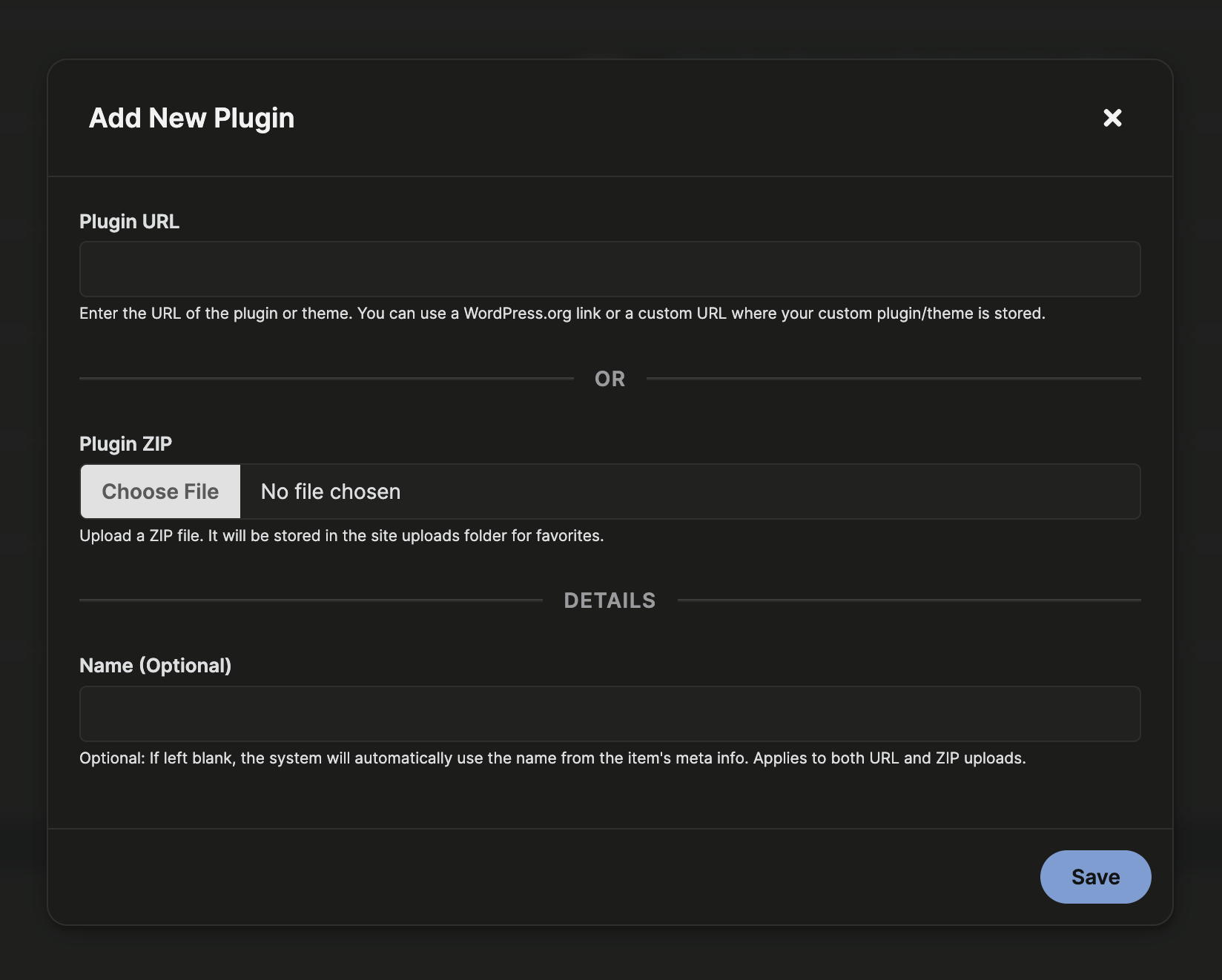
1
Click the Add New button.
2
Enter the URL or upload a ZIP file for the plugin or theme.
- For URL-based favorites, you can use a WordPress.org URL or a custom URL where your custom plugin or theme ZIP is stored.
- For direct uploads, click the file field and choose the ZIP file from your local computer.
3
(Optional) Define a Name for the item.
- If left blank, the system will automatically fetch the name from the item’s metadata.
- This works for both URL-based items and ZIP uploads.
4
Click Save to add it to your favorites.
Direct ZIP uploads are stored in the MainWP Dashboard site’s WordPress uploads directory. On a standard site, the path is
/wp-content/uploads/mainwp/0/favorites/. If your uploads directory is customized, use that uploads base path plus /mainwp/0/favorites/.Managing Your Favorites List
Once you’ve added items to your Favorites list, use the three-dot menu in each row to manage them:- Update Version Info: Re-read the file or URL to refresh the version shown in the list.
- Edit: Click the pen icon to update the name, change the URL, or replace the source with a ZIP upload.
- Download: Click the download icon to save the ZIP file to your local computer.
- Delete: Click the trash icon to remove the item from your favorites.
Local: filename.zip in the URL column, making it easier to distinguish them from URL-based items.
Organizing Favorites with Groups
Groups help you organize plugin favorites separately from theme favorites. Use the Manage Groups button in each section to create or update groups for that type.1
Click Manage Groups in the Plugins or Themes section.
2
Enter a Group Name and optional Description.
3
Click Add Group.
Assigning Favorites to Groups
Use the Groups dropdown in each row to assign one or more groups. Changes save automatically. If no groups exist yet, you will see No groups available.Filtering Favorites by Group
Use the Filter by Group dropdown above the list to narrow results. The dropdown supports multi-select, so you can combine groups, or choose All Groups to reset. The Install Favorites list uses the same multi-select filter when groups exist.Installing Favorites on Child Sites
Use the Favorites page to manage your saved items, groups, and metadata. Installations happen from the Install Plugins and Install Themes pages. The Install Favorites button on the Favorites page is a shortcut that opens the matching install page with the Favorites tab selected. The installer also includes a link back to the Favorites page if you need to add, edit, or reorganize items before installation. To install a favorite:1
Open the installer from one of the following locations:
- Dashboard > Add-ons > Favorites, then click Install Favorites in the Plugins or Themes section to open the matching install page.
- Dashboard > Plugins > Install Plugins
- Dashboard > Themes > Install Themes
2
Open the Favorites installer tab.
- If you started from the Install Plugins or Install Themes page, click Install from Favorites.
- If you used the shortcut on the Favorites page, the matching install page opens with the Favorites tab already selected.
3
(Optional) Use the Filter by Group dropdown (multi-select) to narrow the list.
4
Select the plugins or themes you want to install.
5
Choose the child sites where you want to install the selected items.
6
Click Complete Installation to start the process.
Related Resources
- Development Add-ons - Browse all development tools
- Managing Plugins - Plugin management guide
- Managing Themes - Theme management guide