
What You’ll Learn
- Connecting your Patchstack account to MainWP
- Registering and protecting child sites
- Viewing vulnerability and attack data
- Configuring API sync and notifications
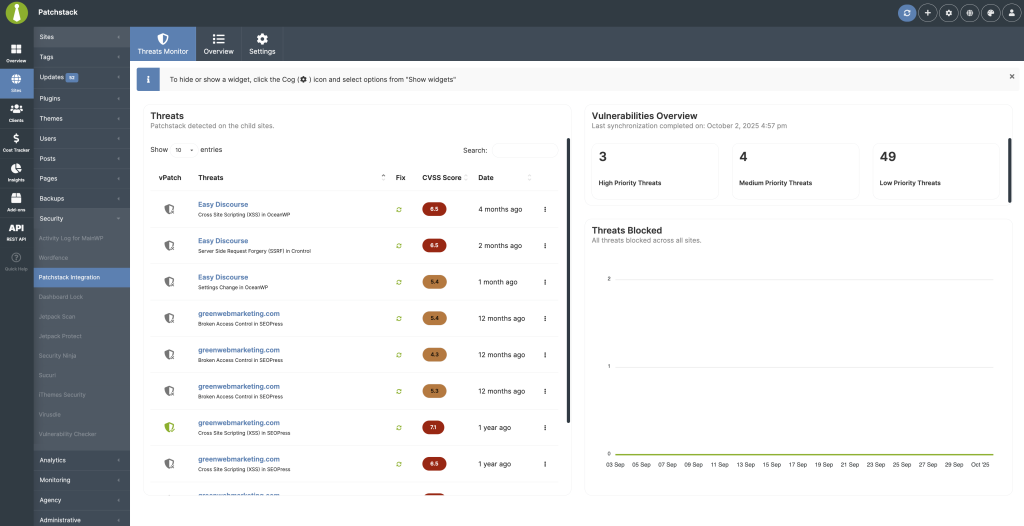
The Patchstack add-on connects your MainWP Dashboard with your Patchstack account. View vulnerability and protection data for all connected child sites without leaving MainWP.
Key features:
- View protection status, vulnerabilities, recent attacks, and available updates
- Track trends with global and per-site widgets (attacks blocked, active threats, firewall logs)
- Include Patchstack stats in the MainWP Overview and Pro Reports
Requirements
The MainWP Patchstack Integration is available with both MainWP Essentials and MainWP Pro. Patchstack is a separate paid service, and you need a Patchstack Developer plan or higher with API access to use the integration.
The Patchstack firewall runs on child sites via the Patchstack Security plugin. This add-on manages setup and gathers data in MainWP. Patchstack provisioning supports publicly accessible websites; localhost and private network sites are not supported.
Connect Your Patchstack Account
1
Open settings
Go to MainWP > Sites > Security > Patchstack Integration > Settings.
2
Enter API key
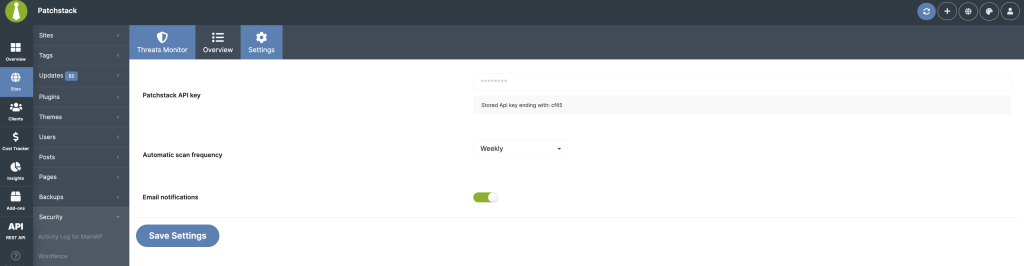
Paste your API key from Patchstack > Settings > Integrations into the Patchstack API key field.
3
Enter plan allowance
Enter the number of sites included in your Patchstack plan in Plan allowance (sites). Enter
0 if your plan should be treated as unlimited in MainWP.4
Configure API sync frequency
Choose Daily, Weekly, Monthly, or Disabled for Patchstack API sync frequency.
5
Enable notifications (optional)
Toggle Email notifications to receive alerts when Patchstack finds new vulnerabilities.
6
Save settings
Click Save Settings. Saving a new key clears previous site bindings, so plan to resync immediately.
Register and Protect Child Sites
1
Open the add sites modal
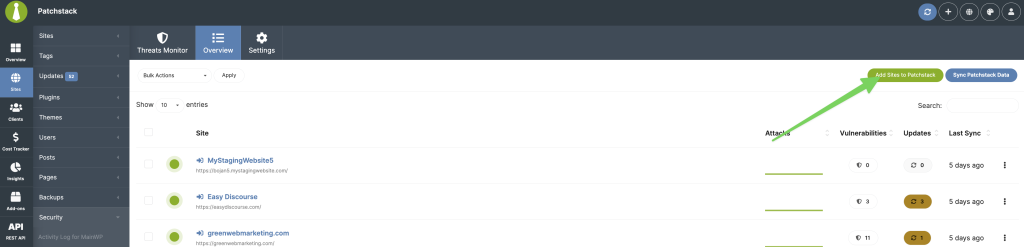
Go to MainWP > Sites > Security > Patchstack Integration (Overview tab) and click Add Sites to Patchstack.
2
Select sites
Choose the child sites you want to protect and click Protect With Patchstack.
3
Complete setup
The wizard registers each site with Patchstack, installs and activates the Patchstack plugin on the child site, activates the Patchstack license, syncs data, and refreshes the dashboard.
4
Verify completion
Close the modal once all rows show a green check. Rerun this flow when you add new child sites.
- Sync Patchstack Data (top-right): Syncs all linked sites
- Sync API Data (row ellipsis menu): Syncs individual sites
Where to View Data
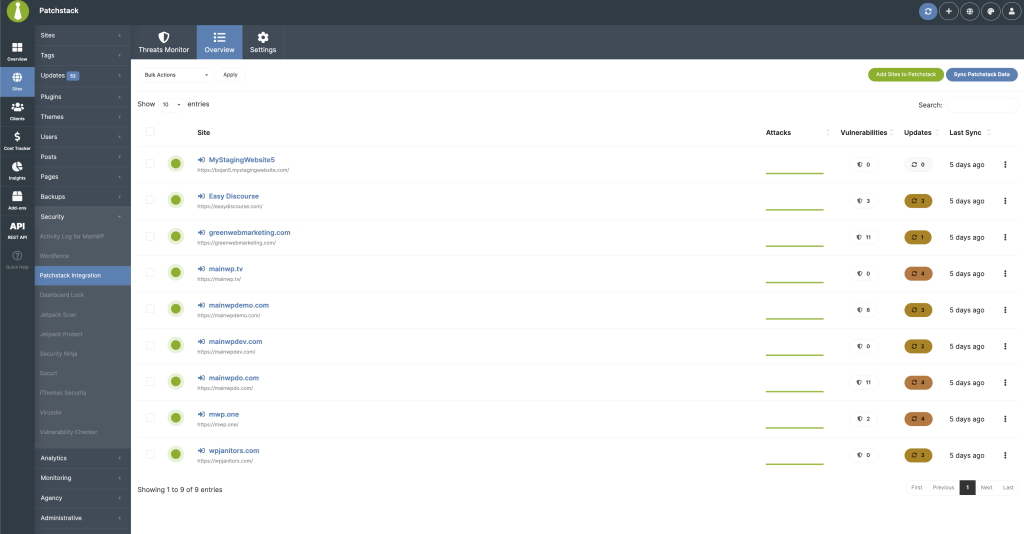
Add-on Overview Tab
The DataTable lists each protected site with firewall status, 7-day attack sparkline, total vulnerabilities, outdated components, and time since last sync. Row actions: View details, update the Patchstack plugin when an update is available, sync API data, hide or unhide the plugin, edit the site, or remove the site. To hide the Patchstack plugin from a child site’s installed plugins list and admin menu, open the site’s row ellipsis menu and select Hide Plugin. Select Unhide Plugin from the same menu to restore its visibility. Bulk actions: Update Patchstack plugin, sync API data, or remove multiple sites.Add-on Threats Tab
Use the cog icon (screen options) to show/hide widgets or reset layout.
Child Site Overview Widget
Open MainWP > Sites > Manage Sites > Patchstack Integration for per-site Threats Monitor data, override controls, and focused stats.Main Overview Widget
Enable the Patchstack Security Status widget on the MainWP Overview or individual site dashboards for a compact summary with Vulnerabilities, Protection stats, and Protected Sites tabs.Add-on Settings
Related Resources
- Security Add-ons - Browse all security tools
- Vulnerability Checker Extension - Alternative vulnerability scanning
- Pro Reports Extension - Include Patchstack stats in reports