
What You’ll Learn
- How to order Add-ons and access downloads in your MainWP.com account
- How to connect your MainWP Dashboard to your MainWP account
- How to install and activate Add-ons in MainWP Dashboard
- How to update and remove Add-ons safely
- How to change or cancel your MainWP Pro plan
Prerequisites
- MainWP Dashboard installed and active
- Administrator access to your MainWP Dashboard site
- A MainWP account
What Are the MainWP Add-ons
MainWP Add-ons extend your MainWP Dashboard with additional functionality. On MainWP > Add-ons > Manage Add-ons, the installer includes:Extensions: Add-ons that add Dashboard features without third-party dependenciesIntegrations: Add-ons that connect your Dashboard to third-party tools
FREE: Free add-on by MainWPPRO: Premium add-on by MainWP.ORG: Free add-on by a third party (WordPress.org)
Order Add-ons
Where: MainWP.com accountOpen MainWP.com account access
Log in or register
Open the MainWP Pro page
Review checkout and complete payment

Access your keys and downloads
- If you need purchase help, contact MainWP Support.
- MainWP Add-ons do not have a trial period. See the Refund Policy.
Download Your Invoice
Where: MainWP.com accountOpen My Orders
Find your order
Download invoice
Download Add-ons
Where: MainWP.com accountOpen My Downloads
Download Add-ons
Get Your API Key
Where: MainWP.com accountOpen My API Keys
Copy your key
Connect Your MainWP Account
Where: MainWP DashboardOpen Manage Add-ons
Open license controls
Enter your Main API key
Validate license
Install Add-ons
Where: MainWP Dashboard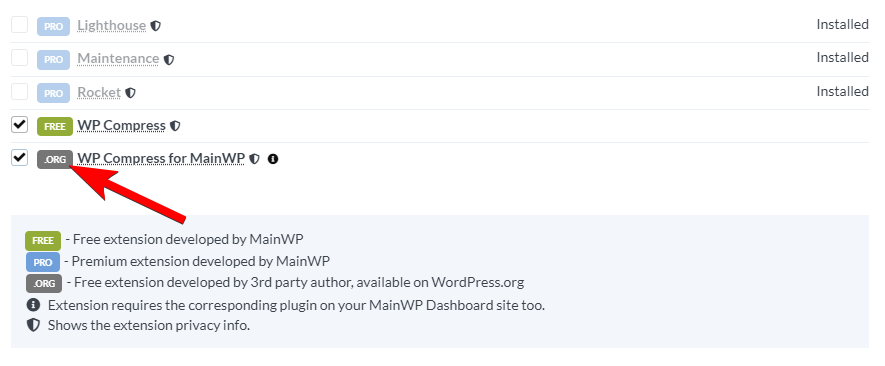
Install from Manage Add-ons (recommended)
Open the installer
Filter or search Add-ons
Select Add-ons
Install selected Add-ons
Install with WordPress Plugin Installer
Open Plugins > Add New on your Dashboard site
Upload the Add-on zip
Activate plugin
Manual Installation (FTP)
Download Add-on files
Upload plugin folder
wp-content/plugins on your MainWP Dashboard site.Activate in WP Admin
Activate Add-ons
Where: MainWP Dashboard Add-ons can work without activation, but automatic updates require a valid API key and license activation.Activate all installed Add-ons
Open Manage Add-ons
Validate license if needed
Activate installed Add-ons
Activate a single Add-on manually
Open Manage Add-ons
Locate the Add-on card
Activate that license
Update Add-ons
Where: MainWP DashboardAutomatic Add-on Updates
Automatic updates require active license validation.Open Plugins page on your Dashboard site
Find the Add-on
Run update
Manual Add-on Updates
Reinstalling an Add-on does not remove its data, so settings remain intact in normal cases.Download latest Add-on version
Deactivate and delete the old version
Install and activate the new version
Remove Add-ons
Where: MainWP DashboardOpen Manage Add-ons
Disable the Add-on
Delete the Add-on
Change Membership Plan
Where: MainWP.com account Changing your MainWP Pro plan is manual. Contact MainWP Support if you want help with an upgrade. For monthly or yearly plans, cancellation is available from Subscriptions.Update Payment Method
Where: MainWP.com accountOpen My Account
Open Subscriptions
Open the subscription details
Click Update Payment Method
Complete the update
Cancel Subscription
Where: MainWP.com accountOpen My Account
Open Subscriptions
Open the subscription details
Cancel subscription
Related Resources
- Add-ons Overview - Browse all add-on categories
- Troubleshoot add-on licensing issues - Fix activation and update issues
- Why Is My Add-ons Page Empty? - Resolve hidden list/filter issues
- MainWP Pro Plans - Compare current plan options