← Part 2: Getting started with MainWP
Part 4: Pre-install FAQ →
The MainWP Dashboard provides a centralized interface for managing all your connected WordPress sites. Understanding the layout, widgets, navigation, and table controls allows you to work efficiently across hundreds of sites.
What You Will Accomplish
After reviewing this page, you will be able to:
- Customize widget layout and visibility on Operations pages
- Navigate between global and individual site views
- Sort, filter, and act on data in MainWP tables
- Select sites for bulk actions using the Select Sites metabox
Prerequisites
If you upgraded from a MainWP version before 4.5 and see visual issues, perform a hard refresh (Ctrl + Shift + R on Windows, Command + Shift + R on Mac) or clear your browser cache.
Widgetized Pages
MainWP Operations pages display multiple widgets that summarize your Child Sites and the actions needed to maintain them. You can customize the layout to match your workflow.
Drag and drop widgets to customize their order. MainWP Dashboard remembers your arrangement for future visits.
Grab the lower-right corner of any widget and drag to adjust its size.
Save or Load Layouts
Use Layout in the header to save your current widget arrangement or load a previously saved layout.
Open Page Settings, check or uncheck widgets in the list, and click Save Settings.
Update Overview
The updates section displays separate cards for each update type:
| Card | Function |
|---|
| Total updates | Update everything across all Child Sites |
| WordPress updates | Update WordPress Core on all sites |
| Plugin updates | Update all plugins on all child sites |
| Theme updates | Update all themes on all child sites |
| Translation updates | Update all translations on all child sites |
| Abandoned plugins | View potentially abandoned plugins |
| Abandoned themes | View potentially abandoned themes |
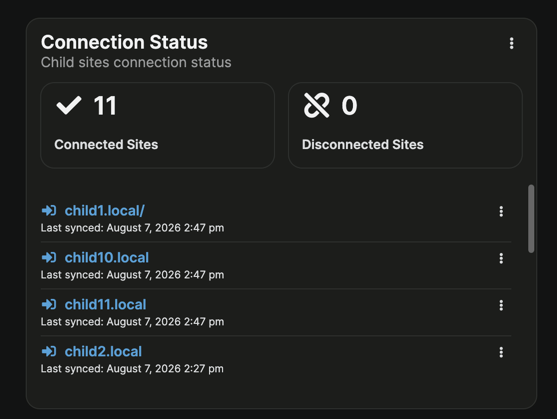
Connection Status
This widget displays the current status of your Child Sites and their recent sync activity. On an individual Child Site dashboard, it shows information for that site only. Use the dropdown menu in the top-right corner to reveal additional details.
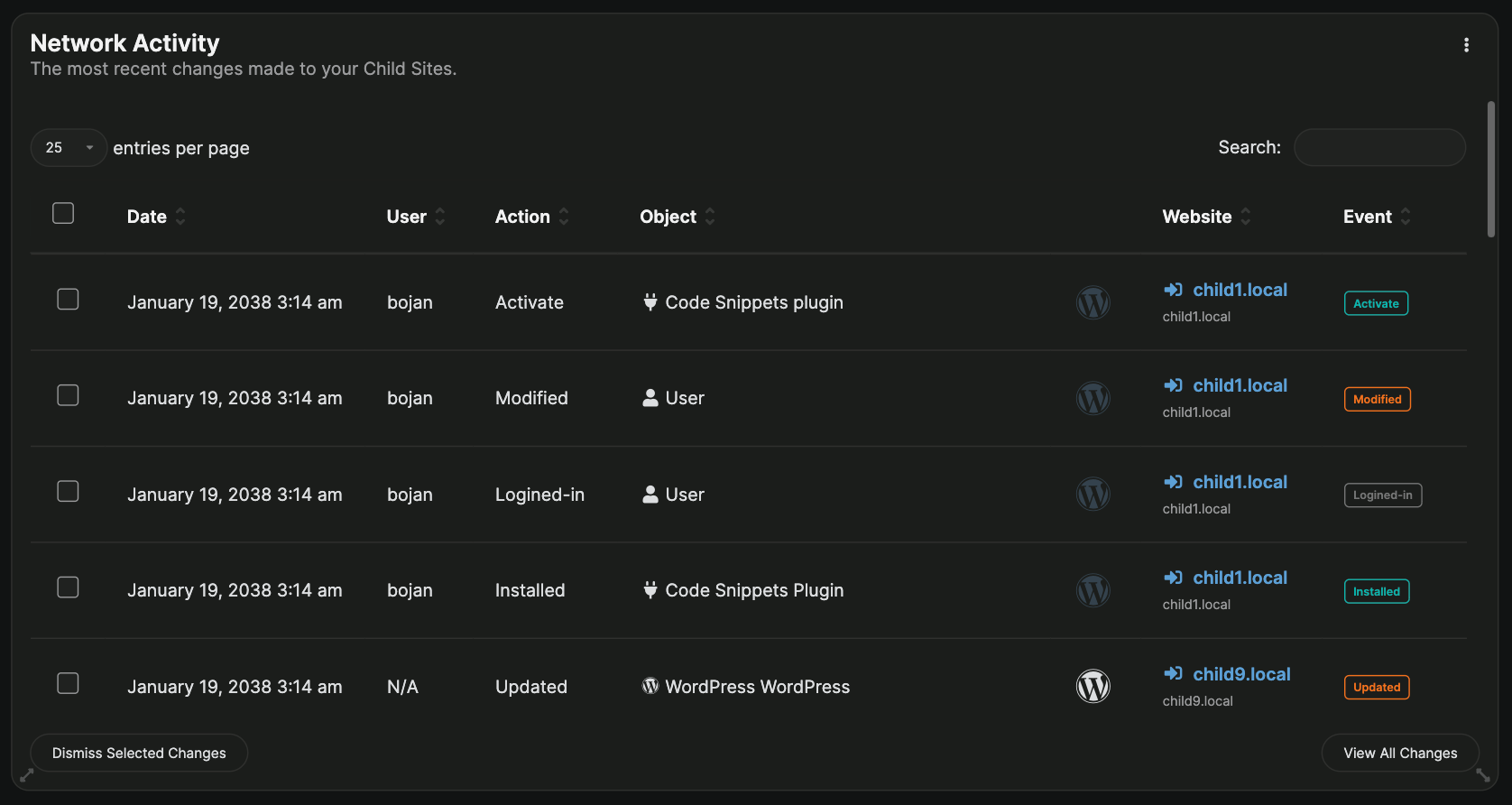
Network Activity
The Network Activity widget tracks recent activity including changes made outside MainWP and those made from your Dashboard. Each entry includes the event type, action taken, timestamp, website, and user responsible. Filter options let you view Non-MainWP Changes only, Dashboard Changes only, or both. You can also dismiss selected changes directly from the widget.
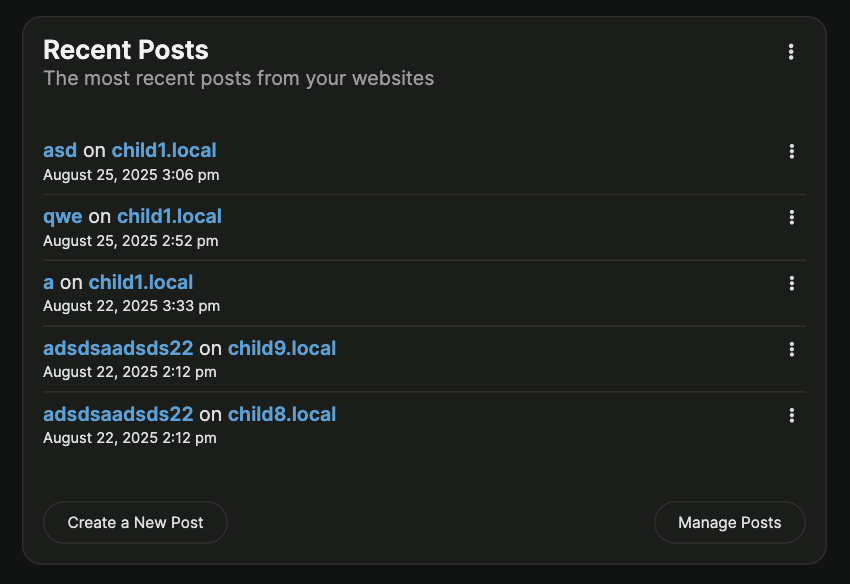
Recent Posts
This widget displays the five most recent posts across your Child Sites, showing the post title, date, and source website.
| Action | Description | Availability |
|---|
| Unpublish | Changes post status to draft | Published posts |
| Edit | Opens the post editor | Published, Draft, Pending, and Scheduled posts |
| Trash | Moves post to trash | Published, Draft, Pending, and Scheduled posts |
| View | Opens post on front-end | Published posts |
| Preview | Opens scheduled post preview | Scheduled posts |
| Publish | Publishes the post | Draft, Pending, and Scheduled posts |
| Restore | Restores previous status | Trashed posts |
| Delete Permanently | Removes post completely | Trashed posts |
The dropdown menu at the top toggles between post statuses. Click Create a New Post to create content on your Child Sites from the post creation screen. On an individual Child Site dashboard, the widget shows posts from that site only.
Recent Pages
This widget displays the five most recent pages across your Child Sites, showing the page title, date, and source website.
| Action | Description | Availability |
|---|
| Unpublish | Changes page status to draft | Published pages |
| Edit | Opens the page editor | Published, Draft, Pending, and Scheduled pages |
| Trash | Moves page to trash | Published, Draft, Pending, and Scheduled pages |
| View | Opens page on front-end | Published pages |
| View All | Opens the full pages management screen | Published, Draft, Pending, and Scheduled pages |
| Preview | Opens scheduled page preview | Scheduled pages |
| Publish | Publishes the page | Draft, Pending, and Scheduled pages |
| Restore | Restores previous status | Trashed pages |
| Delete Permanently | Removes page completely | Trashed pages |
The dropdown menu at the top toggles between page statuses. Click Create a New Page to create content on your Child Sites. On an individual Child Site dashboard, the widget shows pages from that site only.
Site Hardening
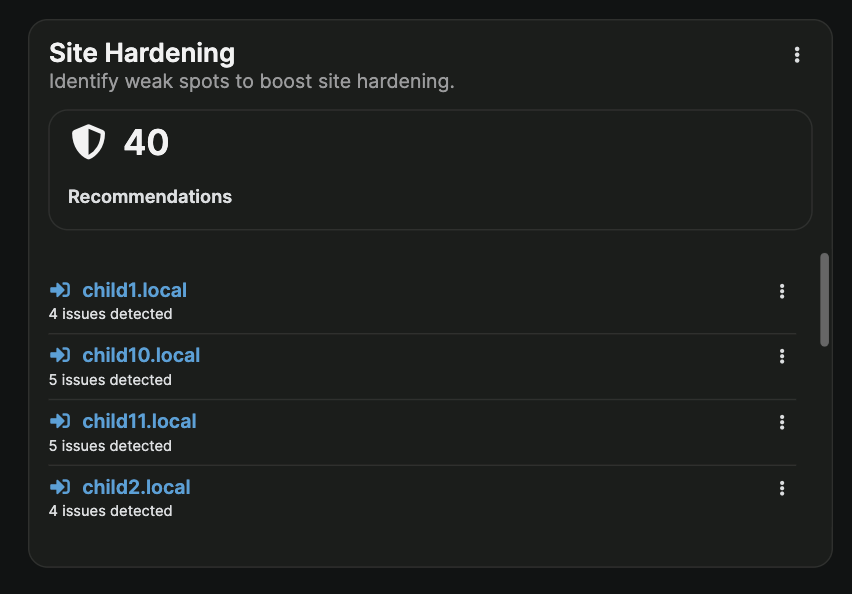
This widget shows a recommendation count for Site Hardening checks across your Child Sites. Use the action menu to switch between Show All, Show Issues, and Hide All. On an individual Child Site dashboard, the widget displays recommendations for that site only.
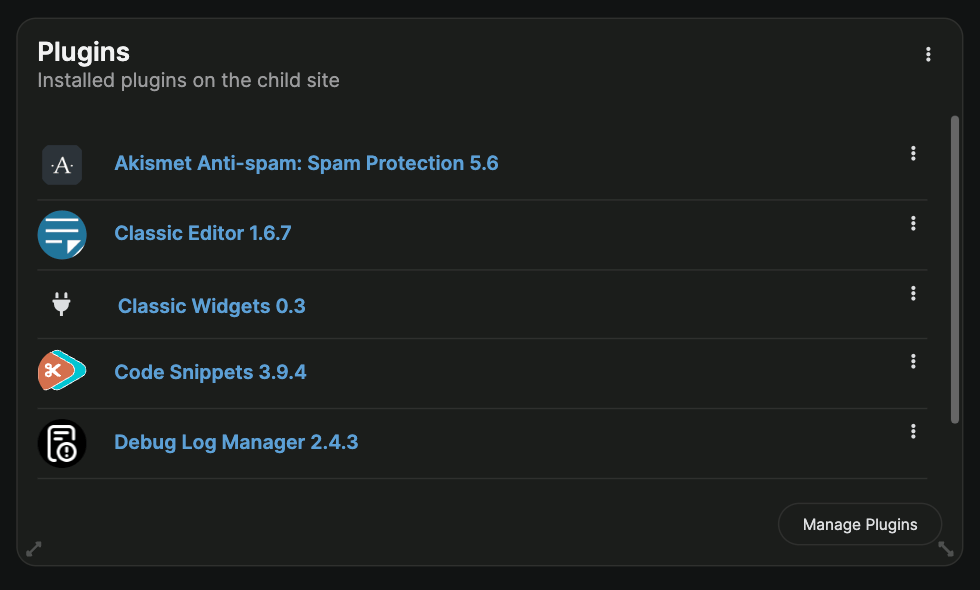
Plugins (Individual Site Operations)
This widget lists all plugins installed on the Child Site. The left column shows plugin names and versions, and clicking a plugin name displays detailed information.
| Action | Description | Availability |
|---|
| Deactivate | Deactivates the plugin | Active plugins |
| Activate | Activates the plugin | Inactive plugins |
| Delete | Removes the plugin | Active and inactive plugins |
| History | Opens plugin history details for this site | Plugin rows in this widget |
Use the widget navigation to switch between active and inactive plugins.
Themes
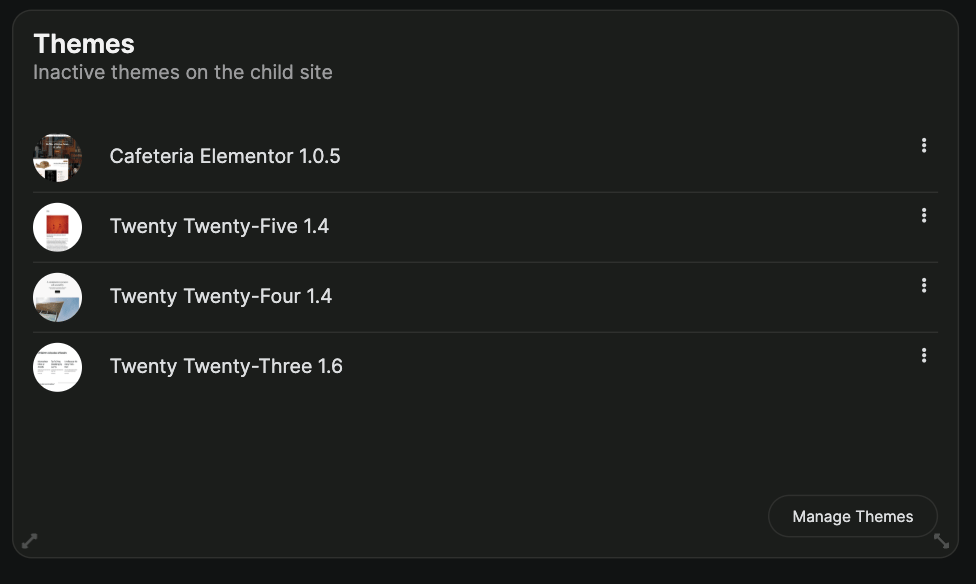
This widget lists all themes installed on the Child Site. The left column shows theme names and versions, and clicking a theme name displays detailed information.
| Action | Description | Availability |
|---|
| Activate | Activates the theme | Inactive themes |
| Delete | Removes the theme | Inactive themes |
| History | Opens theme history details for this site | Theme rows in this widget |
Navigation
The MainWP Dashboard navigation panel appears on the left side and provides quick access to all sections.
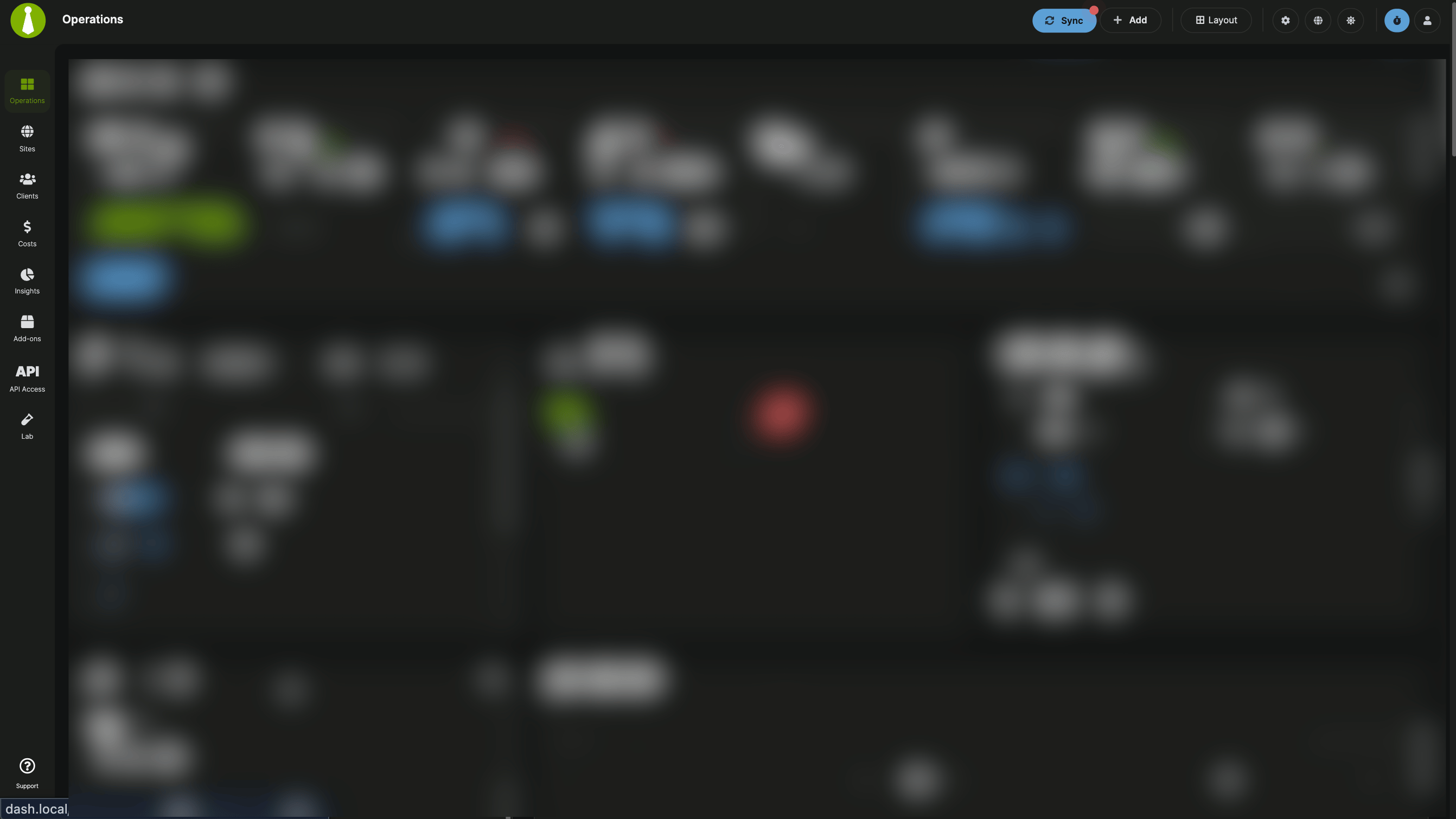
| Section | Purpose |
|---|
| Operations | Dashboard summary and widgets |
| Sites | Manage connected Child Sites |
| Clients | Client management and profiles |
| Costs | Track and manage costs |
| Insights | Activity logs and trends |
| Add-ons | Extension management |
| API Access | API key and Application Passwords management |
| Settings | Dashboard configuration |
| Info | System, cron, logs, event monitor, and privacy pages |
| Support | Open the Support modal for AI assistance, tours, video guides, and contact options |
For a full breakdown of Support modal behavior, see MainWP Support Modal.
| Element | Function |
|---|
| Sync | Synchronize all connected sites (or the current site context); shows a red pulsating badge when sync data is older than 24 hours. See Overview of MainWP Dashboard icons. |
| Add | Add websites, clients, costs, posts, pages, plugins, themes, or users |
| Layout | Save or load widget layouts on supported pages |
| Page Settings | Configure settings for the current page |
| Quick Site Shortcuts | Open sidebar with quick access to child sites |
| Theme Switcher | Uses quick Light/Dark switching for default themes without custom theme files; otherwise opens the theme selection modal |
| User Menu | Access MainWP Settings, MainWP Tools, System Info, Privacy Policy, Get Help (Help sidebar), WP Admin, community, account, and logout |
MainWP Dashboard also provides page navigation tabs that vary by section. Each MainWP section has different page navigation options, and some sections have no tabs.
Tables
MainWP uses DataTables for advanced interaction controls throughout the interface.
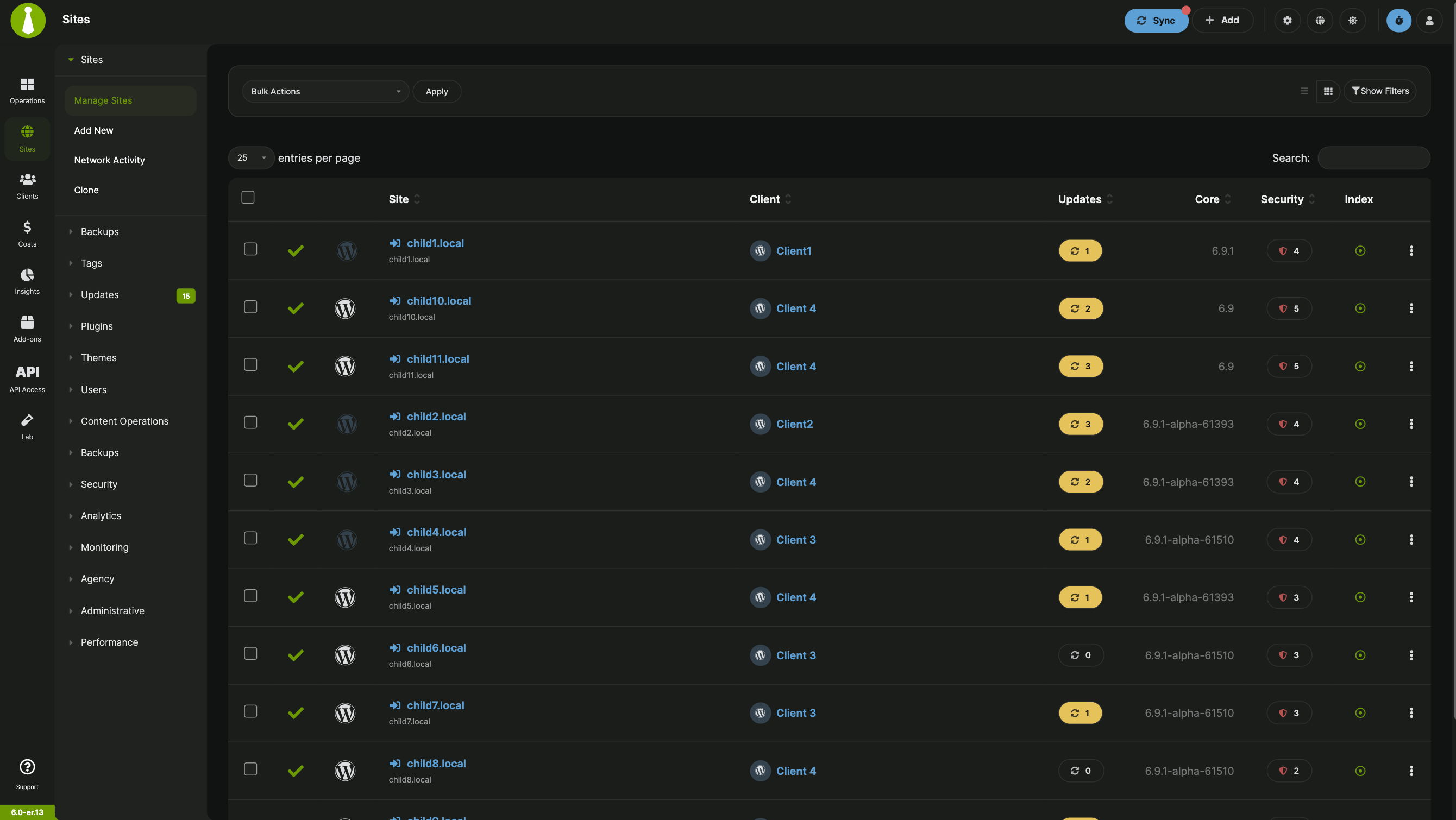
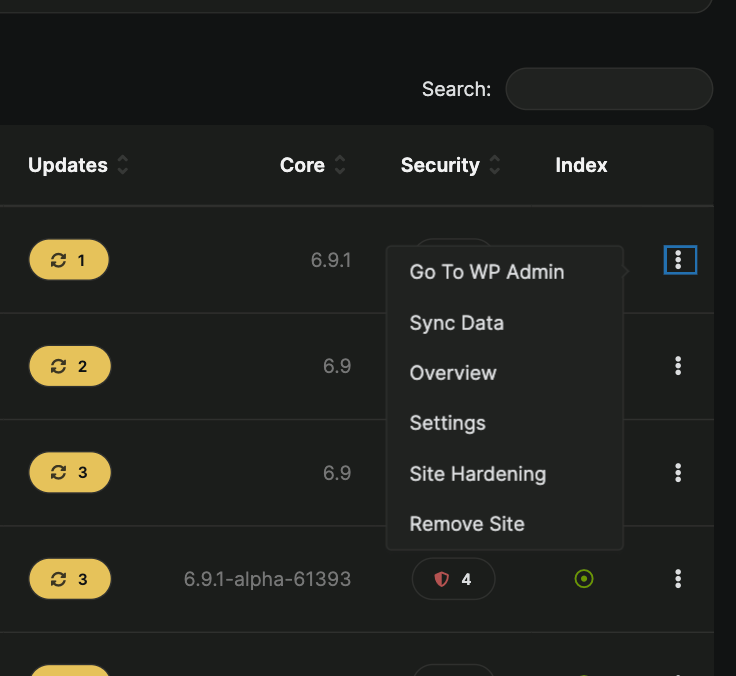
The actions menu appears in the far right column of most MainWP tables.
Sorting Options
Click any column header to sort table data by that column.
Columns Order
Drag and drop columns to set a custom order. MainWP remembers your arrangement, so this adjustment persists across page loads.
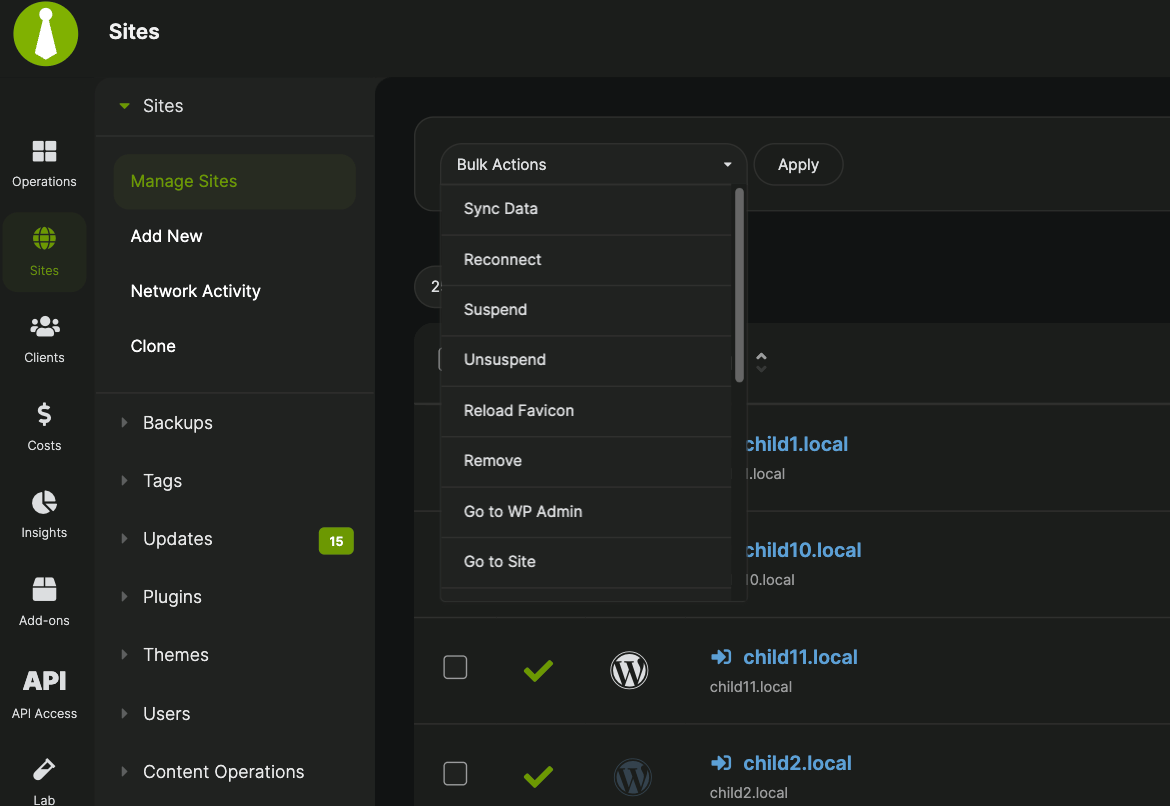
Bulk Actions
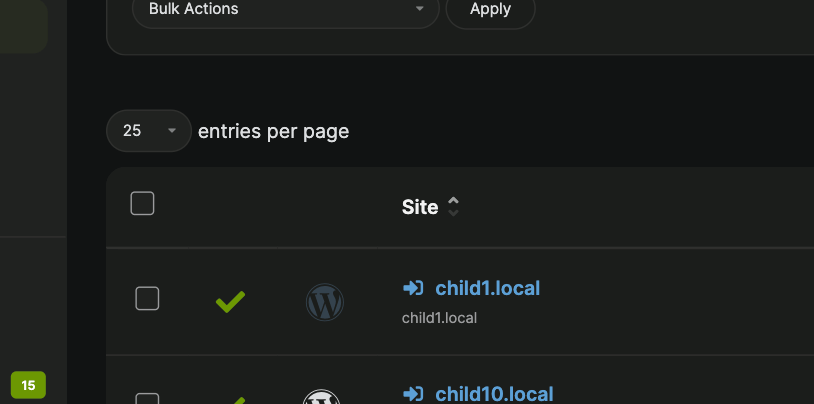
The bulk action menu appears in the top-left position above tables. Select items, choose an action from the dropdown, and click Apply.
Table Filter
Use the filters in the top-right to narrow down table data.
On MainWP > Sites > Manage Sites, you can filter by tags, status, and clients. When selecting multiple tags, choose Match any (OR) or Match all (AND) to control how tag matches are evaluated.
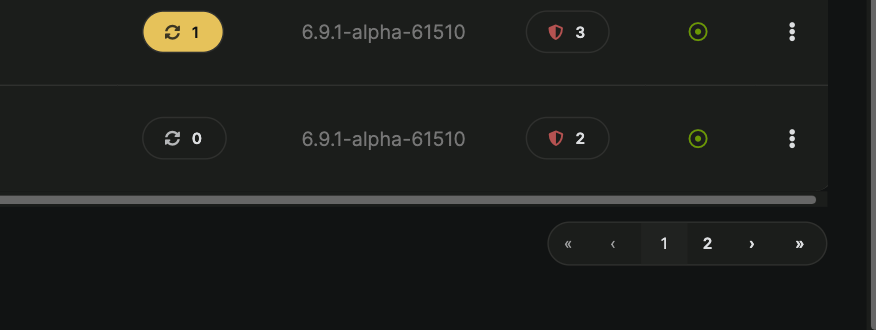
When tables contain more data than a single page can display, pagination controls allow you to navigate through the data.
Manage Plugins and Themes Table Features
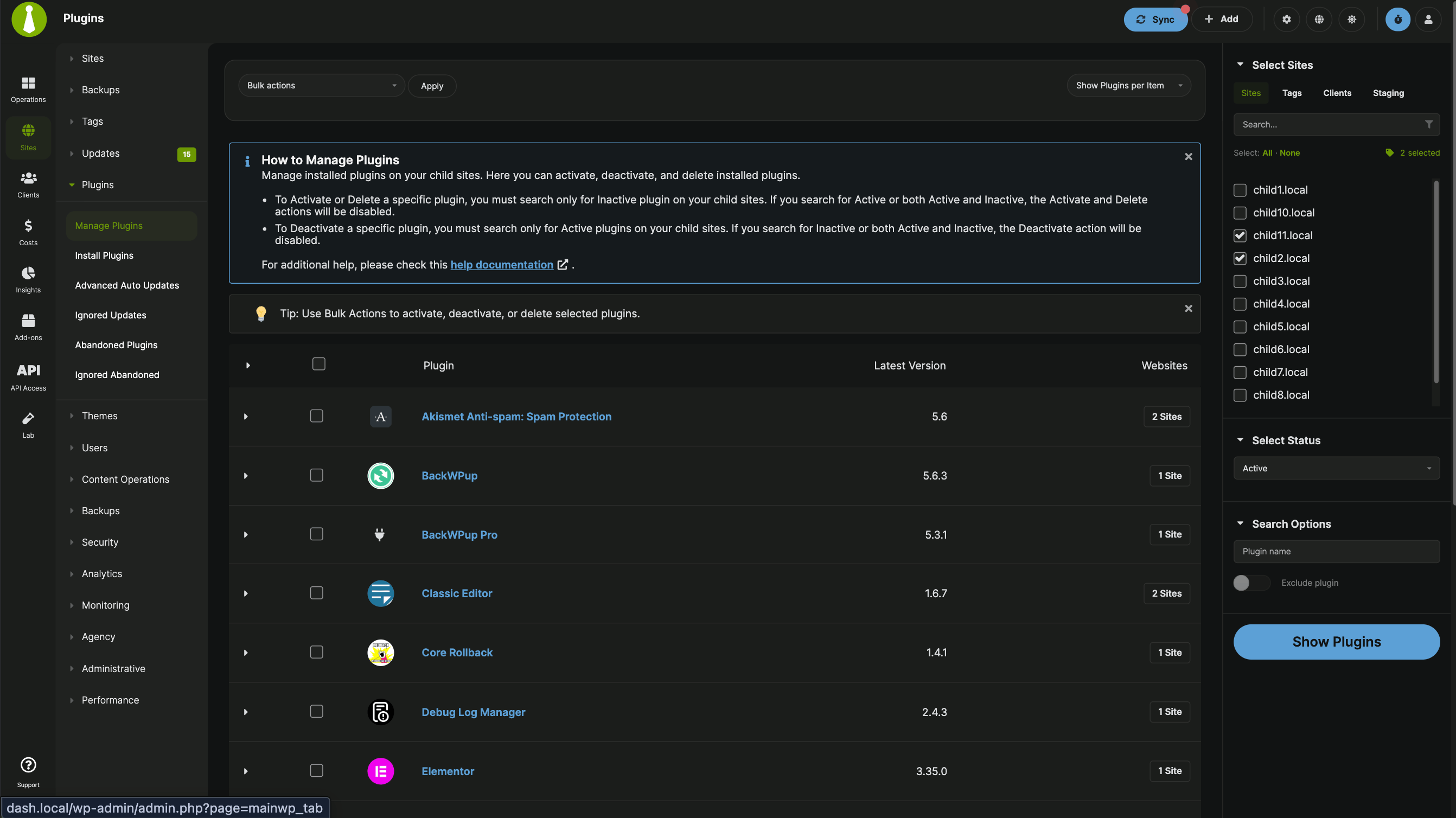
The Manage Plugins and Manage Themes tables include icons for quicker identification and display the number of child sites where each plugin or theme is installed. You can select child sites individually or select all sites where a particular plugin or theme is installed. Plugins and themes can be activated, deactivated, or deleted individually or in bulk. Each row also includes a History action so you can review change activity in the same modal used across Manage and Updates pages.
Select Sites
The Select Sites metabox appears throughout MainWP and determines which Child Sites an action affects. Common uses include searching for content, publishing posts, and installing plugins or themes.
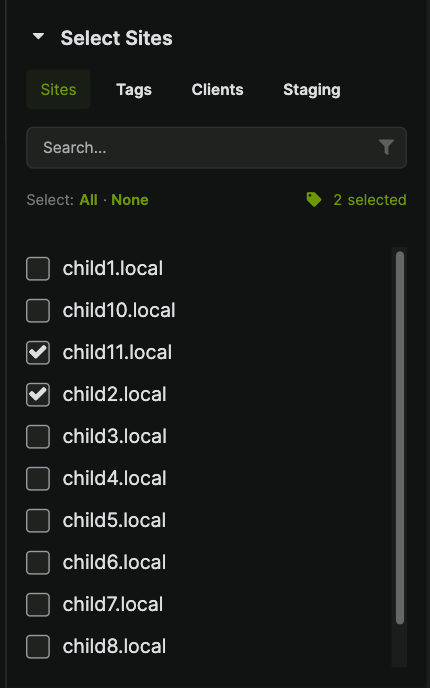
Check the box next to a Child Site name to include it. Disconnected sites appear disabled because MainWP Dashboard cannot update sites that lack a proper connection.
Selection Methods
| Method | How It Works |
|---|
| By Site | Select individual sites directly |
| By Tag | Select all sites assigned to specific tags |
| By Client | Select all sites associated with specific clients |
Quick Selection
The All and None buttons above the site list provide fast selection or deselection.
Sites Filter
Type a site name in the filter field at the top of the metabox to locate specific sites quickly. This feature proves especially useful when managing many Child Sites.
The MainWP Sidebar contains collapsible sections with different option groups. Common sections include Select Sites, search parameters, and action buttons at the bottom.
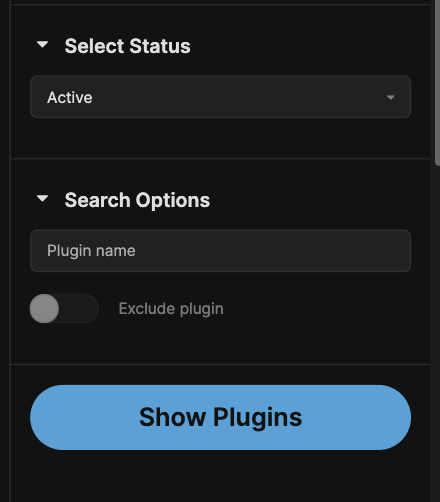
Collapse sections you use less frequently to keep the interface clean, and expand them when needed.
Individual Site Mode
Most MainWP features work at both global level (affecting all Child Sites) and individual site level.
Single Site Overview
Individual Child Site mode lets you control settings per site and monitor site-specific data.
Navigate to Manage Sites
Go to MainWP > Sites > Manage Sites.
Select a site
Locate the Child Site and click its name under the Site column.
The individual site page includes these tabs:
| Tab | Purpose |
|---|
| Overview | Site-specific information and actions |
| Settings | Modify Child Site settings |
| Updates | Manage available updates |
| Backups | Manage backups (shown when backup features are enabled) |
| Site Hardening | View security issues and reports |
Installed MainWP Add-ons display additional tabs as applicable.
Page Settings
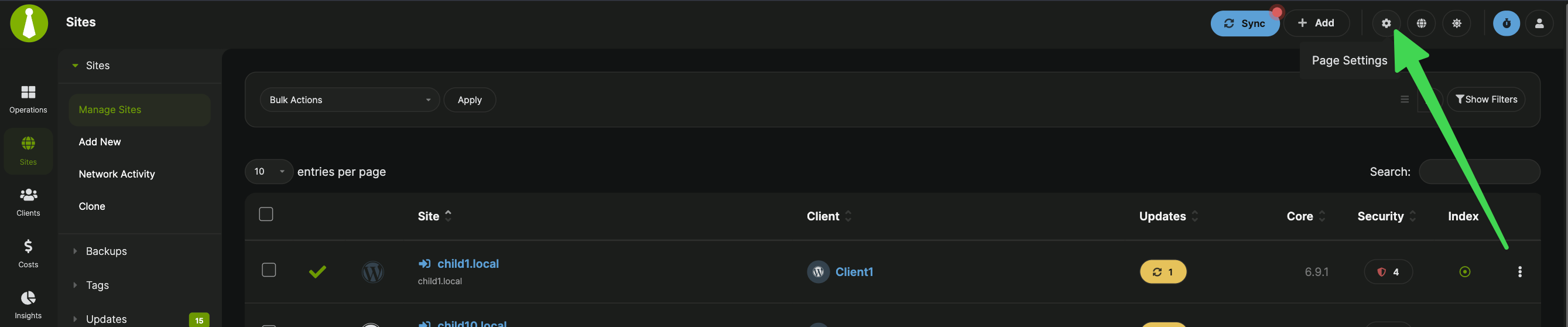
Most MainWP Dashboard pages include a Page Settings button in the top-right corner. These settings apply to the specific page where you configure them.
Custom Event Monitor
The Custom Event Monitor logs system events and helps with troubleshooting. Access it from MainWP > Info > Custom Event Monitor.
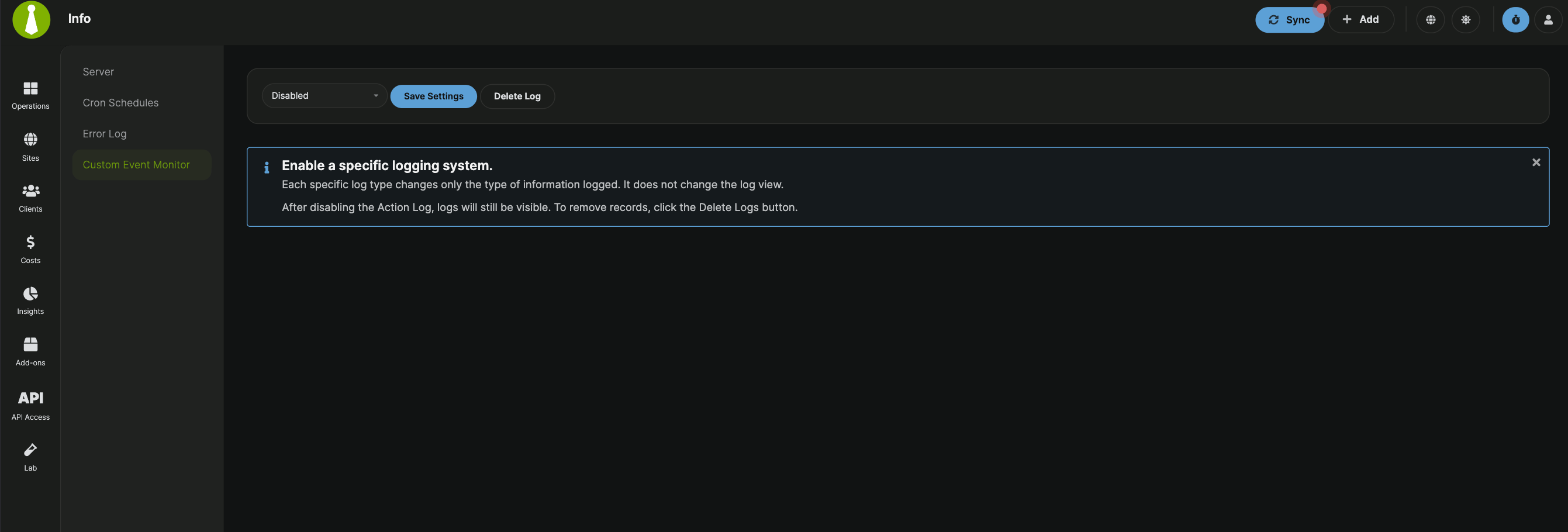
The Custom Event Monitor remains in alpha phase with a limited number of tracked actions. Coverage will expand in future releases.
Common Real-World Use Cases
| Scenario | How to Use the Interface |
|---|
| Check which sites need updates | View the Update Overview widget on the main Operations page |
| Update plugins on specific client sites | Use Select Sites > By Client, then navigate to plugin updates |
| Find a specific site quickly | Use the Sites Filter in the Select Sites metabox or Quick Site Shortcuts in the header |
| Focus on one site’s details | Click the site name in Manage Sites to enter Individual Site Mode |
| Reduce dashboard clutter | Open Page Settings and disable widgets you don’t need |
Common Problems and Fixes
| Problem | Likely Cause | Fix |
|---|
| Widgets appear broken or misaligned after upgrade | Browser cache contains old CSS/JS | Hard refresh (Ctrl + Shift + R / Cmd + Shift + R) or clear browser cache |
| Cannot select a site in the Select Sites metabox | Site is disconnected | Reconnect the site from MainWP > Sites > Manage Sites |
| Widget customizations reset between sessions | Browser blocking local storage | Check browser privacy settings and allow local storage for your Dashboard URL |
| Page Settings button missing | Page does not support customization | Some pages have fixed layouts without configurable settings |
Self-Check Checklist
Confirm you understand the MainWP interface: