The Manage Themes feature provides centralized control over WordPress themes across all your child sites. Install themes on multiple sites at once, activate themes in bulk, run updates, ignore specific updates, and configure automatic updates for themes you trust.

What You’ll Accomplish

  • Install themes from WordPress.org or ZIP files on multiple sites
  • Activate themes across selected sites
  • Delete unused themes from child sites
  • Update themes individually or in bulk
  • Ignore theme updates globally or per site
  • Configure automatic updates for trusted themes

Prerequisites

  • MainWP Dashboard installed and activated
  • At least one child site connected to your Dashboard
  • Administrator access to your Dashboard site

Video Tutorial


Install Themes

MainWP provides three methods for installing themes:
MethodBest For
WordPress.orgFree themes from the official directory
Upload ZIPPremium themes or custom themes
FavoritesQuick installation of commonly used themes (requires Favorites Extension)

Install from WordPress.org

1

Navigate to Install Themes

Go to MainWP > Sites > Themes > Install.
2

Search for theme

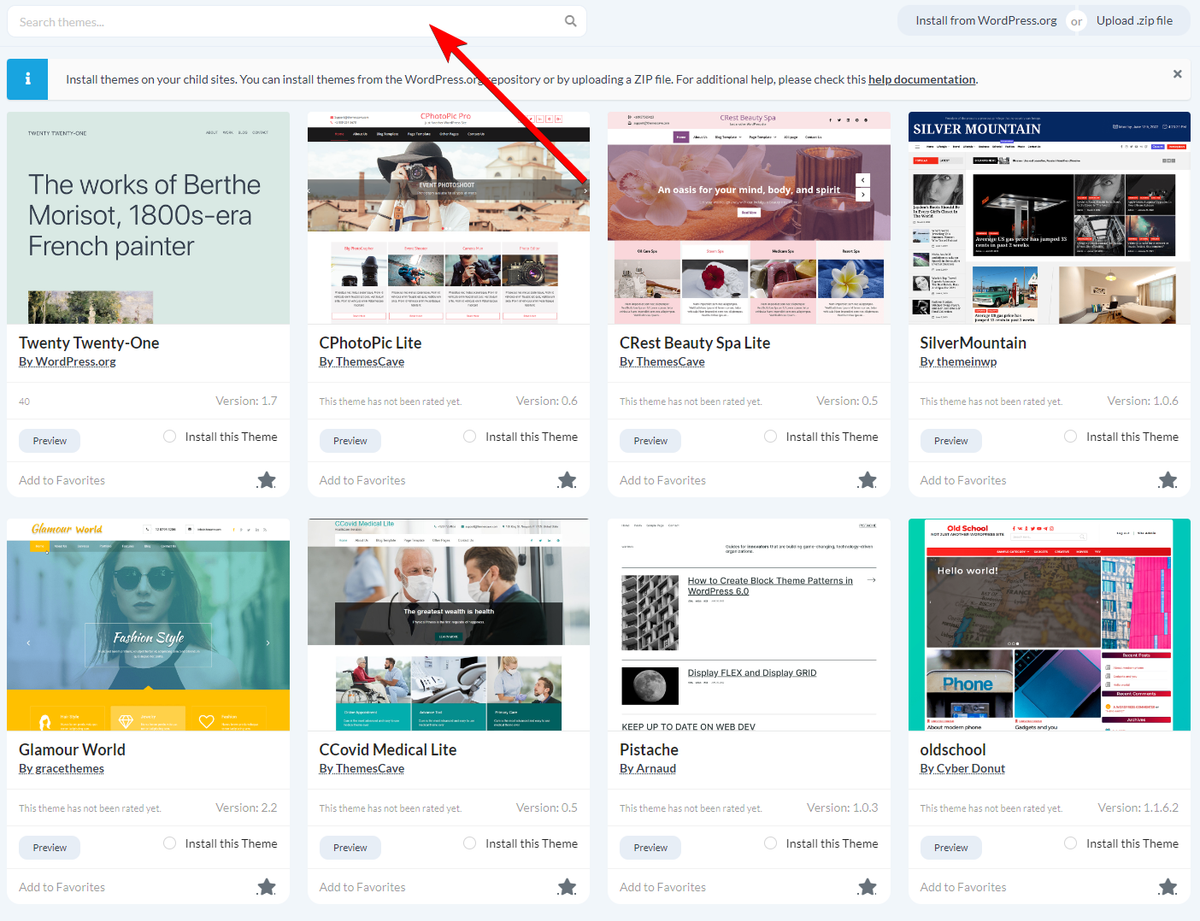
Under the Install from WordPress.org tab, use the Search Themes field to find the theme.Search Themes field in the Install from WordPress.org tab
3

Select theme

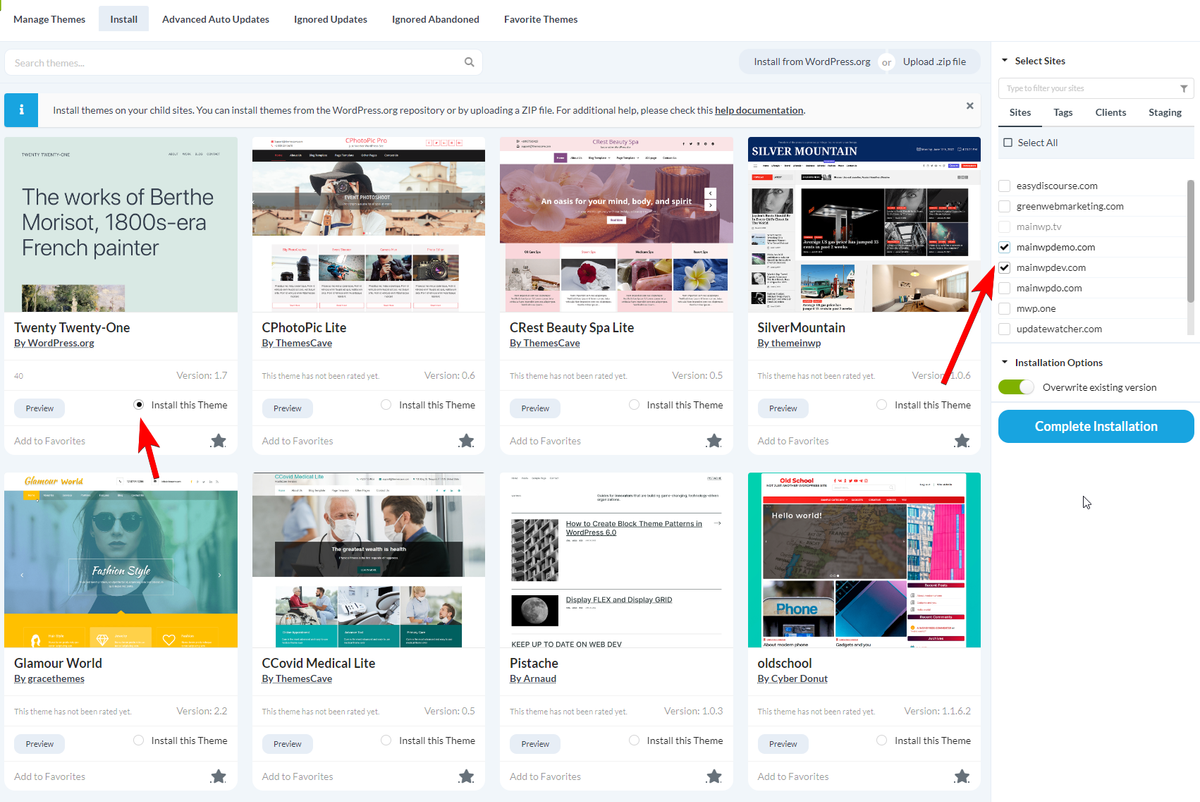
Locate the theme in the search results and select Install this Theme.Theme search results with Install this Theme radio button selected
4

Select sites

In the Select Sites box, choose the sites where you want to install the theme.
5

Set installation options

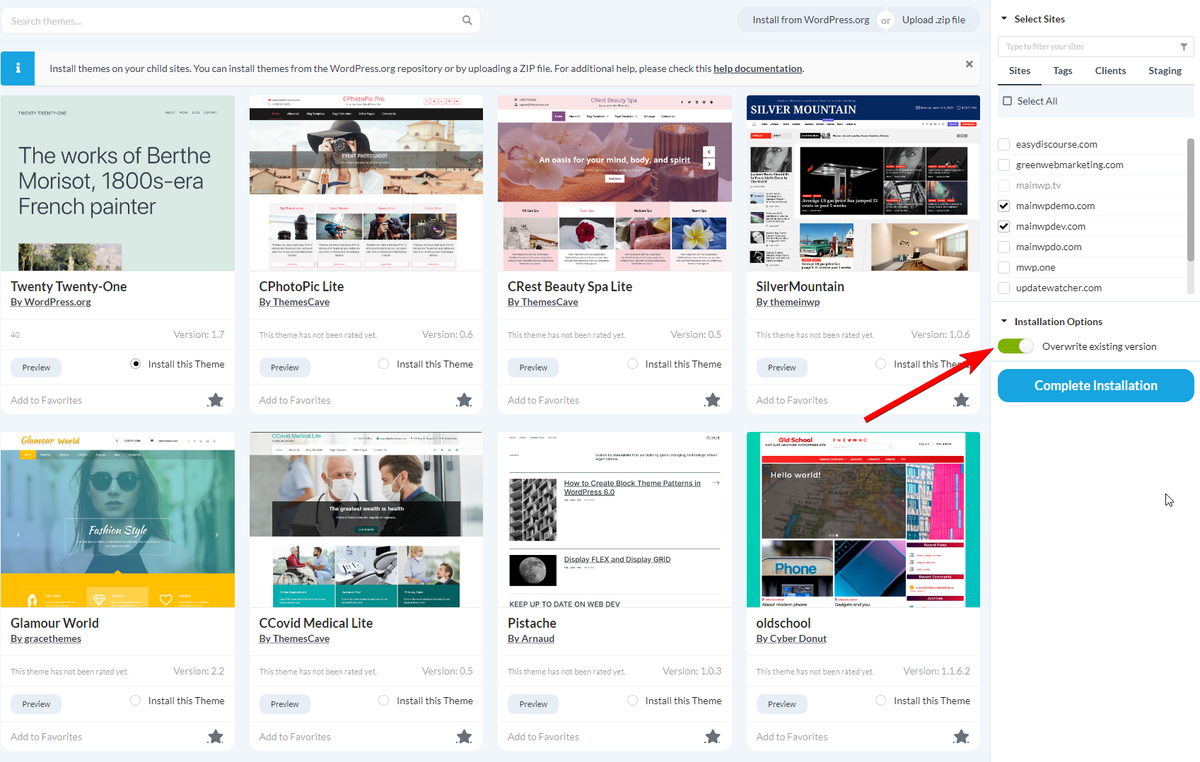
Configure the installation options:Overwrite existing checkbox in Installation Options
OptionDescription
Overwrite existing if already installedReplace the theme if already installed on the site
6

Install

Click Complete Installation.

Install by Upload

1

Navigate to Install Themes

Go to MainWP > Sites > Themes > Install.
2

Open upload tab

Click the Upload .zip file tab.
3

Upload file

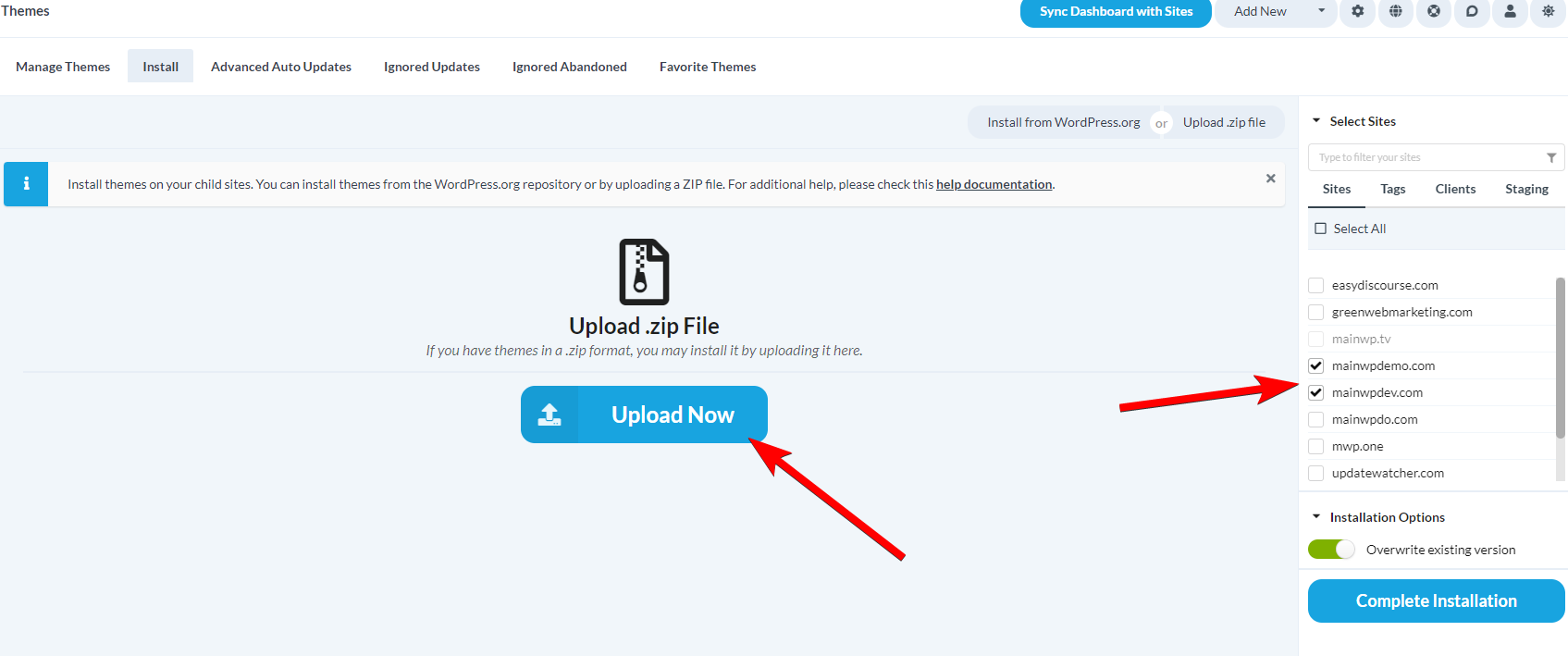
Click Upload and select the theme ZIP file from your computer.
4

Select sites

In the Select Sites box, choose the sites where you want to install the theme.
5

Set installation options

Configure the installation options:
OptionDescription
Overwrite existing if already installedReplace the theme if already installed on the site
6

Install

Click Complete Installation.Click the Complete Installation button
Your server must allow uploads of the theme’s file size. Check Maximum File Size on your Server Information page.

Install from Favorites

Select and install themes from your saved favorites using the MainWP Favorites Extension. Once you have a list of favorite themes, this provides the quickest way to set up new sites.

Activate Themes

1

Navigate to Manage Themes

Go to MainWP > Sites > Themes > Manage.
2

Select view

From the dropdown menu, select Per Site or Per Item view.
3

Select sites

In the Select Sites section, choose the sites to search.
4

Filter inactive themes

In the Search Themes section, set Status to Inactive. Optionally enter a theme name.
5

Search

Click Show Themes.
6

Select themes to activate

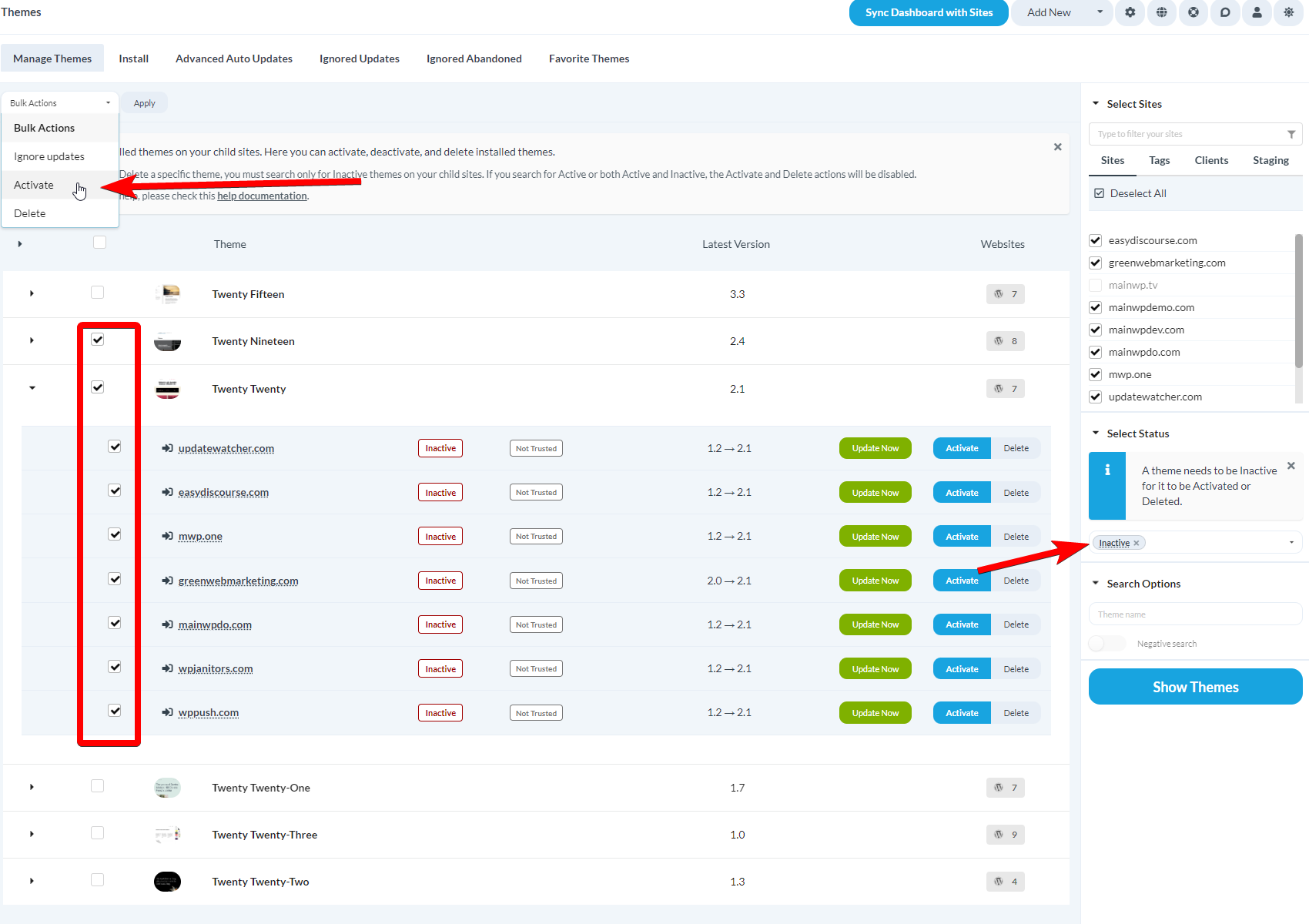
Check the boxes next to the themes you want to activate.Manage Themes table with checkboxes to select themes and sites for activation
7

Apply action

In the Bulk Actions menu, select Activate and click Confirm.

Update Themes

Synchronize your child sites before running updates to ensure all available updates are displayed.

Update All Themes on All Sites

1

Navigate to Theme Updates

Go to MainWP > Sites > Updates > Themes Updates.
2

Update all

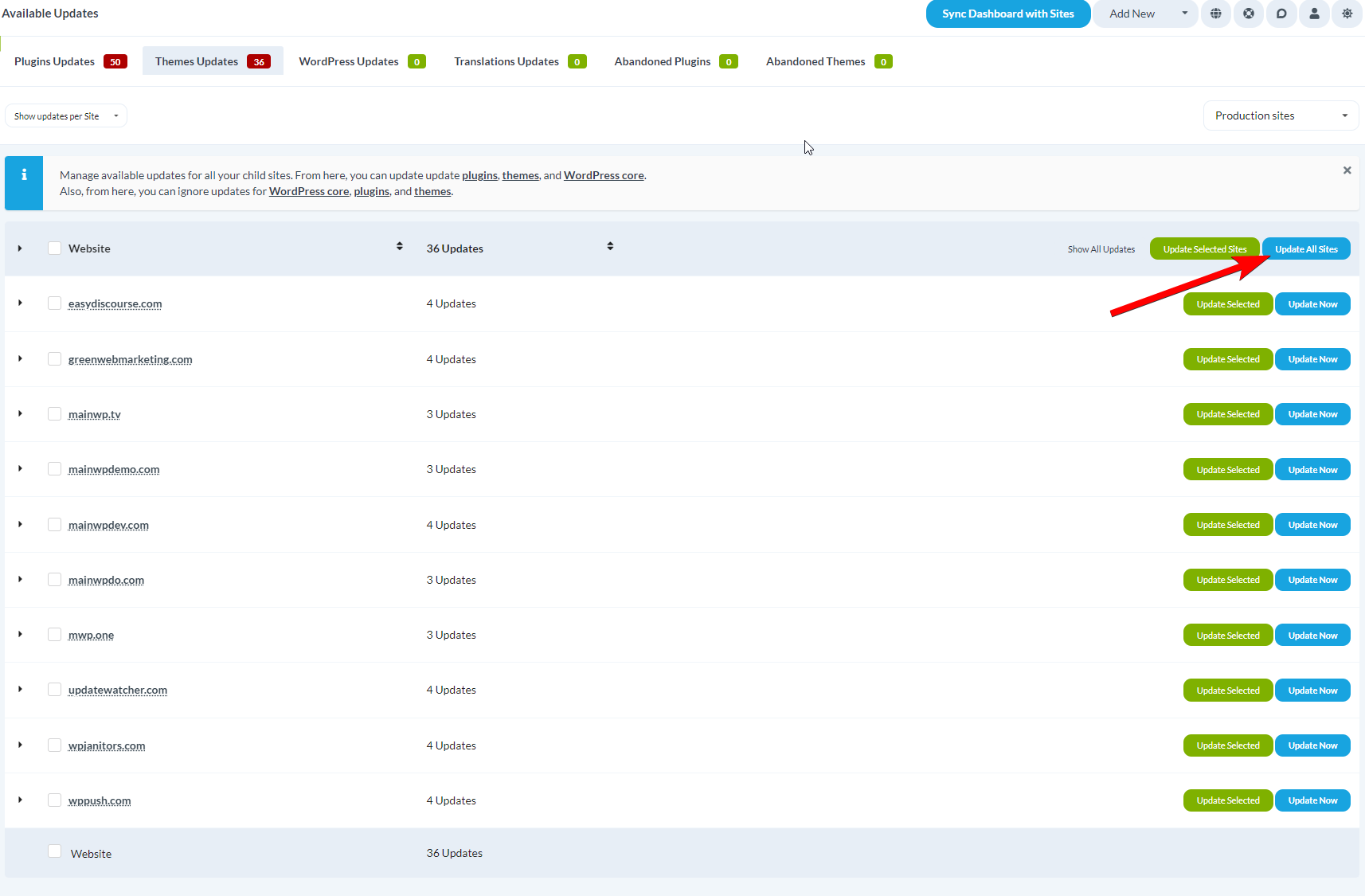
Click Update All Sites (Update All Themes).MainWP Themes Updates page with Update All Sites button highlighted
3

Confirm

Confirm the update when prompted.

Update a Single Theme on All Sites

1

Navigate to Theme Updates

Go to MainWP > Sites > Updates > Themes Updates.
2

Select view

Set Show updates per to Item.
3

Locate theme

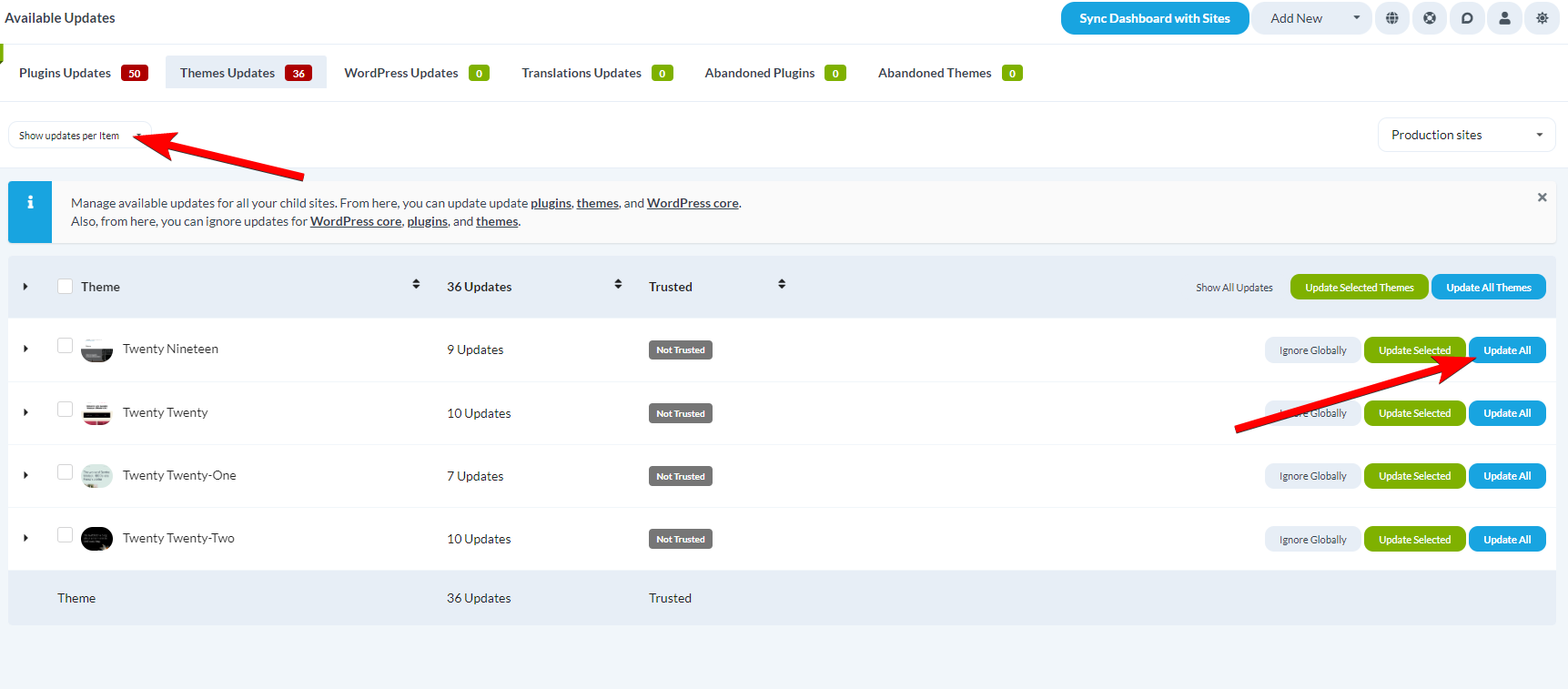
Find the theme you want to update.Theme Updates table with Update All button for updating a single theme across all sites
4

Update

Click Update All in the theme row.

Update All Themes on a Single Site

1

Navigate to Theme Updates

Go to MainWP > Sites > Updates > Themes Updates.
2

Select view

Set Show updates per to Site.
3

Locate site

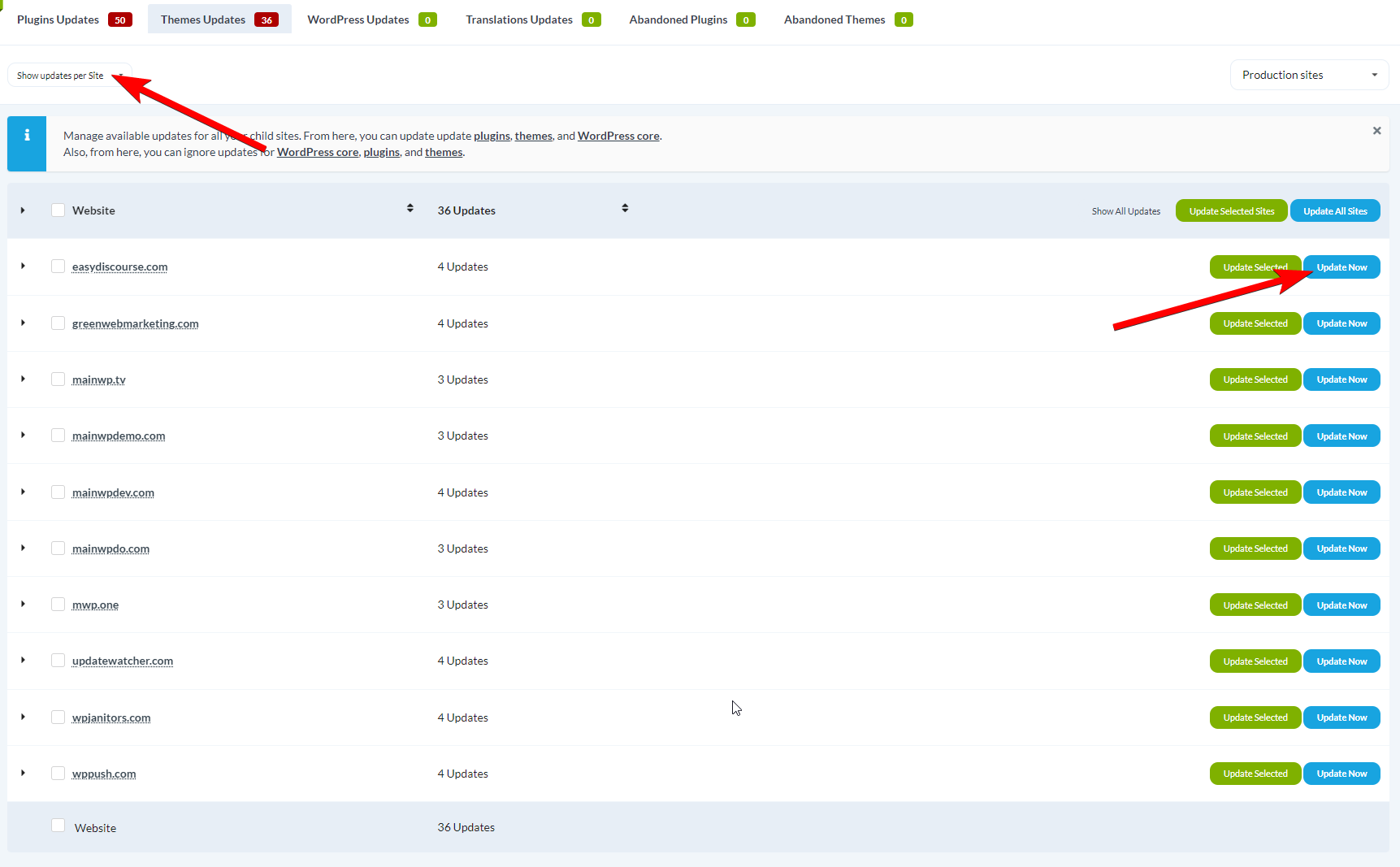
Find the child site you want to update.Theme Updates table showing Update All button for a single child site
4

Update

Click Update All in the site row.

Update a Single Theme on a Single Site

1

Navigate to Theme Updates

Go to MainWP > Sites > Updates > Themes Updates.
2

Select view

Set Show updates per to Site.
3

Locate site

Find the child site and expand its row.
4

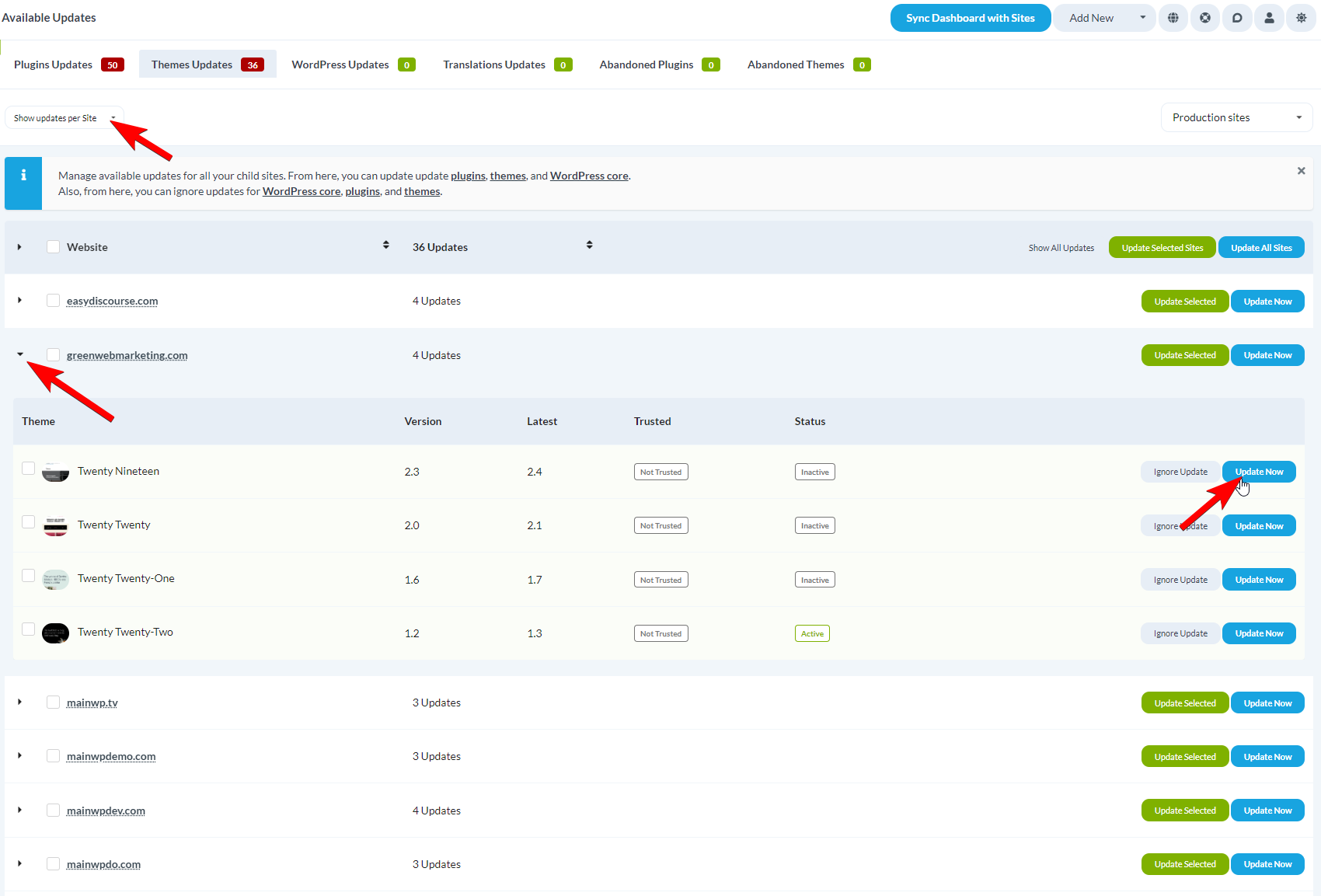
Update theme

Find the theme and click Update Now.Click the Update Now button

Delete Themes

Active themes cannot be deleted. The active theme must be changed before deletion.
1

Navigate to Manage Themes

Go to MainWP > Sites > Themes > Manage.
2

Select view

From the dropdown menu, select Per Site or Per Item view.
3

Select sites

In the Select Sites section, choose the sites where you want to delete themes.
4

Filter inactive themes

In the Search Themes section, set Status to Inactive. Optionally enter a theme name.
5

Search

Click Show Themes.
6

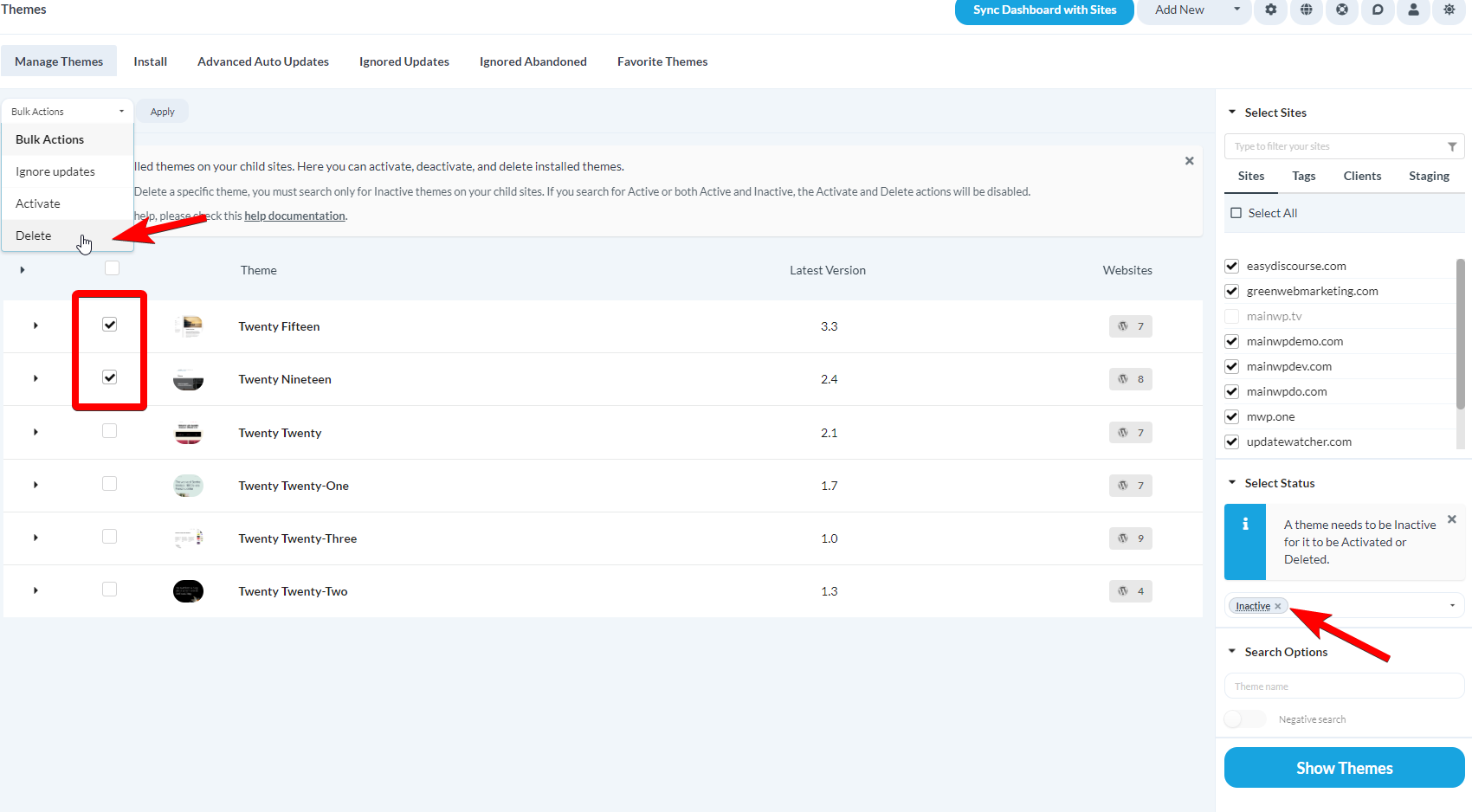
Select themes to delete

Check the boxes next to the themes you want to delete.Manage Themes table with checkboxes to select themes and sites for deletion
7

Apply action

In the Bulk Actions menu, select Delete and click Confirm.

Ignore Theme Updates

Ignoring a theme update removes it from the available updates list and the Update Overview widget. This is useful for themes you intentionally keep at a specific version.

Ignore Methods

MethodScope
GloballyTheme ignored on all child sites
Per SiteTheme ignored on specific sites only

Ignore a Theme on All Sites

1

Navigate to Theme Updates

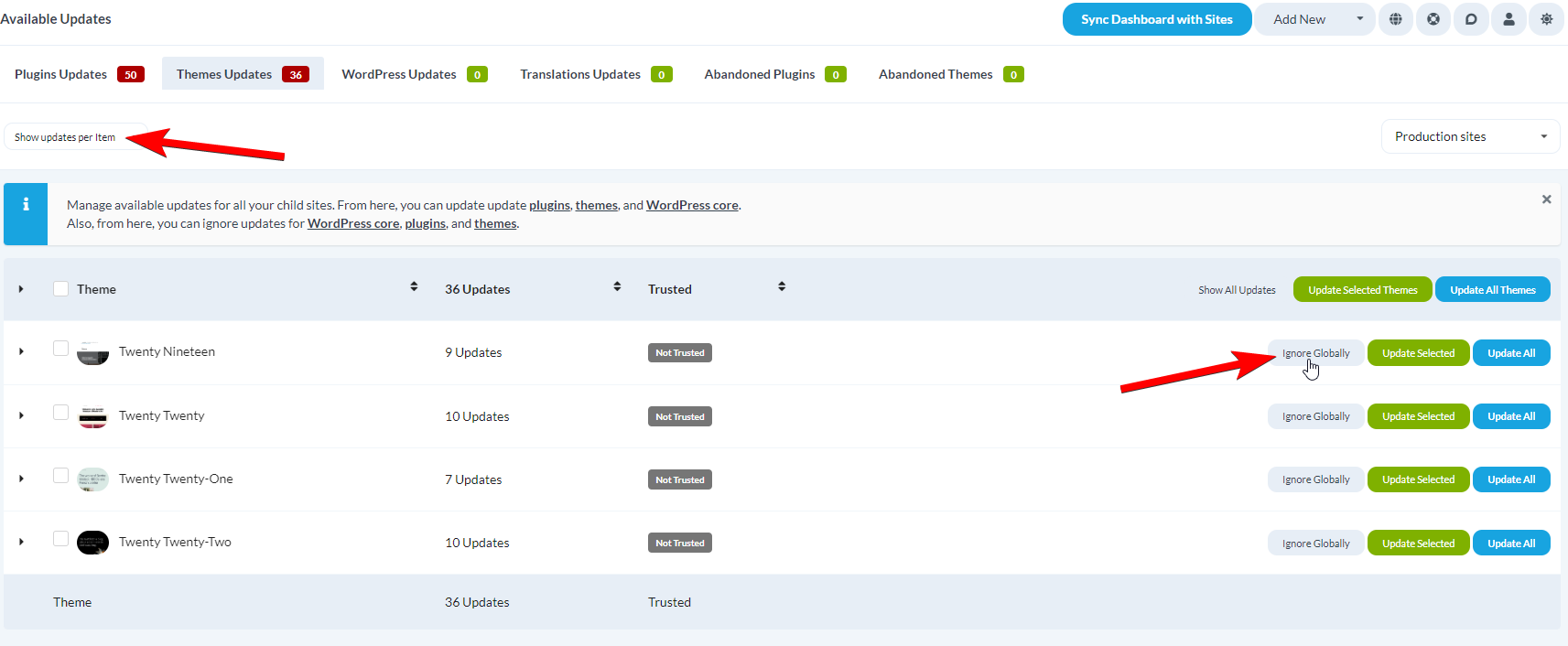
Go to MainWP > Sites > Updates > Themes Updates.Themes Updates page with View updates per Plugin/Theme dropdown and Ignore Globally button
2

Select view

Set View updates per to Plugin/Theme.
3

Ignore

Locate the theme and click Ignore Globally in its row.

Un-ignore a Globally Ignored Theme

1

Navigate to Ignored Updates

Go to MainWP > Sites > Themes > Ignored Updates.
2

Allow updates

In the Globally Ignored Themes table, locate the theme and click Allow.

Ignore a Theme on a Single Site

1

Navigate to Theme Updates

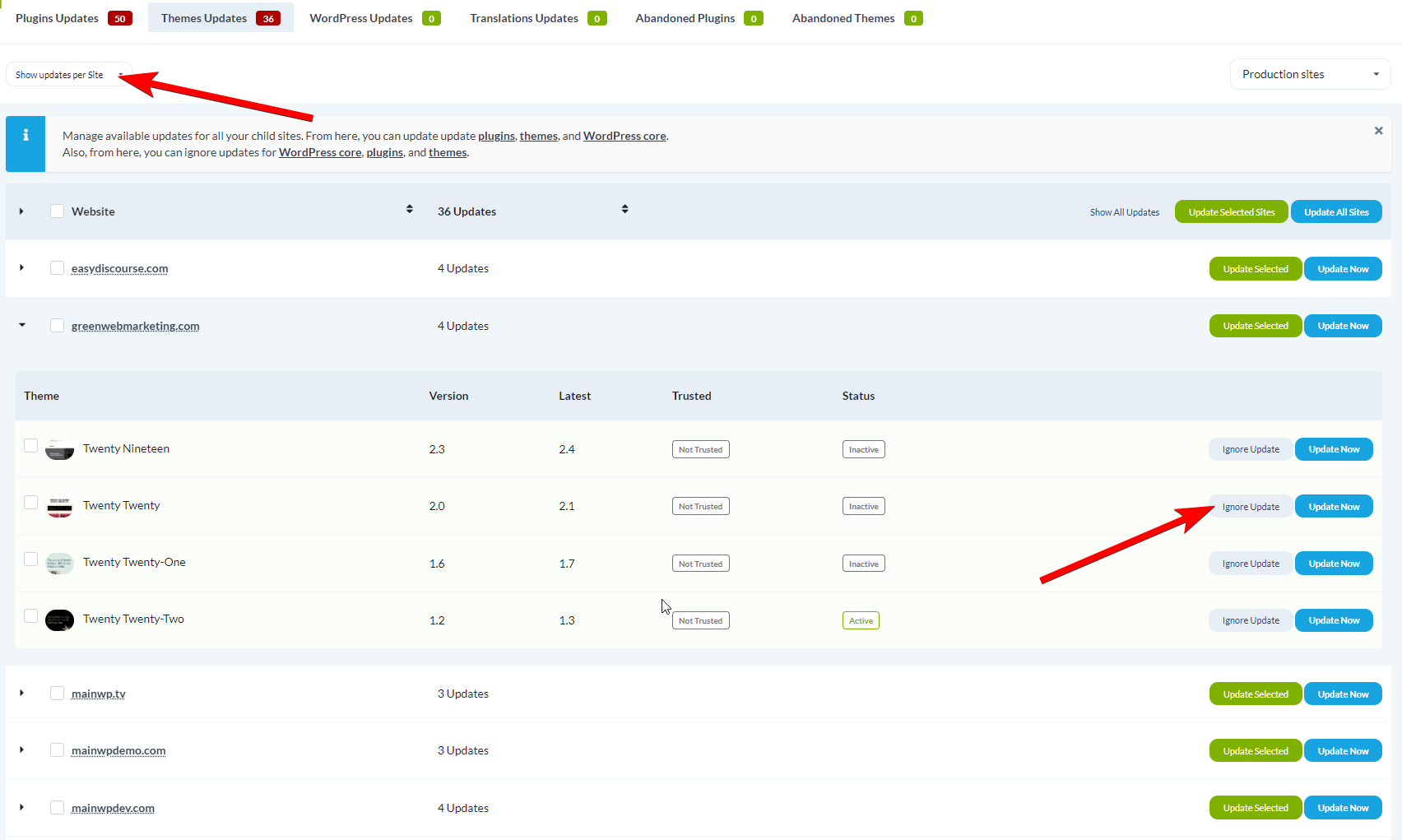
Go to MainWP > Sites > Updates > Themes Updates.Themes Updates page showing per-site view with Ignore button for individual themes
2

Select view

Set View updates per to Site.
3

Locate site

Find the child site and expand its row.
4

Ignore

Find the theme and click Ignore.

Un-ignore a Per-Site Ignored Theme

1

Navigate to Ignored Updates

Go to MainWP > Sites > Themes > Ignored Updates.
2

Allow updates

In the Per Site Ignored Themes table, locate the theme and click Allow.

Abandoned Themes

MainWP identifies themes that may be abandoned based on how long since their last update.

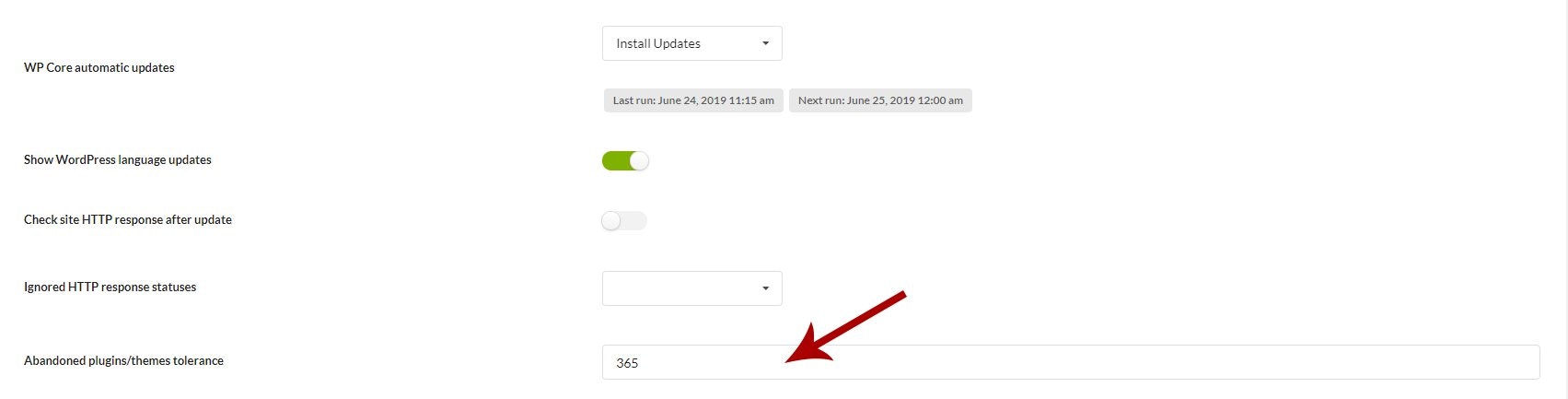
Set Abandoned Tolerance

1

Navigate to Settings

Go to MainWP > Settings.
2

Find Update Settings

Locate the Update Settings section.
3

Set tolerance

Find Abandoned plugins/themes tolerance and enter the number of days.Update Settings page showing Abandoned plugins/themes tolerance field
4

Save

Click Save Settings.
Themes without updates for the specified period appear in the Abandoned Themes section.

Self-Check Checklist

  • Themes install successfully on selected sites
  • Theme activation works across sites
  • Theme updates complete without errors
  • Ignored themes no longer appear in update lists
  • Deleted themes are removed from child sites