
What You’ll Accomplish
- Configure backup add-ons for plugin-based backups
- Set up API Backups with your hosting provider
- Create and restore backups from your Dashboard
- Troubleshoot common backup issues
Prerequisites
- MainWP Dashboard installed and activated
- Child sites connected to your Dashboard
- Backup add-on installed, or API credentials from your hosting provider
Backup Add-ons
MainWP integrates with popular backup plugins through dedicated add-ons:API Backups
API Backups lets you create backups directly through your hosting provider, cloud manager, or VPS without installing backup plugins on your sites.Supported Providers
Connect API Backups
Enter the credentials required by your provider in the MainWP settings. For Cloudways, use an Access Token; existing connections can continue using the legacy Account Email and API Key fields.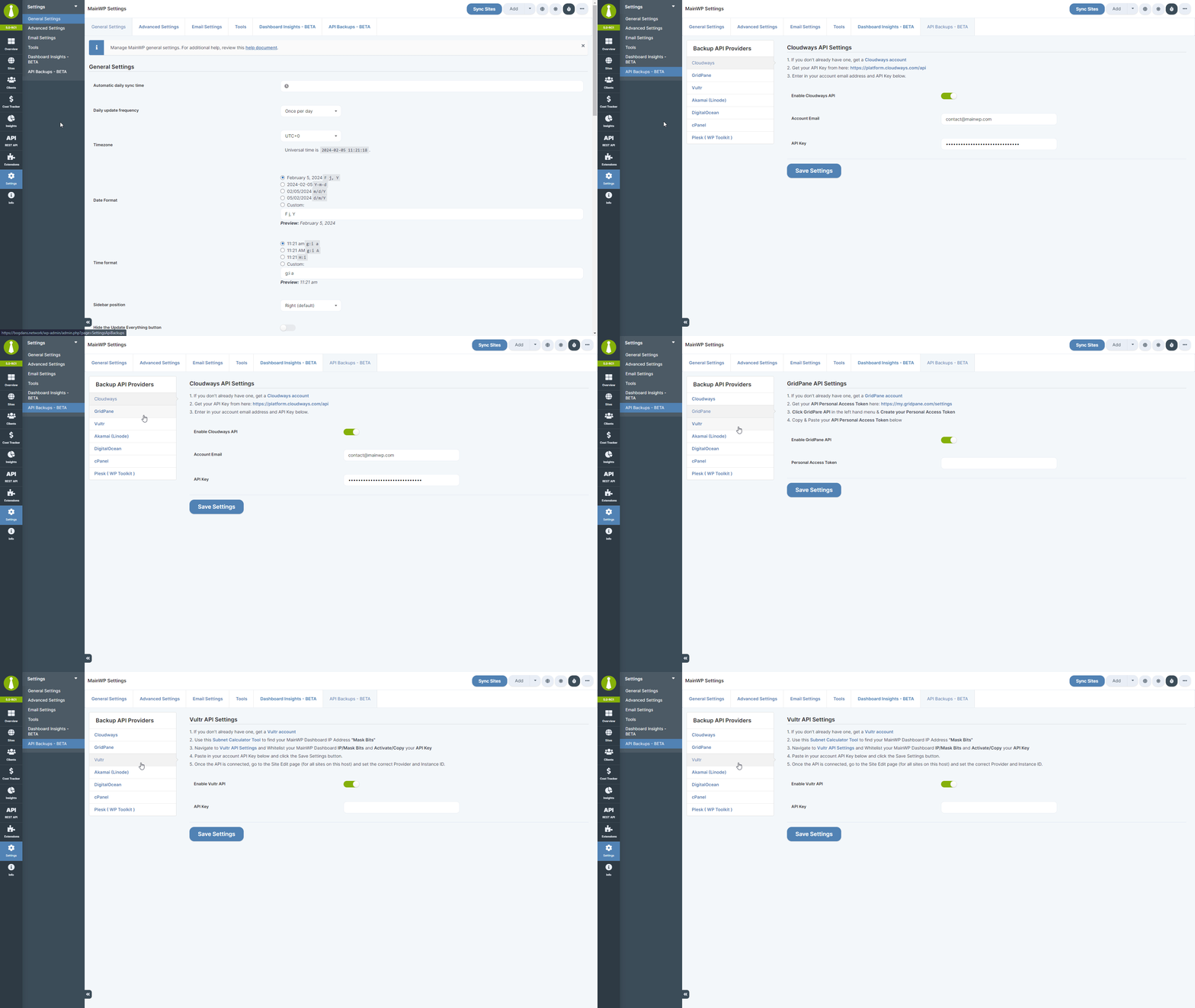
Assign Provider to Child Sites
Cloudways and GridPane automatically detect sites. For all other providers, assign the VPS provider to each child site manually.1
Open site settings
Go to the Child Site Overview > Edit page.
2
Configure backup provider
Locate the Backup API Provider Settings section, select your VPS provider from the dropdown, and enter the Instance ID.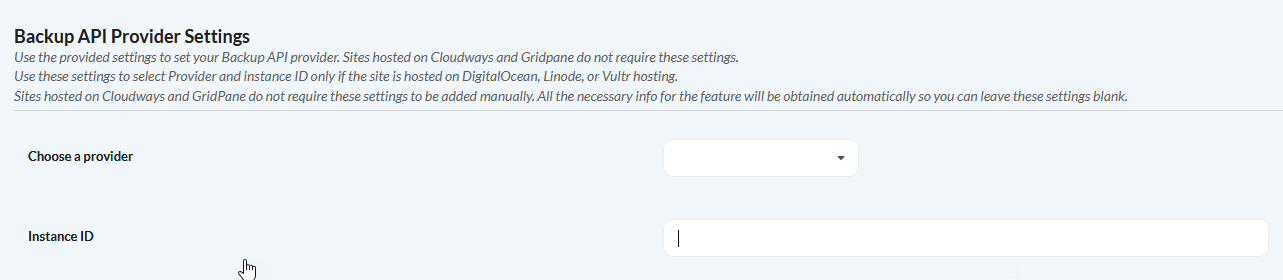
3
Save settings
Click Save Settings.
Per-Site Configuration
For all providers except Cloudways and GridPane, you can enter hosting information per site. This allows you to use multiple accounts from the same provider across your child sites.cPanel Backups
New cPanel installations have backups disabled by default. Contact your hosting support to enable backups, or follow these steps if you have WHM access.Check Backup Status
The system displays a red notification on the File and Directory Restoration interfaces when backups are unavailable:- cPanel: Home > Files > File and Directory Restoration
- WHM: Home > Backups > File and Directory Restoration
Enable Backups via Terminal
If the red notification appears, run these commands to enable backups:cPanel automatic backups run on a cron schedule. You may need to manually trigger the first backup via terminal if no automatic backups exist yet. See metadata management for details.
Multi-Site Environment Configuration
For cPanel accounts with multiple WordPress sites, install each site in its own folder. Site paths are case sensitive. Multi-site example:
Single-site example:
Connect DigitalOcean
1
Create a DigitalOcean account
Sign up at DigitalOcean if you don’t have an account.
2
Generate a Personal Access Token
Visit Apps & API > Tokens in your DigitalOcean control panel.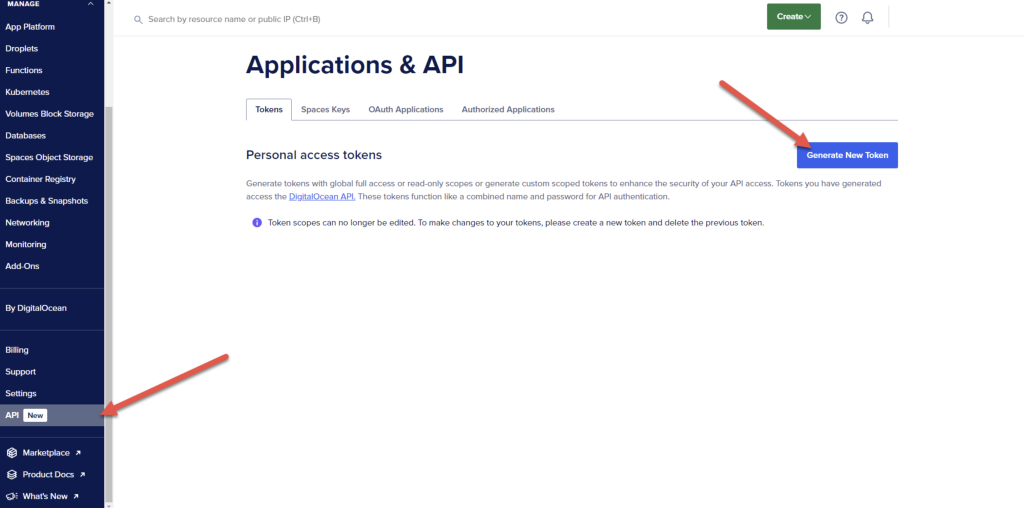
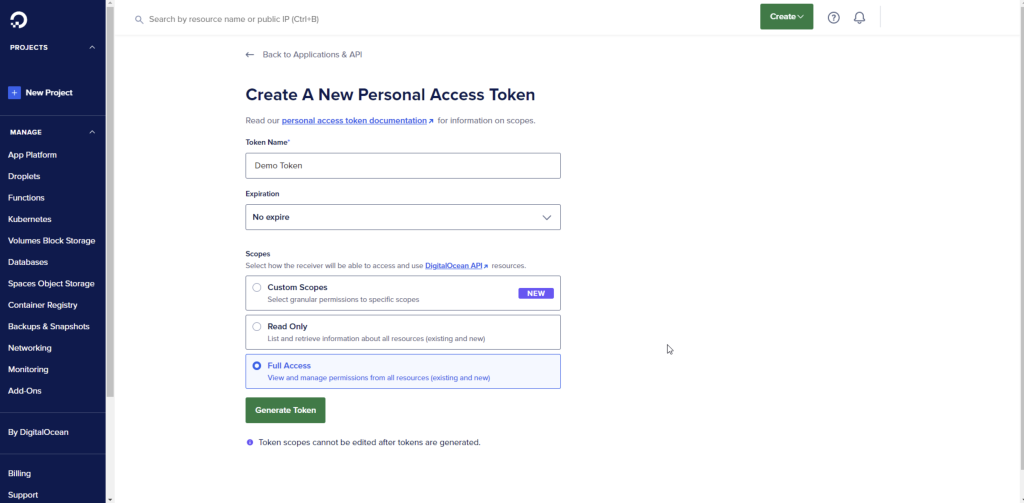
3
Enter the token in MainWP
Paste your Personal Access Token in the API Backups settings and click Save Settings.
4
Configure child sites
Go to each site’s Edit page and set the correct Provider and Instance ID. Find the Instance ID in the Droplet URL or through droplet metadata.
Connect Kinsta
Find Your Kinsta Credentials
1
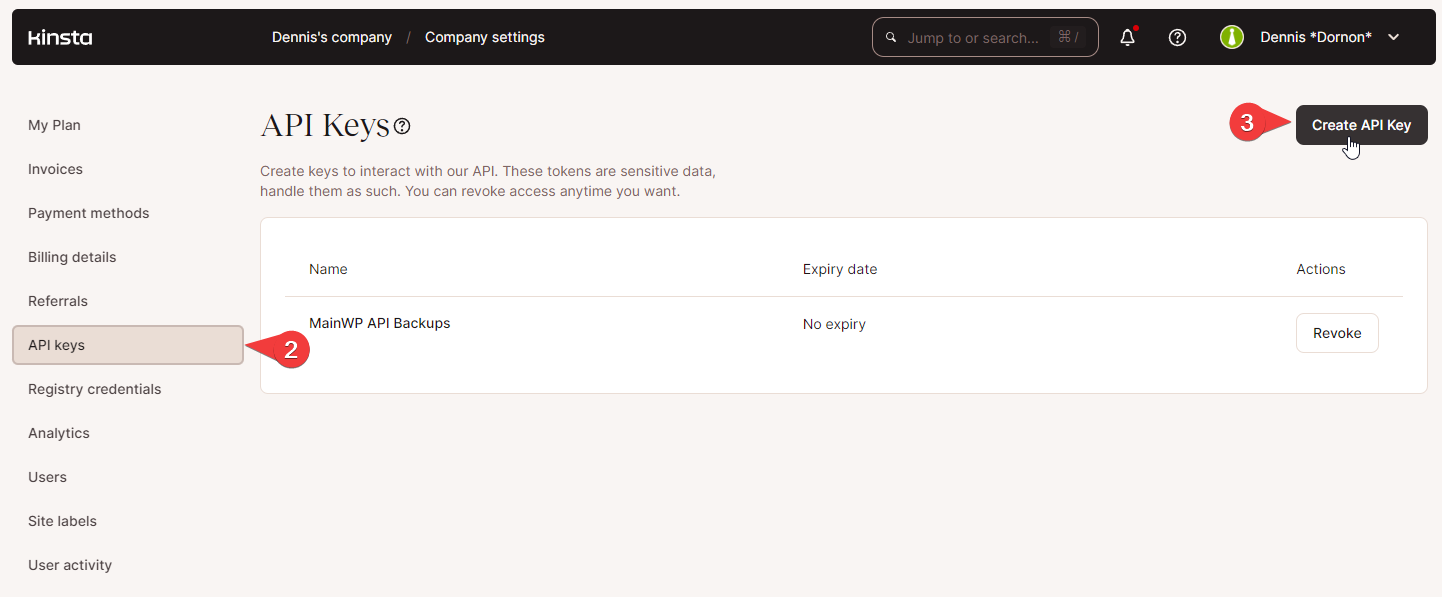
Create an API Key
Navigate to Company Settings > API Keys and click Create API Key.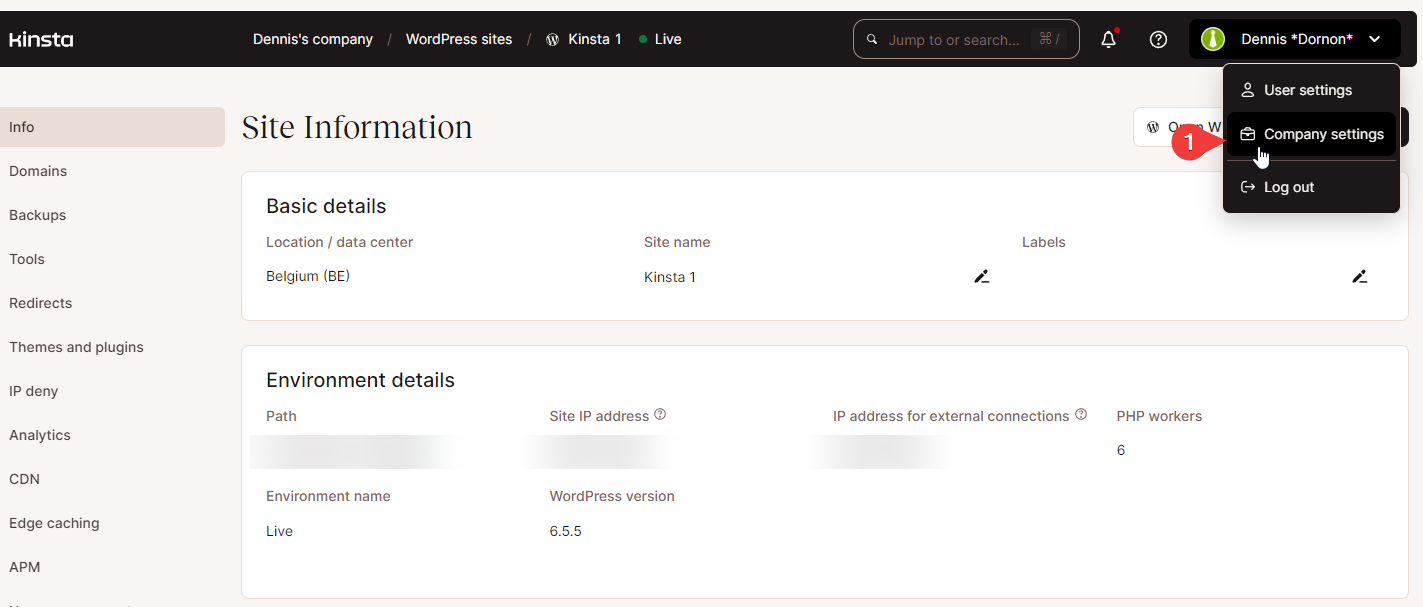
2
Find Environment and Company IDs
Click on a site, go to Info, and locate both IDs in the browser address bar.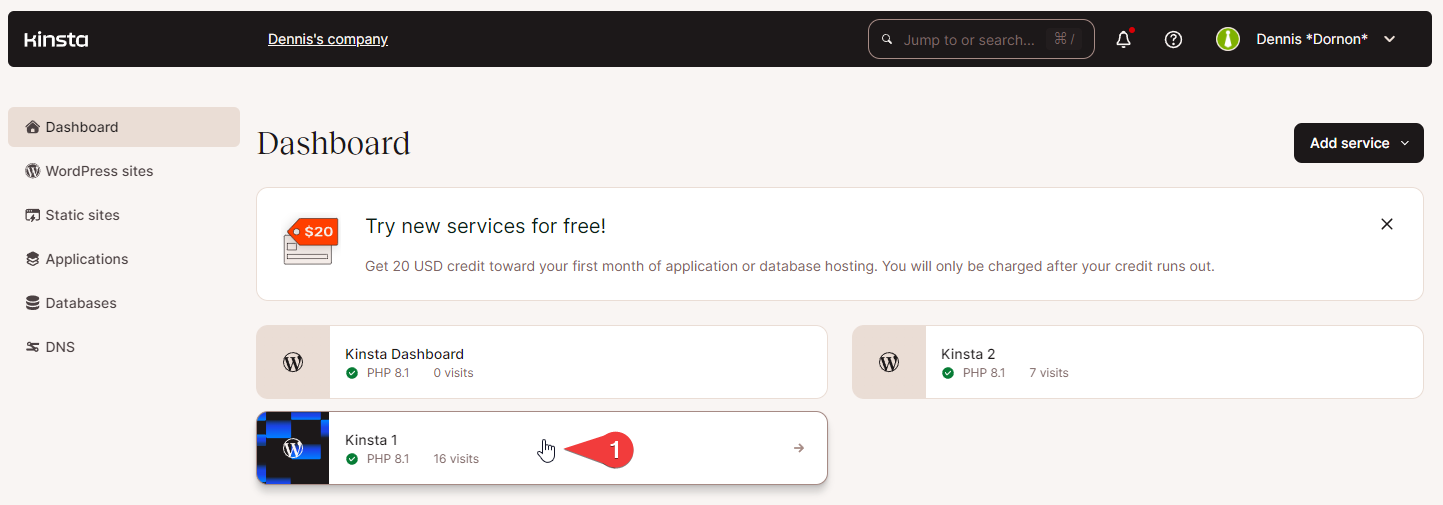

Configure Global Settings
1
Open API Backups settings
Navigate to Sites > Backups > API Backups > Manage API Settings > Kinsta.
2
Enable and save
Turn on Enable Kinsta API, enter your API Key, and click Save.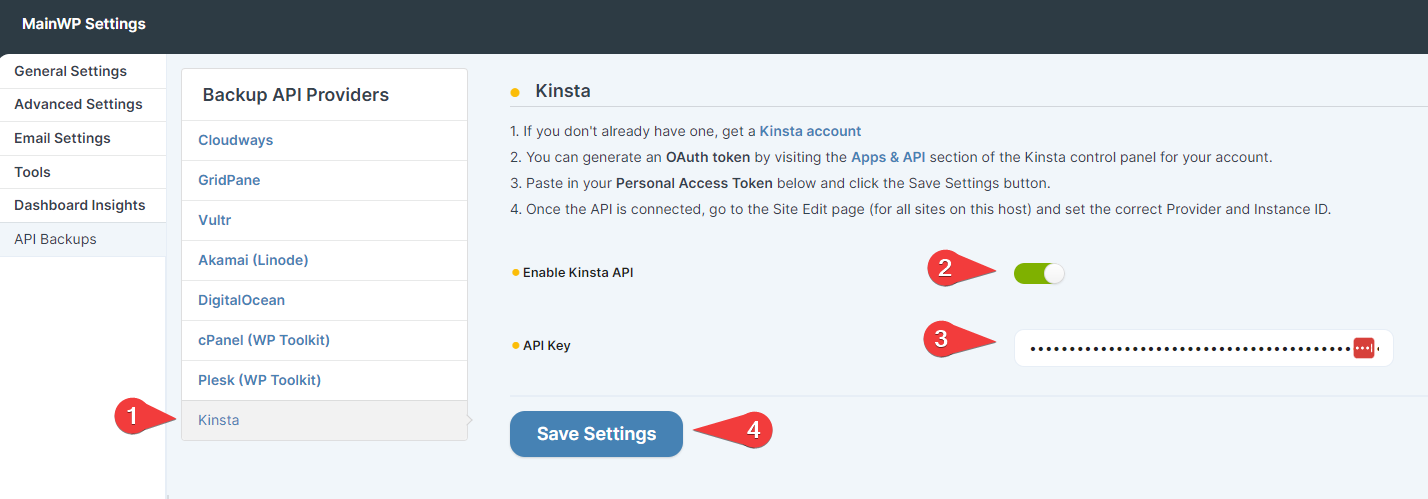
Configure Individual Sites
Navigate to each child site’s Edit page and scroll to the bottom. Select Kinsta from the provider dropdown and enter your Account Email, Company ID, and Environment ID. For sites using a different Kinsta account, enable Overwrite Global Settings and enter the alternate API Key.Use Kinsta Backups
After configuration, the API Backups tab displays Kinsta restore points such as automatic daily and manual backups. These entries can be restored or deleted, but they are not downloadable ZIP files. Click Refresh Available Backups to update the lists, or Backup Now to create a new manual restore point in Kinsta.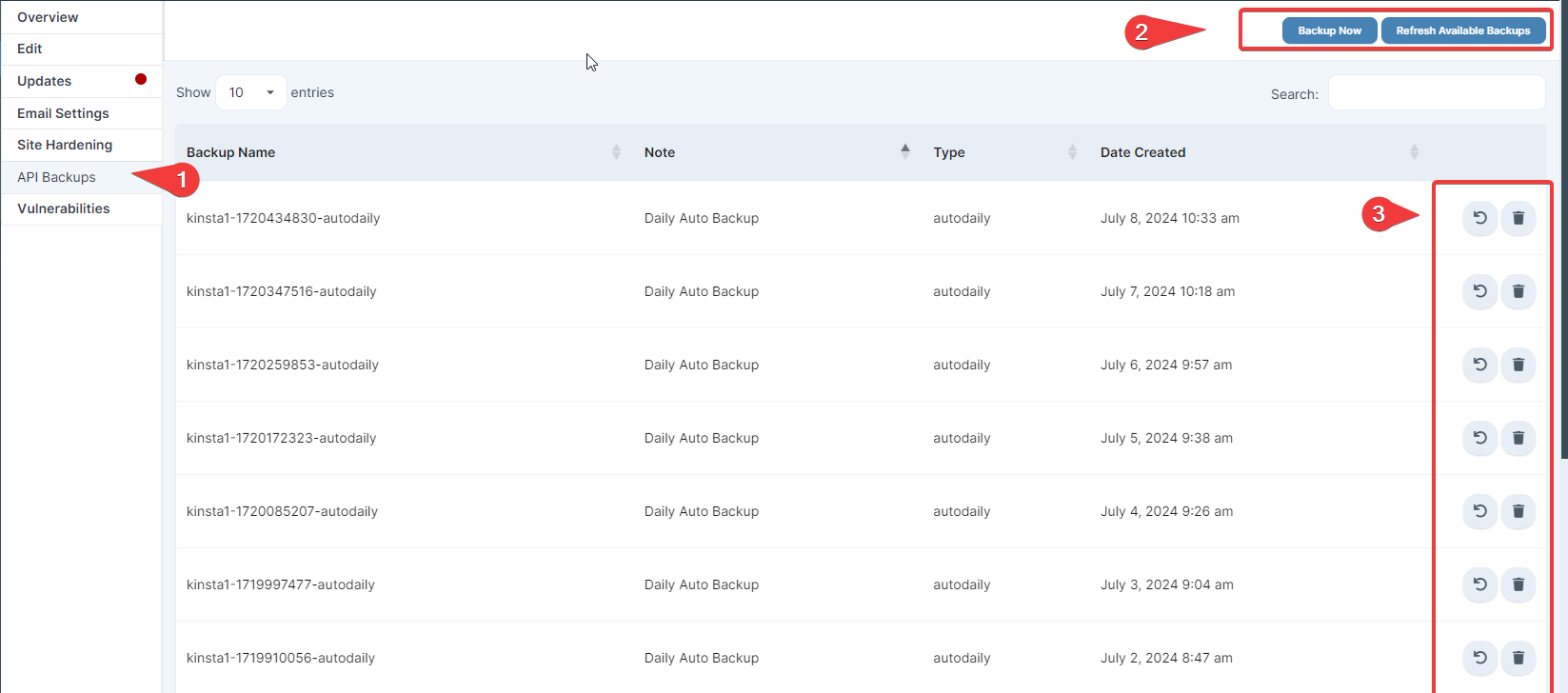
A Kinsta downloadable backup is a separate ZIP export containing the site’s files and database. MainWP cannot create this export. To create one, go to MyKinsta > Sites > your site > Backups > Download and click Create backup now.When Kinsta finishes creating the archive, return to MainWP and click Refresh Available Backups. MainWP retrieves existing downloadable backups separately and displays any active download link returned by Kinsta under Downloadable Backups.See Kinsta’s downloadable backup documentation for current creation limits and availability periods.
Create Backups
Individual Site Backup
1
Navigate to API Backups
Go to MainWP > Sites > API Backups.
2
Create backup
Locate the site and click Backup from the ellipsis menu.
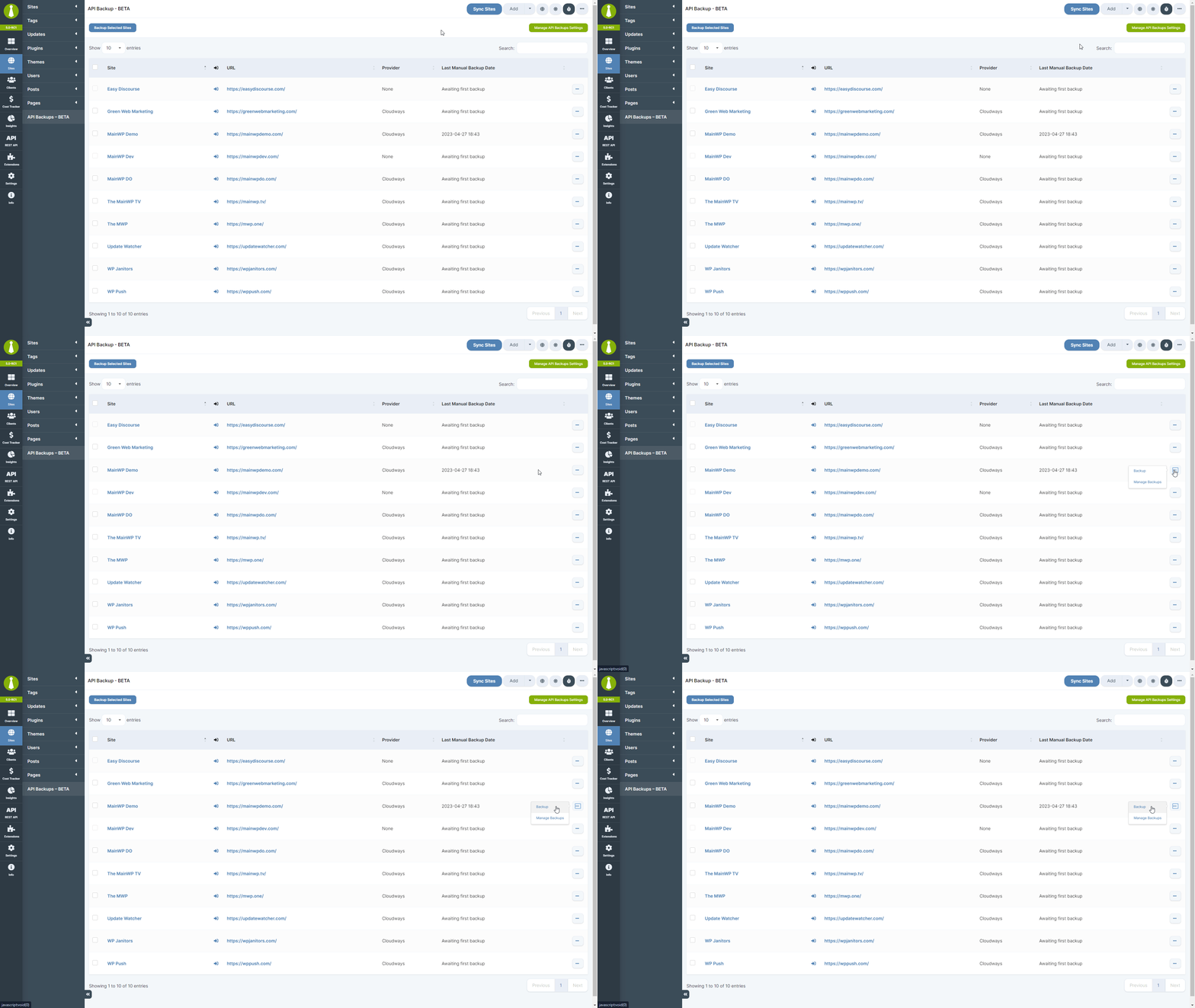
Backup duration depends on site size and host speed.
Multiple Sites Backup
1
Navigate to API Backups
Go to MainWP > Sites > API Backups.
2
Select and backup
Check the boxes next to desired sites and click Backup Selected Sites.
Restore Backups
1
Navigate to API Backups
Go to MainWP > Sites > API Backups.
2
Manage backups
Locate the site and click Manage Backups from the ellipsis menu.
3
Restore
Find the desired backup and click Restore Backup from the ellipsis menu.
Restore duration depends on site size and host speed.
Backup Storage Location
MainWP API Backups triggers backups through provider APIs. Your hosting provider handles storage according to their configured settings.cPanel DB Backups: Manual database backups are created via MySQLdump on the child site server and placed in
/wp-content/uploads/mainwp/api_db_backups/.Troubleshooting
Kinsta 404 Errors
If Kinsta API Backups fail to load or show a 404 error, the problem is usually an incorrect Environment ID or a temporary API issue. Example error from Custom Event Monitor:1
Verify Environment ID
The Environment ID appears in the URL of the container package, not elsewhere in the interface.
2
Check all credentials
Confirm your Account Email, Company ID, and API Key are entered correctly.
3
Save and refresh
Save settings and click Refresh Available Backups.
Plesk ID Confusion
Plesk API Backups may fail if you use the wrong ID during setup. Each WordPress installation in Plesk WP Toolkit has three IDs:
Solution: Use the Main Site ID instead of the Domain ID when configuring your Plesk connection in MainWP. Re-save settings and retry the backup.
Self-Check Checklist
- API credentials are entered and saved
- Child sites are assigned to the correct provider
- Test backup completes successfully
- Backups appear in the Manage Backups list
- Test restore works (on a staging site if possible)
Related Resources
- Why doesn’t MainWP include backups - Backup philosophy explained
- Backup Add-ons - All backup add-ons