
wpos-analytics / Essential Plugin supply chain attack described by Anchor Host. The incident was unrelated to MainWP, but this snippet gives MainWP users a fast way to inspect multiple child sites from one dashboard.
Copy the latest version of the detection snippet from GitHub.
What You’ll Learn
- Why this snippet exists
- What the snippet checks for
- How to run it with Return info from Child Sites
- How to interpret the results and what to do next
Prerequisites
- A MainWP Dashboard with the Code Snippets add-on installed
- Child sites connected to your MainWP Dashboard
- The detection snippet copied from GitHub
This snippet is read-only when you run it as Return info from Child Sites.
It checks each child site and returns findings in the console. It does not save
code on the child site and does not modify
wp-config.php.Why We Made This Snippet
According to Anchor Host’s investigation, malicious code was planted in multiple Essential Plugin updates on August 8, 2025 and activated on April 5-6, 2026. The injectedwpos-analytics code phoned home to analytics.essentialplugin.com, created a fake wp-comments-posts.php file in the site root, and appended malicious code to wp-config.php.
We created this snippet so MainWP users can quickly inspect many child sites for the known indicators of this specific compromise without logging in to each site one by one.
What the Snippet Checks
- Unexpected content appended after the
wp-settings.phprequire line inwp-config.php eval()orbase64_decode()attached to that same line- Known indicators in
wp-config.php, includinganalytics.essentialplugin.com,wp-comments-posts.php,wpos-analytics,wpos_analytics_anl,Plugin Wpos Analytics Data Starts,ethereum, andweb3 - The presence of
wp-comments-posts.phpin the site root - An unusually large
wp-config.php
wp-config.php is over roughly 9 KB. Clean files are often under 5 KB, so size alone is not proof of compromise, but it is worth inspecting.
Deploy and Run the Snippet
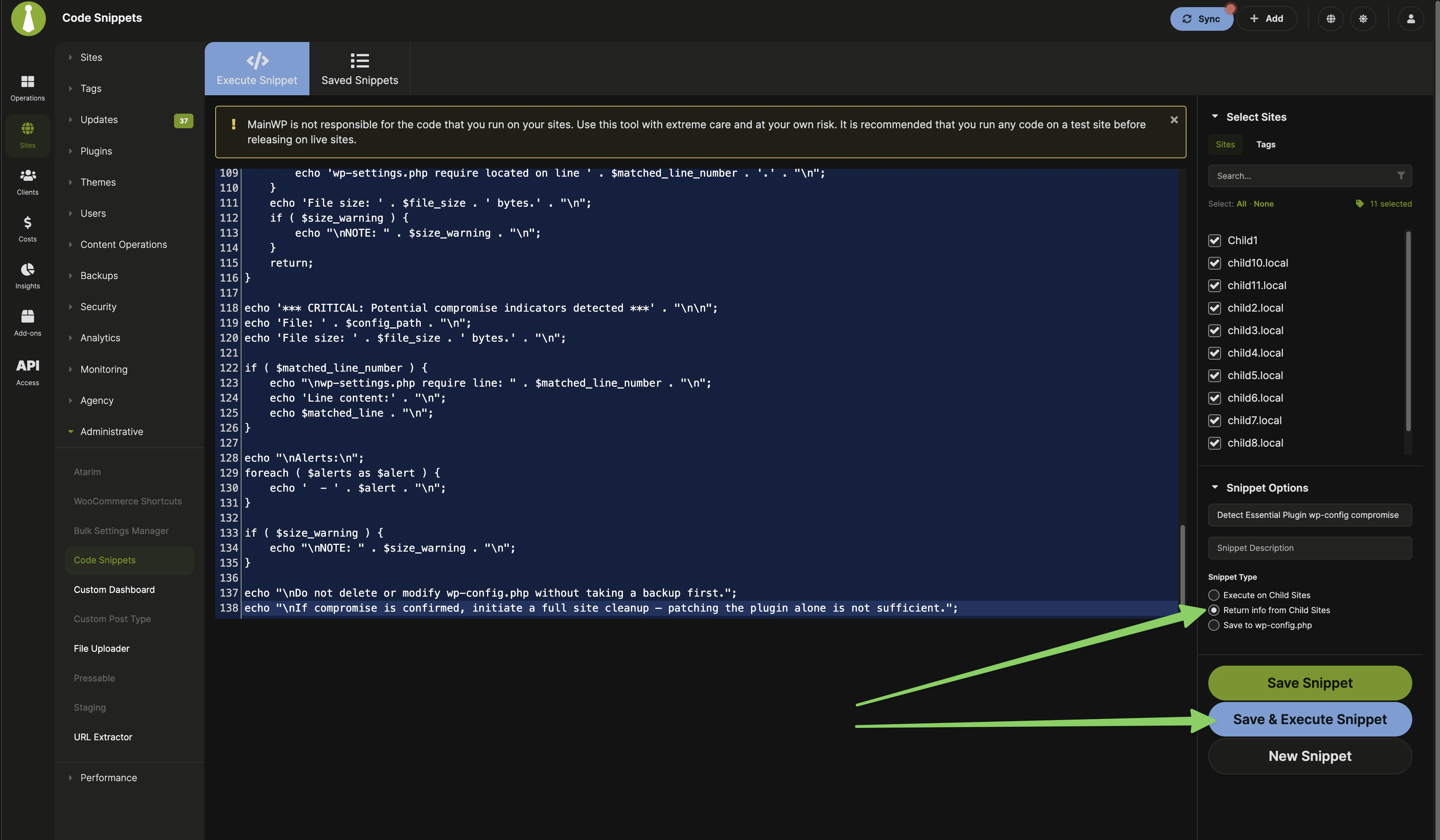
1
Copy the latest version of the snippet
Open the GitHub source file and copy the full PHP snippet.
2
Open the Code Snippets add-on
Go to MainWP > Add-ons > Code Snippets > Execute Snippet.
3
Enter a title and optional description
Use a clear title such as Detect Essential Plugin wp-config compromise so you can find it again later in Saved Snippets.
4
Select the correct snippet type
Choose Return info from Child Sites.This is important. This snippet should not be run as Execute on Child Sites or Save to wp-config.php.
5
Select the child sites or tags to scan
Choose the sites you want to inspect. If you know which sites used affected Essential Plugin plugins, start with those sites first. Otherwise, you can run the check across all relevant child sites.
6
Paste the code and run the snippet
Paste the snippet into the editor, then click Save & Execute Snippet.
7
Review the output in the console
MainWP opens the console and returns the result for each selected child site. Look for
OK, CRITICAL, or ERROR in the output.If you save the snippet in MainWP Dashboard, you can run it again later from
Saved Snippets. Even when saved there, the code is still not stored on
child sites when you use Return info from Child Sites.
What the Results Mean
If the snippet reports that
wp-config.php is unusually large, treat that as an additional warning sign and inspect the file closely.
If a Site Is Flagged
- Take a fresh backup or snapshot before editing anything.
- Review
wp-config.phpand the site root for the indicators listed in the snippet output. - Remove the affected plugin and replace its functionality with a trusted alternative.
- Perform a full malware review and cleanup of the site.
- Re-run the snippet after cleanup to confirm the known indicators are gone.
Related Resources
- Code Snippets - Main documentation for the add-on
- Managing Plugins with MainWP - Update, install, and remove plugins across child sites
- Wordfence Integration - Additional security monitoring