
What You’ll Learn
- How MainWP selects your profile picture
- How to change your avatar
- WordPress avatar settings
How the Avatar is Selected
MainWP checks these settings in order:1. Show Avatars Disabled
If Show Avatars is disabled on your Dashboard site, a generic user icon appears. Location: WP Admin > Settings > Discussion
2. Gravatar Linked
If Show Avatars is enabled and your email address is linked to a Gravatar account, your Gravatar image displays. Location: WP Admin > Users > Profile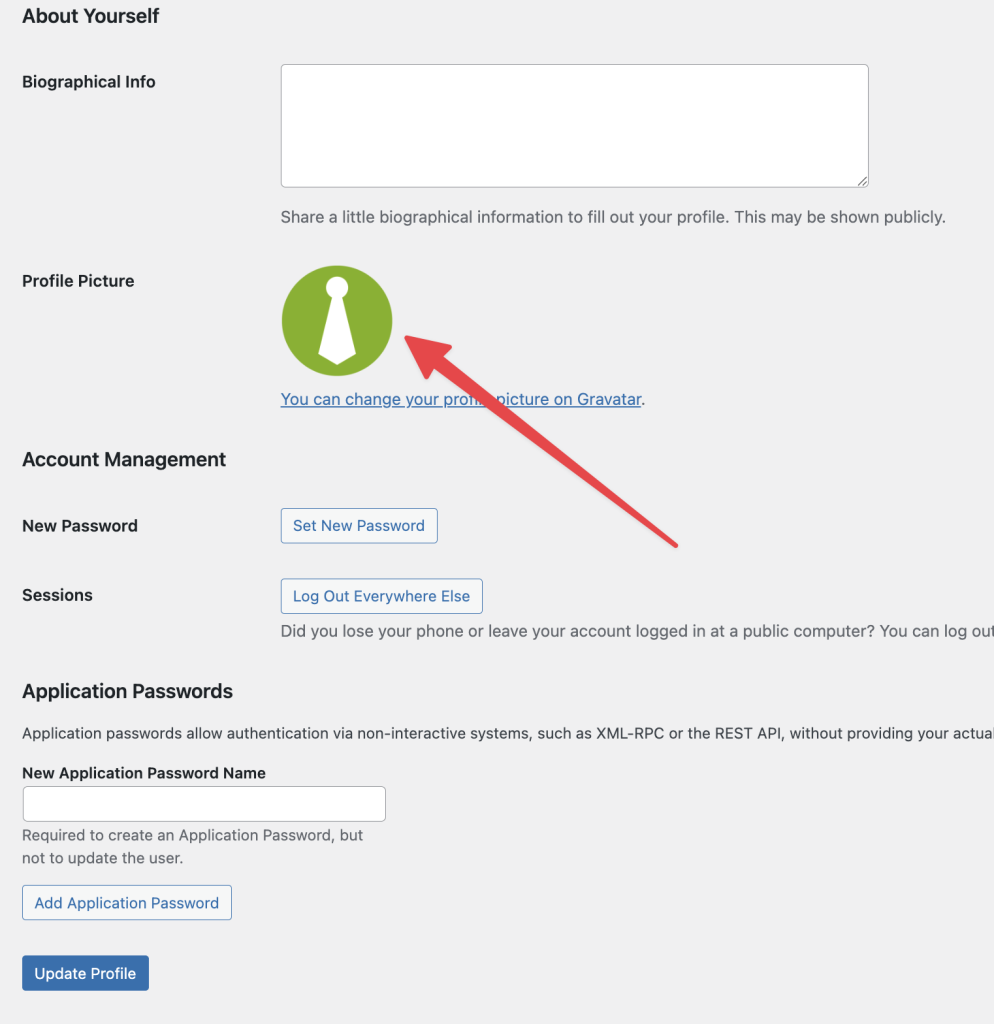
3. Default Avatar
If you don’t have a Gravatar, WordPress displays the default avatar selected in Discussion settings. Location: WP Admin > Settings > Discussion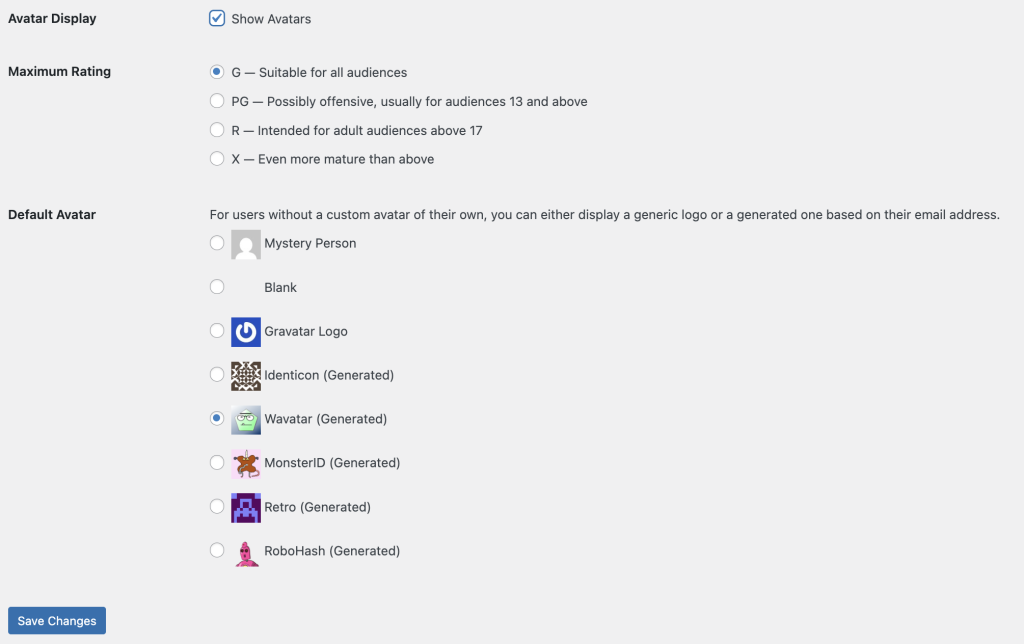
Change Your Profile Picture
Self-Check Checklist
- Check if Show Avatars is enabled (WP Admin > Settings > Discussion)
- Verify email address in your user profile
- Gravatar account linked to your email (optional)
- Avatar displays correctly in Dashboard toolbar
Related Resources
- Customize Dashboard Logo - Change the MainWP logo
- White Label Extension - Complete Dashboard branding