
This page documents built-in Monitoring Settings in MainWP Dashboard. It is different from the Advanced Uptime Monitor Add-on.
What You’ll Learn
- Access the Monitoring Settings page
- Configure Site Health Monitoring options
- Configure global uptime monitoring options
- Set data retention for monitoring history
- Review status code details in monitoring views
- Configure uptime email notifications, including recovery alerts
- Use the
[uptime.status]token in uptime monitoring emails - Override settings per site and add sub-monitors
Prerequisites
- MainWP Dashboard plugin installed and activated
- MainWP Child plugin connected on the sites you want to monitor
- WP Cron or server cron configured for scheduled checks
- Access to MainWP Dashboard settings and email settings
Access Monitoring Settings
1
Open Monitoring Settings
Go to MainWP > Settings > Monitoring Settings.
2
Locate Uptime Monitoring
In the Uptime Monitoring section, configure global monitor behavior for all child sites.
3
Locate Site Health Monitoring
In the Site Health Monitoring section, configure health monitoring behavior.
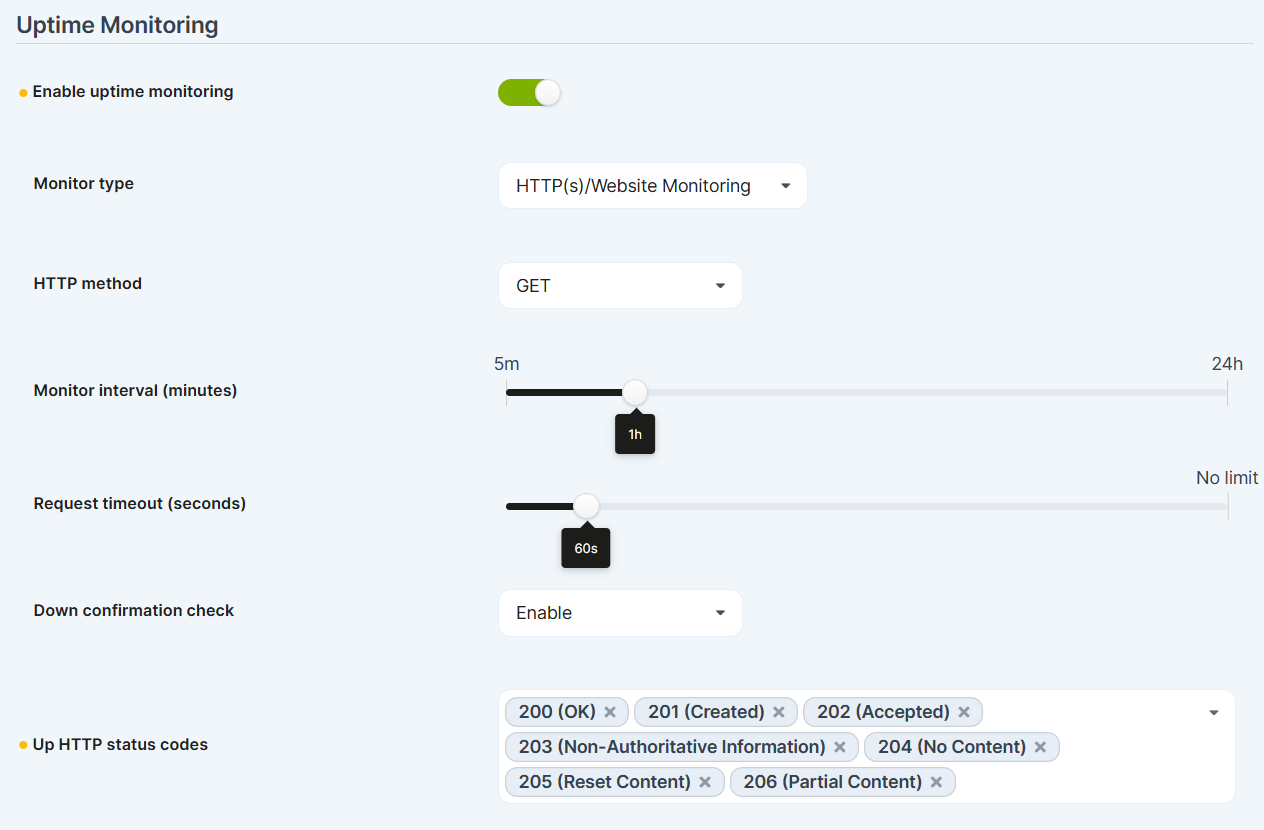
Monitoring Settings Reference
HTTP Response Check Settings
Check site HTTP response after update and Check site HTTP response method are global-only settings. Configure them under MainWP > Settings > Monitoring Settings; they do not appear when editing an individual site’s Uptime Monitoring settings. The status-code list is shared with Uptime Monitoring and can still be overridden per site.Uptime Monitoring Settings
Enable Attempt to bypass page cache when a caching layer may return a stored response instead of the current site response. Cache bypass is best effort and does not guarantee that a CDN, proxy, or page cache will forward the request to the origin server.
Monitoring Data Retention options:
- Keep forever (no automatic cleanup)
- 30 days
- 90 days (3 months)
- 180 days (6 months)
- 365 days (1 year)
Configure Maximum simultaneous uptime monitoring requests in MainWP > Settings > Advanced Settings.
Site Health Monitoring Settings
WordPress Site Health is a WordPress core feature that evaluates the site’s configuration and reports whether the site is in good condition or needs attention. It combines checks for areas such as performance, security, and recommended configuration, then presents the results in the built-in Site Health screen.
On each child site, you can review the same information directly in the site
wp-admin under Tools > Site Health. The child site’s Site Health screen includes the native WordPress Status and Info tabs.
Site Health Monitoring in this page uses that existing WordPress core Site Health data and does not rely on third-party services. MainWP simply retrieves the Site Health result already generated on the child site, compares it against your configured threshold, and relays the status in your MainWP Dashboard and notifications.
Site Health Monitoring notification templates support the [site.name] token for dynamic site name insertion.
Use [site.name] in the email subject, heading, or template content to insert the child site name automatically.
Monitoring Views and Status Codes
Monitoring Table
Go to MainWP > Sites > Monitoring to review monitor status across sites. The Monitoring table includes a Status code column so you can quickly see the latest HTTP response code for each monitor.Individual Site Uptime Widget
On the individual site Operations page, the Uptime Monitoring widget shows:- Current status (UP, DOWN, PENDING, or DISABLED)
- Current HTTP status code
- Incidents and uptime ratio
- Response time history
Site Health in Monitoring Views
The Monitoring page also includes Site Health indicators so you can review health state alongside uptime data. These indicators reflect the same WordPress core Site Health status shown on the child site in Tools > Site Health, allowing you to monitor that native WordPress information centrally from MainWP Dashboard.Uptime Monitoring Email Notifications
Go to MainWP > Settings > Email Settings > Uptime Monitoring Email.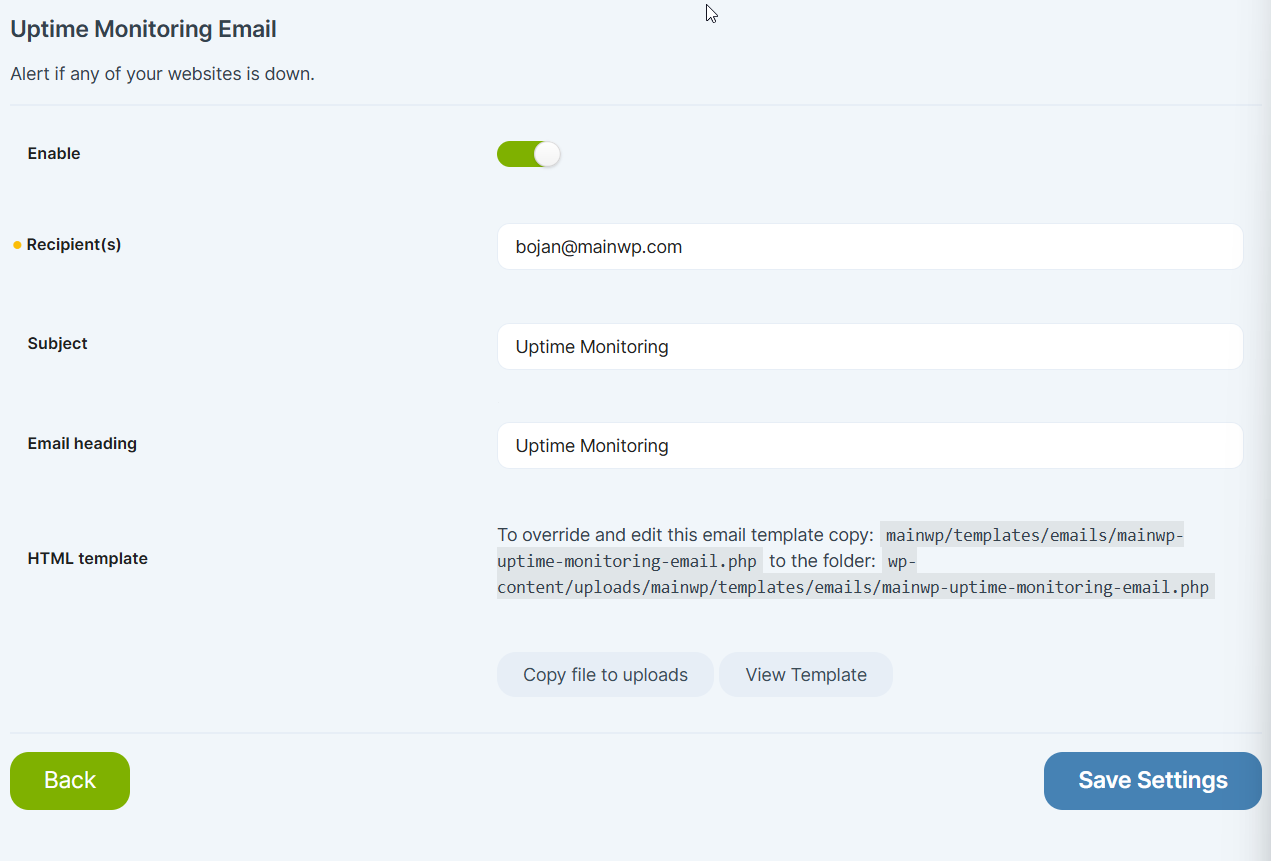
Uptime notifications are sent on important status changes, including when a site goes down and when it comes back online. Emails include the monitor URL, status code, and event timestamp.
[uptime.status] Token Support
You can use [uptime.status] in uptime email content and settings to insert the current status value.
Supported values include:
UPDOWNPENDINGDISABLED
Per-Site Uptime Settings
You can override global settings for specific sites.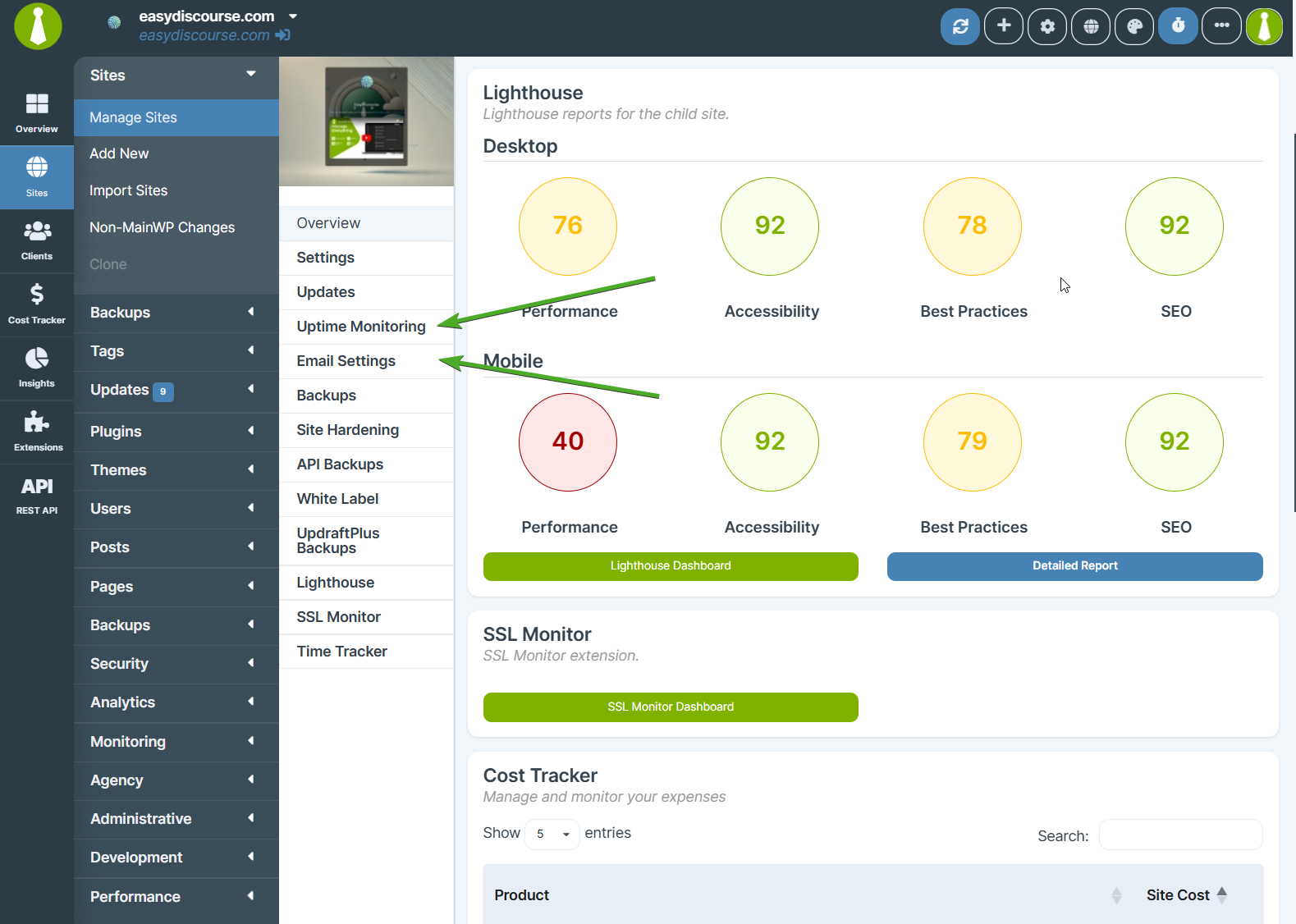
Use global setting for applicable fields.
The post-update HTTP response toggle and request method cannot be overridden per site. Configure both options in the global Monitoring Settings.
When adding a sub-monitor, enter only the path segment (excluding the main site URL).
Related Resources
- Manage Sites - Manage child site connections and operations
- MainWP Dashboard Settings - Reference for all Dashboard settings
- Disable WP Cron - Configure server cron for reliable schedules
- Advanced Uptime Monitor Add-on - Third-party API-based uptime monitoring