
What You’ll Learn
- Choose between Knowledge, MainWP MCP, and MainWP Control
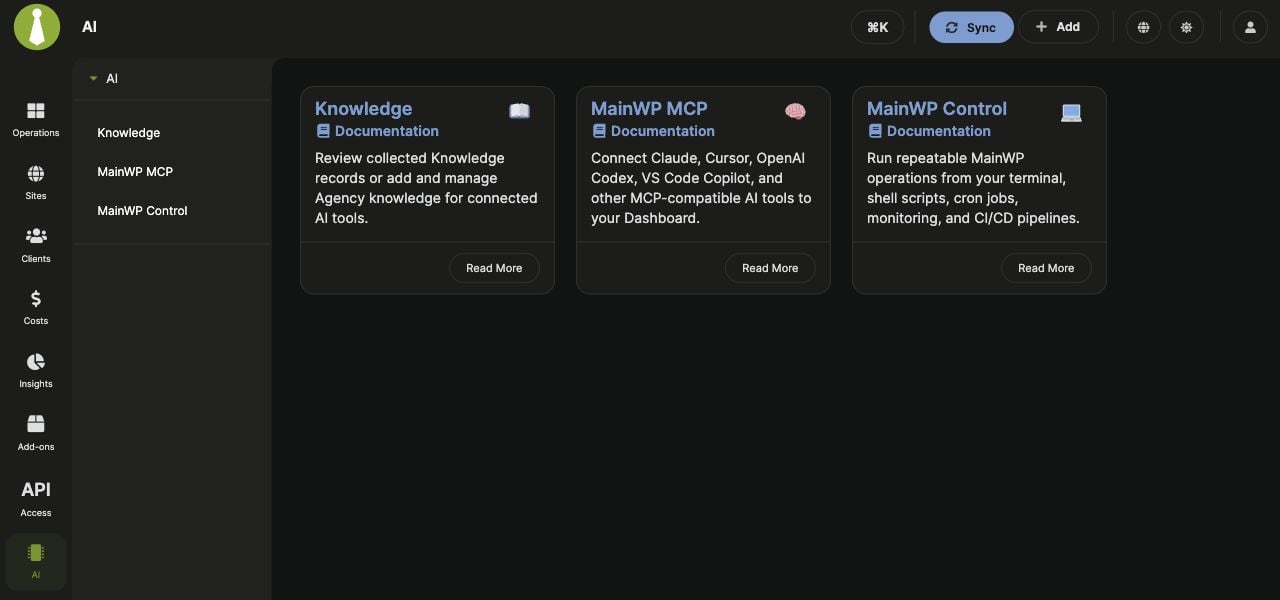
- Find the new Dashboard pages
- Create credentials and copy setup instructions from the guided pages
Prerequisites
- MainWP Dashboard 6.3 or later
- A WordPress administrator account with
manage_optionsfor the AI landing and setup pages - WordPress 6.9 or later for the Abilities API used by connected tools
- HTTPS on the Dashboard for external connections
Choose a Workflow
Knowledge works in the Dashboard before you connect an assistant. Its menu opens Review by default; select Agency to manage shared records. Client and Site Knowledge remain on their respective client and site pages. See the Knowledge guide for those workflows and permissions.
MainWP MCP runs on the computer hosting your AI tool. MainWP Control runs on the computer or server hosting your terminal automation. The Dashboard pages guide setup; they do not install either program or run commands on your computer.
Connect an AI Assistant
Open MainWP > AI > MainWP MCP and work through Credentials, Connect, Test, and Finish. Create an Application Password on the page, copy your configuration, and use the instructions for your AI client to finish the connection. The Application Password success dialog also provides a Connect an AI tool panel with separate configurations for Claude Code, Cursor, and VS Code. See MCP Quickstart and Application Passwords.Set Up Terminal Automation
Open MainWP > AI > MainWP Control and work through Credentials, Install, Test, and Finish. Create a separate Application Password, copy the installation and login commands, and start with the read-only test commands. Follow the MainWP Control guide for the full setup and command-line options.Permissions and Credentials
An Application Password belongs to the WordPress user who creates it. It does not grant additional site access or MainWP permissions. Connected tools still follow that user’s permissions, site restrictions, and the safeguards for each operation. Use a separate credential per tool. Copy a newly created password before closing its success dialog; the Dashboard cannot retrieve the full value later. Manage or revoke it under MainWP > API Access > Application Passwords. If the AI menu is missing, check the Dashboard version, the account’s administrator access, and any menu customization or Team Control restrictions.Related Resources
- Knowledge - Saved instructions and review workflows
- MCP Quickstart - Connect an AI assistant
- MainWP Control - Terminal setup and automation
- Abilities API Overview - Discovery, authentication, and execution