
What You’ll Accomplish
- Search and view users across all child sites
- Create new user accounts on one or multiple sites
- Import multiple users via CSV file
- Edit existing user accounts
- Delete single or multiple users
Prerequisites
- MainWP Dashboard installed and activated
- At least one child site connected to your Dashboard
- Administrator access to your Dashboard site
View Existing Users
1
Navigate to Manage Users
Go to MainWP > Users > Manage Users.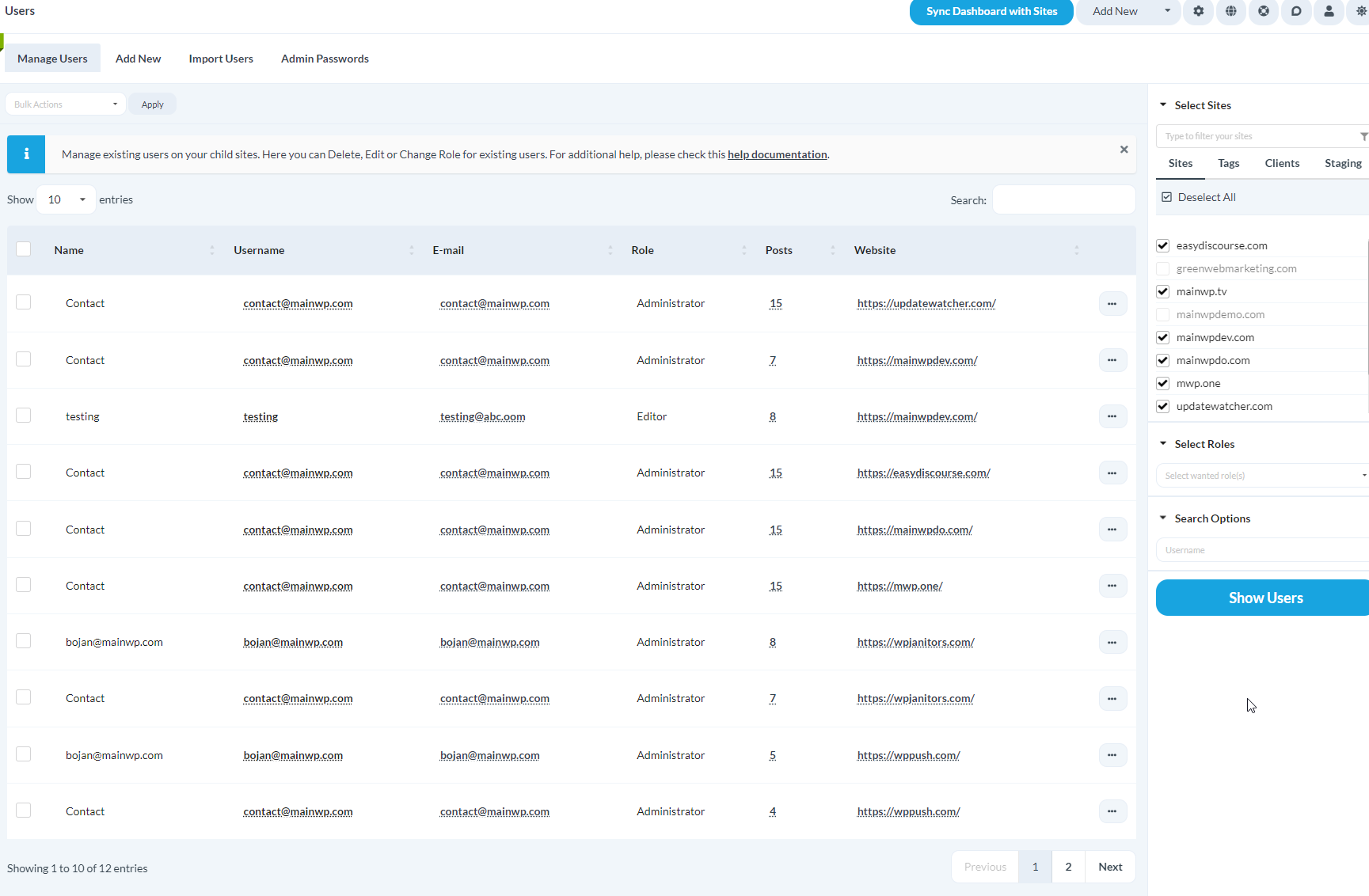
2
Set search preferences
In the Search section, configure your filter criteria (role, username, email, etc.).
3
Select child sites
Select the child sites you want to search.
4
Execute search
Click Show Users.A list of matching users appears at the bottom of the page.
Create a New User
Create a WordPress user on one or multiple child sites simultaneously.1
Navigate to Add New
Go to MainWP > Users > Add New.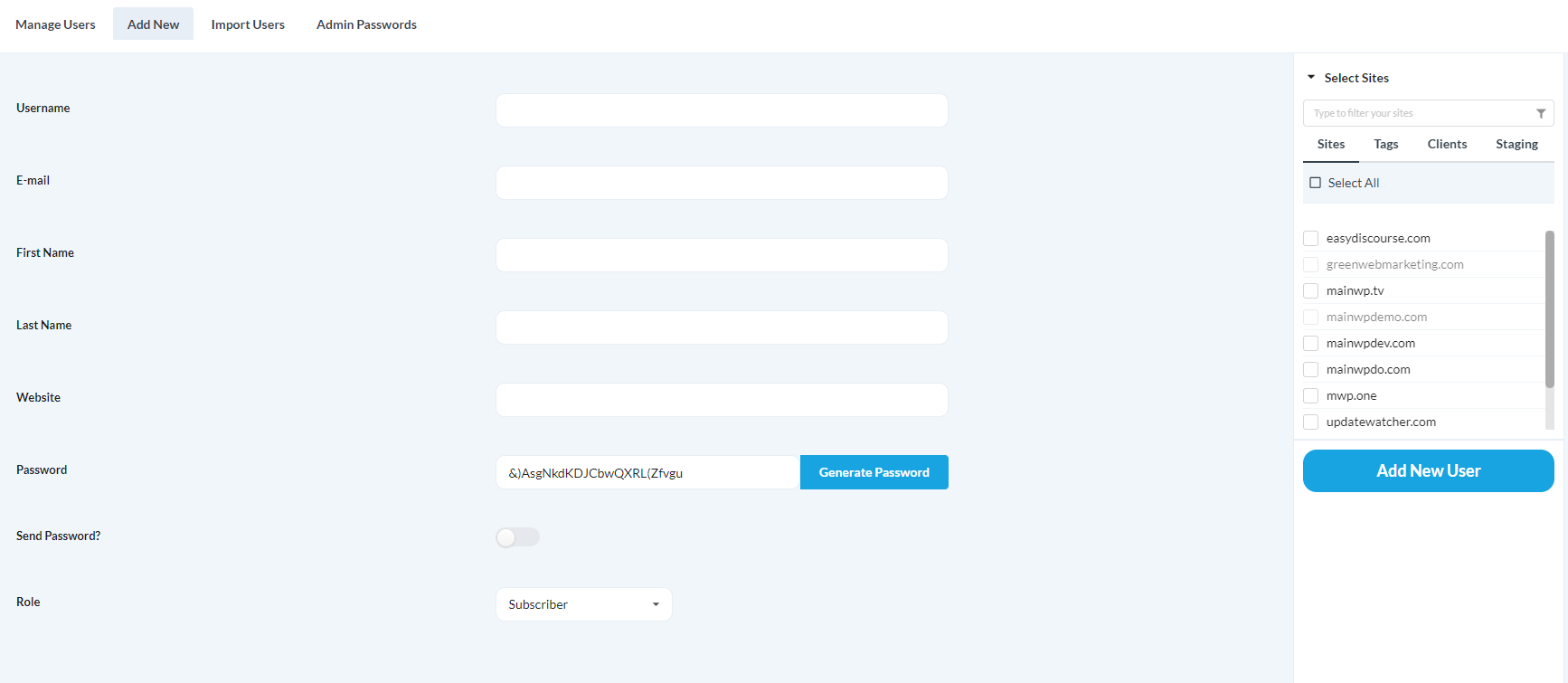
2
Enter user details
Complete the user information:
3
Select sites
Select the child sites where you want to create this user.
4
Create user
Click Add New User.MainWP creates the user account on all selected sites.
Import Users via CSV
Import multiple users at once using a CSV file.1
Navigate to Import Users
Go to MainWP > Users > Import Users.
2
Download sample
Click Download Sample CSV file to get the template.
3
Edit CSV file
Open the downloaded file in a text editor. Replace the demo values (lines 2-6) with your user data.
4
Format entries
Enter values in this order, separated by commas:
5
Upload and import
Upload the CSV file to your Dashboard. Check CSV file contains a header if you kept line 1 from the sample. Click Import Users.
Edit Existing Users
1
Search for user
Go to MainWP > Users > Manage Users and search for the user.
2
Open edit form
In the search results, locate the user and click Edit in the Actions column.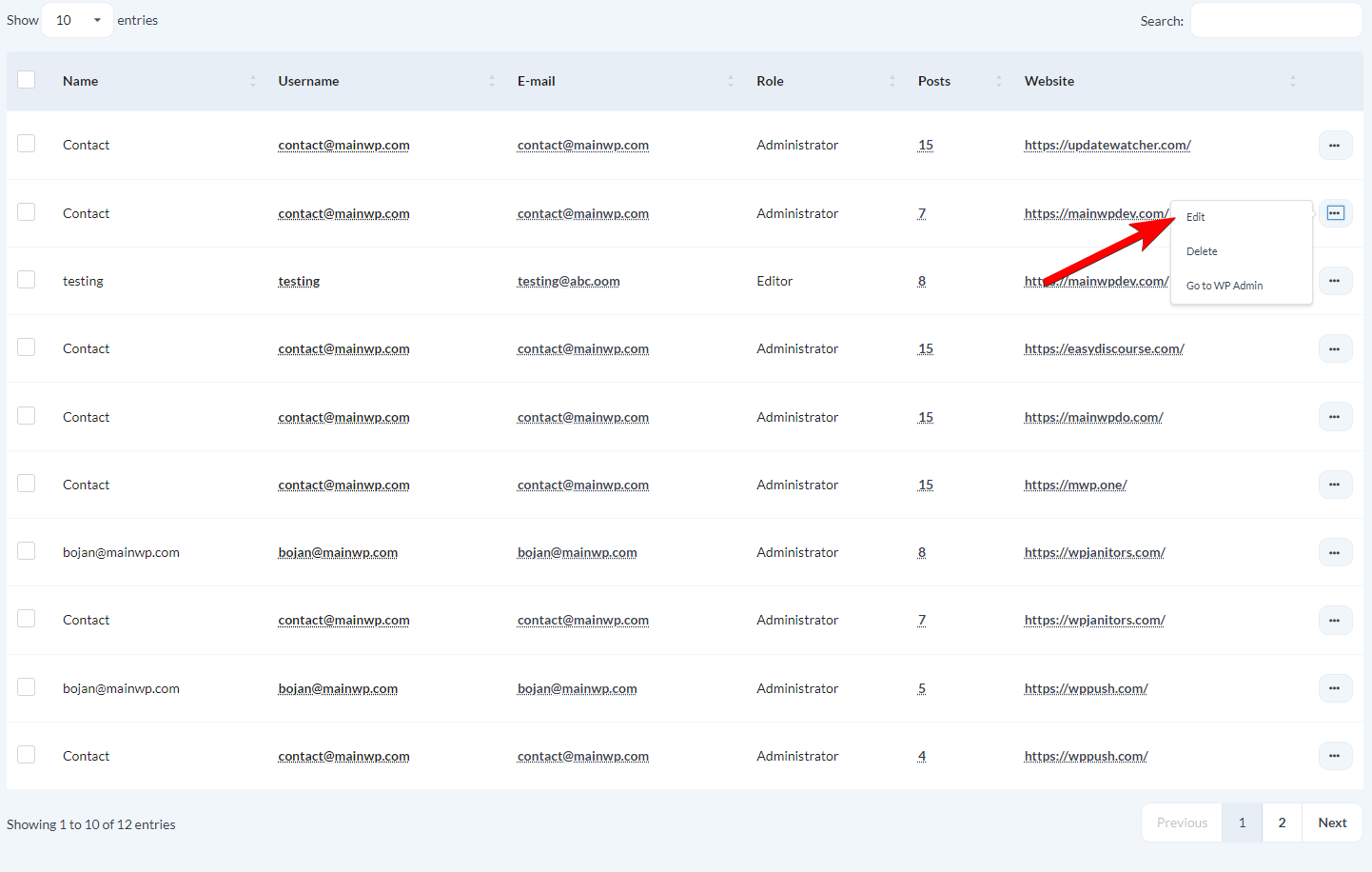
3
Update details
Modify the user information and save changes.
To change the password for the connected administrator account on selected Child Sites, go to Admin Passwords.
Delete Users
Delete a Single User
1
Search for user
Go to MainWP > Users > Manage Users and search for the user.
2
Delete
In the search results, locate the user and click Delete in the Actions column.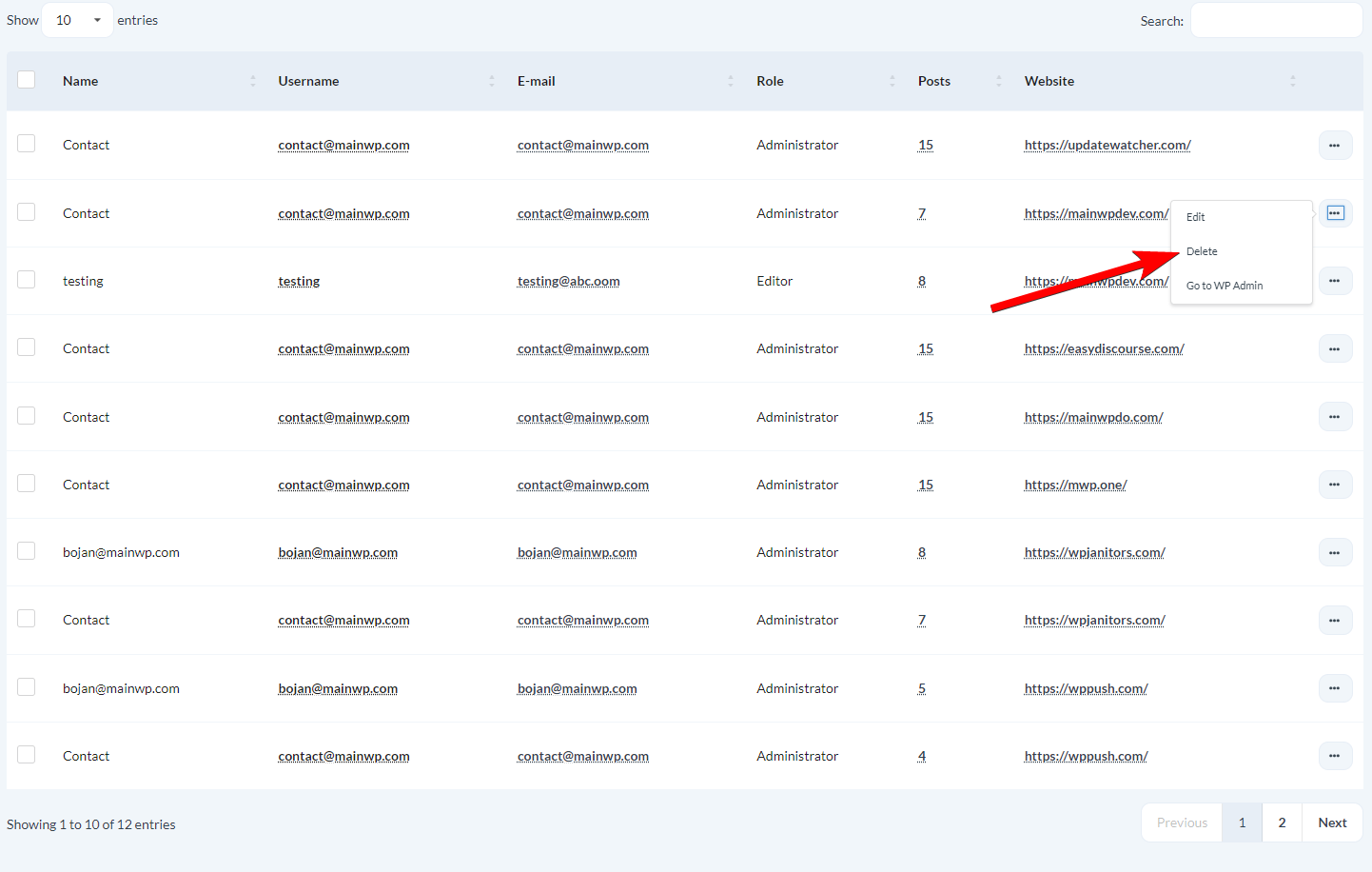
Bulk Delete Users
1
Search for users
Go to MainWP > Users > Manage Users and search for the users you want to delete.
2
Select users
Check the checkbox next to each user you want to delete.
3
Apply bulk action
Select Delete from the Bulk Actions dropdown and click Apply.
Important Limitations
Cannot Delete Connection User
MainWP prevents deleting the administrator account used to establish the connection with a child site. To delete this user:- Go to MainWP > Sites > Manage Sites
- Edit the child site settings
- Change the connected administrator to a different user
- Delete the original user
Content Attribution
When you delete a user who authored posts or pages, their content is automatically attributed to the connection administrator. To change authorship to a different user, bulk-edit the content directly in the child site’s WP Admin.Self-Check Checklist
- You can search and view users across child sites
- New users are created successfully on selected sites
- CSV imports complete without errors
- User edits save correctly
- User deletions complete as expected
Related Resources
- Manage Sites - Connect and manage child sites
- Admin Passwords - Change the connected administrator account password on selected Child Sites
- MainWP User Interface - Learn site selection controls