
What You’ll Learn
- How Negative Search filtering works
- Where to find Negative Search in the Dashboard
- Practical scenarios for using exclusion-based filtering
Prerequisites
- MainWP Dashboard with connected child sites
- Plugins or themes installed on child sites to search
How Negative Search Works
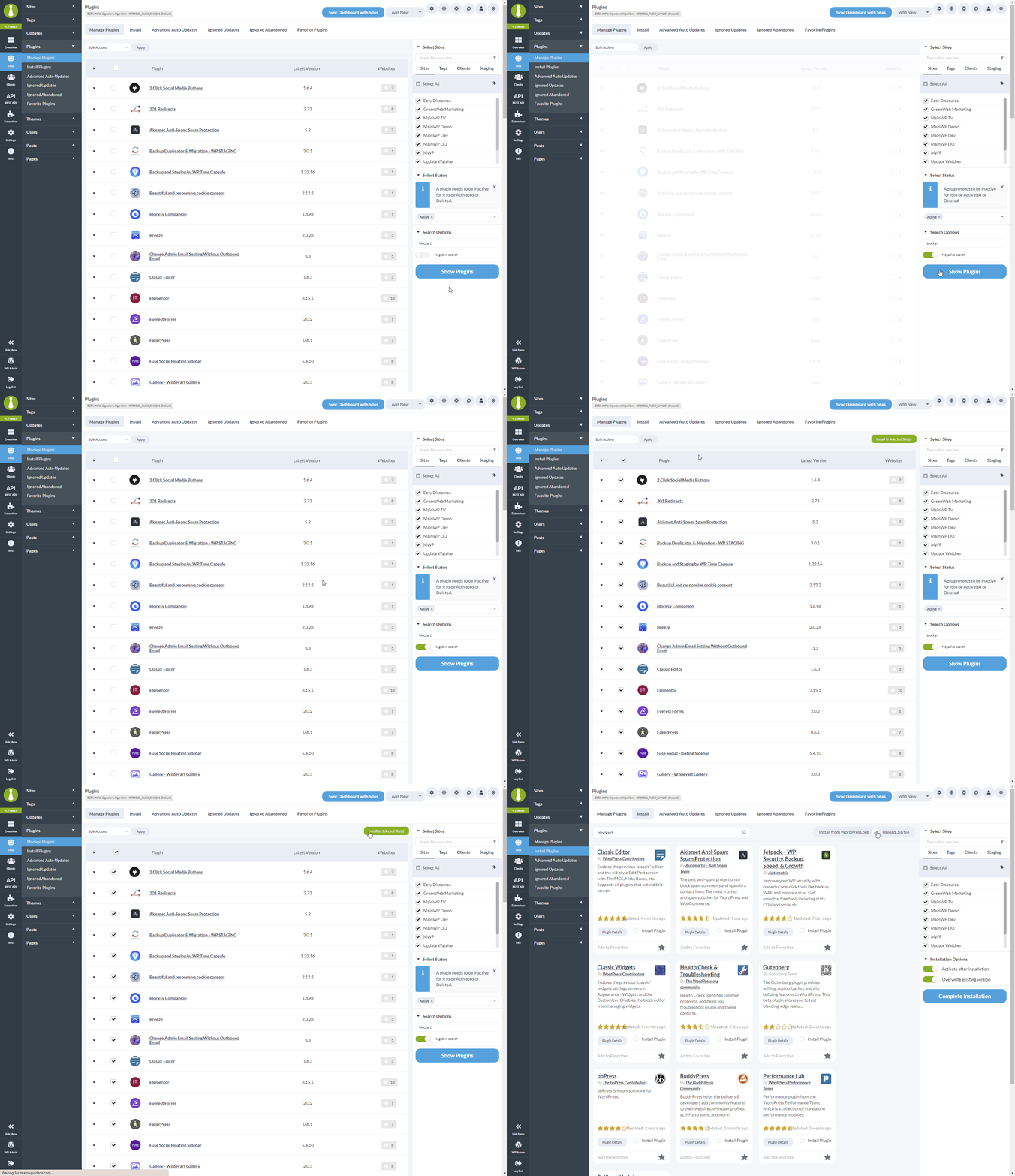
The feature filters the visible list, making it easy to select and act on the filtered results.
Where to Find Negative Search
Negative Search is available in two locations:
Look for the Search Options dropdown, then toggle Negative Search before entering your search term.
Use Negative Search
1
Navigate to Manage page
Go to MainWP > Plugins > Manage Plugins or MainWP > Themes > Manage Themes.
2
Expand search options
Click Search Options to expand the search panel.
3
Enable Negative Search
Toggle on Negative Search.
4
Enter exclusion term
Type the keyword you want to exclude in the search field.
5
View filtered results
The list now shows only items without your keyword in their names.
6
Perform bulk action
Select the filtered items and apply your desired bulk action.
Common Use Cases
Exclude WooCommerce Plugins During Updates
When updating plugins across your network, you might want to update everything except WooCommerce-related plugins to avoid disrupting active stores.- Enable Negative Search
- Search for “WooCommerce”
- Select all non-WooCommerce plugins
- Apply the Update action
Skip Development Plugins During Cleanup
To deactivate all plugins except your development tools:- Enable Negative Search
- Search for “debug” or “developer”
- Select all non-development plugins
- Apply the Deactivate action
Filter Out Vendor-Specific Themes
When cleaning up unused themes, exclude your primary theme vendor’s products:- Enable Negative Search
- Search for the vendor name (e.g., “Starter”)
- Select remaining themes for deletion
- Apply the Delete action
Self-Check Checklist
- You can locate the Negative Search toggle
- Enabling Negative Search inverts your search results
- You can perform bulk actions on filtered results
Related Resources
- Manage Plugins - Full plugin management guide
- Manage Themes - Full theme management guide