
What You’ll Learn
- Configure sync timing and frequency
- Set up automatic updates for plugins, themes, and WordPress core
- Enable uptime and site health monitoring
- Manage email notification settings
- Configure Cost Tracker, Network Activity, and API Backups settings
- Optimize request settings for your hosting environment
- Access maintenance tools
Prerequisites
- MainWP Dashboard installed and activated
- Administrator access to your Dashboard site
- At least one child site connected (for testing settings)
Access Dashboard Settings
Select Settings in the MainWP Dashboard navigation. You can also open the user or avatar menu in the top right corner and select MainWP Settings.Settings Reference
The Settings menu is organized as subpages. Updates Settings and Backup Settings are sections inside General Settings, not standalone settings pages.- General Settings (includes Updates Settings and Backup Settings)
- Advanced Settings
- Monitoring Settings (Uptime Monitoring, Site Health Monitoring, and HTTP response checks)
- Email Settings
- Premium Updates
- Cost Tracker Settings
- Network Activity Settings
- API Backups Settings
- Tools
General Settings
General Settings
Page: MainWP > Settings > General Settings (
admin.php?page=Settings)This is a single settings page with three sections: General Settings, Updates Settings, and Backup Settings.General Settings Section
- Daily sync time (
H:mm): Sets the start time of the first automatic synchronization run each day. - Frequency of auto sync (Default: Twice per day): Controls how many automatic sync runs happen per day (1 to 12).
- Timezone: Defines the timezone context used for scheduled tasks and date/time displays in MainWP Dashboard.
- Date format: Controls how dates are displayed across the dashboard interface.
- Time format: Controls how times are displayed across the dashboard interface.
- Sidebar position (Default: Right): Moves the sidebar or tag menu layout to the right or left side.
- Hide the Update Everything button: Hides the
Update Everythingaction from the Updates Overview widget. - Show widgets: Lets you choose which widgets are visible on Operations and individual site Operations pages.
Updates Settings Section
- Plugin advanced automatic updates (Default: Disabled): Enables automatic updates for trusted plugins.
- Theme advanced automatic updates (Default: Disabled): Enables automatic updates for trusted themes.
- Translation advanced automatic updates (Default: Disabled): Enables automatic updates for translation packages.
- WP Core advanced automatic updates (Default: Disabled): Enables automatic WordPress core updates.
- Frequency of automatic updates (Default: Daily): Sets whether automatic update runs execute daily, weekly, or monthly.
- Select day (shown for
WeeklyorMonthly): Chooses the weekday or month day used by the automatic update schedule. - Select time (Default:
00:00): Sets the time of day when automatic update runs begin. - Advanced automatic updates delay (Default: 1 day): Delays new updates for the selected number of days before auto-installing.
- Show WordPress language updates (Default: Enabled): Shows translation updates in update management views.
- Update confirmations (
Enable,Disable,Disable for single updates): Controls confirmation prompts before update actions. - Require a backup before an update (Default: Disabled; shown when a primary backup system is available): Blocks updates when a full backup is older than the allowed tolerance.
- Days without of a full backup tolerance (Default: 7): Defines how old the last full backup can be when backup-before-update is enabled.
- Abandoned plugins/themes tolerance (Default: 365 days): Marks plugin and theme items as possibly abandoned if they have not been updated within the threshold.
Backup Settings Section (on the same page)
MainWP Dashboard is moving away from native backup development. For long-term workflows, prefer Backup Add-ons.- Select primary backup system: Chooses the main backup method (native or an integrated backup method) used by MainWP Dashboard.
- Enable legacy backup feature (Default: Disabled): Enables the legacy native backup settings and related controls.
- Backups on server: Sets how many backup archives are retained locally on child sites.
- Backups on remote storage: Sets how many backup archives are retained on external storage destinations.
- Archive format: Selects backup archive type (
zip,tar,tar.gz, ortar.bz2). - Auto detect maximum file descriptors on child sites: Lets MainWP auto-detect safe descriptor limits for ZIP backup processing.
- Maximum file descriptors fallback value: Provides a manual descriptor value when automatic detection is unavailable.
- Load files in memory before zipping: Uses a memory-first ZIP process for environments that need it.
- Send email when backup fails: Sends a notification when a legacy backup job fails.
- Send email when backup starts: Sends a notification when a legacy backup job starts.
- Execute backup tasks in chunks: Runs legacy backup jobs in smaller chunks to reduce server load spikes.
Advanced Settings
Advanced Settings
Page: MainWP > Settings > Advanced Settings (
admin.php?page=SettingsAdvanced)Configure request, concurrency, caching, and connection settings to tune MainWP Dashboard performance and stability.MainWP syncs multiple child sites in parallel to speed up the process. The Maximum Simultaneous Sync Requests setting controls how many sites sync at once. Adjusting this value helps balance sync speed against server resources.Rate Limiting and Concurrency Controls
Batch Processing Settings
Frontend Request Settings
Miscellaneous Settings
- Optimize data loading (Default: Enabled): Uses synchronized plugin, theme, and user data for searches instead of fetching that data from child sites during each search.
- Auto-correct site URLs (Default: Enabled): Automatically updates stored child site URLs for
wwwdifferences and HTTP-to-HTTPS changes after verifying the corrected address. It does not automatically switch HTTPS to HTTP or change the domain, port, or path. Sites with Lock site URL enabled are not changed. - Browser cache expiration time (Default: 10 minutes): Sets how long browser-cached MainWP pages remain valid before refresh.
- Use WP Cron (Default: Enabled): Controls whether MainWP registers and uses its WP-Cron jobs. Disable it only when those scheduled jobs will be triggered another way.
- Verify SSL certificate (Default: Enabled): Verifies child site SSL certificates during connection attempts.
- Verify connection method (Default: OpenSSL): Chooses between OpenSSL and PHPSecLib for connection verification.
- OpenSSL signature algorithm (Default:
OPENSSL_ALGO_SHA256): Selects the signing algorithm used with OpenSSL verification. - Force IPv4 (Default: Disabled): Forces IPv4 for child site connections on hosts where IPv6 causes issues.
- Select data to sync: Chooses which data sets are included in synchronization from MainWP Child sites.
- OpenSSL.cnf location (conditional field): Lets you manually set OpenSSL config path when auto-detection is incorrect.
Monitoring Settings
Monitoring Settings
Page: MainWP > Settings > Monitoring Settings (
admin.php?page=MonitoringSettings)This page contains Uptime Monitoring, Site Health Monitoring, and post-update HTTP response checks.For full setup details, see Uptime Monitoring.Uptime Monitoring
- Enable Uptime Monitoring (Default: Disabled): Enables or disables global uptime checks for child sites.
- Monitor Type (
HTTP(s),Ping,Keyword Monitoring): Selects the uptime check method used for global monitors. - Method (HTTP-based monitoring): Chooses request method used when monitor type relies on HTTP checks.
- Keyword to look for (Keyword Monitoring only): Sets the text that must be found in the response.
- Monitor Interval (Default: 60 minutes): Sets how often uptime checks run.
- Timeout (Default: 60 seconds): Sets maximum response time before a check is treated as failed.
- Down Confirmation Check (Default: Enabled): Requires additional confirmation before flagging a site as down.
- Up HTTP Codes for HTTP Response and Uptime Monitoring: Defines which status codes are treated as healthy.
- Attempt to bypass page cache (Default: Disabled): Adds a best-effort cache-bypass request but does not guarantee that the check reaches the origin server.
- Monitoring Data Retention (Default: 180 days): Controls automatic cleanup window for stored monitoring history.
HTTP Response Check
- Check site HTTP response after update (Default: Disabled): Runs a post-update HTTP check to verify the site still responds.
- Check site HTTP response method (Default:
Head): Selects whether that post-update check usesHeadorGet. - Uses the same Up HTTP Codes selection as uptime monitoring for pass/fail evaluation.
Site Health Monitoring
- Enable Site Health monitoring (Default: Disabled): Enables or disables WordPress Site Health score checks.
- Site health threshold (Default:
Should be improved): Sets the threshold (Should be improvedorGood) used to evaluate site health status.
Email Settings
Email Settings
Page: MainWP > Settings > Email Settings (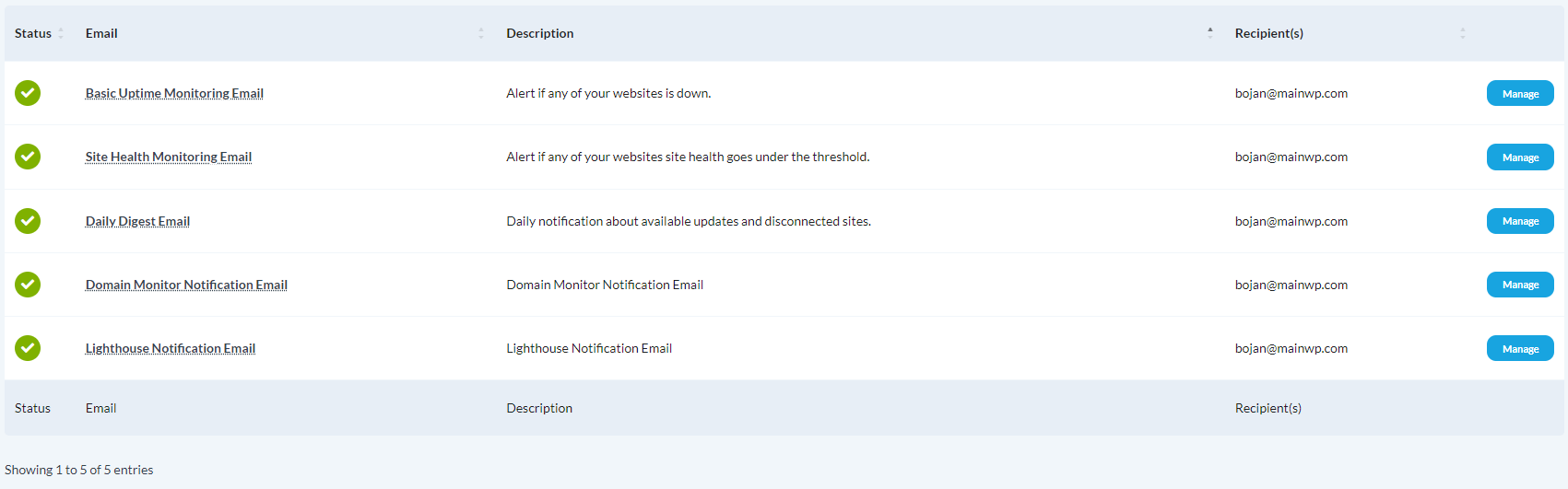
admin.php?page=SettingsEmail)Configure global notification emails and edit per-notification templates.Manage Email Notifications
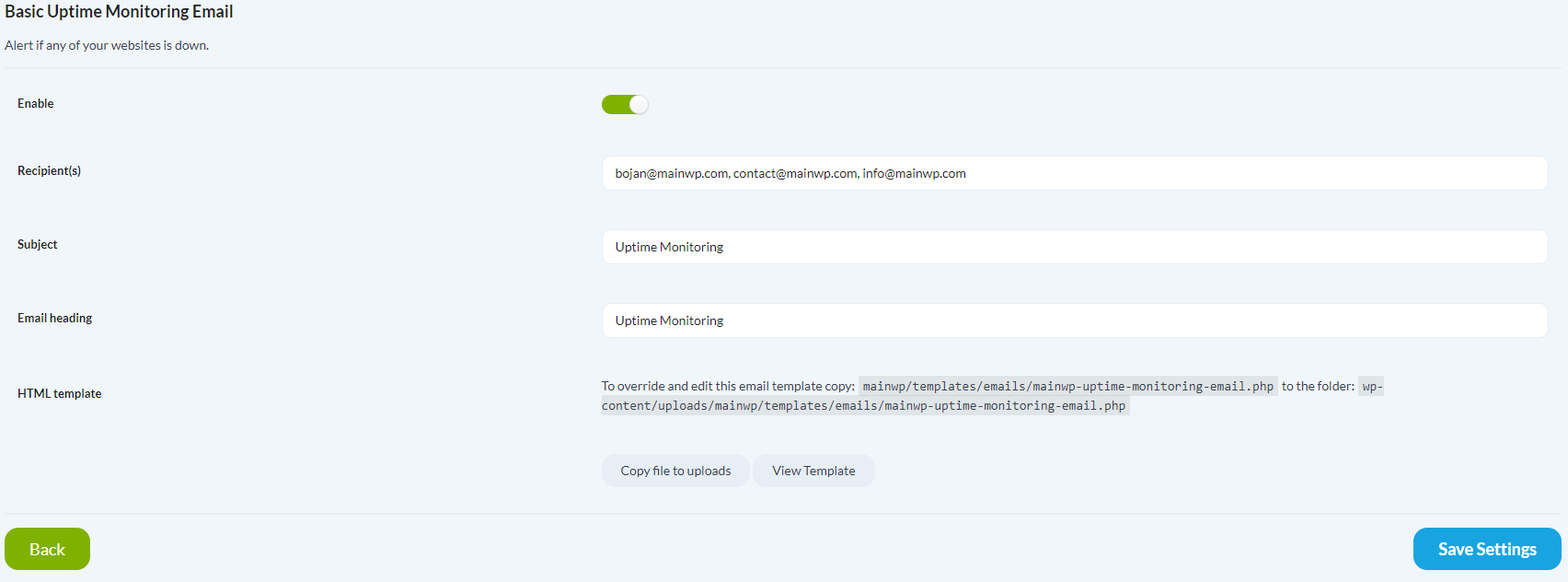
- Enable/Disable each notification: Controls whether a specific notification type sends email.
- Recipients: Defines destination addresses for each notification (multiple recipients supported).
- Subject and heading: Lets you customize the email subject line and heading content per notification.
-
HTML template management: Lets you copy template files to uploads for customization or revert to default templates.
Cost Tracker Settings
Cost Tracker Settings
Page: MainWP > Settings > Cost Tracker Settings (
admin.php?page=CostTrackerSettings)This page configures cost tracking format and taxonomy data for the Cost Tracker module.Currency and Format
- Currency (Default:
USD): Sets the base currency used for tracked costs. - Currency symbol position (Default:
Left): Controls whether the symbol appears on the left or right, with or without a space. - Thousand separator (Default:
,): Sets the character used for thousands grouping. - Decimal separator (Default:
.): Sets the character used to separate decimal values. - Decimal places (Default:
2): Defines numeric precision used when displaying cost amounts.
Cost Taxonomy Management
- Default product categories: Lets you customize icon and color styling for built-in categories.
- Custom product categories: Lets you add your own categories for classifying tracked products/services.
- Custom payment methods: Lets you create reusable payment method labels for cost records.
Network Activity Settings
Network Activity Settings
Page: MainWP > Settings > Network Activity Settings (
admin.php?page=SettingsInsights)This module-based settings page controls logging used by both Network Activity and Dashboard Insights.Logging Controls
- Enable Network Activity logging (Default: Enabled): Turns Network Activity and Dashboard Insights data collection on or off.
- Automatically archive logs: Moves older log entries out of active logs into archived storage automatically.
- Data retention period (Default: 3 years when archiving is used): Defines how long active logs are kept before auto-archiving.
- Retention period for Network Activity Logs on child sites (Default: 7 days): Controls child-site cleanup separately from Dashboard log retention.
- Select events to log: Lets you choose which dashboard and non-MainWP child-site events should produce log entries.
Logged data is stored locally on your server and is not sent to MainWP servers.
API Backups Settings
API Backups Settings
Page: MainWP > Settings > API Backups Settings (
admin.php?page=SettingsApiBackups)This module-based settings page configures provider APIs used by MainWP API Backups workflows.Provider Tabs
- Cloudways, GridPane, Vultr, Akamai (Linode), DigitalOcean, cPanel (WP Toolkit), Plesk (WP Toolkit), Kinsta: Each tab enables API integration for that host/provider.
- Enable Provider API toggles: Activates or deactivates each provider integration without removing saved credentials.
- Provider credentials: Stores provider-specific authentication values such as API keys, account email/ID, URL, username/password, and site path fields where required.
Per-Site Backup API Provider Settings
- Provider selection: Defines which provider a child site backup mapping uses.
- Instance/environment selection: Stores provider instance identifiers required to target the correct site/server context.
- Enable WP Toolkit API (cPanel only): Activates the WP Toolkit API for the selected child site.
- Overwrite Global Settings options (cPanel, Plesk, and Kinsta): Allows per-site credentials and connection details instead of shared global settings.
Tools
Tools
Page: MainWP > Settings > Tools (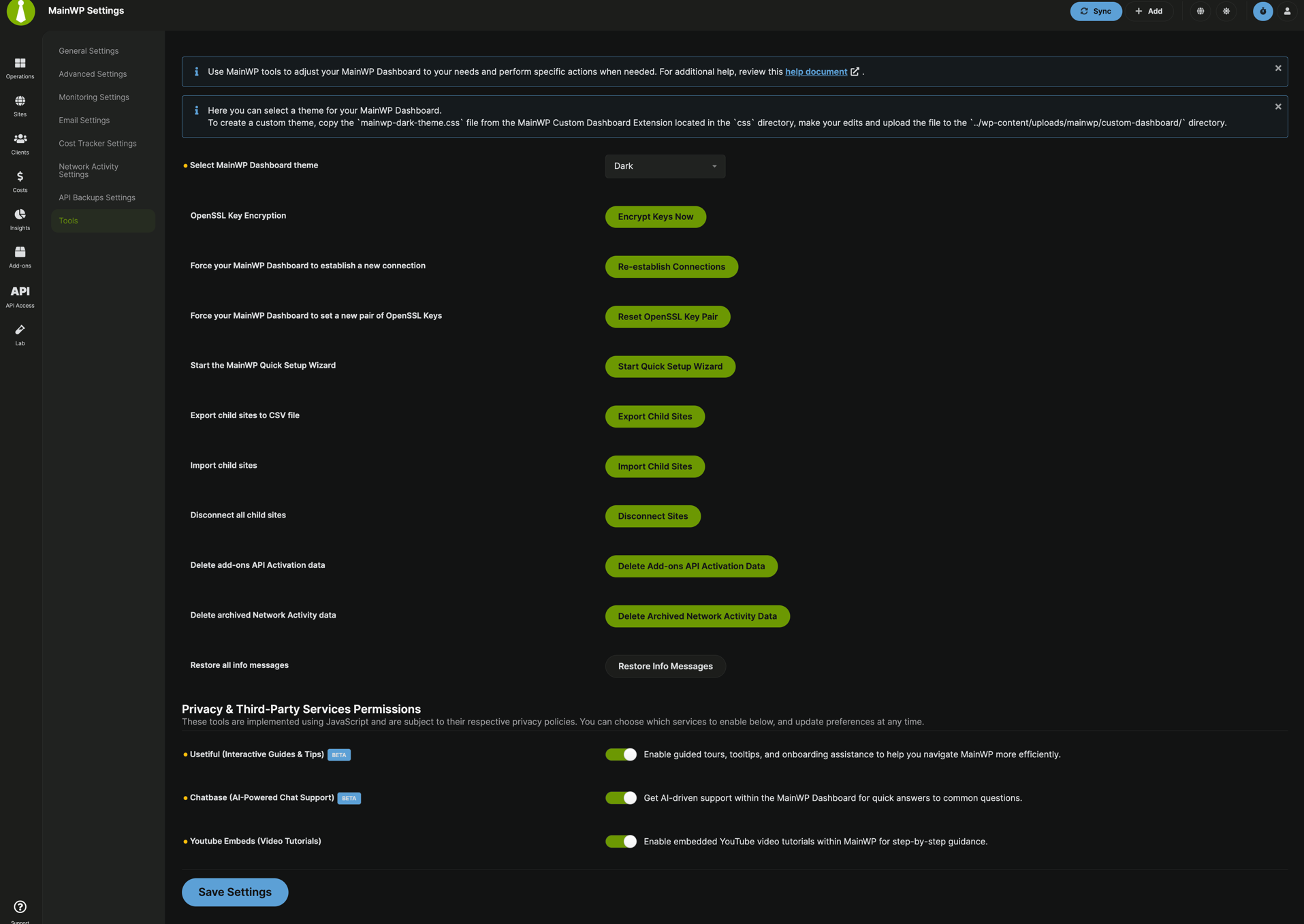
admin.php?page=MainWPTools)Available Tools
- Select MainWP Dashboard theme: Chooses the dashboard UI theme. Light and Dark are always available. With default Light/Dark and no custom theme files, the header uses direct sun/moon quick switching; otherwise the header opens the theme selection modal. Legacy options appear when currently selected, and custom
.cssfiles uploaded to the MainWP themes uploads directory are listed. - Re-establish connections: Forces MainWP Dashboard to reconnect with child sites. This destroys all sessions for the current MainWP connection user on each child site, so that account must sign in again.
- Reset OpenSSL key pair: Generates a new OpenSSL key pair for child site communication.
- Start Quick Setup Wizard (when available): Launches the MainWP onboarding wizard again.
- Export child sites: Downloads accessible, non-staging child site data as a CSV file.
- Import child sites: Opens the child-site import workflow.
- Disconnect all child sites: Breaks all child connections while leaving MainWP Child active on those sites.
- Delete Add-ons API activation data: Removes Add-ons activation metadata without deleting add-on settings.
- Delete archived Network Activity data: Permanently removes archived activity logs.
- Restore all info messages: Re-enables dismissed informational notices across MainWP Dashboard.
- Privacy and third-party service permissions: Controls optional integrations for Usetiful guided tours, Chatbase support chat, and YouTube tutorial embeds.
Self-Check Checklist
After configuring settings, verify:- Automatic sync time is set to a low-traffic period
- Update confirmations match your workflow preference
- Email notifications are configured with correct recipients
- Request settings are appropriate for your hosting environment
- SSL verification is properly configured for your sites
Related Resources
- Manage Sites - Connect and manage child sites
- Disable WP Cron - Set up server-side cron jobs
- OpenSSL and PHPSecLib - Alternative connection methods