
What You’ll Learn
- Where to access Network Activity and its shared settings page
- Where the Network Activity widget appears
- How to filter activity by source, site, event, date, and user context
- How to dismiss events with required confirmation
- How to configure logging, auto-archiving, and retention
- How to view only Non-MainWP Changes
Prerequisites
- MainWP Dashboard with connected child sites
- MainWP Child active on connected child sites for direct WP Admin activity tracking
- Network Activity logging enabled in settings
Access Network Activity and Settings
1
Open Network Activity
Go to MainWP > Sites > Network Activity (
admin.php?page=InsightsManage).2
Open Network Activity Settings
Go to MainWP > Settings > Network Activity Settings (
admin.php?page=SettingsInsights).Network Activity Settings is a shared settings page.
It configures the logs dataset used by both Network Activity and Dashboard Insights.
It configures the logs dataset used by both Network Activity and Dashboard Insights.
Where the Network Activity Widget Appears
You can use the Network Activity widget in:- MainWP > Operations
- Individual child site Operations pages
Understand Activity Sources
Network Activity includes events from two sources:Filter Network Activity Data
Use filters on the Network Activity page to narrow results by:- Date range
- Tags
- Clients
- Users
- Source (
DashboardorWP Admin) - Sites
- Events
Filter selections are saved for your user account until you reset them.
View Only Non-MainWP Changes
Non-MainWP Changes are a subset of Network Activity data. They show activity that did not originate from MainWP Dashboard.Filter in the Network Activity Widget
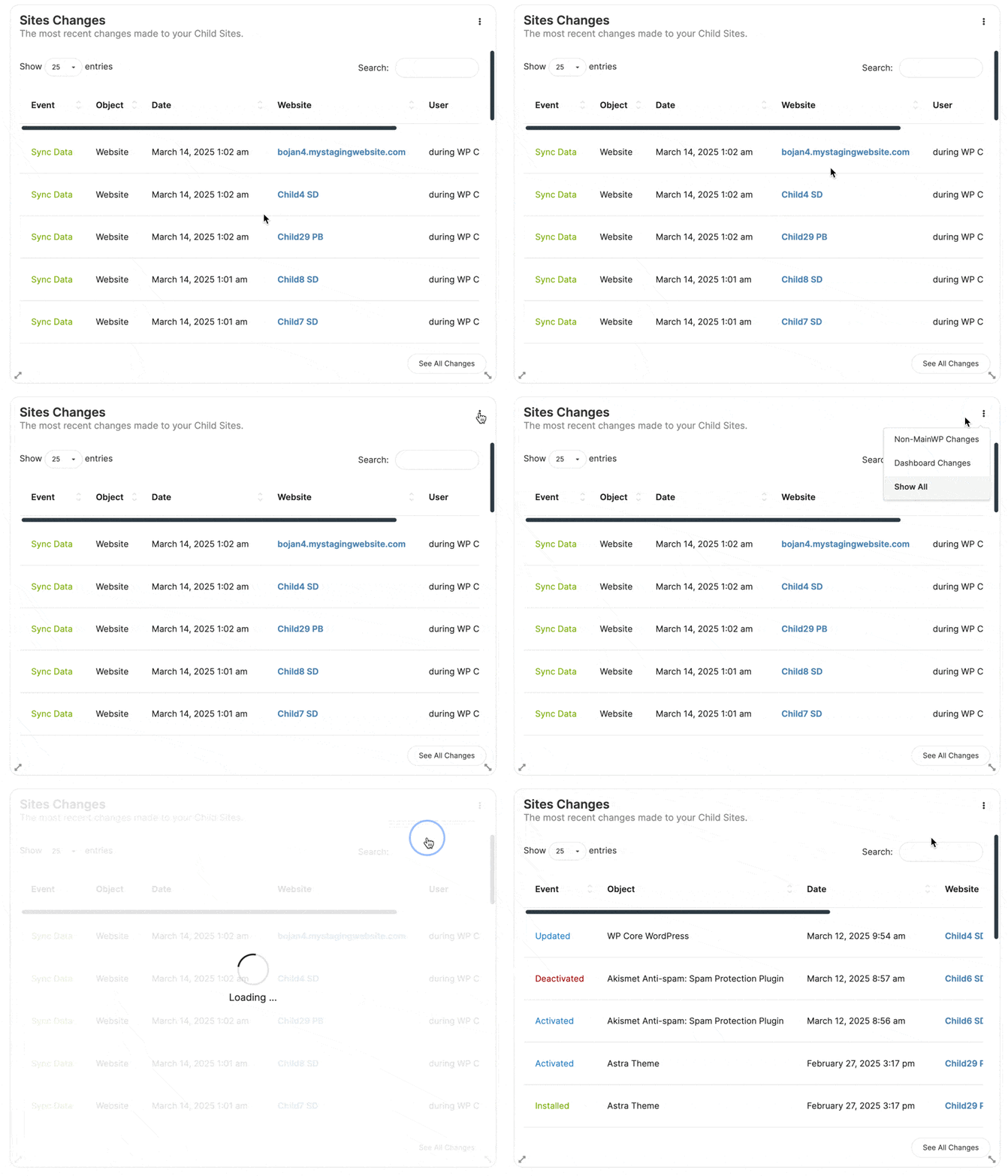
1
Open an Operations page with the widget
Open MainWP > Operations or an individual child site Operations view.
2
Open the widget menu
In the Network Activity widget, click the three-dot menu.
3
Select Non-MainWP Changes
Choose Non-MainWP Changes to show WP Admin-originated events only.
Filter on the Network Activity Page
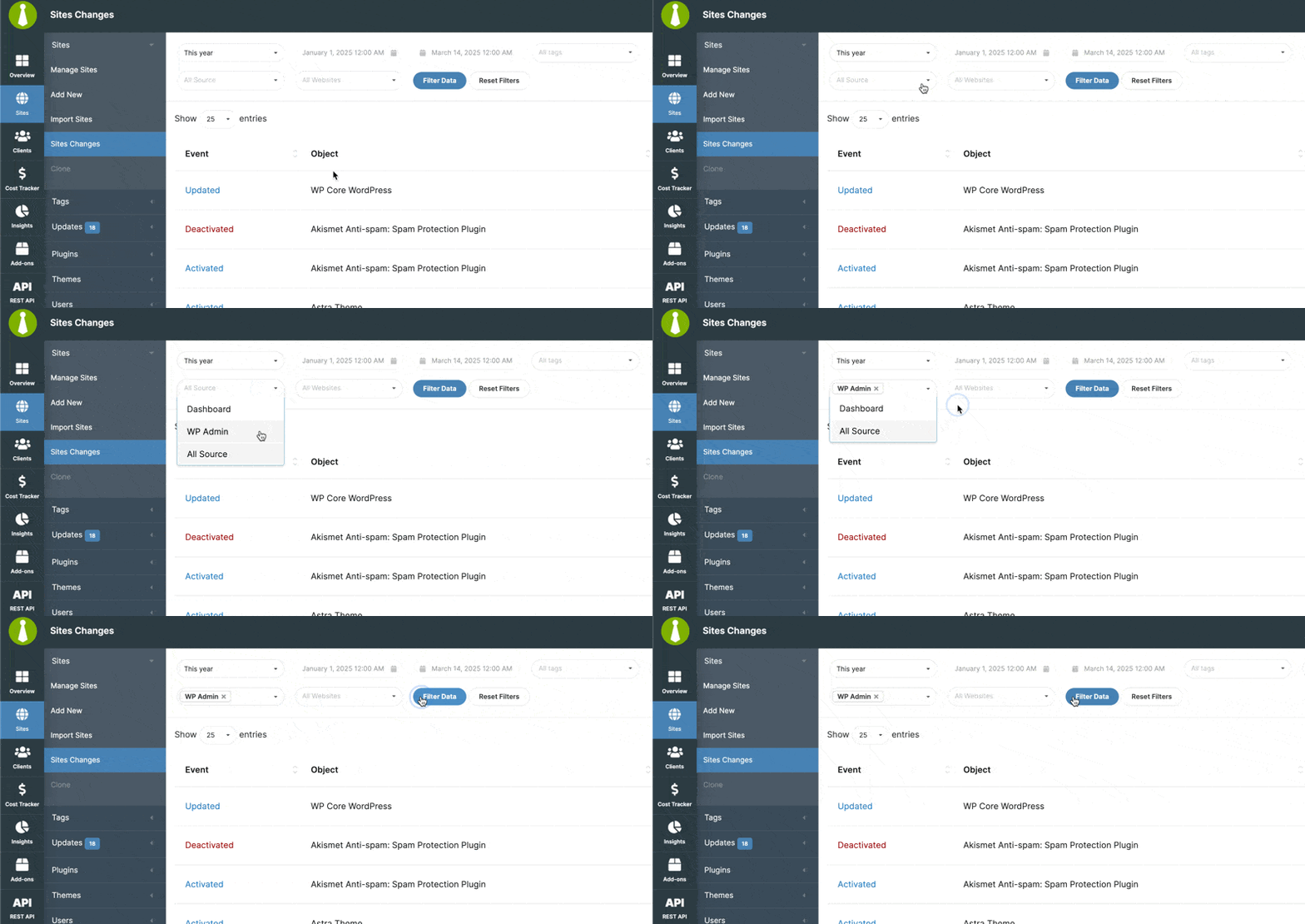
1
Go to Network Activity
Go to MainWP > Sites > Network Activity.
2
Set source filter
In the Source filter, select WP Admin.
3
Apply the filter
Click Filter to show only Non-MainWP Changes.
Dismiss Events in Bulk or Per Row
Network Activity supports three dismissal actions:- Dismiss archives the event on that row.
- Dismiss Selected Changes archives only the rows you select using their checkboxes.
- Dismiss All Changes archives all active Network Activity logs across your Dashboard, including logs excluded by the current filters or not displayed on the current page.
Bulk dismissal is available on the Network Activity page and in the Network Activity widget shown on Operations and individual child site Operations pages.
Configure Logging, Archiving, and Retention
Open MainWP > Settings > Network Activity Settings (admin.php?page=SettingsInsights) to manage:
- Enable Network Activity logging
- Automatically archive logs (optional)
- Data retention period for active logs
- Select events to log for Dashboard and Non-MainWP sources
Delete Archived Network Activity Data
To remove archived records:1
Open Tools settings
Go to MainWP > Settings > Tools.
2
Delete archived data
Use Delete Archived Network Activity Data.
Self-Check Checklist
- Network Activity page opens from MainWP > Sites > Network Activity
- You can filter by source and isolate Non-MainWP Changes
- Dismiss actions require confirmation
- Shared settings are available under MainWP > Settings > Network Activity Settings
Related Resources
- Dashboard Insights - Analyze activity trends
- What Does Dashboard Insights Track? - Full event reference
- Manage Child Sites - Child site operations