
What You’ll Learn
- Where to access Dashboard Insights and its settings page
- How the shared settings work
- How to filter Insights data for specific date ranges, tags, clients, and users
- How to export widget charts and data
Prerequisites
- MainWP Dashboard
- Network Activity logging enabled in MainWP > Settings > Network Activity Settings
- Recorded activity data; otherwise activity-based widgets may be empty
Access Dashboard Insights and Settings
1
Open Dashboard Insights
Go to MainWP > Insights (
admin.php?page=InsightsOverview).2
Open Insights settings
Go to MainWP > Settings > Network Activity Settings (
admin.php?page=SettingsInsights).The settings page is named Network Activity Settings because it is shared.
Network Activity and Dashboard Insights use the same underlying logs dataset, but each feature presents it differently.
Network Activity and Dashboard Insights use the same underlying logs dataset, but each feature presents it differently.
Use the Widgetized Insights Dashboard
Insights is widgetized like the Operations page. Use Page Settings to show or hide widgets, drag widgets to reorder them, and use Layout in the header to save or load layouts.Filter Insights Data
Click Show Filters, then narrow the Insights data by:- Date range (including custom range)
- Tags
- Clients
- Users
Export Chart Data and Images
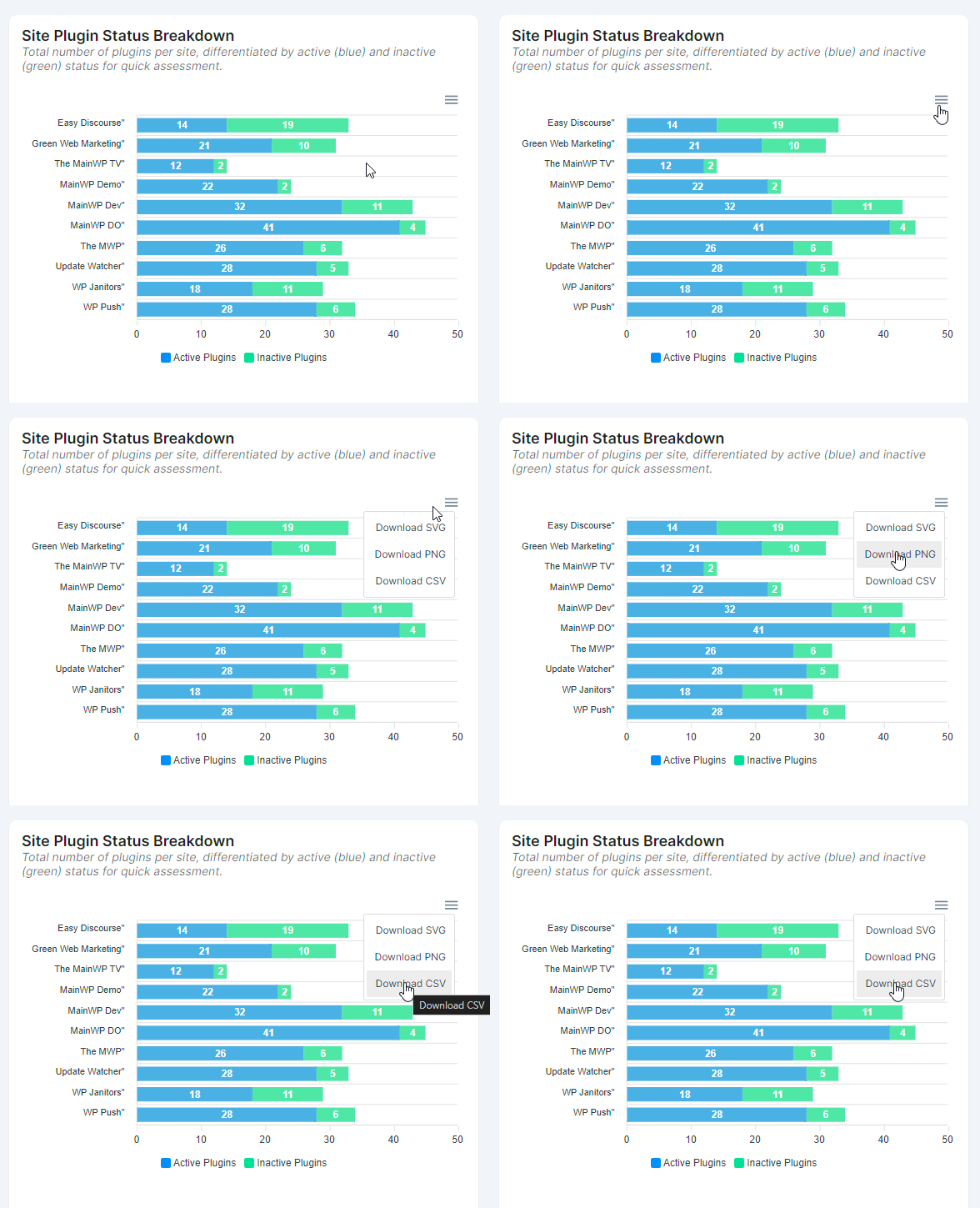
1
Open a chart menu
In a widget that contains a chart, click the three-line menu in the chart’s top-right corner.
2
Choose export format
Select Download SVG, Download PNG, or Download CSV.
3
Download and use the export
Use SVG or PNG exports for reports. The CSV export contains the chart’s underlying data for further analysis.
Related Resources
- Network Activity - Review detailed event timelines
- What Does Dashboard Insights Track? - Full tracked event reference
- REST API Overview - Extend reporting with API workflows