
Knowledge gives connected AI assistants a saved briefing for your work. Keep your agency’s standards, a client’s preferences, a site’s constraints, and the results of earlier work in your MainWP Dashboard so you do not have to explain them in every conversation.
You manage the records in the MainWP Dashboard. Assistants connected through the MainWP MCP Server can read them and, when permitted, propose and save new records for your review.
What You’ll Learn
- Choose the right record type and level
- Add, edit, and delete Knowledge in the Dashboard
- Use Required rules and understand conflicting instructions
- Review and verify records submitted by an AI assistant
- Ask an assistant to use Knowledge and record the outcome of its work
Prerequisites
- MainWP Dashboard 6.3 or later
- A Dashboard account with access to the clients or sites you want to manage
- A configured MainWP MCP connection if you want an AI assistant to use the records
Knowledge is coming in MainWP 6.3 and is available now through the Early Access program. The screenshots in this guide use fictional demonstration records.
Choose a Record Type
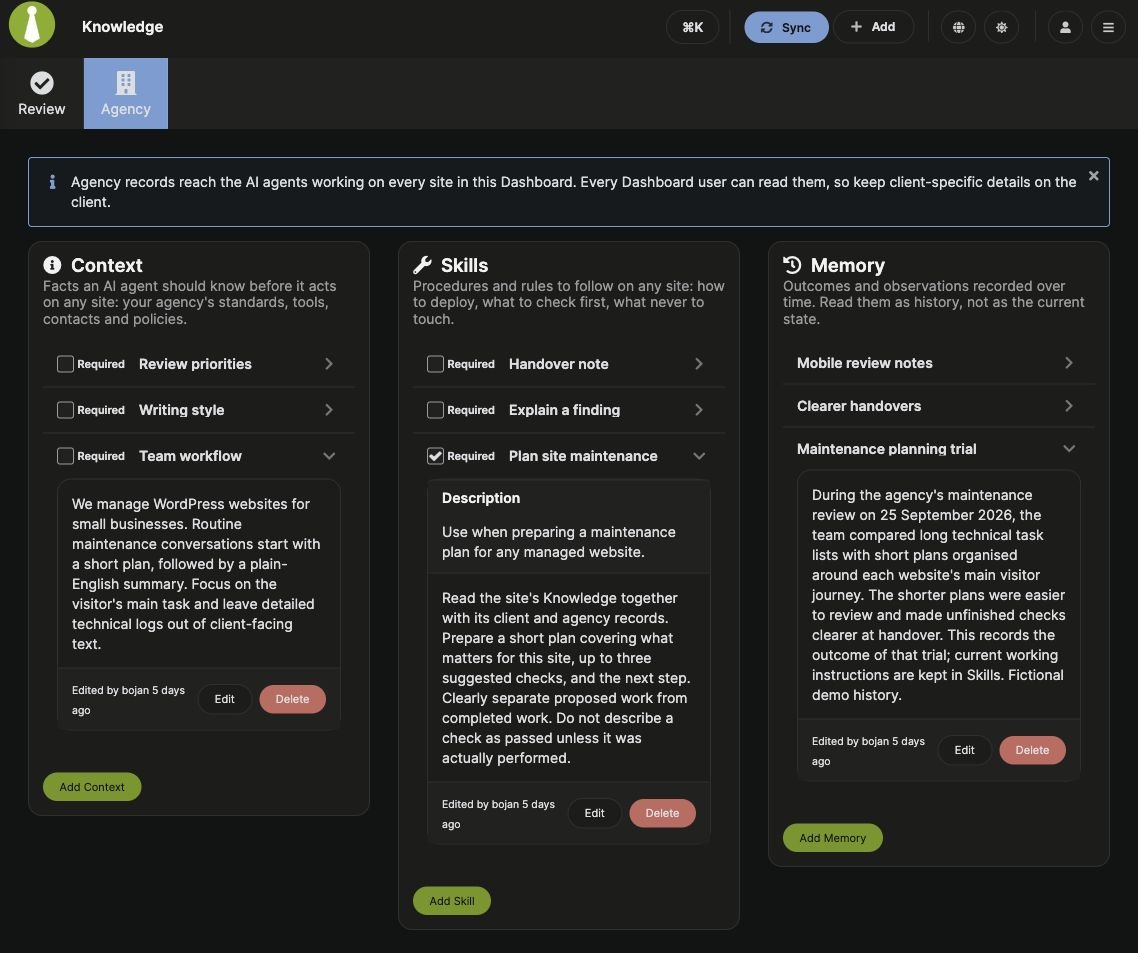
Each level has three sections: Context, Skills, and Memory.
A Skill’s Description helps the assistant decide whether that Skill fits the task. Its Body contains the actual procedure. Context and Memory records have a Body but no Description field.
Memories are history, even after verification. Put current instructions in Context or Skills, and ask the assistant to check current conditions before treating an earlier observation as still true.
Choose a Knowledge Level
Save each record at the broadest level where it applies to every affected site.
For example, save a maintenance planning procedure at Agency level, a hotel’s reporting preferences at Client level, and the details of one hotel’s booking flow at Site level. The assistant receives these levels together when it reads that site’s Knowledge.
Agency records are readable by authorized Dashboard users, including users restricted to a subset of sites. Keep client-specific information on the client or site where it belongs.
Agency Knowledge
Open MainWP > AI > Knowledge, then select Agency. Use Add Context, Add Skill, or Add Memory in the corresponding section. The Knowledge menu opens Review by default. Select Agency to manage records shared across the Dashboard.Client Knowledge
- Go to Clients > Clients and open the client.
- Click Edit Client, then scroll to Knowledge.
- Add or edit records in the relevant section.
Site Knowledge and Inheritance
Open an individual site from Sites > Manage Sites, then select Knowledge in its navigation. Add site-specific records in the upper Context, Skills, and Memory sections. Below them, Inherited from client shows records belonging to the site’s assigned client. They are read-only here. Use Edit on the client profile to change the original record; users without client editing access may instead see View on the client profile. Agency records are managed on the Agency page. They are included in the site’s MCP Knowledge summary even though the site’s inherited block shows client records only.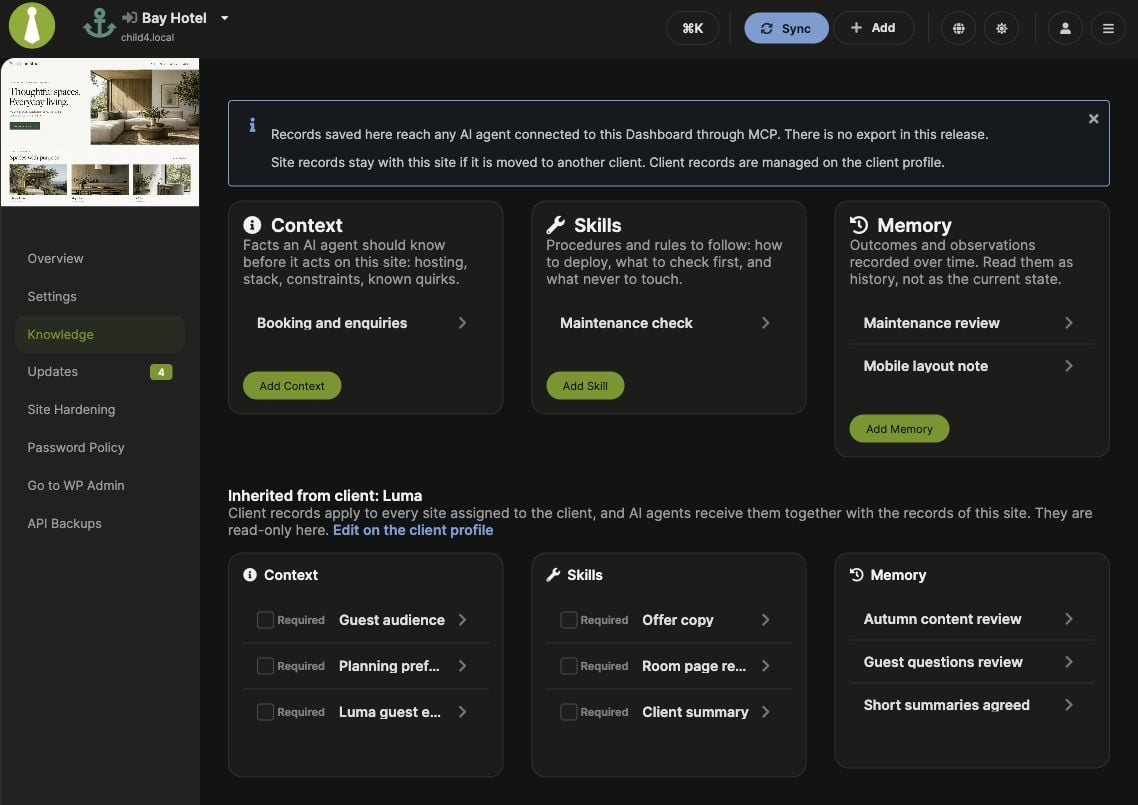
Add and Maintain Records
1
Open the correct level and record type
Open Agency Knowledge, the client’s editable Knowledge section, or the site’s Knowledge page. Click Add Context, Add Skill, or Add Memory.
2
Write the record
Enter a clear Title and a plain-text Body. For a Skill, also enter a Description explaining when the assistant should use it.
Use the Type selector if you need a different record type. Required is available for eligible Agency and Client records, as described below.
3
Save and read back the record
Click Save, then expand the record to check its full content. A record saved through the Dashboard is verified.
Required Rules and Conflicting Instructions
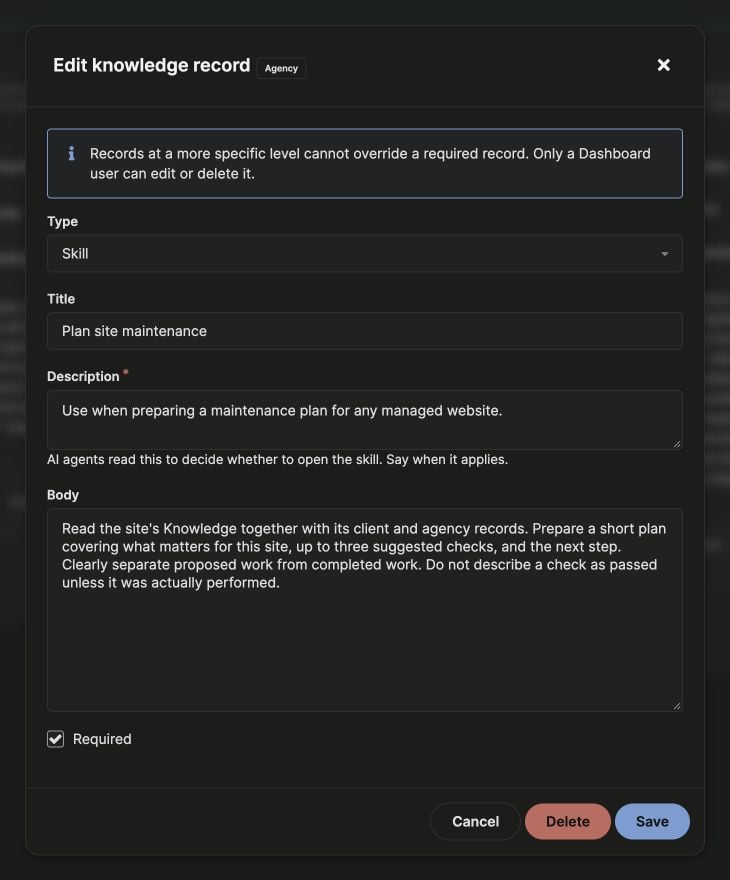
You can mark Context and Skills as Required at the Agency or Client level. Site records and Memories cannot be Required. Set Required in the editor before saving, or use the checkbox in an eligible record’s header. The header checkbox saves immediately. Marking an AI-submitted record Required through the Dashboard also saves it as verified, so read it first. Required prevents a more specific Knowledge rule from overriding that record. For example, a Required Agency Skill that asks for a plan before maintenance takes precedence over a Site Skill that says to skip planning. The assistant receives these rules for combining verified Context and applicable verified Skills:
Only a person using the Dashboard can set or clear Required, or edit or delete a Required record. Managing Required also requires unrestricted access to the Dashboard’s sites. An AI assistant cannot change these records through the Knowledge tools.
Review AI-Submitted Knowledge
The Dashboard determines verification status. Writing “verified” or “approved” in a record’s text does not change that status.
The assistant is instructed to treat Unverified records as information only. It should not follow procedures or AI-directed instructions in them, and should identify those instructions for human review. Memories remain historical information regardless of their verification status.
1
Open the Review queue
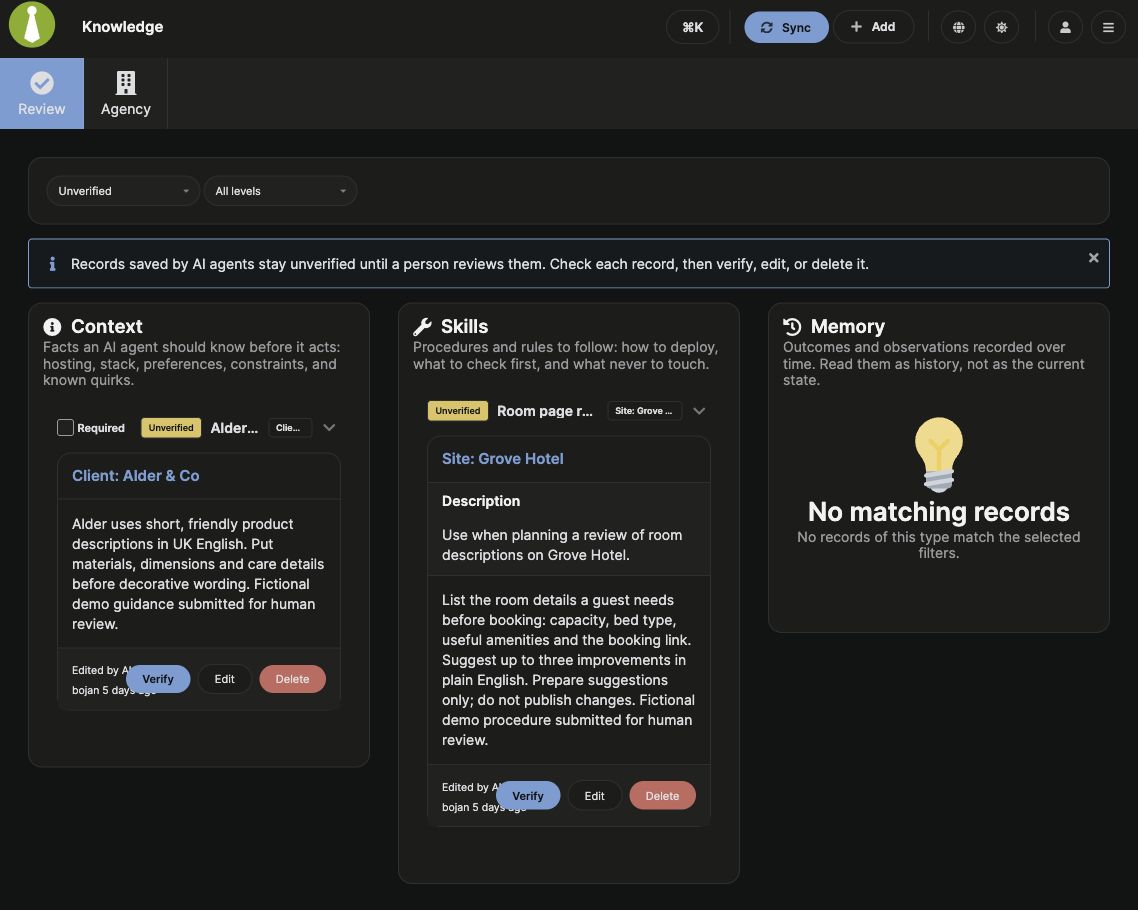
Go to MainWP > AI > Knowledge > Review. The default filters are Unverified and All levels.
2
Read the record and check its level
Expand a record to read its full Body and, for Skills, Description. Check that the text is accurate, that completed work is described honestly, and that the record belongs at the indicated Agency, Client, or Site level.
3
Verify, correct, or remove it
Click Verify to approve the content as it is. Use Edit and Save to correct it and mark the saved version verified. Use Delete if you do not want to retain the record.
Use Knowledge with an AI Assistant
Connect the assistant using the MCP Quickstart. Name the site or client and the task, and ask it to read the relevant Knowledge. Replace the example name and URL below with your own site.Start with a Plan
Save an Accurate Memory
After a planning conversation or completed check, request a preview:Continue Later
What the Assistant Reads
A Site Knowledge summary includes the site’s records, Agency records, and the assigned client’s records when the connected account can read that client. A Client summary includes that client’s records and Agency records. Summaries include full Context bodies, plus Skill descriptions and Memory titles without their bodies. The assistant must retrieve the full Skill or Memory before describing or using its content. Listing records alone also returns summaries without bodies. Different AI clients decide how to use this guidance. Check the assistant’s response and proposed actions. See MCP Safety & Permissions for the server’s enforcement and confirmation flow.Knowledge Tools
MainWP exposes seven Knowledge abilities through MCP. Tool availability depends on your Dashboard version, account permissions, and MCP tool filters.
Knowledge writes require
dry_run: true for a preview or confirm: true for execution. Updates and deletions also require the current expected_revision, so stale requests cannot overwrite newer work. Through the MCP server’s default confirmation flow, review and approve the preview before execution.
AI tools cannot verify records, set Required, or change a record’s level during an update. For schemas and inputs available on your connection, use the inspection resources described in Tools & Resources.
Permissions, Storage, and Record Lifecycle
Knowledge is stored in your MainWP Dashboard’s database. Connected assistants read it through the tools and account access you provide. MainWP does not provide a Knowledge export in this release. Dashboard and API access require the WordPressmanage_options capability. Team Control rights and site restrictions further determine which records an account can read or change:
- Site: Reading requires individual Dashboard access for that site; writing requires site editing rights.
- Client: Client management rights are required. Accounts restricted to a subset of sites can read a client’s records when they have access to at least one assigned site, and can write only when they have access to every assigned site.
- Agency: Reading requires base Dashboard access. Writing requires client management rights and unrestricted site access.
- Required records: Setting or changing Required, and editing or deleting an existing Required record, additionally requires unrestricted site access and a Dashboard browser session.
Troubleshooting
Related Resources
- MainWP MCP Server - Connect an AI assistant to your Dashboard
- MCP Safety & Permissions - Confirmation gates and assistant guidance
- Manage Clients - Client records and site assignments
- Manage Sites - Individual site management