
Prerequisites
- MainWP Dashboard installed and activated
- At least one connected child site
- Administrator access to MainWP Dashboard
Reload the Favicon
1
Open Manage Sites
In MainWP Dashboard, go to Sites > Manage Sites.
2
Select the child site
Select the checkbox next to each child site whose favicon you want to reload. To select all visible child sites, click the checkbox in the table header.
3
Choose Reload Favicon
Open the bulk actions menu and select Reload Favicon.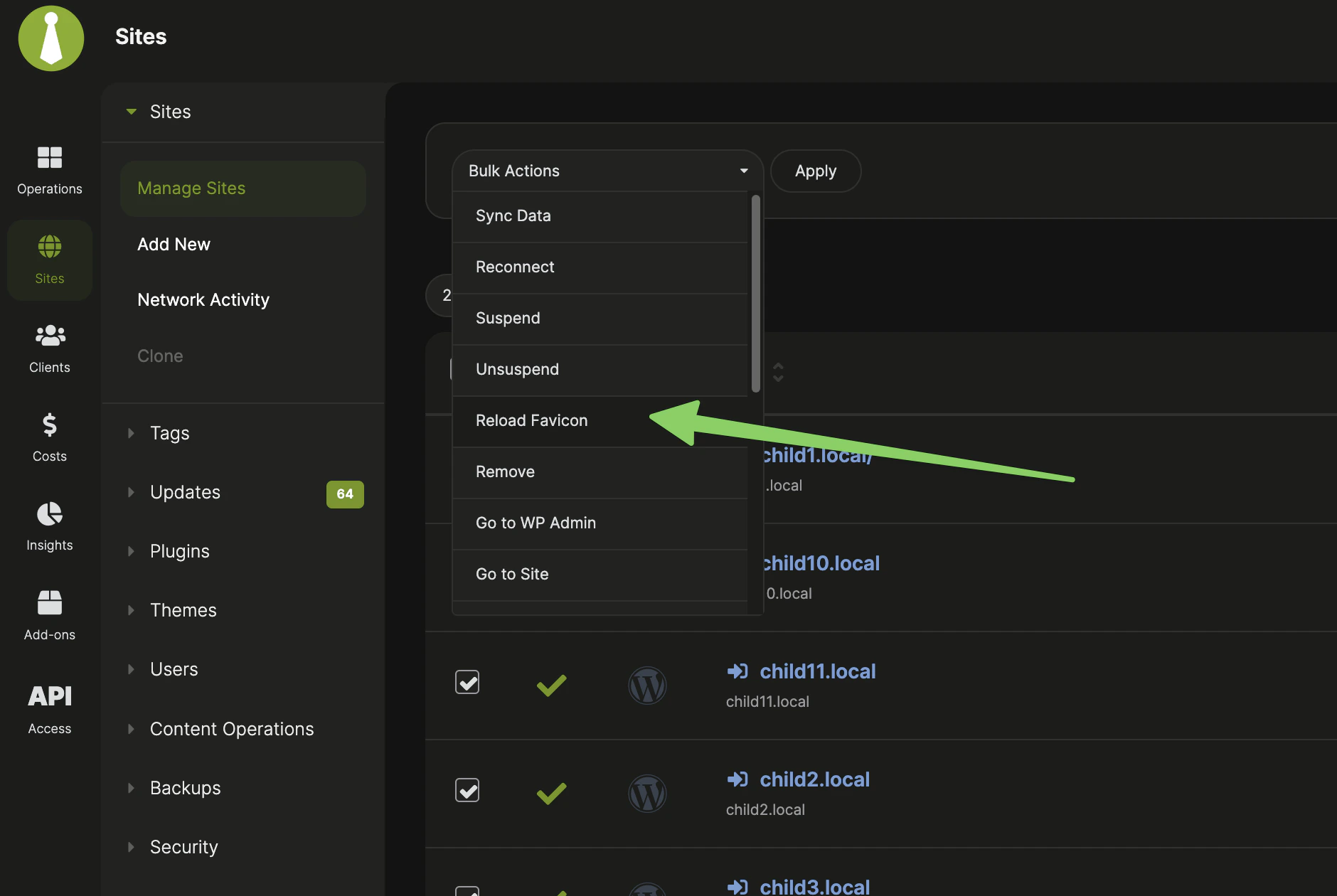
4
Apply the bulk action
Click Apply and wait for the progress modal to finish.
What Happens
MainWP Dashboard asks the selected MainWP Child site for its current favicon URL, downloads the icon, saves it in the Dashboard icons directory, and updates the saved favicon for that site. MainWP Child checks the WordPress Site Icon first, thenfavicon.ico or favicon.png, and then icon links in the site’s homepage HTML.
Reloading the favicon does not change the favicon on the child site. It only refreshes the favicon stored and displayed in MainWP Dashboard.
If the site has a custom uploaded site icon, that custom icon is shown before the fetched favicon. Reloading the favicon can still succeed, but the visible icon may not change until the custom uploaded icon is removed from the site settings.
If the Favicon Does Not Update
- Confirm the child site is connected and can sync with MainWP Dashboard.
- Confirm the child site has a favicon that is publicly reachable.
- Check whether the site has a custom uploaded site icon in MainWP Dashboard.
- Run Reload Favicon again for only the affected site.
Related Resources
- Manage Sites - Connect and manage child sites
- Choose List or Grid View for Manage Sites Table - Change how sites display on the Manage Sites page