
Built-in pagination for the Updates pages is planned, but there is no ETA. The snippet below is an optional temporary workaround.
What You’ll Learn
- Decide whether this workaround fits the problem you are seeing
- Add the complete pagination snippet through the Custom Dashboard Add-on
- Choose a site count per page and understand the scope of update actions
- Remove the workaround when you no longer need it
Prerequisites
- A MainWP Dashboard managing hundreds of connected child sites
- Noticeable slowness or browser unresponsiveness on the Updates pages
- Administrator access and permission to edit custom PHP on the Dashboard site
- The Custom Dashboard Add-on installed and activated on the Dashboard site
When This Workaround Helps
Consider this workaround if an Updates page takes a long time to load, becomes difficult to interact with, or causes high browser CPU usage while displaying a large update list. It reduces how many sites contribute rows to the current list. It does not diagnose every cause of a slow Dashboard or guarantee a particular loading time. Server errors, connection problems, and data loading in other Add-ons need separate troubleshooting. The page size counts sites, not plugins, themes, or update rows. With 100 sites per page, one page can still contain hundreds of individual updates. Sites without available updates also count toward the batch.Add the Pagination Snippet
1
Open the Custom Dashboard PHP editor
Go to Add-ons > Administrative > Custom Dashboard > PHP.Direct Dashboard path:
/wp-admin/admin.php?page=Extensions-Mainwp-Custom-Dashboard-Extension&tab=php.Keep a copy of any existing PHP before editing it.2
Paste the complete snippet
Copy the entire code block below into the PHP editor. It is ready to paste without opening or closing PHP tags.Keep unrelated snippets already in the editor. Add this pagination snippet only once; replace an earlier version of the same snippet instead of adding a second copy. All of the code is needed for this implementation, including the navigation controls.
3
Save the snippet
Click Save Changes. If the editor reports a syntax error, check that you copied the complete block without adding PHP tags or Markdown code fences.
4
Open the Updates list
Go to Updates > Plugins.Direct Dashboard path:
/wp-admin/admin.php?page=UpdatesManage&tab=plugins-updates.The site range and page number appear above the list. Use the numbered pages, Previous, or Next to move between batches. The snippet also applies to the Themes, WordPress, and Translation Updates pages when those pages are available.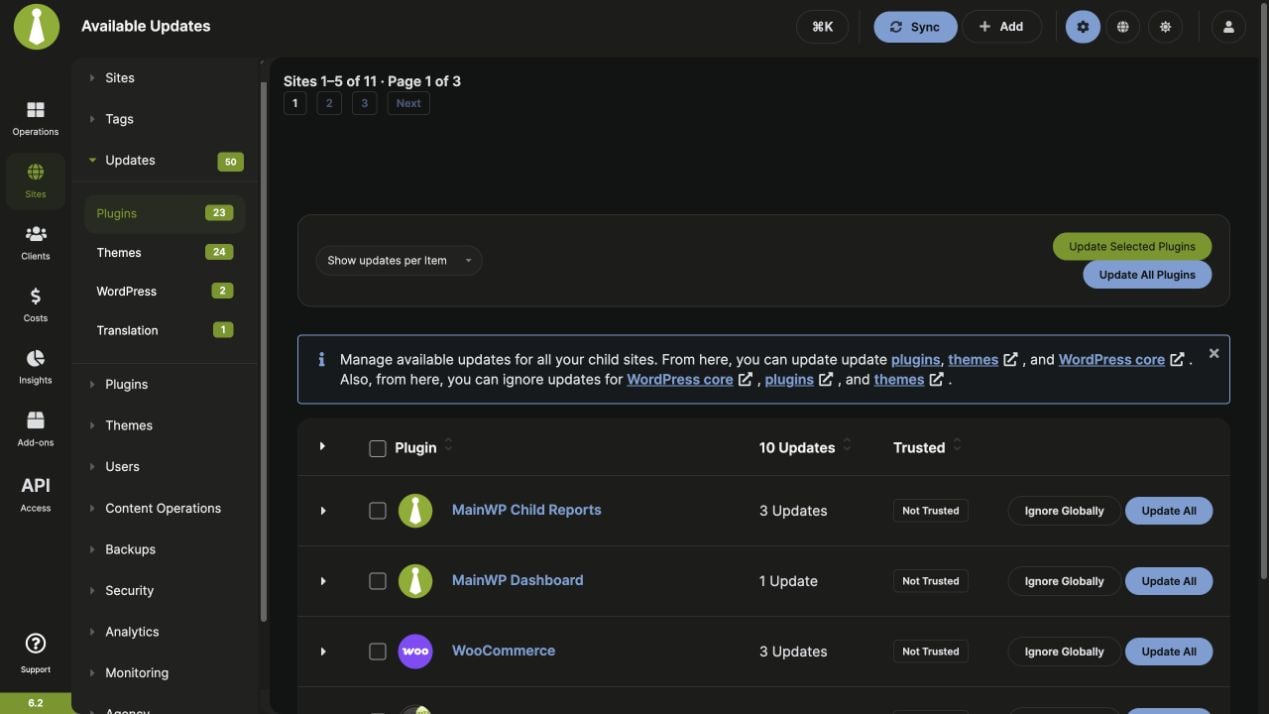
Choose the Number of Sites per Page
Start with the default line near the top of the snippet:/wp-admin/admin.php?page=UpdatesManage&tab=plugins-updates to start from the first page.
Use a positive whole number. Smaller batches reduce the rows loaded at once but require more page changes. The best value depends on how many updates each site has and how responsive the list feels.
Understand the Limitations
The snippet adds custom PHP through existing MainWP hooks. It does not edit MainWP plugin files. Those hooks and the surrounding page behavior can change in future releases; remove the workaround when you adopt built-in pagination.
Troubleshoot the Page Controls
No Next or Previous Link
The controls appear only when the eligible connected sites span more than one page. If all eligible sites fit within the configured limit, the site range still appears, but there is no second page to open.A Page Has No Available Updates
A batch can contain sites that have no updates in the selected category. Use the page controls to continue. An empty batch does not mean the whole network is up to date.An Old Page Link Returns to the First Page
Pagination links include a time-limited WordPress nonce. Reopen Updates > Plugins at/wp-admin/admin.php?page=UpdatesManage&tab=plugins-updates and use the fresh page controls instead of a saved pagination URL.
The Page Is Still Slow
Reduce the site count per page and compare responsiveness. If there is little improvement, remove the snippet using the steps below and contact MainWP Support with the affected Updates tab, approximate site count, and whether the delay occurs while loading the page or interacting with the list.Remove the Workaround
- Open Add-ons > Administrative > Custom Dashboard > PHP at
/wp-admin/admin.php?page=Extensions-Mainwp-Custom-Dashboard-Extension&tab=php. - Remove only this pagination snippet and click Save Changes. Keep any unrelated PHP.
- Reload Updates > Plugins at
/wp-admin/admin.php?page=UpdatesManage&tab=plugins-updates. MainWP returns to its normal full-list loading.
Related Resources
- Custom Dashboard Add-on - Manage custom PHP on your Dashboard
- Manage Updates - Update actions, ignored updates, and automatic updates
- Simultaneous Update Requests - Control concurrent update operations, a separate setting from list pagination