
What You’ll Learn
- How to disable guided tours from settings
- How to disable tours from any page
What Are Guided Tours
Guided tours are popup overlays that highlight and explain features as you navigate through the Dashboard.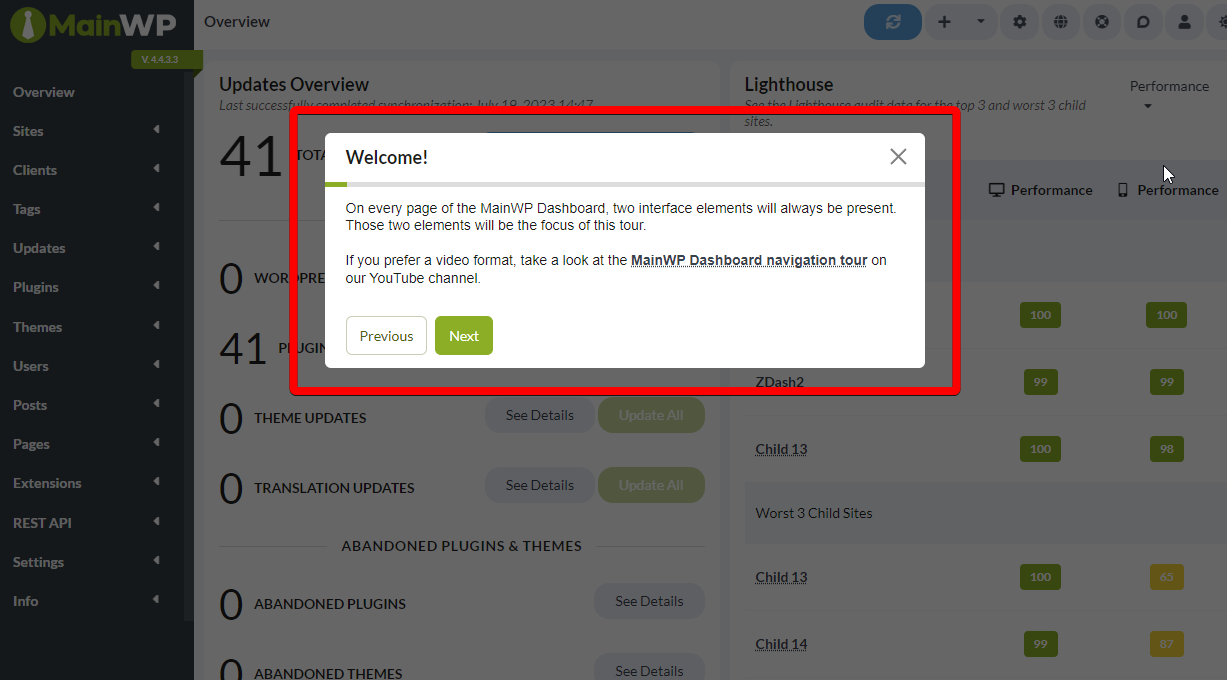
Method 1: From Settings
1
Open MainWP Tools
Navigate to MainWP > Settings > MainWP Tools.
2
Find the tours setting
Locate the Enable MainWP guided tours toggle.
3
Disable tours
Toggle the setting to Off.
4
Save changes
Click Save Settings. Guided tours are now disabled.
Method 2: From Any Page
You can toggle tours off directly from the interface:1
Open Support
Click Support in the left navigation.
2
Turn off guided tours
In the Support modal, locate the Take a Quick Tour card and set its Turn On / Turn Off toggle to Off.
3
Save permissions
Click Update Permissions to apply the change.
Re-enable Guided Tours
To turn tours back on:- Go to MainWP > Settings > MainWP Tools
- Toggle Enable MainWP guided tours to On
- Click Save Settings
Self-Check Checklist
- Guided tours toggle found
- Toggle set to preferred state
- Settings saved (if using Method 1)
- Tours no longer appear when navigating
Related Resources
- MainWP Support Modal - Learn all Support modal options
- Disable Tooltips - Turn off hover tooltips
- Disable Update Confirmations - Remove confirmation dialogs