
What You’ll Learn
- What tooltips look like
- How to disable them
Prerequisites
- Custom Dashboard extension (free)
About Tooltips
Tooltips are small popups that appear when you hover over certain elements in the Dashboard.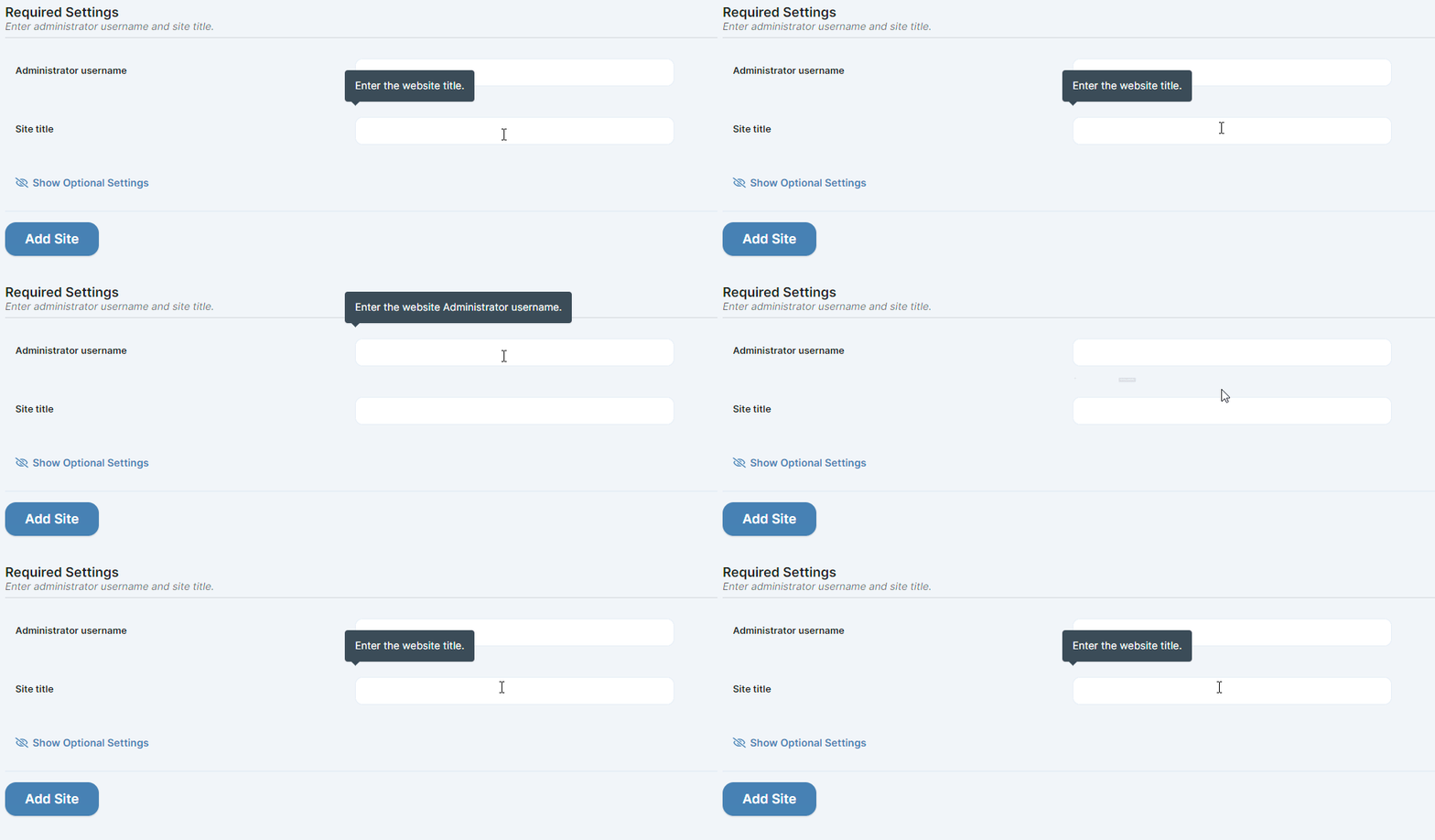
Disable Tooltips
1
Open Custom Dashboard
Navigate to the Custom Dashboard extension settings.
2
Add CSS snippet
Go to the CSS tab and add this code: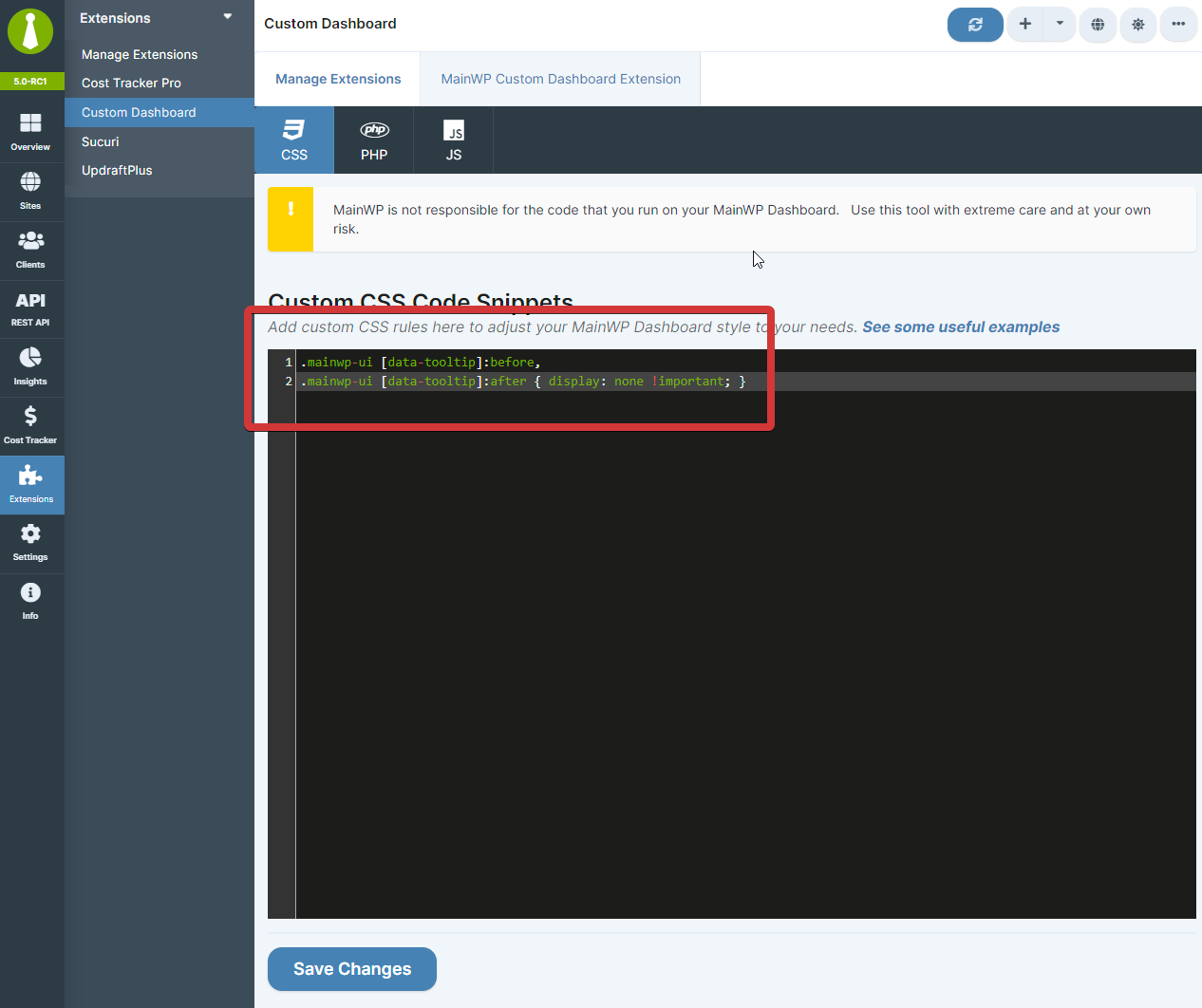
3
Save changes
Click Save Changes. Tooltips no longer appear on hover.
Restore Tooltips
To show tooltips again:- Return to the Custom Dashboard extension
- Remove the CSS snippet from the CSS tab
- Click Save Changes
Self-Check Checklist
- Custom Dashboard extension installed
- CSS snippet added to CSS tab
- Changes saved
- Tooltips no longer appear on hover
Related Resources
- Turn Off Guided Tours - Disable feature tours
- Hide New/Beta Labels - Remove interface labels
- Custom Dashboard Extension - Extension documentation