
What You’ll Learn
- How to reset widget layouts on overview pages
- How to reset table layouts on list pages
When to Reset Page Settings
Use this feature when:- Widgets are arranged in an unhelpful way
- Important widgets are hidden
- Table columns are in a confusing order
- You want to start fresh with default settings
Reset Widget Layout
Widget-based pages include the Overview Page, Child Site Overview Page, and Client Card page.1
Open page settings
Click the Cog icon in the top right corner of the page.
2
Reset the page
Click the Reset Page button in the bottom left of the popup modal.
3
Confirm
Click Yes, Proceed! to confirm.
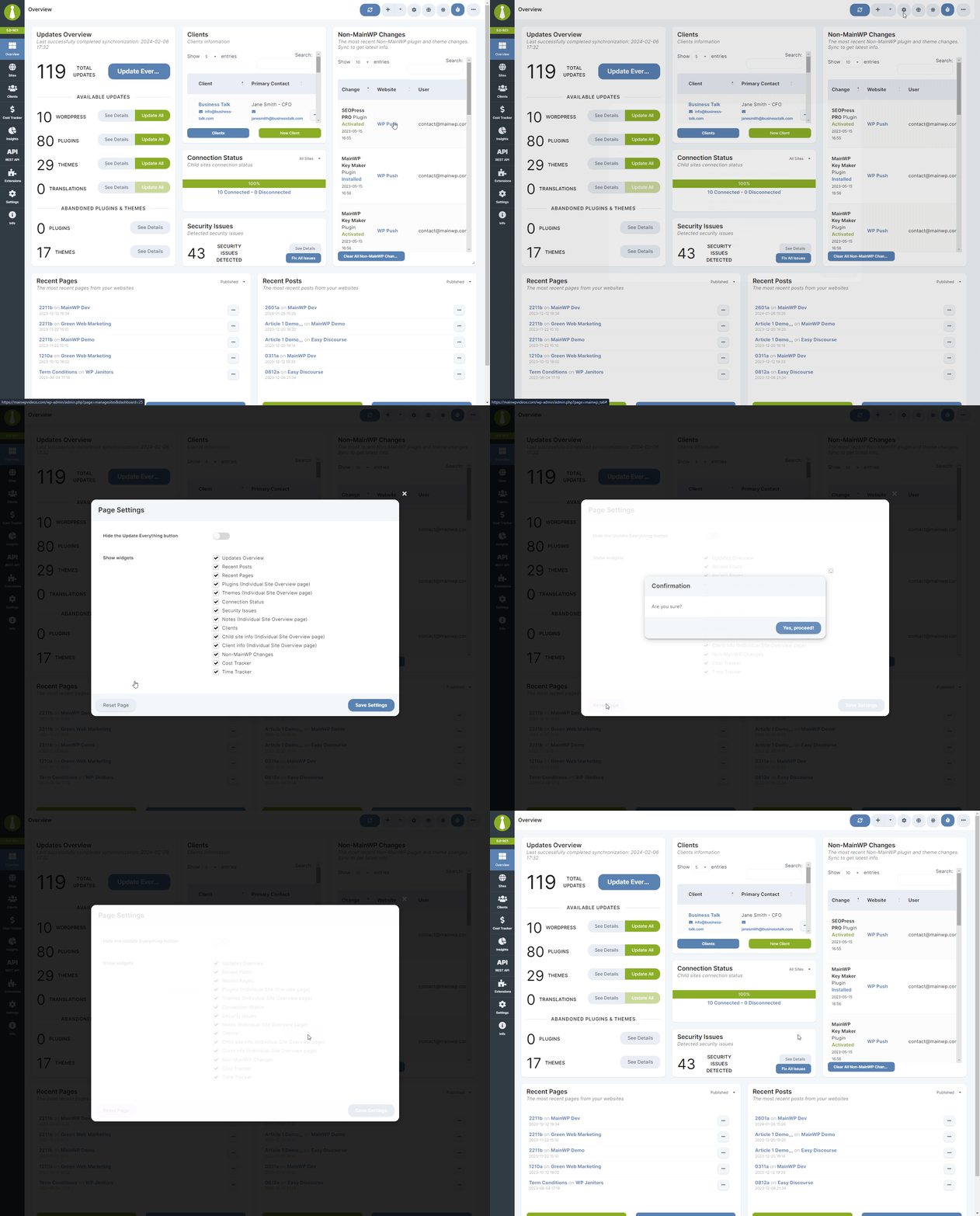
- Widget positions
- Widget sizes
- Widget visibility (shown/hidden)
Reset Table Layout
Table-based pages include Manage Sites, Manage Plugins, Manage Themes, and similar list views.1
Open page settings
Click the Cog icon in the top right corner of the page.
2
Reset the table
Click the Reset Page button in the bottom left of the popup modal.
3
Confirm
Click Yes, Proceed! to confirm.
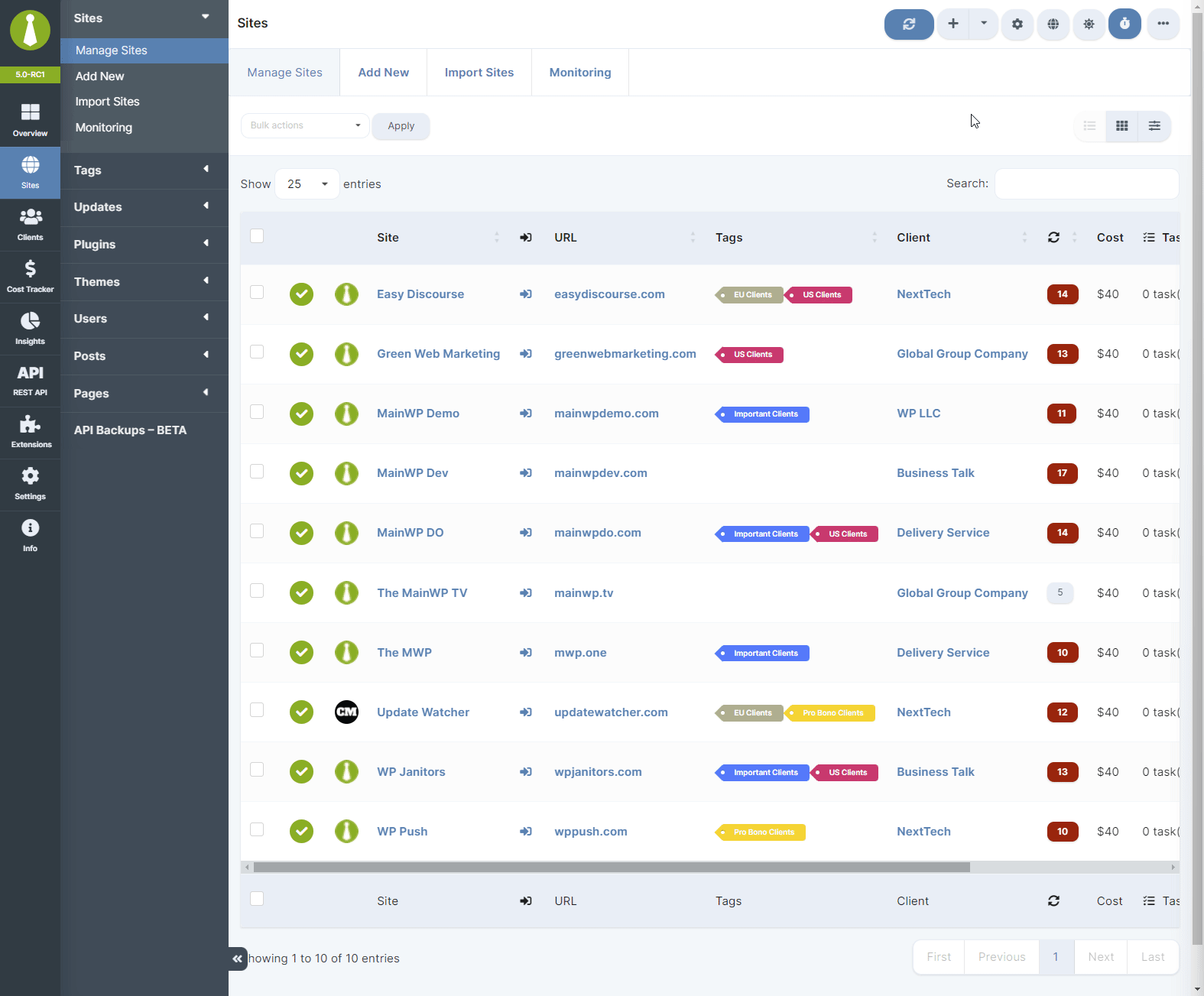
- Column visibility
- Column order
- Any sorting preferences
Self-Check Checklist
- Identified page needing reset
- Clicked Cog icon
- Clicked Reset Page
- Confirmed the reset
- Page showing default layout
Related Resources
- Hide Widgets - Widget visibility options
- Widget Columns - Column layout settings