
The MainWP Browser Extension adds MainWP Dashboard visibility to your browser toolbar. It checks your child sites for available updates, surfaces changes made outside MainWP, runs Time Tracker timers, and shows Cost Tracker totals and license expiration alerts. API requests go from your browser directly to your self-hosted MainWP Dashboard over HTTPS.
What You’ll Learn
- Requirements and installation options
- How to connect the extension to MainWP Dashboard
- How the Updates, Time Tracker, Cost Tracker, and Settings views work
- How to migrate from earlier extension versions
- How to troubleshoot common connection problems
Requirements
- Chrome 116 or later. The Chrome extension uses Manifest V3, so it can also run in Chromium-based browsers that support Manifest V3, such as Edge, Brave, Arc, Vivaldi, and Opera.
- MainWP Dashboard 5.2 or later. MainWP Dashboard 5.2+ is required for REST API v2, Bearer token authentication, Time Tracker, and Cost Tracker support.
- An HTTPS MainWP Dashboard URL. The extension rejects plain HTTP. Development URLs such as
https://localhost,https://127.0.0.1, and HTTPS private IP addresses can be used when the browser can reach them. - An enabled REST API key in MainWP Dashboard.
- WordPress permalinks set to anything other than Plain. The REST API needs pretty permalinks to route requests.
The extension can only connect to a MainWP Dashboard URL that your browser can reach. A Dashboard running on
localhost from another machine is not reachable from that other machine.Installation
Chrome
- Visit the Chrome Web Store extension page.
- Click Add to Chrome.
- Click Add Extension to confirm.
- Pin the MainWP icon to your toolbar from the extensions menu.
If Chrome Enhanced Safe Browsing flags the extension during install, click Continue to install to proceed.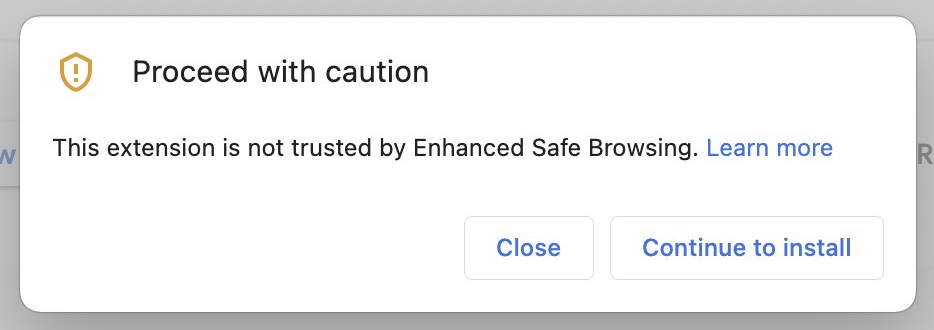
Firefox
- Visit the Firefox Add-ons extension page.
- Click Add to Firefox.
- Click Add to confirm.
Connect the Extension to MainWP Dashboard
The current Chrome extension connects with MainWP REST API v2 and Bearer token authentication.1
Configure permalinks
Go to WP Admin > Settings > Permalinks on the site running MainWP Dashboard. Choose any setting other than Plain.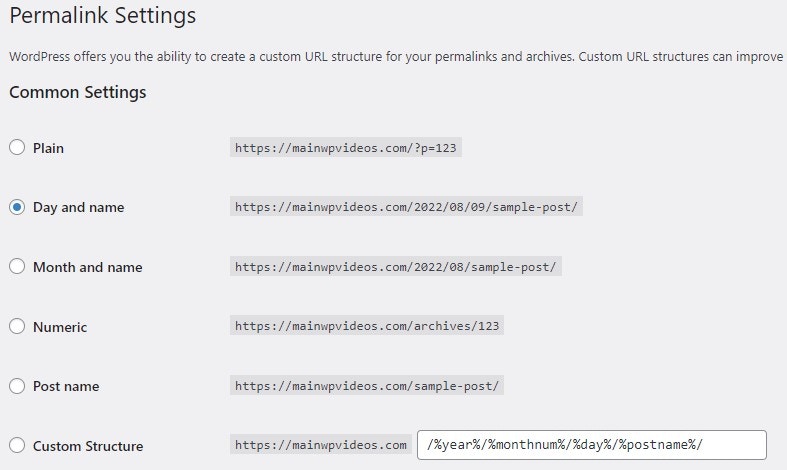
2
Open Add API Keys
In MainWP Dashboard, go to MainWP > API Access > Add API Keys.
3
Create the API key
Enter an API key name, such as
Browser Extension, and keep the key enabled.For update and Cost Tracker monitoring, Read permission is enough. If you want to start, pause, stop, or create Time Tracker tasks from the extension, also enable the write-capable permission option, currently labeled Write & Delete for v2 keys.4
Copy the Bearer token
Copy the value from API key (Bearer token). Store it securely because the token is shown only when the key is created.
5
Save the API key
Save the key in MainWP Dashboard. The key is not active until you save it.
6
Open the extension
Click the MainWP icon in your browser toolbar. The welcome screen appears with the heading Welcome to MainWP.
7
Enter your MainWP Dashboard URL
Paste the full MainWP Dashboard URL into Enter your MainWP Dashboard URL. The URL must use
https:// and point to the site root, not /wp-admin.8
Enter your credentials
Paste the Bearer token into Paste your Bearer Token.
9
Connect MainWP Dashboard
Click Connect Dashboard. Chrome prompts you to grant the extension permission to access the Dashboard origin. Allow the request.
10
Pick what to monitor
On the Connected Successfully! screen, choose which data to sync: WordPress updates, plugin updates, theme updates, translation updates, and Non-MainWP changes. Choose a sync frequency and theme, then click Start Monitoring.
What You’ll See in the Toolbar
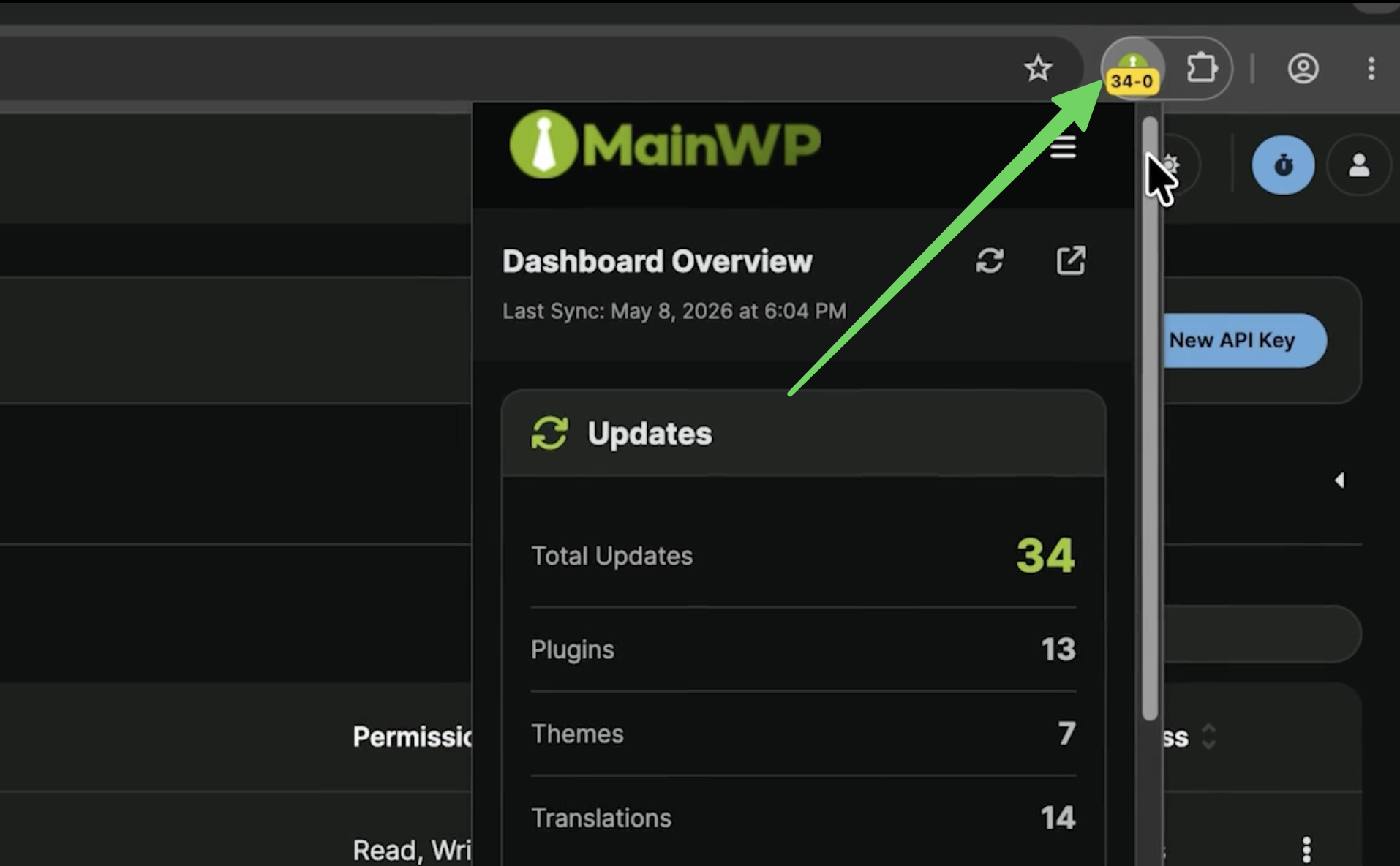
5-2 means 5 selected updates and 2 Non-MainWP changes. Each number is capped at 99, and the badge is blank when both counts are zero.
When a Time Tracker timer is running or paused, the badge shows elapsed time instead. When the timer stops, the update-count badge returns if there are cached counts to show.
Desktop notifications can fire for available updates, timer state changes, license expiration warnings, and sync errors. Configure notification categories in Settings > Notifications.
Updates
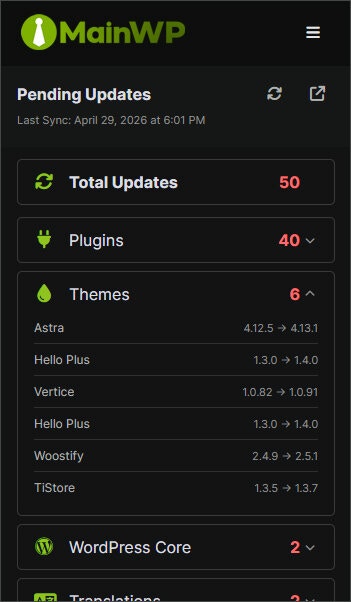
- Plugins
- Themes
- WordPress Core
- Translations
- Non-MainWP Changes
Time Tracker
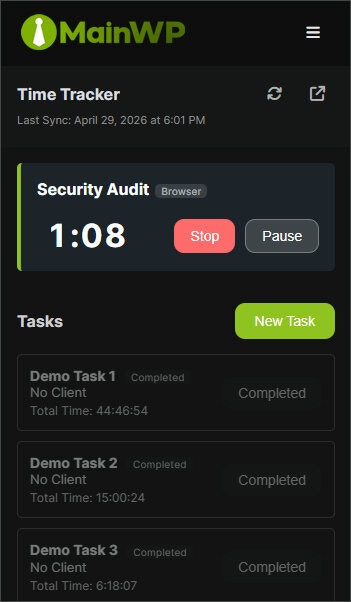
Time Tracker requires the Time Tracker extension installed and active on MainWP Dashboard. If it is unavailable, the browser extension shows a message that Time Tracker is not installed on your Dashboard.
Cost Tracker
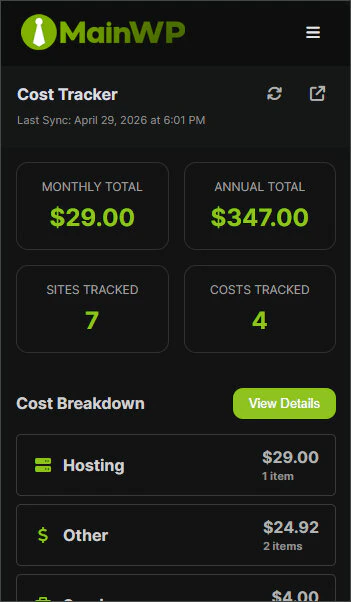
- Monthly Total and Annual Total projections
- Sites Tracked and Costs Tracked counts
- Cost Breakdown by category
- License Expiration Alerts
Cost Tracker requires the Cost Tracker feature to be available in MainWP Dashboard. If the required endpoint is unavailable, the browser extension shows an unavailable message for Cost Tracker.
Settings
Open Settings from the gear icon in the popup. Settings are grouped into five sections. Connection stores the MainWP Dashboard URL and credentials, the I have saved the API Key in my Dashboard confirmation checkbox, and Disconnect Dashboard. Appearance lets you choose Light, Dark, or System (Auto). Monitoring controls sync frequency, preferred currency, and which data types count toward sync and badge totals. Notifications controls desktop notifications for updates, license expiration warnings, and sync errors. About shows the installed extension version and links to documentation, support, and MainWP. Clear All Data removes credentials, cached counts, Cost Tracker cache, and timer history from the browser. Save changes with Save Settings.Migrating From Earlier Versions
If you used an earlier Chrome extension version with Consumer Key and Consumer Secret credentials, the v3 extension checks your saved MainWP Dashboard connection after update. If the Dashboard supports MainWP REST API v2, the extension may show a Credential Update Available prompt. Generate a new Bearer token in MainWP Dashboard, then update the connection in the extension. If the Dashboard does not support MainWP REST API v2, the extension shows a migration or upgrade prompt. Upgrade MainWP Dashboard to version 5.2 or later, then reconnect the extension. If your saved Dashboard URL uses HTTP, an HTTPS Required prompt appears and the extension stops API calls until you update the URL tohttps://.
Troubleshooting
Connection Issues
REST API blocked by a security plugin
Security and performance plugins can block REST API access. Test by logging out of WordPress and visiting:/mainwp/v2/sites/count/mainwp/v2/sites/mainwp/v2/updates/mainwp/v2/sites/{id}/non-mainwp-changes/mainwp/v2/time-tracker/mainwp/v2/settings/cost-tracker/mainwp/v2/costs
/mainwp/v1/sites/all-sites/mainwp/v1/sites/sites-available-updates-count/mainwp/v1/site/non-mainwp-changes-count
HTTP Basic Auth conflict
The browser extension is not compatible with HTTP Basic Auth on the MainWP Dashboard site. Use the Dashboard Lock extension instead. It provides equivalent protection without blocking REST API requests.Inspect the service worker
For deeper debugging, openchrome://extensions, find MainWP Browser Extension, and click Inspect views: service worker. The Console tab shows API calls, sync attempts, and extension errors.
Permissions and Privacy
The Chrome extension requests three core permissions:alarmsfor scheduled syncsstoragefor settings, cached counts, timer state, and Cost Tracker cachenotificationsfor desktop alerts
chrome.storage.local and are not synced through Chrome Sync. Non-sensitive preferences and cached update counts may use chrome.storage.sync; if Chrome Sync is enabled, Chrome may sync those values through Google’s standard Chrome Sync infrastructure.
The extension does not send API data to MainWP servers, analytics services, telemetry endpoints, or external CDNs.
By installing, you agree to the Terms of Service and the MainWP Browser Extension Privacy Policy.
Self-Check Checklist
- Extension installed in Chrome and pinned to the toolbar
- WordPress permalinks set to a non-Plain option
- REST API key created in MainWP > API Access > Add API Keys with the permissions needed for your selected features
- API key saved in MainWP Dashboard
- Dashboard URL uses
https:// - Bearer token entered in the extension
- Chrome host permission granted for the Dashboard origin
- Monitoring preferences selected
- Pending update counts visible in the popup