
What You’ll Learn
- Identify why Jump to WP Admin fails
- Check automatic URL handling and per-site locks
- Correct remaining www or HTTP/HTTPS mismatches
- Resolve security plugin conflicts
Prerequisites
- MainWP Dashboard with connected child sites
- MainWP Dashboard 6.2 or later for Use detected and Lock site URL
- Admin access to child sites (for security plugin adjustments)
Automatic URL Handling
Starting with MainWP Dashboard 6.2, Jump to WP Admin can use the address last reported by the child site when the difference is awww variant or an HTTP-to-HTTPS change. A mismatch no longer necessarily means the jump will fail. A site can also sync successfully while its Jump to WP Admin login fails.
The Auto-correct site URLs setting in MainWP > Settings > Advanced Settings > Miscellaneous Settings is enabled by default. It also allows MainWP to verify and update stored addresses in the background. Automatic handling does not switch HTTPS to HTTP or change the domain, port, or path.
A site’s Lock site URL setting prevents both automatic changes to its stored URL and automatic address adjustment for Jump to WP Admin. Disabling the global setting alone stops background URL changes but still allows Jump to WP Admin to use a supported detected address.
Check and Correct the Site URL
1
Sync the child site
Go to MainWP > Sites > Manage Sites, open the site’s actions menu, and click Sync Data. Then try Jump to WP Admin again. Syncing refreshes the reported address if the site recently changed its protocol or www prefix.
2
Open the site's settings
If the jump still fails, open the site’s actions menu and click Settings. Under General Settings, review Site URL and Lock site URL.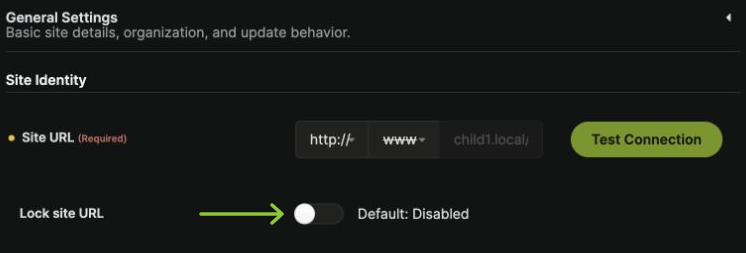
3
Review the detected address or adjust the selectors
For a protocol or www mismatch, MainWP shows The child site reports its address as: and a Use detected button. If the reported address is correct, click Use detected to fill the protocol and www selectors.If this hint is absent, or you need a different address, adjust the selectors manually using the guidance below. Use detected does not save the settings or turn off an existing lock.
4
Save and retry Jump to WP Admin
Click Save Settings, then try Jump to WP Admin again. Manually changing the URL to differ from the child-reported address automatically enables the URL lock, so review that setting if you later want automatic handling again.
WWW Prefix Mismatch
In Site URL, choose www if the site’s address uses that prefix, or the crossed-out www option if it does not. Save the settings after making a manual adjustment.HTTP/HTTPS Protocol Mismatch
In Site URL, select https:// or http:// to match the site’s working address. Use HTTPS when the site supports it. MainWP does not automatically change an HTTPS address to HTTP; review such a difference before applying it manually.Security Plugin Conflicts
Security plugins that modify login behavior or hide WordPress admin URLs can interfere with Jump to WP Admin.Known Conflicting Plugins
- WPS Hide Login
- Solid Security (formerly iThemes Security)
- Hide My WP Ghost
- All-In-One WP Security
Troubleshoot Security Plugins
1
Test with plugins disabled
Temporarily deactivate security plugins on the child site and test Jump to WP Admin.
2
Identify the conflict
If it works, re-enable plugins one at a time to identify which one causes the issue.
3
Adjust plugin settings
Look for settings that modify:
- Login URL or path
- Admin URL protection
- Session handling
- Auto-logout behavior
Self-Check Checklist
- Child site synced to refresh its reported address
- Site URL protocol and www prefix reviewed
- Lock site URL enabled only when the stored address is intentional
- Settings saved after adjustments
- Security plugin or custom login settings checked if the issue persists
- Jump to WP Admin works correctly
Related Resources
- Manage Child Site Settings - Detected addresses and per-site URL locks
- Use Jump to WP Admin with HTTP Basic Auth - Special configuration for protected sites
- Change WP Admin URL - Custom admin URL considerations
- Troubleshoot Connection Problems - General connection issues