
What You’ll Learn
- Identify what’s blocking your connection
- Resolve firewall and security layer blocks
- Fix SSL certificate verification issues
- Troubleshoot DNS and server configuration problems
- Resolve plugin conflicts
Prerequisites
- MainWP Dashboard installed and activated
- MainWP Child plugin installed on the site you’re trying to connect
- Admin access to both Dashboard and child sites
- Your Dashboard IP address (found at MainWP > Status)
Connection Blocked by Firewall
When a firewall or security layer blocks requests from your MainWP Dashboard, you’ll typically see one of these error messages:- “Connection timed out after 100000ms” or “Site can’t be reached”
- “MainWP Child plugin can’t be found” (the request never reaches the website)
Find your MainWP Dashboard IP address at MainWP > Status under the Server IP check. You’ll need this IP to create firewall exceptions.
General Troubleshooting Steps
1
Disable security plugins
Temporarily disable all security plugins on the child site.
2
Check .htaccess
Review the .htaccess file for leftover security rules from previously deactivated plugins or custom security rules.
3
Check cloud proxy firewall
If using Cloudflare, Sucuri, WebARX, or similar, temporarily disable it or whitelist your MainWP Dashboard IP.
4
Contact host about server firewall
If the above steps don’t help, contact your host support and have them review firewall logs around the time you tried to connect. They can whitelist your Dashboard IP or adjust the triggered WAF rule.
ModSecurity
ModSecurity is a web application firewall (WAF) that may block MainWP connections. If ModSecurity is blocking your connection, the Connection Test typically shows HTTP status code 415 Unsupported Media Type.1
Find your Dashboard IP
Go to MainWP > Status and note your Dashboard IP address.
2
Find the ModSecurity error
Access your child site server’s Nginx/Apache Error Log and find the ModSecurity error generated when your Dashboard tried to connect. Note the Error ID (bolded number in this example):
3
Locate ModSecurity config
Find your ModSecurity configuration file:
4
Add exclusion rule
Add your exclusion rule at the bottom of the config file:Replace the IP address and ID with your values.
5
Save changes
Save the configuration file.
Imunify360
Imunify360 is a security suite for Linux web servers that can block MainWP Dashboard connections. Indicators: Connection Test shows HTTP status code 415 Unsupported Media Type, or MainWP displays:Error detected: Connection Failed. We suspect that Imunify360, a security layer added by your host, is causing this problem.Contact your host to whitelist your Dashboard IP, or follow these steps if you have WHM access:
1
Log in to WHM
Access your WHM control panel.
2
Navigate to Imunify360
Go to Plugins > Imunify360.
3
Open Firewall tab
Select the Firewall tab.
4
Add IP to whitelist
Click Add on the right side and enter:
- Your Dashboard IP address
- A descriptive comment
- TTL (time to live) value
- Select Whitelist
- Enable Full access
5
Save
Click ADD IP.
Cloudflare
Cloudflare’s firewall can block MainWP Dashboard requests. Create a firewall rule to whitelist your Dashboard IP.1
Get Dashboard IP
Go to MainWP > Info > Server and note your Dashboard IP address.
2
Open Cloudflare WAF
In your Cloudflare account, navigate to Security > WAF.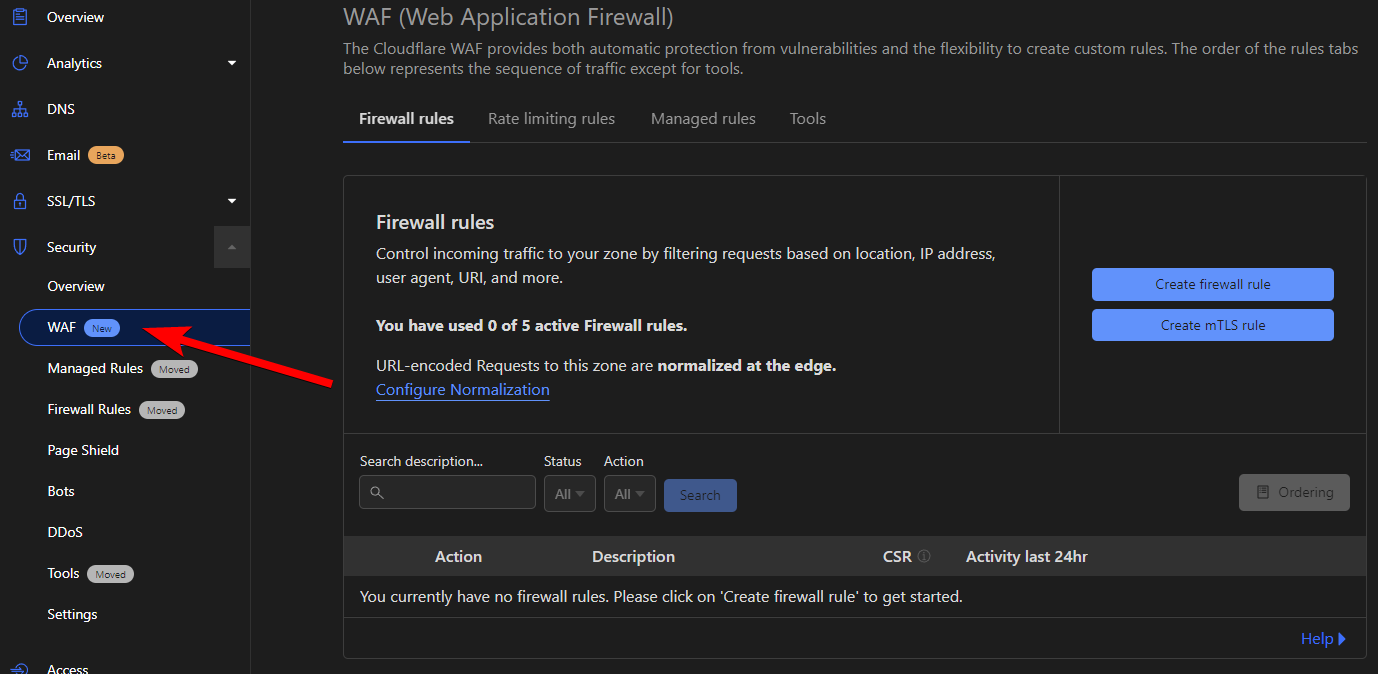
3
Create firewall rule
Click Create firewall rule and configure: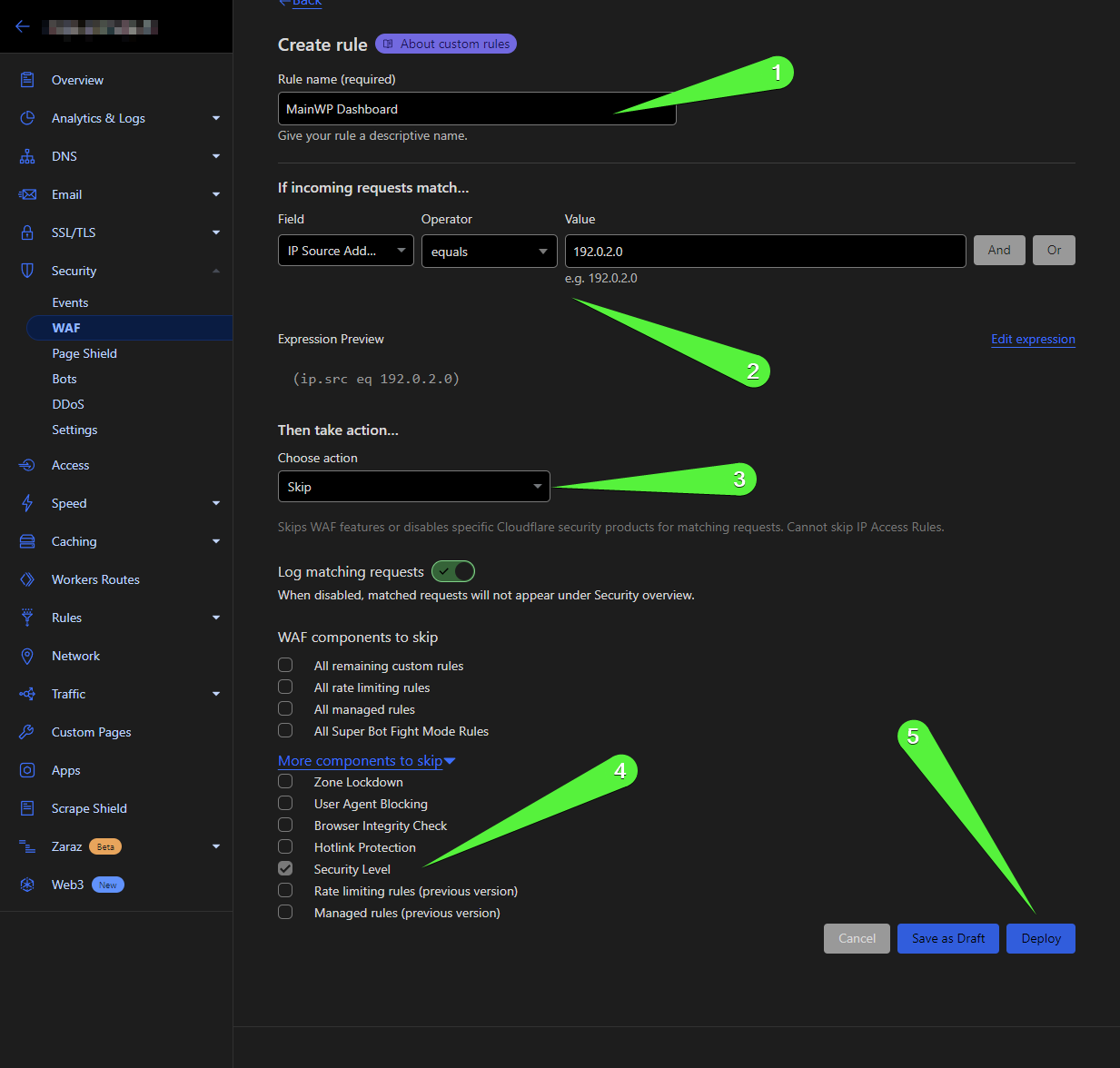
4
Deploy
Click Deploy to save.

If neither approach works, disable Bot Fight Mode at Cloudflare Dashboard > Security > Bots. This feature sometimes blocks legitimate MainWP requests.
SiteGround Captcha
SiteGround’s captcha security feature can prevent MainWP Dashboard connections. Indicator: Connection Test shows HTTP status code 202 Accepted. Resolution: Contact SiteGround support and request they whitelist your MainWP Dashboard’s IP address. Find your IP at MainWP > Server under Server IP.If the Server IP shows a local address like 127.0.0.1, contact your MainWP Dashboard host to get the actual external IP address.
SSL Certificate Verification Issues
SSL certificate misconfiguration or expiration can prevent MainWP from connecting to child sites.1
Check SSL status
Go to SSL Checker and enter your child site URL.
2
Review results
If warnings or errors appear, contact your host to resolve SSL configuration issues.
DNS Issues
Recent server migrations may cause DNS cache inconsistencies.1
Test connection
Use the Test Connection feature.
2
Compare IP addresses
Verify the IP matches what shows on your child site at WP > Settings > MainWP Child > Server Information.
3
Request DNS flush
If IPs don’t match:
- Dashboard host: Request DNS cache flush
- Child site host: Request DNS settings verification
Dashboard Server Misconfiguration
Verify your Dashboard server meets requirements.1
Check Server Information
Go to MainWP > Server Information.
2
Verify required checks
Ensure these show Pass:
- cURL Extension Enabled
- cURL Version
- OpenSSL Extension Enabled
- OpenSSL Version
- PHP Version
- MySQL Version
OpenSSL Library Error (Invalid Request)
If you receive an “Invalid request” error, check MainWP > Server Information for the SSL Warning row. These errors indicate OpenSSL misconfiguration:1
Navigate to Advanced Settings
Go to MainWP > Settings > Advanced Settings.
2
Add OpenSSL.cnf file
The option to add the OpenSSL.cnf file will appear.
3
Save
Click Save Settings.
4
Verify
Recheck Server Information to confirm the SSL Warning is gone.
Child Site Server Misconfiguration
Verify your child site server meets requirements.1
Check Server Information
Go to WP > Settings > MainWP Child > Server Information on the child site.
2
Verify required checks
Ensure these show Pass:
- MainWP Upload Directory
- cURL Extension Enabled
- cURL Version
- OpenSSL Extension Enabled
- OpenSSL Version
- PHP Version
- MySQL Version
Plugin Conflict
Security and caching plugins frequently block MainWP connections.1
Disable plugins
Temporarily disable all plugins except MainWP Child.
2
Test connection
Attempt to connect the site.
3
Identify conflict
If successful, re-enable plugins one at a time to identify the conflict.
MainWP Child Plugin Missing
The MainWP Child plugin must be installed and activated on any site you want to connect. Verify this before troubleshooting other issues.Self-Check Checklist
- Dashboard IP is noted for firewall rules
- Connection Test shows the specific error
- Security plugins are temporarily disabled
- .htaccess has no blocking rules
- SSL certificate is valid
- Server Information shows all checks passing
- MainWP Child is installed and activated
Related Resources
- How to Enable Error Logging - Debug connection issues
- Connection Test Status Codes - Understand error codes
- Resolve System Requirements - Fix server issues