
- Docs answers questions about MainWP from the official MainWP documentation. It doesn’t need an AI key.
- Sites works with your own Child Sites through your connected ChatGPT plan or an AI provider API key. It starts read-only and, by default, asks you to confirm each change.
What You’ll Learn
- What Docs mode and Sites mode do and what each one needs
- Who can use the Assistant
- How to turn on the Assistant the first time
- How to open the Assistant from the sidebar, the Support modal, and the Command Palette
- How the panel is laid out
Prerequisites
An administrator also has to accept the Assistant’s privacy notice once before anyone on the Dashboard can chat. See Turn on the Assistant.
The Assistant opens only for WordPress administrators who can access the Dashboard’s Overview. If you use Team Control, turning the Assistant on, accepting the privacy notice, and changing Dashboard-wide Assistant settings also need the Access MainWP Settings permission.
Docs Mode and Sites Mode
Docs sends your question to the MainWP documentation service and shows the answer with links to the documentation pages it used. It can’t see or change your sites. Use it for “how do I” questions about MainWP. Sites sends your request to your connected ChatGPT account or the AI provider configured in WordPress on your Dashboard site. The provider can call MainWP actions, such as listing sites, checking updates, or syncing sites, within the access you allow. Sites mode responses usually take 1 to 3 minutes. What Sites mode can do depends on your access mode:- Read Only (the default) lets it read data only.
- Read & Write (with confirmation) lets it make changes that don’t delete anything, such as syncing sites or running updates. By default it asks you to confirm each one.
- Full Access also allows actions that delete or remove data. Those always show a preview and ask you to confirm.
Turn On the Assistant
On new installs the Assistant is turned on. After an upgrade, it keeps the setting of the earlier chat support option, which was off unless you turned it on. Turn it on from any of these places:- MainWP menu (three lines, top right) > MainWP Tools, under Privacy & Third-Party Services Permissions: MainWP Assistant (AI-Powered Chat Support)
- The Support Assistant card in the Support modal
- Assistant Settings > AI Access Policies > Global Assistant Toggle (
/wp-admin/admin.php?page=AssistantSettings&tab=policies)
1
Open a chat
Open the Assistant and select Start Chat.
2
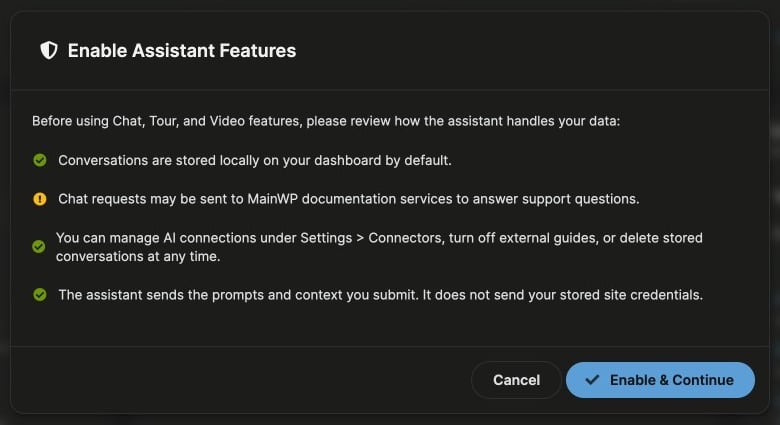
Review the privacy notice
Read the list in the Enable Assistant Features dialog.
3
Accept
Click Enable & Continue. The chat opens.
Open the Assistant
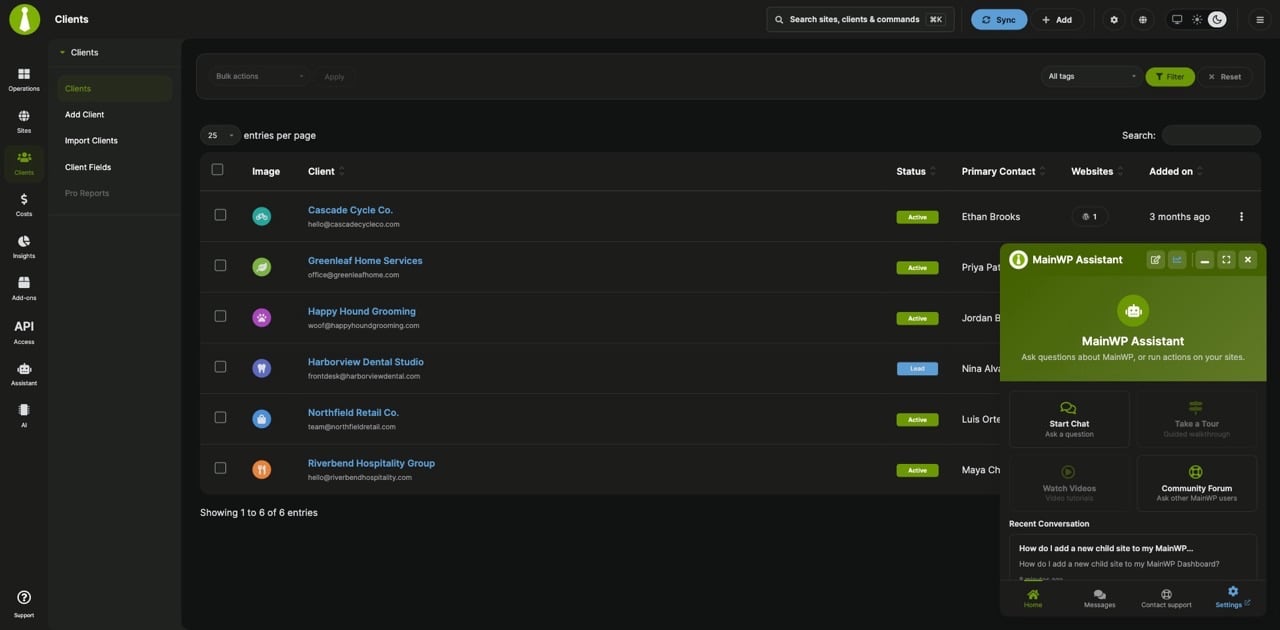
The Assistant panel is available on MainWP Dashboard pages. Open it in any of these ways:- Sidebar: Click Assistant (robot icon) in the left navigation.
- Support modal: Click Support at the bottom of the left navigation, then click Open Support Assistant on the Support Assistant card. The modal closes and the chat opens.
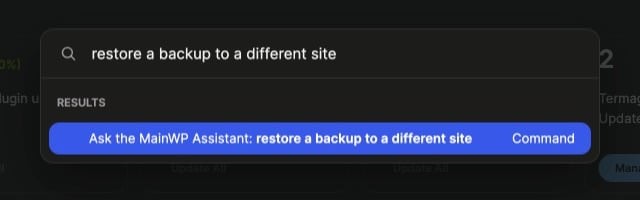
- Command Palette: Press Command + K on Mac or Ctrl + K on Windows and Linux.
- Choose Open the MainWP Assistant to open the chat.
- Or type a question of two or more characters and choose Ask the MainWP Assistant: your text. The chat opens with your text in the message box. It isn’t sent until you click Send message or press Enter, so you can edit it or switch modes first.
The Panel
The panel opens in the bottom-right corner. Drag its header to move it, drag a corner to resize it, or use the header buttons:
The tab bar at the bottom has four entries:
- Home: shortcut cards (Start Chat, Take a Tour, Watch Videos, Community Forum) and your most recent conversation. Take a Tour and Watch Videos work when guided tours and video tutorials are turned on and the current page has one.
- Messages: your saved conversations.
- Contact support: a form that sends your question to MainWP Support. See Contact MainWP Support.
- Settings: opens the Assistant Settings page.
Related Resources
- Asking Questions - Docs and Sites modes, confirmations, and saved conversations
- Contact MainWP Support - Send a conversation to MainWP Support
- Settings, Privacy, and History - AI connection, access modes, what is sent where, and history
- Troubleshooting - Messages you may see and how to fix them
- MainWP AI Menu - Knowledge, MainWP MCP, and MainWP Control