
What You’ll Learn
- Understand when the Security ID is required
- Retrieve the Security ID from a child site
- Enter the Security ID in your Dashboard
- Find the Security ID when the Child plugin is hidden
Prerequisites
- MainWP Dashboard installed and activated
- MainWP Child plugin installed and activated on child sites
- Admin access to both Dashboard and child sites
Why This Happens
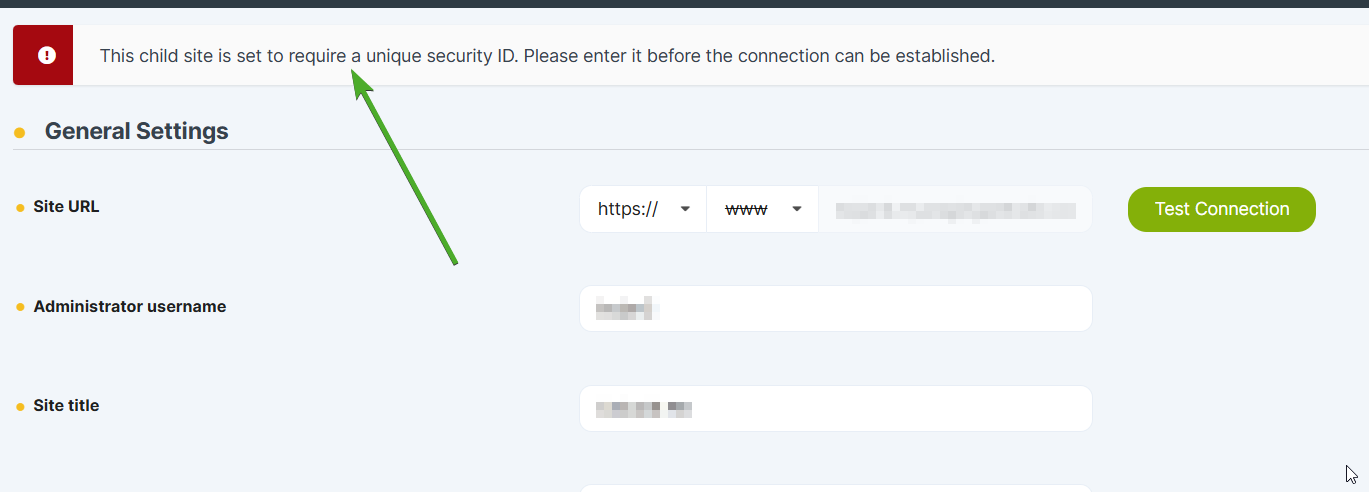
When connecting or reconnecting a child site with Unique Security ID enabled, you’ll see this error:This child site is set to require a unique security ID. Please enter it before the connection can be established.
- Require Unique Security ID is enabled in MainWP Child settings
- Password Authentication is disabled, leaving Unique Security ID as the required connection method
- The child site’s Security ID changed and the Dashboard still has the old value
Enabling Require Unique Security ID and saving generates an ID; later saves keep the same ID. To generate a new one, enable Require Password Authentication first if it is disabled, then turn Require Unique Security ID off and save, and turn it back on and save again. Update the ID in your Dashboard afterward.
Reconnect Using the Security ID
1
Log in to the child site
Access the WordPress Admin of the child site showing the connection error.
2
Navigate to Child plugin settings
Go to Settings > MainWP Child > Settings.
3
Copy the Security ID
Locate the Unique Security ID field and copy its value.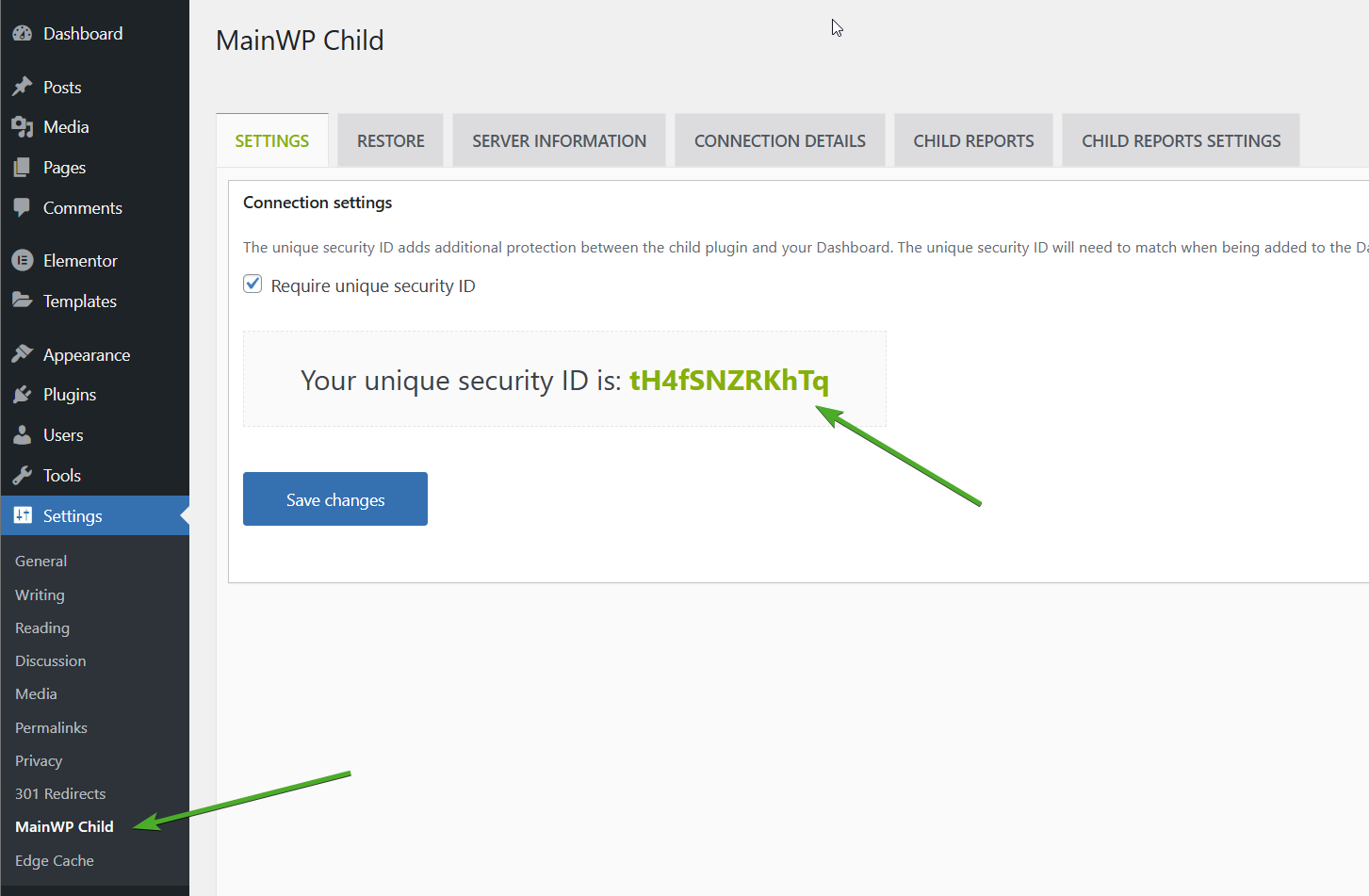
4
Open site settings in Dashboard
Log in to your MainWP Dashboard and go to MainWP > Sites > Manage Sites. Find the child site and click Edit.
5
Paste the Security ID
Paste the copied Security ID into the Unique Security ID field.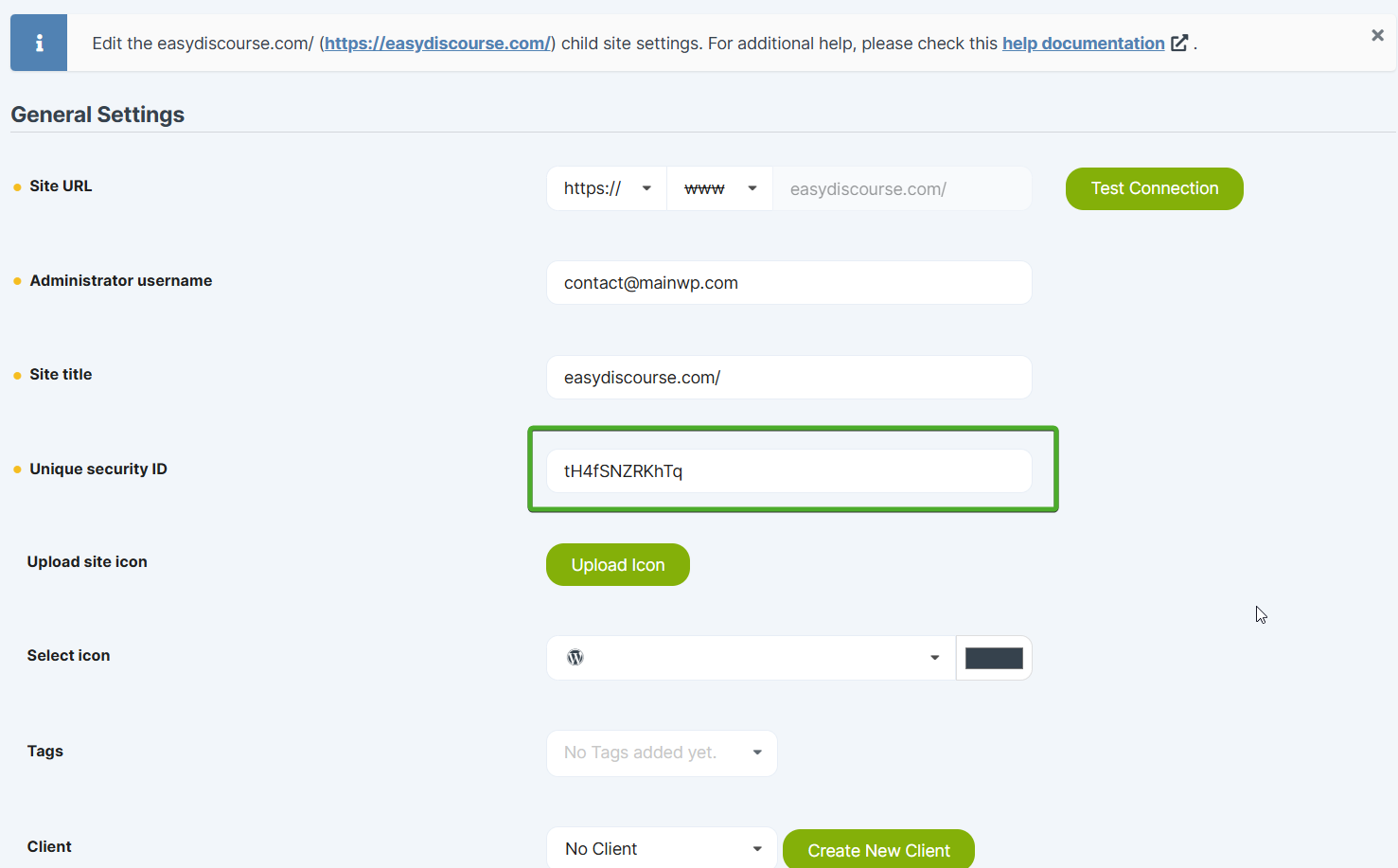
6
Save settings
Scroll down and click Save Settings.
7
Reconnect the site
Click the Reconnect icon in the site’s action menu.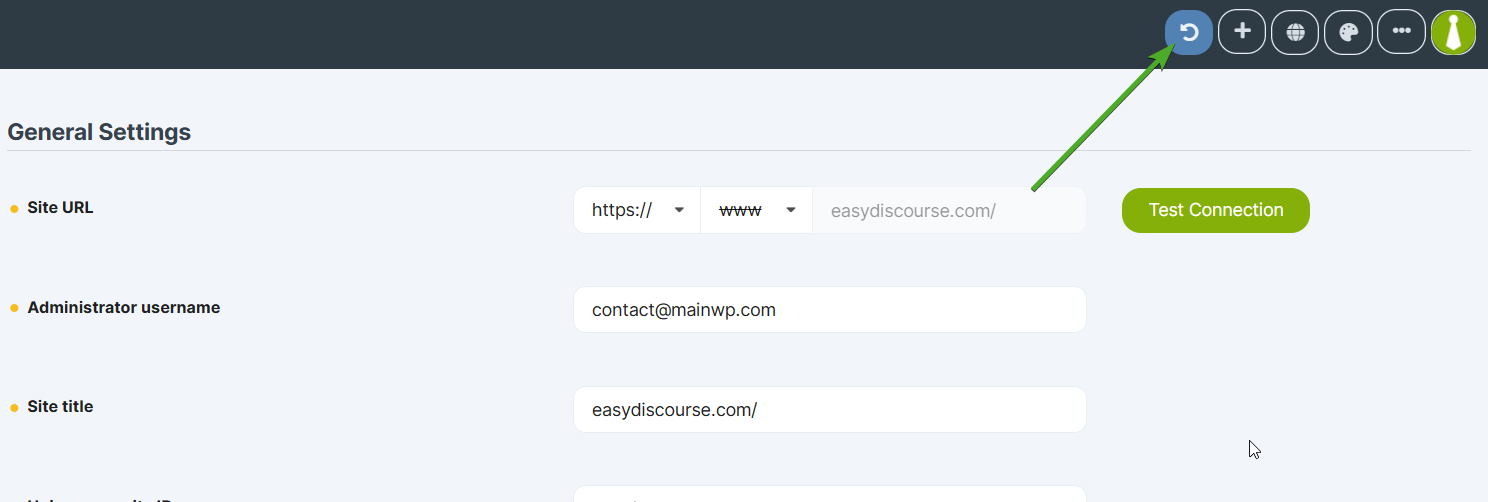
Find Security ID When Child Plugin is Hidden
If you’re using the White Label extension to hide the MainWP Child plugin, the settings page won’t be visible. Retrieve the Security ID directly from the WordPress options table.1
Log in to the child site
Access the WordPress Admin of the child site.
2
Access the options page
Navigate to
your-child-site.com/wp-admin/options.php in your browser.3
Search for the Security ID
Use your browser’s find feature (Ctrl+F or Command+F) to search for:
4
Copy the value
Copy the value from the 
mainwp_child_uniqueId field.5
Complete reconnection
Return to your Dashboard and follow steps 4-7 above to paste the Security ID and reconnect.
Self-Check Checklist
- Retrieved Security ID from child site settings (or options.php)
- Pasted Security ID into Dashboard site settings
- Saved Dashboard settings
- Successfully reconnected the child site
- Site syncs without errors
Related Resources
- Get Started with MainWP - Connect your first child site
- Force Reconnection - Reconnect all sites
- White Label Extension - Hide the Child plugin