
What You’ll Learn
- How to enable 2FA on your MainWP.com account
- How to manage 2FA settings
- How to reset your account password
Enable Two-Factor Authentication
1
Log in to MainWP.com
Log in to your account at mainwp.com/my-account. You’ll see a notice prompting 2FA configuration.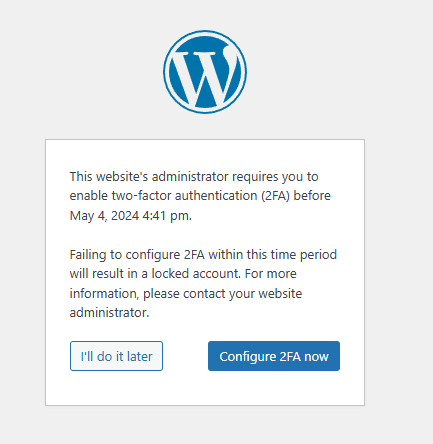
2
Start configuration
Click Configure 2FA now to proceed.
3
Choose your method
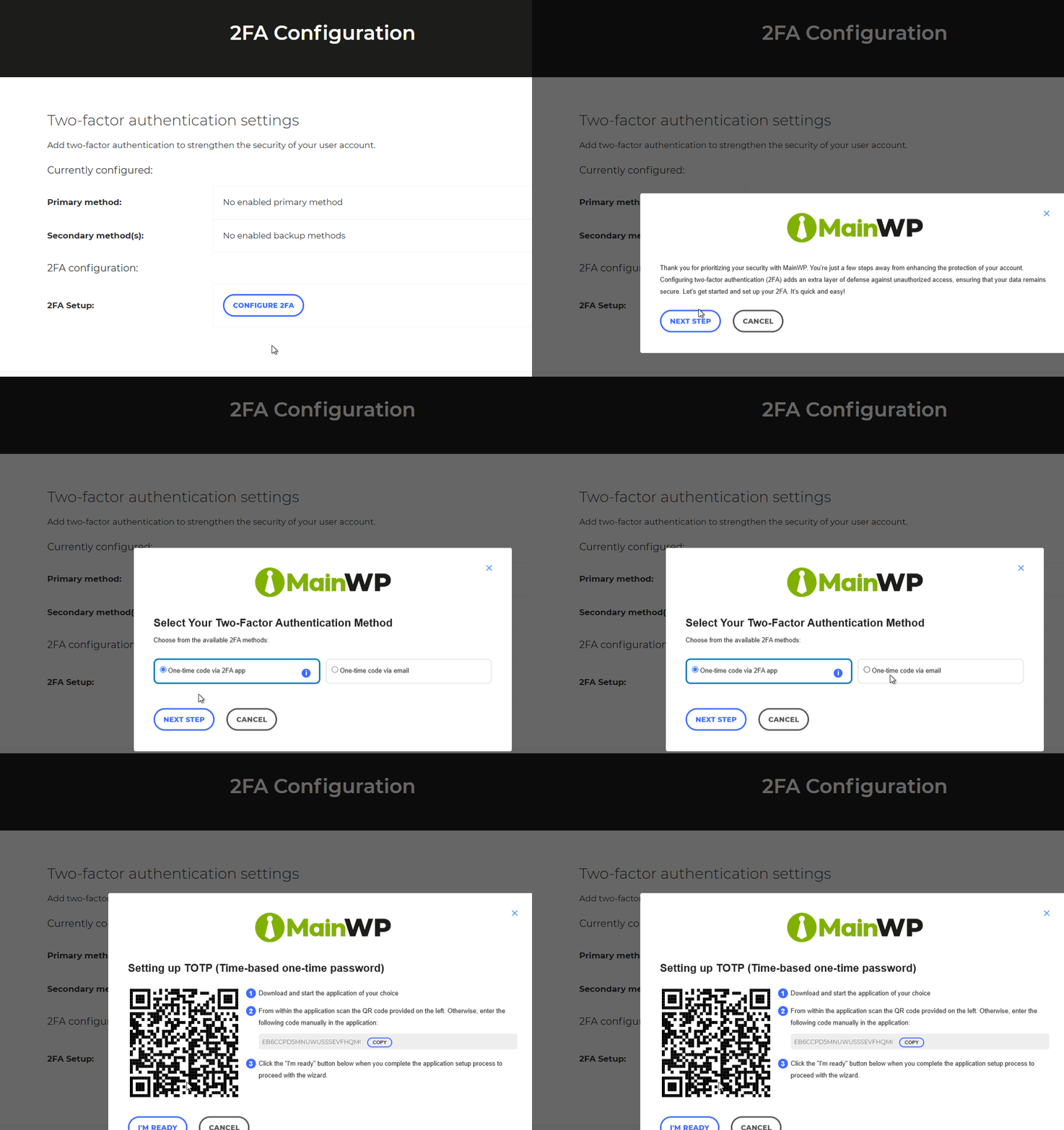
Click Configure 2FA, then Next Step. Choose your verification method:
- One-time code via 2FA app (authenticator app)
-
One-time code via email
4
Set up authenticator app
If using an authenticator app, scan the QR code or enter the code manually into your app (Google Authenticator, Authy, 1Password, etc.).
5
Verify the code
Once your authenticator app displays a six-digit code, click I’M READY. Enter the code and click Validate & Save.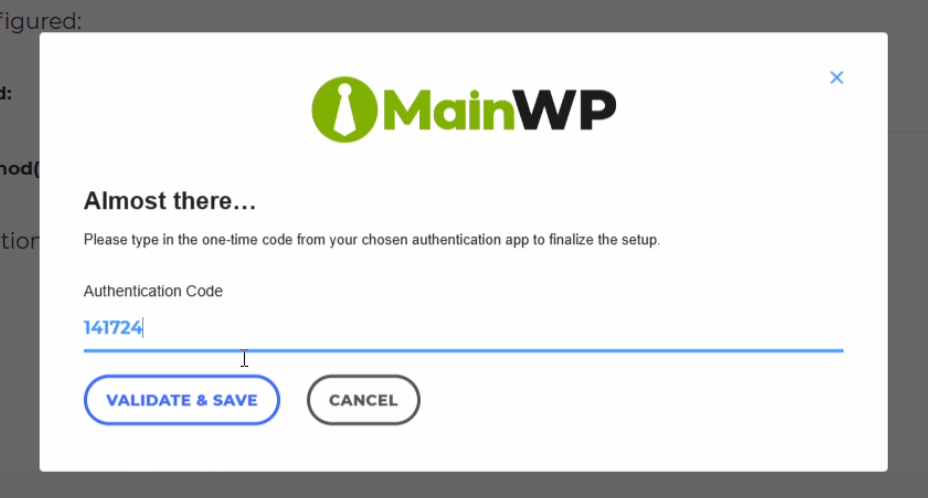
6
Save backup codes
Generate and save a list of backup codes in case you lose access to your authenticator app.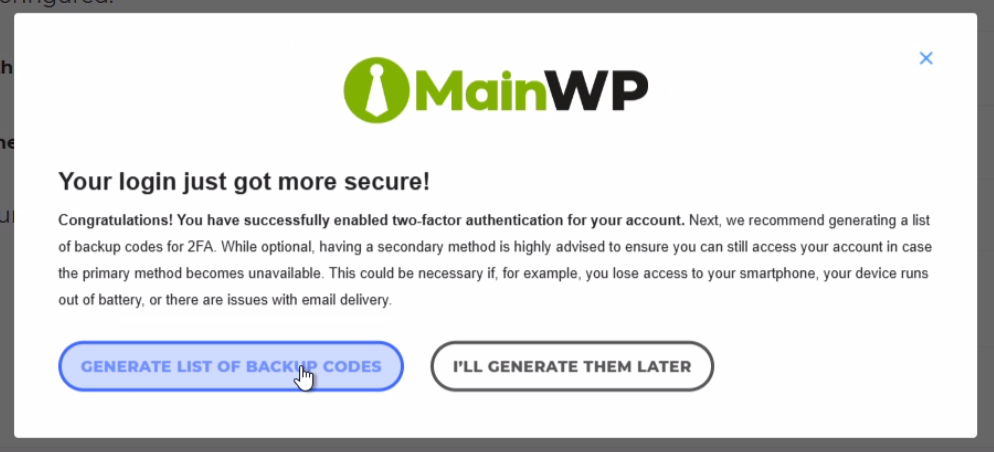
Manage 2FA Settings
After enabling 2FA, you can manage your settings:1
Access 2FA settings
Log in to mainwp.com/my-account and navigate to 2FA Settings.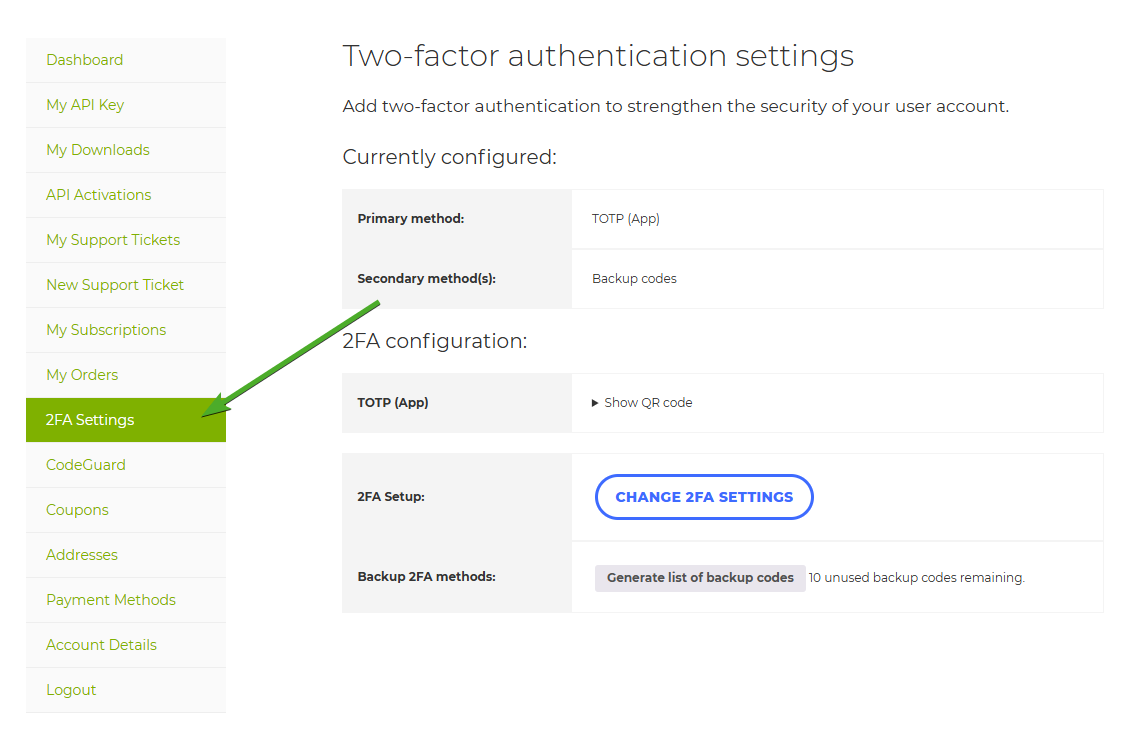
2
Manage options
From this page, you can:
- Generate new backup codes
- Show the QR code again (to add to another device)
- Reset the authenticator app key
- Change the authentication method to email
Reset Your Password
1
Go to password reset page
Navigate to mainwp.com/my-account/lost-password.
2
Request reset email
Enter your username or email and click Reset password.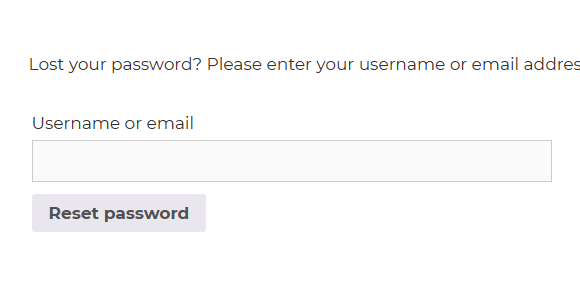
3
Check your email
Click the link in the password reset email you receive.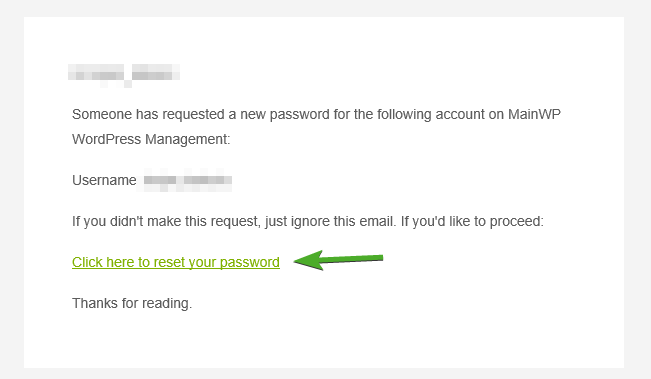
4
Create new password
Enter your new password twice and click Save.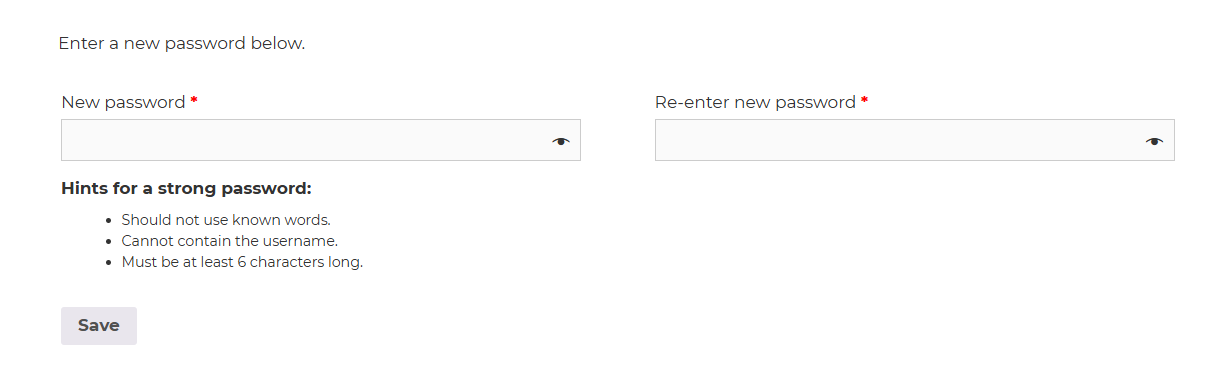
Self-Check Checklist
- 2FA enabled on MainWP.com account
- Authenticator app configured (if using app-based 2FA)
- Backup codes generated and stored securely
- Successfully logged in with 2FA verification
Related Resources
- Two-Factor Authentication for MainWP Dashboard - 2FA for your WordPress Dashboard
- MainWP Security - Overall security practices