
Two-factor authentication adds a second verification step when logging into your WordPress Dashboard. Enabling 2FA on your MainWP Dashboard does not affect MainWP functionality—it only secures the WordPress login process.
What You’ll Learn
- How to install and configure a 2FA plugin on your Dashboard
- How to set up your authenticator app
- How to enforce 2FA for Dashboard users
Prerequisites
- Admin access to your MainWP Dashboard WordPress site
- An authenticator app (Google Authenticator, Authy, 1Password, etc.)
Install the 2FA Plugin
This example uses WP 2FA, but you can use any WordPress 2FA plugin.1
Go to Add Plugins
From your MainWP Dashboard, navigate to WP Admin > Plugins > Add New.
2
Search and install
Search for WP 2FA and install it.
3
Activate the plugin
Activate the plugin. The setup wizard starts automatically.
Configure 2FA Settings
1
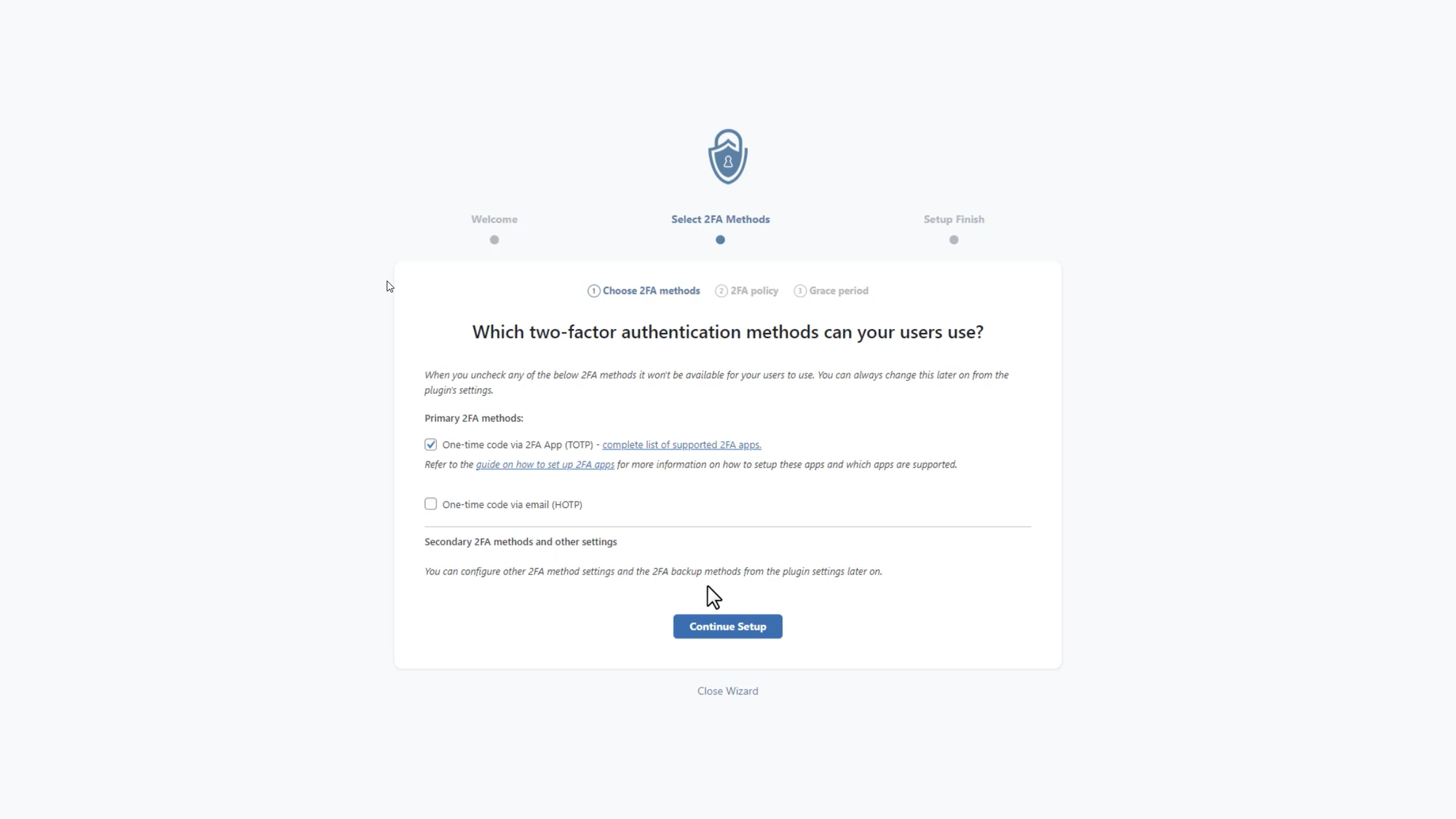
Choose authentication method
Select your preferred 2FA method:
- One-time code via 2FA app (TOTP)
-
One-time code via email
2
Select users to enforce 2FA
Choose which users must use 2FA.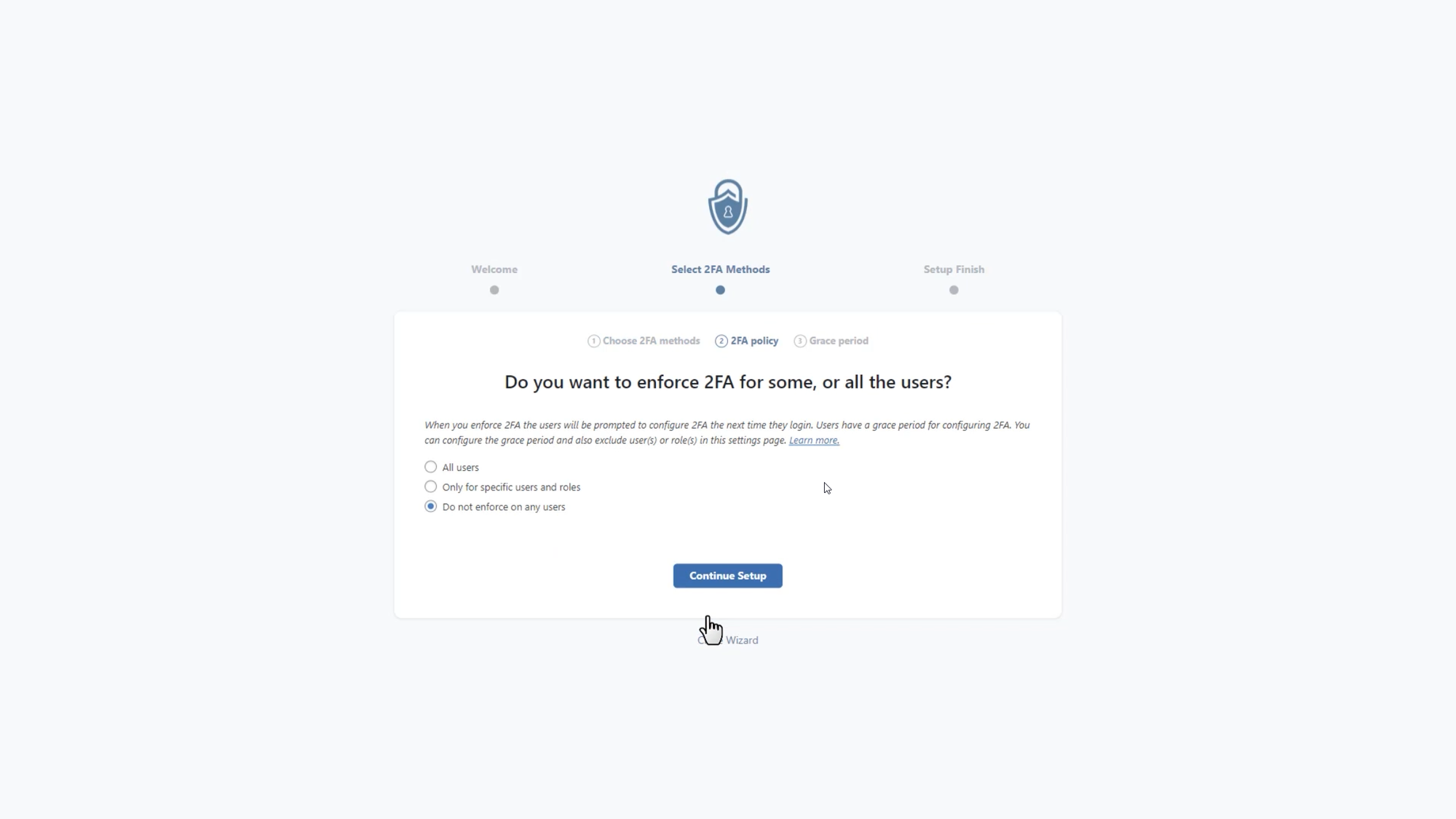
3
Exclude users (optional)
Optionally exclude specific users or roles from the 2FA requirement.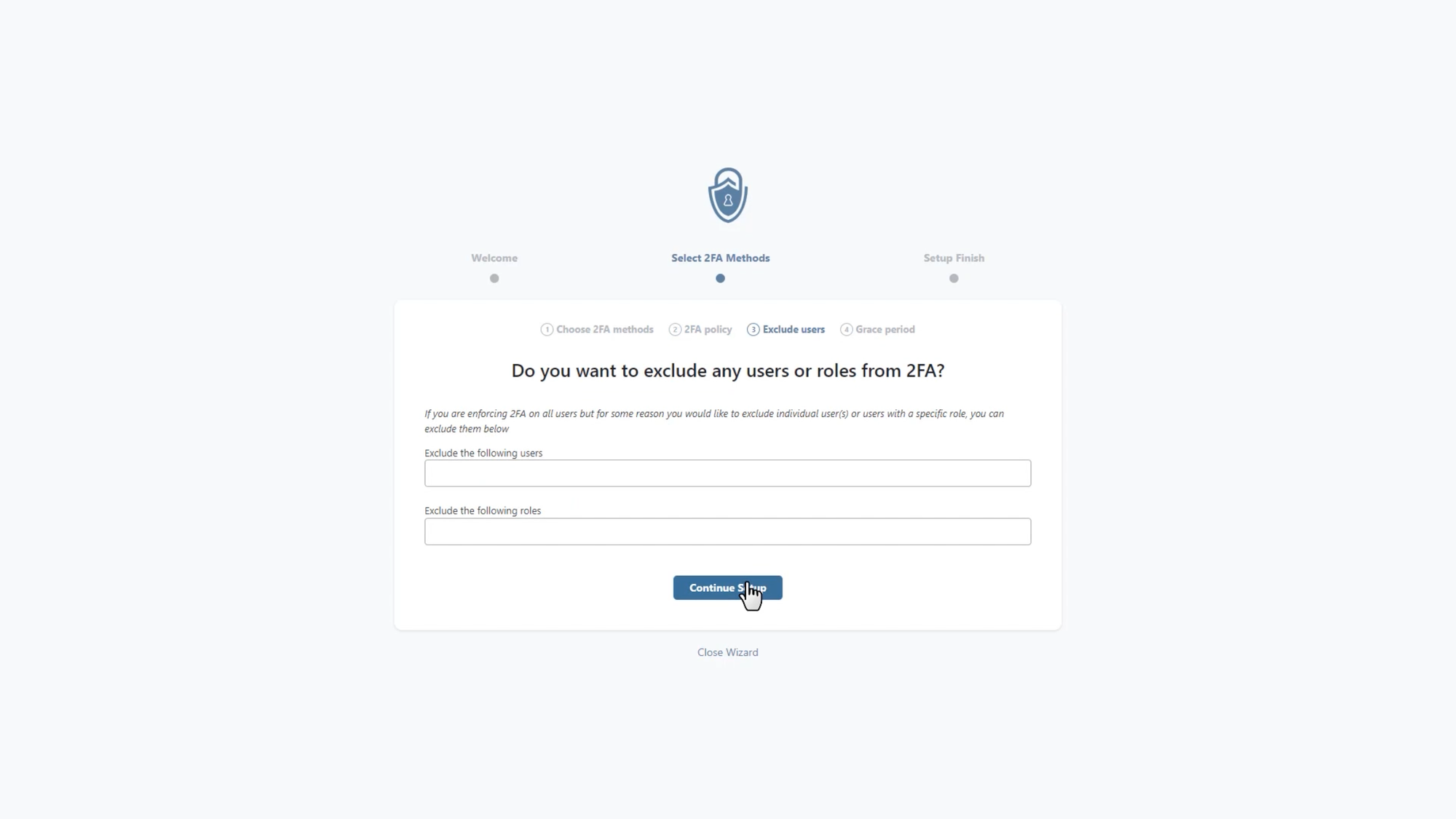
4
Set grace period
Give users time to set up 2FA before it becomes mandatory.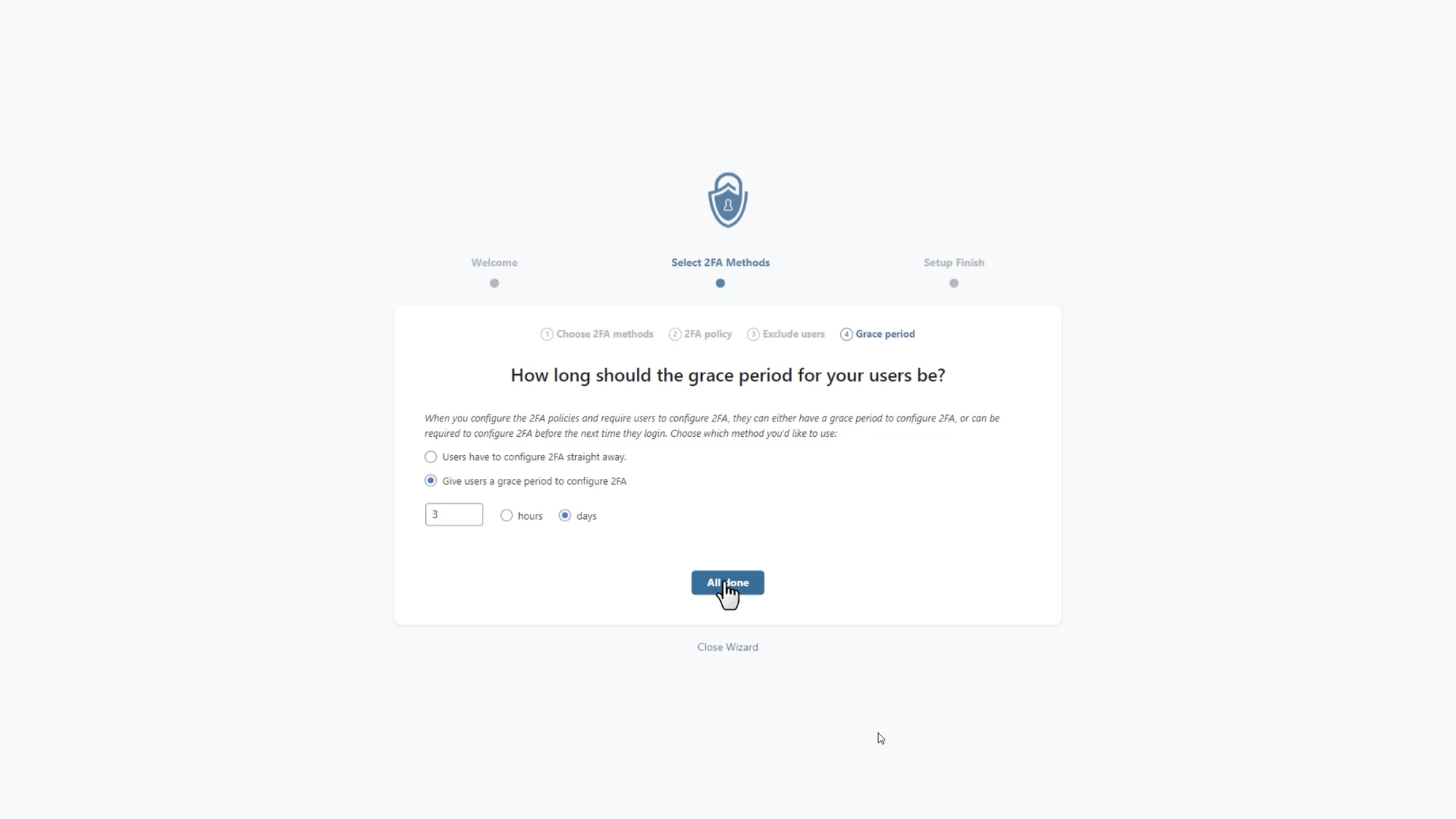
Set Up Your Authenticator App
1
Scan the QR code
Scan the QR code or enter the code manually in your authenticator app.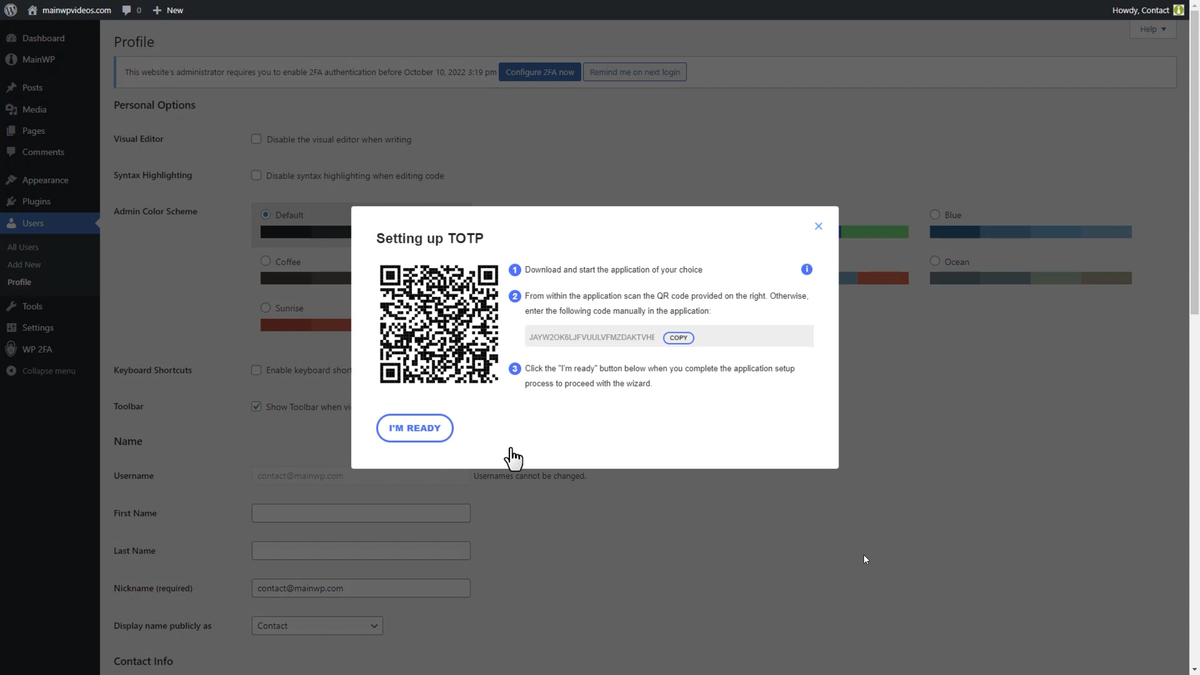
2
Save the entry
Give the account a name and save. The app now generates 6-digit codes.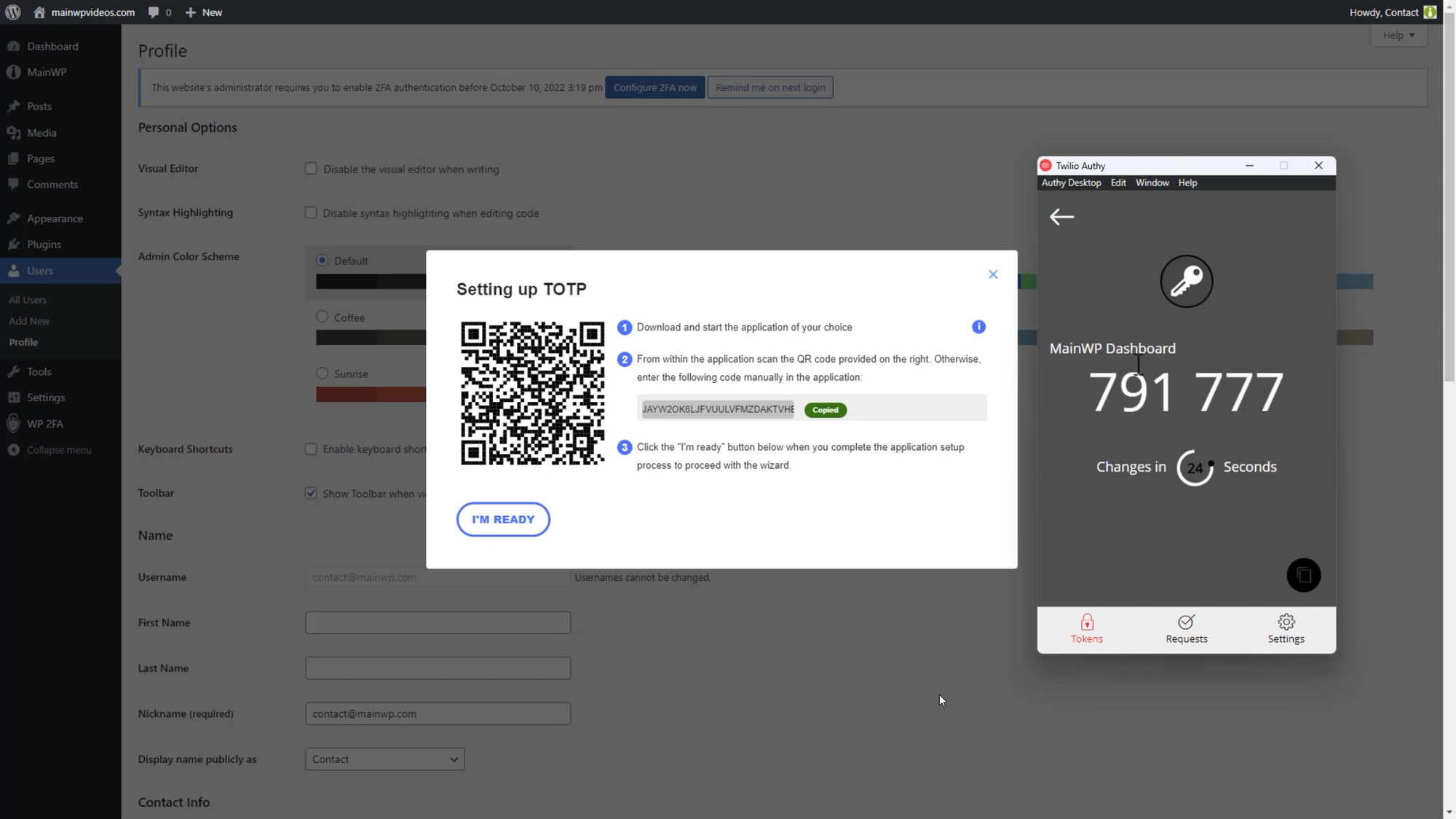
3
Verify the code
Click I’M READY, enter the current code from your app, and click Validate and Save.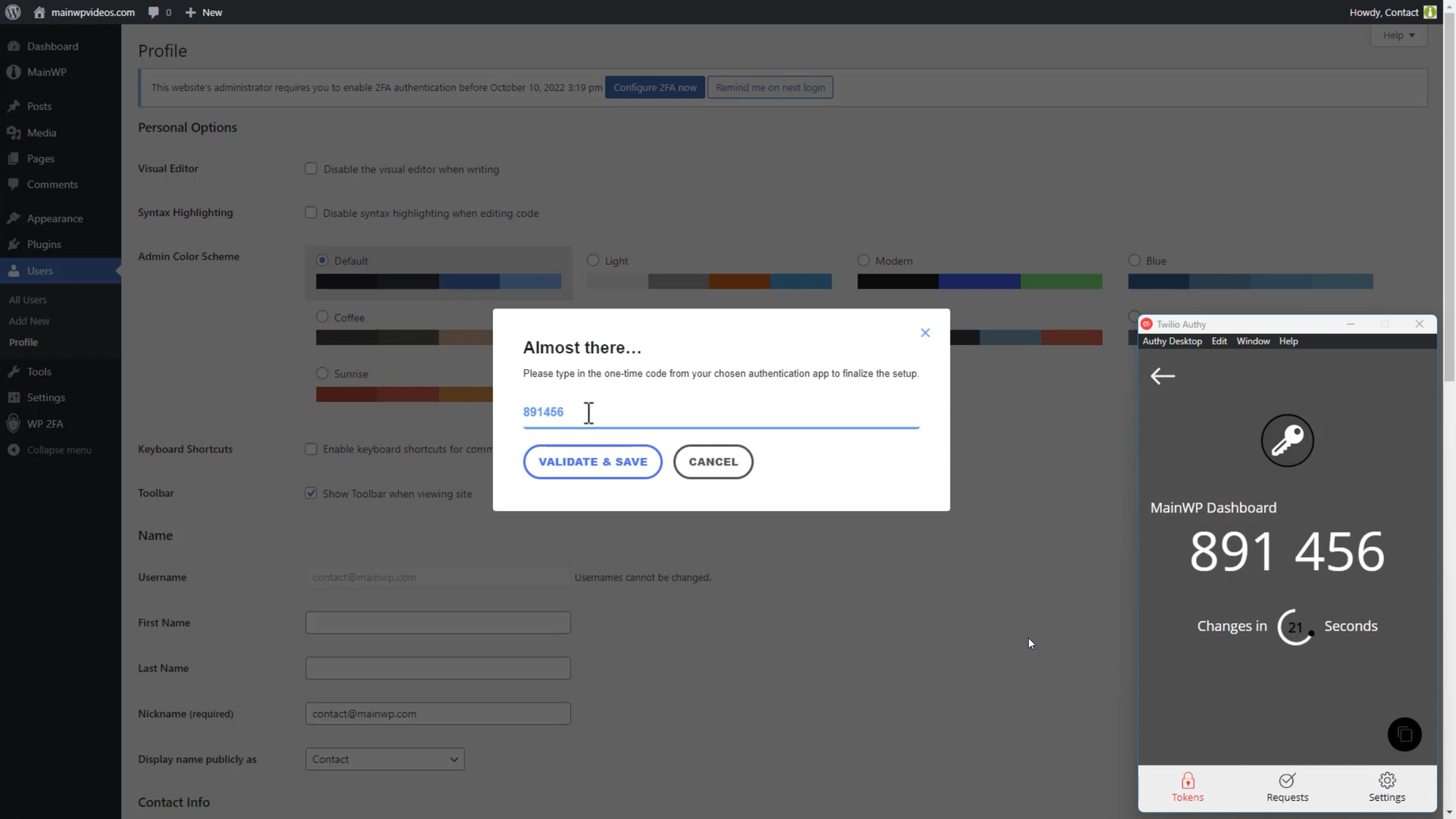
4
Generate backup codes
Optionally generate backup codes in case you lose access to your authenticator app.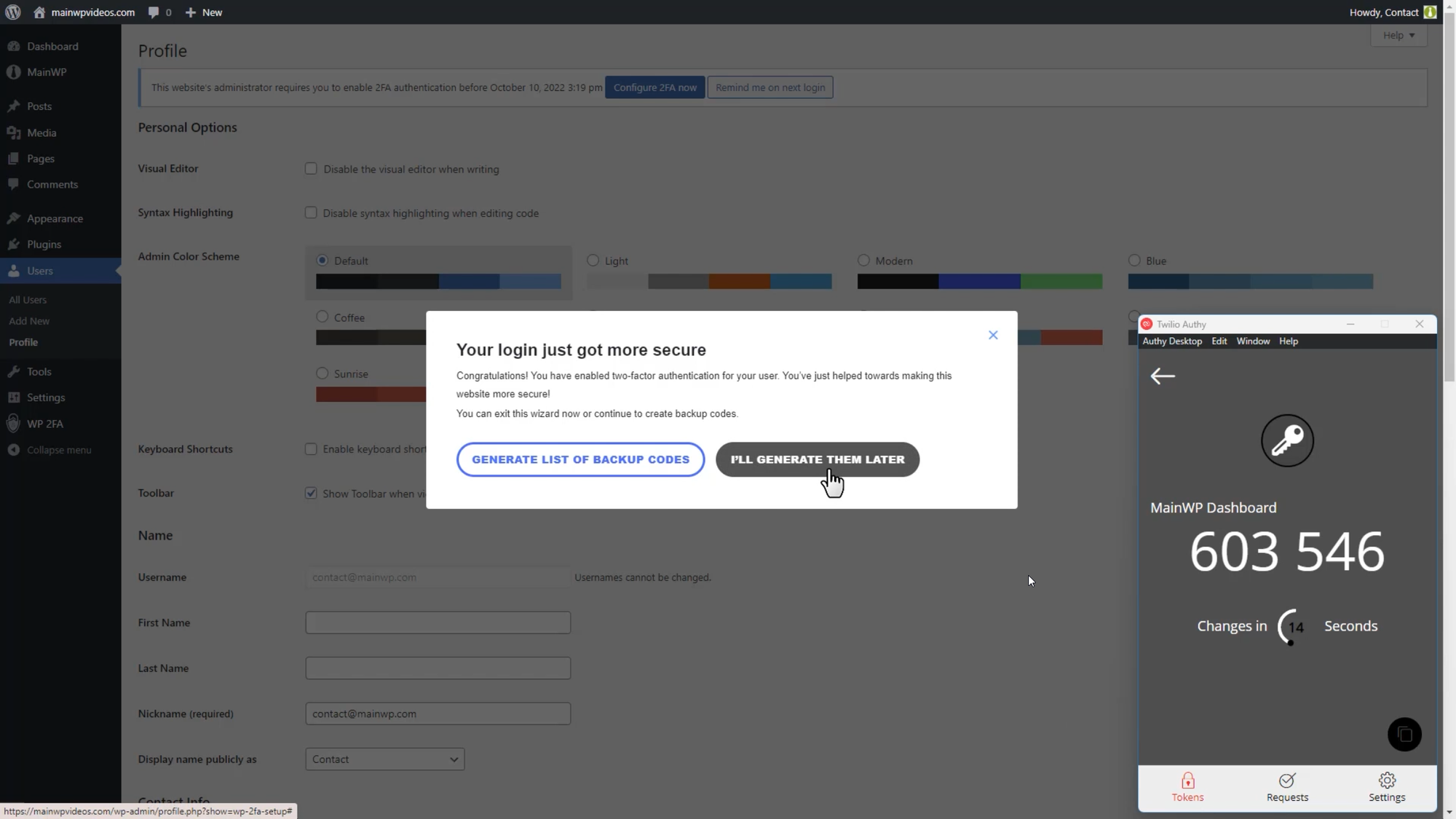
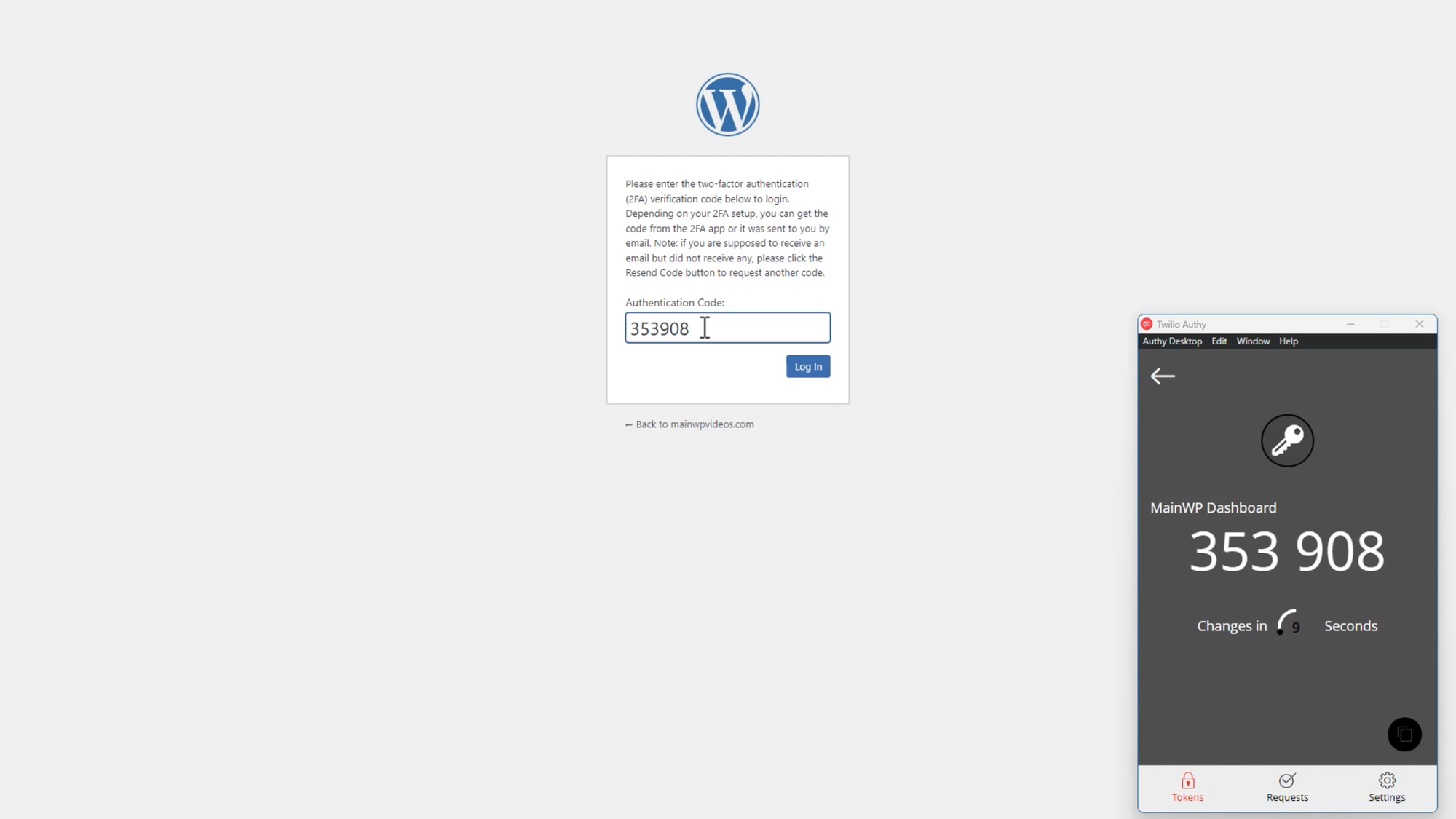
Logging In with 2FA
After setup, the login process requires two steps:- Enter your username and password as usual
- Enter the current 6-digit code from your authenticator app
Self-Check Checklist
- 2FA plugin installed and activated on Dashboard
- Authentication method configured
- Authenticator app scanning completed
- Verification code validated
- Backup codes generated and stored securely
- Login tested with 2FA verification
Related Resources
- MainWP.com Account Security - 2FA for your MainWP.com account
- MainWP Security - Overall security architecture
- Connection Security - Dashboard-to-Child communication