
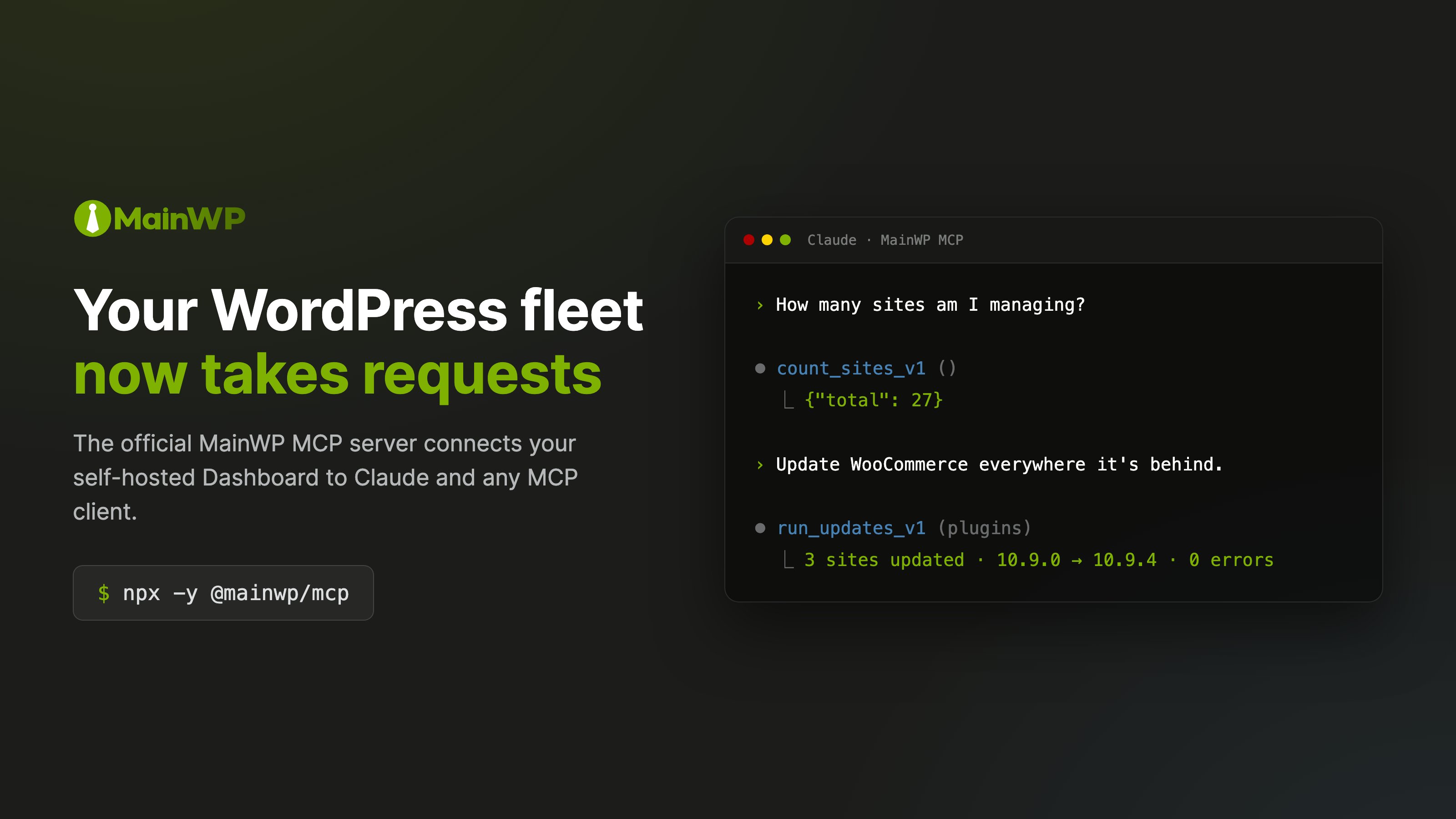
The MainWP MCP Server is in alpha. APIs and configuration options may change between versions.
Download from GitHub
Get the MainWP MCP Server source code, installation instructions, and latest releases.
What You’ll Learn
- How to install and configure the MainWP MCP Server
- How to connect Claude, VS Code Copilot, Cursor, and other AI tools
- Available safety controls and configuration options
- Troubleshooting connection issues
Prerequisites
- Node.js 18, 20, or 22
- WordPress 6.9 or later with MainWP Dashboard 6.0+
- WordPress user with
manage_optionscapability - An Application Password for API authentication
Quick Start
Clone and build the MCP server:Authentication
The MCP Server authenticates with your MainWP Dashboard using WordPress Application Passwords. These are separate from your login password and can be revoked individually. To create an Application Password:- Log into your MainWP Dashboard as an administrator
- Go to Users → Profile
- Scroll to the Application Passwords section
- Enter a name (e.g., “Claude Desktop”) and click Add New Application Password
- Copy the generated password immediately—it won’t be shown again
Configuration
You can configure credentials in two ways: directly in each AI tool’s configuration, or in a centralized settings file.Per-Tool Configuration
Include credentials in the environment variables of your AI tool’s MCP configuration. This approach matches how most MCP servers are configured and lets you use different Application Passwords for each tool.Centralized Settings File
Store credentials once in~/.config/mainwp-mcp/settings.json:
Connecting AI Tools
Claude Code
Add the MCP server using the CLI:~/.claude.json directly:
Claude Desktop
Edit the configuration file at:- macOS:
~/Library/Application Support/Claude/claude_desktop_config.json - Windows:
%APPDATA%\Claude\claude_desktop_config.json
VS Code (Copilot Agent Mode)
Add to.vscode/mcp.json in your project:
Cursor
Add to.cursor/mcp.json in your project or ~/.cursor/mcp.json globally:
OpenAI Codex
Add to~/.codex/config.toml:
Other MCP Clients
Any tool that supports the Model Context Protocol can connect to the MainWP MCP Server. The configuration requires three pieces of information:- Command:
node - Arguments: The path to
dist/index.jsin your cloned mainwp-mcp directory - Environment variables:
MAINWP_URL,MAINWP_USER, andMAINWP_APP_PASSWORD
mcpServers (Claude Desktop, Cursor) or servers (VS Code) as the top-level key. OpenAI Codex uses TOML format instead. Consult your tool’s MCP documentation for the correct structure.
For detailed protocol information, see the Model Context Protocol specification.
Available Tools
The MCP Server exposes MainWP abilities as tools that AI assistants can call. Abilities use names likemainwp/list-sites-v1 in the Abilities API, which become list_sites_v1 as MCP tool names.
| Category | Tools | Description |
|---|---|---|
| Sites | 30 | List, add, sync, and manage child sites including plugins and themes |
| Updates | 13 | Check for and apply WordPress, plugin, theme, and translation updates |
| Clients | 11 | Create and manage client records |
| Tags | 7 | Organize sites and clients with tags |
Sites
30 abilities for site management
Updates
13 abilities for update management
Clients
11 abilities for client management
Tags
7 abilities for tag management
Safety Features
Two-Step Confirmation
Destructive operations like deleting sites, clients, or plugins require explicit confirmation. When you ask an AI to delete something, the MCP Server first returns a preview of what will be affected. After you confirm, the AI makes a second call to execute the deletion. Previews expire after 5 minutes. This flow applies to:delete_site_v1, delete_client_v1, delete_tag_v1, delete_site_plugins_v1, and delete_site_themes_v1.
Safe Mode
Enable safe mode to block all destructive operations entirely:Tool Restrictions
Limit which tools the AI can access using allowlists or blocklists. Read-only access:Configuration Reference
| Variable | Required | Default | Description |
|---|---|---|---|
MAINWP_URL | Yes | — | MainWP Dashboard base URL |
MAINWP_USER | Yes | — | WordPress username |
MAINWP_APP_PASSWORD | Yes | — | Application Password (spaces optional) |
MAINWP_SKIP_SSL_VERIFY | No | false | Skip SSL certificate verification (development only) |
MAINWP_ALLOW_HTTP | No | false | Allow insecure HTTP connections |
MAINWP_SAFE_MODE | No | false | Block all destructive operations |
MAINWP_REQUIRE_USER_CONFIRMATION | No | true | Require two-step confirmation for deletions |
MAINWP_ALLOWED_TOOLS | No | — | Comma-separated list of allowed tools |
MAINWP_BLOCKED_TOOLS | No | — | Comma-separated list of blocked tools |
MAINWP_RATE_LIMIT | No | 60 | Maximum requests per minute (0 to disable) |
MAINWP_REQUEST_TIMEOUT | No | 30000 | Request timeout in milliseconds |
MAINWP_MAX_RESPONSE_SIZE | No | 10485760 | Maximum response size in bytes (10MB) |
MAINWP_RETRY_ENABLED | No | true | Enable automatic retries for transient errors |
MAINWP_MAX_RETRIES | No | 2 | Maximum retry attempts |
MAINWP_SCHEMA_VERBOSITY | No | standard | Use compact for ~30% token reduction |
Only enable
MAINWP_SKIP_SSL_VERIFY or MAINWP_ALLOW_HTTP for local development. These options expose credentials to interception in production environments.MCP Resources
The server exposes resources for debugging and inspection:| URI | Description |
|---|---|
mainwp://abilities | Full list of available abilities with schemas |
mainwp://categories | List of ability categories |
mainwp://status | Current connection status |
mainwp://help | Tool documentation and safety conventions |
Example Prompts
Getting started:- “List all my sites”
- “How many sites do I have?”
- “Which sites are disconnected?”
- “What sites need updates?”
- “Show me all pending plugin updates”
- “Update all plugins on example.com”
- “Apply the WordPress core update to all sites”
- “Sync all my sites”
- “Sync all sites tagged ‘client-a’”
- “Reconnect all disconnected sites”
- “Give me a summary of my MainWP network”
- “Which clients have the most sites?”
Troubleshooting
Verify Connection
Test that your Dashboard’s REST API is accessible:Common Errors
401 Unauthorized- Cause: Invalid credentials
- Fix: Verify the username matches exactly (case-sensitive). Generate a new Application Password in WordPress and update your configuration file.
- Cause: User lacks required permissions
- Fix: Ensure the WordPress user has the
manage_optionscapability. This typically requires the Administrator role.
- Cause: Self-signed or expired certificate
- Fix: Install a valid SSL certificate for production use. For local development only, set
MAINWP_SKIP_SSL_VERIFYtotrue.
- Cause: Dashboard server unreachable
- Fix: Verify the URL is correct and the server is running. Check network connectivity and any firewall rules that might block the connection.
Debug Mode
Use the MCP Inspector for interactive testing:Self-Check Checklist
Verify your MCP Server installation is complete:- MCP server cloned and built without errors (
npm run buildcompletes successfully) - Application Password created in WordPress and saved securely
- Configuration file created in the correct location for your AI tool
- Dashboard URL, username, and Application Password added to configuration
- AI tool restarted or reloaded to pick up the new configuration
- Test command “List all my sites” returns your sites
Related Resources
- Abilities API Overview - How abilities work
- Sites Abilities - 30 abilities for site management
- Updates Abilities - 13 abilities for update management
- Clients Abilities - 11 abilities for client management
- Tags Abilities - 7 abilities for tag management
- GitHub Repository - Source code and issues